
Smart Licensing for Ultra Cloud Core Products
This article provides information about Smart Licensing (SL) solutions and their deployment on Cisco Ultra Cloud Core (UCC) products.
Smart Licensing
Smart Licensing (SL) is a cloud-based software licensing model that allows you to
- activate and manage Cisco software licenses across your organization
- easily track the status of your licenses and software usage trends, and
- pool licenses or entitlements across the entire organization in a flexible and automated manner.
Benefits
These are the key benefits of Smart Licensing.
- Easy activation: Establishes a pool of software licenses that can be used across your company—no more entering Product Activation Keys.
- Unified management: Provides a complete view into all of your products and services in an user-friendly portal.
- License flexibility: Allows you to easily use and move licenses as needed since the software is not node-locked to your hardware.
Key features
These are the key features of Smart licensing
- Direct and Proxy Registration: Registers your device directly with the Cisco Smart Software Manager (CSSM) portal or through a proxy for restricted internet access environments.
- Centralized Management: Manage your license inventory using CSSM, simplifying software asset tracking and management.
- License Portability: Move or transfer your licenses easily between devices, offering flexibility in deploying software assets within the organization.
- Simplified Activation: Simplifies this process by using a pool of licenses that aren’t tied to a specific device as against Traditional licensing.
- Automatic License Renewal: Renews licenses automatically, reducing the administrative burden of tracking license expiration dates and manual renewals.
- Usage Reporting: Generates detailed reports on license usage to understand device software consumption, optimizing your license investments.
- Compliance Assurance: Provides visibility into license entitlements versus actual usage, helping that you stay compliant.
- Real-time Updates: Receives real-time updates from Cisco, ensuring that you have access to the latest features and compliance information.
Comparison between traditional licensing and Smart Licensing
This table summarizes the main distinctions between Smart Licensing and traditional licensing.
|
Attributes |
Traditional licensing | Smart Licensing |
|
License activation |
Activate licenses by manually installing them on the device. |
Activate licenses by registering the device with the Cisco Smart Software Manager (CSSM). |
|
License pooling |
Associates each license with a specific device (node-locked) and does not support license pooling. |
Pools licenses within a virtual network account, allowing activation or deactivation of license types on devices without installing license files. |
|
License inventory |
Does not provide a central location to view purchased licenses or software usage trends. |
Maintains license inventory in CSSM and provides a centralized, statistical view of license usage and consumption. |
|
License transfer |
Does not support easy transfer of licenses between devices. |
Enables easy movement of licenses between devices without manual transfer, simplifying reassignment during Return Material Authorization (RMA) processes. |
|
License visibility |
Offers limited visibility into software licenses, tracking licenses only on a per-node basis. |
Provides consolidated usage reports and an overall snapshot of licenses in the network through a single portal. |
Deployment models for Smart Licensing
Smart Licensing offers various deployment models to provide flexible options for managing software licenses. These are based on your specific network requirements and connectivity preferences.
- Direct deployments: Organizations that have small networks and prefer not to manage an on-premises server, particularly in enterprise environments, opt for this model.
- Offline deployments: Organizations that require highly secure environments opt for this model as it allows them to set up devices without internet access.
Deploying Smart Licensing
Summary
The key components involved in Smart Licensing are:
- Network administrator: The network professional who oversees the license management process, ensuring compliance and optimal utilization.
- Cisco Commerce Workspace (CCW): The platform where users order Cisco software licenses, including Smart License-enabled products.
- Cisco Smart Software Manager (CSSM): The centralized portal where customers manage their Cisco software licenses. It allows creation and management of Smart Accounts and Virtual Accounts.
- Smart Accounts (SA): UCC products integrate with Cisco Smart Accounts to simplify license management. Provides a centralized, organized, and simple-to-use solution for managing Cisco software licenses across an entire organization. They act as a container that holds all Cisco software assets, allowing customers to view, store, manage, and move these assets as needed. Smart Accounts enable full visibility into license entitlements and usage, helping optimize software management. Smart Accounts support license pooling, portability, and provide compliance reporting.
- Virtual Account (VA): These are customizable subaccounts within a Smart Account used to organize and optimize Cisco licenses. They can be structured to reflect business units, product types, or geographic locations, allowing better planning and utilization of assets.
- Network devices: UCC products that require licenses.
- Smart Software Manager (SSM) On-Prem: An on-premises server to report license usage in On-Premises deployment model or Offline deployment model.
- Offline server: An offline server to report license usage in Offline deployment model.
You can deploy Smart Licensing with various deployment models, including direct and offline environments. Each model has specific methods for license activation and usage reporting. The CSSM plays a central role in managing licenses, providing visibility into license usage and ownership, which aids in optimizing resource allocation.
Workflow
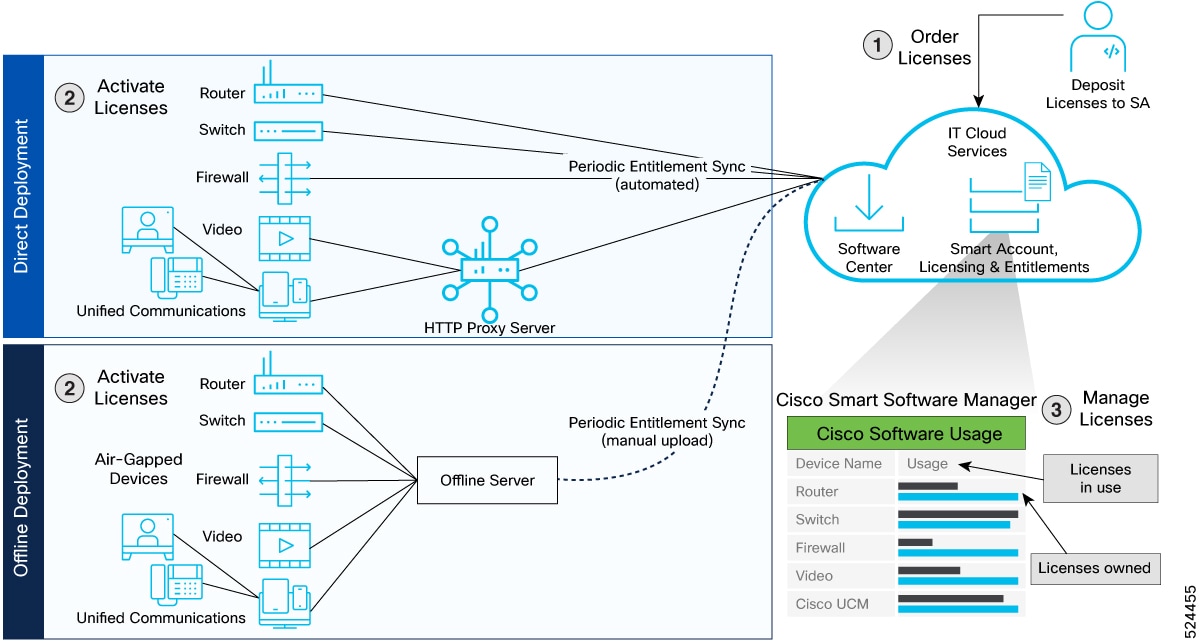
The process of deploying Smart Licensing involves these key stages:
-
Order licenses: The network administrator
- orders licenses from CCW, and
- accesses CSSM to create the Smart Account and Virtual Accounts to organize licenses effectively.
-
Activate licenses: The network administrator
- selects the Deployment models for Smart Licensing based on their requirement
- configures the Smart Licensing transport mode, and
- registers the device with CSSM.
-
Manage licenses: The network administrator
- generates reports from the devices
- synchronizes reports with CSSM either automatically or manually, and
- monitors license usage and compliance status through the CSSM portal.
Guidelines for deploying Smart Licensing
Before deploying Smart Licensing, read the guidelines for a smooth deployment.
- Review the software entitlement and tags for enforced licenses for the devices with the show license enforcement pollicy and show license enforcement status commands.
- Smart licensing is enabled for devices that are deployed with a product ID or a valid configuration. You can register the device with valid url.
Direct deployments
A direct deployment is a Smart Licensing deployment model that
- connects devices to the URL tools.cisco.com, using the internet or an HTTP proxy
- is best suited for small networks or for organizations that do not want to manage an on-premises server
- reports usage information using Smart Transport mode, and
- requires no on-premises server or additional configuration.
Transport modes for direct deployment
The transport mode available for direct deployment is Smart Transport. It sends Smart Licensing (JSON) messages embedded within HTTP messages between the device and CSSM.
Direct deployment methods
Direct deployment offers the following methods:
- Direct cloud access: In this method, devices send usage information directly over the internet using Smart Transport to CSSM.
- Direct cloud access through an HTTPS proxy: In this method, devices send usage information over the internet through a proxy server using either Smart Transport to CSSM.
Report license usage
In direct deployments, the device automatically generates reports once it’s registered with the CSSM.
Steps to deploy direct deployment
After you order the license and set up your smart accounts in CSSM, follow these procedures for direct deployment:
Activate direct deployment licenses with Smart Transport
Before you begin
- Obtain necessary Smart Account and Virtual Account credentials in CSSM.
- Ensure internet connectivity or proxy access, if required.
Follow this procedure to set up direct communication between your device and CSSM using Smart Transport and activate direct deployment licenses.
Step 1 | Execute the license smart transport smart command to enable Smart Transport mode on your device. Example: |
Step 2 | Execute the license smart url smart transport-url command to configure the transport URL The device automatically configures the Smart URL ( https://smartreceiver.cisco.com/licservice/license ). Example: |
Step 3 | If you want to deploy direct cloud access through an HTTPS proxy server, then configure the license smart proxy command to set up a proxy for Smart Transport mode. Skip this step for direct cloud access method. When you configure a proxy server, your device sends licensing messages to the proxy server along with the destination URL of CSSM. The proxy server then sends the message to CSSM. Example: |
Step 4 | Generate a token from the smart account and virtual account in CSSM to register the device. |
Step 5 | Run the license smart register idtoken command to copy the token on the devices. Example: |
Step 6 | Verify the license status using the show license all command. Example: |
What to do next
Manage direct deployment licensesManage direct deployment licenses
This task helps you periodically review license compliance and status for devices managed through direct CSSM deployment.
Follow this procedure to generate license usage reports and verify current license status for devices deployed via direct CSSM connection.
Before you begin
- Ensure you have access to the CSSM UI.
- Ensure you have administrative CLI access to your devices.
Step 1 | In the CSSM UI, navigate to Smart Software Licensing > Reports. |
Step 2 | Generate the report at Run License Report. You can save the report to the device using Export to Excel or Export to CSV. |
Step 3 | On your device, run the show license all command to view the license status and smart license usage. Example: |
Offline deployments
Offline deployment is a Smart Licensing deployment model that
- allows devices to be set up without internet access
- does not require communication with Cisco, and
- is used in highly secure environments.
Specific License Reservation (SLR) is designed for fully air-gapped, classified environments where on-premises licensing is not an option. SLR reserves specific licenses from the smart account according to the device’s license usage and requires no ongoing communication or additional infrastructure.
To use the Specific License Reservation, you must have approval and authorization from Cisco. For assistance, go to www.cisco.com/go/scm or contact your account representative.
To activate SLR for your network, refer Activate licenses for air-gapped environments
License reporting requirements
In offline deployments, no action is required, as there is no reporting of devices to CSSM.
Activate licenses for air-gapped environments
Before you begin
- Ensure you have approval and authorization from Cisco to enable SLR.
- Contact your Cisco account representative for guidance, or visit www.cisco.com/go/scm as needed.
Follow these steps to activate SLR licenses in air-gapped deployments.
Step 1 | Contact your Cisco account representative to obtain the license reservation code. |
Step 2 | Run the license smart reservation command on the device to enable SLR on the device. Example: |
Step 3 | Run the license smart reservation request local command on the device to generate a request code. Copy the request code and enter it at CSSM. Example: |
Step 4 | Navigate to Smart Software Licensing > Inventory in the CSSM UI, and select the virtual account. Then, navigate to Licenses > License Reservation.
|
Step 5 | Run the license smart reservation install file command on your device to enter the file path of the authorization code. Example:This activates SLR for your device. |
Step 6 | Run the show license all command to verify the license status of your device. |