Connecting the Switch to the Network

Preparing for Network Connections

When preparing your site for network connections to your switch, consider the following for each type of interface and gather all the required equipment before connecting the ports:

  • Cabling required for each interface type

  • Distance limitations for each signal type

  • Additional interface equipment required

Connecting to a Console

You can connect the switch to a console to perform the following functions:

  • Configuring the switch using the CLI

  • Monitoring network statistics and errors

  • Configuring SNMP agent parameters

  • Downloading software updates


Note


We recommend that you use this port to create a local management connection to set the IP address and other initial configuration settings before connecting the switch to the network for the first time.


The console port on the switch is an RS-232 port with an RJ-45 interface. This is an asynchronous (async) serial port; any device connected to this port must be capable of asynchronous transmission.


Caution


The console port can be used to connect to a modem. If you do not connect it to a modem, connect it either before powering the switch on or after the switch has completed the boot process.


Before you begin

Before you connect the switch to a console, ensure that you have the following:

  • Computer terminal that supports VT100 terminal emulation. The terminal emulation software (such as HyperTerminal or Procomm Plus) makes communication between the switch and a computer possible during setup and configuration.

Procedure


Step 1

Configure the terminal emulator program to match each of the following default port characteristics:

  • 115200 baud

  • 8 data bits

  • 1 stop bit

  • No parity

Step 2

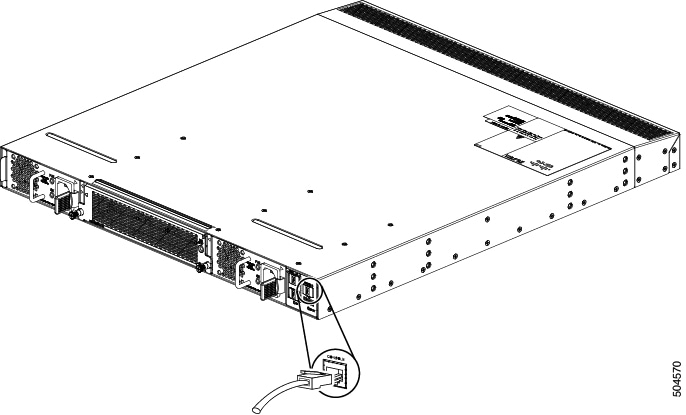
Connect the RJ-45 connector of the console cable to the console port.

Step 3

Connect the RJ-45 connector of the console cable to the console port as shown in the following figure:

Figure 1. Connecting a Console Cable to the Switch

Step 4

Connect the DB-9 connector on the other end of the cable to the computer serial port.


What to do next

You are ready to configure the switch.

Connecting the Management Interface

To create a management connection to the switch, you must connect a management port on the switch to an external hub, switch, or router.

To create a management connection to the switch, you must connect one of the two management ports on the switch to an external hub, switch, or router.

Before you begin

To prevent an IP address conflict, you must complete the initial configuration and establish an IP address for the switch.

Procedure


Step 1

Connect the appropriate modular cable to the management portone of the two management ports on the switch.

Note


Connect to only one management port. The switch does not support your use of two management ports.

  • To connect the management port to an Ethernet switch port or hub, insert the RJ-45 connector for a modular, straight-through UTP cable into the management port.

  • To connect to a router, insert the connector on a crossover cable into the management port.

  • To connect one of the two management ports to an Ethernet switch port or hub, insert the RJ-45 connector (used for shorter connections) straight-through UTP cable into the appropriate management port.

  • To connect to a router, insert the RJ-45 connector on a crossover cable into the appropriate management port.

Step 2

Connect the other end of the cable to the switch, hub, or router.


Connecting Interface Ports to Other Devices

After you perform the initial configuration for the switch and create a management connection, you are ready to connect the interface ports on the switch to other devices. Depending on the types of interface ports on the switch, you will need to use interface cables with SFP+ or SFP transceivers or RJ-45 connectors to connect the switch to other devices.


Note


One of the three rows of downlink ports is upside down to optimize connections. When removing a transceiver from the upside-down row, without a pull-tab, you need to insert a standard (flat) screwdriver to press the release tab to free it from the port.


The transceivers used with many fiber-optic cables come separated from their cables. To prevent damage to the fiber-optic cables and their transceivers, we recommend that you keep these transceivers disconnected from their fiber-optic cables when installing the transceiver in the interface port. Before removing a transceiver for a fiber-optic cable, you must remove the cable from the transceiver.

To maximize the effectiveness and life of your transceivers and optical cables, do the following:

  • Wear an ESD-preventative wrist strap that is connected to an earth ground whenever handling transceivers. The switch is typically grounded during installation and provides an ESD port to which you can connect your wrist strap.

  • Do not remove and insert a transceiver more often than is necessary. Repeated removals and insertions can shorten its useful life.

  • Keep the transceivers and fiber-optic cables clean and dust free to maintain high signal accuracy and to prevent damage to the connectors. Attenuation (loss of light) is increased by contamination and should be kept below 0.35 dB.

  • Clean these parts before installation to prevent dust from scratching the fiber-optic cable ends.

  • Clean the connectors regularly; the required frequency of cleaning depends upon the environment. In addition, clean connectors if they are exposed to dust or accidentally touched. Both wet and dry cleaning techniques can be effective; refer to your site's fiber-optic connection cleaning procedures.

  • Do not touch the ends of connectors. Touching the ends can leave fingerprints and cause other contamination.

  • Inspect routinely for dust and damage. If you suspect damage, clean and then inspect fiber ends under a microscope to determine if damage has occurred.


Warning


Statement 1051—Laser Radiation

Invisible laser radiation may be emitted from disconnected fibers or connectors. Do not stare into beams or view directly with optical instruments.


Installing SFP+ and SFP Transceivers


Note


Excessively removing and installing an SFP or SFP+ transceiver can shorten its life. Unless it is absolutely necessary, do not remove and insert SFP or SFP+ transceivers. To prevent damage to an optical cable and transceiver, we recommend that you disconnect cables before installing or removing transceivers.


Note


If you cannot install the cable into the transceiver, insert or leave the dust plug in the cable end of the transceiver.


Procedure


Step 1

Attach an ESD-preventive wrist strap and follow its instructions for use.

Step 2

Remove the dust cover from the port cage.

Step 3

Remove the dust cover from the port end of the transceiver.

Step 4

Insert the transceiver into the port as follows:

  • If the transceiver has a Mylar tab latch, position the transceiver with the tab on the bottom, and then gently insert the transceiver into the port until it clicks into place.

  • If the transceiver has a bale clasp latch, position the transceiver with the clasp on the bottom, close the clasp by pushing it up over the transceiver, and then gently insert the transceiver into the port until it clicks into place.

    Caution


    If the transceiver does not install easily, ensure that it is correctly positioned and the tab or clasp are in the correct position before continuing.


Installing SFP+ and SFP Optical Cables


Note


To prevent damage to an optical cable and transceiver, disconnect cables before installing or removing transceivers.


Procedure


Step 1

Attach an ESD-preventive wrist strap and follow its instructions for use.

Step 2

Remove the dust cover from the connector on the cable.

Step 3

Remove the dust cover from the cable end of the transceiver.

Step 4

Align the cable connector with the transceiver and insert the connector into the transceiver until it clicks into place.

Caution


If the cable does not install easily, ensure that it is correctly positioned before continuing.

Note


If you cannot install the cable into the transceiver, insert or leave the dust plug in the cable end of the transceiver.

For instructions on verifying connectivity, see the appropriate Cisco Nexus 3550-T Configuration Guide.


Maintaining Transceivers and Optical Cables

Transceivers and fiber-optic cables must be kept clean and dust free to maintain high signal accuracy and prevent damage to the connectors. Contamination increases attenuation (loss of light) and should be below 0.35 dB.

Consider the following maintenance guidelines:

  • Transceivers are static sensitive. To prevent ESD damage, wear an ESD-preventative wrist strap that is connected to the grounded chassis.

  • Do not remove and insert a transceiver more often than is necessary. Repeated removals and insertions can shorten its useful life.

  • Keep all optical connections covered when not in use. Clean them before using to prevent dust from scratching the fiber-optic cable ends.

  • Do not touch the ends of connectors. Touching the ends can leave fingerprints and cause other contamination.

  • Clean the connectors regularly; the required frequency of cleaning depends upon the environment. In addition, clean connectors if they are exposed to dust or accidentally touched. Both wet and dry cleaning techniques can be effective; refer to the fiber-optic connection cleaning procedures for your site.

  • Inspect routinely for dust and damage. If you suspect damage, clean and then inspect fiber ends under a microscope to determine if damage has occurred.


Note


If cable length is more than 5 meters, Auto Negotiation is not supported.


Connecting to Transceivers

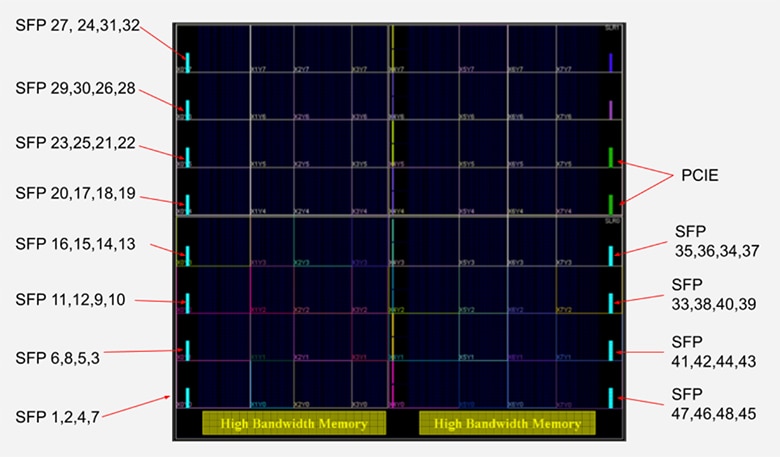
The XCVU35P-3e FPGA has 56 28Gbps capable transceivers. 48 of them are directly connected the SFP ports. The remaining 8 transceivers are connected to the Intel Atom CPU through a PCI Express (PCIe) interface.

The following diagram shows where the transceivers used for Ethernet and PCIe are located in the FPGA.

Figure 2. The Cisco Nexus 3550-T FPGA transceiver layout

Connecting Interface Ports to Other Devices

There is a high speed PCIe interface between the Atom x86 CPU and FPGA module, which is capable of approximately 50Gb/s when configured in Gen3 x8 mode. Please refer to the UltraScale+ Device Integrated Block for PCI Express PG-213.

High-Bandwidth Memory

There is 8 GB of High-Bandwidth Memory (HBM2) integrated in the FPGA for applications requiring high density and high bandwidth (up to 460 GB/s). For access, use the AMD Integrated Memory Interface HBM IP. Please refer to the AXI High Bandwidth Memory Controller v1.0 https://docs.amd.com/r/en-US/pg276-axi-hbm/Introduction for more information.