
New and changed information
The following table provides an overview of the significant changes up to this current release. The table does not provide an exhaustive list of all changes or of the new features up to this release.
| Release Version | Feature | Description |
|---|---|---|
|
Nexus Dashboard 4.3.1 |
Model Context Protocol (MCP) server integration |
Beginning with Nexus Dashboard 4.3.1, the MCP server provides a standardized interface allowing AI clients and Large Language Models (LLMs) to securely query and interact with Nexus Dashboard data, enabling AI-assisted network troubleshooting. |
Nexus Dashboard Model Context Protocol (MCP) server
The Nexus Dashboard MCP server implements the Model Context Protocol (MCP). This standardized interface enables AI assistants and agent frameworks to discover and invoke Nexus Dashboard capabilities. By exposing Nexus Dashboard services as MCP tools and resources, the server abstracts underlying APIs and provides a normalized schema for AI-driven operations.
MCP server provides these operational benefits:
-
Standardized integration: Provides a consistent interface for AI clients that supports MCP, such as IDE-based copilots or agent frameworks, to access Nexus Dashboard data.
-
Operational efficiency: Lets you query network insights with natural language prompts for AI-assisted troubleshooting.
-
Security boundary preservation: Routes interactions through the Nexus Dashboard API Gateway so that role-based access control (RBAC), tenancy isolation, and authentication policies remain enforced.
-
Stateless architecture: Keeps the MCP server stateless and horizontally scalable. The MCP server does not require additional model training and does not store customer data.

In Nexus Dashboard 4.3.1, MCP server supports only LAN deployments.
Operational scope and disclaimers
-
Read-only operations: The MCP server exposes tools exclusively through GET API operations only. It does not perform configuration changes or write operations.
-
AI-generated output: The MCP server output is derived directly from Nexus Dashboard data. External LLMs and AI clients interpret, summarize, or synthesize this data outside of Nexus Dashboard. You are responsible for your interactions with the AI client. Cisco does not guarantee that an external AI client presents the data fully or without modification. Always verify AI-generated output against Nexus Dashboard data.
Supported tools
The tools retrieve the following information:
| Name | Description |
|---|---|
|
|
Retrieves a high-level fabric health summary. If you omit |
|
|
Retrieves detailed fabric inventory, including interface and endpoint lists with optional filters. |
|
|
Retrieves fabric anomalies and advisories, including summaries by severity, category, and mnemonic title. By default, the tool returns data for the last two hours. |
|
|
Retrieves root-cause details and node graph data for a specific anomaly. |
|
|
Retrieves AI job status, GPU allocation, runtime, and state for a date range. |
|
|
Retrieves GPU details, job anomalies, interface statistics, and time-series metrics for AI and ML resources. |
|
|
Retrieves topology graph data, including nodes, edges, and relationships. The |
|
|
Retrieves interface statistics, congestion data for Priority Flow Control events and drops, and optional GPU utilization. |
|
|
Retrieves security segmentation data, including tenants, VRFs, EPGs, security groups, L3Outs, contracts, and filters. |
Deployment support
MCP tools support co-hosted deployments. Federation and co-location deployment scenarios are not supported in Nexus Dashboard 4.3.1.
Time-range prompts
The Nexus Dashboard MCP server provides the time_now utility to fetch the current Nexus Dashboard server time.
AI clients can use time_now to resolve relative time ranges before requesting time-range data from other MCP tools. The time_now utility does not return Nexus Dashboard fabric, anomaly, topology, network analytics, AI job, or security segmentation data.
Pagination limits for MCP tools
Some paginated MCP tools include a max parameter in the tool schema to control the number of values returned. Valid values range from 1 through 10,000.
The MCP server processes max parameter as follows:
-
Omitted: Uses the default value of 100.
-
0 or less: Uses the default value of 10.
-
Greater than 10,000: Uses the maximum value of 10,000.
-
1 through 10,000: Uses the specified value.
This behavior ensures that AI agents handle paginated MCP responses consistently when the max value is omitted or invalid.
Configure the AI client
Follow these steps to connect an AI client to the Nexus Dashboard MCP server.
-
Generate credentials: Navigate to Admin > Users and Security. Generate an API key for the user account the AI client uses.
The MCP server enforces role-based access control (RBAC) based on the user associated with this API key. The full API key string appears only once. Copy and store the key before you close the API key generation page. If you close the page before copying the key, delete the API key and generate a new one.
-
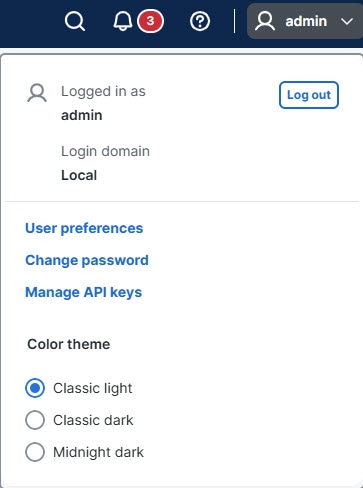
From the user menu, choose Manage API keys.
-
In the Manage API keys page, click Add API key.
-
In the Create API key page, enter the Description.
-
Click Add annotation, enter the Key and Value details.
-
Click Save.
-
In the Copy API key page, copy and store the generated API key, then click Close.
-
In the Manage API keys page, review the API key details in the API key column.
-
-
Configure the AI client: Update
mcp.jsonfile for your client. AI clients and tools use different configuration file locations and workflows. Add the MCP server configuration to the configuration file specific to your AI client. For VS Code on macOS, the file is typically located in~/Library/Application Support/Code/User/. Use the following configuration template:{ "nd-mcp-server": { "url": "https://<ND_IP>/api/v1/mcp", "type": "https", "rejectUnauthorized": false, "headers": { "X-Nd-Apikey": "<YOUR_API_KEY>", "X-Nd-Username": "<USERNAME>" } } } -
Install the Certificate Authority (CA) certificate that signed the Nexus Dashboard system certificate in your Nexus Dashboard. For more information, see Managing Certificates in your Nexus Dashboard.
-
Upload or bind a CA-signed system certificate whose Subject Alternative Name includes the Nexus Dashboard hostname and IP addresses.
-
Import the same CA certificate into the trust store that the AI client uses.
-
If the AI client runs on macOS, add the CA certificate to the system keychain by using the following command. In this command,
ca.crtis a placeholder for the certificate file that you created earlier. This file must include the BEGIN CERTIFICATE and END CERTIFICATE strings:sudo security add-trusted-cert -d -r trustRoot -k /Library/Keychains/System.keychain ca.crt -
If the AI client runs on another operating system, import the CA certificate into the operating system or client trust store that the AI client uses.
-
Do not disable certificate validation in production environments. If your AI client uses a
Node.jsconfiguration, exportNODE_TLS_REJECT_UNAUTHORIZED=0and restart the client to apply the environment changes. -
Configuration steps may vary depending on the AI client. Verify the proxy strict SSL setting, for Cursor, navigate to Settings > VS Code Settings and ensure that Proxy Strict SSL is cleared. Then, navigate to Settings > Cursor Settings > Tools & MCPs and toggle the target MCP server.
-
-
Restart the AI client application to initialize the MCP session.
Sample prompts
These prompts are simple examples. Tailor them to your goals, prompt engineering practices, and the limitations of your AI client.
Use these sample prompts to query Nexus Dashboard data through the MCP server:
-
Show the health summary for all fabrics in Nexus Dashboard.
-
List critical and major anomalies for fabric
fabricNamein the last two hours, and group them by title. -
Show root-cause details for anomaly
anomalyIdin fabricfabricName. -
Show interface congestion and drop statistics for fabric
fabricNamefromstartDatetoendDate. -
Show GPU utilization and interface statistics for AI job
jobId. -
Show security segmentation for fabric
fabricName, including VRFs, EPGs, security groups, and contracts. -
Compare anomalies and advisories for fabric 1 and fabric 2.
Example MCP troubleshooting workflow
Follow these steps to troubleshoot network issues using MCP prompts.
-
Ask the AI client to list the tools that are available from the Nexus Dashboard MCP server.
-
Use the
get_fabric_summarytool to identify affected fabrics and their health status. -
Use the
get_nd_anomalies_advisories_summarytool to review recent anomalies and advisories for the affected fabric. -
Use the
get_nd_anomaly_detailstool to review root-cause details and node graph data for a selected anomaly. -
Use the
get_fabric_network_analyticstool or theget_security_segmentationtool to gather evidence for congestion, drops, VRFs, EPGs, security groups, and contracts. -
For prompts that use relative time, use the
time_nowutility first to resolve the current time, and then provide explicit ISO 8601 start and end times. -
Verify the AI-generated output against the Nexus Dashboard data that the tools return.
Copyright
THE SPECIFICATIONS AND INFORMATION REGARDING THE PRODUCTS IN THIS MANUAL ARE SUBJECT TO CHANGE WITHOUT NOTICE. ALL STATEMENTS, INFORMATION, AND RECOMMENDATIONS IN THIS MANUAL ARE BELIEVED TO BE ACCURATE BUT ARE PRESENTED WITHOUT WARRANTY OF ANY KIND, EXPRESS OR IMPLIED. USERS MUST TAKE FULL RESPONSIBILITY FOR THEIR APPLICATION OF ANY PRODUCTS.
THE SOFTWARE LICENSE AND LIMITED WARRANTY FOR THE ACCOMPANYING PRODUCT ARE SET FORTH IN THE INFORMATION PACKET THAT SHIPPED WITH THE PRODUCT AND ARE INCORPORATED HEREIN BY THIS REFERENCE. IF YOU ARE UNABLE TO LOCATE THE SOFTWARE LICENSE OR LIMITED WARRANTY, CONTACT YOUR CISCO REPRESENTATIVE FOR A COPY.
The Cisco implementation of TCP header compression is an adaptation of a program developed by the University of California, Berkeley (UCB) as part of UCB’s public domain version of the UNIX operating system. All rights reserved. Copyright © 1981, Regents of the University of California.
NOTWITHSTANDING ANY OTHER WARRANTY HEREIN, ALL DOCUMENT FILES AND SOFTWARE OF THESE SUPPLIERS ARE PROVIDED “AS IS" WITH ALL FAULTS. CISCO AND THE ABOVE-NAMED SUPPLIERS DISCLAIM ALL WARRANTIES, EXPRESSED OR IMPLIED, INCLUDING, WITHOUT LIMITATION, THOSE OF MERCHANTABILITY, FITNESS FOR A PARTICULAR PURPOSE AND NONINFRINGEMENT OR ARISING FROM A COURSE OF DEALING, USAGE, OR TRADE PRACTICE.
IN NO EVENT SHALL CISCO OR ITS SUPPLIERS BE LIABLE FOR ANY INDIRECT, SPECIAL, CONSEQUENTIAL, OR INCIDENTAL DAMAGES, INCLUDING, WITHOUT LIMITATION, LOST PROFITS OR LOSS OR DAMAGE TO DATA ARISING OUT OF THE USE OR INABILITY TO USE THIS MANUAL, EVEN IF CISCO OR ITS SUPPLIERS HAVE BEEN ADVISED OF THE POSSIBILITY OF SUCH DAMAGES.
Any Internet Protocol (IP) addresses and phone numbers used in this document are not intended to be actual addresses and phone numbers. Any examples, command display output, network topology diagrams, and other figures included in the document are shown for illustrative purposes only. Any use of actual IP addresses or phone numbers in illustrative content is unintentional and coincidental.
The documentation set for this product strives to use bias-free language. For the purposes of this documentation set, bias-free is defined as language that does not imply discrimination based on age, disability, gender, racial identity, ethnic identity, sexual orientation, socioeconomic status, and intersectionality. Exceptions may be present in the documentation due to language that is hardcoded in the user interfaces of the product software, language used based on RFP documentation, or language that is used by a referenced third-party product.
Cisco and the Cisco logo are trademarks or registered trademarks of Cisco and/or its affiliates in the U.S. and other countries. To view a list of Cisco trademarks, go to this URL: https://www.cisco.com/go/trademarks. Third-party trademarks mentioned are the property of their respective owners. The use of the word partner does not imply a partnership relationship between Cisco and any other company. (1110R)
© 2017-2026 Cisco Systems, Inc. All rights reserved.
Americas Headquarters
Cisco Systems, Inc.
170 West Tasman Drive
San Jose, CA 95134-1706
USA
https://www.cisco.com
Tel: 408 526-4000
800 553-NETS (6387)
Fax: 408 527-0883