
New and changed information
The following table provides an overview of the significant changes up to this current release. The table does not provide an exhaustive list of all changes or of the new features up to this release.
| Release Version | Feature | Description |
|---|---|---|
|
Nexus Dashboard 4.2.1 |
There were no major changes from the previous release. |
|
QoS and global DSCP policy
Cisco ACI Quality of Service (QoS) feature allows you to classify the network traffic in your fabric and then to prioritize and police the traffic flow to help avoid congestion in your network. When traffic is classified within the fabric, it is assigned a QoS Priority Level, which is then used throughout the fabric to provide the most desirable flow of packets through the network.
Nexus Dashboard supports configuration of QoS level based on source EPG or a specific Contract. Additional options are available in each fabric directly. You can find detailed information on ACI QoS in Cisco APIC and QoS.
When traffic is sent and received within the Cisco ACI fabric, the QoS Level is determined based on the CoS value of the VXLAN packet’s outer header. In certain use cases, such as multi-pod or remote leaf topologies, the traffic must transit an inter-fabric network, where devices that are not under Cisco APIC’s management may modify the CoS values in the packets. In these cases you can preserve the ACI QoS Level between parts of the same fabric or different fabrics by creating a mapping between the Cisco ACI QoS level and the DSCP value within the packet.
DSCP policy guidelines and limitations
When configuring the global DSCP translation policy, the following guidelines apply.
-
Global DSCP policy is supported for on-premises fabrics only.
-
When defining the global DSCP policy, you must pick a unique value for each QoS Level.
-
When assigning QoS level, you can choose to assign it to a specific Contract or an entire EPG.
If multiple QoS levels could apply for any given traffic, only one is applied using the following precedence:
-
Contract QoS level: If QoS is enabled in the Contract, the QoS level specified in the contract is used.
-
Source EPG QoS level: If QoS level is not specified for the Contract, the QoS level set for the source EPG is used.
-
Default QoS level: If no QoS level is specified, the traffic is assigned Level 3 QoS class by default.
-
Configure global DSCP policy
-
You should be familiar with Quality of Service (QoS) functionality within ACI fabrics.
QoS is described in more detail in Cisco APIC and QoS.
When traffic is sent and received within a Cisco ACI fabric, it is prioritized based on the ACI QoS Level, which is determined based on the CoS value of the VXLAN packet’s outer header. When traffic exits the ACI fabric toward an inter-fabric network, for example in multipod and remote leaf switch topologies, the QoS level is translated into a DSCP value which is included in the outer header of the VXLAN-encapsulated packet.
This section describes how to define the DSCP translation policy for traffic entering or exiting ACI fabric. This is required when traffic must transit through non-ACI networks, where devices that are not under Cisco APIC’s management may modify the CoS values in the transiting packets.
-
Navigate to the Orchestration window.
Manage > Orchestration
-
Create a new tenant policy.
-
Choose Tenant Templates > Tenant Policies.
-
On the Tenant Policy Templates page, click Create Tenant Policy Template.
-
In the Tenant Policies page’s right properties sidebar, provide the Name for the template.
-
From the Select a Tenant drop-down, choose the tenant with which you want to associate this template.
All the policies that you create int his template as described in the following steps will be associated with the selected tenant and deployed to it when you push the template to a specific fabric.
By default, the new template is empty, so you must add one or more tenant policies as described in the following steps. You don’t have to create every policy available in the template - you can define one or more policies of each type to deploy along with this template. If you don’t want to create a specific policy, simply skip the step that describes it.
-
-
Create a QoS DSCP policy.
-
From the +Create Object drop-down, select QoS DSCP.
-
In the right properties sidebar, provide the Name for the policy.
-
(Optional) Click Add Description and provide a description for the policy.
-
Provide policy details.
-
Admin State - Enables or disables the policy.
-
Advanced Settings - Click the arrow next to this section to expand.
Choose the DSCP value for each ACI QoS level. Each drop-down contains the default list of available DSCP values. You must choose a unique DSCP value for each level.
-
-
Repeat this step to create any additional QoS DSCP policies.
Typically, we recommend applying this policy consistently across all fabrics that are part of your Multi-Fabric domain.
-
-
Assign the policy to one or more fabrics.
-
In the Fabric Policies template view, select Actions > Add/Remove Fabrics.
-
In the Add Fabrics to <tempalte> dialog, select one or more fabrics for this policy template and click Ok.
-
In the Fabric Policies template view, click Deploy.
After you save and deploy, the DSCP policy settings will be pushed to each fabric. You can verify the configuration by signing in to the fabric’s APIC and navigating to Tenants > infra > Policies > Protocol > DSCP class-CoS translation policy for L3 traffic.
-
After you have defined the global DSCP policy, you can assign the ACI QoS Levels to EPGs or Contracts as described in Set QoS level for EPGs and contracts.
Set QoS level for EPGs and contracts
-
You must have defined the global DSCP policy, as described in Configure global DSCP policy.
-
You should be familiar with Quality of Service (QoS) functionality within ACI fabrics.
QoS is described in more detail in Cisco APIC and QoS.
This section describes how to choose an ACI QoS level for traffic in your fabrics. You can choose to specify QoS for individual Contracts or entire EPGs.
-
Navigate to the Orchestration page.
Manage > Orchestration
-
Choose the Schema that you want to edit.
-
Choose Tenanat Templates > Applications.
-
Click the name of the schema that you want to edit or Add Schema to create a new one.
The Edit policy page opens.
-
-
Pick a QoS Level for an EPG.
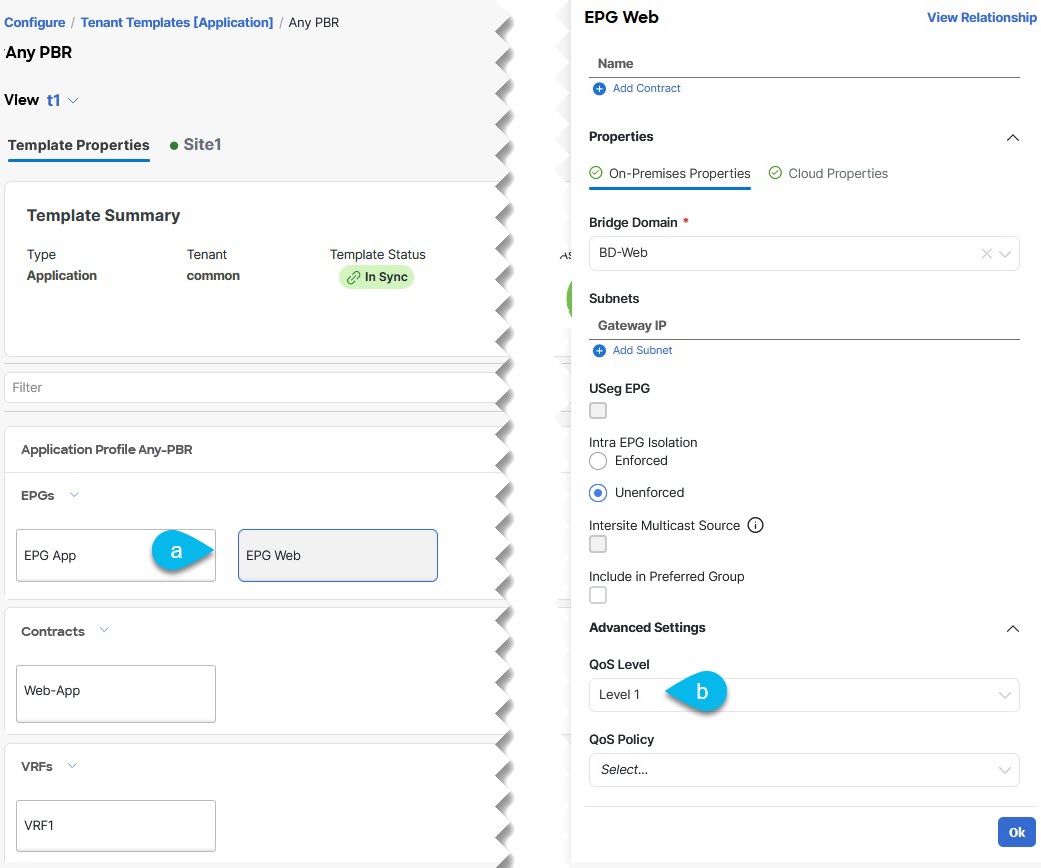 Edit policy
-
In the main pane, scroll down to the EPG area and select an EPG or click Create EPG to create a new one.
-
In the right sidebar, scroll down to the QoS Level drop-down and choose the QoS Level you want to assign to the EPG.
-
-
(Optional) Pick a QoS Level for an External EPG.
-
In the main pane, scroll down to the External EPG area and select an EPG or click Create External EPG to create a new one.
-
In the right sidebar, scroll down to the QoS Level drop-down and choose the QoS Level you want to assign to the External EPG.
-
-
Pick a QoS Level for a Contract.
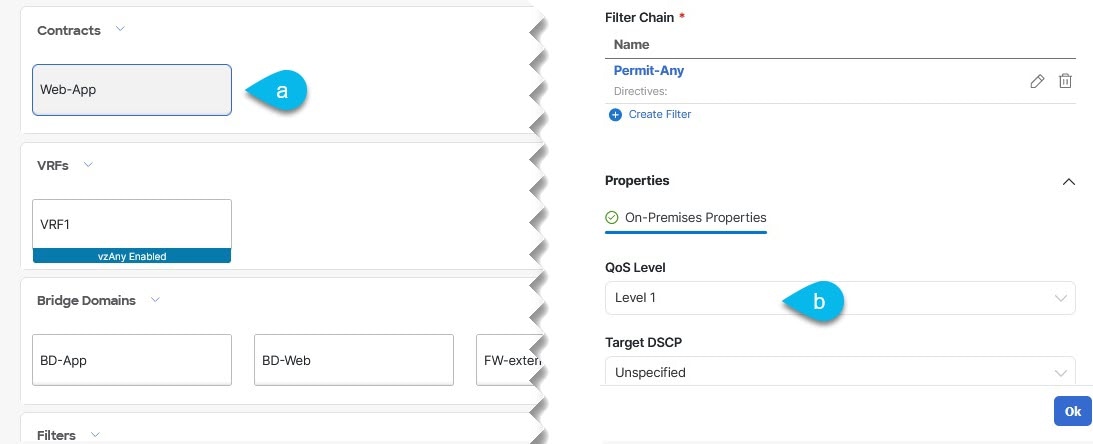 Pick a QoS Level
-
In the main pane, scroll down to the Contract area and select a Contract or click Create Contract to create a new one.
-
In the right sidebar, scroll down to the QoS Level drop-down and choose the QoS Level you want to assign to the Contract.
-
-
Click Ok to save.
Copyright
THE SPECIFICATIONS AND INFORMATION REGARDING THE PRODUCTS IN THIS MANUAL ARE SUBJECT TO CHANGE WITHOUT NOTICE. ALL STATEMENTS, INFORMATION, AND RECOMMENDATIONS IN THIS MANUAL ARE BELIEVED TO BE ACCURATE BUT ARE PRESENTED WITHOUT WARRANTY OF ANY KIND, EXPRESS OR IMPLIED. USERS MUST TAKE FULL RESPONSIBILITY FOR THEIR APPLICATION OF ANY PRODUCTS.
THE SOFTWARE LICENSE AND LIMITED WARRANTY FOR THE ACCOMPANYING PRODUCT ARE SET FORTH IN THE INFORMATION PACKET THAT SHIPPED WITH THE PRODUCT AND ARE INCORPORATED HEREIN BY THIS REFERENCE. IF YOU ARE UNABLE TO LOCATE THE SOFTWARE LICENSE OR LIMITED WARRANTY, CONTACT YOUR CISCO REPRESENTATIVE FOR A COPY.
The Cisco implementation of TCP header compression is an adaptation of a program developed by the University of California, Berkeley (UCB) as part of UCB’s public domain version of the UNIX operating system. All rights reserved. Copyright © 1981, Regents of the University of California.
NOTWITHSTANDING ANY OTHER WARRANTY HEREIN, ALL DOCUMENT FILES AND SOFTWARE OF THESE SUPPLIERS ARE PROVIDED “AS IS" WITH ALL FAULTS. CISCO AND THE ABOVE-NAMED SUPPLIERS DISCLAIM ALL WARRANTIES, EXPRESSED OR IMPLIED, INCLUDING, WITHOUT LIMITATION, THOSE OF MERCHANTABILITY, FITNESS FOR A PARTICULAR PURPOSE AND NONINFRINGEMENT OR ARISING FROM A COURSE OF DEALING, USAGE, OR TRADE PRACTICE.
IN NO EVENT SHALL CISCO OR ITS SUPPLIERS BE LIABLE FOR ANY INDIRECT, SPECIAL, CONSEQUENTIAL, OR INCIDENTAL DAMAGES, INCLUDING, WITHOUT LIMITATION, LOST PROFITS OR LOSS OR DAMAGE TO DATA ARISING OUT OF THE USE OR INABILITY TO USE THIS MANUAL, EVEN IF CISCO OR ITS SUPPLIERS HAVE BEEN ADVISED OF THE POSSIBILITY OF SUCH DAMAGES.
Any Internet Protocol (IP) addresses and phone numbers used in this document are not intended to be actual addresses and phone numbers. Any examples, command display output, network topology diagrams, and other figures included in the document are shown for illustrative purposes only. Any use of actual IP addresses or phone numbers in illustrative content is unintentional and coincidental.
The documentation set for this product strives to use bias-free language. For the purposes of this documentation set, bias-free is defined as language that does not imply discrimination based on age, disability, gender, racial identity, ethnic identity, sexual orientation, socioeconomic status, and intersectionality. Exceptions may be present in the documentation due to language that is hardcoded in the user interfaces of the product software, language used based on RFP documentation, or language that is used by a referenced third-party product.
Cisco and the Cisco logo are trademarks or registered trademarks of Cisco and/or its affiliates in the U.S. and other countries. To view a list of Cisco trademarks, go to this URL: https://www.cisco.com/go/trademarks. Third-party trademarks mentioned are the property of their respective owners. The use of the word partner does not imply a partnership relationship between Cisco and any other company. (1110R)
© 2017-2026 Cisco Systems, Inc. All rights reserved.
Americas Headquarters
Cisco Systems, Inc.
170 West Tasman Drive
San Jose, CA 95134-1706
USA
https://www.cisco.com
Tel: 408 526-4000
800 553-NETS (6387)
Fax: 408 527-0883