
New and changed information
The following table provides an overview of the significant changes up to this current release. The table does not provide an exhaustive list of all changes or of the new features up to this release.
| Release Version | Feature | Description |
|---|---|---|
|
Nexus Dashboard 4.2.1 |
Live Protect |
Beginning with Nexus Dashboard 4.2.1 you can protect your network from active threats by deploying Live Protect shields directly to switches, without requiring a maintenance window or immediate software upgrade. For more information, see Live Protect overview. |
Device security overview
The Device Security page in Nexus Dashboard provides a unified interface for monitoring, evaluating, and responding to security advisories that affect your network devices. It allows you to efficiently manage vulnerabilities and enhance the protection of your Cisco Nexus environment.
You can view the security advisories that apply to your devices on the Device Security page by navigating to Manage > Device Security.
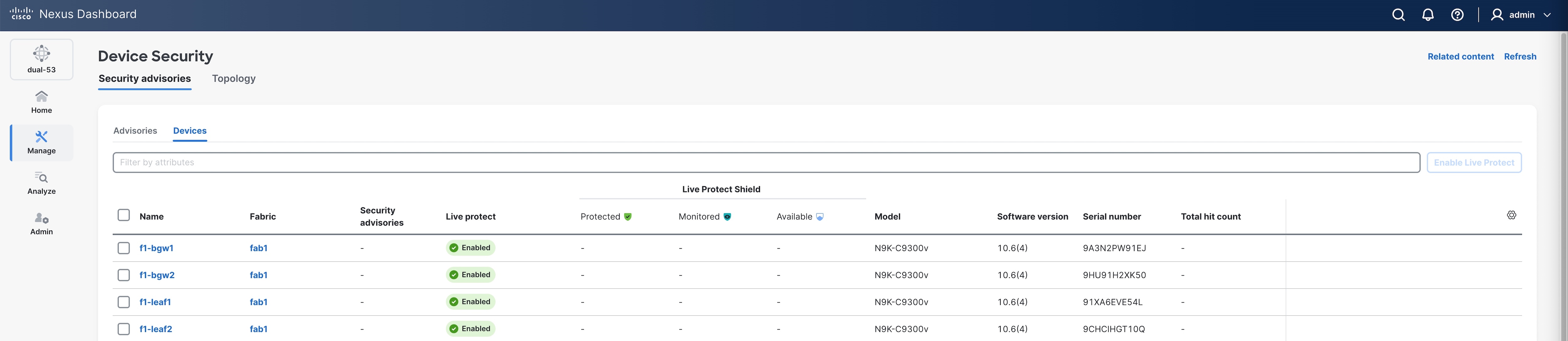

You can also view the Device Security page from the Nexus Dashboard Overview page. Click the number of active advisories or the impacted devices from the Advisory level card.
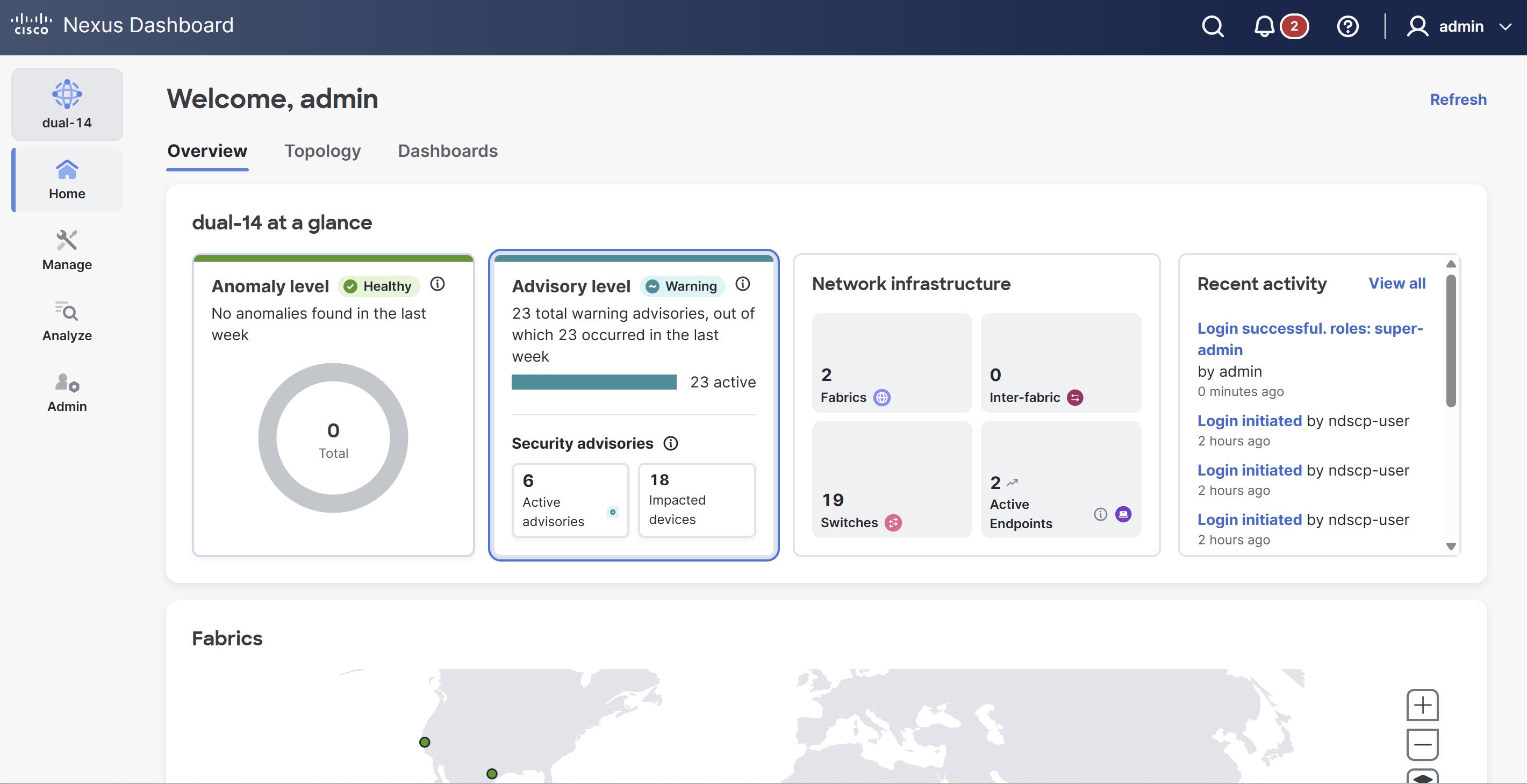
The Device Security page includes the following tabs.
-
Security advisories
-
Topology
Security advisories
The Security advisories tab displays a comprehensive list of current advisories detected across your network. You can assess potential risks, prioritize remediation, and search, filter, or sort the advisories. You can also select one or more advisories and deploy Live Protect shields.
For more information, see Live Protect overview.
The Security advisories table displays the following details.
| Field | Description |
|---|---|
|
Advisory Id |
Specifies a unique identifier for the advisory |
|
Title |
Provides a brief summary of the advisory and affected vulnerability. |
|
Advisory level |
Indicates the severity or priority of the advisory. |
|
Status |
Indicates the current state of the advisory. |
|
CVSS |
Indicates the Common Vulnerability Scoring System (CVSS) value, that represents the severity of the vulnerability. |
|
Nodes |
Indicates the devices or endpoints affected by the advisory. |
|
Fabric |
Specifies the network fabric or logical domain impacted by the advisory. |
|
Detection time |
Indicates when the advisory was first detected. |
|
Last scan time |
Specifies the date and time when the system most recently scanned for this advisory. |
|
Live Protect shield |
Indicates if a Live Protect shield (such as a Tetragon policy) is available or deployed to address the advisory. |
Topology
The Topology tab provides a visual representation of the managed fabrics within your network. It allows you to quickly assess the security status of various fabrics and view details for specific devices to view their security status and Live Protect availability.
Follow these steps to view the Topology page.
-
Navigate to Manage > Device Security.
The Device Security page displays.
-
Click the Topology tab.
Nexus Dashboard displays the graphical view of all managed fabrics and their security status.
-
(Optional) To view specific device details within a fabric, click a fabric icon in the topology map.
The Topology page displays the following details.
-
Fabric map — provides a high-level overview of the network hierarchy.
-
Security Overview — provides details about specific devices and Live Protect availability.
Live Protect overview
Live Protect is a Cisco Nexus feature that enables rapid mitigation of certain security advisories on eligible Nexus 9000 Series switches. By deploying Live Protect shields directly to switches, you can protect your network from active threats without requiring a maintenance window or immediate software upgrade.
For more information, see Cisco Nexus 9000 Series NX-OS Security Configuration Guide.
Live Protect identifies security advisories affecting your devices. If an advisory can be mitigated, the system provides a signed Live Protect shield (Tetragon policy) in the form of an RPM package. You can deploy these controls to eligible switches in either monitor or protect mode. Live Protect tracks the status and impact of each control, providing visibility through the Cisco Nexus user interface.
-
Protect mode — Policy actively blocks threat attempts, enforcing protection on the device.
-
Monitor mode — Policy logs exploit attempts but does not enforce protection.
-
Disable mode — Disables specific policy on the switch without removing the policy.
Prerequisites
-
Live Protect requires either connectivity from Nexus Dashboard to Cisco Intersight or a manual upload of the security advisory metadata using the air-gapped process. Ensure you provide one of these methods to fetch the latest security advisory metadata.
-
Ensure that telemetry is enabled and operational on all relevant devices.
-
Ensure that you enable Live Protect on devices.
Follow these steps to enable Live Protect.
-
Navigate to Manage > Device Security.
The Device Security page displays.
-
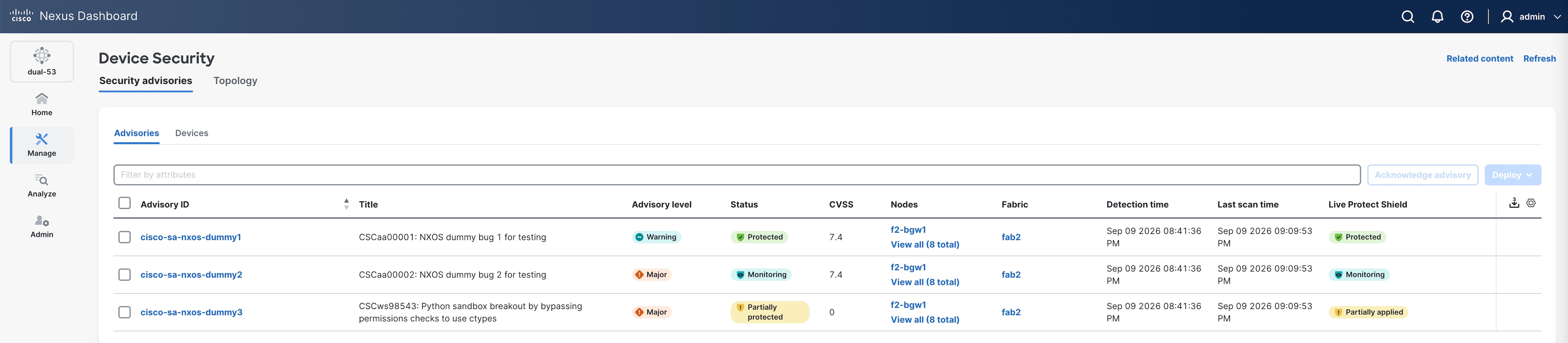
Under the Security advisories tab, click the Devices tab.
-
Locate devices with a Live Protect status of Not enabled.
-
Choose device(s) you want to include.
-
Click Enable Live Protect.
-
Live Protect workflow
The Live Protect workflow guides you through mitigating security advisories on eligible Nexus 9000 Series switches. It includes detecting advisories, assessing device impact, deploying Live Protect shields, monitoring status, and clearing advisories after software updates. This process helps ensure your network remains protected from active threats with minimal operational disruption.
-
Detect advisories: Nexus Dashboard identifies active security advisories affecting your managed devices.
-
Assess impact: Review the devices impacted by advisories and eligible for Live Protect in the Security advisories table.
-
Deploy Live Protect shield: Choose the advisory and impacted devices. Choose Monitor (observe only) or Protect (block exploits) mode, then deploy the control.
-
Monitor status: Track deployment progress, policy status, and exploit hit counts directly in Nexus Dashboard.
-
Upgrade and clear: When a software fix becomes available, upgrade your devices. Nexus Dashboard automatically clears the advisory and removes the Live Protect shield.
Deploy Live Protect Shield
You can deploy Live Protect shields only for detected security advisories. Certain security advisories are detected as part of Bug scan. To detect these advisories, run an on-demand Bug scan or wait for the next timer-based Bug scan. A Bug scan is attempted for each device approximately every 7 to 14 days, depending on the number of nodes and fabrics in the Nexus Dashboard cluster. For information about Bug scan, refer to the "Collecting information on bugs that might affect your network using Bug scan" section in Analyzing and Troubleshooting Your Network.
Follow these steps to deploy the Live Protect shield.
-
Navigate to Manage > Device Security to view all the security advisories.
The Device Security page displays. For information, see Advisories.
-
Under the Advisories tab, identify a security advisory that has the Live Protect Shield status as Available.
Following are the Live Protect Shield statuses.
-
Protected — All impacted devices have control in protection mode.
-
Monitoring — All impacted devices have control in monitoring mode.
-
Partially applied — Some devices are protected, others are not.
-
Available — Control exists but not deployed.
-
Not available — No control exists.
-
-
Click the check box next to the Advisory ID.
-
From the Deploy drop-down list, choose Protect Mode.
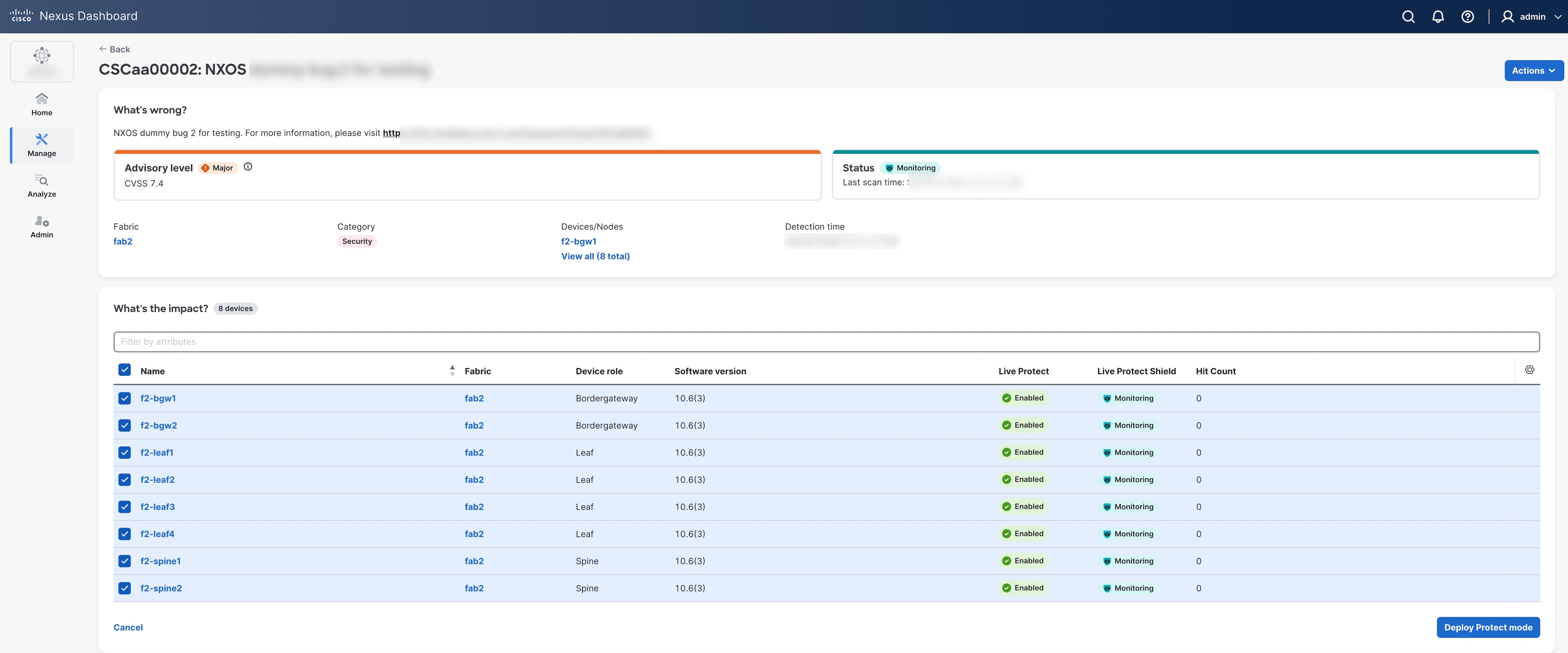
The advisory details page displays.
-
Under What’s the impact, click Deploy Protect mode.
The status of the advisory changes to Protected in the Security advisories table.
You can view the following statuses for the security advisories.
-
Active — No Live Protect shield applied (Red).
-
Protected — All impacted devices have a Live Protect shield in protection mode (Green).
-
Partially protected — Some devices protected, others monitoring or not deployed (Orange).
-
Monitoring — Nexus Dashboard deploys a Live Protect shield in monitor mode on all impacted devices, logging threat attempts without enforcing protection.
-
Cleared — Displayed when advisory is cleared (SW version upgrade).
-
-
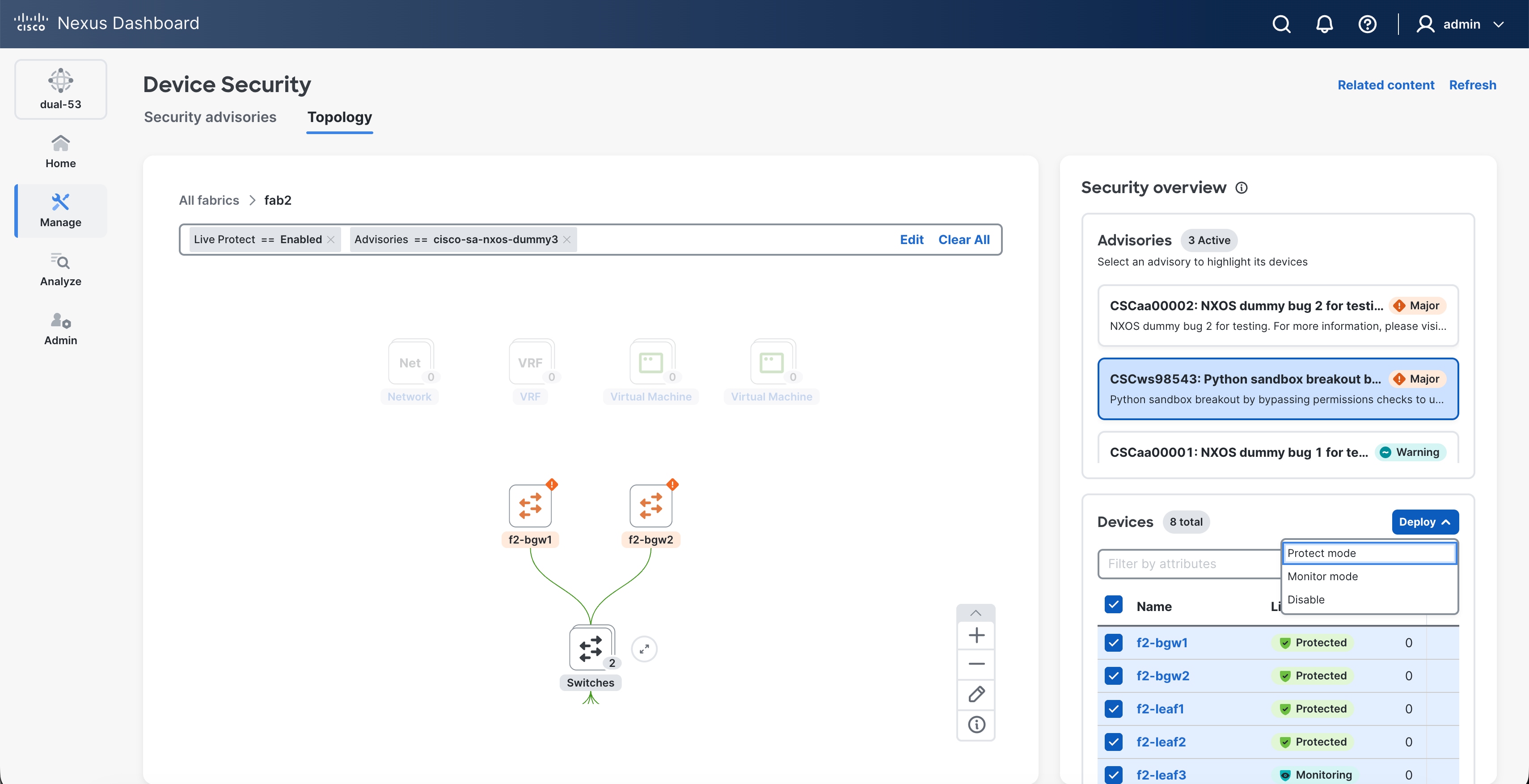
In the Device Security page, click the Topology tab.
-
Double-click the fabric to view the switches with security advisories.
-
In the Security Overview pane on the right, under Advisories, you can view the current advisories for the switch and under Devices, you can view the affected devices.
-
Choose the advisory.
-
Click the box next to Name to choose devices.
-
From the Deploy Live Protect drop-down list, choose Protect Mode.
Copyright
THE SPECIFICATIONS AND INFORMATION REGARDING THE PRODUCTS IN THIS MANUAL ARE SUBJECT TO CHANGE WITHOUT NOTICE. ALL STATEMENTS, INFORMATION, AND RECOMMENDATIONS IN THIS MANUAL ARE BELIEVED TO BE ACCURATE BUT ARE PRESENTED WITHOUT WARRANTY OF ANY KIND, EXPRESS OR IMPLIED. USERS MUST TAKE FULL RESPONSIBILITY FOR THEIR APPLICATION OF ANY PRODUCTS.
THE SOFTWARE LICENSE AND LIMITED WARRANTY FOR THE ACCOMPANYING PRODUCT ARE SET FORTH IN THE INFORMATION PACKET THAT SHIPPED WITH THE PRODUCT AND ARE INCORPORATED HEREIN BY THIS REFERENCE. IF YOU ARE UNABLE TO LOCATE THE SOFTWARE LICENSE OR LIMITED WARRANTY, CONTACT YOUR CISCO REPRESENTATIVE FOR A COPY.
The Cisco implementation of TCP header compression is an adaptation of a program developed by the University of California, Berkeley (UCB) as part of UCB’s public domain version of the UNIX operating system. All rights reserved. Copyright © 1981, Regents of the University of California.
NOTWITHSTANDING ANY OTHER WARRANTY HEREIN, ALL DOCUMENT FILES AND SOFTWARE OF THESE SUPPLIERS ARE PROVIDED “AS IS" WITH ALL FAULTS. CISCO AND THE ABOVE-NAMED SUPPLIERS DISCLAIM ALL WARRANTIES, EXPRESSED OR IMPLIED, INCLUDING, WITHOUT LIMITATION, THOSE OF MERCHANTABILITY, FITNESS FOR A PARTICULAR PURPOSE AND NONINFRINGEMENT OR ARISING FROM A COURSE OF DEALING, USAGE, OR TRADE PRACTICE.
IN NO EVENT SHALL CISCO OR ITS SUPPLIERS BE LIABLE FOR ANY INDIRECT, SPECIAL, CONSEQUENTIAL, OR INCIDENTAL DAMAGES, INCLUDING, WITHOUT LIMITATION, LOST PROFITS OR LOSS OR DAMAGE TO DATA ARISING OUT OF THE USE OR INABILITY TO USE THIS MANUAL, EVEN IF CISCO OR ITS SUPPLIERS HAVE BEEN ADVISED OF THE POSSIBILITY OF SUCH DAMAGES.
Any Internet Protocol (IP) addresses and phone numbers used in this document are not intended to be actual addresses and phone numbers. Any examples, command display output, network topology diagrams, and other figures included in the document are shown for illustrative purposes only. Any use of actual IP addresses or phone numbers in illustrative content is unintentional and coincidental.
The documentation set for this product strives to use bias-free language. For the purposes of this documentation set, bias-free is defined as language that does not imply discrimination based on age, disability, gender, racial identity, ethnic identity, sexual orientation, socioeconomic status, and intersectionality. Exceptions may be present in the documentation due to language that is hardcoded in the user interfaces of the product software, language used based on RFP documentation, or language that is used by a referenced third-party product.
Cisco and the Cisco logo are trademarks or registered trademarks of Cisco and/or its affiliates in the U.S. and other countries. To view a list of Cisco trademarks, go to this URL: https://www.cisco.com/go/trademarks. Third-party trademarks mentioned are the property of their respective owners. The use of the word partner does not imply a partnership relationship between Cisco and any other company. (1110R)
© 2017-2026 Cisco Systems, Inc. All rights reserved.
Americas Headquarters
Cisco Systems, Inc.
170 West Tasman Drive
San Jose, CA 95134-1706
USA
https://www.cisco.com
Tel: 408 526-4000
800 553-NETS (6387)
Fax: 408 527-0883