
Cisco Nexus Hyperfabric — Dynamic Load Balancing
Dynamic Load Balancing
Nexus Hyperfabric provides dynamic load balancing mechanisms to distribute network traffic effectively across a network fabric. These dynamic load balancing capabilities help to:
- optimize traffic distribution across the fabric
- prevent network congestion, and
- support lossless data transmission.
- Adaptive routing for AI applications: This mode (labeled Adaptive routing and switching in the GUI) enables optimized bandwidth utilization for RDMA traffic in AI networks, and is targeted at optimizing lossless traffic. This mode requires server endpoints with NVIDIA® network interface cards (NICs) that support adaptive routing are installed and configured and requires an active Adaptive Routing add-on feature license. For more information, refer to Subscriptions.
- Flowlet load balancing: Divides packet bursts into smaller flowlets to route traffic across multiple paths without causing out-of-order packets. This mode works with standard Ethernet or RDMA over Converged Ethernet version 2 (RoCEv2) NICs and does not require an add-on feature license.
 Note
NoteYou can configure only one load-balancing mode on a switch at a time. Select the mode that matches your server NICs, network architecture, and software subscription.
|
Adaptive Routing |
Flowlet load balancing |
|
|---|---|---|
|
Supported switch models |
Cisco HF6100-64ED |
Cisco HF6100-64ED |
|
Server NIC requirements |
Supported NVIDIA SuperNICs (NVIDIA BlueField-3, ConnectX-7, and ConnectX-8) |
Standard NICs (operates over standard RoCEv2 and ethernet NICs) |
|
Fabric scope |
GPU backend networks |
Converged frontend and backend networks |
|
Licensing |
Requires an additional Adaptive Routing add-on feature license |
Included in standard subscription tiers |
Enable adaptive routing
Ensure that your fabric topology has
- switch models that support adaptive routing for AI applications
- NVIDIA® NICs that support adaptive routing are installed and configured on the server, and
- an Adaptive Routing add-on feature license that is redeemed and available.
NoteYou must enable adaptive routing in all connected switch groups, such as spine and leaf groups, that have active Adaptive Routing add-on feature licenses.
Step 1 | Choose Fabrics, then select the fabric where you want to enable Adaptive Routing. |
Step 2 | If the fabric is not in edit mode, select Switch to edit mode. |
Step 3 | In supported switch groups, enable Adaptive routing and switching within the Routing and load balancing area. 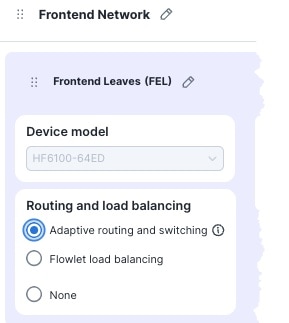
|
Step 4 | Select Save fabric blueprint to apply the configuration. NoteIf adaptive routing is not enabled on all applicable switch groups, you will be prompted to enable the appropriate switch group. |
Enable flowlet load balancing
Ensure that your fabric topology includes switch models that support flowlet load balancing.
Step 1 | Choose Fabrics, then select the fabric where you want to enable flowlet load balancing. |
Step 2 | If the fabric is not in the edit mode, select Switch to edit mode. |
Step 3 | In supported switch groups, enable Flowlet load balancing in the Routing and load balancing area. |
Step 4 | In Idle time, enter the minimum duration (in microseconds) of a traffic gap that triggers the switch to identify a new flowlet and reroute it along the best available path. 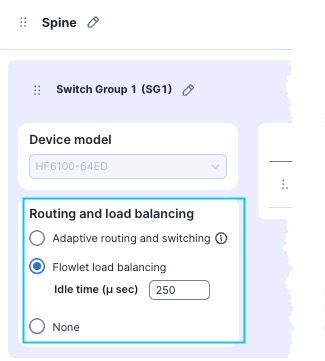
|
Step 5 | Select Save fabric blueprint to apply the configuration to the fabric topology. |