
Cisco Nexus Hyperfabric — Configure SPAN
Switched Port Analyzer
Switched Port Analyzer (SPAN), also known as packet mirroring, allows you to monitor network traffic on switches in Cisco Nexus Hyperfabric fabrics. When configured, the switch duplicates incoming (ingress), outgoing (egress), or bidirectional (BiDi) traffic from designated source interfaces and forwards the mirrored copies to a dedicated local physical destination interface connected to an external network analyzer, sniffer, or monitoring probe.
In Cisco Nexus Hyperfabric:
- Local scope: Unlike Encapsulated Remote SPAN (ERSPAN), which encapsulates packets into generic routing encapsulation (GRE) tunnels to forward them across Layer 3 networks to remote probe endpoints, SPAN transmits mirrored packets directly out of a physical interface on the same switch.
- Controller visibility: Nexus Hyperfabric monitors real-time ingress (Rx) and egress (Tx) cumulative traffic volume (in MB) and packet metrics per active SPAN session.
- On-premises data plane execution: Mirrored payload traffic remains strictly within the local switch data plane and is transmitted directly out of the assigned destination port to an external analyzer. Mirrored packets are neither forwarded across the fabric to other switches nor sent to or stored in the Nexus Hyperfabric cloud controller.
Limitations for SPAN
These limitations apply for SPAN:
- Dedicated destination interface: A port selected as a SPAN destination is placed into a dedicated monitoring mode. The physical interface remains active to transmit mirrored packets to your analyzer, but it cannot simultaneously forward standard production traffic, process ingress packets, nor participate in Layer 2 or Layer 3 protocols, such as VLANs, routing, or port channels.
- Local switch confinement: Local SPAN operates within a single switch domain.
- Concurrent session capacity: Cisco Nexus Hyperfabric switches support a maximum of 20 concurrent active SPAN sessions per fabric.
- Source and destination port limits: You can configure one source and one destination per SPAN session. If you configured a port as a destination in one SPAN session, you cannot use that port as a destination in another SPAN session.
- Port channel restrictions: Port channels are not supported as SPAN sources or SPAN destinations. A SPAN destination interface cannot be a member of an active port channel. To monitor traffic on a port channel, you must configure multiple SPAN sessions--one per physical member interface.
- Destination port oversubscription: If the aggregate bandwidth of the monitored source ports exceeds the link capacity of the destination port, packet drops will occur at the egress buffer.
Configure a SPAN session
Follow these steps to configure a SPAN session.
Step 1 | Select Fabrics, then select the fabric that contains the devices for which you want to configure a SPAN session.
|
Step 2 | In the Operations area, select Packet mirroring. The SPAN table lists the existing SPAN sessions. |
Step 3 | Select .
|
Step 4 | Push the configuration change. For more information, refer to Finish and commit your changes. |
 ).
).Finish and commit your changes
Your changes are not applied to the fabric until you review, commit, and push them.
 Note
NoteFor a more detailed description of this procedure, see "Modify a fabric" in Cisco Nexus Hyperfabric—Getting Started.
Follow these steps to finish and commit your changes.
Step 1 | Select Review configuration. 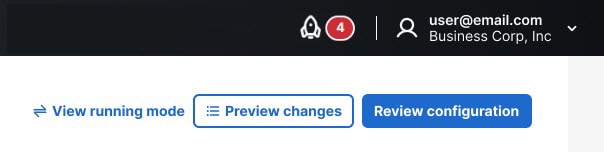
|
Step 2 | Verify your changes in the review list. |
Step 3 | Select Comment and push. |
Step 4 | In the Comment before pushing configuration dialog box, enter the reason for the change. |
Step 5 | Select Push configuration. |
Monitor SPAN sessions
Follow these steps to monitor SPAN sessions.
Step 1 | Select Fabrics, then select the fabric that contains the SPAN sessions that you want to monitor. |
Step 2 | In the Operations area, select Packet mirroring. The SPAN table lists the existing SPAN sessions. |
Step 3 | Expand a row to see the telemetry data for that session. The expanded row displays this data:
|
Troubleshooting SPAN sessions
This table provides the symptom, condition, and solution for common issues with SPAN sessions.
|
Symptom |
Condition |
Solution |
|---|---|---|
No packets are observed on the network analyzer. |
Destination port link is down or disconnected. |
Check the physical cable and link status indicator LEDs on the destination interface. Ensure the analyzer NIC is up and operating in promiscuous mode. |
No packets are observed on the network analyzer. |
SPAN session is disabled in configuration. |
Verify that the session status is Enabled and the switch operational status is Active. If the session is not enabled, edit the session, check Enable rule, select Save changes, and push the configuration. |
Controller rejects creation of a new SPAN session. |
Switch has reached the maximum concurrent session limit. |
Check the SPAN session list on the switch. Delete or disable unneeded sessions. You can have a maximum of two active sessions per switch. |