Monitor and Troubleshoot Network Health

About Network

A network consists of one or more devices, including routers, switches, wireless controllers, and access points. Note that clients are not a part of the network health score.

Monitor and Troubleshoot the Health of Your Network

Use this procedure to get a global view of your network and to determine if there are potential issues that must be addressed.

A network consists of one or more devices, including routers, switches, wireless controllers, and access points. Note that clients are not a part of the network health score.


Note

Network health score exists only in the context of a location. If the location of a device is not available, it is not counted in the network health score.


Before you begin

Configure Assurance. See Basic Setup Workflow.

Procedure


Step 1

In the Cisco DNA Center GUI, click the Menu icon () and choose Assurance > Health.

The Overall health dashboard appears.

Step 2

Click the Network tab.

The Network health dashboard appears.
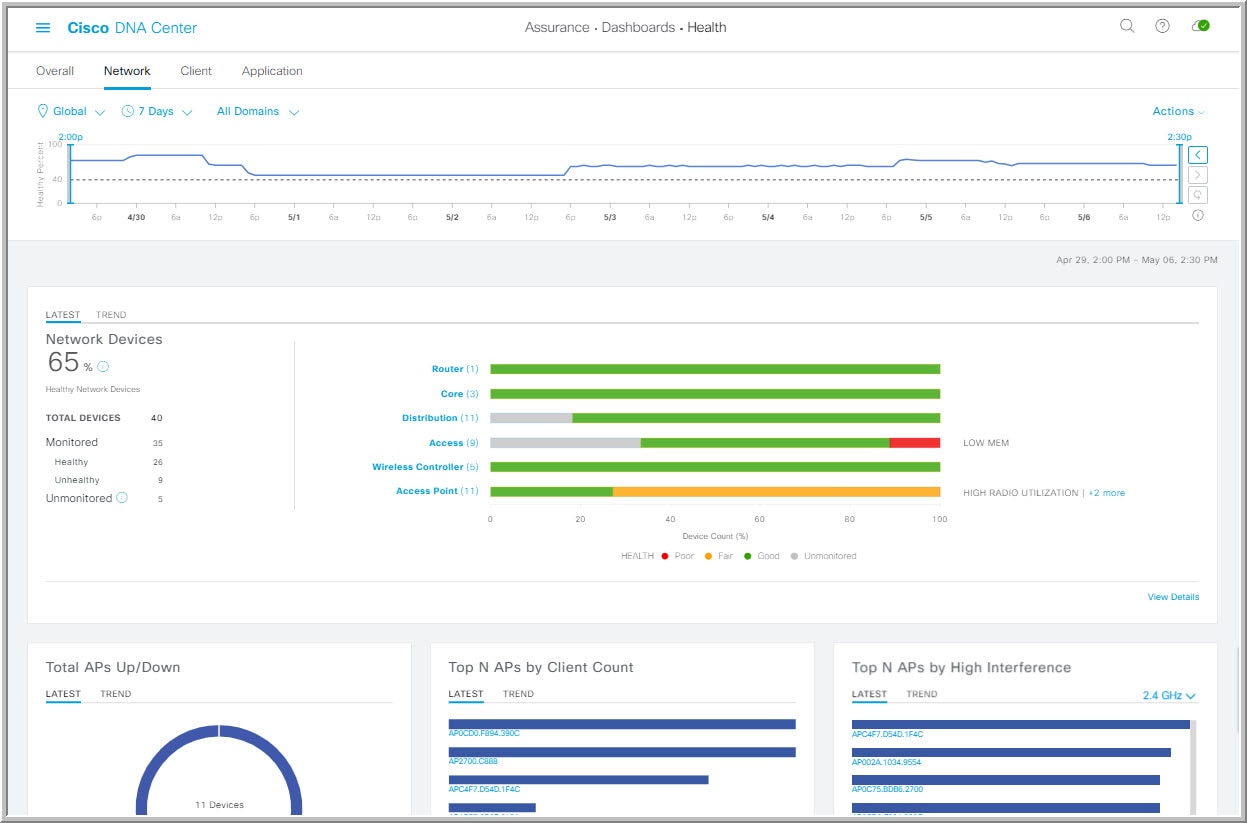
Figure 1. Network Health Dashboard
Step 3

Click the location option () in the top-menu bar to display the location pane.

The location pane has the following functionality:

Location Option
Item Description

toggle button

List View

Click this toggle button to display the sites and buildings from your network in a list format.

Click the drop-down list for the following options:

  • Hierarchical Site View: Sorts the list at a site level.

    From the Apply to Page Location column, click Apply for a site or building to display data only for that location on to the Network dashboard.

  • Building View: Sorts the list at a building level.

    From the Apply to Page Location column, click Apply for a building to display data only for that building on to the Network dashboard.

Note 
For Fabric Domains, you must select a site or building from the All Domains drop-down list and not from the Hierarchical Site View and Building View areas.

toggle button

Map View

Click this toggle button to display the health of all the network sites on a geographic location-oriented network health map. By default, the network sites that are represented are color-coded according to the severity of the problem.

Topology tool

Click this icon to open the Topology tool. The Topology window, has the following views:

  • Geographical View: Click this toggle button to display your network in a geographical map.

    Hover your cursor over a location to view the percentage of healthy devices.

  • Topology View: Click this toggle button to display a topology of how the components in the network are connected.

    Hover your cursor over a device to display device information, such as device role, IP address, and software version. To obtain a 360° view of the device, click View Details 360.

Step 4

Click the time range setting () in the top-menu bar to specify the time range of data that appears on the dashboard.

  1. From the drop-down menu, choose the time range: 3 Hours, 24 Hours, or 7 Days.

  2. Specify the Start Date and time; and the End Date and time.

  3. Click Apply.

Step 5

Click the All Domains setting in the top-menu bar for the following options:

  • All Domains: Displays information for all domains or fabric domain. Default is All Domains.

  • Fabric Domains: To view information about a fabric domain, from the All Domains drop-down list, choose the appropriate option. For multisite fabrics, the sites connected to the fabric domain and the transit area are provided in the drop-down list.

    For Fabric Domains, you must select a site or building from the All Domains drop-down list and not from the Hierarchical Site View and Building View areas.

    To monitor and troubleshoot fabric domains, you must first configure the fabric domain. See Create a Fabric Domain and Add a Device to a Fabric.

    For additional details and to understand multisite fabric domains, see the "Provision Your Network" chapter in the Cisco Digital Network Architecture Center User Guide.

    Note 
    Subtended and Extended nodes are not part of fabric health because during Fabric Provisioning, these nodes were not given a fabric role, such as Edge, Border, or Control Plane.
Step 6

Click the Actions drop-down list in the top-menu bar for the following functionality:

Step 7

Use the Network Health timeline for the following functionality:

Enables you to specify a more granular time range. You can click and drag the timeline boundary lines to specify the time range. This sets the context for the custom charts on the dashboard.

You can use the arrow buttons on the right of the timeline to view data for up to 30 days.

Hover your cursor within the timeline chart to view the network device health score percentage at a specific time.

The dotted horizontal line represents the threshold for a healthy network, which by default is set to 40%.

To change the threshold value:

  1. Hover your cursor over the information () icon.

  2. In the tooltip, click the edit () icon.

  3. In the Network Health Threshold slide-in pane, click and drag the blue line to set the threshold percentage value.

  4. Click Save.

Note 
Changing the custom threshold affects when the Network Device Summary Health Score is displayed as red. The custom threshold does not change the number of healthy or unhealthy devices.
Step 8

Use the Network Devices Health Summary dashlet for the following functionality:

Network Devices Health Summary Dashlet
Item Description

Network Devices Health Summary area

Includes two tabs:
  • Latest: Displayed by default. Includes two panes. The left pane provides the network health summary score and the total number of devices. The right pane displays charts.

    • Network Health Summary Score: The Network Health Summary score is the percentage of healthy (good) devices in your overall network or selected site. See Network Health Score.

    • Total Devices: Provides the total number of network devices and the count of monitored, healthy, unhealthy, and unmonitored devices.

    • Charts: This color-coded snapshot-view chart shows the performance of each device category (Access, Core, Distribution, Router, Wireless Controller, and Access Points) over the last 5-minutes.

      Hover your cursor over a color to display the health score and the number of devices associated with that color.

      If the chart shows a low health score (red or orange), the KPIs that contributed to the low health score are provided adjacent to the bar. For example, link errors, high CPU, high memory, high noise, low air quality, and so on.

      You can also click a hyperlinked device category (Access, Core, Distribution, Router, Wireless Controller, and Access Point) to open a side pane with additional details.

      Note 
      For Fabric Domains, the color-coded percentage chart shows the performance of the following fabric categories: Fabric Edge, Fabric Border, Fabric Control Plane, and Fabric Wireless.
  • Trend: Click the Trend tab to display a trend chart. This color-coded trend chart shows the performance of devices over a time range. Hover your cursor over the chart to display the total number of devices and their health over time.

The color in the charts represent the health of the network devices:

  • : Poor network devices. Health score range is 1 to 3.
  • : Fair network devices. Health score range is 4 to 7.
  • : Good network devices. Health score range is 8 to 10.
  • : No data available. Health score is 0.
View Details

Click View Details to open a slide-in pane with additional details. From the slide-in pane, you can click a color segment in the chart to refresh the data in the table that is displayed below the chart.

Step 9

Use the AP dashlets to view the following information:

Total APs Up/Down Dashlet

Color-coded chart that provides the AP status information: number of APs that are connected to the network and the number of APs that are not connected to the network.

The Latest tab provides a 5-minute snapshot view.

The Trend tab provides a trend view for the time range that you selected in the time range settings. For example, if the time range is set to last three hours, the trend tab displays three hours of data.

Click View Details to open a slide-in pane with additional details. From the slide-in pane, you can click a color segment in the chart to refresh the data in the table that is displayed below the chart.

Top N APs by Client Count Dashlet

Chart that provides information about the APs that have the highest number of clients.

The Latest tab provides a 5-minute snapshot view.

The Trend tab provides a trend view for the time range that you selected in the time range settings. For example, if the time range is set to last three hours, the trend tab displays three hours of data.

Click View Details to open a slide-in pane with additional details. From the slide-in pane, you can click a color segment in the chart to refresh the data in the table that is displayed below the chart.

Top N APs by High Interference Dashlet

Information about the APs that have high interference. You can choose 2.4 GHz or 5 GHz.

The Latest tab provides a 5-minute snapshot view.

The Trend tab provides a trend view for the time range that you selected in the time range settings. For example, if the time range is set to last three hours, the trend tab displays three hours of data.

Click View Details to open a slide-in pane with additional details. From the slide-in pane, you can click a color segment in the chart to refresh the data in the table that is displayed below the chart.

Step 10

Use the Network Devices dashlet for the following functionality:

Network Devices Dashlet
Item Description

Device

Filter the table with the following options:

  • Monitored

  • Unmonitored: Unmonitored devices are devices for which Assurance did not receive any telemetry data during the specified time range. Unmonitored devices are included in the Network Health Score computation. They are used as part of the total number of devices against which the health device percentage is calculated.

Type

Filter the table based on the device type with the following options: All, Access, Core, Distribution, Router, WLC, and AP.

Overall Health

Filter the table based on the overall health score of the device with the following options:

  • All

  • Poor: Devices with a health score range from 1 to 3.

  • Fair: Devices with a health score range from 4 to 7.

  • Good: Devices with a health score range from 8 to 10.

Network devices table

View device information for all the devices in the network or for a selected site in a table format.

Note 
The Overall Health Score is the minimum sub-score of the following KPI metric health scores: System Health, Data Plane Connectivity, and Control Plane Connectivity.

In the Overall Health Score column, hover your cursor over a health score. The Device Health score is displayed along with the health and percentage value of all of the KPI metrics. The Device Health score is the minimum subscore of the KPI metrics, depending on the type of device. For routers and switches, the following are the KPI metrics: System Resources (memory utilization and CPU utilization), Data Plane (uplink availability and link errors), and Control Plane (reachability).

The Reachability column displays the status of the device (Reachable, Up, Unreachable, Rebooting, and so on).

Device 360

Display a 360° view of a device by clicking the device name in the Device column.

Device 360 provides detailed information for troubleshooting device issues.

Click Export to export the device information to a CSV file.

Customize the data you want displayed in the table:

  1. Click .

    A list of options is displayed.

  2. Check the check boxes for the data you want displayed in the table.

  3. Click Apply.

Step 11

Use the PoE dashlets for the following functionality:

PoE Operation State Distribution Dashlet

Displays the number of PoE-capable devices in your network. The color-coded chart provides the count of devices based on whether they are being supplied with PoE or not. For devices that are not being supplied with PoE, this is further characterized by the reason why.

The Latest tab provides a 10-minute snapshot view.

The Trend tab provides the following:

  • If you chose 24 hours in the time range settings, the trend chart provides 10-minute data points for the entire 24-hour range.

  • If you chose greater than 24 hours in the time range settings, the trend chart provides 1-hour data points (aggregated from the 10-minute data) for the entire time range.

    Note 

    The data point displayed is the start time of the corresponding 10 minute or 1-hour window. For example, all the data that is received between 10:00 to 10:10 is displayed with the time value of 10:00. Similarly, for hourly window, the data that is received between 10:00 to 11:00 is displayed with a time stamp of 10:00. This data point is available after the end of the corresponding window.

Click View Details to open a slide-in pane with additional details. From the slide-in pane, you can click a color segment in the chart to refresh the data in the table that is displayed below the chart.

PoE Powered Device Distribution Dashlet

View the distribution of the devices currently using PoE for a certain criteria. Use the drop-drop list to specify the following criteria:

  • Allocated Power

  • Powered Device Class

The Latest tab provides a 10-minute snapshot view.

The Trend tab provides the following:

  • If you chose 24 hours in the time range settings, the trend chart provides 10-minute data points for the entire 24-hour range.

  • If you chose greater than 24 hours in the time range settings, the trend chart provides 1-hour data points (aggregated from the 10-minute data) for the entire time range.

    Note 

    The data point displayed is the start time of the corresponding 10 minute or 1-hour window. For example, all the data that is received between 10:00 to 10:10 is displayed with the time value of 10:00. Similarly, for hourly window, the data that is received between 10:00 to 11:00 is displayed with a time stamp of 10:00. This data point is available after the end of the corresponding window.

Click View Details to open a slide-in pane with additional details. From the slide-in pane, you can click a color segment in the chart to refresh the data in the table that is displayed below the chart.

Power Load Distribution Dashlet

View the distribution of switches based on its power load for PoE.

The Latest tab provides a 10-minute snapshot view.

The Trend tab provides the following:

  • If you chose 24 hours in the time range settings, the trend chart provides 10-minute data points for the entire 24-hour range.

  • If you chose greater than 24 hours in the time range settings, the trend chart provides 1-hour data points (aggregated from the 10-minute data) for the entire time range.

    Note 

    The data point displayed is the start time of the corresponding 10 minute or 1-hour window. For example, all the data that is received between 10:00 to 10:10 is displayed with the time value of 10:00. Similarly, for hourly window, the data that is received between 10:00 to 11:00 is displayed with a time stamp of 10:00. This data point is available after the end of the corresponding window.

Click View Details to open a slide-in pane with additional details. From the slide-in pane, you can click a color segment in the chart to refresh the data in the table that is displayed below the chart.

PoE Insights Dashlet

View the percentage of the devices currently using PoE which are configured to support the following PoE technologies or meet IEEE Compliance:

  • Perpetual PoE

  • Fast PoE

  • IEEE Compliant

  • UPOE+

Use the drop-down list to choose the characteristic.

Click View Details to open a slide-in pane with additional details. From the slide-in pane, you can click a color segment in the chart to refresh the data that is displayed in the table below the chart.

Step 12

Use the Network Devices Reachability dashlet to view the following information:

Network Devices Reachability Dashlet

Color-coded chart shows the information about the devices reachability status of Router, Switches and Wirelss Controllers.

  • Reachable

  • Unreachable

The Latest tab provides a 5-minute snapshot view.

The Trend tab provides a trend view for the time range that you selected in the time range settings. For example, if the time range is set to last three hours, the trend tab displays three hours of data.

Click View Details to open a slide-in pane with additional details. From the slide-in pane, you can hover your cursor over the timeline slider to view the reachability status of the network devices over a time period. The Reachability status count of top devices based on Role and Location is displayed below the timeline slider as horizontal bar graphs.

You can select the data displayed as horizontal bars to filter the proceeding table based on the reachability status, devices types and location with the following options: All, Access, Core, Distribution, Router and WLC.


Monitor and Troubleshoot the Health of a Device

Use this procedure to view details about a specific device and determine if there are potential issues that must be addressed.

Procedure


Step 1

In the Cisco DNA Center GUI, click the Menu icon () and choose Assurance > Health.

The Overall health dashboard appears.

Step 2

Click the Network tab.

The Network health dashboard appears.

Step 3

Do one of the following:

  • In the Network Devices dashlet, click a device name in the Device Name column.
  • In the Search field (located at the top-right corner), enter the device name, IP address, or MAC address.

The Device 360 window appears which displays a 360° view of the network device.
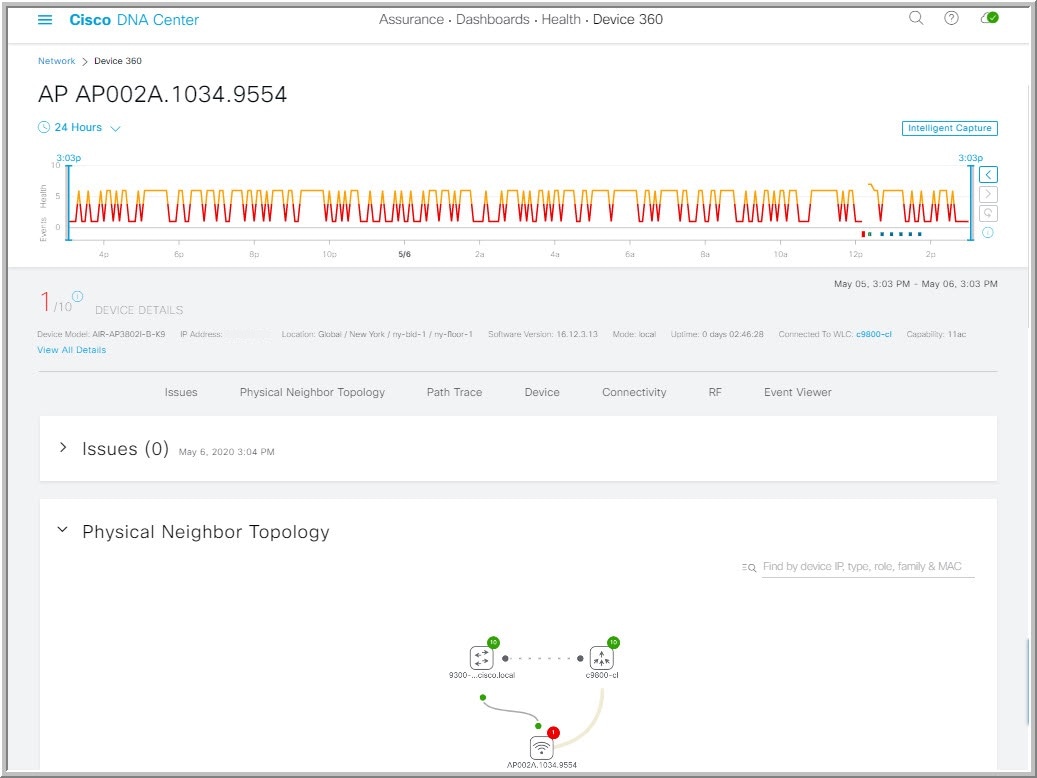
Figure 2. Device 360 Window
Step 4

Click the time range setting () at the top-left corner to specify the time range of data that is displayed on the window:

  1. From the drop-down menu, choose a time range: 3 hours, 24 hours, or 7 days.

  2. Specify the Start date and time; and the End date and time.

  3. Click Apply.

Step 5

Click Intelligent Capture at the top-right corner of the window to view, monitor, and troubleshoot captured onboarding and data packets for a specific network device and to determine if there are potential issues that must be addressed. See View RF Statistics and Manage Spectrum Analysis Data for an Access Point.

Note 

Intelligent Capture is not supported for all AP models. If Intelligent Capture is not displayed, verify that the AP is a supported model, and that the AP is assigned to a location on the Network Health dashboard.

Step 6

Use the timeline slider to view the health and events information about the network device over a period of time. The timeline slider has the following functionality:

  • Health: You can hover your cursor over the timeline slider to view the client's health score and KPIs for a 5-minute window. The device's health score is the minimum of all KPI health scores.

    When you double-click the graph, it brings the timeline slider to a 1-hour time period.

    Note 
    If you want to display information longer than 1 hour, manually move the timeline slider to the desired time range.

    When you double-click the timeline, it brings the timeline slider to a 1-hour time period. The entire window is refreshed, providing updates for that hour. Note that the timestamp next to each category (Issues, Connectivity, and so on) is also refreshed.

  • Events: Event data is displayed as color-coded vertical bars on the graph. Green vertical bars indicate successful events and red vertical bars indicate events that failed.

    Each vertical bar represents 5 minutes of time. Multiple significant events can be generated during each 5-minute window. Hover your cursor over the vertical bar to get more information about the events.

Step 7

You can view the device's health score in the Device Details area, below the timeline.

The details for the device's health score is as follows:

  • Switch: The health score for switches is the minimum subscore of the following parameters: memory utilization, CPU utilization, link errors, link discards, uplink availability, and reachability to control plane. In addition, for fabric devices, it includes connectivity to the Control Plane node. For more information, see Switch Health Score.

    Note 

    Switches: Uplink availability is based on infrastructure links.

    Cisco StackWise Virtual: Uplink availability is based on infrastructure links, Cisco StackWise Virtual links (SVL), and Dual Active Detection (DAD) links. See About Cisco StackWise Virtual and Its Limitations.

    Cisco StackWise: Uplink availability is based on infrastructure links, and Cisco StackWise links. See About Cisco StackWise and Its Limitations.

  • Router: The health score for routers is the minimum subscore of the following parameters: memory utilization, CPU utilization, link errors, link discards, uplink availability, and reachability to control plane. For more information, see Router Health Score.

    Note 
    Uplink availability is based on infrastructure links.
  • AP: The health score for APs is the minimum subscore of the following parameters: memory utilization, CPU utilization, link errors, radio utilization, interference, noise, and air quality. For more information, see AP Health Score.

  • Wireless Controller: The health score for WLCs is the minimum subscore of the following parameters: memory utilization, free timers, free memory buffers (MBufs), work queue element (WQE) pools, packet pools, link errors. For fabric wireless controllers, it includes connection to the Control Plane node. For more information, see Wireless Controller Health Score.

The color of the health score represents its severity. The health is measured on a scale of 1 to 10, where 10 is the best score. A score of 0 indicates that data could not be obtained.

  • : Critical issues. Health score range is 1 to 3.
  • : Warnings. Health score range is 4 to 7.
  • : No errors or warning. Health score range is 8 to 10.
  • : No data available. Health score is 0.
Step 8

Use the Device Details area, below the timeline, to view the most current information about the device such as the building and floor where the device is located, the device model, IP address, software version installed on the device, device role, HA status, the IP address or MAC address, and the uptime.

Note 

For Cisco StackWise Virtual, two additional elements are displayed: Stack Status: StackWise Virtual and StackWise Virtual Domain.

For Cisco StackWise an additional element is displayed: StackWise along with the number of switches in the stack, for example StackWise (2). A stack can contain a maximum of eight switches.

Step 9

Click View All Details in the Device Details area to open a slide-in pane that displays additional attributes of a device, such as general information, network information, and rack location.

Step 10

Use the Issues category for to view issues that must be addressed.

Issues are listed based on the timestamp. The most recent issue is listed first.

Click an issue to open a slide-in pane to view the corresponding details, such as the description of the issue, impact, and suggested actions.

From the slide-in pane, you can do the following:

  • To resolve an issue:

    1. From the drop-down list, choose Resolve.

    2. Click Resolved Issues to view the list of issues that are resolved.

  • To ignore an issue:

    1. From the drop-down list, choose Ignore.

    2. Set the number of hours to ignore the issue on the slider.

    3. Click Confirm.

    4. Click Ignored Issues to view the list of issues that have been ignored.

Step 11

Use the Physical Neighbor Topology category to view the topology of the device and how that device is connected to neighboring devices.

You can do the following:

  • Click a node to display a slide-in window that displays information about the node.

  • Click a link between two devices to see the details about that specific link, such as the port/interface corresponding to the link, admin status, port mode, and so on.

  • Hover your cursor over the link ends (dots) to see the status of the link.

  • Hover your cursor over a group of devices and click View Devices List from the pop-up to view the list of devices and their details.

  • In the Search field in the top-right corner of the Onboarding area, you can search for a specific device. The specific node is selected, and the corresponding information about the device is displayed.

    Note 
    For AP 360, the 2 GHz and 5 GHz clients are displayed, and the dotted link lines going from these two clients are not clickable. Also, the link line between AP to wireless controller and wireless controller to AP is not clickable.
    Note 

    The Cisco StackWise Virtual and Cisco StackWise are displayed with a stack icon ().

    Path Trace displays a switch icon if a Cisco StackWise Virtual or a Cisco StackWise is involved in that path.

Step 12

Use the Event View category to view the audit trail of events for the device:

  • For APs: Lists scenarios and the sequence of sub-events that led to each scenario. This allows you to pin-point during which sub-event an issue occurred. Radio resource management (RRM) events such as Transmit Power Change, RF Channel Change, Radio Reset, and so on are displayed.

    The Event Viewer table provides information about the issue such as the reason code and the time stamp when the event occurred. Click an event to view details about that event in the right pane.

  • For Switches and Routers: All syslogs that have a severity of Error and above (Emergency, Alert, and Critical), events for any links that are up or down, and events for devices that are reachable or unreachable are recorded in the Event Viewer. Only a selected list of syslogs that are less severe than Error level (Warning, Notice, and Info) are also displayed. For the list of selected syslog messages that are displayed, see Selected Syslogs Below Error Level for Switches and Routers. Click an event to view details about that event in the right pane.

Step 13

Use the Path Trace category to run a path trace.

Click Run New Path Trace to display a network topology between a specified source device and a destination device. The topology includes the path's direction and the devices along the path, including their IP addresses. The display also shows the protocol of the devices along the path (Switched, STP, ECMP, Routed, Trace Route) or other source type.

See Perform a Path Trace.

Step 14

Click the Application Experience category to view the running applications in your network.

To view the metrics in a chart format, click the radio button next to an application, in the table. A slide-in pane opens with the relevant information.

See About Application Experience and Application Visibility and View Application Experience of a Host.

Note 

This category is displayed for routers only.

Step 15

Use the Detail Information category to view the device's historical KPIs performing over a period of time.

Click the following tabs to view its respective details:

Device Info Tab

Device details, such as CPU, memory, uptime, and so on are displayed.

Note 

For network devices that are configured out of band, the uptime chart does not correlate correctly with the heath score and other data. For example, the uptime chart for a 24-hour window shows that the device was down at 11:39 am and at 2:40 pm. Then, if you choose a 3-hour window, 11:00 am – 2:00 pm (in the timeline slider), the downtime is not displayed. This issue occurs because Cisco DNA Center is not able to receive the sys uptime information from the device. To workaround this issue, synchronize the configuration between the device and Cisco DNA Center.

Connectivity Tab

Information about the health of a device's connection with the network is displayed. This tab is available for APs.

  • Traffic: The traffic (in Mbps) for radios is displayed. The Rx (receiver) data packets and Tx (transmitter) data packets (in bytes) are shown as color-coded lines on the chart.

    Hover your cursor over a time instance on the graph to view the amount of traffic (Rx or Tx) sent or received for a particular day and time.

  • Client Count: The number of clients for radios is displayed. The client count is shown as color-coded lines on the chart.

    Hover your cursor over a time instance on the graph to view the number of clients connected to an AP for a particular day and time.

  • Link Error: To display information about interfaces, check the check boxes adjacent to the interfaces on the right of the chart. Based on the interfaces you choose, the error percentage for each of the interface is displayed as color coded lines on the chart.

    Hover your cursor over a time instance on the graph to view the error percentage for a particular day and time. You can choose a maximum of five interfaces.

  • Ethernet Interface KPI: Displays the Utilization, Error and Rate shows Tx, Rx, and Total values as applicable.

    Also it summarizes the total and average values for the above KPIs aggregated for a time range selected on the top of AP 360.

  • Retries: The connection retries for radios are displayed in the retries chart.

    Note 

    Only infrastructure links are considered for link errors. Infrastructure links are topological links connecting network devices, such as switches, routers, wireless controllers, and APs.

RF Tab

This tab is available for APs and wireless clients.

  • The RF tab contains Radio tabs, such as Radio 0, Radio 1, and Radio 2. Click the appropriate Radio tab to display charts for radio channel utilization, interference, noise, air quality, air-time efficiency, wireless latency by client distribution, and so on.

    Note 

    RF Tab Limitation

    When an AP with three radios (for example a Cisco Catalyst 9130 AP) connects to a 17.2+ version of wireless controller, the device supports all three radios, and three radios (Radio 0, Radio 1, and Radio 2) are displayed under the RF tab.

    When that same AP connects to a 17.1 or older version of wireless controller, the device supports two radios, and two radios (Radio 0 and Radio 1) are displayed under the RF tab.

    But if an AP moves from a newer to an older version of wireless controller (17.2+ > 17.1), the RF tab continues to display the three radios (Radio 0, Radio 1, and Radio 2) that were initially detected.

  • For AP 5 GHz radio, a DFS tab is displayed that provides information about Dynamic Frequency Selection (DFS) radar events.

Interfaces Tab

Contains the following PORT TYPE tabs: All, Access, Auto, Routed, and Trunk. Based on the tab you click, the table is refreshed.

Note 

Cisco StackWise Virtual: The Interfaces tab contains two additional PORT TYPE tabs: SVL and DAD.

Cisco StackWise: The Interfaces tab contains an additional PORT TYPE tab: StackWisePort.

Table with interface information such as the name, description, operational status, link speed, and so on is displayed. The interface table columns are sortable. However, if you try to sort the column with a new parameter, the expanded interface list collapses.

Note 
For the Link Speed data column, the speed capacity of the interface or physical port is displayed. If the port has negotiated to a certain speed then that negotiated speed is displayed.

To display the operational status about the interfaces for a particular day and time in a chart format, check the check boxes adjacent to the interfaces. The Interface Availability, Utilization, Error, and Link Discard charts are displayed below the table. You can choose a maximum of five interfaces. The first interface in the table is selected by default.

Fabric Tab

Fabric KPIs, such as reachability and uplink status charts are displayed. This tab is available for fabric domains.

Note 
The uplink status chart shows data only if the Fabric Underlay Automation is used to provision the fabric.
PoE Tab

Displays the device's Power over Ethernet (PoE) telemetry.This tab is available for PoE-capable switches.

The POWER SUMMARY section displays the switch's overall PoE telemetry:

  • Power Budget: The overall power that the switch allocates for use with PoE-capable devices.

  • Used Power: The power being supplied by the switch to PoE-capable devices.

  • Remaining Power: The unused power available for use by PoE-capable devices.

  • Power Usage: The percentage of power being supplied by the switch to PoE-capable devices. This value is equal to the value of the Used Power divided by the value of the Power Budget.

The Module Power Details section lists the components in the switch that supplies power for PoE.

The PoE Interfaces section lists the PoE-capable devices connected to the switch's interfaces in a table format. At the top of the section is a count of interfaces which are currently off.

You can customize the table by doing the following:

  • Use the POE CONFIG, ADMIN STATUS, and POE OPER STATUS (SIGNAL PAIR) filters above the table to filter the interfaces that are displayed in the table based on the filter's selected value.

  • Use the search bar to perform searches for specific interfaces, PoE-capable devices, or any other values from the table's columns.

  • Click to open a menu where you can add and remove columns for specific data types.

StackWise Virtual Tab

Table with information about the Cisco StackWise Virtual, such as the serial number, product ID, MAC address, role, state, priority, uptime, and port numbers is displayed.

This tab is available for Cisco StackWise Virtual.

StackWise Tab

Table with information about the Cisco StackWise, such as the serial number, product ID, MAC address, role, state, priority, and the neighboring switch number is displayed.

This tab is available for Cisco StackWise.


Selected Syslogs Below Error Level for Switches and Routers

The following tables provide the selected list of syslog messages, less than Error level (Warning, Notice, and Info), that are displayed in the Event Viewer from the Device 360 window:

Protocol Events Layer 2 Events

OSPF-5-ADJCHG

IFDAMP-5-UPDOWN

BGP-5-ADJCHANGE

DUAL-5-NBRCHANGE

BGP-5-ADJCHANGE-bfd

CLNS-5-ADJCHANGE

LDP-5-NBRCHG-TDP

LDP-5-NBRCHG-LDP

CDP-4-NATIVE_VLAN_MISMATCH

LISP-4-LOCAL_EID_RLOC_INCONSISTENCY

LISP-4-LOCAL_EID_NO_ROUTE

LISP-4-CEF_DISABLED

LISP-4-LOCAL_EID_MAP_REGISTER_FAILURE

LISP-4-MAP_CACHE_WARNING_THRESHOLD_REACHED

SW_MATM-4-MACFLAP_NOTIF

MAC_LIMIT-4-PORT_EXCEED

MAC_LIMIT-4-VLAN_EXCEED

IGMP-6-IGMP_GROUP_LIMIT

SPANTREE-5-ROOTCHANGE

UDLD-4-UDLD_PORT_DISABLED

PM-4-ERR_DISABLE

CDP-4-DUPLEX_MISMATCH

LINK-5-CHANGED

PORT-5-IF_DOWN

PORT-5-IF_UP

Hardware Platform Events

SYS-5-CONFIG_I

SYS-5-RELOAD

SYS-5-RESTART

OIR-6-INSCARD

OIR-6-REMCARD

OIR-SP-6-INSCARD

OIR-SP-6-REMCARD

PLATFORM_STACKPOWER-6-CABLE_EVENT

PLATFORM_STACKPOWER-6-LINK_EVENT

PLATFORM_STACKPOWER-4-TOO_MANY_ERRORS

PLATFORM_STACKPOWER-4-VERSION_MISMATCH

PLATFORM_STACKPOWER-4-UNDER_BUDGET

PLATFORM_STACKPOWER-4-INSUFFICIENT_PWR

PLATFORM_STACKPOWER-4-REDUNDANCY_LOSS

ILPOWER-5-POWER_GRANTED

ILPOWER-5-LINKDOWN_DISCONNECT

ILPOWER-5-IEEE_DISCONNECT

ILPOWER-5-INVALID_IEEE_CLASS

ILPOWER-4-LOG_OVERDRAWN

ILPOWER-5-CLR_OVERDRAWN

About Cisco StackWise Virtual and Its Limitations

Cisco StackWise Virtual is a network system visualization technology that allows two physical switches to operate as a single logical virtual switch using a 40-G or 10-G Ethernet connection.

Supported Devices for StackWise Virtual

The following table lists the Cisco Catalyst Switches that support StackWise Virtual:

Device Minimum Supported IOS-XE Software Version

Cisco Catalyst 9300 Series Switches

16.11+

Cisco Catalyst 9400 Series Switches

16.11+

Cisco Catalyst 9500 Series Switches

16.11+

StackWise Virtual Limitations

Cisco StackWise Virtual has the following known limitations:

About Cisco StackWise and Its Limitations

The Cisco StackWise technology provides an innovative new method for collectively utilizing the capabilities of a stack of switches. Individual switches intelligently join to create a single switching unit with a 32-Gbps switching backplane. Configuration and routing information is shared by every switch in the stack, creating a single switching unit.

Supported Devices for Cisco StackWise

The following devices support Cisco StackWise:

  • Cisco Catalyst 3650 Series Switches

  • Cisco Catalyst 3850 Series Switches

  • Cisco Catalyst 9300 Series Switches

Cisco StackWise Limitations

Cisco StackWise has the following known limitations:

  • Ring status is not displayed in the Device 360 header.

  • Link Speed information is not provided in the. Detail Information > Interfaces tab.

Configure Health Score Settings for Network Devices

Use this procedure to configure the health score settings for network devices. You can customize the health score calculation for network devices by changing the KPI thresholds and specifying the KPIs that are included for the calculation.

Procedure


Step 1

In the Cisco DNA Center GUI, click the Menu icon () and choose Assurance > Manage > Health Score Settings.

The Health Score window appears.

Step 2

Click the tab of the network device category to customize its health score calculation settings.

The tab displays the KPIs that affect the network device type's health score calculation.

Step 3

From the KPI Name column, click the KPI name link.

The slide-in pane for the KPI appears.

Step 4

Configure the KPI health score settings:

  1. If the KPI threshold is quantitative, you can customize the threshold value for what is considered a good health score.

  2. To Sync or Unsync the common KPI threshold between the health and issues settings, use the Synced toggle button. The sync works vice-versa when it is synced from health or issue settings page.

  3. To remove the KPI from the health score calculation, uncheck the Included in Device health Score check box.

    Note 

    A network device's health score is the lowest score from all its included KPI scores.

    Restriction 

    At least one KPI must be included for the health score calculation.

    Attention 

    When viewing the KPI health scores for a network device, excluded KPIs display a NA instead of a health score.

  4. To restore the default settings, hover your cursor over View Default Setting and click ✔ Use Default.

Step 5

Click Apply.

A confirmation dialog box is displayed.


Power over Ethernet (PoE) Telemetry

About PoE Telemetry

Power over Ethernet (PoE) telemetry enables you to monitor the PoE-capable devices in your network. With PoE telemetry, you can do the following:

  • View the current operational state of the PoE-capable devices in the network. For the PoE-capable devices not being supplied with PoE, you can determine the reason why.

  • View the allocated power for the PoE-capable devices in the network.

  • Receive insights on the PoE technologies being utilized by the PoE-capable devices in the network.

  • View the power load of the switches supplying PoE.

  • Monitor the power summary of switches supplying PoE, which provides information such as a switch's power budget, used power, remaining power, and power usage.

  • View the PoE-capable devices connected to the PoE-supplying switches.

  • Be alerted to potential problems involving PoE with Assurance PoE-related issues.

Supported Platforms

PoE telemetry is supported on the following platforms with IOS XE version 16.12.3s and later:

  • Cisco Catalyst 9300 Series Switches

  • Cisco Catalyst 9400 Series Switches

  • Cisco Catalyst 3850 Series Switches

Setup Workflow for PoE Telemetry

To enable PoE telemetry and analytics in Assurance, you need to perform the required setup tasks. A basic workflow for setup involves the following tasks:

  1. Configure NETCONF on the network devices used for PoE telemetry.

    For details, see Configure NETCONF on Your Network Devices for PoE Telemetry.

  2. Update the telemetry settings in Cisco DNA Center.

    For details, see Update Telemetry Settings for PoE Telemetry.

Setup Workflows

The setup workflow for PoE telemetry may vary depending on the software version and configuration of Cisco DNA Center and network devices that support PoE telemetry.

If you are doing a fresh installation of Cisco DNA Center, Release 2.2.1, refer to the following table:

Fresh Installation of Cisco DNA Center, Release 2.2.1
Network Device Configuration Required Setup Tasks
  • IOS XE version is 16.12.3s.

  • NETCONF is disabled.

  1. Enable NETCONF on the device.

  2. Update the telemetry settings in Cisco DNA Center.

  • IOS XE version is upgraded from 16.12.2 to 16.12.3s with SWIM.

  • NETCONF is disabled.

  1. Enable NETCONF on the device.

  2. Update the telemetry settings in Cisco DNA Center.

  • IOS XE version is upgraded from 16.12.2 to 16.12.3s with SWIM.

  • NETCONF is enabled.

  1. Update the telemetry settings in Cisco DNA Center.

If you are upgrading to Cisco DNA Center 2.2.1 from an earlier release, refer to the following table:

Upgrade from an Earlier Release
Network Device Configuration Required Setup Tasks
  • IOS XE version is upgraded from 16.12.2 to 16.12.3s with SWIM.

  • NETCONF disabled.

  1. Enable NETCONF on the device.

  2. Update the telemetry settings in Cisco DNA Center.

  • IOS XE version is upgraded from 16.12.2 to 16.12.3s with SWIM.

  • NETCONF is enabled.

  1. Update the telemetry settings in Cisco DNA Center.

  • IOS XE version is 16.12.3s.

  • NETCONF is disabled.

  1. Enable NETCONF on the device.

  2. Update the telemetry settings in Cisco DNA Center.

  • IOS XE version is 16.12.3s.

  • NETCONF is enabled.

  1. Update the telemetry settings in Cisco DNA Center.

If there are changes to the network device that supports PoE telemetry in Inventory, refer to the following table:

Network Device Changes in Inventory
Change to Network Device Required Setup Tasks

Remove a device from Cisco DNA Center Inventory, and then add it back.

  1. Enable NETCONF on the device.

  2. Update the telemetry settings in Cisco DNA Center.

Add a new device to Cisco DNA Center Inventory.

  1. Enable NETCONF on the device.

  2. Update the telemetry settings in Cisco DNA Center.

Use a replacement device in Cisco DNA Center Inventory.

  1. Enable NETCONF on the device.

  2. Update the telemetry settings in Cisco DNA Center.

Configure NETCONF on Your Network Devices for PoE Telemetry

Use this procedure to configure NETCONF on your network devices for PoE telemetry. To use PoE telemetry, the supporting network devices must have NETCONF enabled.

Before you begin

Depending on the configuration of your Cisco DNA Center and network devices, you might not need to do this procedure to set up PoE telemetry. For details, see Setup Workflow for PoE Telemetry.

Procedure


Step 1

Configure the NETCONF port for an existing network device:

  1. In the Cisco DNA Center GUI, click the Menu icon () and choose Provision > Inventory.

    The Inventory window appears.

  2. Check the check box of the network device to be configured to enable NETCONF.

  3. From the Actions drop-down list, choose Inventory > Edit Device.

  4. From the Type drop-down list, choose Network Device.

  5. Expand the NETCONF area.

  6. In the Port field, enter 830.

    Note 

    NETCONF provides a mechanism to install, manipulate, and delete configurations of network devices.

  7. Click Update.

    The device's NETCONF port is configured.

Step 2

Create a Template Editor project for NETCONF configuration:

  1. Click the Menu icon () and choose Tools > Template Editor.

    The Template Editor window appears.

  2. From the left pane, click the icon and choose Create Project.

  3. In the Name field, enter a name for the project.

  4. Click Add.

    The project is added to the left pane of Template Editor.

Step 3

Create a template in the project for NETCONF configuration:

  1. From the left pane, hover your cursor over the icon to the right of the project and choose Add Template.

  2. In the Name field, enter a name for the template.

  3. In the Device Type(s) field, click Edit.

  4. Check the check box of Switches and Hubs to apply the template to add switches and hubs.

    Note 

    If you want to specify the exact models of the switches, expand Switches and Hubs and check the check box of the specific switch model.

  5. Click Back to Add New Template.

  6. Click the Software Type drop-down list and choose IOS-XE.

  7. Click Add.

    The template is created and appears.

Step 4

Add content in the template:

  1. In the template, enter the following:

    netconf-yang
  2. From the Actions drop-down list, choose Save.

    The content is saved to the template.

  3. From the Actions drop-down list, choose Commit.

  4. In the Commit Note text box, enter a note.

  5. Click Commit.

Step 5

Create a network profile and associate the template:

  1. Click the Menu icon () and choose Design > Network Profile.

    The Network Profiles window appears.

  2. Click +Add Profile and choose Switching.

  3. In the Profile Name field, enter a name for the network profile.

  4. Click the Day-N Templates tab.

  5. Click +Add.

  6. From the Device Type drop-down list, choose Switches and Hubs.

  7. From the Template drop-down list, choose the template that was created in Step 3.

  8. Click Save.

    The network profile is created and appears in the Network Profiles window.

Step 6

Assign the site(s) for the network profile:

  1. From the Sites column, click Assign Site.

  2. Check the check box of the site that the network device is assigned to.

  3. Click Save.

Step 7

Provision the NETCONF configuration to the network device:

  1. Click the Menu icon () and choose Provision > Inventory.

    The Inventory window appears.

  2. Check the check box of the network device for PoE telemetry.

  3. From the Actions drop-down list, choose Provision > Provision Device.

  4. In the Assign Site step, click Next.

  5. In the Advanced Configuration step, check the Provision these templates even if they have been deploy before check box.

  6. Click Next.

  7. In the Summary step, click Deploy.

  8. Click Apply.

Provisioning starts and the NETCONF configuration is pushed to the network device.


Update Telemetry Settings for PoE Telemetry

Use this procedure to update the telemetry settings in Cisco DNA Center. This is a required step after setting the NETCONF port and pushing the NETCONF configuration to the network devices for PoE telemetry.

Before you begin

Ensure that the network devices being set up for PoE telemetry has an established NETCONF port and the proper NETCONF configuration. For details, see Configure NETCONF on Your Network Devices for PoE Telemetry.

Procedure


Step 1

In the Cisco DNA Center GUI, click the Menu icon () and choose Provision > Inventory.

The Inventory window appears.

Step 2

Check the check boxes of the network devices that have been set up for PoE telemetry.

Step 3

From the Actions drop-down list, choose Telemetry > Update Telemetry Settings.

Step 4

Check the Force Configuration Push check box.

Note 

This option pushes the configuration changes to the device.

Step 5

Click Next.

Step 6

Set the schedule for when the telemetry settings are updated by clicking a radio button:

  • Now: Choose this option to update the telemetry settings immediately.

  • Later: Choose this option to schedule the task to update the telemetry settings for another time. Specific the time and date.

Step 7

Click Apply.


Fabric Domains

A fabric is a logical group of devices that is managed as a single entity in one or multiple locations.

About Fabric Networks

A fabric network is a logical group of devices that is managed as a single entity in one or multiple locations. Having a fabric network in place enables several capabilities, such as the creation of virtual networks and user and device groups, and advanced reporting. Other capabilities include intelligent services for application recognition, traffic analytics, traffic prioritization, and steering for optimum performance and operational effectiveness.

Cisco DNA Center allows you to add devices to a fabric network. These devices can be configured to act as control plane, border, or edge devices within the fabric network.

Create a Fabric Domain

Cisco DNA Center creates a default fabric domain called Default LAN Fabric.

Before you begin

Ensure that your network has been designed, the policies have been retrieved from the Cisco Integrated Services Engine (ISE) or created in the Cisco DNA Center, and the devices have been inventoried and added to the sites.

Procedure


Step 1

In the Cisco DNA Center GUI, click the Menu icon () and choose Provision > Fabric.

Step 2

Hover the mouse pointer over Add Fabric or Transit/Peer Network.

Step 3

Click Add Fabric from the pop-up.

Step 4

Enter a fabric name.

Step 5

Choose one fabric site.

Step 6

Click Add.


Add a Device to a Fabric

After you have created a fabric domain, you can add fabric sites, and then add devices to the fabric site. You can also specify whether the devices should act as a control plane node, an edge node, or a border node.

You can add a new device to the fabric site only if IP Device Tracking (IPDT) is configured for the fabric site.

A device which is assigned the Access role and has been provisioned before enabling IPDT on the site cannot be added to the fabric. Reprovision such devices before adding them to the fabric site. Check the Provision workflow to confirm the status of Deployment of IPDT on the device.


Note

  • It is optional to designate the devices in a fabric domain as control plane nodes or border nodes. You might have devices that do not occupy these roles. However, every fabric domain must have at least one control plane node device and one border node device. In the current release for wired fabric, you can add up to six control plane nodes for redundancy.

  • Currently, the Cisco Wireless Controller communicates only with two control plane nodes.


Before you begin

Provision the device if you have not already provisioned it:

  1. In the Cisco DNA Center GUI, click the Menu icon () and choose Provision > Devices > Inventory.

  2. The Inventory window displays the discovered devices.

  3. The topology view shows a device in gray color if it has passed the fabric readiness checks and is ready to be provisioned.

  4. If an error is detected during any of the fabric readiness checks, an error notification is displayed on the topology area. Click See more details to check the problem area listed in the resulting window. Correct the problem and click Re-check to ensure that the problem is resolved.

  5. If you update the device configuration as part of problem resolution, ensure that you resynchronize the device information by performing an Inventory > Resync for the device.


Note

You can continue to provision a device that has failed the fabric readiness checks.


Procedure


Step 1

In the Cisco DNA Center GUI, click the Menu icon () and choose Provision > Fabric.

The window displays all the provisioned fabric domains.
Step 2

From the list of fabric domains, choose a fabric.

The resulting screen displays all the sites in that fabric domain.
Step 3

Choose a site.

All devices in the network that have been inventoried are displayed in the topology view. Any device that is added to the fabric is shown in blue.

Step 4

In the List view, click a device. The device details window slides in with the following Fabric options:

Option Description

Edge

Click the toggle button next to this option to enable the selected device as an edge node.

Border

Click the toggle button next to this option to enable the selected device as a border node.

Control Plane

Click the toggle button next to this option to enable the selected device as a control plane node.

To configure a device as a fabric-in-a-box, select the Control Plane, Border, and Edge options.

To configure the device as a control plane and a border node, select both Control Plane and Border.

Step 5

Click Add.


What to do next

After a device is added to the fabric, fabric compliance checks are automatically performed to ensure that the device is fabric compliant. The topology displays a device that has failed the fabric compliance check in blue color with a cross-mark beside it. Click See more details on the error notification to identify the problem area and correct it.

Enable SNMP Collector Metrics for Fabric Devices

For the health score to populate correctly for fabric devices, you must enable the SNMP Collector metrics.

Procedure


Step 1

In the Cisco DNA Center GUI, click the Menu icon () and choose System > Data Platform.

Step 2

Click Collectors.

A list of collectors is displayed.

Step 3

Click COLLECTOR-SNMP.

The COLLECTOR-SNMP window opens.

Step 4

Click + Add.

The SNMP Configuration dialog box opens.

Step 5

Check the check boxes adjacent to all the metrics except QOS.
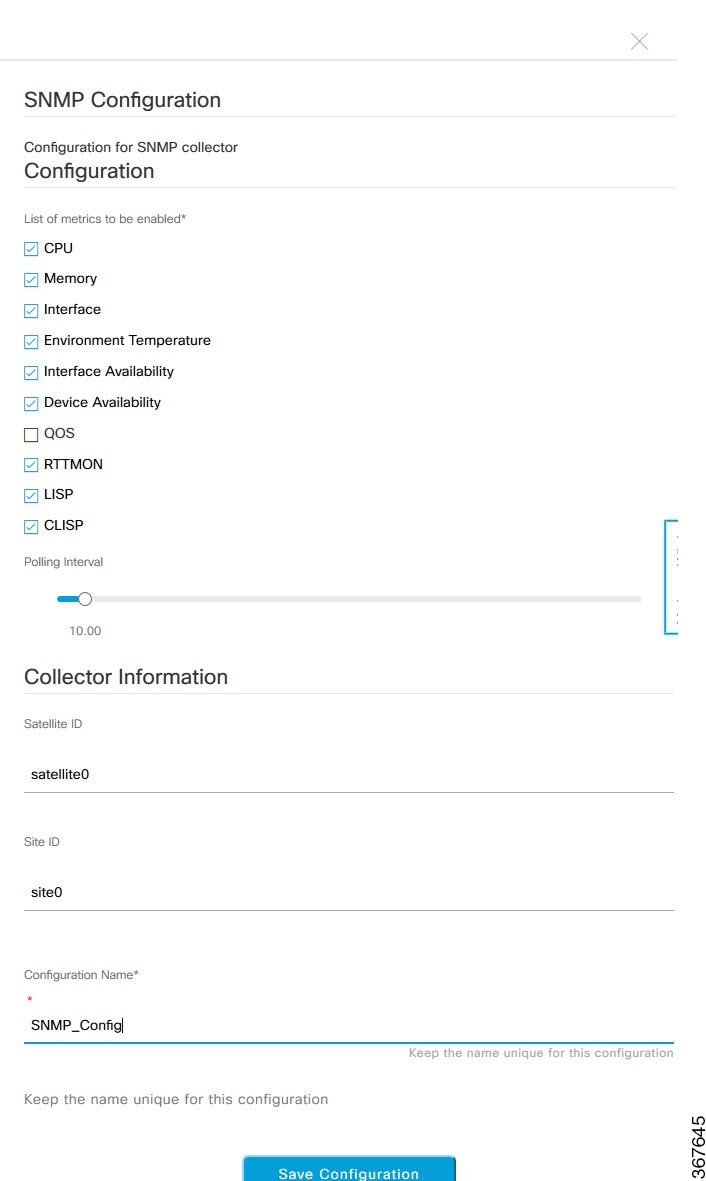
Figure 3. SNMP Configuration
Step 6

In the Configuration Name field, enter a unique name for the SNMP configuration.

Step 7

Click Save Configuration.


Understand Network Health Score and KPI Metrics

This section provides information about how the network health scores and KPI metrics are computed.

Network Health Score

The Network Health score is a percentage of the number of healthy network devices (a health score from 8 to 10) divided by the total number of network devices. The score is calculated every 5 minutes.

For example: 90% (health score) = 90 (network devices with health score from 8 to 10) ÷ 100 (total number of network devices)

Device Category Health Score

The Device Category Health score (Access, Core, Distribution, Router, Wireless) is the percentage of the number of healthy network devices (a health score from 8 to 10) in a target category, divided by the total number of network devices in that category. The score is calculated every 5 minutes.

For example: 90% (health score) = 90 (network devices in a target category with health score from 8 to 10) ÷ 100 (network devices in that category)

Individual Device Health Score

The Individual Device Health score is the minimum score of following KPI metric health scores: System Health, Data Plane Connectivity, and Control Plane Connectivity. The KPI metric score is based on the threshold that is defined per KPI.

Device Health Score = MIN (System Health, Data Plane Connectivity, Control Plane Connectivity)

Depending on the type of device, the metrics vary.

System Health
Device Type Description

Switch (Access and Distribution)

Includes system-monitoring metrics, such as CPU utilization and memory utilization.

Wireless

Includes the following system-monitoring metrics:

  • For wireless controllers, it includes memory utilization, free timers, and free Mbufs.

  • For AP, it includes CPU utilization and memory utilization.

Router

Includes system-monitoring metrics, such as CPU utilization and memory utilization.

Fabric

Includes system-monitoring metrics, such as CPU utilization and memory utilization.

Data Plane Connectivity
Device Type Description

Switch (Access and Distribution)

Includes metrics, such as link errors and link status.

Wireless

Includes the following metrics:

  • For wireless controllers, it includes metrics, such as WQE pool, packet pools, and link errors.

  • For AP, it includes RF metrics, such as interface, noise, air quality, and radio utilization.

Router

Includes metrics, such as link errors.

Control Plane Connectivity
Device Type Description

Wireless

Includes the following KPIs:

  • For wireless controllers, it includes connectivity to the Control Plane node servers.

  • For fabric devices, it includes metrics, such as connectivity to the Control Plane node.

Switch Health Score

The Switch Health score is the minimum subscore of the following parameters:

Parameter Score Calculation

CPU Utilization

  • If CPU utilization is 95 percent or less, the score is 10.

  • If CPU utilization is more than 95 percent, the score is 1.

Memory Utilization

  • If memory utilization is 95 percent or less, the score is 10.

  • If memory utilization is more than 95 percent, the score is 1.

Link Errors (Rx and Tx)

Only infrastructure links are considered for link errors. Infrastructure links are topological links between network devices, such as switches, routers, wireless controllers, and APs.

If a physical infrastructure interface has errors, the score is 8, if all links are down, it is 1, otherwise it is 10.

Link Discards

Only infrastructure links are considered for link discards. Infrastructure links are topological links between network devices, such as switches, routers, wireless controllers, and APs.

If a physical infra link has packet drops (discards), the score is 8, if all links encounter discards, it is 1, otherwise it is 10.

Link Status

Only infrastructure links are considered for link status UP/DOWN. Infrastructure links are topological links between network devices, such as switches, routers, wireless controllers, and APs.

If a physical infrastructure interface is down, the score is 8, if all interfaces are down, it is 1, otherwise it is 10.

Connection to Control Plane Node—Fabric Devices Only (Edge and Border)

  • If the Control Plane node is reachable, the score is 10.

  • If the Control Plane node is unreachable, the score is 1.

Note 

If there is more than 1 Control Plane node in a fabric domain, and all the Control Plane nodes are reachable, the score is 10; otherwise, the score is 1.

Note 

For the health score to populate correctly for fabric devices, enable SNMP Collector metrics. See Enable SNMP Collector Metrics for Fabric Devices.

Router Health Score

The Router Health score is the minimum subscore of the following parameters:

Parameter Score Calculation

CPU Utilization

  • If CPU utilization is 95 percent or less, the score is 10.

  • If CPU utilization is more than 95 percent, the score is 1.

Memory Utilization

  • If memory utilization is 95 percent or less, the score is 10.

  • If memory utilization is more than 95 percent, the score is 1.

WAN Connectivity

  • If the WAN connectivity is down, the score is 1.

  • If the WAN connectivity is up, the score is 10.

Link Errors

Only infrastructure links are considered for link errors. Infrastructure links are topological links between network devices, such as switches, routers, wireless controllers, and APs.

If a physical infrastructure interface has errors, the score is 8, if all links are down, it is 1, otherwise it is 10.

Link Discards

Only infrastructure links are considered for link discards. Infrastructure links are topological links between network devices, such as switches, routers, wireless controllers, and APs.

If a physical infra link has packet drops (discards), the score is 8, if all links encounter discards, it is 1, otherwise it is 10.

AP Health Score

The AP Health score is the minimum subscore of the following parameters:

Parameter Score Calculation

CPU Utilization

  • If CPU utilization is 90 percent or less, the score is 10.

  • If CPU utilization is more than 90 percent, the score is 1.

Memory Utilization

  • If memory utilization is less than 90 percent, the score is 10.

  • If available memory is 90 percent or more, the score is 1.

Radio Utilization Score

The score is calculated individually for each radio, and then the average radio score is determined.

  • If radio utilization is less than 70 percent, the score is 10.

  • If radio utilization is 70 percent or more, the score is 1.

Interference Score

The score is calculated individually for each radio, and then the average radio score is determined.

For 2.4-GHz radio:

  • If interference is less than or equal to 50 percent, the score is 10.

  • If interference is more than 50 percent, the score is 0.

For 5-GHz radio:

  • If interference is less than or equal to 20 percent, the score 10.

  • If interference is more than 20 percent, the score is 0.

RF Noise Score

The score is calculated individually for each radio, and then the average radio score is determined.

For 2.4-GHz radio:

  • If RF noise is less than -81dBm, the score is 10.

  • If RF noise is -81dBm or more, the score is 0.

For 5-GHz radio:

  • If RF noise is less than -83dBm, the score is 10.

  • If RF noise is -83dBm or more, the score is 0.

Air Quality Score

The score is calculated individually for each radio, and then the average radio the score is determined.

For 2.4-GHz radio:

  • If air quality is 60 percent or more, the score is 10.

  • If air quality is less than 60 percent, the score is 0.

For 5-GHz radio:

  • If air quality is 75 percent or more, the score is 10.

  • If air quality is less than 75 percent, the score is 0.

Wireless Controller Health Score

The Wireless Controller Health score is the minimum subscore of the following parameters:

Parameter Score Calculation

Memory Utilization

  • If memory utilization is less than 90 percent, the score is 10.

  • If the available memory is 90 percent or more, the score is 1.

Free Timer Score

  • If the number of free timers is 20 percent or more, the score is 10.

  • If the number of free timers is 20 percent or less, the score is 1.

Free Memory Buffers (MBufs)

  • If the number of free memory buffer is 20 percent or more, the score is 10.

  • If the number of free memory buffer is less than 20 percent, the score is 1.

Work Queue Element (WQE) Pool Score

  • If the wqe pool is greater than wqe pool threshold, the score is 10.

  • If the wqe pool is at the same level as or lower than the wqe pool threshold, the score is 1.

Packet Pools

  • If the packet pool is greater than the packet pool threshold, the score is 10.

  • If the packet pool is at the same level as or lower than the packet pool threshold, the score is 1.

Link Errors

  • If link errors are less than 1 percent, the score is 10.

  • If link errors are 1 percent or more, the score is 1.

Connection to Control Plane Node—Fabric Wireless Controllers Only

  • If the Control Plane node is reachable, the score is good.

  • If the Control Plane node is unreachable, the score is poor.

Note 

If there is more than 1 Control Plane node in a fabric domain, and all the Control Plane nodes are reachable, the score is 10; otherwise, the score is 1.
