View and Manage Issues

About Issues

Assurance provides both system-guided as well as self-guided troubleshooting. For a large number of issues, Assurance provides a system-guided approach, where multiple Key Performance Indicators (KPIs) are correlated, and the results from tests and sensors are used to determine the root cause of the problem, and then possible actions are provided to resolve the problem. The focus is on highlighting an issue rather than monitoring data. Quite frequently, Assurance performs the work of a Level 3 support engineer.

With Cisco DNA Center, you can view and troubleshoot AI-driven issues using Cisco AI Network Analytics. Cisco AI Network Analytics leverages a cloud-based learning platform with advanced artificial intelligence (AI) and machine learning (ML) technologies to provide intelligent issue detection and analysis. It detects anomalies to determine their root causes and ease troubleshooting.

Cisco AI Network Analytics can detect the following types of cloud-based AI-driven issues:

  • Connection Issues (Onboarding Issues): Excessive Time, Excessive Failures, Excessive Association Time, Excessive Association Failures, Excessive Authentication Time, Excessive Authentication Failures, Excessive DHCP Time, and Excessive DHCP Failures

  • Application Experience Issues: Total Radio Throughput, Media Application Throughput, Cloud Application Throughput, Collab Application Throughput, and Social Application Throughput.


Note

Currently, Cisco AI Network Analytics use cases are supported only for wireless environments that are running AireOS controllers.


About Machine Reasoning Engine

The Machine Reasoning Engine (MRE) is a network automation engine that uses artificial intelligence (AI) to automate complex network operation workflows. It encapsulates human knowledge and expertise into a fully automated inference engine to help you perform complex root cause analysis, detect issues and vulnerabilities, and either manually or automatically perform corrective actions. MRE is powered by a cloud-hosted knowledge base, built by Cisco networking experts.

You can use the MRE to troubleshoot wired client issues, Layer 2 loop issue, and PoE issue. For the list of issues, see MRE Issues.

For procedure, see Troubleshoot Wired Client Issues Using MRE, Issue Instance Details for Layer 2 Loop and PoE Issues, and Issue Instance Details for PoE Issue.

About Layer 2 Loop Issue

A Layer 2 Loop issue occurs when a forwarding loop forms in the path of one or more VLANs. In this case, packets are forwarded and multiplied indefinitely along the affected path, until the links and devices reach maximum capacity. A broadcast storm occurs and the entire Layer 2 network shuts down very quickly. The MRE enables you to troubleshoot the Layer 2 Loop issue by allowing you to do the following:

  • View the VLANs and ports that are involved in the probable loop.

  • View the devices that are associated with the loop.


Note

The scale constrains for the Layer 2 Loop are the following:

  • Number of VLANS is 10.

  • Number of devices per VLAN is 30.


Important

Currently, the MRE does not perform root cause analysis on Layer 2 loops that occur as a result of unmanaged network devices, virtual machines, or other entities that are not part of the topology known to the Cisco DNA Center.


View Open Issues

Use this procedure to view all open issues, which fall under the following categories:

  • Threshold-based issues: Issues detected by Assurance.

  • AI-Driven Issues: Issues detected by Cisco AI Network Analytics. These issues are triggered based on deviations from the predicted baseline for your specific network environment.

    If you have installed and configured Cisco AI Network Analytics application with Cisco DNA Center, you can view the following types of cloud-based AI-driven issues:

    • Connection Issues (Onboarding Issues): Excessive Time, Excessive Failures, Excessive Association Time, Excessive Association Failures, Excessive Authentication Time, Excessive Authentication Failures, Excessive DHCP Time, and Excessive DHCP Failures.


      Note

      For Connection issues to display, make sure that the APs are properly assigned to sites.


    • Application Experience Issues: Total Radio Throughput, Media Application Throughput, Cloud Application Throughput, Collab Application Throughput, and Social Application Throughput.


      Note

      For Application Experience issues to display, make sure that Application Visibility and Control (AVC) is enabled on the wireless controllers. The throughput issues rely on the AVC data for baselining and anomaly detection.


  • Layer 2 Loop Issue and PoE Issue: Issues detected by Assurance that you can troubleshoot using the MRE workflow. See About Machine Reasoning Engine.

Before you begin

Procedure


Step 1

Do one of the following:

  • From the Cisco DNA Center home page, in the Assurance Summary > Critical Issues area, choose View Details.
  • In the Cisco DNA Center GUI, click the Menu icon () and choose Assurance > Dashboards > Issues.

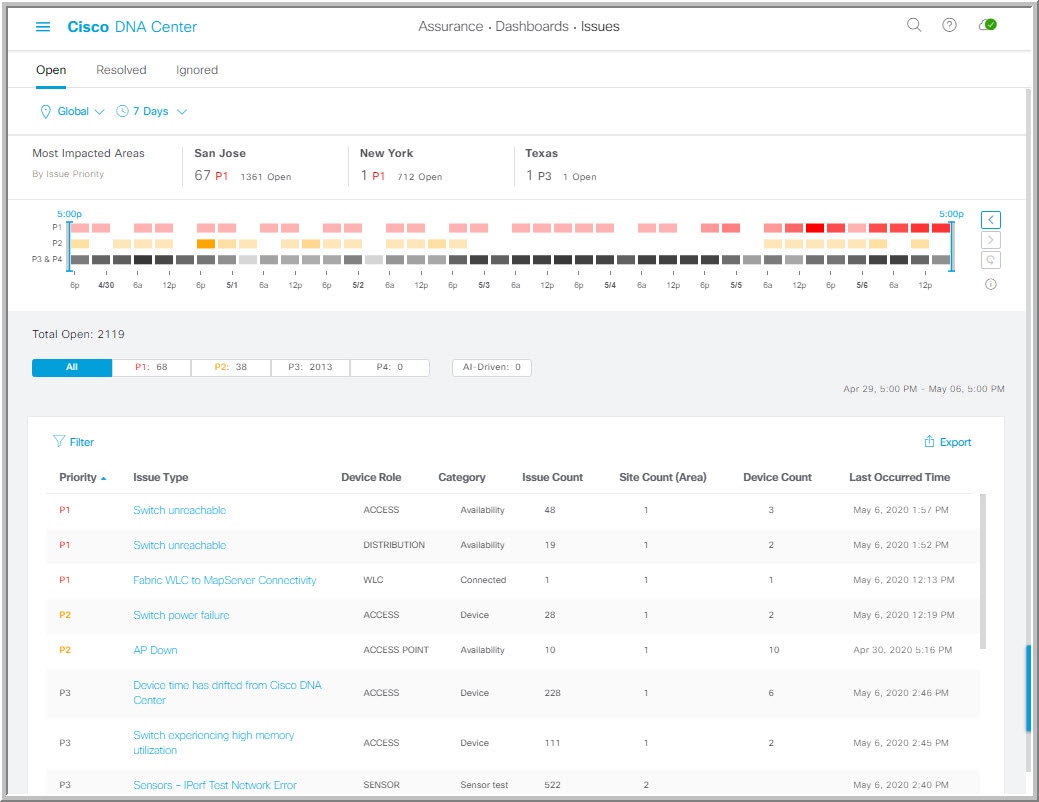
The Open Issues dashboard appears with the following information:

Figure 1. Open Issues Dashboard
Open Issues Dashboard
Item Description

Location pane

Allows you to display information on the window based on the location you select. Default is Global. To change the location, do the following:

  1. Click Global. The Site/Building/Floor table is displayed.

  2. Choose the Hierarchical Site View or Building View from the drop-down list. Based on what you choose, the table is refreshed.

  3. To view information about a specific site, building, or floor, click Apply in the appropriate row; information in the Open Issues window is refreshed based on your selection.

Time Range setting

Allows you to display information on the window based on the time range you select. Default is 24 Hours. Do the following:

  1. From the 24 Hours drop-down list, choose a time range: 3 hours, 24 hours, or 7 days.

  2. Specify the Start Date and time; and the End Date and time.

  3. Click Apply.

    This sets the range of the timeline.

Most Impacted Areas

Provides information about the areas that are most impacted based on issue priority. Click the hyper-linked location to drill down to the exact building and floor where the issue has occurred.

Timeline Slider

Allows you to specify a more granular time range. Click and drag the timeline boundary lines to specify the time range.

The colors represent the issue priority:

  • : P1
  • : P2
  • : P3 and P4
Note 

The intensity of the color indicates its significance, whether more or fewer issues have occurred for that priority level. For example, a lighter shade of yellow indicates fewer P2 issues (still open) than a deeper shade of yellow.

Total Open

Provides the total count of open issues that require action.

The Total Open value changes depending on the tab you choose. Options are All, P1, P2, P3, P4, and AI-Driven. Default is All.

Step 2

Click the All, P1, P2, P3, P4, or AI-Driven tab to display a list of issues in that category in the Issue Type table.

Issue Type Table in the Open Issues Window
Item Description

Priority

Preassigned priority level of the issue type.

Issue Type

Type of issue.

Note 

For AI-driven issues, the icon appears in front of the issue type.

Device Role

Role assigned to the device on which the issue was detected. Can be one of the following: Access, Core, Distribution, Border Router, or Unknown.

Category

Category under which the issue type falls. For example, Connectivity, Availability, Onboarding, Utilization, and so on.

Issue Count

Number of times this type of issue has occurred.

Site Count (Area)

Number of sites where this type of issue occurred.

Device Count

Number of devices that were impacted by this type of issue.

Last Occurred Time

Most recent date and time this issue occurred.

Step 3

From the Issue Type table, click an issue type.

The first slide-in pane, Issue Instances, opens, which lists all the issues for that issue type with the following information:

Issue Instances (First Slide-In Pane)
Item Description

Open Issues

Number of open issues for that issue type.

Area

Number of buildings and floors that are impacted by the issue.

Device

Number of devices that are impacted by the issue.

Actions drop-down list

Allows you to resolve or ignore a single issue or a bulk of issues at a time. See Resolve or Ignore Issues.

Issue

Description of the issue.

Site

Site, building, or floor that was impacted by the issue.

Device

Device that was impacted by the issue. Click the device name to open the Device 360 window.

Device Type

Type of device that was impacted by the issue

Issue Count

Number of times this type of issue occurred.

Last Occurred Time

Date and time this issue occurred.

Last Updated Time

Date and time this issue was last updated.

Updated By

Name of the entity who updated this issue.

Step 4

From the Issue column in the Issue Instances slide-in pane, click an issue.

A second slide-in pane, Issue Instance Details, opens, which provides details about the issue. Depending on the issue, the description and suggested actions are displayed.

Note 

Some of the suggested actions have a Run button adjacent to it. Click Run to execute the CLI command on the device.

For AI-driven issues, the Issue Instance Details slide-in pane contains AI-driven specific information. See Issue Instance Details for AI-Driven Issues.

For a Layer 2 loop issue, which support Machine Reasoning, the Issue Instance Details slide-in pane contains specific information. See Issue Instance Details for Layer 2 Loop and PoE Issues.

For a PoE issue, which support Machine Reasoning, the Issue Instance Details slide-in pane contains specific information. See Issue Instance Details for PoE Issue.


Issue Instance Details for AI-Driven Issues


Note

The Issue Instance Details slide-in pane is part of the Open Issues workflow. See Step 4 in View Open Issues.


For AI-driven issues, the Issue Instance Details (second slide-in pane) provides the following information:

Issue Instance Details (Second Slide-In Pane)
Item Description

Description

Description of the issue.

Status drop-down list

Allows you to change the status of the issue. Do the following:

  • To resolve an issue, from the Status drop-down list, choose Resolve.

  • To stop an issue from being reported, do the following:

    1. From the Status drop-down list, choose Ignore.

    2. Set the number of hours to ignore the issue on the slider, and then click Confirm.

Summary area

Brief summary of the issue, which can include information such as the radios that are impacted, the location of the radios, the time and date the issue occurred, and the location of the issue.

Impacted Summary for this Network

Displays information about the location that was impacted and the number of clients that were impacted by the issue.

Feedback icon

Click the icon to provide your comments on whether the information on this page was helpful, and then click Submit.
Problem

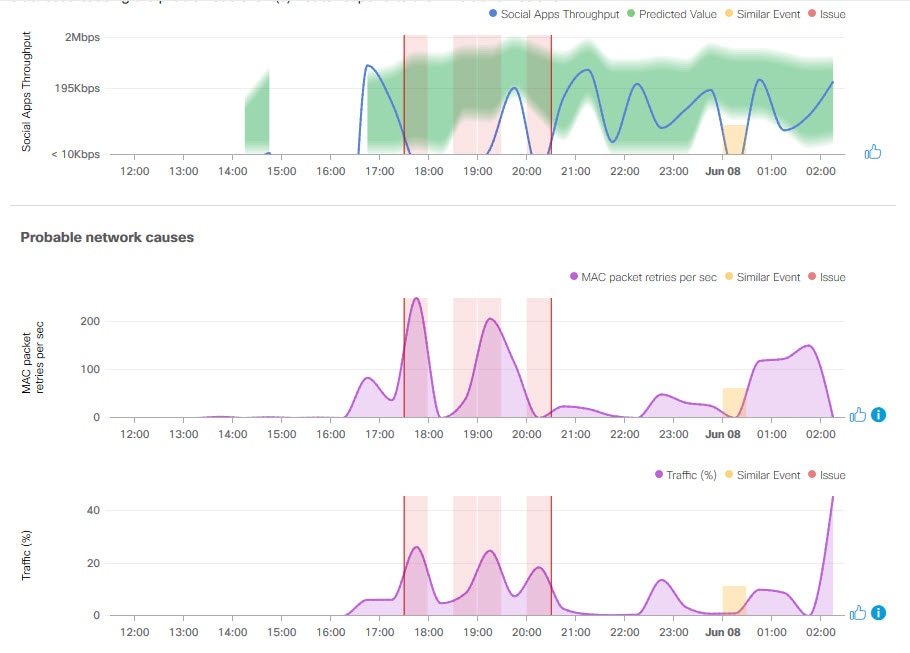
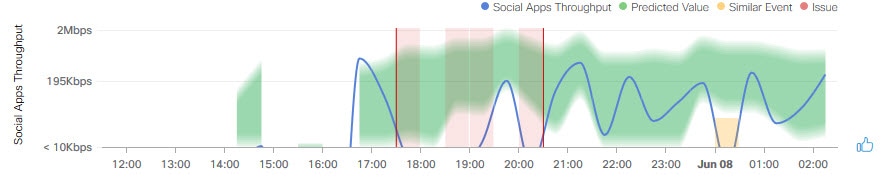
Provides brief text that describes the problem along with a chart that provides a visual of how the actual KPI value deviated from the predicted normal behavior.

By default, the chart is zoomed-in, 6 hours before and 6 hours after the issue, as shown in the following figure:

Figure 2. Problem Chart

The chart details for the AI-driven issues are represented by different colors.

  • Green band: Predicted normal behavior for your network based on machine learning.

  • Solid blue line: Actual KPI value.

  • Vertical red line or bars: Indicates an issue. When the blue line (actual KPI value) falls outside the green band (predicted normal behavior), an issue is raised.

  • Vertical yellow bars: Indicates that a similar event has occurred.

Hover and move your cursor over the charts to view synchronized information, such as the KPI value, the predicted lower value, and the predicted upper value at a selected point in time.

Impact

Provides information about the connected clients, APs, devices, and applications that are impacted by the issue.

For Excessive Onboarding Time and Failures; and Excessive DHCP, Association, or Authentication Time and Failures, the following tabs are provided: Impacted Clients and Top 10 Impacted APs.

For Total Radio Throughput and Applications Throughput (Cloud, Collab, Media, and Social), the following tabs are provided: Impacted Clients, Device Breakout, and Applications by TX/RX.

Click the tab to update the chart and the table below the chart.

Root Cause Analysis

Provides the issue along with the probable network causes for that issue, displayed in charts, as shown in the following figure:

Figure 3. Root Cause Analysis Charts

For Excessive Onboarding Time and Failures, the following tabs are provided: Network Causes, Failed Distribution, Failed Percentage, and Failed Count.

For Excessive DHCP, Association, or Authentication Time, the following tabs are provided: Network Causes, Top Impacted APs, and Top Impacted Times.

For Excessive DHCP, Association, or Authentication Failures, the following tabs are provided: Network Causes, Top Impacted APs, and Top Impacted Failures.

For Total Radio Throughput and Applications Throughput (Cloud, Collab, Media, and Social), the following tabs are provided: Network Causes.

Click the tab to update the charts below.

To view the charts for additional KPIs, click the KPI icon, choose the KPI, and then click Apply.

Suggested Actions

Provides the actions you can take to resolve the issue.

Issue Instance Details for Layer 2 Loop and PoE Issues


Note

The Issue Instance Details slide-in pane is part of the Open Issues workflow. See Step 4 in View Open Issues.

To understand the Layer 2 Loop issue and the Machine Reasoning Engine, see About Layer 2 Loop Issue.


For Layer 2 Loop issue, which supports Machine Reasoning, the Issue Instance Details slide-in pane contains the following information:

Issue Instance Details (Second Slide-In Pane)
Item Description

Status drop-down list

Allows you to change the status of the issue. Do the following:

  • To resolve an issue, from the Status drop-down list, choose Resolve.

  • To stop an issue from being reported, do the following:

    1. From the Status drop-down list, choose Ignore.

    2. Set the number of hours to ignore the issue on the slider, and then click Confirm.

Summary

Brief summary of the issue, which can include information, such as device, role, time, location. and potential root cause.

For Layer 2 Loop issue, this area provides the initial assessment, such as the VLANs and ports in the potential loop.

Problem Details

Note 
This area is provided for Layer 2 Loop issue.

Provides a brief text that describes the problem along with the following:

  • Relevant Events drop-down list: Lists the events that occurred during the loop. Click an event to view details in the side pane.

  • Potential Loop Details drop-down list: Provides loop information, such as the device, role, port in the loop, duplex mode, and VLAN that was involved in the loop.

Root Cause Analysis

The Machine Reasoning Engine (MRE) allows you to perform complex root cause analysis and suggests corrective actions.

  1. Click Run Machine Reasoning to allow the MRE to start troubleshooting. After the troubleshooting is completed, the Machine Reasoning Completed pop-up dialog box appears.

  2. In the pop-up dialog box, click View Details. The Root Cause Analysis area appears with the Conclusions tab opened by default providing the details of the root cause analysis.

  3. From the Conclusions area, click View Relevant Activities to view activity details. The activity shows commands that were used at each step of the root cause analysis.

  4. Click the icon to provide your feedback, whether the information on this page was helpful or not.

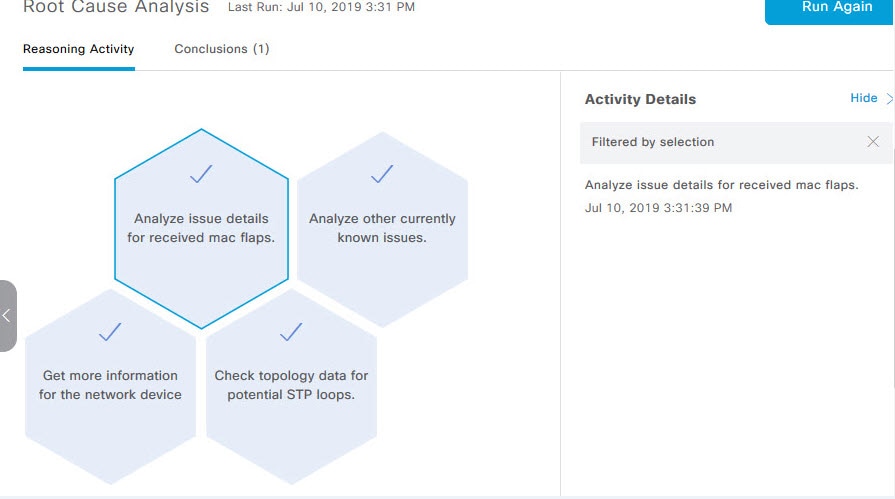
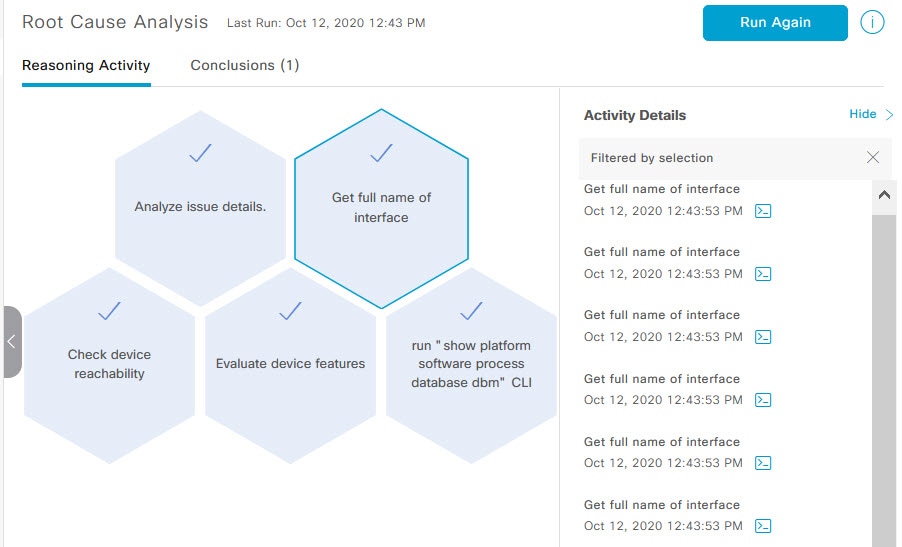
  5. Click the Reasoning Activity tab to understand how the MRE reached that conclusion. Each reasoning activity is provided in hexagon shaped blocks as shown in the following figure. Click each hexagon shaped block to view activity details in the right pane.

    To cancel the reasoning activity while it is running, click Stop.

    Note 

    The check mark indicates that the step is complete.

    Figure 4. Reasoning Activity
  6. Click Run Again if you want to rerun the MRE.

Topology icon

Note 
This icon is provided for Layer 2 Loop issue.

Click the icon to view the topology of the network segment in which the loop occurred.
Issue Instance Details for PoE Issue


Note

The Issue Instance Details slide-in pane is part of the Open Issues workflow. See Step 4 in View Open Issues.


For PoE issue, which supports Machine Reasoning, the Issue Instance Details slide-in pane contains the following information:

Issue Instance Details (Second Slide-In Pane)
Item Description

Status drop-down list

Allows you to change the status of the issue. Do the following:

  • To resolve an issue, from the Status drop-down list, choose Resolve.

  • To stop an issue from being reported, do the following:

    1. From the Status drop-down list, choose Ignore.

    2. Set the number of hours to ignore the issue on the slider, and then click Confirm.

Summary

Summary of the issue, which can include information, such as device, role, time, location. and potential root cause.

Problem Details

Provides a brief text that describes the problem along with the following:

  • Event Types tabs: Contains tabs for the types of events that occurred. Click an event tab to view the list of errors that occurred for that event type.

  • Errors: Errors that occurred for each event type. The errors are refreshed based on the Event Types tab you click.

  • Detailed Information Click an error to view additional information about the error.

Root Cause Analysis

The Machine Reasoning Engine (MRE) allows you to perform complex root cause analysis and suggests corrective actions.

  1. Click Run Machine Reasoning to allow the MRE to start troubleshooting. After the troubleshooting is completed, the Machine Reasoning Completed pop-up dialog box appears.

  2. In the pop-up dialog box, click View Details. The Root Cause Analysis area appears with the Conclusions tab opened by default providing the details of the root cause analysis.

  3. From the Conclusions area, click View Relevant Activities to view activity details. The activity shows commands that were used at each step of the root cause analysis.

  4. Click the icon to provide your feedback, whether the information on this page was helpful or not.

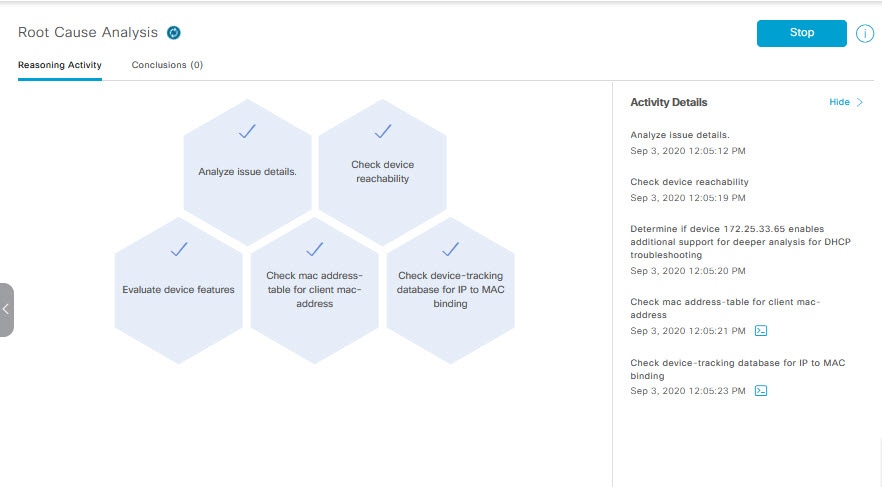
  5. Click the Reasoning Activity tab to understand how the MRE reached that conclusion. Each reasoning activity is provided in hexagon shaped blocks as shown in the following figure. Click each hexagon shaped block to view Activity Details in the right pane.

    To cancel the reasoning activity while it is running, click Stop.

    Note 

    The check mark indicates that the step is complete.

    Figure 5. Reasoning Activity
  6. Click Run Again if you want to rerun the MRE.

Troubleshoot Wired Client Issues Using MRE

Use this procedure to view wired client issues detected by Assurance that you can troubleshoot using the MRE workflow. For a list of wired client issues that support MRE, see MRE Issues.

Before you begin

Make sure you that MRE knowledge base is updated with the latest knowledge packs. See Update the Machine Reasoning Knowledge Base.

Procedure


Step 1

In the Cisco DNA Center GUI, click the Menu icon () and choose Assurance > Health.

The Overall health dashboard appears.

Step 2

Click the Client tab.

The Client health dashboard appears.

Step 3

In the Wired Clients summary area, click View Details to open a slide-in pane.

Step 4

In the slide-in pane, in the Wired Clients chart, click Authentication or DHCP as appropriate.

If you click Authentication, the following information is displayed below the chart: Top Authentication Failure Reason, Top Location, Top Switch, Top Host Device Type. A table is also displayed, which provides the list of clients that failed authentication.

If you click DHCP, the following information is displayed below the chart: Top DHCP Failure Reason, Top Location, Top Switch, Top Host Device Type. A table is also displayed.

Step 5

Do one of the following:

  • If you are a user with SUPER-ADMIN-ROLE privileges, enter the client's MAC address in the search tool.
  • In the table, from the Identifier column, click the hyper linked identifier.

The Client 360 window for that client is displayed.

Step 6

In the Client 360 window, from the Issues dashlet, click an authentication or DHCP issue.

The Issue Details window is displayed with the following information:

Issue Details
Item Description

Status drop-down list

Provides the current status of the issue, which you can change. Do the following:

  • To resolve an issue, from the Status drop-down list, choose Resolve.

  • To stop an issue from being reported, do the following:

    1. From the Status drop-down list, choose Ignore.

    2. Set the number of hours to ignore the issue on the slider, and then click Confirm.

Summary

Brief summary of the issue, which can include information, such as device, role, time, location. and potential root cause.

Root Cause Analysis

The Machine Reasoning Engine (MRE) allows you to perform complex root cause analysis and suggests corrective actions.

  1. Click Run Machine Reasoning to allow the MRE to start troubleshooting. After the troubleshooting is completed, the Machine Reasoning Completed pop-up dialog box appears.

  2. In the pop-up dialog box, click View Details. The Root Cause Analysis area appears with the Conclusions tab opened by default providing the details of the root cause analysis.

  3. From the Conclusions area, click View Relevant Activities to view activity details.

  4. Click the icon to provide your feedback, whether the information on this page was helpful or not, and then click Submit.

  5. Click the Reasoning Activity tab to understand how the MRE reached that conclusion. Each reasoning activity is provided in hexagon shaped blocks as shown in the following figure. Click each hexagon shaped block to view activity details in the right pane.

    To abort the reasoning activity while it is running, click Stop.

    Note 

    The check mark indicates that the step is complete.

    Figure 6. Reasoning Activity
  6. Click Run Again if you want to rerun the MRE.


View Resolved Issues

Use this procedure to view all resolved issues, which fall under the following categories:

  • Threshold-based issues: Issues detected by Assurance.

  • AI-driven Issues: Issues detected by Cisco AI Network Analytics. These issues are triggered based on deviations from the predicted baseline for your specific network environment.

Before you begin

To view AI-driven resolved issues, make sure that you have configured Cisco AI Network Analytics data collection. See Configure Cisco AI Network Analytics Data Collection.

Procedure


Step 1

In the Cisco DNA Center GUI, click the Menu icon () and choose Assurance > Dashboards > Issues.

The Open Issues dashboard appears.

Step 2

Click the Resolved tab.

The Resolved Issues window appears.

Step 3

Use the Resolved Issues window to view the following information:

Resolved Issues Window
Item Description

Global

Allows you to display information on the window based on the location you select. Default is Global. To change the location, do the following:

  1. Click Global. The Site/Building/Floor table is displayed.

  2. Choose the Hierarchical Site View or Building View from the drop-down list. Based on what you choose, the table is refreshed.

  3. To view information about a specific site, building, or floor, click Apply in the appropriate row; information in the Open Issues window is refreshed based on your selection.

24 Hours drop-down list

Allows you to display information on the window based on the time range you select. Default is 24 Hours. Do the following:

  1. From the 24 Hours drop-down list, choose a time range: 3 hours, 24 hours, or 7 days.

  2. Specify the Start Date and time and the End Date and time.

  3. Click Apply.

    This sets the range of the timeline.

Timeline slider

Allows you to specify a more granular time range. Click and drag the timeline boundary lines to specify the time range.

Total Resolved

Provides the total count of resolved issues.

The Total Resolved value changes depending on the tab you choose. Options are All, P1, P2, P3, P4, and AI-Driven. Default is All.

Step 4

Click the All, P1, P2, P3, P4, or AI-Driven tab to display a list of issues in that category in the Issue Type table.

Issue Type Table in the Resolved Issues Window
Item Description

Priority

Preassigned priority level of the issue type.

Issue Type

Type of issue.

Note 

For AI-driven issues, the icon appears in front of the issue type.

Device Role

Role assigned to the device on which the issue was detected. Can be one of the following: Access, Core, Distribution, Border Router, or Unknown.

Category

Category under which the issue type falls. For example, Connectivity, Availability, Onboarding, Utilization, and so on.

Issue Count

Number of times this type of issue has occurred.

Site Count (Area)

Number of sites where this type of issue occurred.

Device Count

Number of devices that were impacted by this type of issue.

Last Occurred Time

Most recent date and time this issue occurred.

Step 5

From the Issue Type table, click an issue type.

The first slide-in pane, Issue Instances, opens, which lists all the resolved issues for that issue type and information such as site, device, device type, occurrence, last occurrence timestamp, last updated timestamp, and the name of the entity that updated the issue.

If the issue condition no longer exists, the system automatically resolves the issue and displays System in the Updated By column. See Automatic Issue Resolution.

Step 6

From the Issue column in the Issue Instances slide-in pane, click an issue.

A second slide-in pane, Issue Instance Details, opens, which provides details about the issue, the name of the entity that resolved the issue, and the timestamp. Depending on the issue, the description and suggested actions are displayed.


View Ignored Issues

Use this procedure to view all issues that are marked as ignored. The list of ignored issues that appear fall under the following two categories:

  • Threshold-based issues: Issues detected by Assurance.

  • AI-Driven Issues: Issues detected by Cisco AI Network Analytics. These issues are triggered based on deviations from the predicted baseline for your specific network environment.

Before you begin

To view the AI-Driven ignored issues, make sure that you have configured Cisco AI Network Analytics data collection. See Configure Cisco AI Network Analytics Data Collection.

Procedure


Step 1

In the Cisco DNA Center GUI, click the Menu icon () and choose Assurance > Dashboards > Issues.

The Open Issues dashboard appears.

Step 2

Click the Ignored tab.

The Ignored Issues window appears.

Step 3

Use the Ignored Issues window to view the following information:

Ignored Issues Window
Item Description

Global

Allows you to display information on the window based on the location you select. Default is Global. To change the location, do the following:

  1. Click Global. The Site/Building/Floor table is displayed.

  2. Choose the Hierarchical Site View or Building View from the drop-down list. Based on what you choose, the table is refreshed.

  3. To view information about a specific site, building, or floor, click Apply in the appropriate row; information in the Ignored Issues window is refreshed based on your selection.

24 Hours drop-down list

Allows you to display information on the window based on the time range you select. Default is 24 Hours. Do the following:

  1. From the 24 Hours drop-down list, choose a time range: 3 hours, 24 hours, or 7 days.

  2. Specify the Start Date and time; and the End Date and time.

  3. Click Apply.

    This sets the range of the timeline.

Timeline slider

Allows you to specify a more granular time range. Click and drag the timeline boundary lines to specify the time range.

Total Ignored

Provides the total count of ignored issues.

The Total Ignored value changes depending on the tab you choose. Options are All, P1, P2, P3, P4, and AI-Driven. Default is All.

Step 4

Click the All, P1, P2, P3, P4, or AI-Driven tab to display a list of issues in that category in the Issue Type table.

Issue Type Table in the Ignored Issues Window
Item Description
Priority

Preassigned priority level of the issue type.

Issue Type

Type of issue.

Note 

For AI-driven issues, the icon appears in front of the issue type.

Device Role

Role assigned to the device on which the issue was detected. Can be one of the following: Access, Core, Distribution, Border Router, or Unknown.

Category

Category under which the issue type falls. For example, Connectivity, Availability, Onboarding, Utilization, and so on.

Issue Count

Number of times this type of issue has occurred.

Site Count (Area)

Number of sites where this type of issue occurred.

Device Count

Number of devices that were impacted by this type of issue.

Last Occurred Time

Most recent date and time this issue occurred.

Step 5

From the Issue Type table, click an issue type.

The first slide-in pane, Issue Instances opens, which lists all the ignored issues for that issue type and information such as site, device, device type, occurrence, and the time stamp of the last occurrence.

Step 6

From the Issue column in the Issue Instances slide-in pane, click an issue.

A second slide-in pane, Issue Instance Details, opens, which provides details about the issue. Depending on the issue, the description along with suggested actions are displayed.


Resolve or Ignore Issues

Use this procedure to resolve or ignore a bulk of issues or to resolve or ignore a single issue.

Procedure


Step 1

In the Cisco DNA Center GUI, click the Menu icon () and choose Assurance > Dashboards > Issues.

The Open Issues dashboard appears.

Step 2

To resolve or ignore a bulk of issues, do the following:

  1. From the Issue Type table in the Open Issues dashboard, click an issue type.

    The first slide-in pane, Issue Instances, opens, which lists all the open issues for that issue type. This slide-in-pane allows you to resolve or ignore a bulk of issues.

  2. Do one of the following:

    • To resolve or ignore specific issues, check the check boxes adjacent to those issues.

    • To resolve or ignore all open issues that are displayed in the browser window for an issue type, check the check box adjacent to the Issue column. All the issues that are displayed in the browser window are selected.

    • If the open issue count is more than 25 (for example, 100), the first 25 issues are displayed in the browser window. To select all the open issues, do the following:

      1. Check the check box adjacent to the Issue column.

        The first 25 issues are selected and the Select all number open issues tab appears next to the Actions drop-down list.

      2. Click the Select all number open issues to select all open issues for that issue type (for example, all 100 issues).

      3. (Optional) To view the next 25 issues in the browser window, click Show More located on the bottom of the page. The next 25 issues are appended to the browser window increasing the displayed issue count to 50. Click Show More to view the next 25 issues on the browser window, and so on.

  3. To resolve the issues, from the Actions drop-down list, choose Resolve.

    A Warning dialog box appears. Click Yes in the Warning dialog box to proceed with the action.

    After the issues are resolved, the View resolved issues tab is displayed. Click the View resolved issues to open the Resolved Issues window.

  4. To ignore the issues, from the Actions drop-down list, choose Ignore.

    Set the number of hours to ignore the issues on the slider, and then click Confirm.

    After the issues are ignored, the View ignored issues tab is displayed. Click the View ignored issues tab to open the Ignored Issues window.

Note 

If you try to resolve or ignore more than 750 issues, a warning message appears letting you know that it might take up to a minute to complete the action.

Step 3

To resolve or ignore a single issue, do the following:

  1. From the Issue column in the Issue Instances slide-in pane (first slide-in pane), click an issue.

    A second slide-in pane, Issue Instance Details, opens, which provides details about the issue. This second slide-in-pane allows you to resolve or ignore the issue that you are viewing.
  2. To resolve an issue, from the Status drop-down list, choose Resolve.

  3. To stop an issue from being reported, do the following:

    1. From the Status drop-down list, choose Ignore.

    2. Set the number of hours to ignore the issue on the slider, and then click Confirm.


Radio Outage Issue Triggers

A radio outage issue is triggered when all of the following conditions are met for 60 minutes, which is the default trigger time:


Note

To change the default trigger time, go to Assurance > Manage > Issue Settings. See Manage Issue Settings.


  • The AP radio operation state is "up".

  • The AP mode is Local or Flex-Connect.

  • Client count on this radio is equal to 0.

  • The RX data or management frame count is not increasing.

  • The AP radio channel utilization is equal to 0.

  • The AP is not an isolated AP.

Automatic Issue Resolution

For the following types of issues, if the issue condition no longer exists, the system automatically resolves the issue:

  • Interface is down.

  • Wireless Controller/Switch/Router unreachable.

  • AP Disconnect from WLC.

  • No activity on radio.


    Note

    The system automatically resolves this issue when one of the following conditions no longer exist:

    • Client count on this radio is equal to 0.

    • The RX data or management frame count is not increasing.

    • The AP radio channel utilization is equal to 0.


After the issue is resolved, the Updated By column in the Resolved Issues > Issue Instance slide-in pane, displays System. See Step 3 in View Resolved Issues.

Manage Issue Settings

Use this procedure to manage the settings for issues. You can enable or disable specific issues that can be triggered, change the priority for issues, change the threshold for when an issue is triggered, and subscribe to external notifications for issues when they are triggered.

Procedure


Step 1

In the Cisco DNA Center GUI, click the Menu icon () and choose Assurance > Manage > Issue Settings.

The Issue Settings window appears.

Step 2

Set the DEVICE TYPE and CATEGORY filters to view the type of issues you want to configure.

To view the AI-driven issues, click the AI-Driven tab in the CATEGORY filter.

Step 3

Click an issue in the Issue Name column to open an slide-in pane with the settings:

Note 

For some issues, changes made to the settings are shared across multiple device types. In the slide-in pane, hover your cursor over the information icon () to display the affected device types.

  1. To enable or disable if the issue can be triggered, click the Enabled toggle.

  2. To set the issue priority, click the Priority drop-down list and select the priority. The options are:

    • P1: A critical issue that needs immediate attention which can result in wider impact on network operations.

    • P2: A major issue that can potentially impact multiple devices or clients.

    • P3: A minor issue that has a localized or minimal impact.

    • P4: A warning issue that may not be an immediate problem but addressing it can optimize the network performance.

  3. (For certain issues) In the Trigger Condition area, you can change the threshold value for when the issue is reported.

    Note 

    For radio outage trigger conditions, see Radio Outage Issue Triggers.

    Examples of a trigger condition:

    No Activity on Radio(2.4 GHz) >= 60 minutes.
    Memory Utilization of Access Points greater than 90%
  4. (Optional) If there are any changes to the settings, you can hover your cursor over View Default Settings to display the default issues. Click Use Default to restore all the issue settings to the default values.

  5. Click Apply.

Step 4

Click Manage Subscription to subscribe to external notifications for supported issues when they are triggered. See Enable Issue Notifications.


Enable Issue Notifications

Use this procedure to receive external notifications for when specific issues are triggered in Assurance. When an issue is triggered and there is status change, Assurance can generate a REST or email notification.

Procedure


Step 1

In the Cisco DNA Center GUI, click the Menu icon () and choose Assurance > Manage > Issue Settings.

The Issue Settings window appears.

Step 2

Click Manage Subscriptions.

The Events window appears.

Step 3

Check the check boxes of the events that you want to subscribe to.

Note 

The Event name in Cisco DNA Center platform is the same as the Issue Name in Assurance.

Step 4

Click Subscribe.

The Subscribe dialog box appears.
Step 5

In the Subscribe dialog box, enter the details for the subscription:

  1. Enter a name for the subscription in the Name field.

  2. Click the Subscription Type drop-down list to select the notification type. You can receive REST or email notifications:

    Notification Type Details

    REST

    Receive a REST notification when the issue/event is triggered. Configure the following settings:

    • Select the option Select an existing endpoint or Create a new endpoint to specify the endpoint and configure the subsequent fields for the endpoint.

    • Trust Certificate

    • HTTP Method: Options are POST or PUT.

    • Headers: Enter the header details in the Header Key and Header Value fields.

    EMAIL

    Receive an email notification when an issue/event is triggered.

    Important 

    To receive email notifications, make sure you have the email server configured in the > System Settings > Email configuration window.

  3. Click Subscribe.

A subscription for the issue/event is created. A notification is sent when the issue/event is triggered and there is a status change.

What to do next

You can view and manage existing event subscriptions in Cisco DNA Center platform. For details, see "Working with Events" in the Cisco DNA Center Platform User Guide.

Assurance, Cisco AI Network Analytics, and MRE Issues

Router Issues

The following table lists the router issues detected by Assurance:

Router Issues
Category Issue Name Summary

Connectivity

BGP tunnel connectivity

BGP connectivity failure with peer due to wrong AS (autonomous system) number.

Connectivity

Interface connecting network devices is down

Interface connecting network devices is down.

Connectivity

Layer 2 loop symptoms

Host MAC address flapping seen on network device.

Connectivity

Network device Interface connectivity - BGP Flap

BGP connectivity is flapping with neighbor.

Connectivity

Network device interface connectivity - EIGRP adjacency failure

EIGRP (Enhanced Interior Gateway Routing Protocol) adjacency failed with neighbor.

Connectivity

Network device interface connectivity - Interface down

Interface on device is down.

Connectivity

Network device interface connectivity - ISIS adjacency failure

ISIS (Intermediate System Intermediate System) adjacency failed on device.

Connectivity

Network device interface connectivity - OSPF adjacency failure

OSPF (Open Shortest Path First) adjacency failed with neighbor.

Connectivity

WAN Interface Down

Interface connecting WAN network is down.

Connected

Failure to install an access policy for SGT

Failure to install an SGACL access policy for SGT.

Connected

High input/output error on router interfaces

High input/output error on interfaces.

Connected

High input/output discards on router interfaces

High input/output discards on interfaces.

Connected

High input/output utilization on router interfaces

High input/output utilization on interfaces.

Connected

High input/output discards on router WAN interfaces

High input/output discard on WAN interfaces.

Connected

High input/output utilization on router WAN interfaces

High input/output utilization on WAN interfaces.

Connected

SGT access policy download failed on the device

Failed to download SGACL ACEs for SGT.

Connected

SGT access policy installation failed on the device

Failure to install an access policy for SGT. Policy rule error found in RBACL.

Connected

Unable to download SGT access policy from the policy server

Failure to download the source list for access policy for SGT.

Connected

Uninstall of SGT access policy failed on the device

Failure to uninstall an SGACL access policy for SGT.

Device

DNA Center and network device time has drifted

Excessive time lag between Cisco DNA Center and device.

Device

Issues based on syslog events - High temperature

Issues created by single occurrence of syslog event related to high temperature.

Device

Router experiencing high CPU utilization

Device experiencing high CPU utilization.

Device

Router experiencing high memory utilization

Device experiencing high memory utilization

Availability

Network device HA switchover

The network device went through an HA switchover.

Availability

Router unreachable

Network device is unreachable from controller.

Core, Distribution, and Access Issues

The following table lists the core, distribution, and access issues detected by Assurance:

Core, Distribution, and Access Issues
Category Issue Name Summary

Connectivity

BGP tunnel connectivity

BGP connectivity failure with peer due to wrong AS (autonomous system) number.

Connectivity

Interface connecting network devices is down

Interface connecting network devices is down.

Connectivity

Layer 2 loop symptoms

Host MAC address flapping seen on network device.

Connectivity

Network device Interface connectivity - BGP Flap

BGP connectivity is flapping with neighbor.

Connectivity

Network device interface connectivity - EIGRP adjacency failure

EIGRP (Enhanced Interior Gateway Routing Protocol) adjacency failed with neighbor.

Connectivity

Network device interface connectivity - Interface down

Interface on device is down.

Connectivity

Network device interface connectivity - ISIS adjacency failure

ISIS (Intermediate System Intermediate System) adjacency failed on device.

Connectivity

Network device interface connectivity - OSPF adjacency failure

OSPF (Open Shortest Path First) adjacency failed with neighbor.

Connectivity

Dual Active Detection link failed on network device

The Dual Active Detection link has failed on the network device Switch Name.

Connectivity

StackWise Virtual link failed on network device

The StackWise Virtual link has failed on the network device Switch Name.

Connectivity

StackWise link failed on network device

The StackWise link has failed on the network device Switch Name.

Connected

Fabric devices connectivity - Border overlay

Fabric edge lost connectivity to the fabric border in the virtual network.

Connected

Fabric devices connectivity - Border underlay

Fabric edge lost connectivity to the fabric border in the physical network.

Connected

Fabric devices connectivity - Control border underlay

Fabric node lost connectivity to the co-located fabric border and control plane in the physical network.

Connected

Fabric devices connectivity - Control underlay

Fabric node lost connectivity to the fabric control plane device in the physical network.

Connected

Fabric devices connectivity - DHCP overlay

Fabric node lost connectivity to the DHCP server in the virtual network.

Connected

Fabric devices connectivity - DHCP underlay

Fabric node lost connectivity to the DHCP server in the physical network.

Connected

Fabric devices connectivity - DNS overlay

Fabric node lost connectivity to the DNS server in the virtual network.

Connected

Fabric devices connectivity - DNS underlay

Fabric node lost connectivity to the DNS server in the physical network.

Connected

Fabric devices connectivity - External URL

The fabric border cannot reach the user-provisioned external URL.

Connected

Fabric devices connectivity - ISE server

Fabric edge lost connectivity to the ISE server in the physical network.

Connected

Failure to install an access policy for SGT

Failure to install an SGACL access policy for SGT.

Connected

High input/output error on switch interfaces

High input/output error on switch interfaces.

Connected

High input/output discards on switch interfaces

High input/output discards on switch interfaces.

Connected

High input/output utilization on switch interfaces

High input/output utilization on interfaces.

Connected

SGT access policy download failed on the device

Failed to download SGACL ACEs for SGT.

Connected

SGT access policy installation failed on the device

Failure to install an access policy for SGT. Policy rule error found in RBACL.

Connected

Unable to download SGT access policy from the policy server

Failure to download the source list for access policy for SGT.

Connected

Uninstall of SGT access policy failed on the device

Failure to uninstall an SGACL access policy for SGT.

Device

Device reboot crash

Device has rebooted due to a hardware or software crash.

Device

Device time has drifted from Cisco DNA Center

Excessive time lag between Cisco DNA Center and the device.

Device

Interface is flapping on network device

A port interface is flapping on a switch.

Device

Issues based on syslog events - High temperature

Issues created by single occurrence of syslog event related to high temperature.

Device

Issues based on syslog events - POE

Issues created by single occurrence of syslog event related to power.

Device

PoE port in error state

PoE port is error disabled as reported by a syslog event.

Device

PoE powered device flagged faulty

PoE-capable device connected to a PoE port has been flagged faulty as reported by a syslog event.

Device

Power denied for PoE powered device

PoE-capable device connected to a PoE port has been power denied as reported by a syslog event.

Device

Stack member removal

Stack member was removed.

Device

Stack member running incompatible image

Stack member is running an incompatible image.

Device

Switch experiencing high CPU utilization

Device experiencing high CPU utilization.

Device

Switch experiencing high memory utilization

Device experiencing high memory utilization.

Device

Switch fan failure

Fan failure on switch.

Device

Switch power failure

Power supply failure on switch.

Device

TCAM utilization high issues

Issues for TCAM exhaustion in layer 2, layer 3, QoS, and SGACL.

Availability

Network device HA switchover

The network device went through an HA switchover.

Availability

Switch unreachable

Device is unreachable.

Utilization

Map cache limit reached

Map cache entries have exceeded limit on map server.

Controller Issues

The following table lists the controller issues detected by Assurance:

Controller Issues
Category Issue Name Summary

Connectivity

Interface connecting network devices is down

Interface connecting network devices is down.

Connected

Fabric WLC to MapServer connectivity

Fabric WLC lost connectivity to the fabric control plane node.

Device

Device time has drifted from Cisco DNA Center

Excessive time lag between Cisco DNA Center and the device.

Availability

Network device HA switchover

The network device went through an HA switchover.

Availability

WLC monitor

Network controller is not receiving data from WLC.

Availability

WLC power supply failure

Power supply has failed on this WLC.

Availability

WLC reboot crash

WLC reboot crash.

Availability

WLC unreachable

Device is unreachable.

Utilization

AP license exhausted on WLC

WLC currently has no free AP licenses.

Utilization

WLC memory high utilization

WLC is experiencing high memory utilization.

Access Point Issues

The following table lists the access point issues detected by Assurance:

Access Point Issues
Category Issue Name Summary

Availability

AP coverage hole

AP has a coverage hole.

Availability

AP Disconnect from WLC

AP is disconnected.

Availability

AP flap

AP has flapped. This issue is trigerred when AP flaps more than two time within 15 mins time period.

Availability

AP reboot crash

AP has rebooted due to a hardware or software crash.

Utilization

AP CPU high utilization

AP is experiencing high CPU utilization.

Utilization

AP memory high utilization

AP is experiencing high memory utilization.

Utilization

Radio high utilization (2.4GHz)

2.4 GHz radio on AP(s) are experiencing high utilization.

Utilization

Radio high utilization (5GHz)

5 GHz radio on AP(s) are experiencing high utilization.

Utilization

No activity on radio (2.4GHz)

No activity on 2.4 GHz radio x on AP.

Utilization

No activity on radio (5GHz)

No activity on 5 GHz radio x on AP.

AP Anomaly

AP anomaly

AP encountered anomaly issue.

Wired Client Issues

The following table lists the wired client issues detected by Assurance:

Wired Client Issues
Category Issue Name Summary

Onboarding

Client DHCP reachability issue

The client has failed to obtain an IP address from DHCP server.

Onboarding

Client DNS reachability issue

The client failed to obtain a response from the DNS server.

Onboarding

Wired client authentication failures - Dot1.x failure

Wired client authentication failed. User device authentication with Dot1.x failure.

Note 

This issue is applicable only for single wired clients.

Onboarding

Wired client authentication failures - MAB failure

Wired client authentication failed. User device authentication failed with MAC authentication bypass issues.

Note 

This issue is applicable only for single wired clients.

Wireless Client Issues

The following table lists the wireless client issues detected by Assurance:


Note

These issues are applicable for both single clients and multiple clients.


Wireless Client Issues
Category Issue Name Summary

Onboarding

802.11r client roaming slowly

While roaming, a wireless client capable of fast roaming is doing full authentication instead of fast authentication.

Onboarding

Client DHCP reachability issue

The client has failed to obtain an IP address from DHCP server.

Onboarding

Client DNS reachability issue

The client failed to obtain a response from the DNS server.

Onboarding

Wireless client excluded - Client was excluded before roaming

Wireless client excluded - Client was excluded before roaming.

Onboarding

Wireless client excluded - IP theft issue

Wireless client excluded - IP theft issue.

Onboarding

Wireless client failed to connect - AAA server rejected client

Wireless client failed to connect - AAA server rejected client.

Onboarding

Wireless client failed to connect - AAA server timeout

Wireless client failed to connect - AAA server timeout.

Onboarding

Wireless client failed to connect - Client PMK not found

Wireless client failed to connect - Client PMK not found.

Onboarding

Wireless client failed to connect - Client timeout

Wireless client failed to connect - Failed to authenticate due to client timeout.

Onboarding

Wireless client failed to connect - DHCP server timeout

Wireless client failed to connect - DHCP server timeout.

Onboarding

Wireless client failed to connect - DHCP timeout

Wireless client failed to connect - DHCP timeout.

Onboarding

Wireless client failed to connect - Failed to get an IP address due to client timeout

Wireless client failed to connect - Failed to get an IP address due to client timeout.

Onboarding

Wireless client failed to connect - Incorrect PSK

Wireless client failed to connect and was excluded - The client's PSK did not match the configured WLAN PSK.

Onboarding

Wireless client failed to connect - Security parameter mismatch

Wireless client failed to connect - Security parameter mismatch.

Onboarding

Wireless client failed to connect - WLC configuration error

Wireless client failed to connect - WLC configuration error.

Onboarding

Wireless client failed to connect - WLC internal error

Wireless client failed to connect - WLC internal error.

Onboarding

Wireless client failed to roam - AAA server rejected client

Wireless client failed to roam - AAA server rejected client.

Onboarding

Wireless client failed to roam - AAA server timeout

Wireless client failed to roam - AAA server timeout.

Onboarding

Wireless client failed to roam - Client PMK not found

Wireless client failed to roam - Client PMK not found.

Onboarding

Wireless client failed to roam - Client timeout

Wireless client failed to roam - Failed to authenticate due to client timeout.

Onboarding

Wireless client failed to roam - Security parameter mismatch

Wireless client failed to roam - Security parameter mismatch.

Onboarding

Wireless client failed to roam - WLC configuration error

Wireless client failed to roam - WLC configuration error.

Onboarding

Wireless client failed to roam - WLC internal error

Wireless client failed to roam - WLC internal error.

Onboarding

Wireless client failed to roam between APs - External error

Wireless client failed to roam between APs - External error.

Onboarding

Wireless client failed to roam between APs - WLC configuration mismatch

Wireless client failed to roam between APs - WLC configuration mismatch.

Onboarding

Wireless client took a long time to connect - Excessive time due to authentication timeouts

Wireless client took a long time to connect - Excessive time due to authentication timeouts.

Onboarding

Wireless client took a long time to connect - Excessive time due to DHCP server failures

Wireless client took a long time to connect - Excessive time due to DHCP server failures.

Onboarding

Wireless client took a long time to connect - Excessive time due to failed credentials

Wireless client took a long time to connect - Excessive time due to failed credentials.

Onboarding

Wireless client took a long time to connect - Excessive time due to WLC failures

Wireless client took a long time to connect - Excessive time due to WLC failures.

Onboarding

Wireless client took a long time to connect - Excessive time for authentication due to AAA server or network delays

Wireless client took a long time to connect - Excessive time for authentication due to AAA server or network delays.

Onboarding

Wireless clients excluded - IP theft issue

Wireless clients excluded - IP theft issue.

Onboarding

Wireless clients failed to connect - AAA server rejected clients

Wireless clients failed to connect - AAA server rejected clients.

Onboarding

Wireless clients failed to connect - AAA server timeout

Wireless clients failed to connect - AAA server timeout.

Onboarding

Wireless clients failed to connect - Client PMK not found

Wireless clients failed to connect - Client PMK not found.

Onboarding

Wireless Clients failed to connect - DHCP server timeout

Wireless Clients failed to connect - DHCP server timeout.

Onboarding

Wireless clients failed to connect - Failed to authenticate due to client timeouts

Wireless clients failed to connect - Failed to authenticate due to client timeouts.

Onboarding

Wireless clients failed to connect - Failed to get an IP address due to client timeouts

Wireless clients failed to connect - Failed to get an IP address due to client timeouts.

Onboarding

Wireless clients failed to connect - Failed to get an IP address due to DHCP server or client timeouts

Wireless clients failed to connect - Failed to get an IP address due to DHCP server or client timeouts.

Onboarding

Wireless clients failed to connect - Incorrect PSK

Wireless clients failed to connect and were excluded - The clients' PSK did not match the configured WLAN PSK.

Onboarding

Wireless clients failed to connect - Security parameter mismatch

Wireless clients failed to connect - Security parameter mismatch during authentication.

Onboarding

Wireless clients failed to connect - WLC configuration error

Wireless clients failed to connect - WLC configuration error.

Onboarding

Wireless clients failed to roam - Client exclusion policies on the WLC

Wireless clients failed to roam - Clients were excluded due to client exclusion policies on the WLC.

Onboarding

Wireless clients failed to roam - Clients were excluded before roaming

Wireless clients failed to roam - Clients were excluded before roaming.

Onboarding

Wireless clients failed to roam - WLC configuration mismatch

Wireless clients failed to roam between APs - WLC configuration mismatch.

Onboarding

Wireless clients took a long time to connect - Excessive time due to DHCP server failures

Wireless clients took a long time to connect - Excessive time due to DHCP server failures.

Onboarding

Wireless clients took a long time to connect - Failed credentials

Wireless clients took a long time to connect - Excessive time due to failed credentials.

Onboarding

Wireless clients took a long time to connect - WLC failures

Wireless clients took a long time to connect - Excessive time due to WLC failures.

Connected

Dual band capable client prefers 2.4 GHz over 5 GHz

Dual-band capable client is consistently connecting to a 2.4-GHz radio, even though a 5-GHz radio that provides a better experience is available.

Connected

Wireless client has poor RF

Wireless client is experience poor RF condition because the client has no better neighboring APs to roam to.

Connected

Wireless client shows sticky behavior

Wireless client is maintaining an association with an AP that has a weaker signal. It should roam to an available AP that has the stronger signal.

Application Issues

The following table lists the application issues detected by Assurance:

Application Issues
Category Issue Name Summary

Application

Application experience issues

All issues pertaining to Application Experience.

Sensor Issues

The following table lists the sensor issues detected by Assurance:

Sensor Issues
Category Issue Name Summary

Sensor Test

Sensors - Speed test HTTP error

Multiple sensors are reporting speed test HTTP error while accessing query server.

Sensor Test

Sensors - DHCP failures

Multiple sensors failed to get an IPv4 address.

Sensor Test

Sensors - DNS resolution failed

Multiple sensors failed to resolve domain name with DNS server.

Sensor Test

Sensors - Failed association during onboarding

Multiple sensors failed to associate during onboarding.

Sensor Test

Sensors -Failed authentication during onboarding

Multiple sensors failed to authenticate during onboarding.

Sensor Test

Sensors - FTP test fail

Multiple sensors are reporting unable to connect to FTP server.

Sensor Test

Sensors - FTP transfer fail

Multiple sensors are reporting failed to transfer file with FTP server.

Sensor Test

Sensors - FTP unreachable

Multiple sensors are reporting unreachable FTP server.

Sensor Test

Sensors - IPerf invalid config error

Multiple sensors have failed to conduct the iPerf test due to receiving invalid iPerf configurations.

Sensor Test

Sensors - IPerf server busy

Multiple sensors have failed to conduct the iPerf test due to an iPerf busy error.

Sensor Test

Sensors - IPerf test network error

Multiple sensors have failed to conduct the iPerf test due to an iPerf network error.

Sensor Test

Sensors - IPerf undefined error

Multiple sensors have failed to conduct the iPerf test due to an undefined error.

Sensor Test

Sensors - IPSLA no IP address

Multiple sensors are reporting IPSLA test IP address not received from Cisco DNA Center.

Sensor Test

Sensors - IPSLA no response

Multiple sensors are reporting IPSLA test - no response from IPSLA responder.

Sensor Test

Sensors - IPSLA socket error

Multiple sensors are reporting IPSLA test socket error.

Sensor Test

Sensors - IPSLA test fail

Multiple sensors are reporting IPSLA test failed.

Sensor Test

Sensors - IPSLA unsupported probe type

Multiple sensors are reporting IPSLA test unsupported probe type.

Sensor Test

Sensors - Mail server test fail

Multiple sensors are reporting failed to connect to mail server.

Sensor Test

Sensors - Mail server unreachable

Multiple sensors are reporting unreachable mail server.

Sensor Test

Sensors - No NDT server

Multiple sensors are reporting speed test NDT server does not exist.

Sensor Test

Sensors - Onboarding failures

Sensors failed to connect to the wireless network.

Sensor Test

Sensors - Outlook server test fail

Multiple sensors are reporting failed to connect to Outlook Web Access.

Sensor Test

Sensors - Outlook server unreachable

Multiple sensors are reporting unreachable Outlook Web Access host.

Sensor Test

Sensors - Query server timeout

Multiple sensors are reporting speed test query server timeout.

Sensor Test

Sensors - RADIUS authentication fail

Multiple sensors are reporting failed to authenticate with RADIUS server.

Sensor Test

Sensors - Speed test fail

Multiple sensors are reporting speed test failed.

Sensor Test

Sensors - Speed test generic error

Multiple sensors are reporting speed test generic failure.

Sensor Test

Sensors - Speed test uplink timeout

Multiple sensors are reporting speed test uplink test timeout.

Sensor Test

Sensors - Speed test URL error

Multiple sensors are reporting speed test URL error while accessing query server.

Sensor Test

Sensors - Unreachable host

Multiple sensors are reporting ping failure to the host. Unreachable host.

Sensor Test

Sensors - Unreachable RADIUS

Multiple sensors are reporting unreachable RADIUS server.

Sensor Test

Sensors - Web authentication fail

Multiple sensors are reporting clients are failing web authentication test.

Sensor Test

Sensors - Web server test failed

Multiple sensors are reporting failed to load page from web server.

Sensor Test

Sensors - Web server unreachable

Multiple sensors are reporting unreachable web server.

Sensor Test

Sensors - Web socket error

Multiple sensors are reporting speed test websocket error during the test.

Sensor Test

Sensors - Speed test uplink proxy error

Multiple sensors are reporting speed test uplink test proxy error.

AI-Driven Issues

The following table lists the AI-Driven issues detected by Cisco AI Network Analytics:

AI-Driven Issues
Category Issue Name Summary

Connection Issues

Onboarding

Excessive time to connect - High deviation from baseline

The network is experiencing excessive onboarding time compared to usual. Clients are taking longer than the usual time to connect to SSID.

Onboarding

Excessive failures to connect - High deviation from baseline

The network is experiencing excessive onboarding time compared to usual. Clients are taking longer than the usual time to connect to SSID.

Onboarding

Wireless clients took a long time to connect - Total time above baseline

Wireless clients took longer to connect to SSID at location.

AAA

Excessive time to get Associated - High deviation from baseline

Excessive time to get associated - At least value% increase in time on SSID.

AAA

Excessive failures to Associate - High deviation from baseline

Excessive failures to get associated - At least value% increase in failures on SSID.

AAA

Excessive time to get Authenticated - High deviation from baseline

Excessive time to get authenticated - At least value% increase in time on SSID.

AAA

Excessive failures to get Authenticated - High deviation from baseline

Excessive failures to get authenticated - At least value% increase in failures on SSID.

DHCP

Excessive time to get an IP Address - High deviation from baseline

Excessive time to get an IP address - At least value% increase in time from server_IP.

DHCP

Excessive failures to get an IP address - High deviation from baseline

Excessive failures to get an IP address - At least value% increase in failures from server_IP.

Network Connectivity Issue

Connectivity

Host MAC address flapping seen on network device

Network is experiencing Layer 2 loop symptoms.

Application Experience Issues

Throughput

Drop in total radio throughput for All Applications

APs in network are experiencing a drop in total radio throughput for all applications. These radios are in the frequency band. These radios are located at location.

Throughput

Drop in radio throughput for Cloud Applications

APs in network are experiencing a drop in Cloud Applications throughput. These radios are in the frequency band. These radios are located at location.

Throughput

Drop in radio throughput for Social Applications

APs in network are experiencing a drop in Social Applications throughput. These radios are in the frequency band. These radios are located at location.

Throughput

Drop in radio throughput for Media Applications

APs in network are experiencing a drop in Media Applications throughput. These radios are in the frequency band. These radios are located at location.

Throughput

Drop in radio throughput for Collab Applications

APs in network are experiencing a drop in Collab Applications throughput. These radios are in the frequency band. These radios are located at location.

MRE Issues

The following table lists the issues detected by Assurance that you can troubleshoot using the MRE workflow:

MRE Issues
Category Issue Name Summary

Wired Client Issues

Onboarding

Client DHCP reachability issue

The client has failed to obtain an IPv4 address from the DHCP server.

Onboarding

Wired client authentication failures - Dot1.x failure

Wired client authentication failed. User device authentication with Dot1.x failure.

Note 

This issue is applicable only for single wired clients.

Onboarding

Wired client authentication failures - MAB failure

Wired client authentication failed. User device authentication failed with MAC authentication bypass issues.

Note 

This issue is applicable only for single wired clients.

PoE Issue

Device

PoE powered device flagged faulty

PoE-capable device connected to a PoE port has been flagged faulty as reported by a syslog event.