Overview
Using the scenario workflows described in this section, we provide examples of how to configure the system to deliver the operator's intended configuration. These scenarios only partially demonstrate all of Crosswork Network Controller's capabilities. They are intended to demonstrate the flexibility of the platform. Additional customization is possible by leveraging the resources available on Cisco DevNet or through engagement with Cisco Customer Experience.
 Note |
Some scenario features and functions belonging to multiple components (such as Crosswork Optimization Engine, Crosswork Service Health, Crosswork Active Topology) will not be available as described unless all of the applications are successfully deployed. |
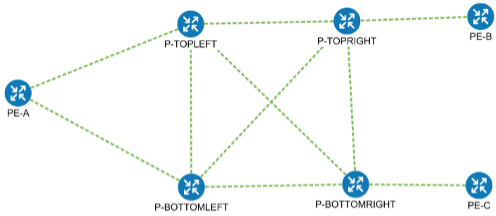
To illustrate the capabilities of Crosswork Network Controller, we have provided a set of scenarios we walk through to guide you in configuring the system.
Scenarios
Scenario 1 – Implement and Maintain SLA for an L3VPN Service for SR-MPLS (using ODN)
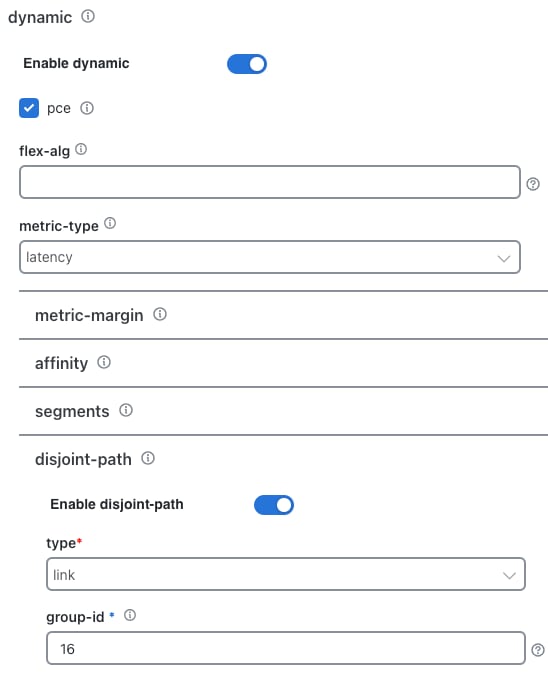
In this scenario, we provision an L3VPN service using Segment Routing (SR) On-Demand Next Hop (ODN) to achieve specific SLA objectives such as lowest latency and disjoint paths. Additionally, we will enable Service Health to analyze and monitor the provisioned services.
Scenario 2 – Implement and Maintain SLA for an L3VPN Service for SRv6 (using ODN)
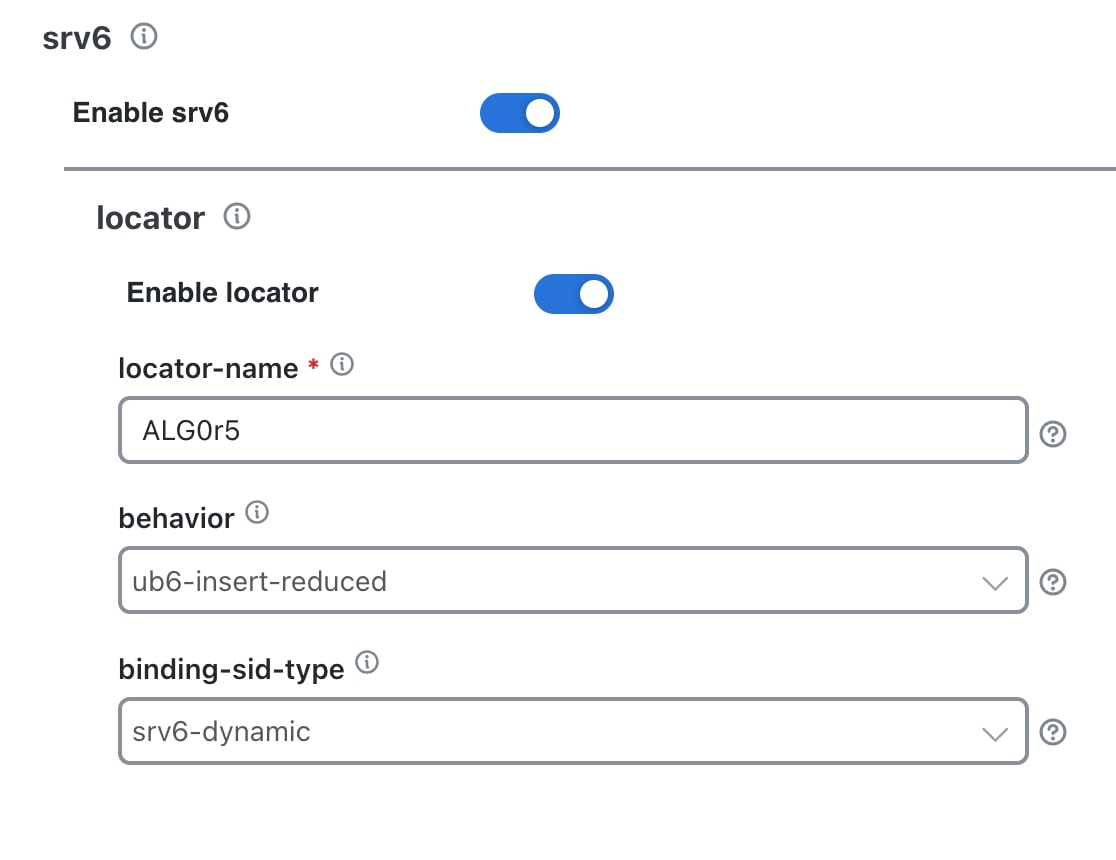
This scenario focuses on provisioning the L3VPN service using SR-TE ODN with SRv6 enabled.
Scenario 3 – Mandate a Static Path for an EVPN-VPWS Service using an Explicit SR-TE policy
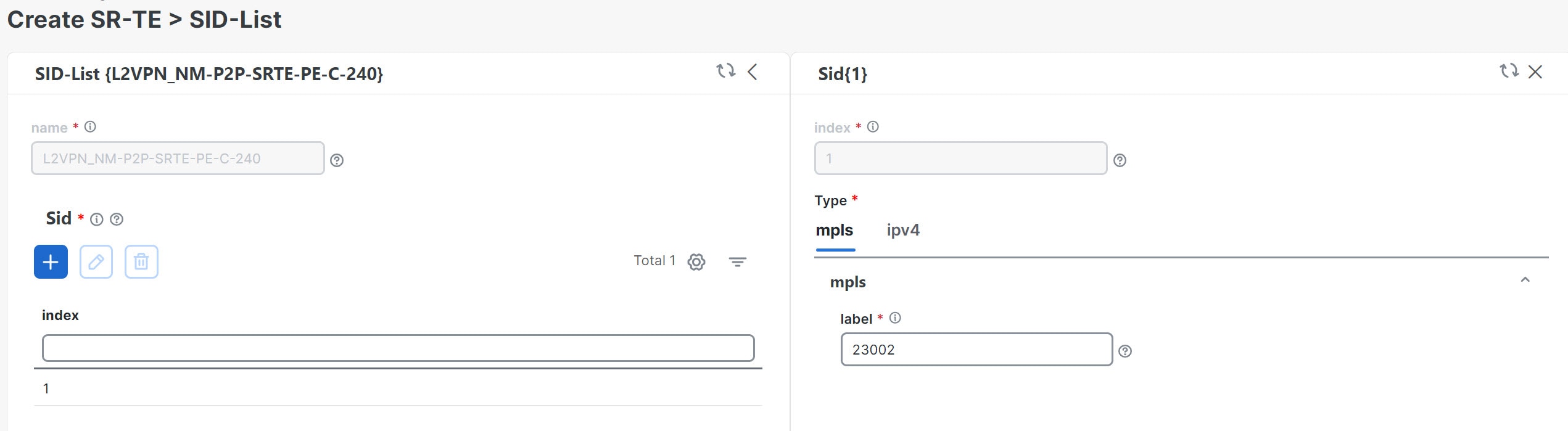
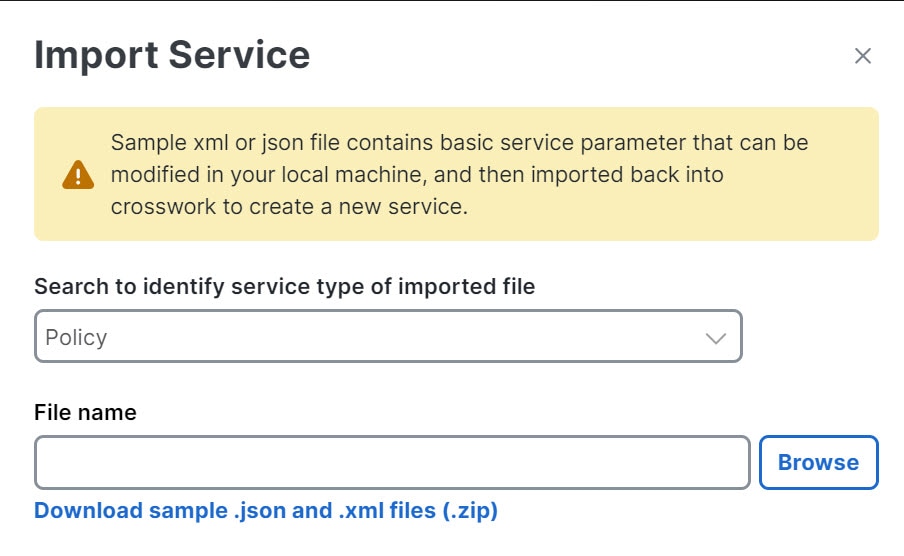
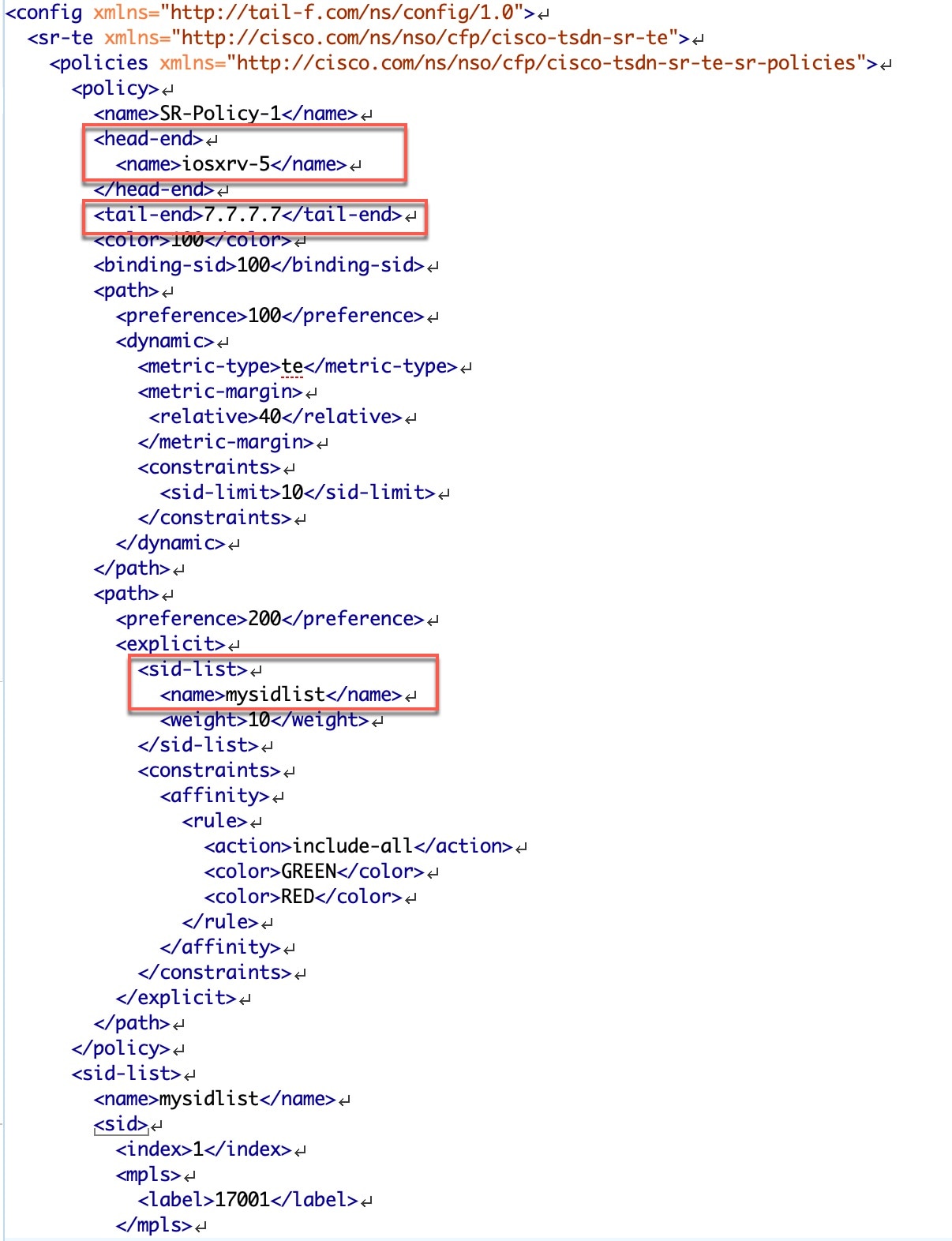
This scenario demonstrates the use of pre-defined templates to create a static path for mission-critical traffic. We will show how to quickly and easily create SR-TE policies and VPN services by uploading an XML containing all the necessary configurations. Additionally, we will use Service Health to analyze and monitor the provisioned services.
Scenario 4 – Provision an L2VPN service over an RSVP-TE tunnel with reserved bandwidth
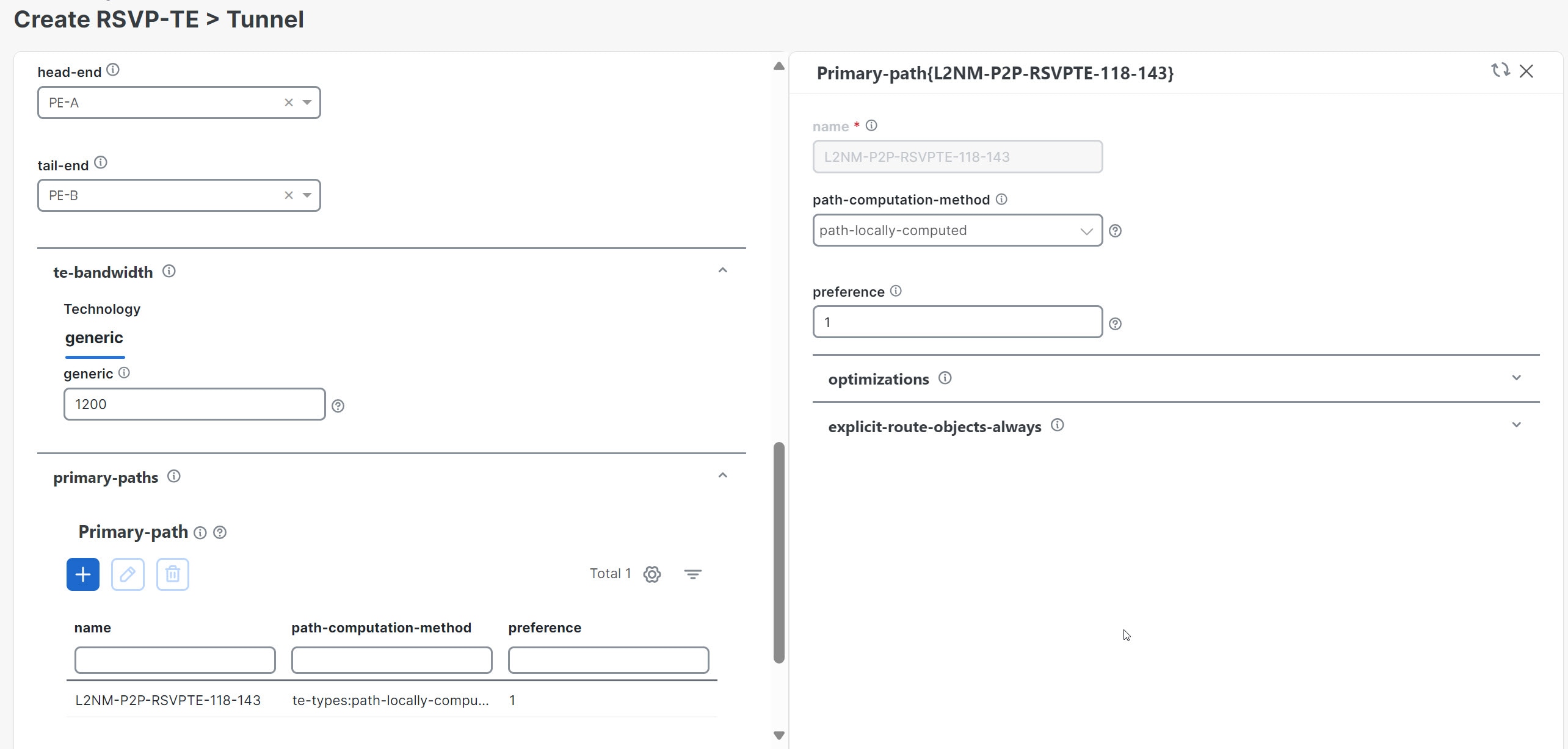
This scenario focuses on bandwidth reservation to facilitate continuous stream transmission. We will demonstrate how to reserve bandwidth using RSVP-TE Tunnels and attach them to an L2VPN service to meet high-quality of service requirements for continuous streaming of rich media data.
Scenario 5 – Provision a Soft Bandwidth Guarantee with Optimization Constraints
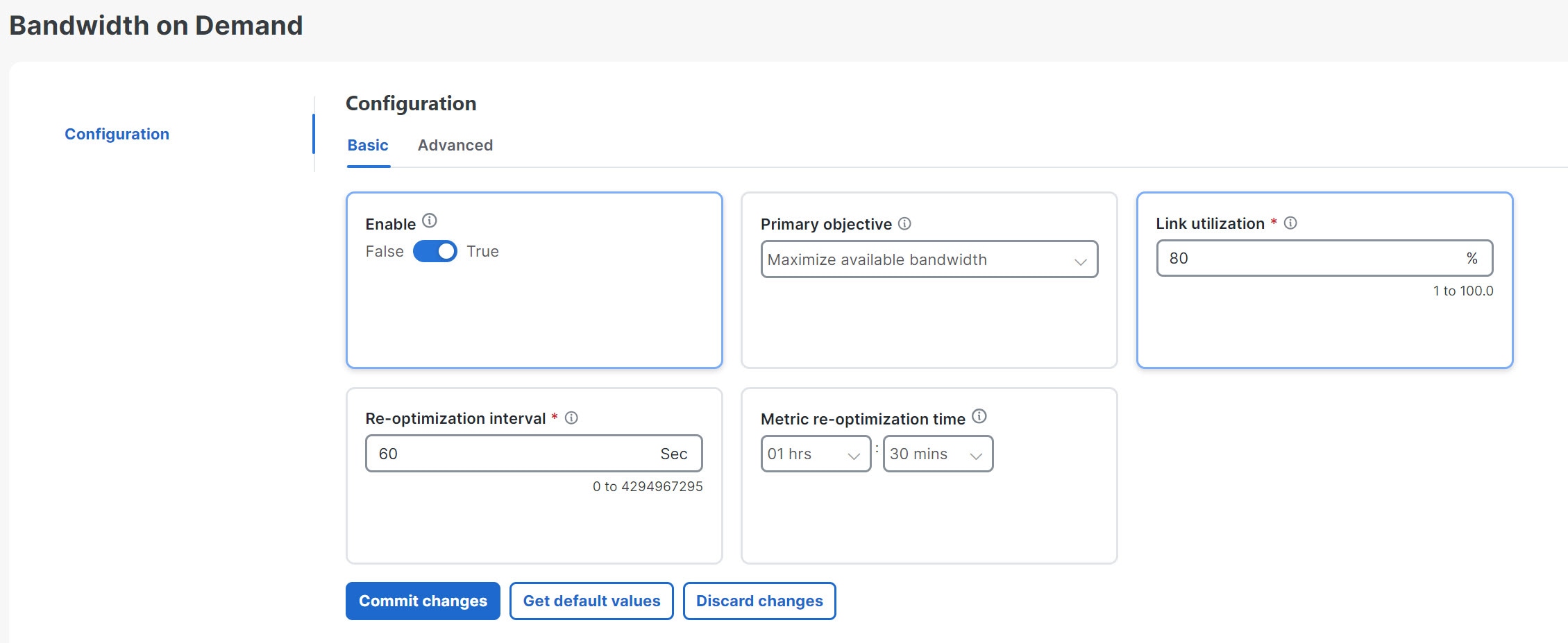
This scenario builds on the previous one, with the addition of BWoD configuration to reserve bandwidth on specific links to ensure a dedicated path.
Additional Resources
-
For information about segment routing and segment routing policies, see Crosswork Network Controller 7.0 Traffic Engineering and Optimization Guide.
-
Cisco Network Services Orchestrator documentation is included in the latest Network Services Orchestrator image.
-
To use custom templates in Crosswork Network Controller, you must pre-configure them in Cisco Network Services Orchestration (NSO). Once configured in NSO, the Crosswork Network Controller will display your custom template for selection when you provision a device or a service. For details on configuring custom templates, refer to Appendix: Custom Templates.
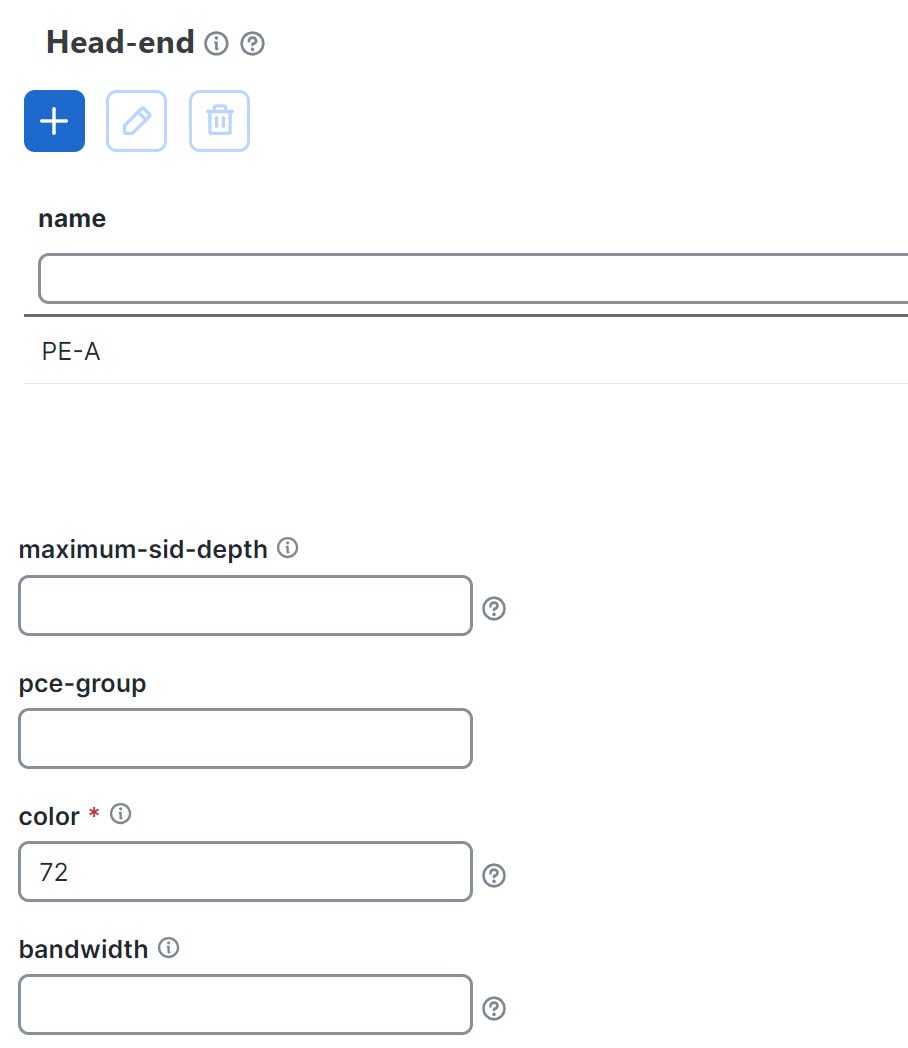
 to create a new template and give it a unique name. In this case, the name is L3VPN_NM-SRTE-ODN_72-a. Click Continue.
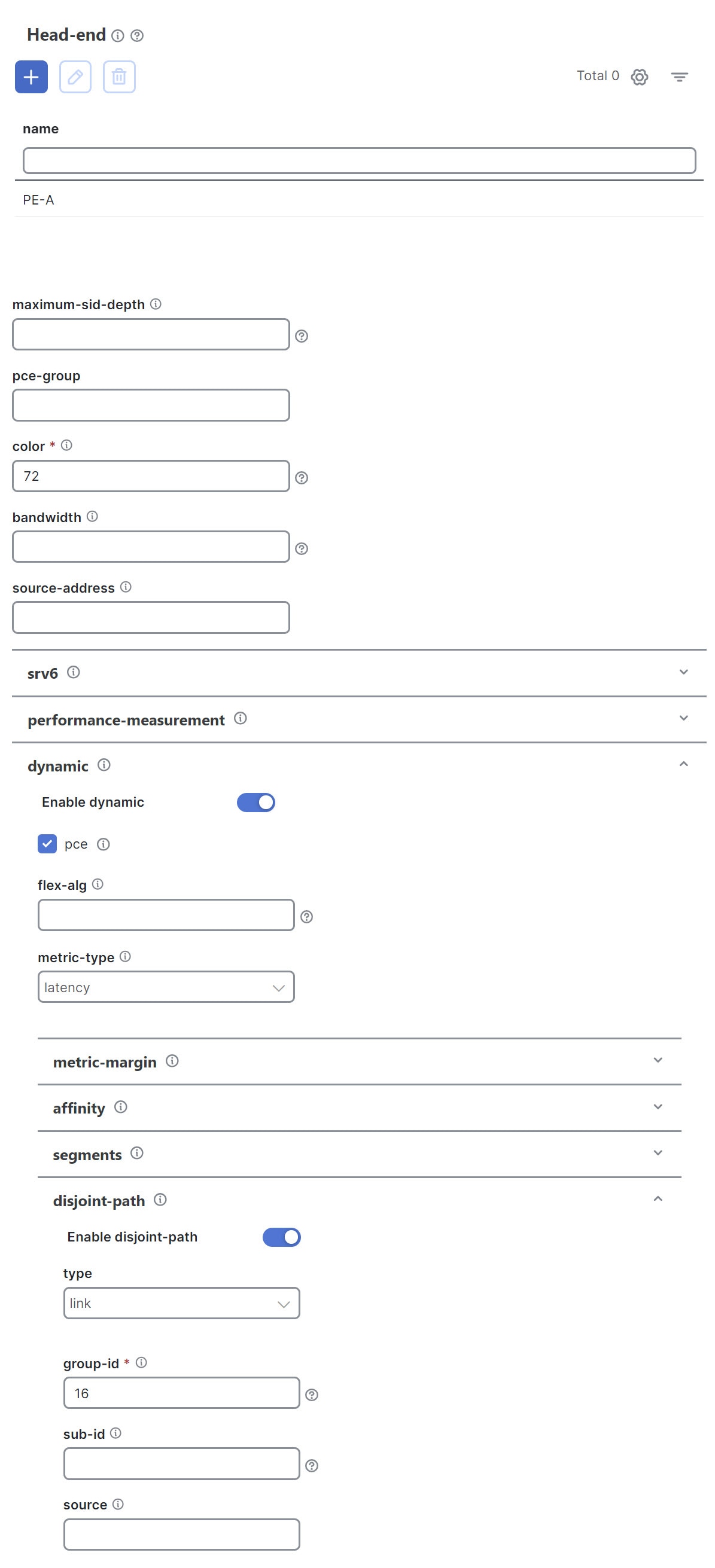
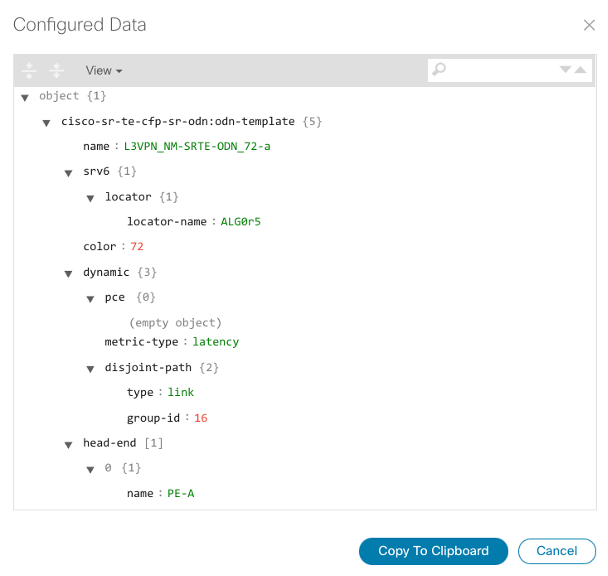
 in the Actions column and choose Config View to see the Yang model-based service intent data that details the ODN template you created.
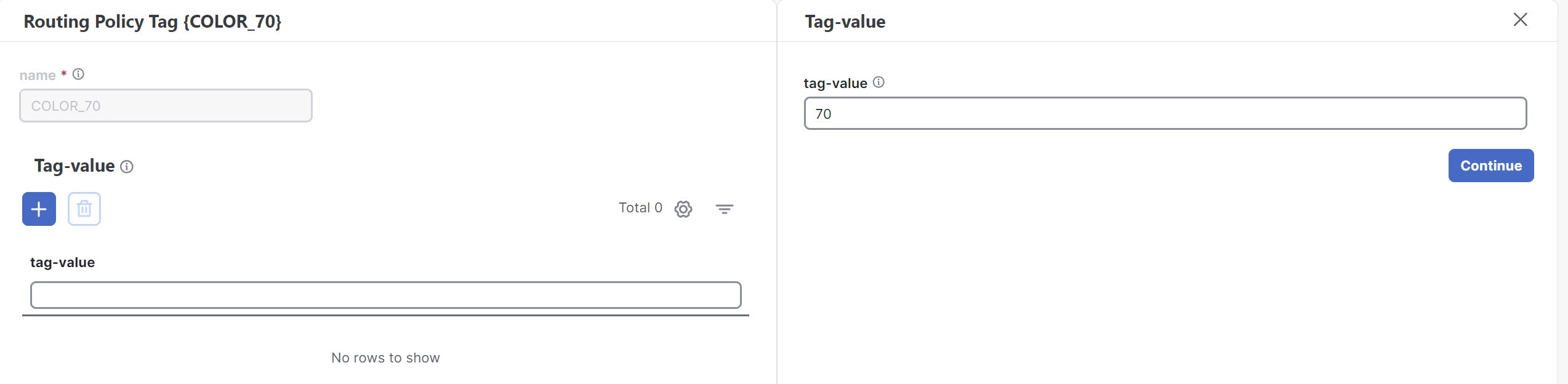
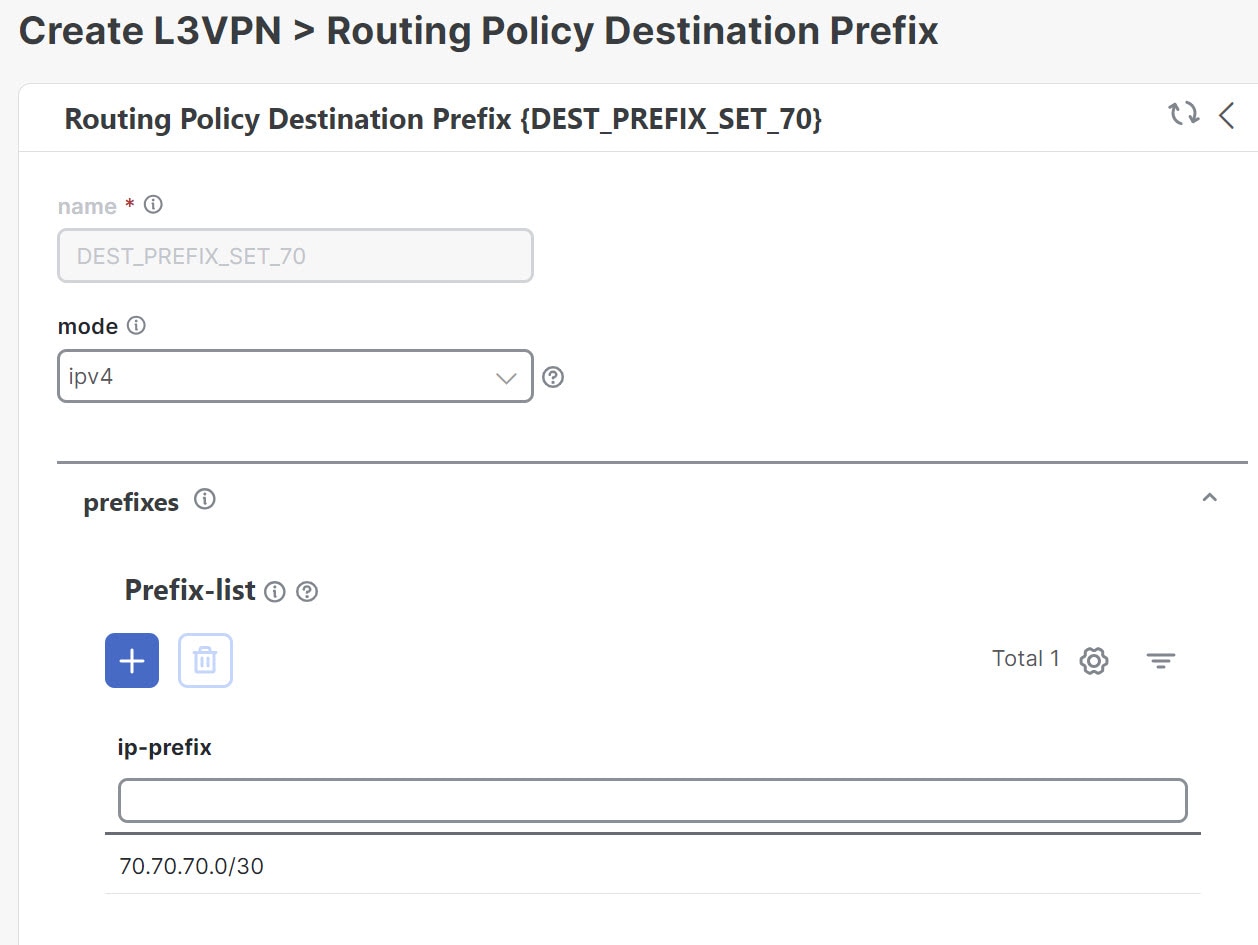
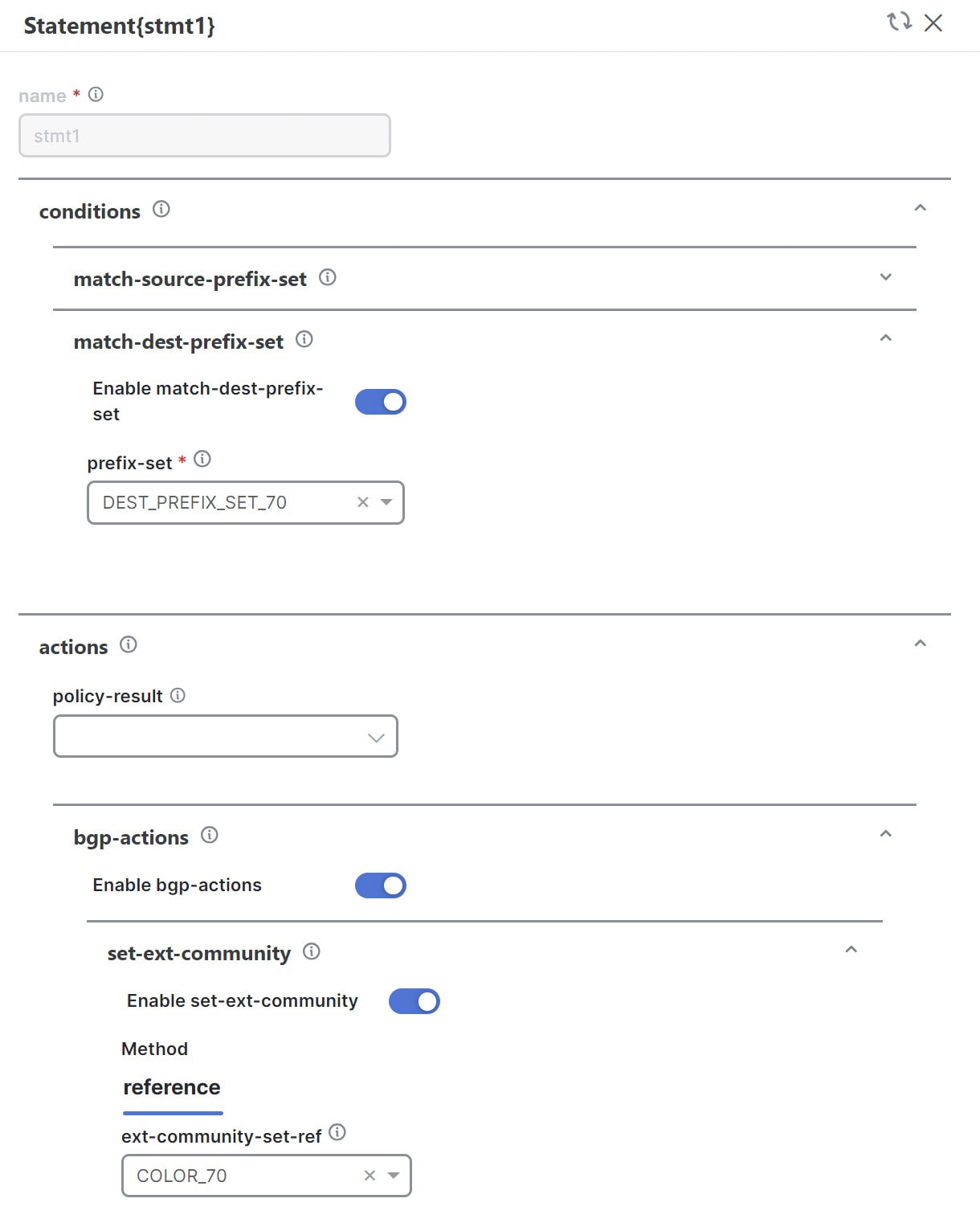
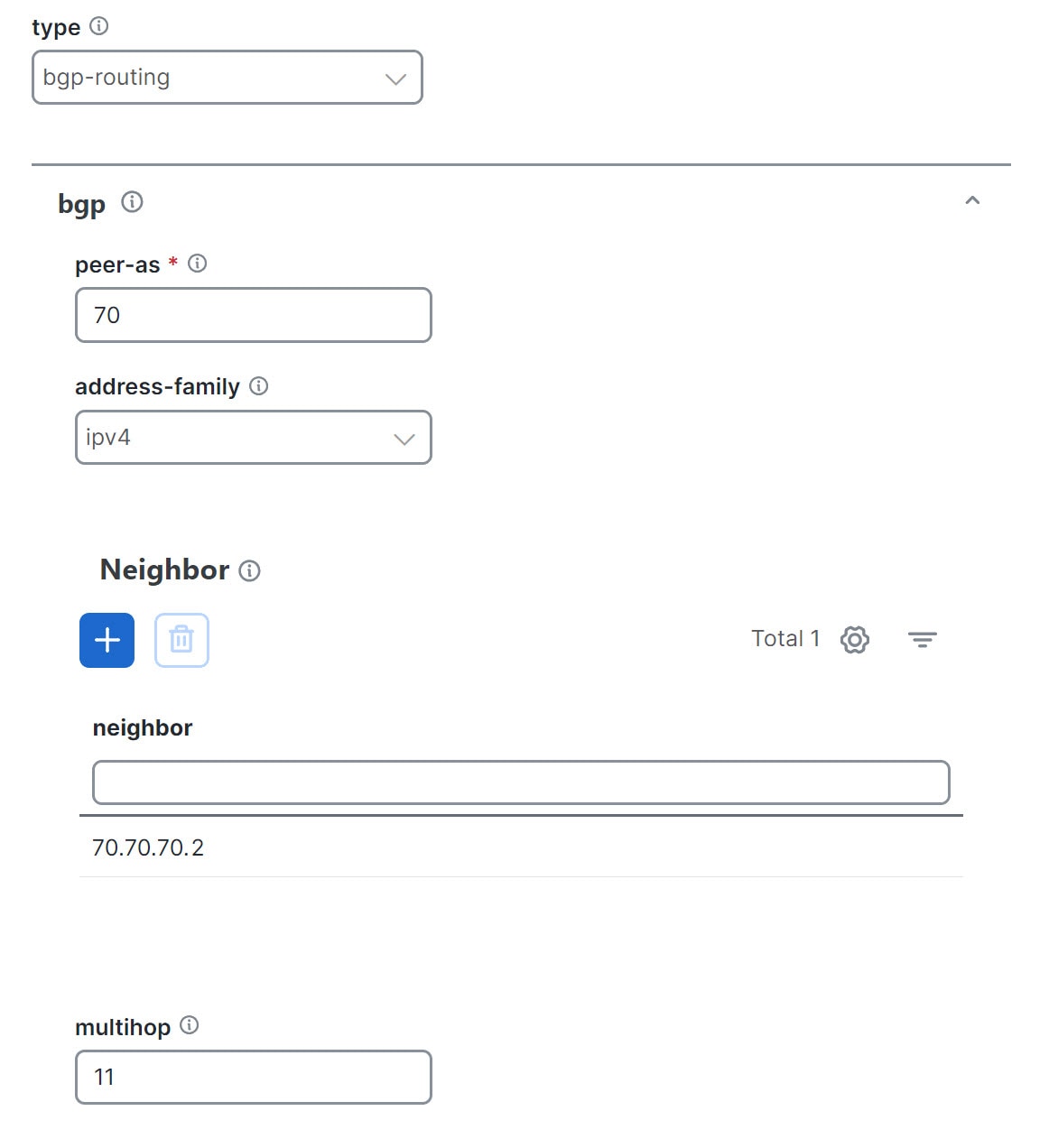
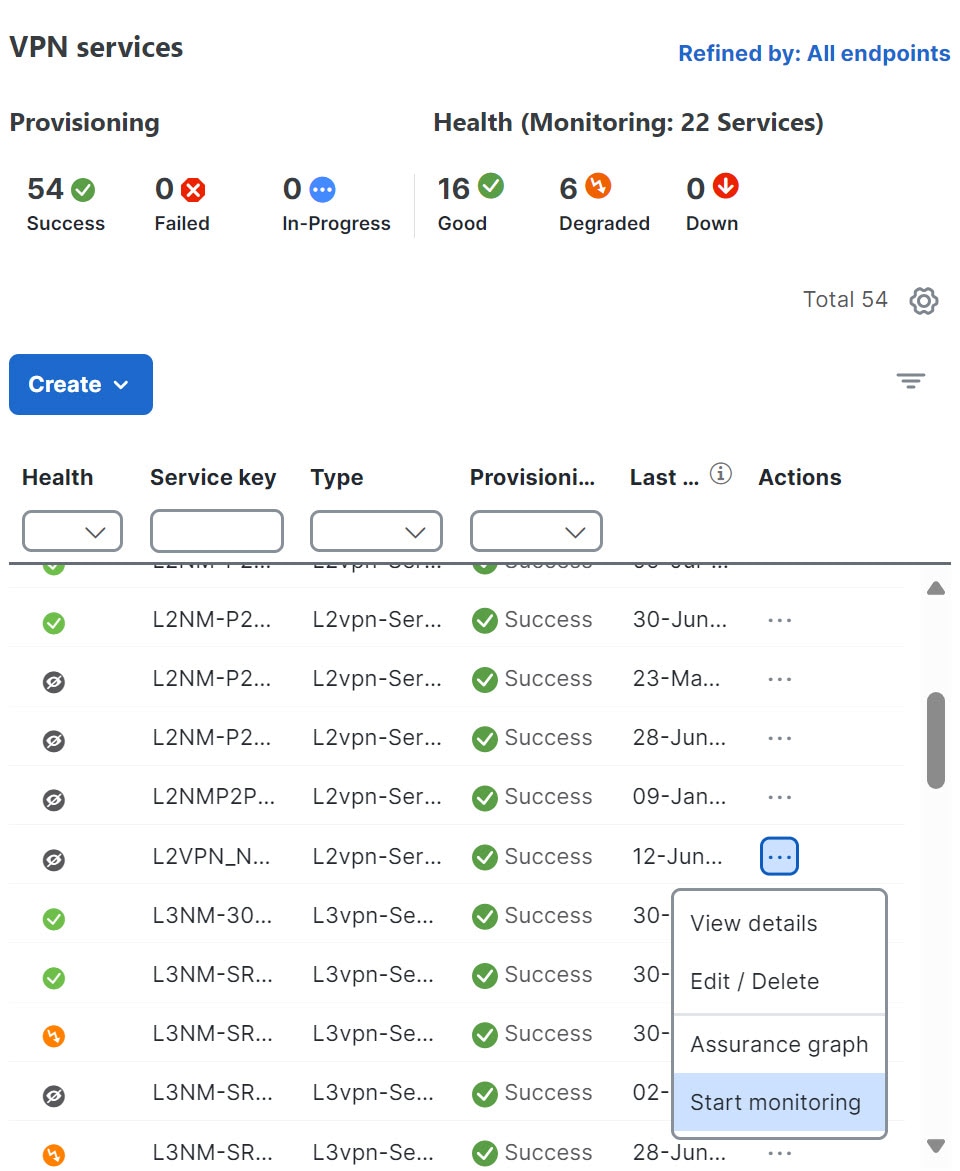
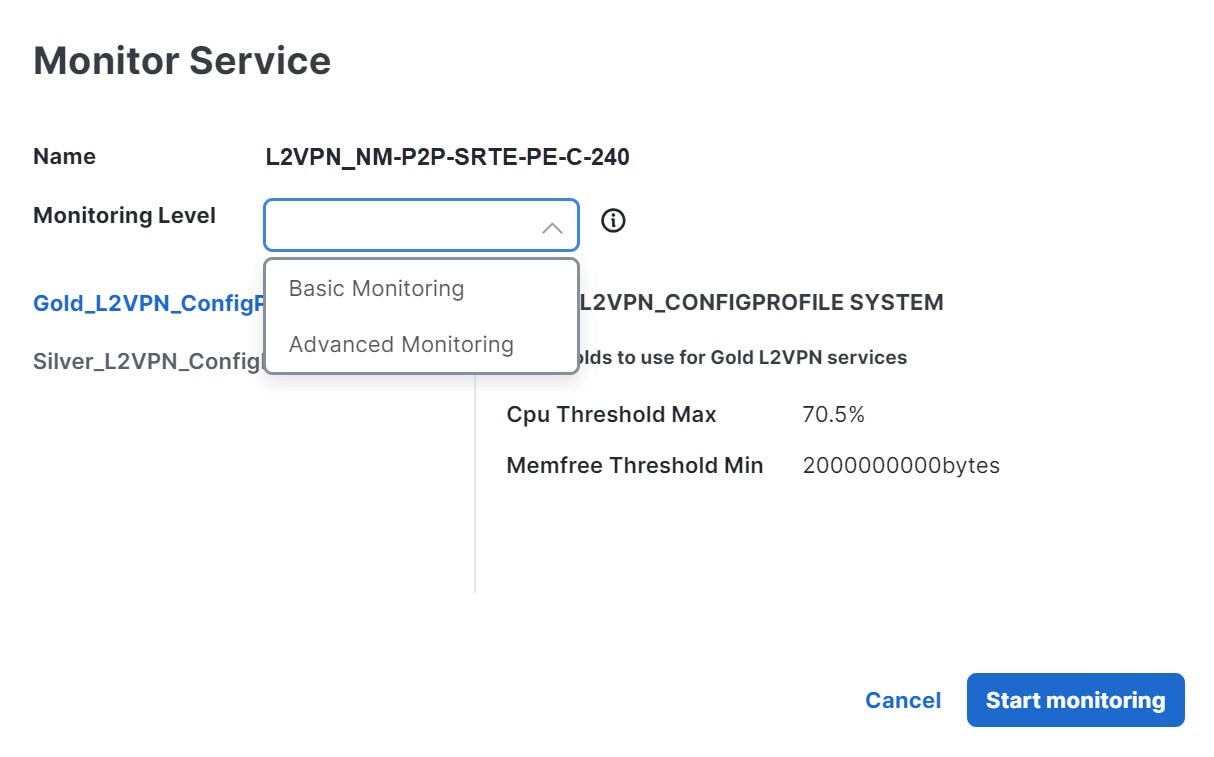
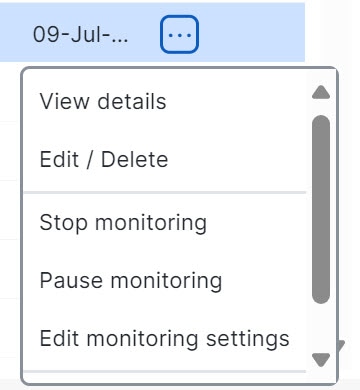
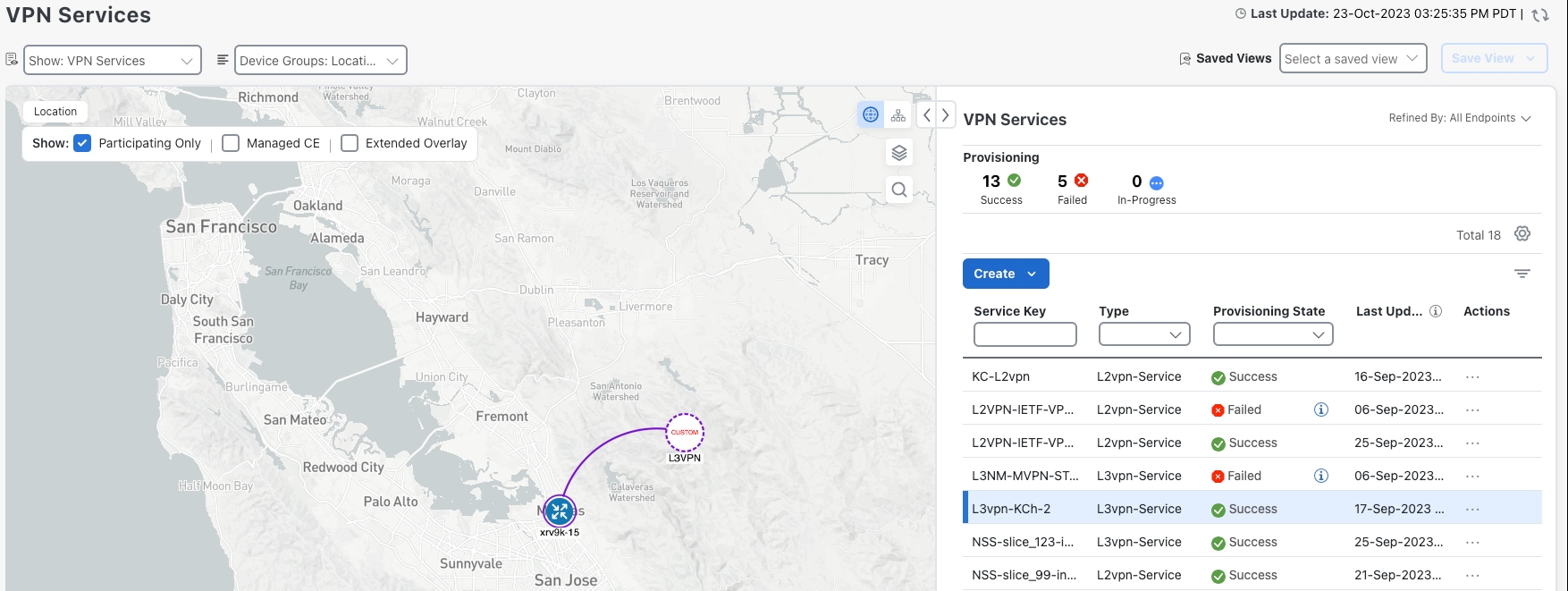

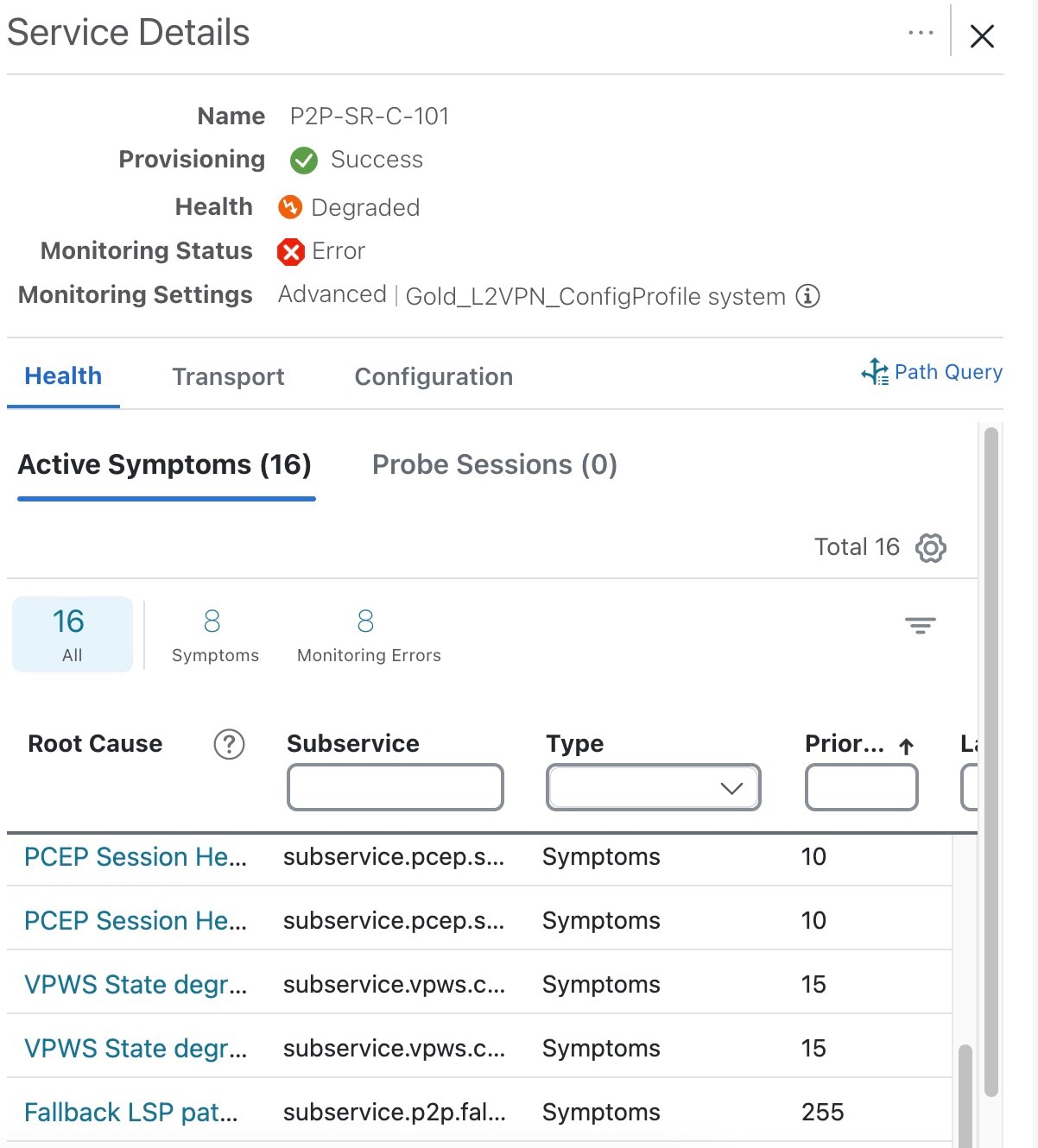
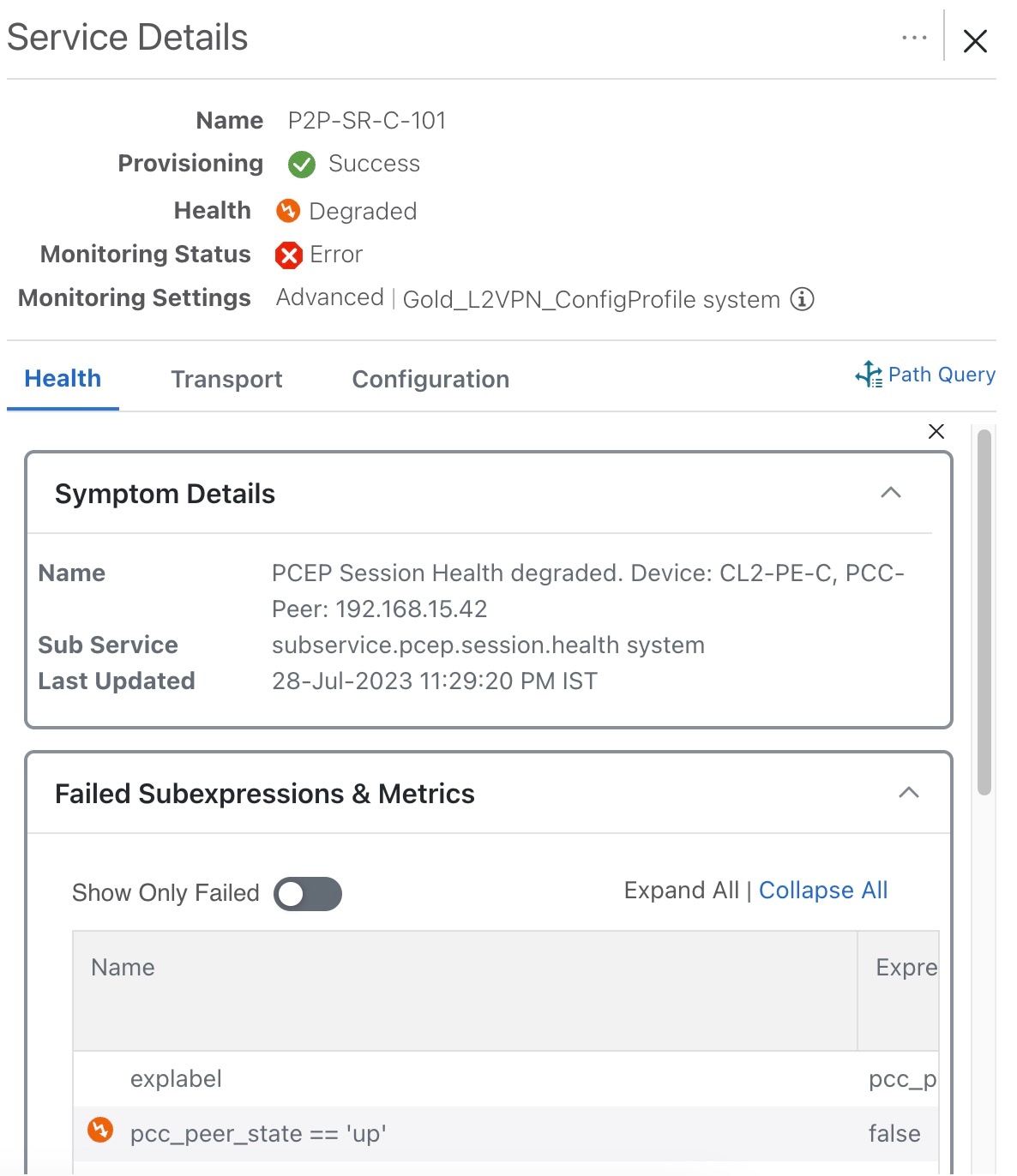
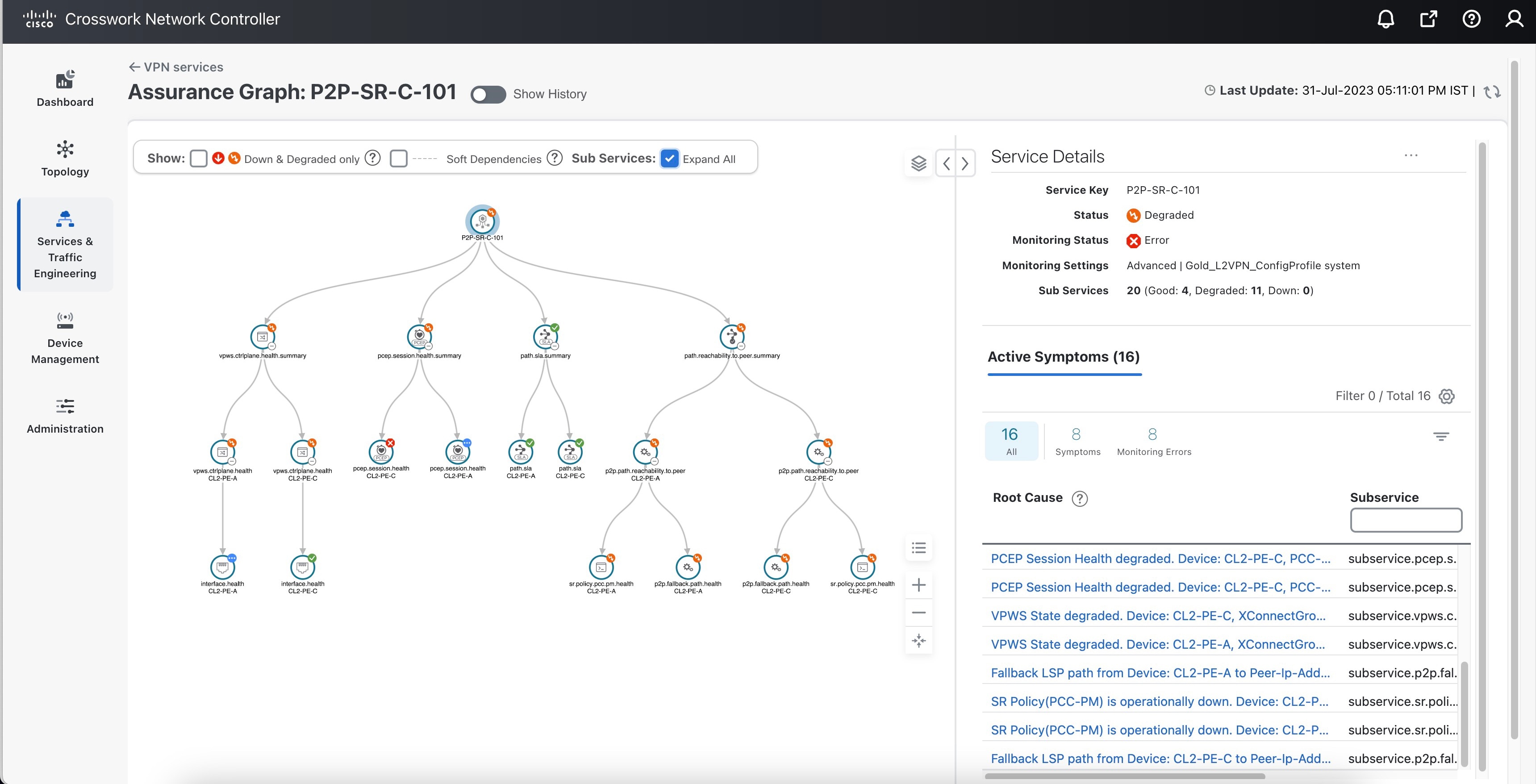
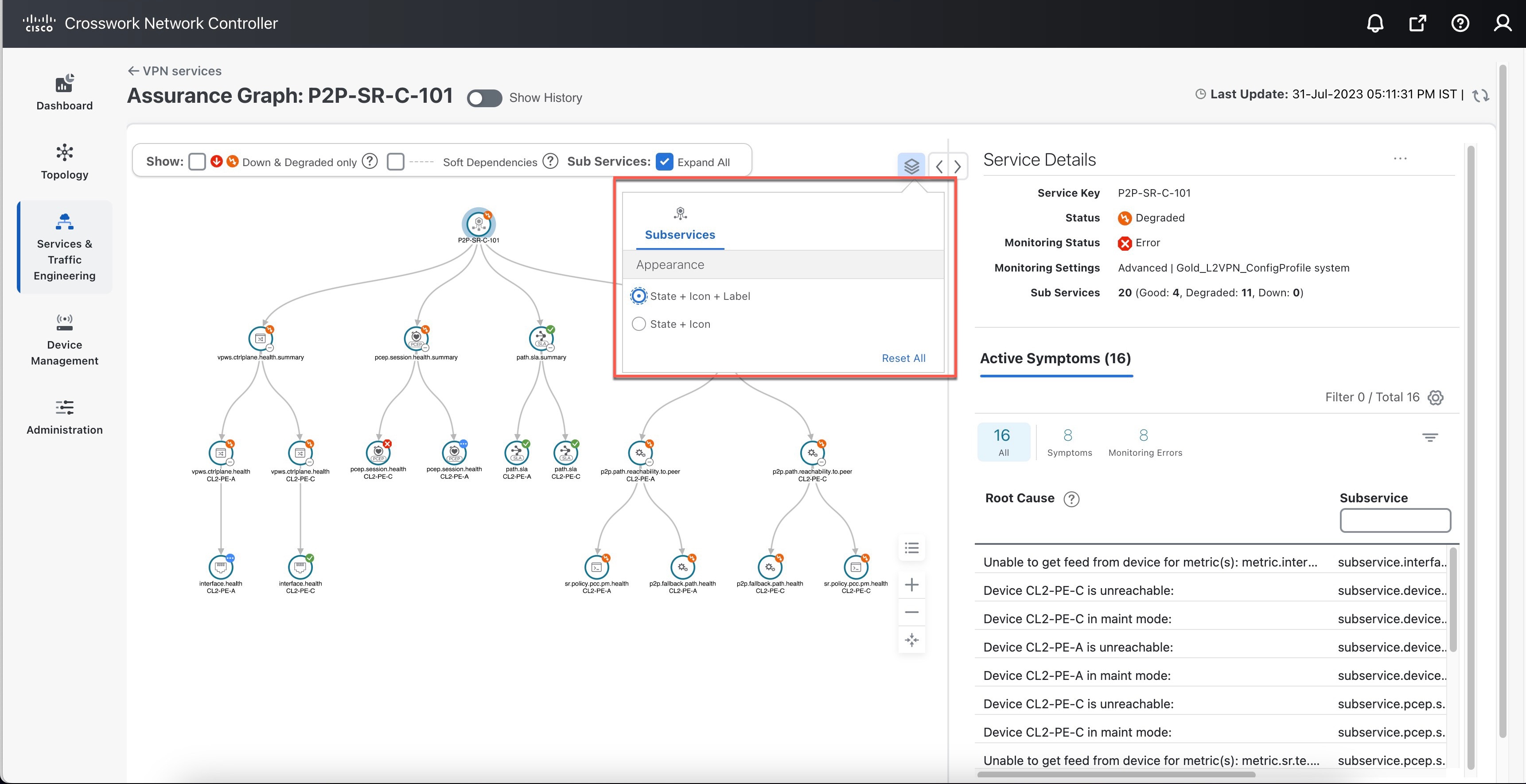
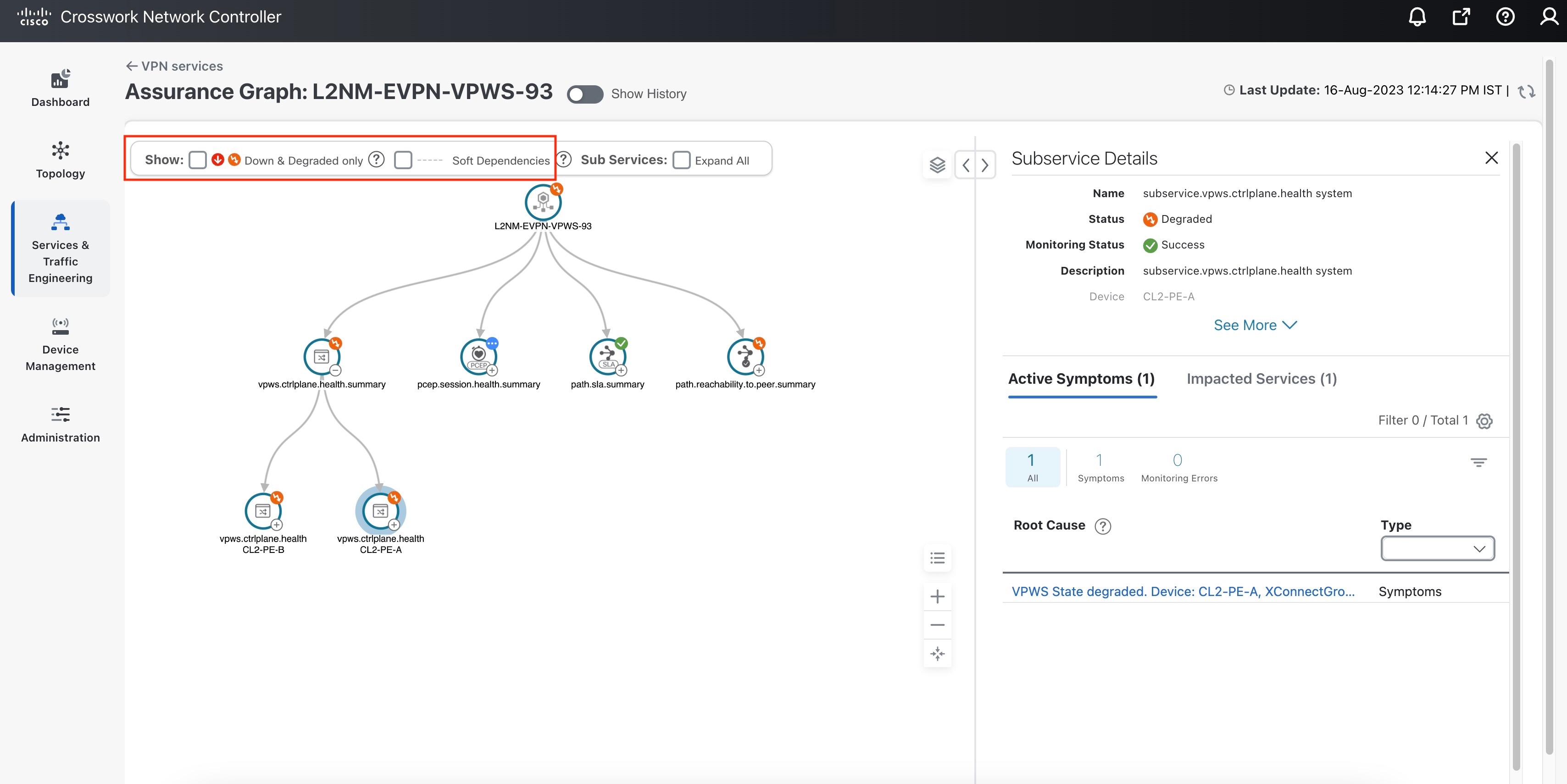
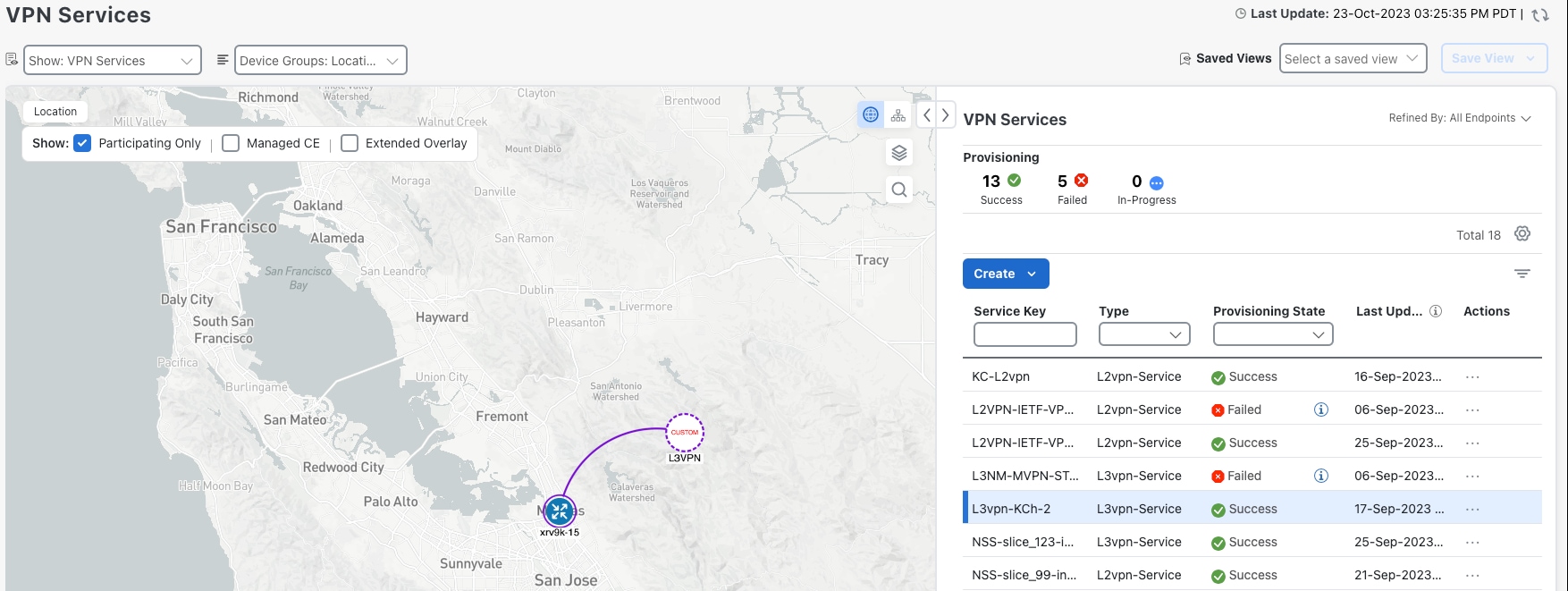
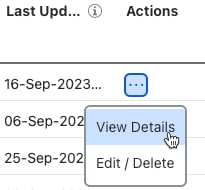
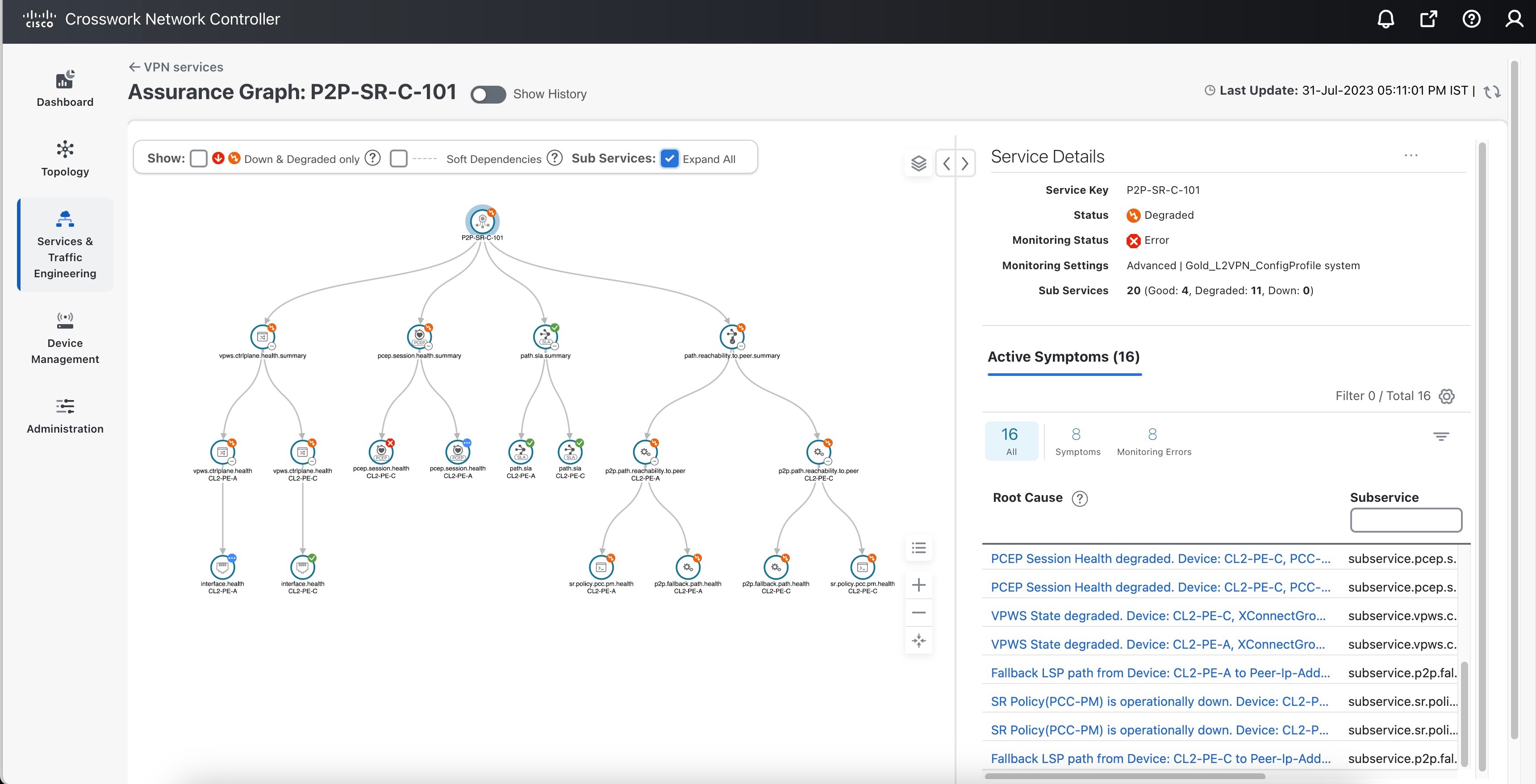
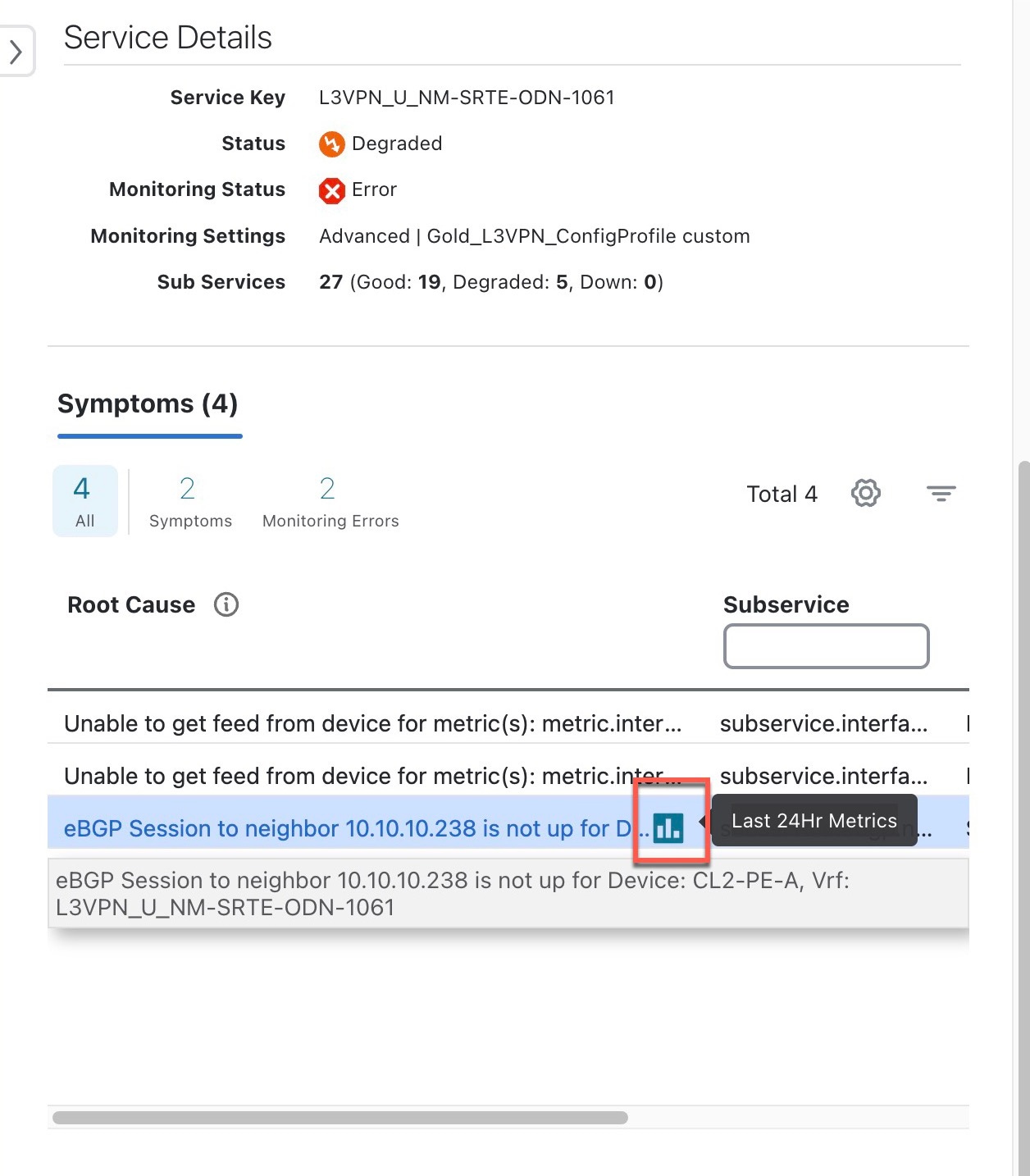
 and click View Details. The Service Details panel appears on the right side.
 to download the status of collection jobs for further examination. The information provided is collected in a .csv file when
the export is initiated.
to download the status of collection jobs for further examination. The information provided is collected in a .csv file when
the export is initiated.
 to import.

 Feedback