- About This Guide
- Before You Begin
- Getting Started with Cisco Vision Dynamic Signage Director Operation
- Working with TV Displays
- Working with Zones, Groups, and Locations
- Working with Content Deployment
- Working with Screen Templates in Cisco Vision Director
- Working with Content in Cisco Vision Director
- Working with Playlists in Cisco Vision Director
- Working with Video Walls
- Working with Event Scripts
- Monitoring Media Player Operation During an Event Using Device Management
- Troubleshooting Event Operations in Cisco Vision Director
- Managing System Services in Cisco Vision Director
- Managing Server Resources in Cisco Vision Director
- Managing Media Player Operation in Cisco Vision Director
- Managing Backups in Cisco Vision Director
- Glossary of Terms
- Information About the System Health Report
- Best Practices for Using the System Health Report
- How to Obtain the System Health Report
- Viewing Media Player Device Status
- Managing DMP Operation in Cisco Vision Director
- Device Management Commands for the Digital Media Player
- Performing a Regular Reboot of the Digital Media Players
- Clearing the Storage on the Digital Media Players
- USB and SD Card Restrictions on DMPs
- Clearing Registries on the Digital Media Player by Restoring Factory Defaults
- Recovering DMP Operation After Server Power Loss
- Replacing a Failed Media Player While an Event Script is Running
- Troubleshooting the Digital Media Players
Managing Media Player Operation in
Cisco Vision Director
This module provides information about maintaining normal operation of your media players. It includes the following topics:
■ Information About the System Health Report
■ Best Practices for Using the System Health Report
■ How to Obtain the System Health Report
■Viewing Media Player Device Status
■Managing DMP Operation in Cisco Vision Director
■ Replacing a Failed Media Player While an Event Script is Running
■ Troubleshooting the Digital Media Players
Information About the System Health Report
As a best practice, you should review the daily health report to monitor and maintain the media players and overall health of the Cisco Vision Director system. This report runs automatically at 08:00 daily. You can configure the system to send it to one or more email addresses.
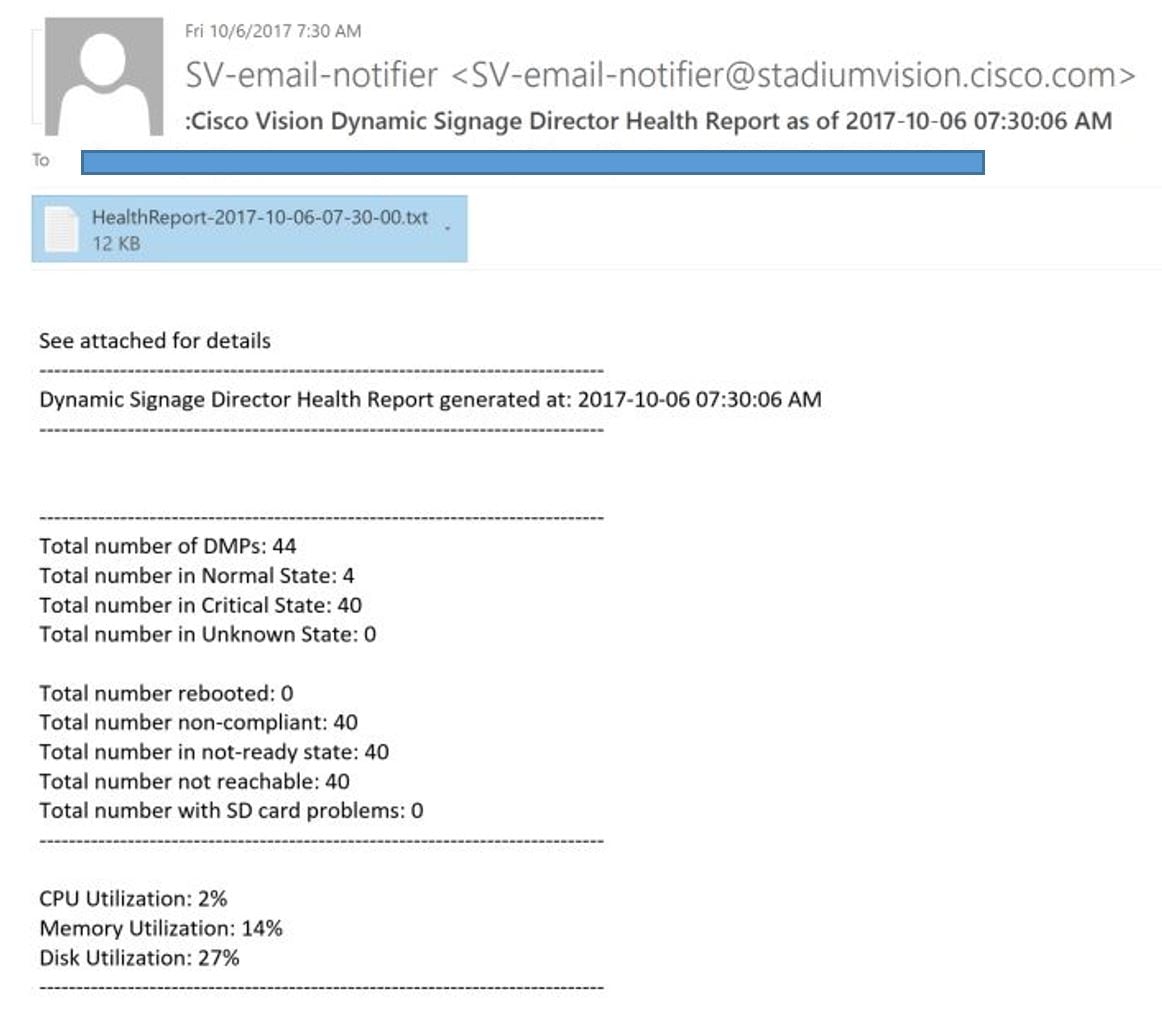
Figure 1 shows a typical email notification for the Cisco Vision health report. In the email body, a summary of the report is provided, with the full report details provided in an attached.txt file.
Figure 1 Sample Cisco Vision Health Report Email Notification
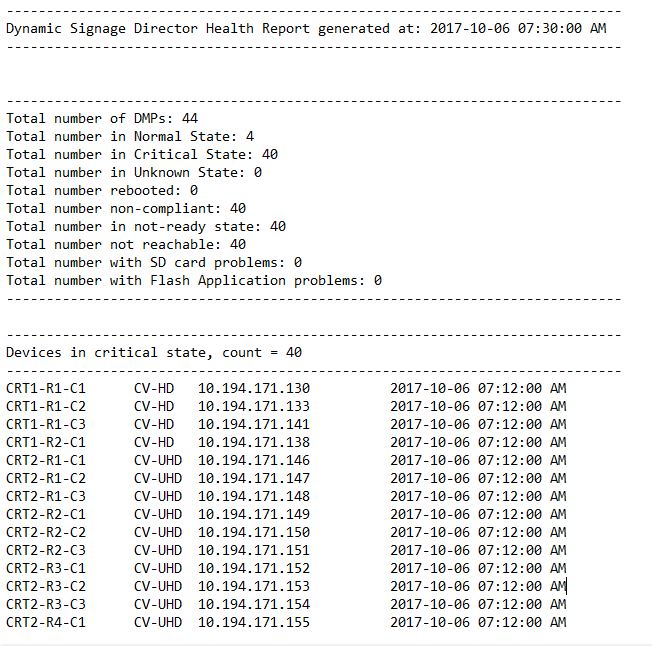
To see the details for the devices by category, open the text file attachment in the email. Figure 2 shows an excerpt of the device details report provided for the different status categories.
Figure 2 Cisco Vision Health Report Details (Excerpt)
Expand System Health Notification Report
The Daily health report will now include the status of various service endpoints described in HPMMonitoredServices.xml. The status can be anyone of the following - UNKNOWN, NORMAL, NONOPTIMAL, CRITICAL.
DSD server status: CPU, memory, storage utilization
In DailyHealthReport.java => generate(), the following snippet can be included:
Best Practices for Using the System Health Report
■Verify your system regularly to be sure that the Cisco Vision health report is being sent as expected:
–Confirm your health report email configuration.
–Check often with venue IT personnel that the SMTP server that is configured for the Cisco Vision health report is running normally.
■Review the Cisco Vision health report daily to monitor the media players and overall health of the Cisco Vision Director system.
■Investigate all of the devices reported in the “Devices in critical state” and the “Devices not reachable” sections.
Note : The device counts in these two sections are typically equal, but not necessarily.
–Inform the Event Manager about these devices.
–Investigate the affected devices and bring to Normal state. Replace if necessary.
–Do not ignore the devices reported in these sections. The media players almost always will be showing black screens on the TV displays.
■If you see that an unusual number of devices have recently rebooted, investigate further. This could be due to a power fluctuation issue in the edge switch, the edge switch itself was rebooted, or another issue caused a break in power supply to the affected devices.
– If you know that you normally have a certain number of devices in non-compliant state, then ignore this entry.
– If the number of non-compliant devices is not what you expect, investigate and correct the issue(s).
How to Obtain the System Health Report
This section includes the following topics:
■ Configuring the System Health Report for Email Notification
■ Modifying the Time of the System Health Report Task
■ Viewing Media Player Device Status
Configuring the System Health Report for Email Notification
By default, Cisco Vision Director automatically runs a system health report at 08:00. However, email notification is disabled.
To configure the system health report for email notification:
1. Click Configuration > System Configuration > Notification Settings > Email Id.
2. In the Configuration Property box, select Enable Email notification.
3. Click Edit (pencil icon). The Edit — Configuration Setting dialog box appears.
4. Use the drop-down arrow to select yes.
6. Click Edit (pencil icon). The Edit — Configuration Setting dialog box appears.
7. Type the email addresses in the Recipient list. Click Save.
8. Fill in all the boxed fields below, each time clicking Edit ( Figure 3).
Figure 3 System Health Report Configuration Properties
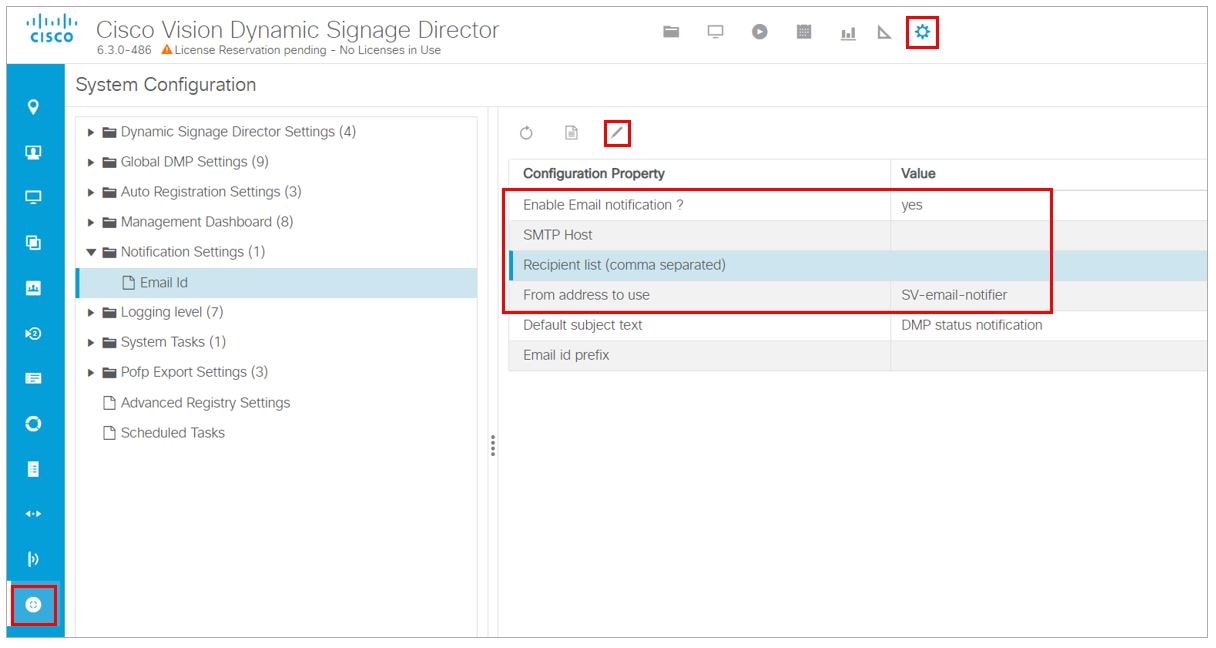
Table 1 describes the properties and possible values.
Table 1 Email Notification Configuration Properties
Modifying the Time of the System Health Report Task
By default, Cisco Vision Director runs a system health report daily at 08:00.
To modify the time of the system health report task:
1. Click Configuration > System Configuration > Scheduled Tasks.
2. In the right panel, select HPMReportTask .
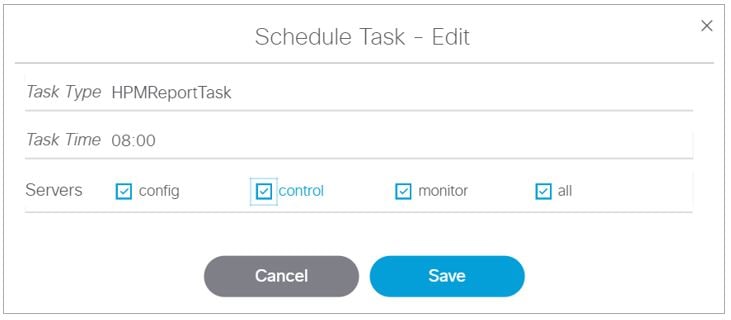
3. Click Edit (pencil icon). The Schedule Task — Edit dialog box appears (Figure 4).
4. Click in the Task Time and specify the time (in 24:00 format) when you want the report to run.
5. Select the Servers: config; control; monitor; or all.
Figure 4 Changing the Health Report Time
Viewing Media Player Device Status
User Role: Administrator / Help Desk / Support / Venue Administrator / Venue Operator
Device Management provides a number of levels and ways to obtain information about the status of your media player devices. This topic describes how to obtain detailed device status as shown in Figure 5.
IMPORTANT: Not all commands or display areas are supported for every digital media player. Therefore, some areas of the display might not report any information for a device. Also, the Utilization information and the CPU Usage reports show in the new global icon System Status. See Managing Server Resources in Cisco Vision Director.
Figure 5 Device Management Media Player Device Status
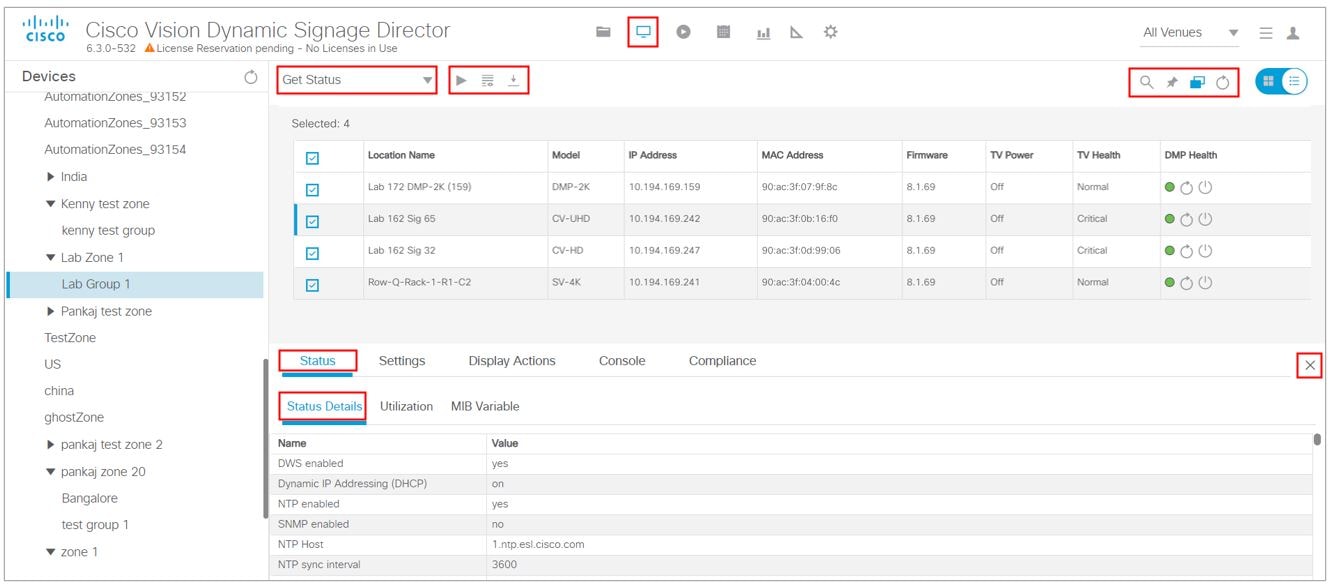
To view media player device status:
2. S elect a device from the folders in the left panel. The main panel displays.
3. Select the device from the main panel and the Status and Console panel appears below (Figure 6).
Figure 6 Device Status Information Panel
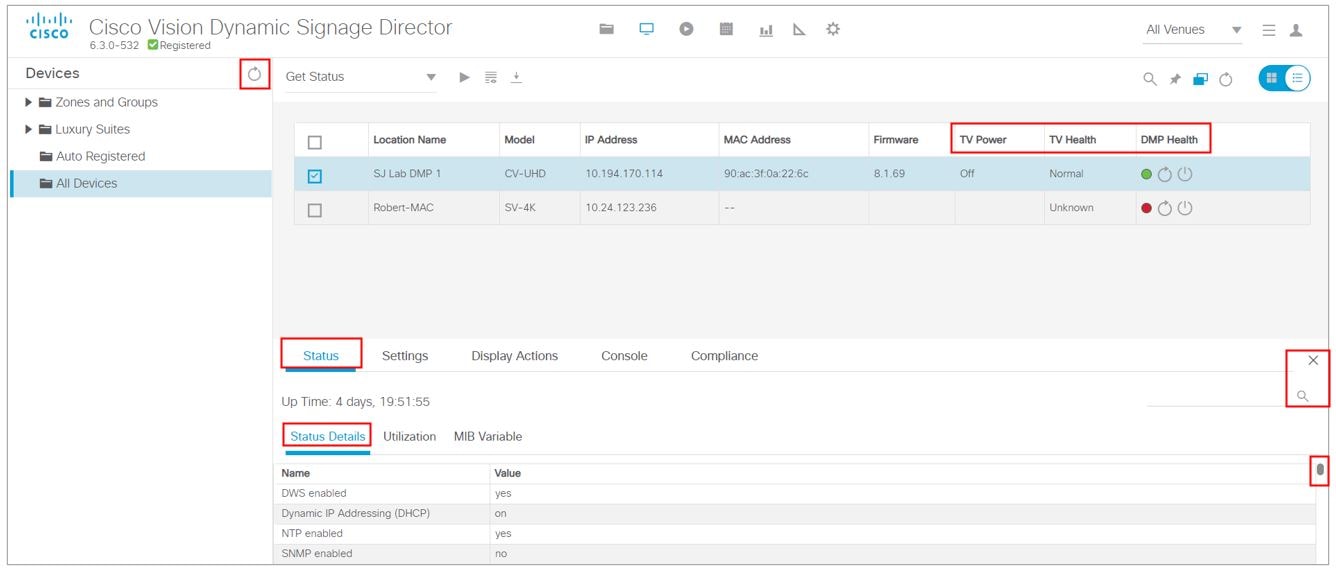
All of the columns are sortable. Click on any header. The MIB (management information base) is searchable. Start typing in the MIB Variable field and the information updates.
4. The Status and Console tabs display information about the media players.
Note : When using the dmp.monitorPower display parameter, you can run the Get Status command from Device Management to get the latest TV health status known to the DMP. This information can be up to two minutes old, or a few seconds depending on when the power query last ran. If the “dmp.monitorPower” parameter is set to false then you will not get the correct TV health status.
Managing DMP Operation in Cisco Vision Director
This section provides information about maintaining normal operation of your digital media players.
It includes the following topics:
■ Device Management Commands for the Digital Media Player
■ Performing a Regular Reboot of the Digital Media Players
■ Clearing the Storage on the Digital Media Players
■USB and SD Card Restrictions on DMPs
■ Clearing Registries on the Digital Media Player by Restoring Factory Defaults
■ Recovering DMP Operation After Server Power Loss
Device Management Commands for the Digital Media Player
This section provides a summary of the new and existing Device Management commands that are supported by the digital media player.
Auto-Registration Commands for the Digital Media Players
Table 2 Management Dashboard Auto-Registration Commands
|
|
|
|---|---|
|
|
|
|
|
|
Performing a Regular Reboot of the Digital Media Players
IMPORTANT: The best practice for maintaining normal operation of the digital media players is to perform a weekly reboot of the devices. The Task Note below says the default value for DMP rebooting is 2 weeks.
Note : The Cisco Vision Director reboot task applies globally to all media player devices.
For information about how to configure the Reboot DMP system task, see the Task Note: Configure Reboot DMPs.
Clearing the Storage on the Digital Media Players
The DMPs have different capacities and types of storage. If you begin to run out of storage or otherwise need to recover the stored data, you can clear the storage on the media player. For more information, see the Cisco Vision Deployment Guide for Digital Media Players: Dynamic Signage Directo r.
To see the storage for the devices:
1. Click the device(s) in the main panel.
2. Click Status > Utilization.
You also can find information about available storage if you view device details from thumbnail view in Device Management.
TIP: The HTML runtime must be running on the digital media player to use this task.
To clear the storage on the digital media player:
2. Select the devices that you want to clear.
3. In the drop-down menu, select Reset Storage.
The contents of the SSD storage is removed (including the Cisco Vision Director runtime software and script contents) on the devices. The devices will not automatically reboot after this command.
6. Click Play (Send Command). The selected devices reboot and reprovision firmware and settings.
USB and SD Card Restrictions on DMPs
In Release 6.4, we implemented the ability to enable or disable the USB or SD card on groups or a single DMP using a new registry and a new command in Device Management. For complete information on this feature, see the Cisco Vision Director Deployment Guide: Digital Media Players.
Clearing Registries on the Digital Media Player by Restoring Factory Defaults
If you need to clear the registry settings on the DMP and re-provision the device, use the Restore Default Settings command. Clearing the DMP registry settings does not wipe/clear the data storage.
To clear the registries on the media players:
2. Select the devices that you want to clear.
3. In the drop-down menu, select Restore Default Settings.
4. Click Play (Send Command).
Any persistent device settings on the DMP s are erased and the box will be in factory default state. The DMP automatically reboots and reprovisions its firmware and settings.
Note: If you need to return the DMP to factory settings, we highly recommend performing the following in this order:
1. Perform a reset storage of the DMP. See Clearing the Storage on the Digital Media Players.
2. Perform a factory reset. See Clearing Registries on the Digital Media Player by Restoring Factory Defaults.
Recovering DMP Operation After Server Power Loss
User Role: Installer (Administrator)
If the Cisco Vision Director server should lose power while the devices remain powered, recover the devices after power is restored to the server.
To recover DMP operation after server power loss:
1. Restore power to the Cisco Vision Director server.
2. Login to Cisco Vision Director.
5. Select Reboot Devices from the Action drop-down menu.
6. Click Play (Send Command) for the devices.
IMPORTANT: If for some reason you needed to restore the DMP operation to a new Cisco Vision Director server (not a failover operation), then change the DHCP server option 43, reconfigure the new server for auto-provisioning of the DMP, and reboot the devices similar to a new deployment of the devices. For more information, see the Cisco Vision Deployment Guide for Digital Media Players: Dynamic Signage Directo r.
Replacing a Failed Media Player While an Event Script is Running
This task describes the steps to replace a failed media player with a new device that continues to follow the same script.
After replacement, the new media player should:
■Belong to the same groups and zones.
■Respond to the zone/group state actions.
■Display the same content as the media player it replaces.
To replace a failed media player while an event script is running:
1. Unplug the failed device and replace it with a new device.
2. Wait until auto-registration and provisioning completes and the new device appears in the Device Management > Auto Registered folder.
3. From Configuration > Groups & Zones, un-map the failed device from its Location, and map the new device to this Location.
4. From Script Management, manually stage content to the new device.
5. From Device Management, in the drop-down menu, select Restart Runtime for the new device.
6. Verify that the new device is showing the expected content.
7. Delete the failed device from Cisco Vision Director. This device will be named in the format "Unassigned-xx-xx-xx-xx-xx-xx", where xx-xx-xx-xx-xx-xx is the MAC address.
Troubleshooting the Digital Media Players
This section includes the following topics:
■ Before You Begin Troubleshooting the DMPs
■ Troubleshooting PTP Operation for the Digital Media Players
■ Troubleshooting DMP Hardware Operation
■ Troubleshooting DMP TV and Video Display Problems
Before You Begin Troubleshooting the DMPs
Before you begin troubleshooting the DMP, follow the information in these topics:
RMA Process for the DMPs
The Return Materials Authorization (RMA) process is covered by the Cisco Solution Support Service for Cisco Vision.
Before you open a Cisco Solution Support case for the DMPs :
1. Locate your symptom in the DMP troubleshooting topics and begin to isolate the problem by following the suggested troubleshooting steps.
2. If you cannot resolve the problem with any of the recommended troubleshooting steps, open a Cisco Solution Support case to further troubleshoot and coordinate the return process with the vendor.
3. The Return Materials Authorization (RMA) process for the digital media player is covered by the Solution Support Service for Cisco Vision.
DMP Diagnostic URL
Some of the troubleshooting steps for the DMP recommend that you open a browser and navigate directly to the device using the following URL to further diagnose a problem:
The diagnostic URL requires a password for use. The password is set in the “ defaultDmpAdminPwd " registry key in the System Configuration interface. The default username is “ admin.”
Be sure to reset the password from the default value as a security best practice.
IMPORTANT: If a request to reboot the DMP fails, there is a new fallback password registry available: defaultDmpAdminPwdBackup. For complete details on how to set and use this new registry, see DMP Admin Password.
Note : This password is also used for the Diagnostic Web Server (DWS).
■In Release 6.3 full installations, the DMP password is randomly generated. Look up the value in the registry value defaultDmpAdminPwd if you need to access DMP DWS.
■In Release 6.1 to Release 6.2 migrations, the existing DMP password is preserved.
For Release 6.2, the DWS default is disabled for the DMPs. See the Release Notes 6.2 for Cisco Vision Dynamic Signage Director for important information about enabling/disabling DWS after data migration.
Troubleshooting PTP Operation for the Digital Media Players
This section identifies some of the symptoms related to problems with PTP operation:
■ Symptom: Local PNGs are not synchronized across devices
■ Symptom: Playlists do not advance to the next content item on the DMPs
Note: We recommend designating an in-house PTP server, especially when deploying in a single virtual local area network (VLAN).
Symptom: Local PNGs are not synchronized across devices
1. Verify the PTP configuration on your devices: click Configuration > System Configuration > Global DMP Settings > Time Source.
Verify that the PTP domain and PTP lead candidates property configuration is correct for your network.
2. Open your browser and navigate to one of the devices:
http://dmp-ip-address/ptp.html
3. Enter the username and password.
Note : The password policies changed. Follow the rules to log in to Cisco Vision Director. See the Cisco Vision Administration Guide: Dynamic Signage Director.
4. Look for the message “PTP is not enabled.”
This message might mean that the device was not rebooted after changes to the settings.
Symptom: Playlists do not advance to the next content item on the DMPs
If the current PTP lead becomes unreachable (shuts down, or becomes unreachable on the network), the PTP members will be unable to update their clocks and this condition will occur.
1. Verify the PTP configuration on your devices: click to Configuration > Global DMP Settings > Time Source.
2. Verify that the PTP domain and PTP lead candidates property configuration is correct for your network.
3. Open your browser and navigate to one of the devices:
http://dmp-ip-address/ptp.html
4. Enter the username and password.
Note : The password policies changed. Follow the rules to log in to Cisco Vision Director. See the Cisco Vision Administration Guide: Dynamic Signage Director.
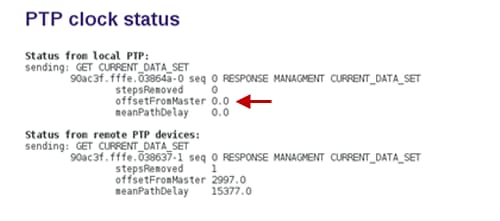
5. Identify the PTP lead (Figure 7) by finding the unit that has an “offsetFromMaster” value of 0.0.
Figure 7 Identify the PTP Leader
7. If the leader is not reachable and you have configured alternate leaders but they are not reported as leader after waiting for a minute, reboot one of the reachable PTP leader candidates.
Note : Identifying the alternate leader for this step can more easily be done if you are explicitly identifying the IP address of alternate leaders, and not using the "*" wildcard to specify possible election of any device on the network.
8. If a device shows that it has not synchronized, reboot the device to force synchronization.
Troubleshooting DMP Hardware Operation
This section identifies some of the symptoms related to problems with the digital media player hardware:
■ Symptom: “Please Insert Card” message on SV-4K or DMP-2K startup screen
■ Symptom: Pwr and Eth LEDs are not lit and no signs of activity on the device
Symptom: “Please Insert Card” message on SV-4K or DMP-2K startup screen
1. Verify that an IP address is assigned to the device.
2. Verify proper DHCP Option 43 configuration.
3. Verify that the Cisco Vision Director server is running and reachable.
4. Contact Cisco Technical Support to do further troubleshooting and proceed with RMA process.
Symptom: Pwr and Eth LEDs are not lit and no signs of activity on the device
Troubleshooting steps:
1. Verify any visible damage to the Ethernet port on the device.
2. If there is not any visible port damage on the device:
a. Connect a 12V 5A power supply to the media player to confirm startup and normal operation.
b. Replace the Ethernet cable.
c. Connect the media player to a known-working switch port for another device.
d. Verify the POE+ settings on the switch.
TIP: If you have imported the switch settings to Cisco Vision Director, you can view the POE+ settings.
Click Device Management. Select a device, the Status information appears. Click Settings > Network.
Power normally displays “29.5” for the device after LLDP negotiation with the switch.
e. If none of these steps locate the problem, contact Cisco Technical Support to proceed with the RMA process.
Symptom: Device Err or Err/Upd LEDs blinking
1. Refer to the LED documentation. See Cisco Vision Deployment Guide for Digital Media Players: Dynamic Signage Director.
2. Troubleshoot according to the description of the problem.
Symptom: DMP rebooting automatically after startup
Troubleshooting steps:
1. Verify whether multiple devices are doing an auto-reboot.
2. If multiple devices are automatically rebooting at startup:
a. Verify that the devices are obtaining an IP address. If the devices are not getting an IP address (“Unable to get IP address” message on the TV display), verify communication to the DHCP server.
b. Verify proper DHCP Option 43 configuration.
3. If the DMP stays at the loading screen with the progress bar, verify communication with the Cisco Vision Director server.
4. (Advanced) Verify that an HTTP request comes in to the /var/log/httpd/access_log (use the System State Report [SSR]).
Look for a message like the following:
10.194.169.242 - - [13/Oct/2014:13:10:05 -0700] "GET /CiscoVision/dmp_v4/scripts/boot.brs HTTP/1.1" 200 89403 "-" "-"
Note: If the Auto Registration parameters are not exact, that will cause constant rebooting, too.
Troubleshooting DMP TV and Video Display Problems
This section identifies some of the symptoms related to problems with the DMP displays:
■Symptom: Distorted display when DMP in Portrait Mode and default multicast video streaming
■ Symptom: Distorted display when DMP in Portrait Mode and default multicast video streaming
■ Symptom: No local control when external volume strategy configured
Symptom: Distorted display when DMP in Portrait Mode and default multicast video streaming
Troubleshooting steps:
1. Verify if portrait display is distorted.
2. If display is distorted, check the following:
a. Click Configuration > System Configuration > Advanced Registry Settings.
b. Find scaleToFit.video in the Registry Data.
c. If scaleToFit.video is not present (default), click Add. The Create — Configuration Setting box appears.
d. Type scaleToFit.video in the Name field and true for the Value.
Note: If there is a need to set this value to “false,” the display becomes distorted. In that case, use a web page for the default portrait mode URL instead of multicast video streaming.
f. Set a separate default portrait content URL for portrait displays. See Configuring the Default Content Channel.
Symptom: Black screen on the DMP TV display/no multicast video stream
Troubleshooting steps:
1. Verify if multiple TV displays are showing a black screen for the same multicast video stream.
2. If multiple TV displays are showing a black screen for the same multicast stream:
a. Verify the media player LEDs.
b. If the LEDs are in normal state, verify that the Cisco Vision Director server has power and is reachable.
c. If all TV displays are the same and/or new model, test with a different, known-working TV display model.
d. (Advanced) Test with laptop connected to the same switch port/interface as the device with a problem, and see if the problematic video stream can be displayed using the open source VLC player.
e. Test a different multicast video stream.
f. Test with local video content. If local video works, troubleshoot video headend and/or other network problems.
g. Confirm video output setting on the DMP using a browser to go to: http://sv4k-ip-address.
3. If the problem can be isolated to a DMP device:
a. Verify that the Pwr/Eth LEDs are on.
b. Try a different HDMI cable.
c. Test a different TV display.
d. (Advanced) Test with laptop connected to the same switch port/interface as the DMP with a problem, and see if the problematic video stream can be displayed using the open source VLC player.
Symptom: No local control when external volume strategy configured
1. Is the RS-232 cable connected? Verify the cable connections.
2. Verify the serial cable type being used against the RS-232 requirements for the TV display (null modem [crossover] or straight through).
3. Verify that the external output strategy works on other TV displays.
4. Verify the RS-232 codes from the manufacturer against the TV display specifications in Cisco Vision Director.
 Feedback