- About This Guide
- Before You Begin
- Getting Started with Cisco Vision Dynamic Signage Director Operation
- Working with TV Displays
- Working with Zones, Groups, and Locations
- Working with Content Deployment
- Working with Screen Templates in Cisco Vision Director
- Working with Content in Cisco Vision Director
- Working with Playlists in Cisco Vision Director
- Working with Video Walls
- Working with Event Scripts
- Monitoring Media Player Operation During an Event Using Device Management
- Troubleshooting Event Operations in Cisco Vision Director
- Managing Switch Data in Cisco Vision Director
- Managing System Services in Cisco Vision Director
- Managing Server Resources in Cisco Vision Director
- Managing Media Player Operation in Cisco Vision Director
- Managing Backups in Cisco Vision Director
- Glossary of Terms
Working with TV Displays
User Role: Administrator, Venue Administrator
This module provides information about setting up TV displays in Cisco Vision Director.
User TV Control
Support for all methods of user TV control is enabled by default in Cisco Vision Director for all media player types. This includes control of TV displays using local control devices and applications, IP phones, touch screens and infrared remote (IR) control.
Some venues have a need to disable user TV control for certain events or suites, or to limit the TV to display a particular channel or control its volume.
TV Display Specification
Cisco Vision Director requires that you configure certain commands and attributes for the TVs used in the venue to ensure proper communication between the media player and the TV. This configuration is defined in what is called a display specification.
By default, Cisco Vision Director includes display specifications for several common TV display models. If your TV display model is not included in the default specifications, add and configure it.
A different display specification is required for each unique TV type, based on which commands are used to control the TVs. In some cases, all TVs from a certain manufacturer can use the same display specifications. In other cases, different TV models from the same company might require different display specifications.
Note : As a best practice, configure your TV display specifications before configuring Locations in Cisco Vision Director. You must select the “Display Spec” for the type of TV (brand/model) that is physically installed when you configure a Location.
Closed Captioning
The standard for closed captioning (CC) in North America, which all digital TV broadcasters typically follow, is the Consumer Electronics Association (CEA)-608 and CEA-708 closed captioning standard. Figure 1 shows US CC standards.
IMPORTANT : Closed Captioning will not work in Europe or anywhere outside of North America.
Figure 1 Closed Captioning Support in Cisco Vision Dynamic Signage Director
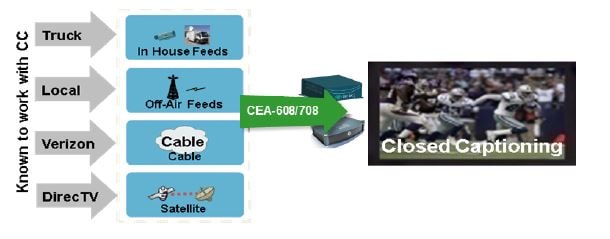
This standard is generally supported on all broadcast channels from service providers. Cisco Vision Director is automatically configured to enable closed captioning CC1–CC4 support on the Cisco SV-4K devices.
Content Orientation
The default orientation for all content in Cisco Vision Director is landscape mode.
In Release 4.1 and earlier releases, you can manually create content in vertical format (static graphics only) and rotate it. Release 5.0 and later supports auto-rotation of content in portrait mode set in the TV display specification.
Guidelines for Portrait Mode Auto-Rotation
■ Supported in Release 5.0 and later releases.
■Allows DMPs to automatically rotate content for proper orientation on vertically-positioned displays.
■Supported for all content sources for a single TV display.
■Scaling of content across multiple display screens in portrait mode is only supported for multicast streaming video.
■Enabled using the “dmp.portrait=true” Display Parameter when configuring TV Display Specifications in the Configuration > Devices interface (Figure 2).
Note : DMP portrait mode is not available for UHD (4K) videos. See the Cisco Vision Content Planning and Specifications Guide, Release 6.2 for complete information about using portrait mode and auto-rotation.
Note: Portrait mode is not recommended for CV-HD and CV-HD2 DMPs.
Flexible DMP Content Rotation
You can rotate content 90 degrees and -90 degrees (or +270 degrees). This works for all content like videos, static images, widgets, local and multicast video, and external URLs. Rotate content for situations where the display monitor has already been installed in a portrait position and to show your content in the proper orientation.
To rotate content to portrait mode:
1. Go to Configuration > Devices > Display Specifications.
2. Choose the specific display from the list on the left panel and click the Display Parameters tab in the right panel (Figure 2).
3. Click + to add a new Display Parameter. The Create New Display Parameter dialog box appears (Figure 3).
Figure 2 Adding Content Rotation Specifics to Display Parameters
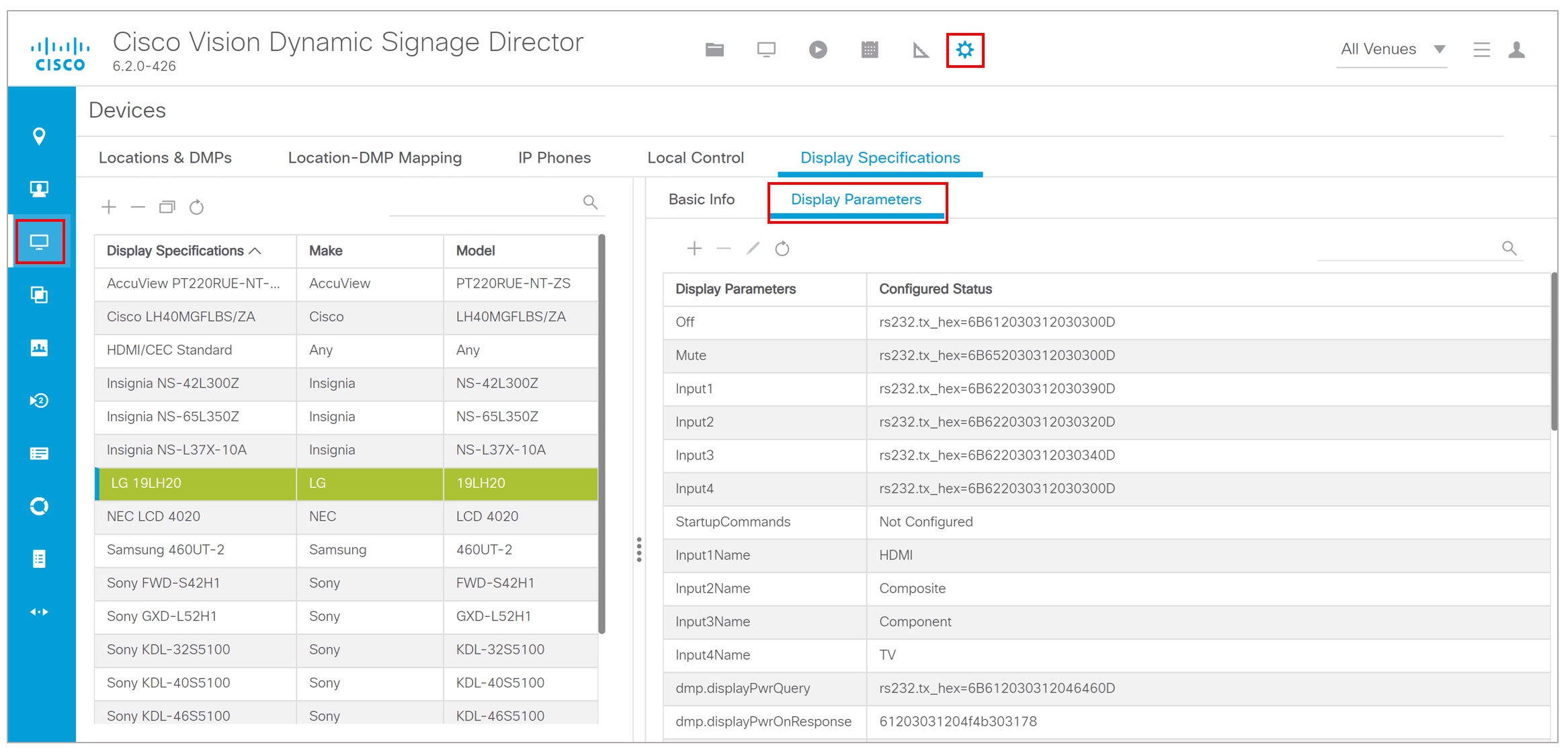
4. Type dmp.portrait or dmp.portrait.clockwise and set it to “ true ” to achieve the proper rotation value you need.
Figure 3 Create New Display Parameter
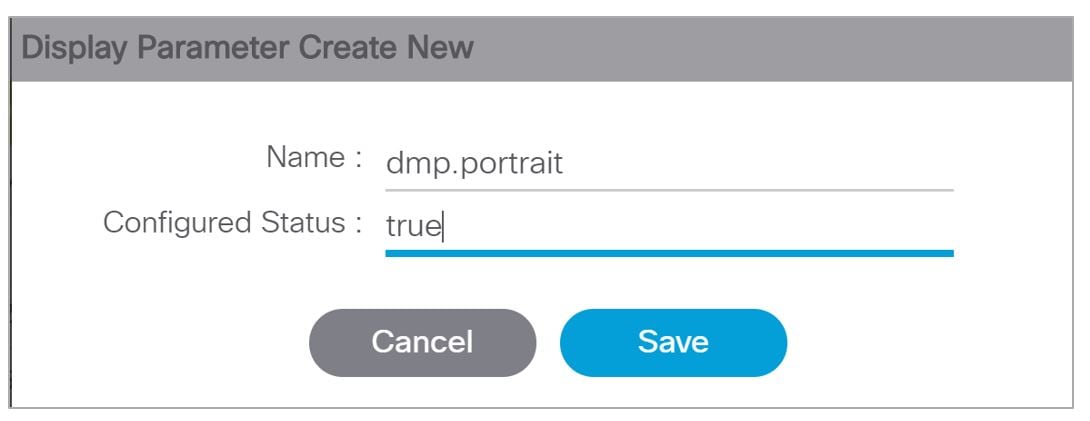
By default, if you use dmp.portrait and set “true” to your content, it rotates the content 90 degrees. If you set dmp.portrait.clockwise to “false,” it will rotate the content 270 degrees (or -90 degrees).
Note : Reboot the DMPs to set this parameter. Go to: More > Management Dashboard > DMP and TV Controls > DMP Commands > Reboot Device.
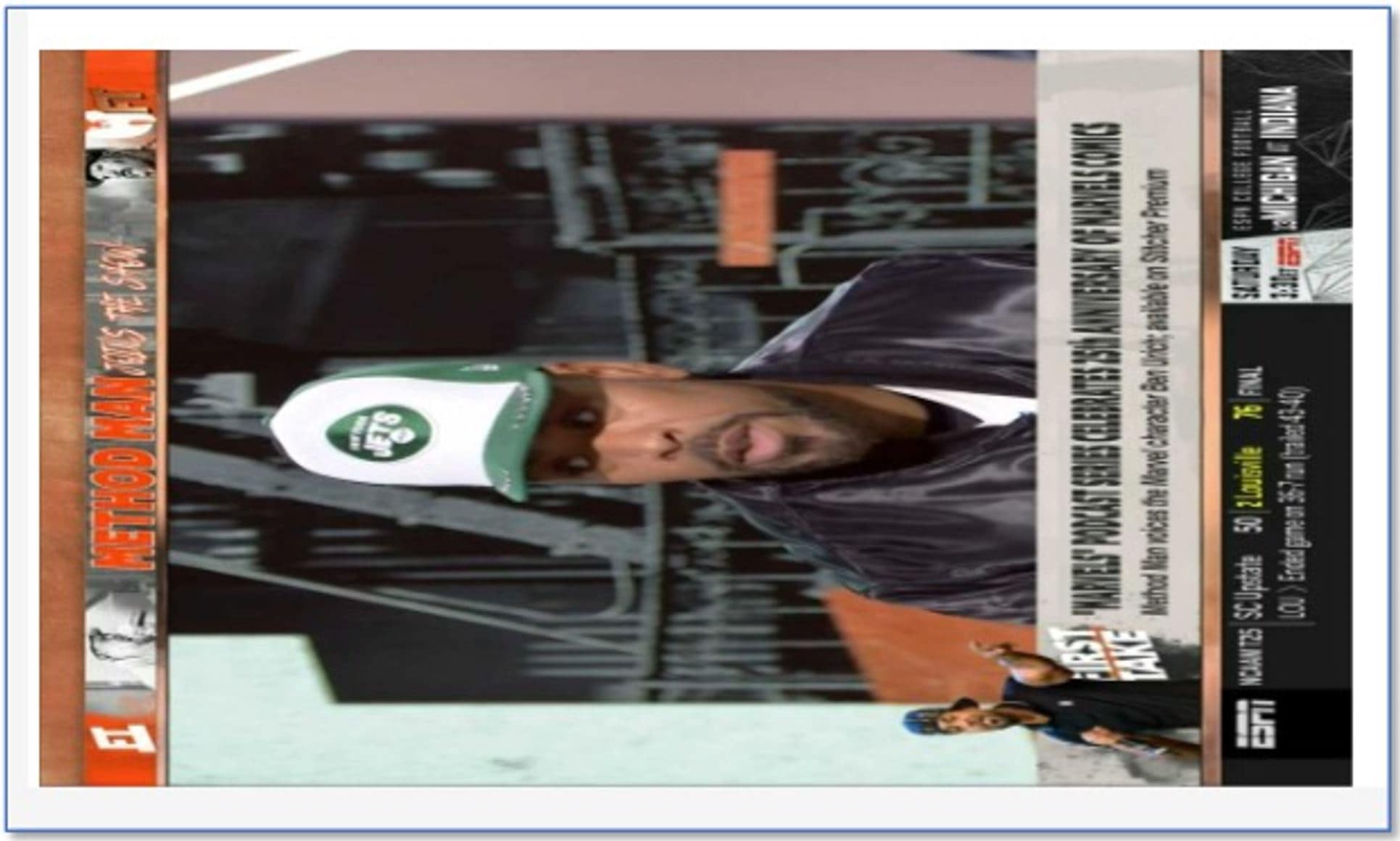
Below is a figure displaying rotated content 90 and -90 degrees. Use clockwise and counterclockwise.

Distorted Portrait Mode Displays
IMPORTANT: When the DMP is in portrait mode and you are streaming a multicast video, you may notice that the display is distorted. If this happens, it may be because the DMP registry of scaleToFit.video is set to “ true.” The default is this registry is not present or it is set to “false.” If there is an outstanding reason to have the registry set to true, then change the default from a multicast stream with portrait mode URL to something else, like a web page instead.
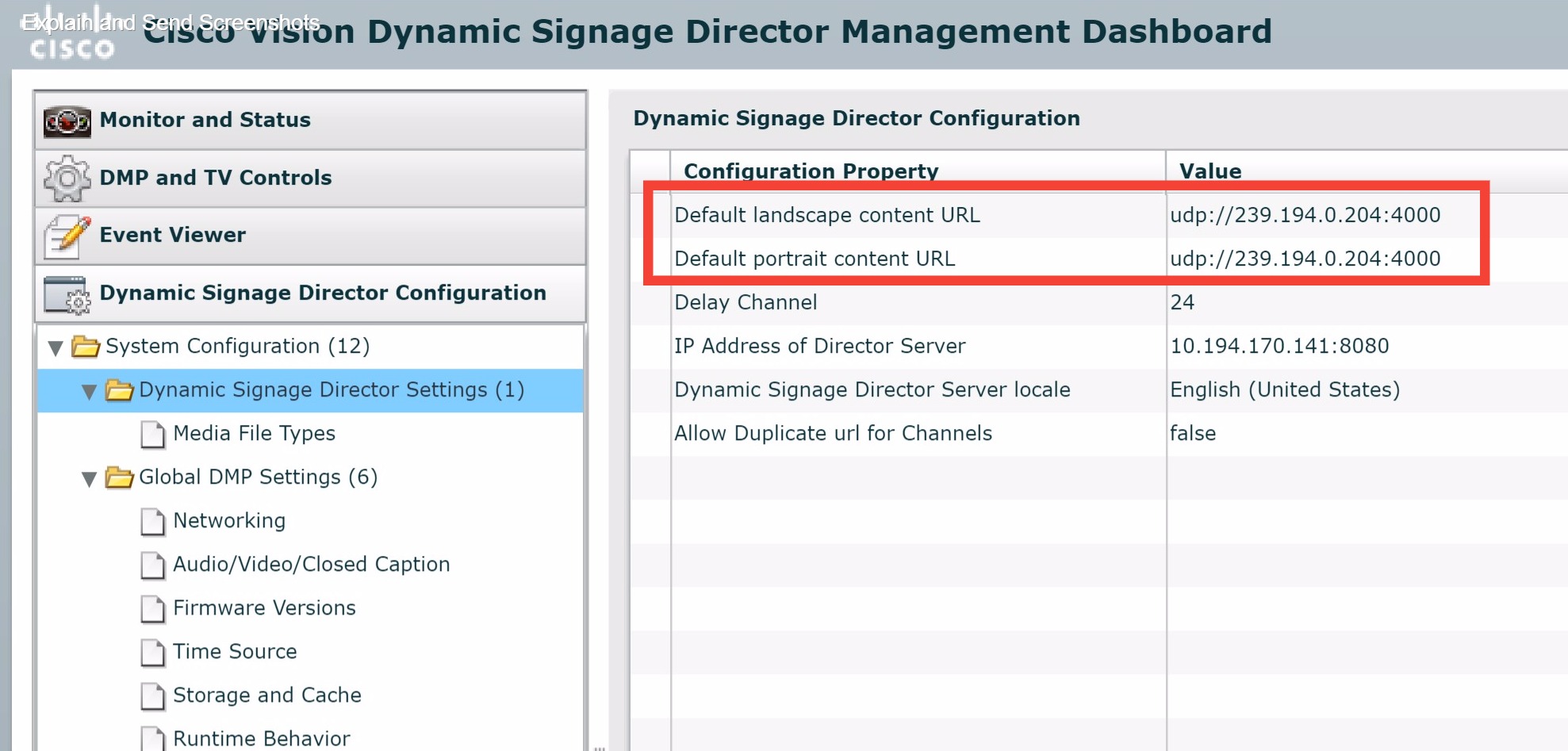
To set a separate default URL for portrait-oriented displays:
1. Go to More >Management Dashboard > Dynamic Signage Director Configuration > System Configuration > Dynamic Signage Director Settings.
2. Highlight Dynamic Signage Director Settings and the right panel populates.
3. Change the Value of the Default portrait content URL to use HTML so the content is not stretched.
HDMI-CEC
Support for HDMI Consumer Electronics Control (CEC) allows you to control the following three TV functions:
When HDMI CEC TV control is enabled, HDMI CEC is used instead of RS-232 for TV control functions. To control TVs, you can run the TV On and TV Off from the DMP and TV Controls > TV Commands menu in the Management Dashboard.
You can configure a TV display for HDMI-CEC TV control using one of two methods:
■Apply the HDMI/CEC Standard display specification for new TVs, where the HDMI-CEC display parameters are automatically enabled and set to default values.
■Modify an existing display specification to set the HDMI-CEC display parameters manually.
The following commands are used by HDMI/CEC TV control:
■dmp.powerQueryByCEC—Enables powerQuery to get TV Power status using HDMI/CEC instead of RS-232.
■dmp.TVControlbyCEC—Enables TV control using HDMI/CEC instead of RS-232.
■dmp.monitorAPIDelay—Frequency of power query command sent by Dynamic Signage Director over HDMI CEC to the TV. The default is 120000 ms (2 minutes). This command is also supported when using TV control with RS-232.
■dmp.monitorPower—Enables Dynamic Signage Director to run a power query to the TV using the Get Status command from the Management Dashboard. This command is also supported when using TV control with RS-232.
■ dmp.hdmiStreamingDelay —Indicates the amount of time (units in ms) that the DMP will stop streaming from the time it receives the command. If not defined, the default is 500 (ms). Typically, you do not need to define this parameter.
For HDMI Streaming operations initiated via IR Remote, this parameter prevents too frequent commands from crashing the DMP. If no value is set for this parameter through the Display Specifications, the default is 5000 milliseconds.
This is similar to the parameter “Ratelimit.Frequency.High.” The only difference being that this parameter is for HDMI Streaming operations issued through local control API.
TV Qualification for HDMI-CEC Support
Note: Not all TVs support the standard HDMI-CEC commands. Test the TV models that you plan to install for support of HDMI CEC. Turn on HDMI-CEC. TV manufacturers refer to CEC by different trade names. For example, Anynet+ (Samsung), BRAVIALink (Sony), EasyLink (Phillips), and SimpLink (LG).
Note : HDMI-CEC does not support the same command set as RS-232 due to proprietary links.
For more information about the successfully tested TV for HDMI CEC, see the Cisco Vision Dynamic Signage Director Release Notes for Release 6.0.
Display Parameters for RS-232 Communication
RS-232 commands can be used to control TV functions such as On/Off, mute, volume and external input. In more specialized scenarios they might also be used to configure TV tile matrix capabilities.
RS-232 responses are used to retrieve the current status of a TV. Currently Cisco Vision Director uses responses only when querying a TV for its current power on/off status.
For situations where a TV cannot be controlled via RS-232 or otherwise, volume and mute can be controlled by the media player instead. This is behavior is indicated by configuring volume and mute commands that start with sigma=.
Display Parameters for RS-232 TV Control
Table 1 shows a summary of the display parameters and RS-232 commands for the DMPs with their example values. These values are provided as an example of the type of data you would enter.
Note : Different TV display models may support only certain RS-232 commands. The commands in this table are supported by the LG 19LH20 TV display. Each model and even software version of a display may require a different configuration.
IMPORTANT: Check with the TV display manufacturer for the appropriate values to enter.
Table 1 DMP Display Parameters
Volume Control
When properly configured in Cisco Vision Director, volume changes can be made from methods such as the IP phone, IR remote, Management Dashboard, or event script state change. Volume changes for the primary video audio can be controlled for the SPDIF (on the SV-4K, CV-UHD, and CV-UHD2 only), analog audio, and HDMI out ports only when the TV display specification volume strategy is set to internal.
Volume Strategy Option
Cisco Vision Director supports three Volume Strategy settings, see Figure 4.
To choose the volume for the device:
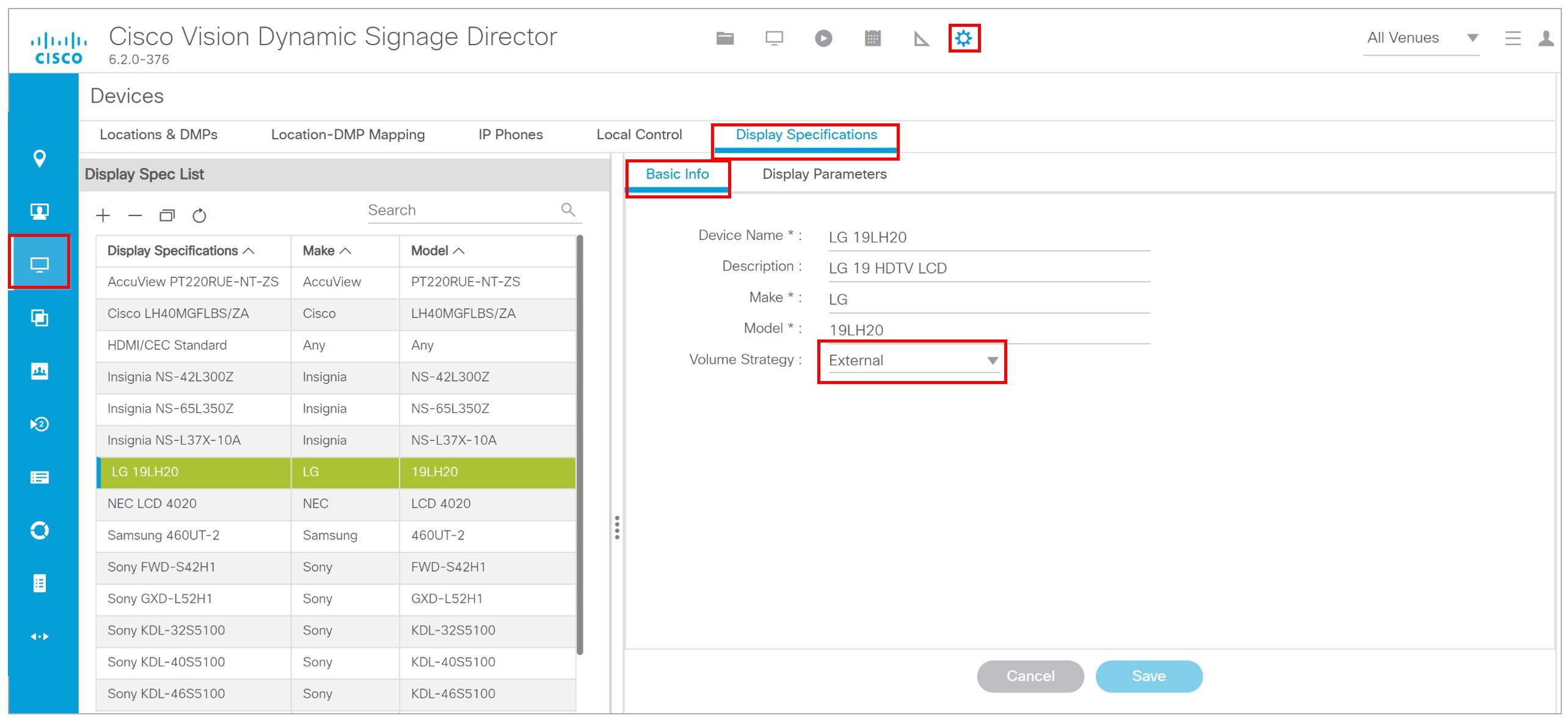
1. Go to Configuration > Devices > Display Specifications > Basic Info.
2. Use the Volume Strategy pull-down arrow to choose a volume.
Figure 4 Display Specifications—Volume Strategy Option
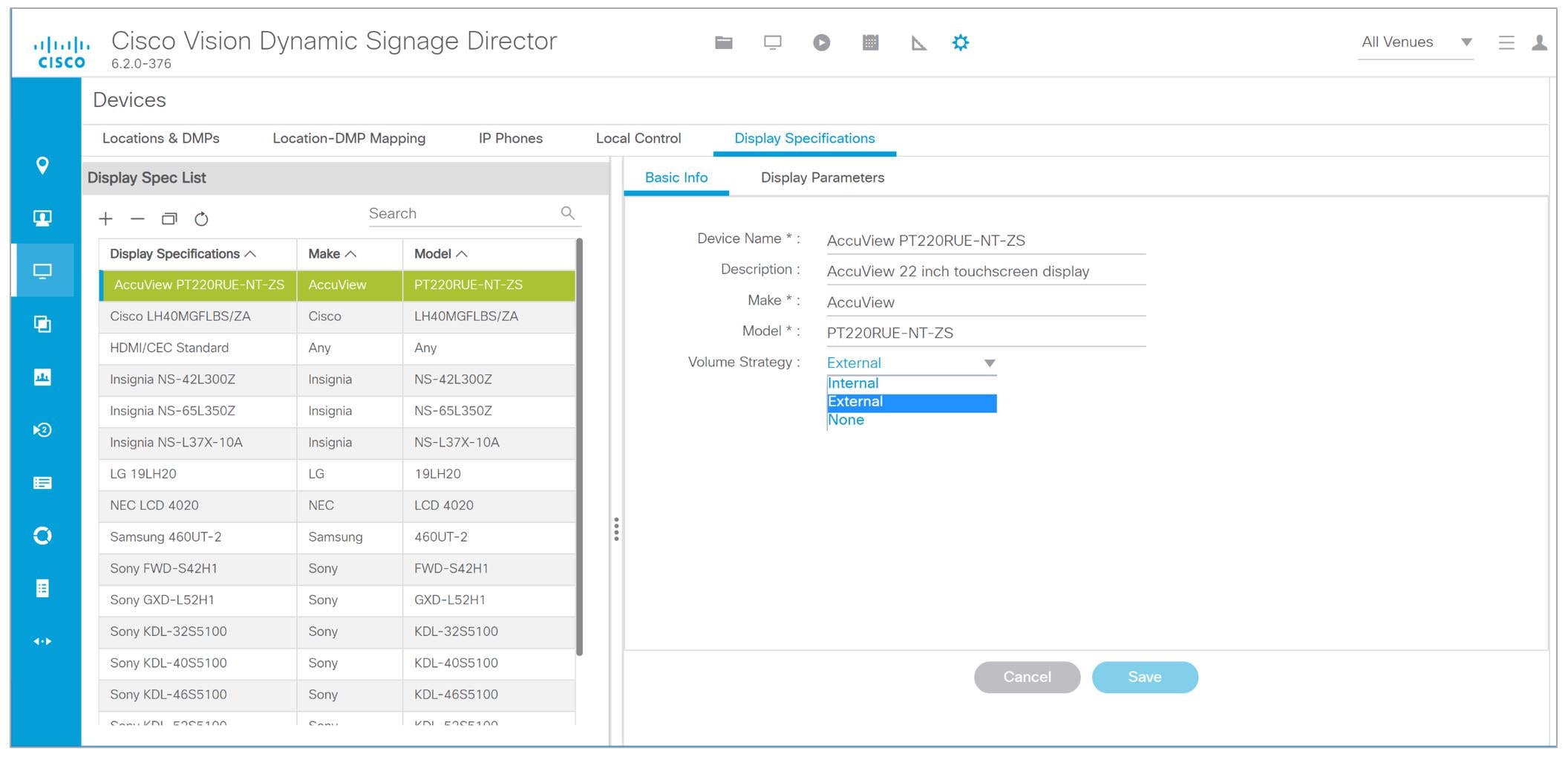
Internal—The audio feed volume level is controlled by telling the DMP how loud to send the signal. Internal allows volume change control of the audio feed by Cisco Vision Director (such as by the IP phone, IR remote, Management Dashboard, or event script state).
External—Using External, the level sent by the DMP remains the same and the DMP sends commands to change the volume level on the attached TV, via RS-232.
Note: We recommend external volume strategy because most TVs have better audio range than the DMP and many TVs show a visual indicator of the volume as it changes. This strategy also avoids problems if someone changes the volume using the TV panel buttons or the TV remote.
None—The volume cannot be adjusted. This is useful for TVs that are used for video only where audio (if any) is provided separately (such as in a bar where an overhead system provides the audio).
How to Configure TV Display Specifications
This section includes the following topics:
■Guidelines for RS-232 Command Configuration
■Configuring Basic Information for TV Display Specifications,
■Configuring Touchscreen Support
■Configuring Touchscreen Support
Guidelines for RS-232 Command Configuration
Consider the following guidelines when configuring RS-232 commands in TV display specifications:
■Cisco Vision Director supports only one RS-232 command per event state.
■All RS-232 commands configured in Cisco Vision Director must use the prefix rs232.tx_hex=.
■RS-232 responses are used to retrieve the current status of a TV.
■RS-232 responses are always configured without a prefix.
■Cisco Vision Director uses responses only when querying a TV for its current power on/off status.
■For situations where a TV cannot be controlled via RS-232 or otherwise, volume and mute can be controlled by the media player instead.
Configuring Basic Information for TV Display Specifications
To configure basic information for TV display specifications:
1. Go to Configuration > Devices > Display Specifications (Figure 4).
■Select an existing display specification.
■Click the + icon to add a new display specification.
3. Refer to Table 2 to specify the options in the Basic Info panel.
Table 2 Basic TV Display Specification Options
|
|
|
|---|---|
|
|
|
|
|
|
|
|
|
|
|
|
|
|
|
Configuring HDMI-CEC TV Control in TV Display Specifications
User Role: Administrator, Venue Administrator
You can apply the HDMI/CEC Standard display specification for new TVs, or you can modify an existing display specification to add the display parameters commands independently.
If you use the HDMI/CEC Standard display specification, the four related HDMI-CEC commands for TV control are enabled and set to any corresponding default value.
To configure HDMI-CEC display parameters:
1. Go to Configuration > Devices > Display Specifications.
2. Select an existing display specification or add a new one.
3. Click Display Parameters tab.
4. Find and set the following parameters:
Note : You can run the Get Status command from the Management Dashboard to get the latest TV health status known to the DMP. This information can be up to two minutes old, or a few seconds depending on when the power query last ran.
If the “ dmp.monitorPower ” parameter is set to false then you will not get the correct TV health status.
Configuring Touchscreen Support
For proper touchscreen operation with HTML5 pages, be sure that your touchscreen devices are human interface device (HID)-compliant and are using standard HID drivers.
Note: Some manufacturers claim support for HID while using custom drivers. Verify that standard HID drivers are used.
By default, the display parameter is set to false for Cisco Vision Director. To enable touchscreen capability between your device and the DMP, you must change that.
To enable touchscreen capabilities for your specific device:
1. In Cisco Vision Director, go to Configuration > Devices > Display Specifications (Figure 5).
Figure 5 Setting Display Specifications
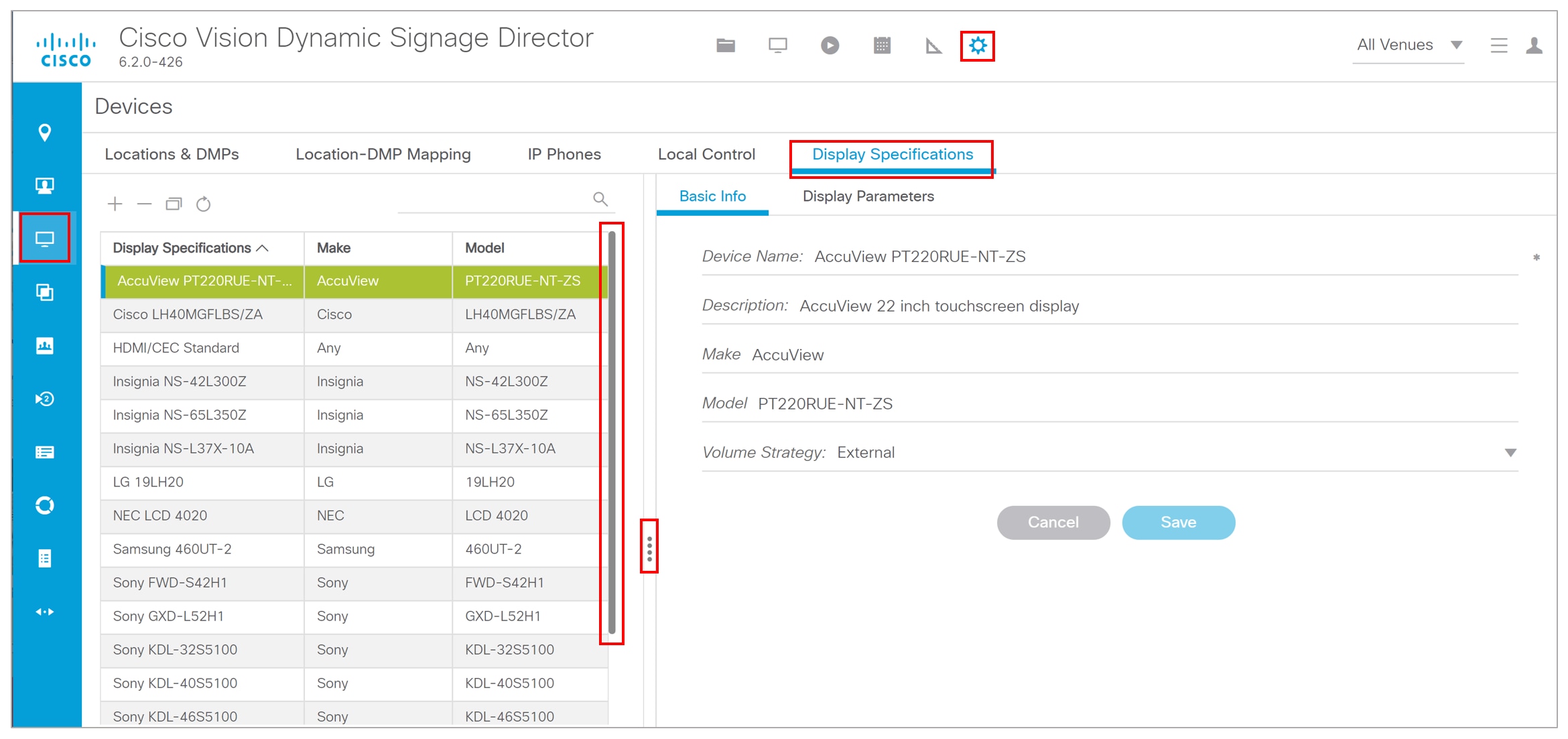
2. Create a display specification for your device screen. See the device specifications for this information. Use the + icon to create a new spec.
Or, scroll down the list of devices. Find your Make and Model and select it.
3. Click the Display Parameters tab.
4. Scroll down to dmp.SupportsTouchScreen and select it (Figure 6).
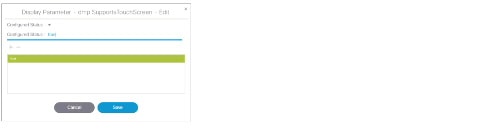
5. Click the Edit icon. The Display Parameter Edit box appears (Figure 7).
Figure 6 Setting dmp.SupportsTouchScreen Parameter
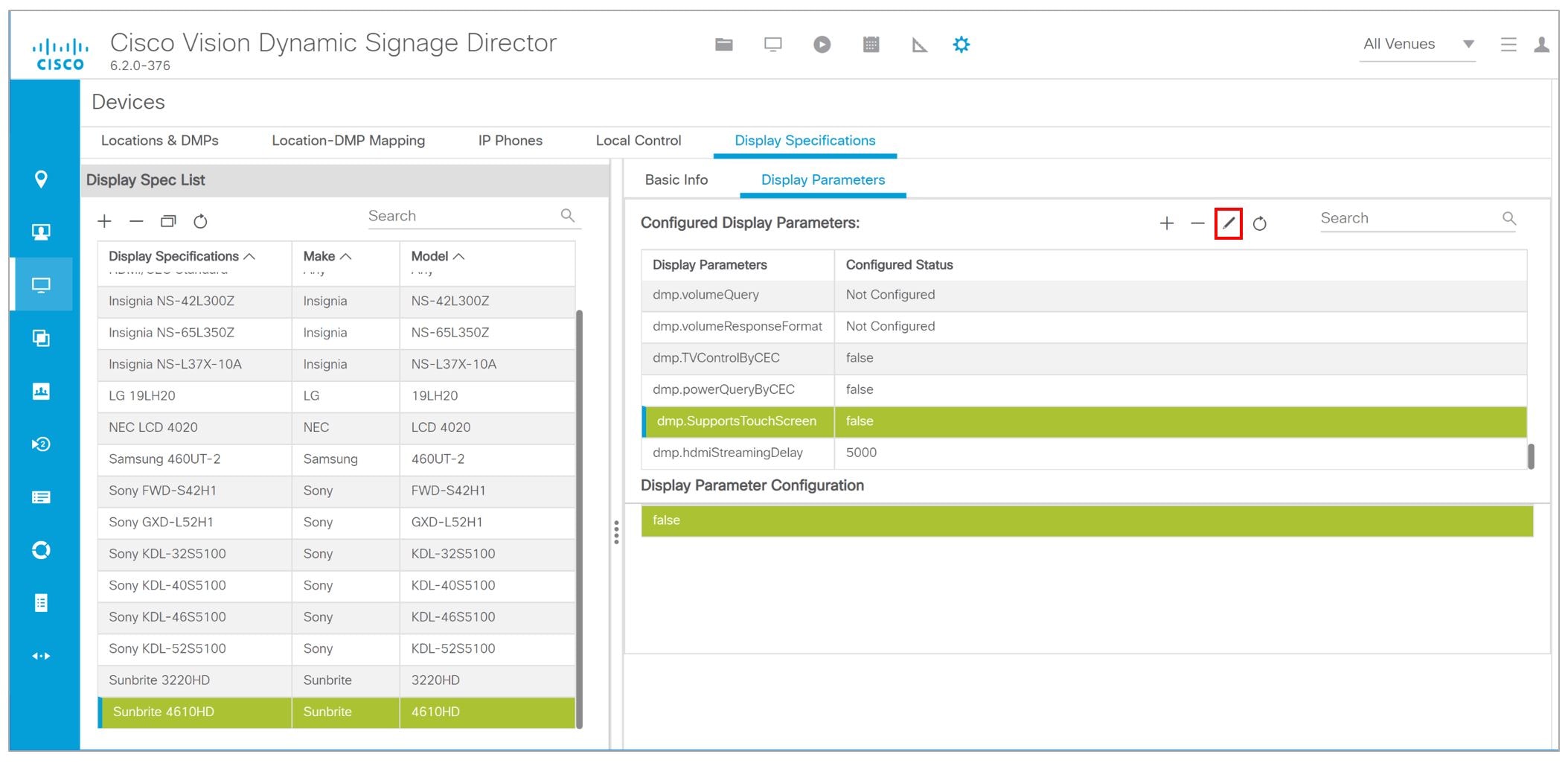
6. In the Display Parameter Edit box, change false to “ true ” for your device.
Figure 7 Display Parameter Edit Dialog Box
By enabling this feature, you are giving touch screen support to a state or a channel to your content (generally an HTML page).
To connect the DMP to your device:
Use a USB A to B-type cable that connects from the DMP USB port to your device.
Configuring Display Parameters for External Volume Support
When using the external volume strategy, configure RS-232 commands to send to the TV to change the volume (Figure 8).
Go to Configuration > Devices > Display Parameters > Basic Info > External.
Figure 8 External Volume Strategy
Note : When using internal volume strategy, volume commands do not need to be configured.
Cisco Vision Director allows you to configure two types of volume controls:
■Relative—Depends on the volume increments set in the TV, which vary from model to model.
■Absolute—Preferred method. Defines a number of increments that are used to control the volume between the minimum and maximum volume levels.
–For the SV-4K—Absolute volume is configured only by the series of Volumen commands only.
Table 3 provides information about the display parameters used to configure the Relative and Absolute types of external volume control.
Table 3 Display Parameters for External Volume Support
Table 4 shows an example of RS-232 command strings defined for Absolute volume control using 12 increments.
Table 4 Volume Count Command Example for One Model of LG TV Display
How to Configure the TV Display Banner
This section includes the following topics:
■Setting the Display Input Name
■Disabling the TV Display Banner
Setting the Display Input Name
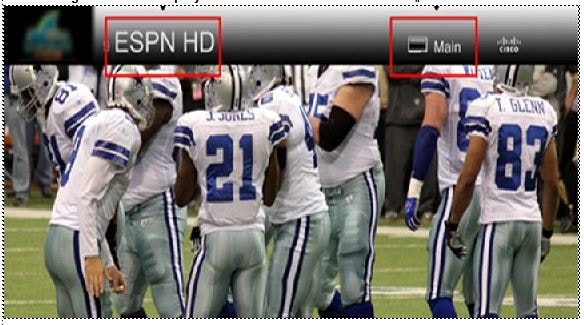
The TV display banner is a graphical banner that temporarily appears at the top of the display to provide information about the TV that received a TV command (Figure 11).
To set the TV display name so it appears on screen:
1. Click Configuration > Luxury Suite
2. Click the + icon to add a luxury suite or select an existing one.
a. Click the Location Assignment tab (Figure 9). The screen shows the Assigned Locations and the Available Locations panels.
b. Highlight a Location Name from the right panel and click the Assign Location. Now that Location appears in the Assigned Locations panel.
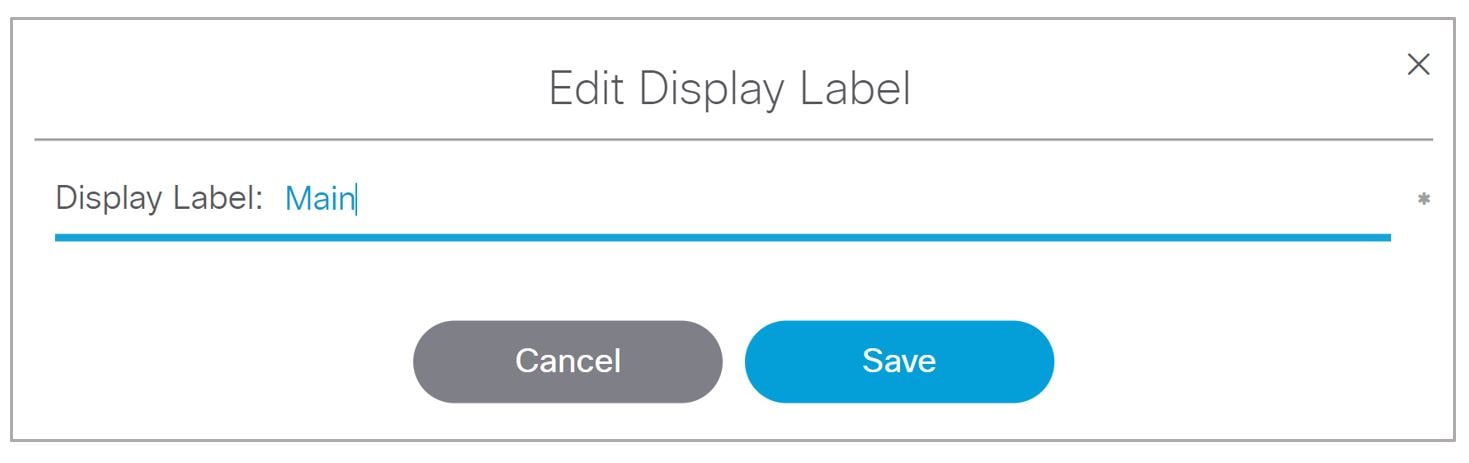
c. Click the Edit (pencil icon). The Edit Display Label box appears (Figure 10).
3. Type a name in the Display Label field, in our example “Main” (Figure 11).
Figure 9 Assign the Location of the Luxury Suite

Figure 10 Setting the Display Name
4. Click Save to close the dialog box.
5. Click Save for the suite configuration.
Note: The change will not reflect on the DMP until the next content push or a DMP restart.
The display banner is enabled by default with a duration of 5 seconds when controlled via the IR Remote (Figure 11).
Figure 11 TV Display Banner and Screen Identification
Disabling the TV Display Banner
For a better visual experience for video wall displays, disable the TV display banner. The TV display banner is enabled by default for all TV displays.
To disable the TV display banner globally:
1. Go to More > Management Dashboard > Tools drawer > Advanced tab > Registr y.
2. In the Registry Data box, click Add Row.
3. In the key field, type localControl.banner.disable.
 Feedback