Upgrade the Catalyst 9800 WLC Quick Start Guide
Available Languages
Contents
Introduction
This document describes different methods available to upgrade your wireless controller(s) and how to pick the right one for you.
Requirements
Cisco recommends that you understand this topic:
- Catalyst 9800 Wireless LAN Controller (WLC)
Components Used
The information in this document was created from the devices in a specific lab environment. All of the devices used in this document started with a cleared (default) configuration. If your network is live, ensure that you understand the potential impact of any command.
Requirements and Verifications
This document does not describe every requirement and verification as it depends on the type of upgrade you want like to perform. However, there are a few validations before every upgrade to avoid any issues:
- Verify the upgrade path and ensure you can upgrade to the specific version by reviewing the Release Note (RN) document of the version you want like to upgrade to. Every RN contains an “Upgrade Path” section where you can verify if your upgrade path is supported. Example of upgrade paths for Version 17.12.X.
- Verify the AP compatibility and ensure the APs joined to your controller are compatible with the version you plan to upgrade to. You can refer to the compatibility matrix to verify your AP models are compatible.
- Ensure your controller is running in INSTALL mode (you can verify this with "Show Version") and not in bundle mode. Bundle mode is only for recovery and does not support AP pre-download, patches, ISSU upgrades, and other features.

Note: Refer to the current recommended version on this frequently updated document: Recommended Cisco IOS® XE Releases for Catalyst 9800 Wireless LAN Controllers.
Upgrade Procedure
The procedure to upgrade wireless controller(s) depends if it is a standalone controller or an HA pair (SSO or N+1 redundancy.) In this document, there is a brief overview of the different upgrade procedures.
Standalone Controllers
Upgrading a standalone controller requires downtime, as the controller reloads during the upgrade. However, you can reduce this downtime by pre-downloading the image to the access points. This avoids the APs to start downloading the image after the controller is upgraded. This removes the downtime required for image download, which can take several minutes or hours depending on if your APs are on a WAN link. Times can vary based the CAPWAP window size configured as well. It is generally recommended to pre-download the images to your access points before an upgrade of your controller.
CLI Workflow
This section shows a brief summary of the commands executed to upgrade the controllers. An explanation of each command and all steps are provided:
| Command | Description |
| install add file <file> | Image downloaded from CCO to the bootflash is loaded to the controller and expanded into packages. No WLC reload at this point. |
| ap image predownload | AP images corresponding to v2 image are pre-downloaded to APs. |
| install activate | This triggers the upgrade on the controller and reloads it. |
| install commit | Commit installs/changes are permanent. |
Procedure
This is the procedure to upgrade a standalone controller with the AP pre-download. The process shows the CLI commands for the upgrade and you can find instructions for the GUI.
Step 0 (Optional): Delete Unused Files
Start by removing inactive files from the controller to free up some space, if needed:
install remove inactiveNote: This operation can take several minutes to complete. Do not proceed further until this operation is finished.
Step 1: Upload the Image to the Controller
Download the ".bin" image from Software Download. You can upload the downloaded .bin image to the controller running ftp/sftp/tftp/http method with this command:
copy tftp|ftp|sftp://<SERVER_IP>/<IMAGE_PATH> bootflash:Note: Verify the md5/sha512 hash of the image running the next command on the controller.
verify /md5|/sha512 <IMAGE_PATH>Step 2: Install the Image on the Controller
The first step is to install the image on the controller. This does not require a reload.
install add file bootflash:<IMAGE_NAME>Once this is completed, the image is listed as Inactive running this command:
show install summaryAt this point, you can start pre-downloading the images to the APs. If you do not pre-download the APs, the APs must download the image after the controller is upgraded.
Step 3: Pre-download the Image to the APs
To trigger the AP pre-download, run this command:
ap image predownloadTo verify the pre-download status, you can run the show ap image command. You must wait for all APs to download the new image before proceeding to the next step. This can take several minutes/hours depending on the number of APs and latency between the APs and WLC.
Step 4: Activate the Image
Once the pre-download is finished, you can activate the image. This reloads the controller and the controller boots on the new installed image.
install activateOnce the WLC is reachable, the APs detect the new image and swaps to the backup partition and reloads on the new version. On the 9800 controller, you can verify the new image is in U state (Activated & Uncommitted). If you want to ensure the new image is persistent, you must commit the image, otherwise the controller reloads once the auto-abort timer is over (default is 6 hours).
Step 5: Commit the Image
To commit the image, run this command:
install commitGUI Instructions
To upgrade the wireless controller using the GUI, go to Administration > Software Upgrade and configure the upgrade parameters. You can choose to upload the .bin file directly from your desktop or load it from a TFTP/SFTP/FTP server.
You can also choose to pre-download the APs or not. Once everything is configured, you can click on Download and Install, which corresponds to Steps 1-3 stated previously. Optionally, you can also click on the Remove Inactive Files button to remove unused files before uploading the new image. This corresponds to Optional Step 0.
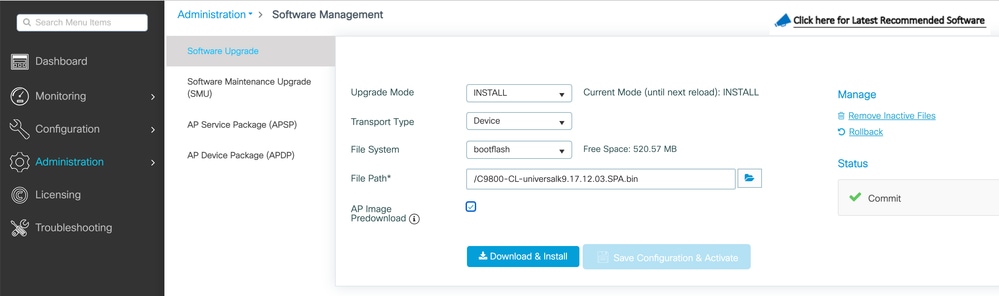
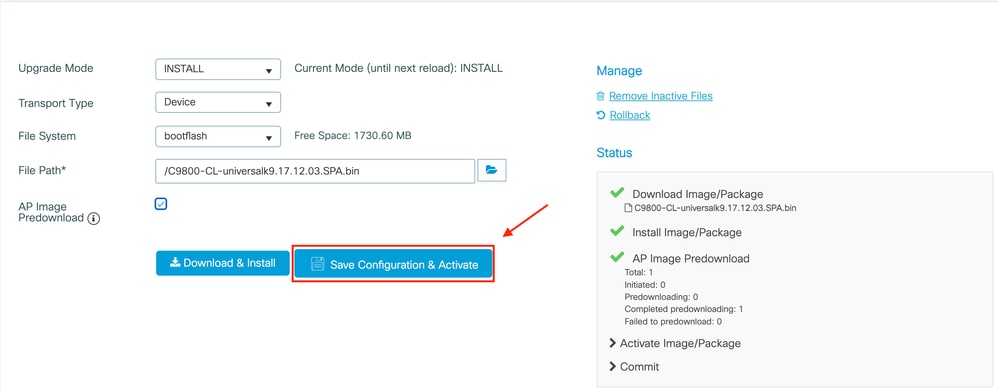
You can monitor the progress of the AP pre-download by clicking on Show Logs under the status section on right-hand side. Once the image uploads and installs, the image is complete. Click the Save configuration & Activate button. This saves the configuration and begins the upgrade of the controller. This corresponds to Step 4.
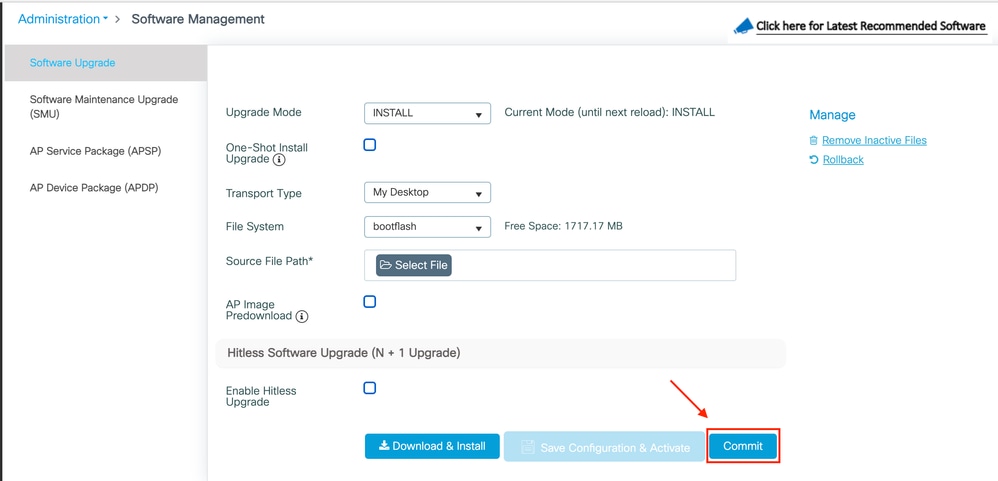
Once the session has timed out, you can log in to the controller again. Navigate to Administration > Software Upgrade and click on the Commit button that is now available. This corresponds to Step 5.
Once the APs detects the controller and is reachable again, this reloads on the backup partition and joins the controller and begins running on the new version.
Controllers in High Availability (HA)
Wireless controllers have multiple ways of being redundant. You can have an HA SSO (Stateful Switch Over) pair, a N+1 redundancy, or both.
- HA SSO: There is an active and standby controller with continuous synchronization between the WLCs.
- N+1: There is a primary and secondary controller, however, they are not interconnected. Both controllers must be running the same version and must be configured identically for this to work seamlessly. APs are joined to the primary controller and fall back to the secondary controller in case of failure to the primary controller.
Stateful Switch Over (SSO) Redundancy
When controllers are in HA SSO mode, you have two ways to upgrade. You can either choose a classic upgrade or an ISSU (In-Service Software Upgrade).
- Classic Upgrade: This is the same upgrade process explained previously for standalone controllers. Both controllers reload at the same time and APs reload on the new version. You can decide to pre-download the AP image or not. Total downtime for this upgrade with the controller reload + AP reload time. It does not take any more time than upgrading a single standalone controller.
- ISSU Upgrade: This is a zero-downtime upgrade. The standby controller upgrades, there is a switchover, the (old) active controller upgrades, and the APs upgrade in a staggered manner. Ideal for a 24/7 environment where the downtime must be as minimal as possible.
Classic Upgrade
Refer to the previous section under the Standalone Controllers. The steps are the same where the image is copied from the active to the standby controller automatically and both controllers upgrade at the same time. Once the controllers are upgraded, the APs either swap their partition if you pre-downloaded the images to the APs, or download the new image if the pre-download was not completed.
Note: Ensure both controllers are in an ACTIVE/STANDBY-HOT state before proceeding to upgrade (running the show redundancy command.)
ISSU Upgrade
The ISSU feature allows you to reduce the downtime during an upgrade. Controllers upgrade one by one, and APs reload in a staggered manner. The wireless client is can roam between APs if there is sufficient coverage. If an AP is isolated, there is downtime for clients connected to an AP (the AP reload time). This upgrade takes longer in total as both controllers upgrade individually and APs reboot. Upgrades are staggered and in a controlled manner, which leads to longer maintenance window, however, with no perceived downtime.
There are a few things to consider when completing an ISSU upgrade (limitations, precautions to take, and so on). For example, this is only available in INSTALL mode and not in BUNDLE mode. For a complete explanation of the ISSU procedure (with instructions and commands), refer to the Upgrade Catalyst 9800 WLC HA SSO Using ISSU guide.
N + 1 Redundancy
N+1 redundancy is a set of two controllers not directly connected to each other, however, they are configured exactly the same and running the same version. In this case, there is one primary controller (where all APs are joined) and a secondary controller, which can be used as a backup if the primary controller fails. If you upgrade, it is like having two standalone controllers. However, this type of redundancy has an advantage as you can reduce the downtime compared to a classic upgrade using the N+1 Hitless Rolling AP Upgrade feature. This allows you to perform a staggered upgrade of the APs while moving them to a secondary, upgraded controller. This limits the downtime to a small subset of APs, which are reloaded at the same time.
Note: The original meaning of N+1 implies you have an extra controller that is empty of access points and that can serve as backup for one or more controllers (hence the name N+1). However, some literature abuse the word and refers to N+1 as simply "configuring a secondary/tertiary controller on the access points". This is indeed more or less the same thing, but this would be more like N (rather than N+1) redundancy if your controllers have the capacity to absorb APs from other controllers who fail. This, however, does not let you do rolling AP upgrades easily as you do not have an empty controller to upgrade first and then send the APs progressively to it. The steps of the rolling upgrade imply a direct upgrade of the "Extra" controller which is only seamless if it is empty of access points
This is the flow for this type of upgrade:
- Upgrade the secondary controller to the target release. This can be done with a classic upgrade and without an AP pre-download as there are no APs connected. At this stage, the primary is running V1, while the secondary is running V2.
- Install the target image (V2) on the primary controller, but do not activate it. This allows you to pre-download the V2 image to the APs.
- Once the pre-download is finished, initiate the staggered AP upgrade running the ap image upgrade destination command. This triggers the staggered AP upgrade and APs reload on the V2 image and join the secondary WLC.
- Once all APs are joined to the secondary WLC, upgrade the primary controller to V2.
- Once completed, if needed, you can easily move the APs back to the primary controller, at your own pace. This does not require a reload of the APs since both WLCs are on version V2. Only a CAPWAP restart is required and this takes less than a minute.
Refer to the Upgrade Software on Catalyst 9800 with N+1 Rolling AP Upgrade procedure for a complete explanation with instructions and commands.
FAQs
What if you have SMUs or APSPs current installed?
You do not need to remove any SMU or APSP patches currently installed before upgrading to the next release.
Is it mandatory to upgrade the ROMMON each time?
ROMMON versions do not relate to Cisco IOS versions and are less common. Changes in ROMMON are documented in the most recent release includes fixes from all preceding releases for Cisco Catalyst 9800-L Wireless Controller. Upgrading the ROMMON is not mandatory for upgrading Cisco IOS XE®. However, it is required to run ROMMON 17.7 or later to install new Cisco IOS XE releases. Older ROMMON versions do not work if you upgrade to a recent Cisco IOS XE release. Also, not all changes in ROMMON versions are documented in resolved caveats as there are undocumented internal enhancements and fixes.
References
Revision History
| Revision | Publish Date | Comments |
|---|---|---|
6.0 |
07-Aug-2026
|
Updated a note about N+1 and rolling AP update |
5.0 |
24-Jul-2026
|
Updated title (special character removed), introduction, spelling, grammar, inserted horizontal lines to separate sections/readability, CCW updates |
4.0 |
17-Dec-2024
|
Added a note about ROMMON upgrade |
3.0 |
16-Dec-2024
|
Added a note about install and bundle mode |
2.0 |
15-Nov-2024
|
Added a note about SMUs/APSP |
1.0 |
26-Sep-2024
|
Initial Release |

 Feedback
Contact Cisco
- Open a Support Case

- (Requires a Cisco Service Contract)