Configure and Troubleshoot Catalyst 9800 Unified Licensing and Smart Licensing with SLUP
Available Languages
Contents
Introduction
This document describes configuring and troubleshooting Smart Licensing Using Policy (SLUP) on Catalyst 9800 WLC.
Prerequisites
Requirements
Cisco recommends that you have knowledge of these topics:
- Smart Licensing Using Policy (SLUP)
- Catalyst 9800 Wireless LAN Controller (WLC)
Components Used
This document is not restricted to specific software and hardware versions.
The information in this document was created from the devices in a specific lab environment. All of the devices used in this document started with a cleared (default) configuration. If your network is live, ensure that you understand the potential impact of any command.
Background Information

Caution: Notes in this article contain helpful suggestions or references to material not covered in the document. It is recommended that you read each Note.
- Direct connect to Cisco License Central
- Connected to Cisco License Central via CSLU (Cisco Smart License Utility Manager)
- Connected via Cisco License Central (On-prem)
This article does not cover all the Smart Licensing scenarios on Catalyst 9800, refer to the Smart Licensing Using Policy Configuration Guide for additional information. However, this article does give a series of useful commands to troubleshoot direct connect, CSLU and On-prem Smart Licensing Using Policy issues on the Catalyst 9800.
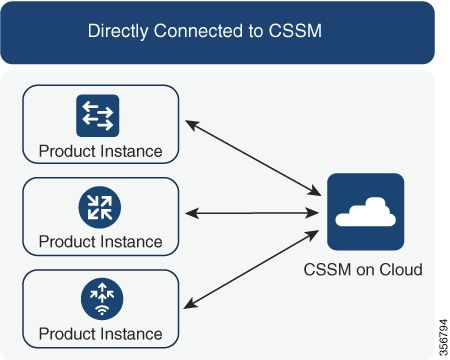
Option 1. Direct connect to Cisco License Central:
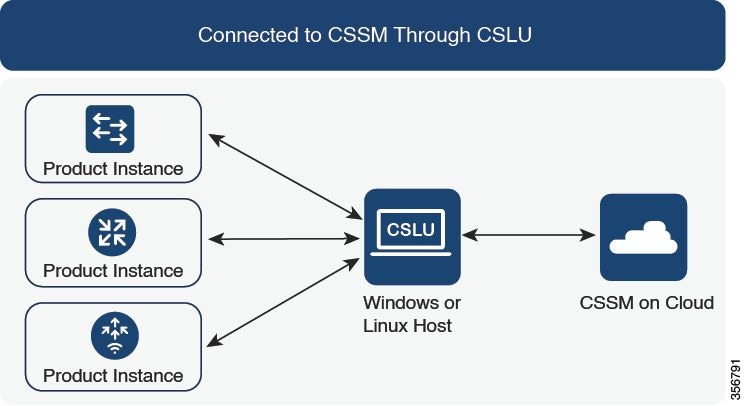
Option 2. Connection via CSLU:
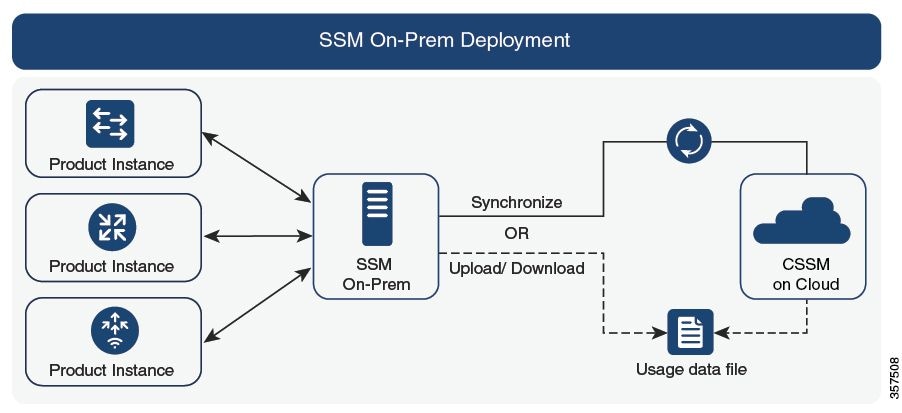
Option 3. Connect using Cisco License Central (On-prem).
Unified Licensing, Enforcement, and SLUP
Unified licensing, available in Cisco Networking Subscriptions, introduces license enforcement to on-premises customers.
- Cisco IOS® XE 17.15.2 (December 2024) was the first supported release for unified licensing and introduced per-device license reporting and compliance status.
- Future Cisco IOS XE releases introduce Day 0 enforcement for unlicensed APs and Day N enforcement for devices with expired licenses. on any out-of-compliance devices, enforcement takes place when the software image is updated.
Completing the steps in this guide is critical to ensure that your devices are configured correctly using SLUP, so that your devices are not subject to enforcement upon Cisco IOS XE software image upgrade.
Checking AP Compliance on Unified Licensing
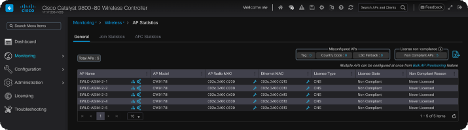
Figure 1: Web UI AP Compliance (non-compliant)
AP compliance information is available on-controller (Meraki Dashboard, Catalyst Center 2.3.7.9) and on-device (Web UI, CLI).
Figure 1 shows an example of AP compliance information on Web UI. Out-of-compliance APs have a Non-Compliant license state, with reasoning provided that the AP is “Never Licensed.”
After SLUP has been correctly configured, your APs reflect an updated compliant status.

Figure 1: Web UI AP Compliance (compliant)

Note: If you have successfully configured SLUP and still see Non-Compliant status on your access points, then confirm you have purchased sufficient licensing and that these licenses have been deposited into the correct Smart Account (SA) and Virtual Account (VA).
Traditional Licensing vs SLUP
The Smart Licensing Using Policy feature has been introduced to the Catalyst 9800 with the code version 17.3.2. The initial 17.3.2 release misses SLUP configuration menu in the WLC WebUI, which was introduced with the 17.3.3 release. The SLUP is different from traditional smart licensing in couple of ways:
- WLC now communicates with Cisco License Central through the smartreceiver.cisco.com domain, instead of the tools.cisco.com domain.
- Instead of Registering, the WLC now Establishes Trust with the Cisco License Central or On-prem.
- CLI commands have been slightly altered.
- There is no Smart Licensing Reservation (SLR) anymore. Instead you can periodically report your usage manually.
Warning: If you are using a Cisco Catalyst 9800-CL Wireless Controller, ensure that you are familiar with the mandatory ACK requirement that starts with Cisco IOS® XE Cupertino 17.7.1. See RUM Reporting and Acknowledgment Requirement for Cisco Catalyst 9800-CL Wireless Controller.
Configuration
Direct Connect Cisco License Central
Once the token has been created on the Cisco License Central, in order to establish trust, these commands need to be executed.
configure terminal
ip http client source-interface <interface>
ip http client secure-trustpoint <TP>
license smart transport smart
license smart url default
exit
write memory
terminal monitor
license smart trust idtoken <token> all force- The ip http client source-interface command specifies the L3 interface that licensing related packets are going to be sourced from.
- The ip http client secure-trustpoint command specifies which trustpoint/certificate is used for Cisco License Central communication. The trustpoint name can be found using the show crypto pki trustpoints command. It is recommended to use a self-signed cert TP-self-signed-xxxxxxxxxx certificate or Manufacturer Installed Certificate (also known as MIC, available only on 9800-40, 9800-80 and 9800-L), usually called CISCO_IDEVID_SUDI.
- Terminal monitor command makes the WLC print the logs to the console and help confirm that trust has been successfully established. It can be disabled using terminal no monitor.
- Keyword all in the last command tells tells all of the WLCs in the HA SSO cluster to establish the trust with the Cisco License Central.
- Keyword force tells the WLC to override any of the previously established trusts and attempt a new one.
Connected to CSLU
Cisco Smart License Utility Manager (CSLU) is a Windows-based application (also available on Linux) that enables customers to administer licenses and their associated Product Instances from their premises instead of having to directly connect their Smart Licensed enabled Product Instances to Cisco License Central.
This section only covers the 9800 Wireless configuration. There are others steps to perform to configure licensing with CSLU (such as install CSLU, configure the CSLU software and so on), which is covered in the Configuration Guides .Whether you want to implement a product instance-initiated or CSLU-initiated method of communication, or complete the corresponding sequence of tasks.
Product Instance-initiated
- Ensure network reachability from the controller to CSLU.
- Ensure that transport type is set to cslu:
(config)#license smart transport cslu (config)#exit #copy running-config startup-config - If you want CSLU to be discovered by the controller, you need to perform the action. If you want CSLU to be discovered using DNS, no action is required. If you want to discover it using an URL, please enter these command:
(config)#license smart url cslu http://<cslu_ip>:8182/cslu/v1/pi
(config)#exit
#copy running-config startup-config
CSLU-initiated
When you configure CSLU-initiated communication, the only action needed is to check for and ensure network reachability to CSLU from the controller.
Connected to Cisco License Central On-prem
Configuration with On-prem Cisco License Central is fairly similar to direct connection. On-prem needs to run version 8-202102 or newer. For SLUP releases (17.3.2 and later), it is advised to use the CSLU URL and transport type. The URL can be obtained from the On-prem webUI interface under Smart Licensing > Inventory > <Virtual Account> > General section.
configure terminal
 ip http client source-interface <interface>
 ip http client secure-trustpoint <TP>
 license smart transport cslu
 license smart url cslu http://<SSMOn-PremIP>/cslu/v1/pi/<tenantID> (see previous paragraph on how to get exact URL)
 crypto pki trustpoint SLA-TrustPoint
  revocation-check none
 exit
write memory
terminal monitor
On-prem Cisco License Central does not require the use of a trust token.
Note: If you are getting the message, %PKI-3-CRL_FETCH_FAIL: CRL fetch for trustpoint SLA-TrustPoint failed, it is because you have not configured revocation-check none under the SLA-TrustPoint. This is the trustpoint used for Smart Licensing. In case of On-prem, the certificate on the licensing server is most often a self-signed certificate for which CRL verification is not possible, hence the requirement to configure no revocation checks.
Configuring Smart Transport Through an HTTPS Proxy
Note: Authenticated proxies are not yet supported as of code release 17.9.2. If you are using authenticated proxies in your infrastructure, consider using the Cisco Smart License Utility Manager (CSLU), it supports this type of servers.
To use a proxy server to communicate with Cisco License Central when using the Smart transport mode, complete these steps:
configure terminal
  ip http client source-interface <interface>
  ip http client secure-trustpoint <TP>
  license smart transport smart
  license smart url default
  license smart proxy address <proxy ip/fqdn>
  license smart proxy port <proxy port>
exit
write memory
terminal monitor
license smart trust idtoken <token> all force
Communication Frequency
The reporting interval you can configure in CLI or GUI has no effect.
The 9800 WLC communicates with Cisco License Central or On-prem every 8 hours, no matter what reporting interval is configured via web interface or CLI. This means that newly joined access points can appear on Cisco License Central up to 8 hours after they initially joined.
You can figure out the next time licenses are calculated and reported with the show license air entities summary command. This command is not part of the typical show tech or show license all output:
WLC#show license air entities summary
Last license report time........................: 07:38:15.237 UTC Fri Aug 27 2021
Upcoming license report time....................: 15:38:15.972 UTC Fri Aug 27 2021
No. of APs active at last report................: 3
No. of APs newly added with last report.........: 0
No. of APs deleted with last report..............: 0
License Factory Reset
Catalyst 9800 WLC can have all of its licensing configuration and trust factory reset and still keep all the other configurations. This requires a WLC reload:
WLC-1#license smart factory reset
%Warning: reload required after "license smart factory reset" command
It is important to note that after a license factory reset, you need to wait one hour before licensing the WLC again in case it is in AirGap mode.
In Case of RMA or Hardware Replacement
If the 9800 WLC needs to be replaced, the new device has to register with Cisco License Central/On-prem and it is perceived as a new device. Releasing the license count of the previous device requires manual deletion under Product Instances:
Upgrading From Specific License Registration (SLR)
Older WLC releases, earlier than 17.3.2, used a special offline licensing method called Specific License Registration (SLR). This licensing method has been deprecated in the releases using SLUP (17.3.2 and later).
If you upgrade a 9800 controller that was using SLR to a release post 17.3.2 or 17.4.1, it is recommended that you move to offline SLUP reporting rather than relying on the SLR commands. Save the license usage RUM file and register that with the Smart Licensing Portal. Since SLR does not exist anymore in newer releases, this reports the correct license count and releases any unused license. Licenses are not blocked anymore but the exact usage count is reported.
Troubleshooting
Internet Access, Port Checks & Pings
Instead of the tools.cisco.com that traditional smart licensing used, the new SLUP uses smartreceiver.cisco.com domain to establish trust. At the time of writing of this article, this domain resolves to multiple different IP addresses. Not all of this addresses are pingable. Pings must not be used as an internet reachability test from WLC. Not being able to ping these servers does not mean that they are not working properly.
Instead of pings, telnet over port 443 must be used as a reachability test. Telnet can be checked either against smartreceiver.cisco.com domain or directly against the server IP addresses. If traffic is not being blocked, port must show up as open in the output:
WLC-1#telnet smartreceiver.cisco.com 443
Trying smartreceiver.cisco.com (192.330.220.90, 443)... Open <-------
[Connection to 192.330.220.90 closed by foreign host]
Syslog
If terminal monitor command is enabled while the token is being configured, the WLC prints out the relevant logs in the CLI. These messages can also be obtained if you run the show logging command. Logs of a successfully established trust looks like this:
WLC-1#license smart trust idtoken <token> all force
Aug 22 12:13:08.425: %CRYPTO_ENGINE-5-KEY_DELETED: A key named SLA-KeyPair has been removed from key storage
Aug 22 12:13:08.952: %CRYPTO_ENGINE-5-KEY_ADDITION: A key named SLA-KeyPair has been generated or imported by crypto-engine
Aug 22 12:13:08.975: %PKI-6-CONFIGAUTOSAVE: Running configuration saved to NVRAM
Aug 22 12:13:11.879: %SMART_LIC-6-TRUST_INSTALL_SUCCESS: A new licensing trust code was successfully installed on P:C9800-CL-K9,S:9PJK8D9OCNB.
Logs of a WLC without a defined DNS server or with a nonfunctioning DNS server:
Aug 23 09:19:43.486: %SMART_LIC-3-COMM_FAILED: Communications failure with the Cisco Smart Software Manager (CSSM) : Unable to resolve server hostname/domain name In this case verify that you have a valid DNS server configured. Feel free to use any public DNS server IP available :
ip name-server <ip address>Logs of a WLC with a functioning DNS server, but without internet access:
Aug 23 09:23:30.701: %SMART_LIC-3-COMM_FAILED: Communications failure with the Cisco Smart Software Manager (CSSM) : No detailed information givenPacket Captures
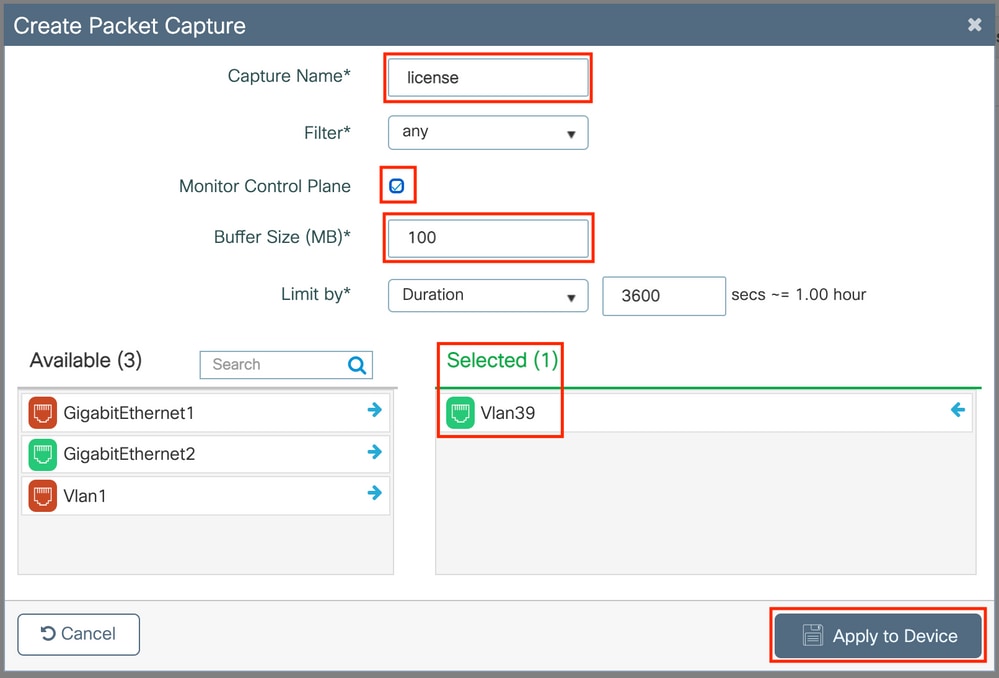
Even though communication between WLC and Cisco License Central/On-prem is encrypted and going over HTTPS, performing packet captures can reveal what causes the trust not to be established. The easiest way to collect packet captures is through the WLC Web interface.
Navigate to Troubleshooting > Packet Capture. Create a new capture point:
Ensure that Monitor Control Plane checkbox is enabled. Increase the buffer size to the maximum 100MB. Add the interface which must be captured. Smart licensing traffic is sourced out of the wireless management interface by default or from the interface defined with the ip http client source-interface command:
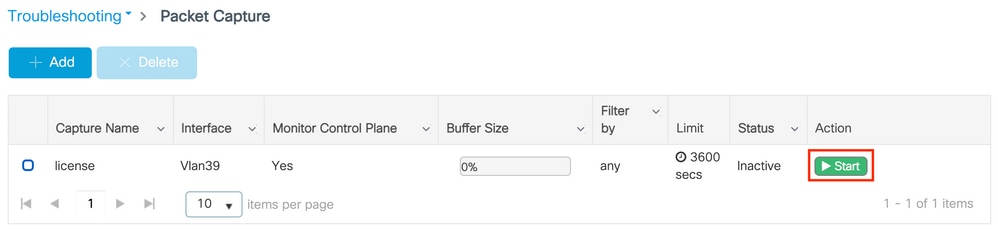
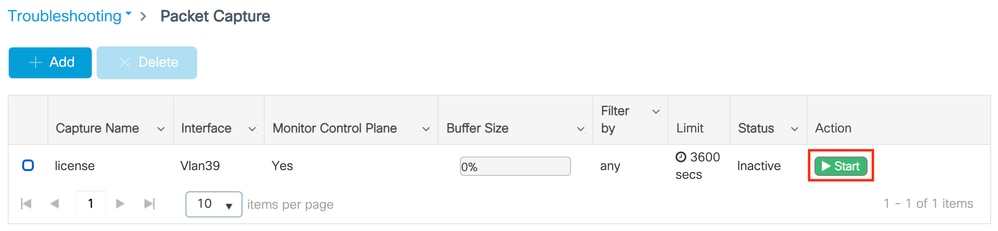
Start the captures and run the license smart trust idtoken <token> all force command:
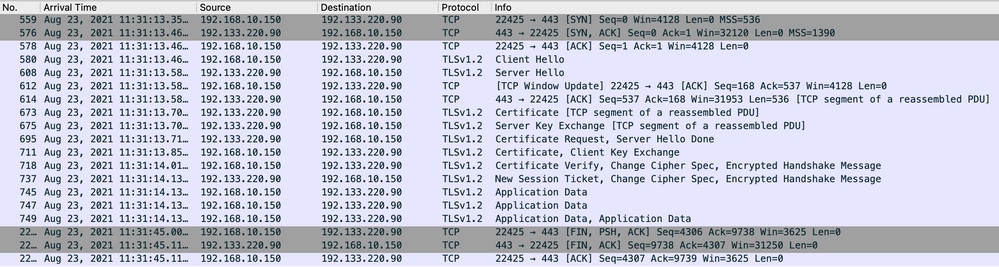
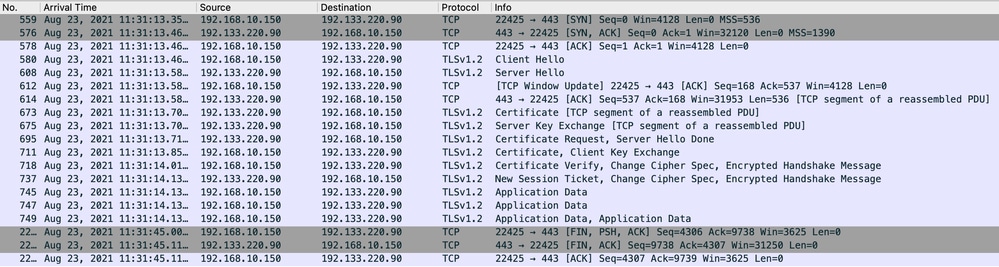
The packet captures of a trust establishment must contain these steps:
- TCP session establishment using SYN, SYN-ACK & ACK sequence
- TLS session establishment with both server and client certificate exchange. Establishment ends with the New Session Ticket packet
- Encrypted packet exchange (Application Data frames) where WLC reports license usage
- TCP session termination via FIN-PSH-ACK, FIN-ACK & ACK sequence
Since Cisco License Central Cloud uses 3 different public IP addresses, in order to filter out all of the packet captures between WLC and Cisco License Central, use these wireshark filter:
ip.addr==172.163.15.144 or ip.addr==192.168.220.90 or ip.addr==172.163.15.144 If using an On-prem Cisco License Central, filter for the Cisco License Central IP address:
ip.addr==<on-prem-ssm-ip>Example: Packet captures of a successful trust establishment with directly connected Cisco License Central with all of the significant packet captures filtered:
Show Commands
These show commands contain useful information about trust establishment:
show license status
show license summary
show license tech support
show license air entities summary

show license history message (useful to see the history and content of messages sent to SL)

show tech wireless (actually gets show log and show run on top of the rest which can be useful)
The show license history message command is one of the more useful commands since it can display the actual messages sent from WLC and received back from Cisco License Central.
A successful trust establishment has both "REQUEST: Aug 23 10:18:08 2021 Central" and "RESPONSE: Aug 23 10:18:10 2021 Central" messages printed. If there is nothing after the RESPONSE line, that means that the WLC did not receive a response from the Cisco License Central.
This is an example of a show license history message output for a successful trust establishment:
REQUEST: Aug 23 10:18:08 2021 Central
{"request":"{\"header\":{\"request_type\":\"POLL_REQ\",\"sudi\":{\"udi_pid\":\"C9800-CL-K9\",\"udi_serial_number\":\"9PJK8D7OC
NB\"},\"version\":\"1.3\",\"locale\":\"en_US.UTF-8\",\"signing_cert_serial_number\":\"3\",\"id_cert_serial_number\":\"59152896
\",\"product_instance_identifier\":\"\",\"connect_info\":{\"name\":\"C_agent\",\"version\":\"5.0.9_rel/68\",\"production\":tru
e,\"additional_info\":\"\",\"capabilities\":[\"UTILITY\",\"DLC\",\"AppHA\",\"MULTITIER\",\"EXPORT_2\",\"OK_TRY_AGAIN\",\"POLIC
Y_USAGE\"]}},\"request_data\":\"{\\\"sudi\\\":{\\\"udi_pid\\\":\\\"C9800-CL-K9\\\",\\\"udi_serial_number\\\":\\\"9PJK8D7OCNB\\
\"},\\\"timestamp\\\":1629713888600,\\\"nonce\\\":\\\"11702702165338740293\\\",\\\"product_instance_identifier\\\":\\\"\\\",\\
\"original_request_type\\\":\\\"LICENSE_USAGE\\\",\\\"original_piid\\\":\\\"2e84a42f-c903-44c5-83b2-e62e258c780f\\\",\\\"id\\\
":7898262236}\"}","signature":{"type":"SHA256","key":"59152896","value":"eiJ7IuQaTCFxgUkwls76WZxa5DRI5AvRl2Fi1trn6H1x4HrKS/0fc
OgMqQd5POU6VNsH2j9dHco4T1NJ/aCMbR1MRmkfxyVSWsx4lmjJL1lmpOSi3ZS4FBMvlF/EBOUfowREe2oz2lrQp1cAFpPn5SlaFezW80tMdJm08nv29pO8O7Bffyy
/Nu6SQZfIW+IdF+2qnJeNFAIZbNpg0B5d5HIJvDmDImvDu3bMRHhQAWr2KKzGFr6jPz0hs7bGY/+FlfTLQk5LFEUaKTNH/tuxJPFHlF0BtjIRQtAqy5qDpXdjVJokD
h9//uhsd+NaQyfdRFludkbfUBTFkvPxHW9/5w=="}}

  RESPONSE: Aug 23 10:18:10 2021 Central
{"signature":{"type":"SHA256","value":"TXZE034fqAul2jy9V4+HoB2hDShl9au/5sgodiCVatmu671/6MyN7kZfEzREufY8\nOOsh4l+BZ1ZAXyQ/hVf+Q
SLrjTfO4grGeQTcH7yEj0D+gztWXCOu8RBT7/Bo9aBs\n4x1i0E6flPB3BP6yu7KIEUQZ8yHzlwDT+mVtJGi6TRrtYnV3KQMpCUmF5F5Jby78\nVNHOakQHVE0Ozrg
wOksf3SfXreNZJuzWXzjHvtmlusCQXw7ZTBzffYsNKO0lkJlr\nvgB2PkV7JUlsA481kpIvlPul6IiJXqk+2PC2IzCrCLG57lVN3XgX6lcU581P7HK7\nrSt3mfdyK
1pEl2SHyQ/DAw==","piid":null,"cert_sn":null},"response":"{\"header\":{\"version\":\"1.3\",\"locale\":\"en_US.UTF-8\",\"timesta
mp\":1629713890172,\"nonce\":null,\"request_type\":\"POLL_REQ\",\"sudi\":{\"udi_pid\":\"C9800-CL-K9\",\"udi_serial_number\":\"
9PJK8D7OCNB\"},\"agent_actions\":null,\"connect_info\":{\"name\":\"SSM\",\"version\":\"1.3\",\"production\":true,\"capabilitie
s\":[\"DLC\",\"AppHA\",\"EXPORT_2\",\"POLICY_USAGE\",\"UTILITY\"],\"additional_info\":\"\"},\"signing_cert_serial_number\":\"3
\",\"id_cert_serial_number\":\"59152896\",\"product_instance_identifier\":\"\"},\"status_code\":\"FAILED\",\"status_message\":
\"Invalid ProductInstanceIdentifier: 2e84a42f-c903-44c5-83b2-e62e258c780f provided in the polling request for polling id: 7898
262236\",\"retry_time_seconds\":0,\"response_data\":\"\"}","sch_response":null}
Debugs/btrace
Run this command a few minutes after a trust establishment has been attempted using a license smart trust idtoken all force command. IOSRP logs are extremely verbose. Append | include smart-agent" to the command to get only smart licensing logs.
show logging process iosrp start last 5 minutes
show logging process iosrp start last 5 minutes | include smart-agent
You can also run these debugs and then reconfigure the licensing commands to force a new connection:
debug license events
debug license errors
debug license agent all
Common Issues
WLC Has No Internet Access or Firewall Blocks/alters Traffic
Embedded packet captures on the WLC are an easy way to see if WLC receives anything back from the Cisco License Central or On-prem. If there was no response, chances are that the firewall is blocking something.
The show license history message command prints an empty response 1 second after the request is sent out if no response was received from the Cisco License Central Cloud or On-prem.
For example, this can lead you to believe that an empty response was received, but in reality there was no response at all:
REQUEST: Jun 29 11:12:39 2021 CET
{"request":"{\"header\":{\"request_type\":\"ID_TOKEN_TRUST\",\"sudi\":{\"udi_pid\":\"C9800-CL-K9\",\"udi_serial_number\":\"9V4ZPZPN8DW\"},\"version\":\"1.3\",\"locale\":\"en_US.UTF-8\",\"product_instance_identifier\":\"\",\"connect_info\":{\"name\":\"C_agent\",\"version\":\"5.0.9_rel/68\",\"production\":true,\"additional_info\":\"\",\"capabilities\":[\"UTILITY\",\"DLC\",\"AppHA\",\"MULTITIER\",\"EXPORT_2\",\"OK_TRY_AGAIN\",\"POLICY_USAGE\"]}},\"request_data\":\"{\\\"sudi\\\":{\\\"udi_pid\\\":\\\"C9800-CL-K9\\\",\\\"udi_serial_number\\\":\\\"9V4ZPZPN8DW\\\"},\\\"timestamp\\\":1624957959810,\\\"nonce\\\":\\\"12527456165463158693\\\",\\\"product_instance_identifier\\\":\\\"\\\",\\\"hostname\\\":\\\"myc9800-CL\\\",\\\"token\\\":\\\"ZmI3YmNmYzYtNTdhZC00N2QwLTkyMjUtOTVmMjM5YmYzNzNlLTE2Mjc1NDkx%0AODEyMjN8Tkw4YU9zaTJDa045K2U3aG5xdlp2SE9VOGJxMkJmc0dNMWpKT0FJ%0AeUZqUT0%3D%0A\\\",\\\"mode\\\":\\\"PERMANENT\\\",\\\"force\\\":false,\\\"software_tag_identifier\\\":\\\"regid.2018-05.com.cisco.WLC_9500C,1.0_85665885-b865-4e32-8184-5510412fcb54\\\",\\\"device_list\\\":[{\\\"sudi\\\":{\\\"udi_pid\\\":\\\"C9800-CL-K9\\\",\\\"udi_serial_number\\\":\\\"9V4ZPZPN8DW\\\"},\\\"software_tag_identifier\\\":\\\"regid.2018-05.com.cisco.WLC_9500C,1.0_85665885-b865-4e32-8184-5510412fcb54\\\",\\\"product_instance_identifier\\\":\\\"\\\",\\\"csr\\\":\\\"MIICnjCCAYYCAQAwODE2MDQGA1UEAxMtMjlCQUM2OEQ3MDQ0NzQ1NzE2QjVDOEYxODdGM0Q0Q0QxNTIwOEVGRjo6MSwyMIIBIjANBgkqhkiG9w0BAQEFAAOCAQ8AMIIBCgKCAQEAmGCVOO1Q/LiZs3je+Zvo+OsJilTb1vpL7sA80TjprHyLkqQ9mMCub1GunwtF18jzIRa1COUPk9vDsY7bD9btvIG80x2MQFAPPmiNFR4ccvuLYzGl+XjjTjgjbsZpov6S6n3rRGJVyd5aS0S8+JCCljzwtv2rHV628RlWFwlEyzcp4Kt5dm8QBnc+dcYWWIn/X9aExPbf9P96HVL6T6+SomKT/h5hQP8wyz8ycol3XjcXN6gD/XZFyOydZ3oayi/RWjRlA0NThHPQy03bdtFiEakA8ZEWmduNRvTnmSsqKQBVVa43gjgoBzANTAOyXv6e33TRN3bQdV6UuSLcqrw1PwIDAQABoCEwHwYJKoZIhvcNAQkOMRIwEDAOBgNVHQ8BAf8EBAMCBaAwDQYJKoZIhvcNAQEFBQADggEBAHwhn+YcbEuJyYrkcFlaEfzRbJcz9KXXAZASykW7ql3fSlv+PaHePdrh9vsxmkXiVo+UnBbk4Kr5a/mdXEG/4NOeToGUwEqf38ktZMJyL81Whl/FEj83Lhmy7Z5paJrSCWwPc14nHFEFJ4BuelbfmPwiK+Y6X0RHEL92ySH6UNNlVgsWsQbHnHLbacDBsjOcyf9N3xAZc/IDxakSUSYMgFGnBXwkP4aN6XZLfKKGvXtYuIs7D+omRpMijYxQfHzvVnauGi7jiDXEAJjUueNHyztgpPi191j84oEVFHvAEhhMRNakrEEp4jyD2bYOr+CVbbxbYiBd2GKDs1/I1N1XSgM=\\\",\\\"id_cert_sn\\\":\\\"\\\"}]}\"}"}
RESPONSE: Jun 29 11:12:40 2021 CETUnknown CA Alert in Packet Captures
Communication with Cisco License Central or On-prem requires a decent certificate on the 9800 side. It can be self-signed, but it cannot be invalid or expired. In such a case, a packet capture shows a TLS alert for unknown CA sent by Cisco License Central when the 9800 HTTP client certificate has expired.
Smart licensing uses the ip http client configuration, which is different from the ip http server that WLC Web interface uses. This means that these commands need to be configured properly:
ip http client source-interface <interface>
ip http client secure-trustpoint <TP>
The trustpoint name can be found with the show crypto pki trustpoints command. It is recommended to use a self signed cert TP-self-signed-xxxxxxxxxx certificate or Manufacturer Installed Certificate (MIC) which is usually called CISCO_IDEVID_SUDI and is available only on 9800-80, 9800-40 and 9800-L.
It is important to note that devices that do TLS interception, such as a firewall with the SSL decrypt feature, can prevent the C9800 from establishing a successful handshake with the Cisco Licensing server as the HTTPS certificate presented is the firewall certificate instead of the Cisco Licensing server certificate.
Related Information
Revision History
| Revision | Publish Date | Comments |
|---|---|---|
15.0 |
05-Jun-2026
|
Alt text, Replace references to "Cisco Smart Software Manager (SSM)" with "Cisco License Central." |
14.0 |
04-Nov-2025
|
Fixed a show command in the troubleshooting section |
13.0 |
28-Jul-2025
|
Added a note about airgap license after a factory reset |
12.0 |
22-Jul-2025
|
Added DNS server configuration command |
11.0 |
20-Aug-2024
|
Fixed one URL |
10.0 |
01-Mar-2024
|
Recertification |
9.0 |
12-Jan-2023
|
Added details about authenticated proxies support |
8.0 |
15-Dec-2022
|
Added CSLU and 17.7 details |
7.0 |
20-May-2022
|
Added debug commands |
6.0 |
26-Apr-2022
|
Added a section about proxy |
5.0 |
14-Jan-2022
|
added on-prem version requirement |
4.0 |
12-Jan-2022
|
added a note about on-prem CSSM |
3.0 |
05-Oct-2021
|
added a small comment around on-prem SSM |
2.0 |
02-Sep-2021
|
minor formatting changes |
1.0 |
02-Sep-2021
|
Initial Release |

 Feedback
Contact Cisco
- Open a Support Case

- (Requires a Cisco Service Contract)