Change Installation Modes on Catalyst 9800 Wireless Controller
Available Languages
Contents
Introduction
This document describes how to change between the different types of installation modes on a Catalyst 9800 Wireless Controller (WLC).
Prerequisites
Requirements
Cisco recommends that you have knowledge of these topics:
-
Catalyst 9800 Wireless LAN Controllers and Access Points (APs) platforms
- Catalyst 9800 Wireless LAN Controllers software feature sets
Components Used
The information in this document is based on this software and hardware version:
- C9800-L Version 17.15.5
The information in this document was created from the devices in a specific lab environment. All of the devices used in this document started with a cleared (default) configuration. If your network is live, ensure that you understand the potential impact of any command.
Background Information
Use this document to learn how to convert between the different types of installation modes on a Catalyst 9800 Wireless Controller (WLC) through the Command Line Interface (CLI).
This procedure can be also used in order to upgrade the 9800 WLC.
There are two ways in which you can run Cisco IOS® XE on a Catalyst 9800 WLC, in Bundle and in Install mode.
Install Mode
The Install mode uses pre-extracted .pkg files from the binary file into them flash in order to boot the controller unlocking several critical architectural features that are unavailable in Bundle Mode. The controller uses the packages.conf file that was created from the extraction as boot variable. Using this mode the controller experiences faster boot times and consumes less RAM than Bundle Mode.
Bundle Mode
The system works in Bundle mode if the controller boots with the binary image (.bin) as boot variable. In this mode, the controller extracts the .bin file into the RAM and runs from there.
This mode uses more memory than Install mode because the packages extracted from boot up are copied to the RAM.
Before You Begin
Verify the operation mode of the 9800 WLC in order to determine which procedure you have to perform in order to convert between modes.
Run the show version | include Installation mode command to see the current installation mode.
WLC#show version | include Installation mode
Installation mode is INSTALL
Configure
From Install to Bundle Mode
CLI Procedure
Step 1. Ensure that you have enough space in flash in order to expand a new image.
WLC#show bootflash:
...
277 42838080 Oct 08 2025 14:22:06.0000000000 +00:00 wlc9500C-rpboot.2025-10-05_08.14_prabhask.SSA.pkg
279 19921673 Dec 13 2025 19:27:45.0000000000 +00:00 system-report_20251213-192546-Pacific.tar.gz
235937792 bytes available (5746528256 bytes used)
Step 2. Clean up old installation files in case of insufficient space and in order to discard old added packages.
WLC#install remove inactive
install_remove: START Mon Jun 08 22:31:01 Central 2026
install_remove: Removing IMG
Cleaning up unnecessary package files
No path specified, will use booted path /tmp/sw/isos/packages.conf
Cleaning /bootflash
Scanning boot directory for packages ... done.
Preparing packages list to delete ...
[R0]: /bootflash/C9800-L-universalk9_wlc.17.15.05.SPA.bin File is in use, will not delete.
[R0]: /bootflash/C9800-L-universalk9_wlc.17.15.05.SPA.conf File is in use, will not delete.
The following files will be deleted:
[R0]: /bootflash/packages.conf
[R0]: /bootflash/C9800-L-universalk9_wlc.17.12.04.Cisco bug ID CSCwn02956.SPA.apsp.bin
[R0]: /bootflash/C9800-L-rommon.1612-3r.pkg
[R0]: /bootflash/C9800-L-universalk9_wlc.17.15.03.SPA.bin
[R0]: /bootflash/C9800-L-mono-universalk9_wlc.17.15.03.SPA.pkg
[R0]: /bootflash/C9800-L-universalk9_wlc.17.15.03.SPA.conf
[R0]: /bootflash/C9800-L-rpboot.17.15.03.SPA.pkg
[R0]: /bootflash/C9800-L-universalk9_wlc.17.09.06.SPA.bin
[R0]: /bootflash/C9800-L-mono-universalk9_wlc.17.09.06.SPA.pkg
[R0]: /bootflash/C9800-L-rpboot.17.09.06.SPA.pkg
[R0]: /bootflash/C9800-L-universalk9_wlc.17.09.06.SPA.conf
[R0]: /bootflash/C9800-L-universalk9_wlc.17.15.03.Cisco bug ID CSCwp18505
[R0]: /bootflash/C9800-L-mono-universalk9_wlc.17.12.04.SPA.pkg
[R0]: /bootflash/C9800-L-rpboot.17.12.04.SPA.pkg
[R0]: /bootflash/C9800-L-mono-universalk9_wlc.17.15.05.SPA.pkg
[R0]: /bootflash/C9800-L-rpboot.17.15.05.SPA.pkg
Do you want to remove the above files? [y/n]y
Deleting file /bootflash/packages.conf ... done.
Deleting file /bootflash/C9800-L-universalk9_wlc.17.12.04.Cisco bug ID CSCwn02956
Deleting file /bootflash/C9800-L-rommon.1612-3r.pkg ... done.
Deleting file /bootflash/C9800-L-universalk9_wlc.17.15.03.SPA.bin ... done.
Deleting file /bootflash/C9800-L-mono-universalk9_wlc.17.15.03.SPA.pkg ... done.
Deleting file /bootflash/C9800-L-universalk9_wlc.17.15.03.SPA.conf ... done.
Deleting file /bootflash/C9800-L-rpboot.17.15.03.SPA.pkg ... done.
Deleting file /bootflash/C9800-L-universalk9_wlc.17.09.06.SPA.bin ... done.
Deleting file /bootflash/C9800-L-mono-universalk9_wlc.17.09.06.SPA.pkg ... done.
Deleting file /bootflash/C9800-L-rpboot.17.09.06.SPA.pkg ... done.
Deleting file /bootflash/C9800-L-universalk9_wlc.17.09.06.SPA.conf ... done.
Deleting file /bootflash/C9800-L-universalk9_wlc.17.15.03.Cisco bug ID CSCwp18505
Deleting file /bootflash/C9800-L-mono-universalk9_wlc.17.12.04.SPA.pkg ... done.
Deleting file /bootflash/C9800-L-rpboot.17.12.04.SPA.pkg ... done.
Deleting file /bootflash/C9800-L-mono-universalk9_wlc.17.15.05.SPA.pkg ... done.
Deleting file /bootflash/C9800-L-rpboot.17.15.05.SPA.pkg ... done.
Deleting /flash/.images/17.15.02.0.4538.1732779336 ... /flash/.images/17.15.05.0.8370.1771573356 done.
Deleting /flash/.images/17.12.04.0.31.1732211533 ... /flash/.images/17.15.05.0.8370.1771573356 done.
Deleting /flash/.images/17.15.03.0.5635.1742971301 ... /flash/.images/17.15.05.0.8370.1771573356 done.
SUCCESS: Files deleted.
--- Starting Post_Remove_Cleanup ---
Performing REMOVE_POSTCHECK on all members
Finished Post_Remove_Cleanup
SUCCESS: install_remove Mon Jun 08 22:31:17 Central 2026
WLC#dir bootflash: | i bytes
26458804224 bytes total (18033250304 bytes free)
Step 3. Copy new image to flash.
WLC#copy tftp: bootflash:
Address or name of remote host []? 10.152.200.238
Source filename []? C9800-L-universalk9_wlc.17.15.05.SPA.bin
Destination filename [C9800-L-universalk9_wlc.17.15.05.SPA.bin]?
Accessing tftp://10.152.200.238/C9800-L-universalk9_wlc.17.15.05.SPA.bin...
Loading C9800-L-universalk9_wlc.17.15.05.SPA.bin from 10.152.200.238 (via Vlan210): !!!!!!!!!!!!!!!!!!!!!!!!!!!!!!!!!!!!!!!!!!
Step 4. Confirm that the image has been successfully copied to flash and verify image integrity.
WLC#dir bootflash:*.bin
Directory of bootflash:/*.bin
Directory of bootflash:/
 95 -rw- 1635303343 Jun 5 2026 23:24:36 +00:00 C9800-L-universalk9_wlc.17.15.05.SPA.bin.SPA.bin

WLC#verify /md5 bootflash:C9800-L-universalk9_wlc.17.15.05.SPA.bin
........................................................................
........................................................................
........................................................................
........................................................................Done!
verify /md5 (bootflash:C9800-L-universalk9_wlc.17.15.05.SPA.bin) = 9fb93d840278a5de2b454ade1016ddce
Compare the result with the MD5 checksum provided in the Release Details for the target image on the Cisco Software Download Site, the values must match exactly.
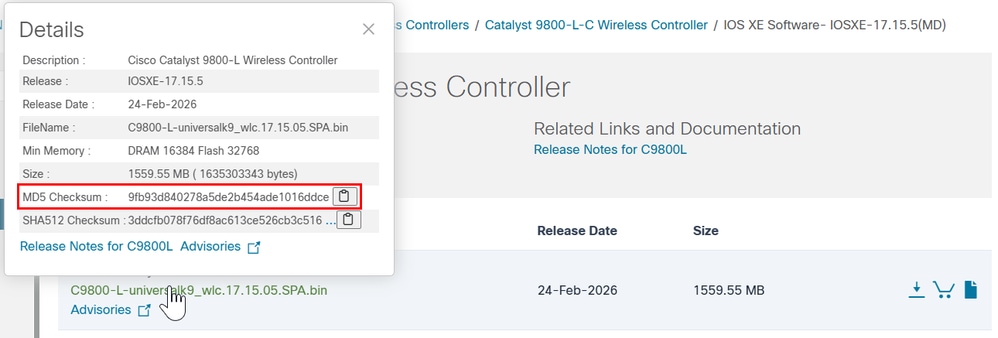
Step 5. Check current boot variable, If the variable is set to packages.conf, the WLC is currently running in Install mode. To convert to Bundle mode, delete the existing boot variable and set the .bin image as the new boot variable. You must save the configuration after these changes; otherwise, the new boot variable does not persist after a reload.
WLC#show bootvar
BOOT variable = bootflash:packages.conf,12;
CONFIG_FILE variable =
BOOTLDR variable does not exist
Configuration register is 0x2102
WLC#conf t
WLC(config)#no boot system
WLC(config)#do write
WLC(config)#boot system bootflash:C9800-L-universalk9_wlc.17.15.05.SPA.bin
WLC(config)#do write
WLC(config)#end
Step 6. Run this command in order to verify the boot variable is set to bootflash:<image.bin>.
The output now displays BOOT variable = bootflash:<image.bin>.
WLC#show bootvar
BOOT variable = bootflash:C9800-L-universalk9_wlc.17.15.05.SPA.bin,12;
CONFIG_FILE variable does not exist
BOOTLDR variable does not exist
Configuration register is 0x102

Standby not ready to show bootvar
Step 7. Reload the controller in order to boot in Bundle mode.
WLC#reload
Reload command is being issued on Active unit, this will reload the whole stack
Proceed with reload? [confirm]
Step 8. Monitor the WLC initialization process to confirm it boots in Bundle mode.
...
32768K bytes of non-volatile configuration memory.
16777216K bytes of physical memory.
26251263K bytes of eUSB flash at bootflash:.
0K bytes of Cloud S3 Storage at cloudfs:.

Base Ethernet MAC Address : FF:FF:FF:FF:FF:FF

Installation mode is BUNDLE
GUI Procedure
Step 1. Verify current Mode. Navigate to Administration > Software Management > Software Upgrade, confirm that the Upgrade Mode indicates system is currently in Install mode.
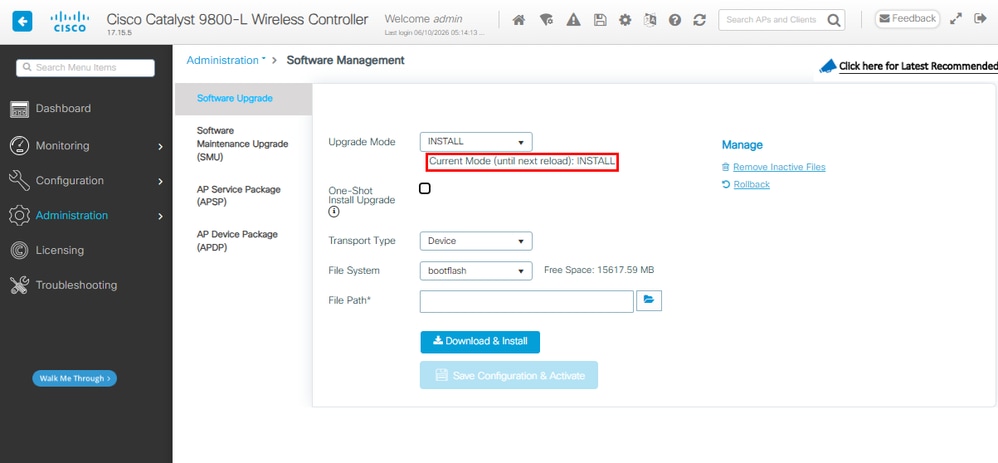
Step 2. Click the drop down list available in Upgrade Mode and Select Bundle. Then choose the Transport Type and select the File Path for the .bin file followed by Download.
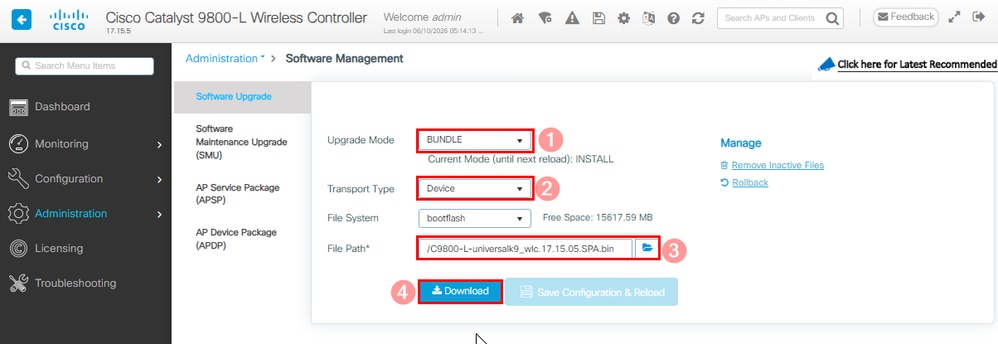
Step 3. Confirm the system reload consent. In this moment the Conversion to Bundle Mode starts.
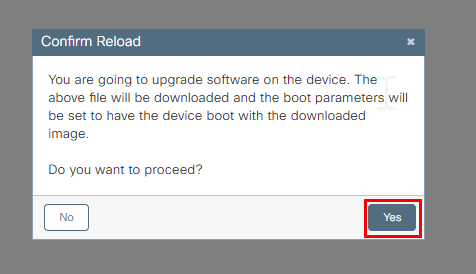
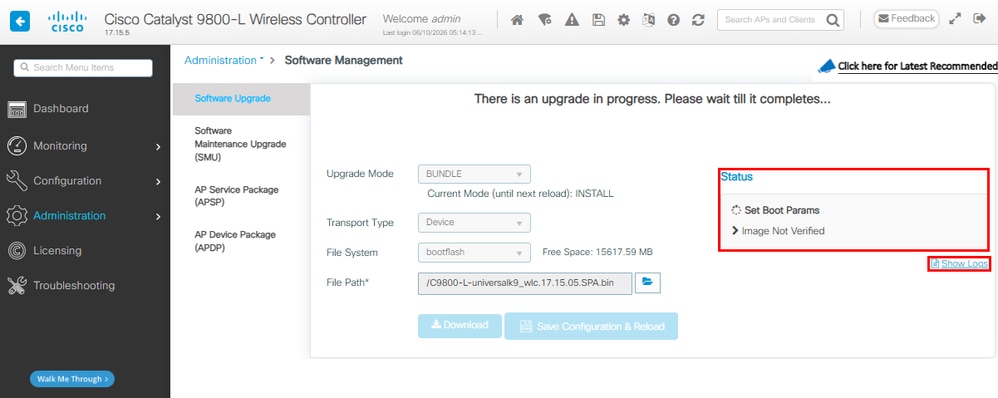
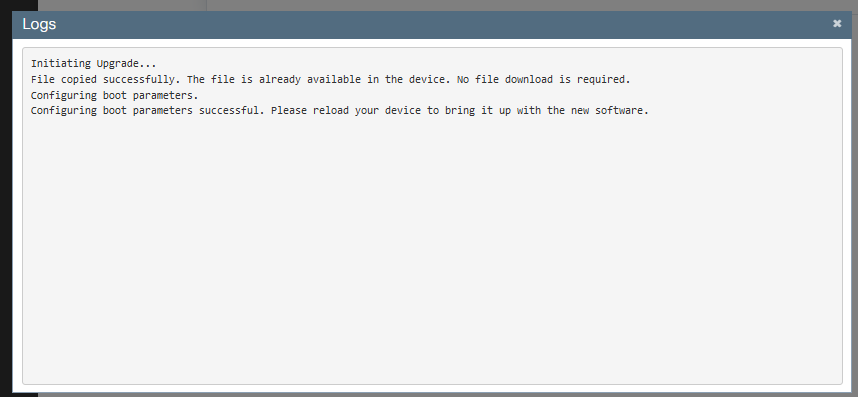
Step 4. Monitor the upgrade on the right side Status section and the Show Logs pop up window.
Step 5. Verify the Image.
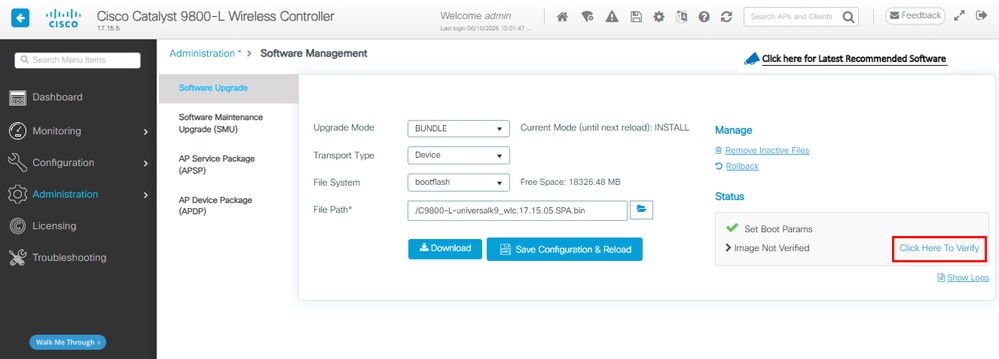
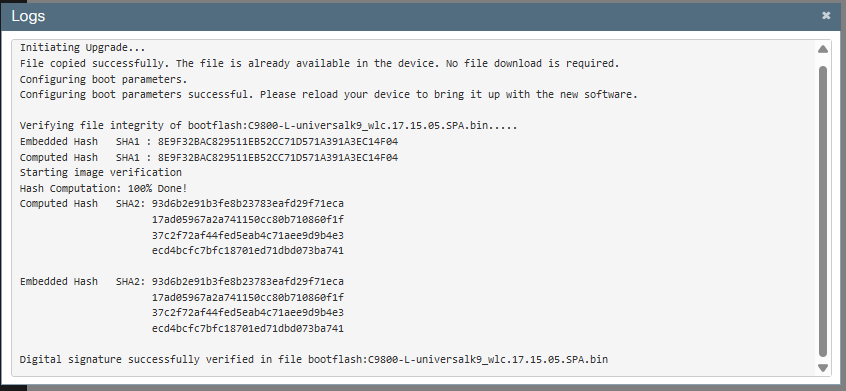
Step 6. Save configuration and confirm reload.
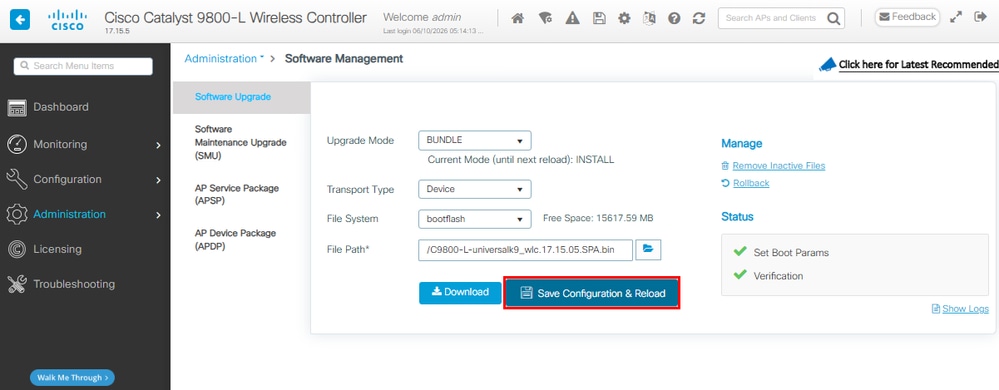
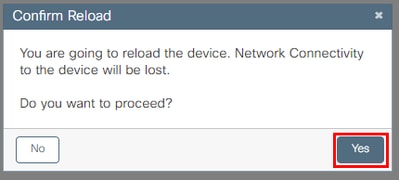
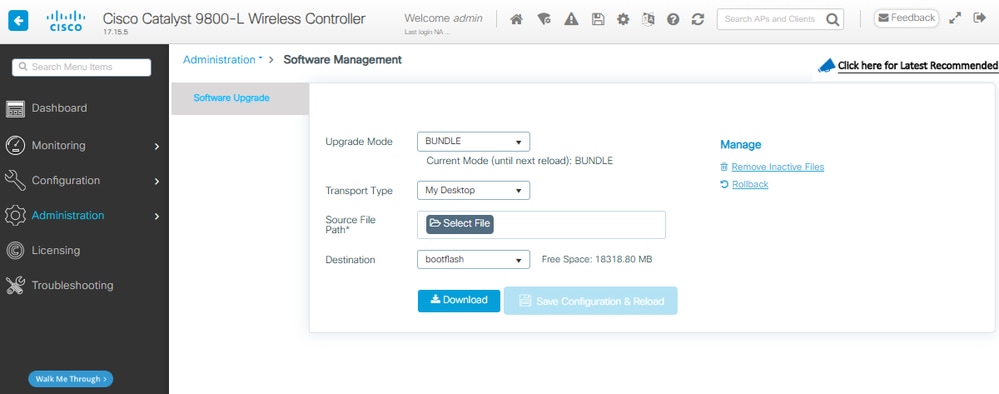
Step 7. Monitor the WLC reload, once GUI becomes available, navigate to Administration > Software Management > Software Upgrade. Observe that the Upgrade Mode indicates system is currently operating in Bundle mode.
From Bundle to Install Mode
CLI Procedure
Step 1. Ensure that you have enough space in flash in order to expand a new image.
WLC#dir bootflash: | i bytes free
26458804224 bytes total (9501368320 bytes free)
Step 2. Clean up old installation files in case of insufficient space and in order to discard old added packages.
WLC#install remove inactive
install_remove: START Tue Jun 09 21:21:34 Central 2026
install_remove: Removing IMG
Cleaning up unnecessary package files
No path specified, will use booted path /tmp/sw/isos/packages.conf

Cleaning /bootflash
Scanning boot directory for packages ... done.
Preparing packages list to delete ...
[R0]: /bootflash/packages.conf File is in use, will not delete.
[R0]: /bootflash/C9800-L-universalk9_wlc.17.15.05.SPA.bin File is in use, will not delete.
[R0]: /bootflash/C9800-L-universalk9_wlc.17.15.05.SPA.conf File is in use, will not delete.

The following files will be deleted:
[R0]: /bootflash/C9800-L-mono-universalk9_wlc.17.15.05.SPA.pkg
[R0]: /bootflash/C9800-L-rpboot.17.15.05.SPA.pkg

Do you want to remove the above files? [y/n]y

Deleting file /bootflash/C9800-L-mono-universalk9_wlc.17.15.05.SPA.pkg ... done.
Deleting file /bootflash/C9800-L-rpboot.17.15.05.SPA.pkg ... done.
SUCCESS: Files deleted.

--- Starting Post_Remove_Cleanup ---
Performing REMOVE_POSTCHECK on all members
Finished Post_Remove_Cleanup
SUCCESS: install_remove Tue Jun 09 21:22:08 Central 2026

WLC#dir bootflash: | i bytes free
26458804224 bytes total (19666468864 bytes free)
Step 3. Copy the new image to flash.
WLC#copy tftp: flash:
Address or name of remote host []? 10.152.200.238
Source filename []? C9800-L-universalk9_wlc.17.15.05.SPA.bin
Destination filename [C9800-L-universalk9_wlc.17.15.05.SPA.bin]?
Accessing tftp://10.152.200.238/C9800-L-universalk9_wlc.17.15.05.SPA.bin...
Loading C9800-L-universalk9_wlc.17.15.05.SPA.bin from 10.152.200.238 (via Vlan210): !!!!!!!!!!!!!!!!!!!!!!!!!!!!!!!!!!!!!!!!!!
Step 4. Confirm that the image has been successfully copied to flash and verify image integrity.
WLC#dir bootflash:*.bin
Directory of bootflash:/*.bin
Directory of bootflash:/
 95 -rw- 1635303343 Jun 5 2026 23:24:36 +00:00 C9800-L-universalk9_wlc.17.15.05.SPA.bin.SPA.bin

WLC#verify /md5 bootflash:C9800-L-universalk9_wlc.17.15.05.SPA.bin
........................................................................
........................................................................
........................................................................
........................................................................Done!
verify /md5 (bootflash:C9800-L-universalk9_wlc.17.15.05.SPA.bin) = 9fb93d840278a5de2b454ade1016ddce
Compare the result with the MD5 checksum provided in the Release Details for the target image on the Cisco Software Download Site, the values must match exactly.
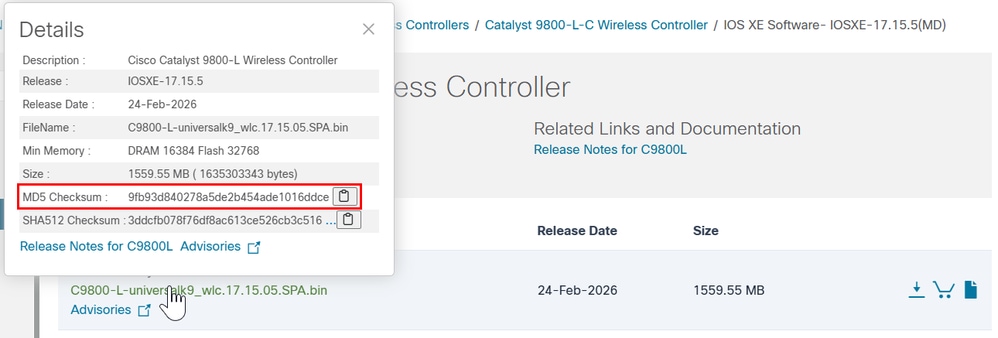
Step 5. Check current boot variable. If the variable points to a .bin file, the system is currently running in Bundle Mode. Manual configuration of the boot variable is not required in this step; the installation process automatically updates it to bootflash:packages.conf during the upgrade.
WLC#show bootvar
BOOT variable = bootflash:C9800-L-universalk9_wlc.17.15.05.SPA.bin,12;
CONFIG_FILE variable does not exist
BOOTLDR variable does not exist
Configuration register is 0x102
Standby not ready to show bootvar
Step 6. Software install image to flash. For Bundle to Install mode conversion use the one-shot CLI install add file bootflash:<image.bin> activate commit command.
WLC#install add file bootflash:C9800-L-universalk9_wlc.17.15.05.SPA.bin activate commit
Step 7. Type y (yes) for the system reload consent. Once the install is completed, the controller proceeds to reload.
install_add_activate_commit: START Mon Jun 08 22:53:20 Central 2026
install_add: START Mon Jun 08 22:53:20 Central 2026
install_add: Adding IMG
--- Starting initial file syncing ---
Copying bootflash:C9800-L-universalk9_wlc.17.15.05.SPA.bin from Chassis 1/R0 to Chassis 1/R0
Info: Finished copying to the selected Chassis
Finished initial file syncing

--- Starting Add ---
Performing Add on all members
Checking status of Add on [1/R0]
Add: Passed on [1/R0]
Image added. Version: 17.15.05.0.8370

Finished Add

install_activate: START Mon Jun 08 22:53:59 Central 2026
install_activate: Activating IMG
Following packages shall be activated:
/bootflash/C9800-L-mono-universalk9_wlc.17.15.05.SPA.pkg
/bootflash/C9800-L-rpboot.17.15.05.SPA.pkg

This operation may require a reload of the system. Do you want to proceed? [y/n]y

--- Starting Activate ---
Performing Activate on all members
[1] Activate package(s) on Chassis 1/R0
[1] Finished Activate on Chassis 1/R0
Checking status of Activate on [1/R0]
Activate: Passed on [1/R0]
Finished Activate

--- Starting Commit ---
Performing Commit on all members
[1] Commit package(s) on Chassis 1/R0
[1] Finished Commit on Chassis 1/R0
Checking status of Commit on [1/R0]
Commit: Passed on [1/R0]
Finished Commit operation

SUCCESS: install_add_activate_commit Mon Jun 08 22:55:34 Central 2026

Initializing Hardware ...
Step 8. Monitor the WLC initialization process to confirm it boots in Install mode.
...
32768K bytes of non-volatile configuration memory.
16777216K bytes of physical memory.
26251263K bytes of eUSB flash at bootflash:.
0K bytes of Cloud S3 Storage at cloudfs:.

Base Ethernet MAC Address : FF:FF:FF:FF:FF:FF

Installation mode is INSTALL
GUI Procedure
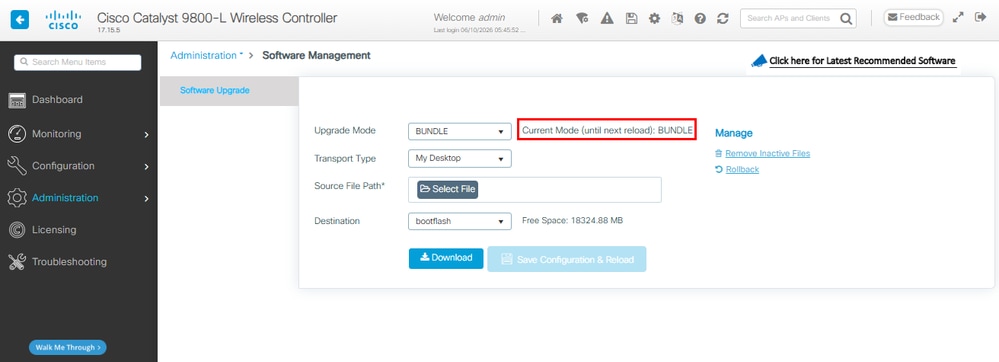
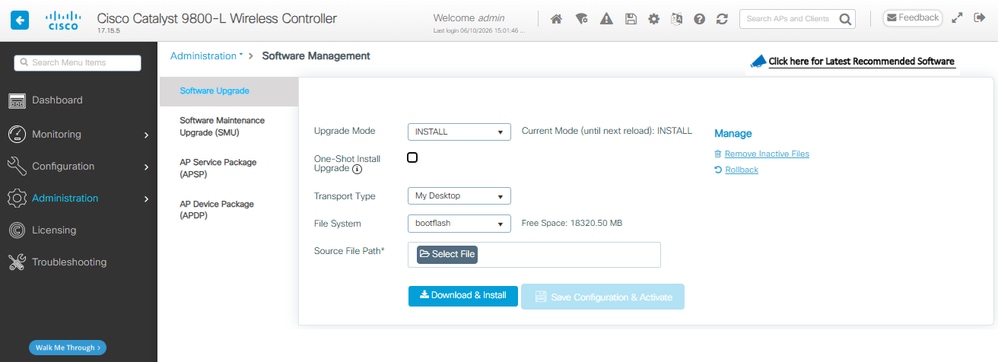
Step 1. Verify current Mode. Navigate to Administration > Software Management > Software Upgrade, confirm that the Upgrade Mode indicates system is currently in Bundle mode.
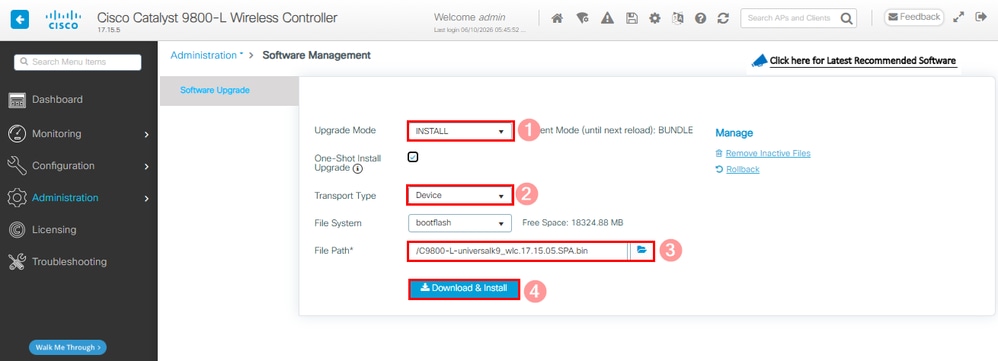
Step 2. Click the drop down list available in Upgrade Mode and Select Install. Then choose the Transport Type and select the File Path for the .bin file followed by Download & Install.
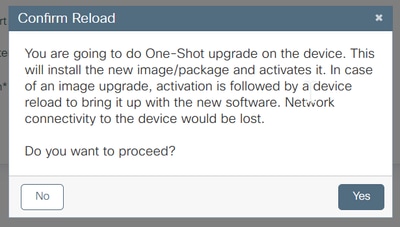
Step 3. Confirm the system reload consent. In this moment the Conversion to Install Mode starts.
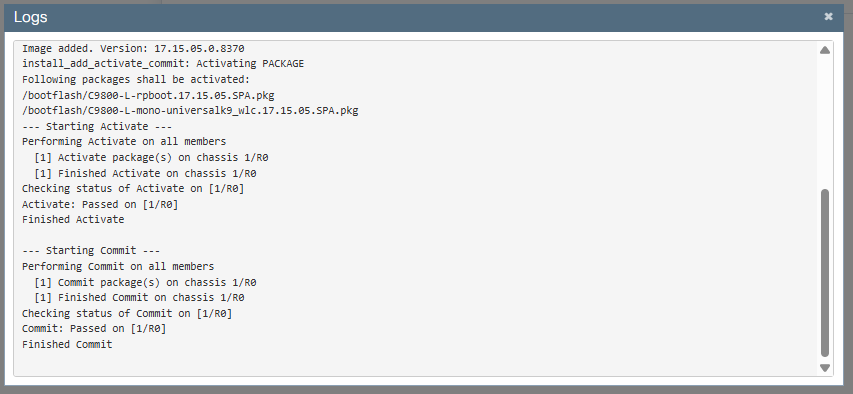
Step 4. Monitor the upgrade on the right side Status section and the Show Logs pop up window.
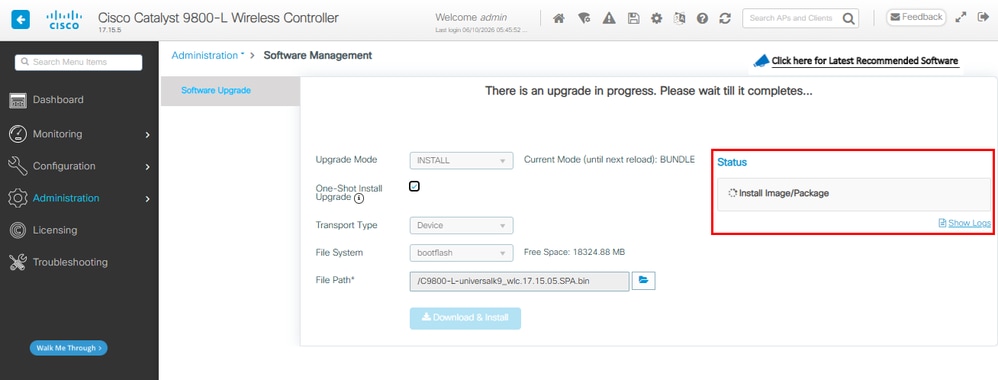
The system reloads as part of commit of change.
Step 5. Monitor the WLC reload, once GUI becomes available, navigate to Administration > Software Management > Software Upgrade. Observe that the Upgrade Mode indicates system is currently operating in Install mode.
Verify
Use this section to confirm that your configuration works properly.
After the controller reboot, you can verify the current installation mode of the controller. Run the show version command in order to confirm that conversion is successful.
Install Mode
WLC#show version | include System image|Installation mode|IOS XE Software
Cisco IOS XE Software, Version 17.15.05
System image file is "bootflash:packages.conf"
Installation mode is INSTALL
Bundle Mode
WLC#show version | include System image|Installation mode|IOS XE Software
Cisco IOS XE Software, Version 17.15.05
System image file is "bootflash:/C9800-L-universalk9_wlc.17.15.05.SPA.bin"
Installation mode is BUNDLE
Troubleshoot
There is currently no specific information available to troubleshoot this configuration.
Related Information
- Cisco Catalyst 9800-CL Cloud Wireless Controller Installation Guide
- TAC Recommended IOS XE Builds for Wireless LAN Controllers
- End User Guide
- Cisco Technical Support & Downloads
Revision History
| Revision | Publish Date | Comments |
|---|---|---|
3.0 |
11-Jun-2026
|
Added Alt Text.
Updated Style Requirements and Formatting. |
2.0 |
30-Nov-2023
|
Recertification |
1.0 |
15-Apr-2021
|
Initial Release |

 Feedback
Contact Cisco
- Open a Support Case

- (Requires a Cisco Service Contract)