Introduction
This document describes how to change the display language in Cisco Unified Attendant Console Advanced Client.
Prerequisites
Requirements
Cisco recommends that you have knowledge of these topics:
- Cisco Unified Attendant Console Advanced
Components Used
- Cisco Unified Attendant Console Advanced Client 14.0.2
The information in this document was created from the devices in a specific lab environment. All of the devices used in this document started with a cleared (default) configuration. If your network is live, ensure that you understand the potential impact of any command.
Background Information
The Cisco Unified Attendant Console Advanced Client supports multiple display languages to accommodate operators working in different regions or language environments.
Once the application is installed, there are two different methods to change the display language:
- Modify the application files.
- Reinstall the application and select the desired language.
Configuration
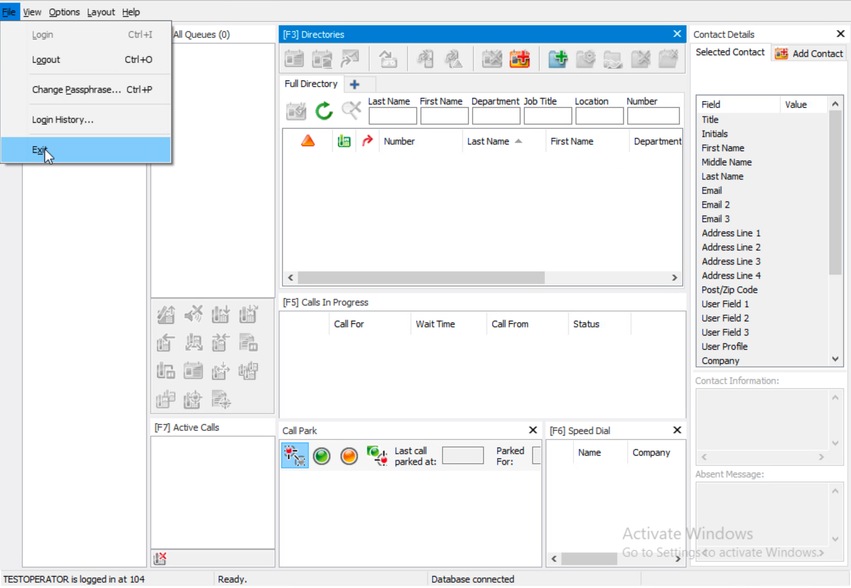
Step 1. Exit from Attendant Console Client.
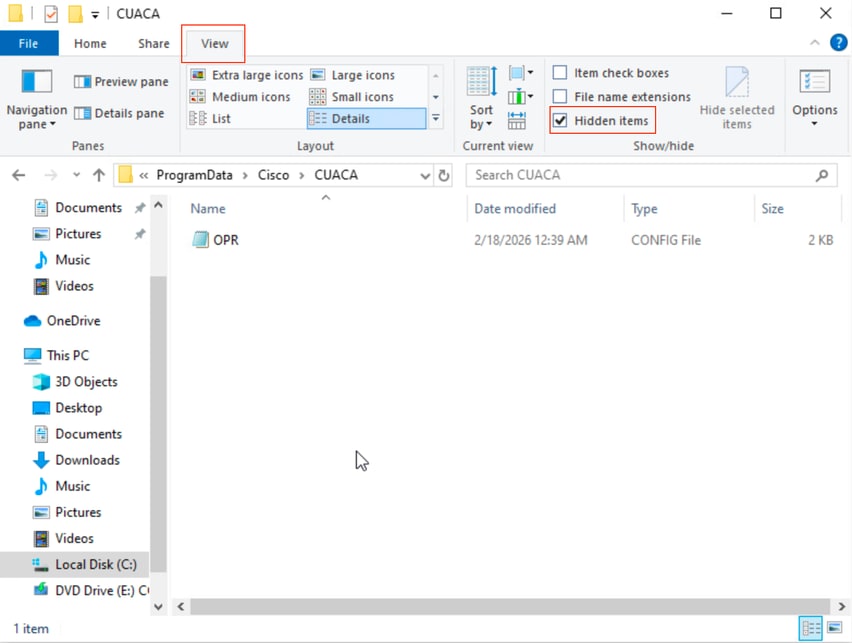
Step 2. Open Windows File Explores and navigate to the path "%ProgramData%\Cisco\CUACA". ProgramData use to be a hidden folder by default.
Step 3. Open the OPR.cfg file in a text editor.
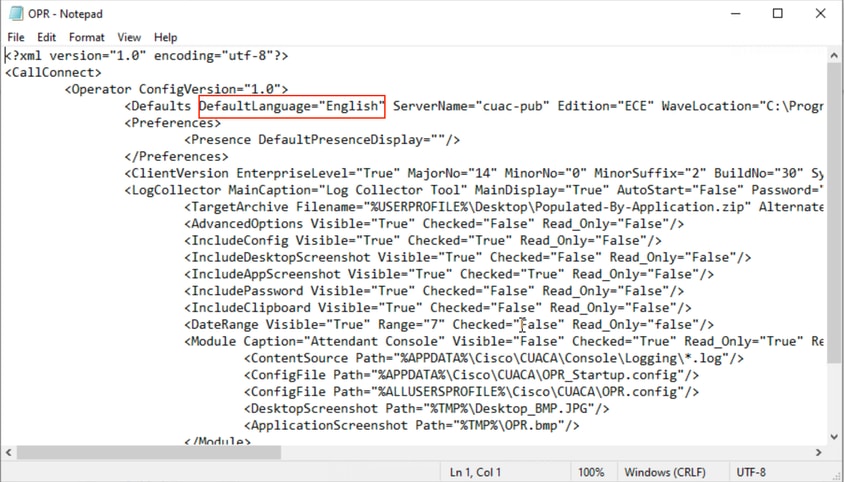
Step 4. Modify the DefaultLanguage="English" to the desired language value and save the changes. Languages information is listed in this table:
|
Operator CFG File
|
Language (Locale)
|
|
Arabic
|
Arabic (Saudi Arabia)
|
|
Chinese Simplified
|
Chinese (PRC) [Simplified Chinese]
|
|
Chinese Traditional
|
Chinese (Taiwan) [Traditional Chinese]
|
|
Danish
|
Danish
|
|
Dutch
|
Dutch (Netherlands)
|
|
English
|
English
|
|
French
|
French (Parisian)
|
|
German
|
German
|
|
Italian
|
Italian
|
|
Japanese
|
Japanese
|
|
Korean
|
Korean
|
|
Portuguese
|
Portuguese (Portugal)
|
|
Russian
|
Russian
|
|
Spanish
|
Spanish (Traditional)
|
|
Swedish
|
Swedish
|
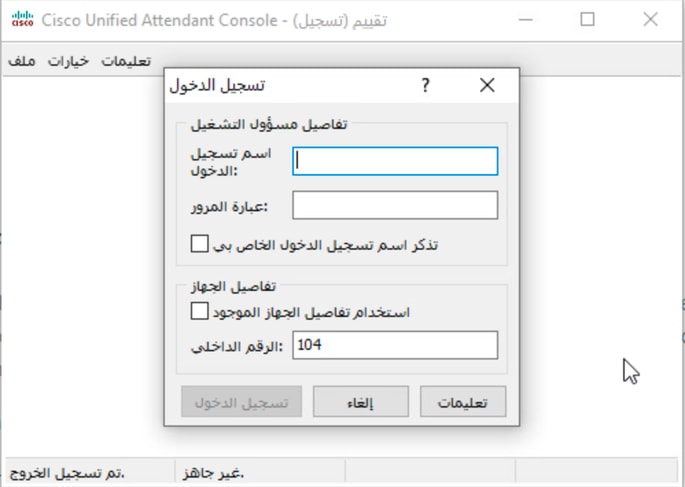
Step 5. Open the Attendant Console Client.

 Feedback