Upgrade Readiness Checks on CUCM and IMPS COP File
Available Languages
Contents
Introduction
This document describes how the upgrade readiness checks the COP file for Cisco Unified Communications Manager (CUCM), IM, and Presence Server.
Prerequisites
Requirements
Cisco recommends that you have knowledge of these topics:
- IM and Presence Server (IMPS) 9.x and later
- Cisco Unified Communications Manager 9.x and later
Components Used
The information in this document is based on Cisco Unified Communications Manager Version 10.5.2.
The information in this document was created from the devices in a specific lab environment. All of the devices used in this document started with a cleared (default) configuration. If your network is live, ensure that you understand the potential impact of any command.
Background Information
Upgrading Cisco Unified Communications Manager and Presence Servers has some prerequisites, including having enough logging partition available, carry out a successful backup, having a correct database and network state, and so on.
Similarly, a few checks can satisfy a post upgrade to ensure the cluster is in good health after the upgrade.
Cisco has COP files that can automate tasks and help in maximizing the likelihood of UCM and IM&P upgrade success so an admin can avoid additional downtime and wasted effort when attempting to recover from problems, revert, or abort an upgrade.
An admin must run these COP files on the upgraded servers, which reviews different aspects and provides a report.
There are two types of COP files:
- PreUpgradeCheck COP: This verifies the system is in a good state to begin the upgrade. The PreUpgradeCheck COP file contains tests, some that are part of the pre-upgrade tasks section of Upgrade and Migration Guide for Cisco Unified Communications Manager and IM and Presence Service, Release 11.5(1).
- PostUpgradeCheck COP: This verifies the system is in a good state after the upgrade. This COP uses the data created by the PreUpgradeCheck COP file when comparing the various aspects of the system state before and after the upgrade.
The PostUpgradeCheck COP file contains tests, which are part of the Post-Upgrade Tasks section of Upgrade and Migration Guide for Cisco Unified Communications Manager and IM and Presence Service, Release 11.5(1).
Configure
The PreUpgradeCheck and PostUpgradeCheck COP files are available on the Cisco Software Download Page and can be downloaded through this link.
How to Use
Prior to upgrading, download and install/run the latest version of the PreUpgradeCheck COP file. Look at the PASS/WARNING/FAIL output and resolve all FAIL/WARNINGs; repeat until satisfied.
After the upgrade, download and install/run the latest version of the PostUpgradeCheck COP file. This checks for system sanity and compares items in Active and Inactive versions. Services and phones can take time to surface, so it is recommended to repeat running COP a few times for validity.
Installing the COP file is similar to other COP file installations, and the detailed steps are available in the readme section of the COP files. Refer to the PrecheckUpgrade Readme or PostUpgradeCheck Readme to view the details.
How to Receive the Report and Review It
Once the COP files finish installing, a summary of test results and the path/commands to view the complete report are available:
Summary:
Total Test Run : 14
Total Passed : 10
Total Warnings : 3
Total Failed : 1

Note: Please refer to the readme of Pre Upgrade COP for test details and
pass/fail/warn/criteria

Duration for running tests: 0:01:49
================================================================================
Use "file view install PreUpgradeReport.txt" to view the report
For PreUpgradeCheck, run the file view install PreUpgradeReport.txt and for PostUpgradeCheck, file view install PostUpgradeReport.txt commands.
The output is similar to the next image that shows the results as PASS/FAIL/WARNING.
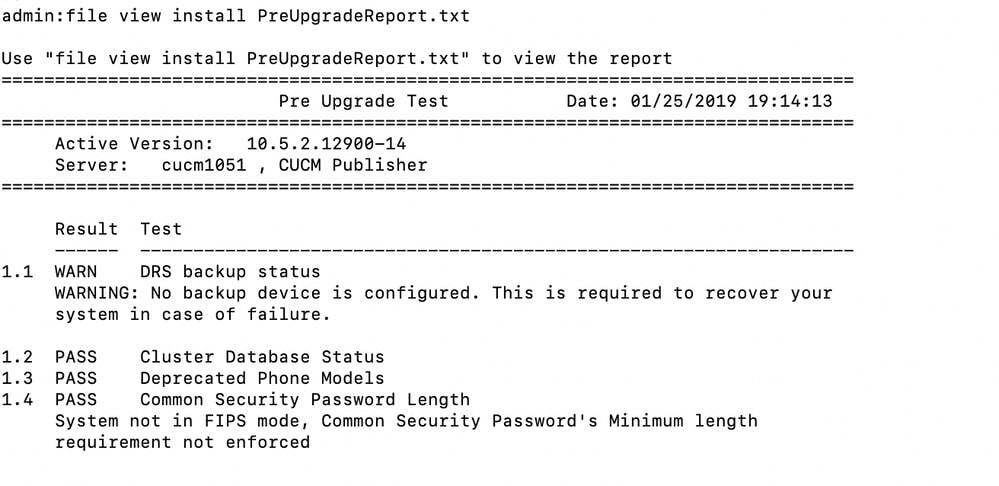
This is the list of components that are verified:
Network Status
These are the test checks:
- Intra-cluster connectivity
- DNS reachability
- NTP status
- NTP reachability - Checks the reachability of external NTP server(s)
- NTP clock drift - Checks the local clock drift from the NTP server(s)
- NTP stratum - Checks the stratum level of the reference clock.
If there are issues with any or all of the previous checks, the test is marked as FAIL and the reason is provided in the report.
COPS Installed
This test lists COPs installed on an active partition of the server.C and the test displays a warning if there is more than one version of the same local COP installed; or if dp-ffr.3-1-16.GB, the COP is installed on a 9.x server.
Service Status
This test inspects the state of all services (Started or Stopped) and reports services that are:
- Critical network services and are stopped.
- Activates but does not run.
- The test is marked as FAIL, if it finds any service satisfying the previous criteria.
- The test also stores the state of all services for use by PostUpgradeCheck COP.
Data Base Sanity
This test checks if there are non-standard entries present in database tables. The presence of these entries can cause the DB Migration upgrade to fail. If the test detects non-standard entries, the entries along with their resident database table name are shown in the report and the test is marked as FAIL. An admin must delete non-standard entries before an upgrade is attempted.
Cluster Database Status
This test is applicable only to Unified Communications Manager Publisher and IM&P Publisher. This test validates these same sequences:
- Node Authentication State: If any node in the cluster is unauthenticated, the test is marked as FAIL and the unauthenticated node name is shown in the report.
- Replication State: If any node in the cluster has a replication setup value other than 2, the test is marked as FAIL and the node name is shown in the report.
Last DRS Backup Date
This test displays when the Last DRS backup was taken. Is it more than 3 days or was DRS configured? If the backup date is old, an admin can take the backup of the latest configuration so the admin can avoid losing the latest configuration if the DRS backup must be restored.
Disk Space Check
This test checks the available/free space required for all higher releases (until 12.5) compared to the servers current release. If the available free space is insufficient for an upgrade to all higher releases, the test is marked as FAIL. If the free space is sufficient to upgrade to at least one, but not all of your higher releases, the test displays a warning.
PLM/SLM License Status
For CUCM version 9.x to 11.x, this checks the PLM License Status and displays an appropriate warning, if applicable. For 12.x, this test verifies the SLM License status based on the Registration and Authorization Status.
Common Security Password Length
Release 12.5 requires the common security password to be more than 14 characters when in FIPS, ESM or CC mode. This test fails if FIPS, ESM or CC mode is enabled and the password length is less than 14 characters. It is skipped if FIPS mode is disabled.
Phone Count
This test lists the count of Registered and Unregistered Phones. It also stores data for comparison during PostUpgrade COP.
VM Tools Type
If the VM tools type is open vmtools, it prints the vmtools type and version. If the VM tools type is native vmtools, it prints the VM tools type and version along with the recommendation.
Upgrade Checks
This check provides critical information applicable for upgrading to 12.5.
Deprecated Phone Models
This test checks phones in Unified Communications Manager Cluster no longer supported from 12.x release onwards. This test also displays a warning if there are any deprecated phones such as the MAC ID and the phone model, which are shown in the report.
Network Adapter Compatibility
This checks whether the current network adapter is supported in 12.x releases of Unified Communications Manager, IM and Presence service. If the Network Adapter is incompatible, the test fails with a recommendation to switch to a VMXNET3 adapter.
Verify
There is currently no verification procedure available for this configuration.
Troubleshoot
When tests fail and the recommendation string is not enough, complete these steps to troubleshoot:
1. Look for details in the install logs for generic issues with running a COP, such as filtering the COP file, or the download and install phases were started and completed.
- Ensure the COP is run on CCM or IM&P products only.
- Ensure the COP is run on or previous minimum supported version of 9.x.
2. Pre and Post upgrade logs are not yet available for download from RTMT, you can run the file dump or file get commands to download the logs. Use the CLI command file get install PreUpgradeReport.txt (PreUpgrade) and file get install PostUpgradeReport.txt (PostUpgrade).
Revision History
| Revision | Publish Date | Comments |
|---|---|---|
4.0 |
01-Sep-2026
|
Recertification - Updated Introduction, spelling, grammar, inserted horizontal lines to separate sections for readability, fixed CCW alerts. |
3.0 |
29-Aug-2024
|
Updated Title, Introduction, Alt Text, Machine Translation, Style Requirements and Formatting. |
1.0 |
26-Feb-2019
|
Initial Release |

 Feedback
Contact Cisco
- Open a Support Case

- (Requires a Cisco Service Contract)