IOS CLI Migration Assistant
Available Languages
Objective
The objective of this article is to explain how the IOS CLI Migration Assistant is used from the web user interface (UI) of Cisco Catalyst series switches to convert an existing Cisco Catalyst 1000 configuration file into Catalyst 1200/1300/1300X configuration syntax.
Applicable Devices
- Cisco Catalyst 1200
- Cisco Catalyst 1300
- Cisco Catalyst 1300X
Introduction
The IOS CLI Migration Assistant provides a guided migration path for networks moving from Cisco Catalyst 1000 switches to Cisco Catalyst 1200, Catalyst 1300 or Catalyst 1300X platforms by converting an existing Catalyst 1000 configuration file into the syntax used by the newer switch families. On the web UI of the Catalyst 1200/1300/1300X switches, a direct launch point to the online conversion workflow is included, which simplifies access to the tool and helps streamline migration planning. This process applies when a Catalyst 1000 configuration file is available as the source input, and the resulting output is intended for Catalyst 1200 or Catalyst 1300 or Catalyst 1300X deployment. The feature is used as part of migration preparation rather than local switch configuration, so the main requirement is a valid Catalyst 1000 configuration file and access to the web UI and Cisco sign-in page.
Launch the IOS CLI Migration Assistant
Step 1
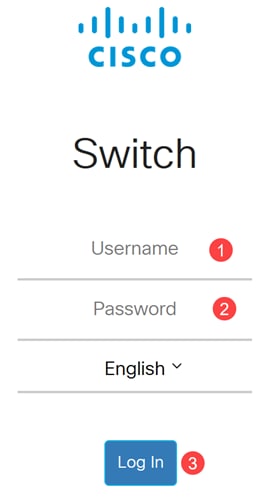
Log in to the web UI of your switch. In this example, a Catalyst 1300 switch is used.
Step 2
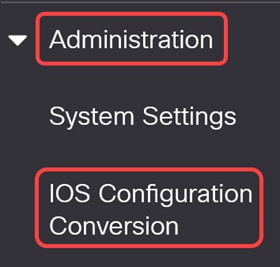
Navigate to the Administration > IOS Configuration Conversion menu.
Step 3
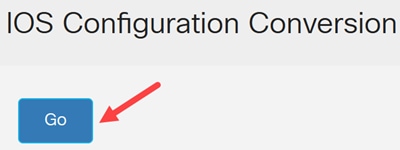
Click Go to open the IOS CLI Migration Assistant. You will be redirected to https://cisco.com/go/iosconversiontool.
Upload and Convert the Configuration
Step 1
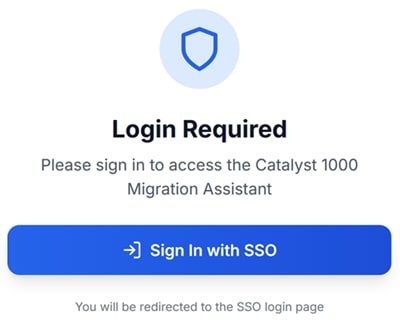
On the redirected Cisco conversion page, click on Sign In with SSO button.
Step 2
When connecting, you need to sign in with Cisco to access the tool. Users can choose to use their Cisco account, or a Google or Apple Account.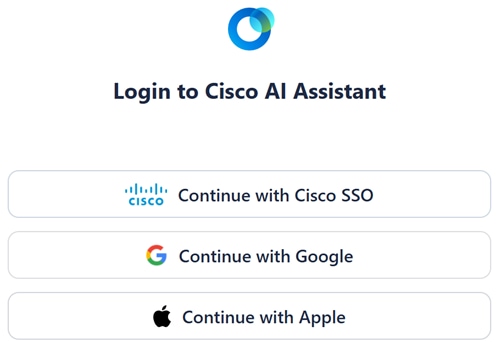
Step 3
You will be redirected to the IOS CLI Migration Assistant user interface.
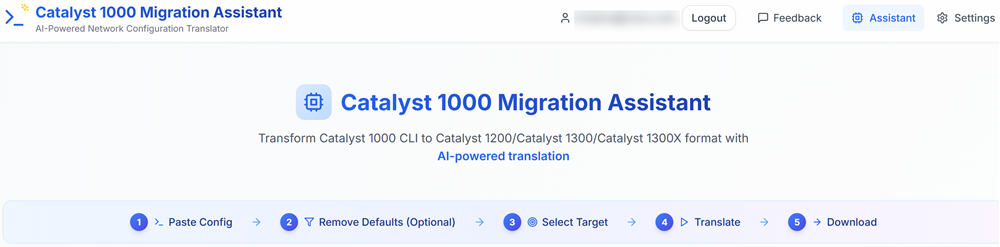
While this tool is optimized for translating Catalyst 1000 configuration files, it will provide translations for other switch model configuration files. If translating configuration files from other platforms, it is recommended to perform a thorough review of the translation results.
Step 4
Select the option to upload the existing Catalyst 1000 configuration file.
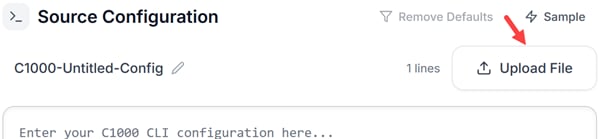
The source file must be the current configuration from the Catalyst 1000 switch that is being migrated. Take a moment to review the contents of the file uploaded to verify that the correct file was uploaded and that there isn’t any missing data from the file.
Step 5
(Optional) Once you have confirmed the upload, you can press the Remove Defaults button. This will delete some default information that will be listed in the running configurations in IOS that are not needed.
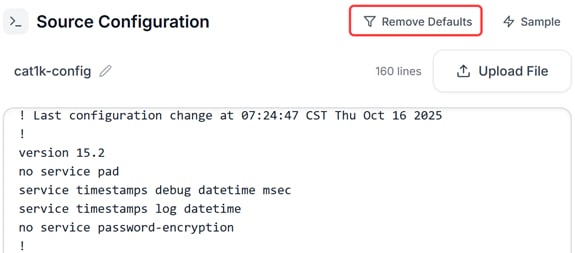
Step 6
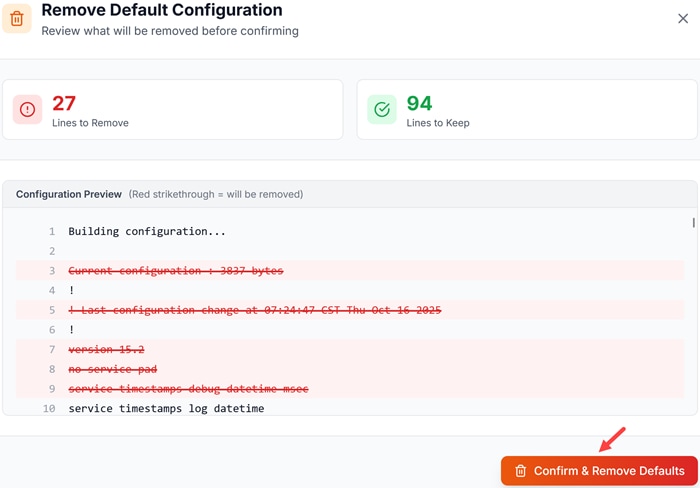
A popup will display what lines will be removed before it performs the translation. Click Confirm & Remove Defaults button to continue.
Step 7
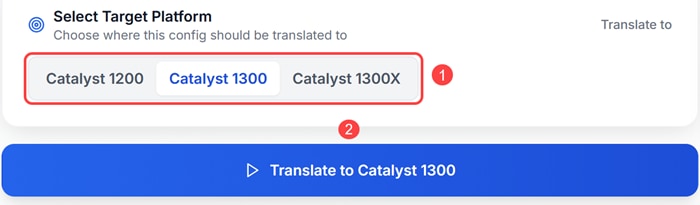
Select the target platform and click the corresponding blue Translate to button. In this example, Catalyst 1300 platform is selected.
Step 8
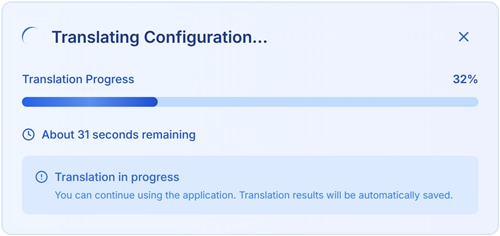
You will see a progress indicator in the Translation Result pane of the tool UI. The time it takes for a translation to complete is dependent on the size and complexity of the source configuration file.
Review and Save the Converted Output
Step 1
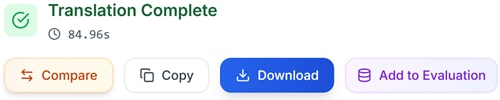
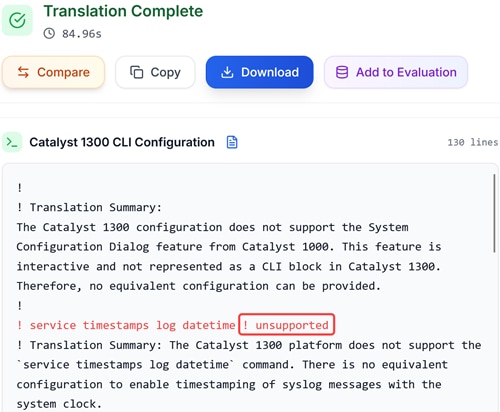
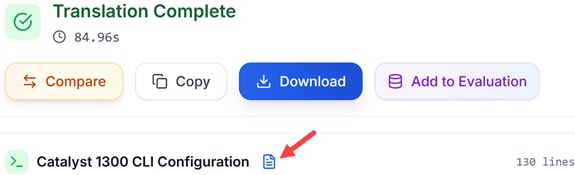
Once the translation is complete, you have the option to Compare, Copy, Download, or Add to Evaluation the translated configuration.
Step 2
The unsupported commands are color-coded in red and an explanation is provided.
Step 3
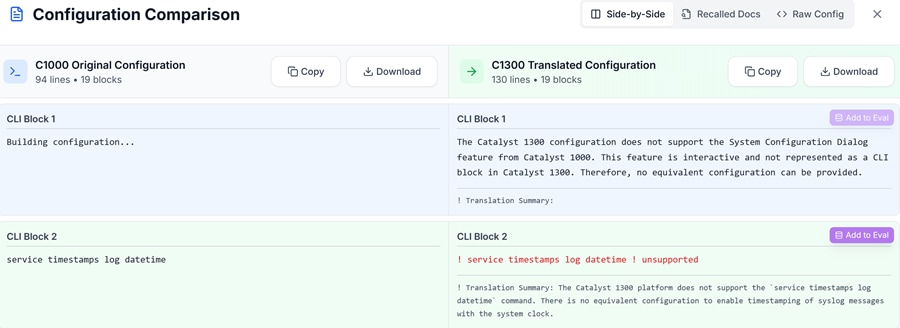
The Compare button opens a new pop-up window that compares the source configuration file to the translated file.
Step 4
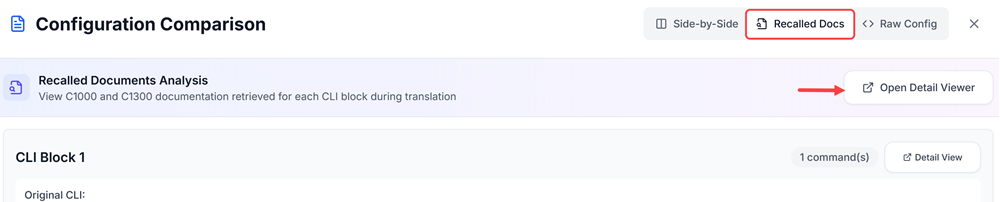
Under Configuration Comparison, the Recalled Docs show specifically how the translation occurred and what Cisco documents were referenced for the translation. Click on Open Detail Viewer to see specific sections of the documents that were referenced.
Step 5
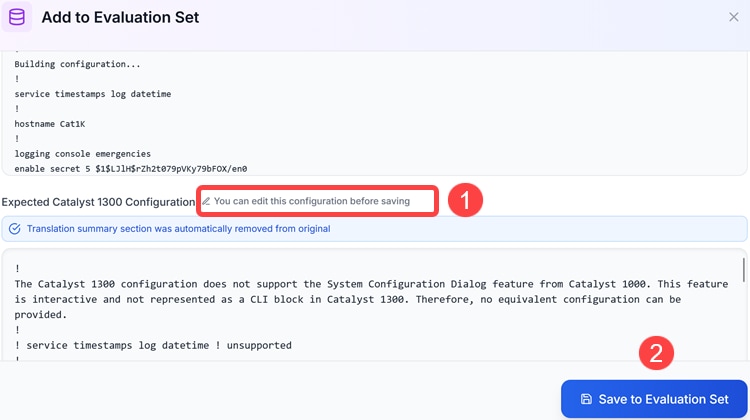
The Add to Evaluation button can help train and correct translation errors for the AI. You have the option to edit the translated code to correct errors and then to send that code to evaluation set to help correct translation errors.
Step 6
You also have the option to hide the translation summary. During translation, the AI adds comments in the configuration to explain sections that do not translate. While this can be useful to identify places where the translation succeeds or fails, it can make reading the code cumbersome. Hiding this may make the results easier to read.
Conclusion
Now you know all about the IOS CLI Migration Assistant and how to use it to convert Enterprise configuration files to the Catalyst 1200, Catalyst 1300, and Catalyst 1300X configurations.
For additional information, refer to the Administration guide of the Catalyst series switches.
Cisco Catalyst 1200 Administration Guide
Revision History
| Revision | Publish Date | Comments |
|---|---|---|
1.0 |
29-Apr-2026
|
Initial Release |
 Feedback
Contact Cisco
- Open a Support Case

- (Requires a Cisco Service Contract)