Collect Tech Support Files UCS Server UCS Central and Intersight
Available Languages
Introduction
This document describes how to collect Cisco Integrated Management Controller, Unified Computing System Manager and Intersight tech support files.
Background Information
This document describes how to create and download tech support files from the Unified Computing System Manager (UCSM) for B-series, C-series, and X-series blade servers for release 4.0 and later. Also included is the HTML Graphical User Interface for Cisco Integrated Management Controller (CIMC) version 4.0 and later for C-Series servers and S-Series, and devices managed by Intersight for UCS Central and Intersight Appliance.
UCSM
From UCSM, download these types of tech support logs:
-
UCSM creates a file that contains technical support data for the entire Cisco UCS domain. This file does not include the tech support data for chassis, fabric-extender, rack-server, and server memory.
-
UCSM-MGMT creates a file that contains technical support data for the Cisco UCS management services, except for the fabric interconnects.
-
Chassis creates a file that contains technical support data for either the CIMCs or I/O modules in a given chassis.
-
Fabric-extender creates a file that contains technical support data for a fabric extender.
-
Rack-server creates a file that contains technical support data for a C-Series server.
-
Server-Memory saves a file that contains server memory technical support data for B-Series and C-Series servers to the specified directory.
-
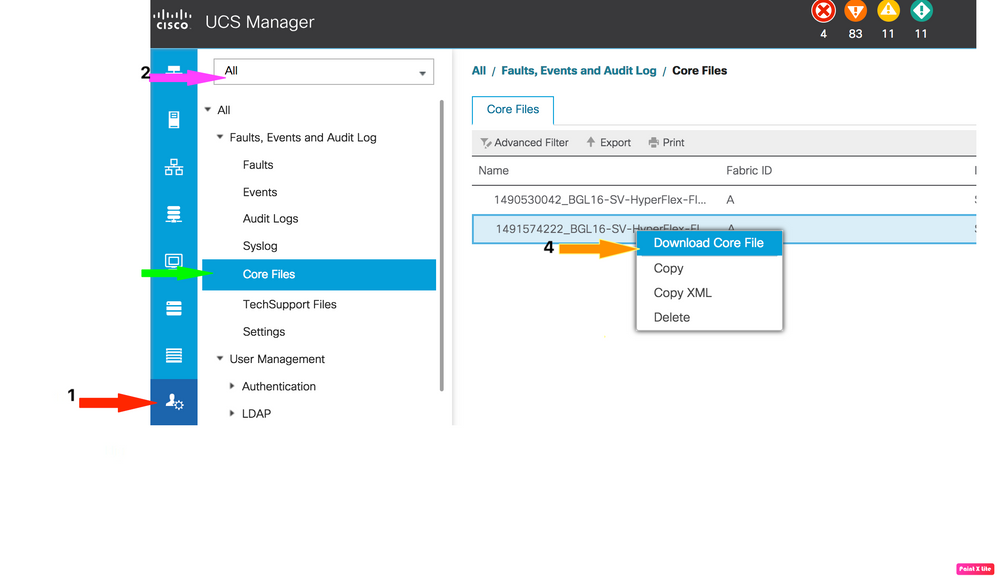
Core-Files: These files result from a UCSM or NXOS process crash. These files are required to decode and understand what led to the process crash.

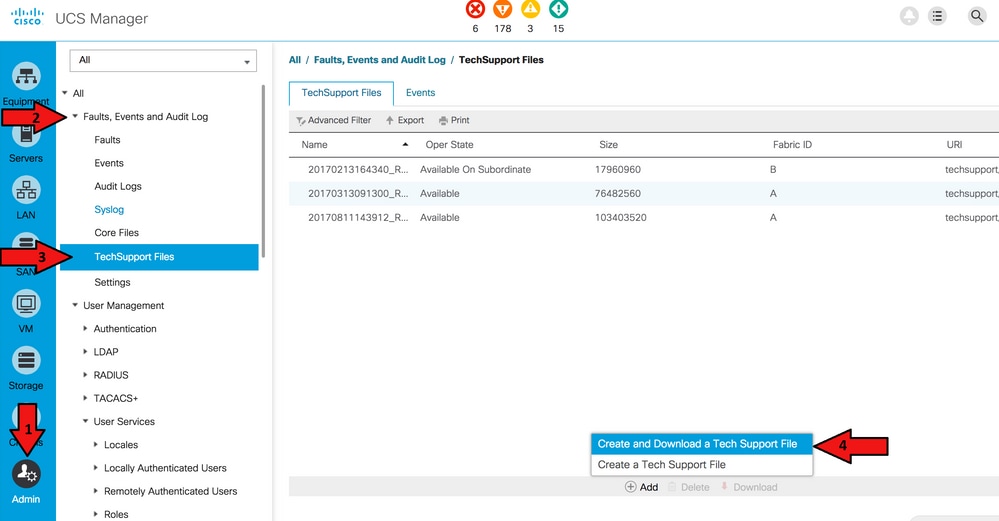
1. Navigate to Admin > Faults, Events & Audit Log > TechSupport Files.
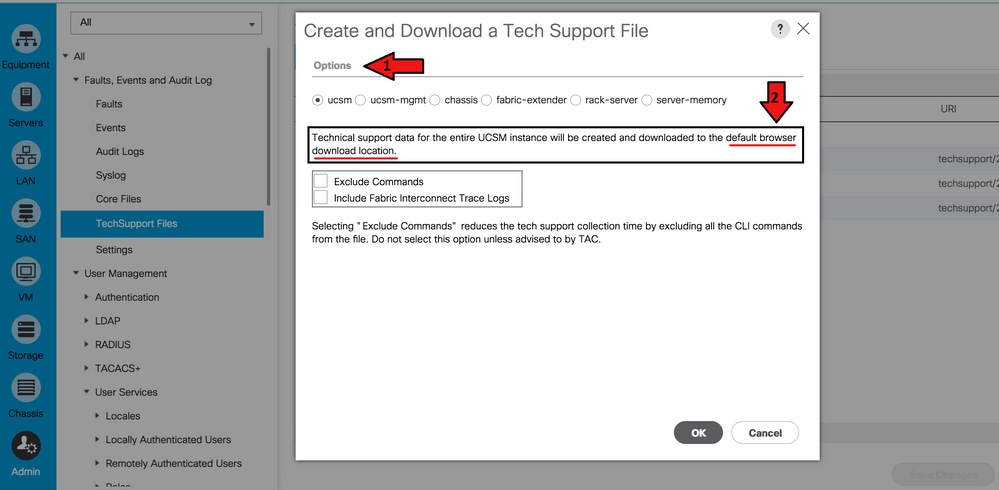
2. From Options, select the technical support data to download.
3. Once the Tech Support File is generated, download the file.

4. Download Core files, if required.
UCSM Managed Server/Chassis/HyperFlex Server (Includes B, C, S, HX and X-Series)
1. Navigate to Admin > Faults, Events & Audit Log > TechSupport Files.
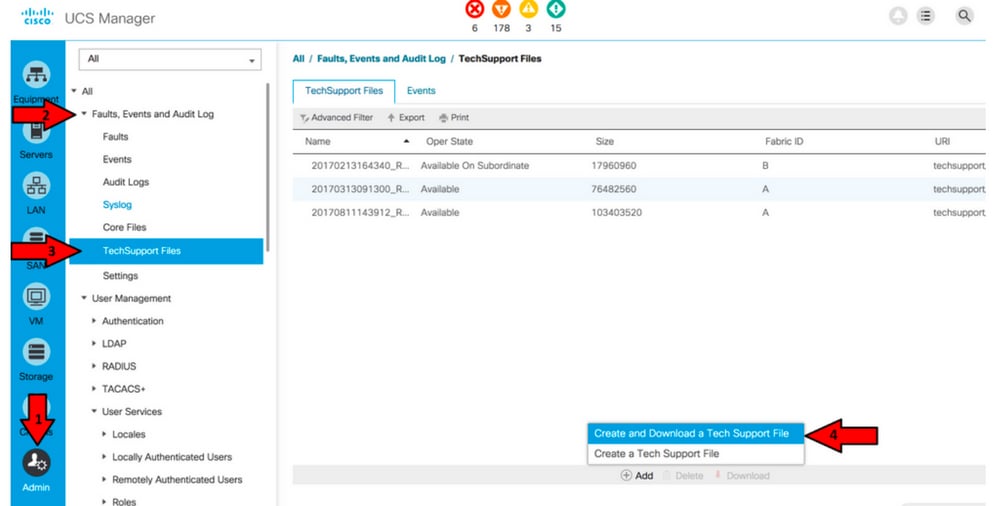
2. To download tech support:
-
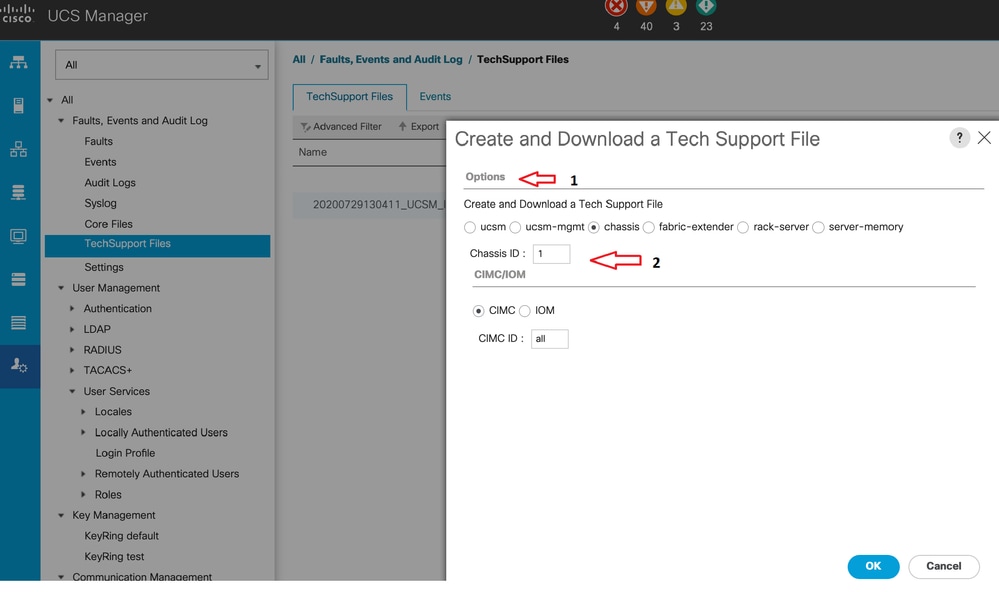
For Chassis Tech Support (includes B-Series Server). Under Options, select Chassis and enter the Chassis ID to download the tech support and click OK.
-
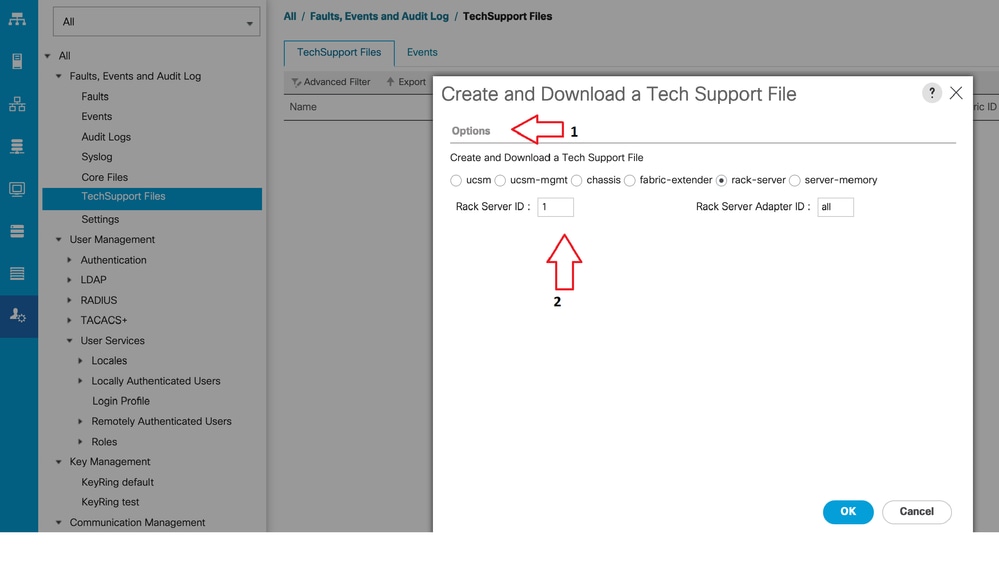
For UCSM Managed Server (includes C, S, and Hyperflex-Series). Under
Options,select rack-server. Enter the Rack Server ID to download the tech support and click OK.
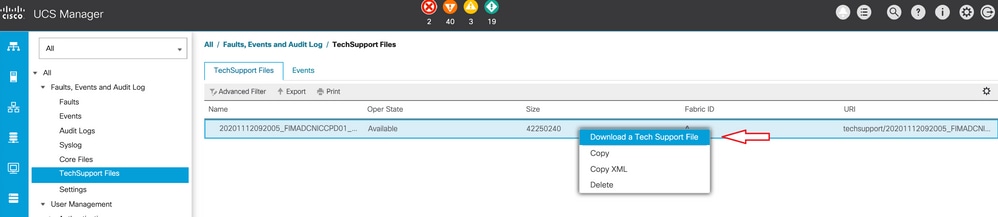
3. Once a tech support file is generated, download the file.
UCS C-Series
1. Log in to CIMC and navigate to Utilities under Admin.
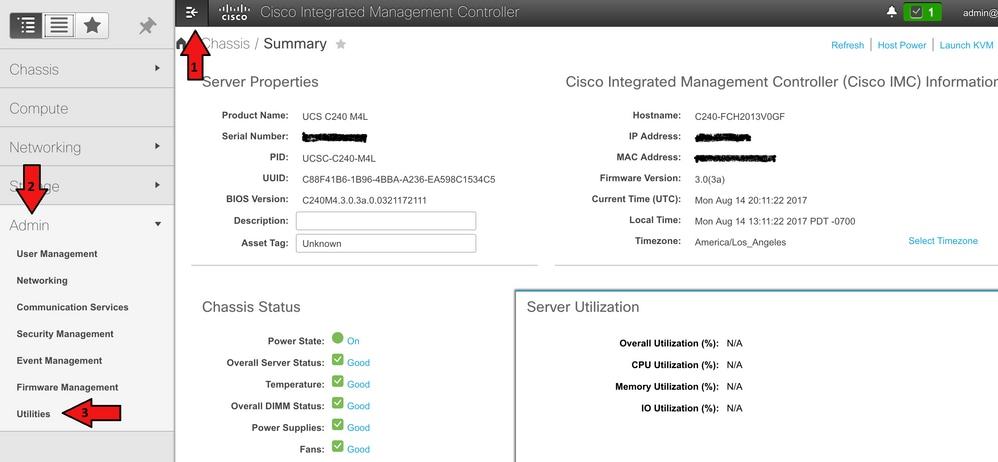
2. Under Utilities, there are two options: Export Technical Support Data to Remote and Download Technical Support Data for Local Download. It also shows the status of Last Technical Support Data Export.
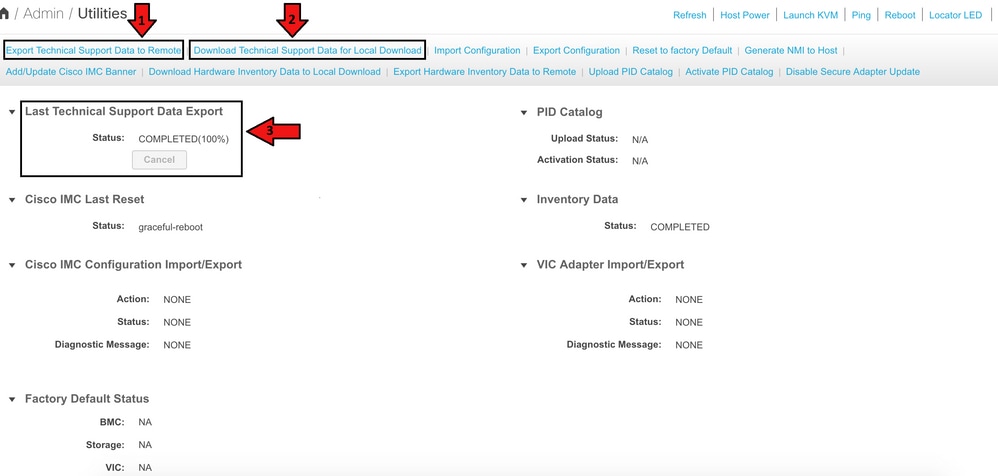
3. Click Download Technical Support Data for Local Download, select Generate and Download Technical Support Data and choose Generate and Download.
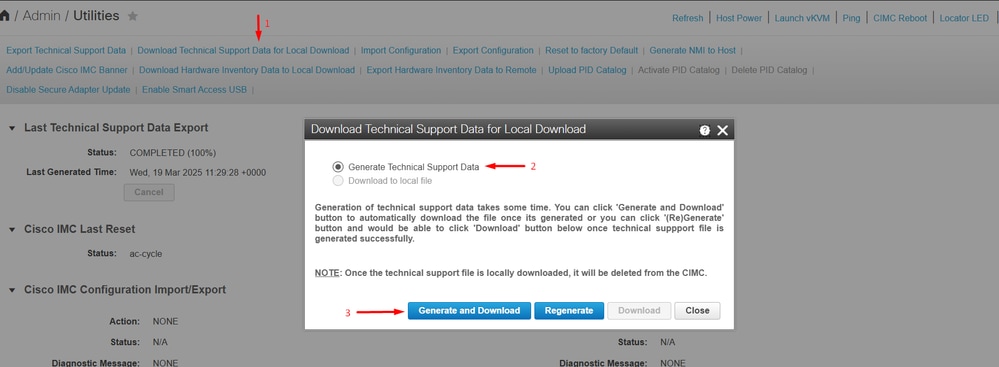
New Interface
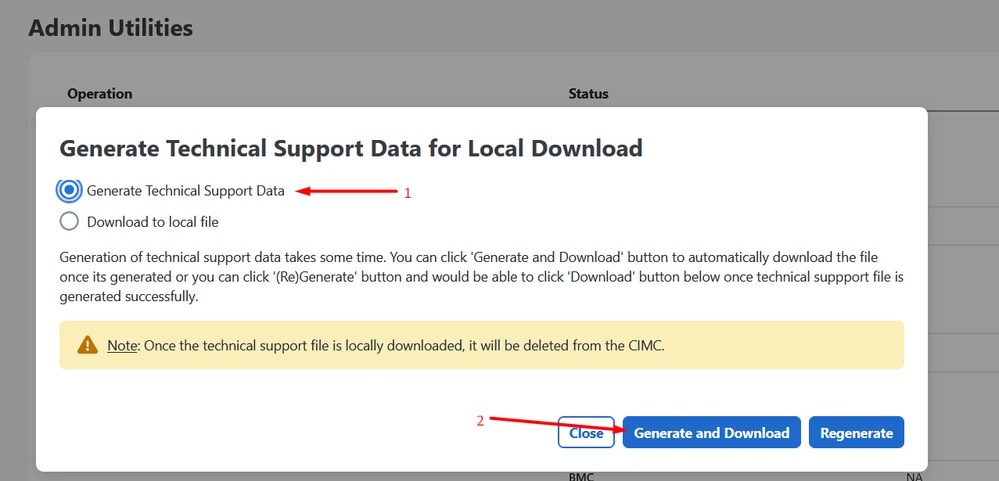
Download the logs as shown in the next image in the new release of the UCS C-Series firmware.
1. Log in to CIMC and navigate to Administration.
2. Under Utilities, navigate to Actions > Admin Utilities > Download Technical Support Data to Local File.
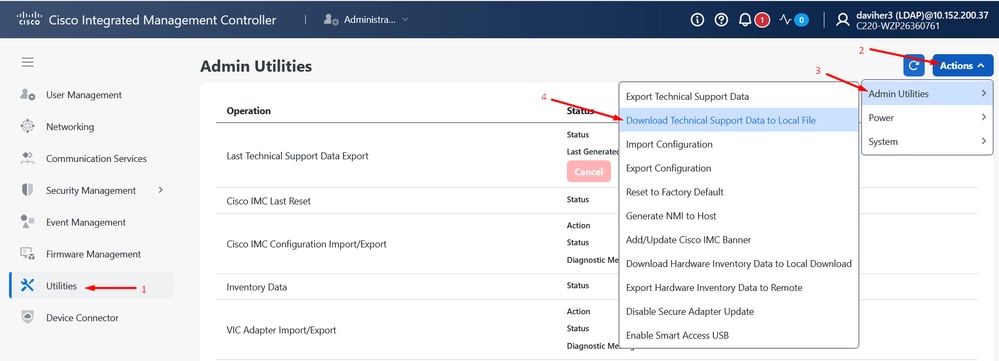
3. Select Generate Technical Support Data. Click Generate and Download.
UCS S-Series
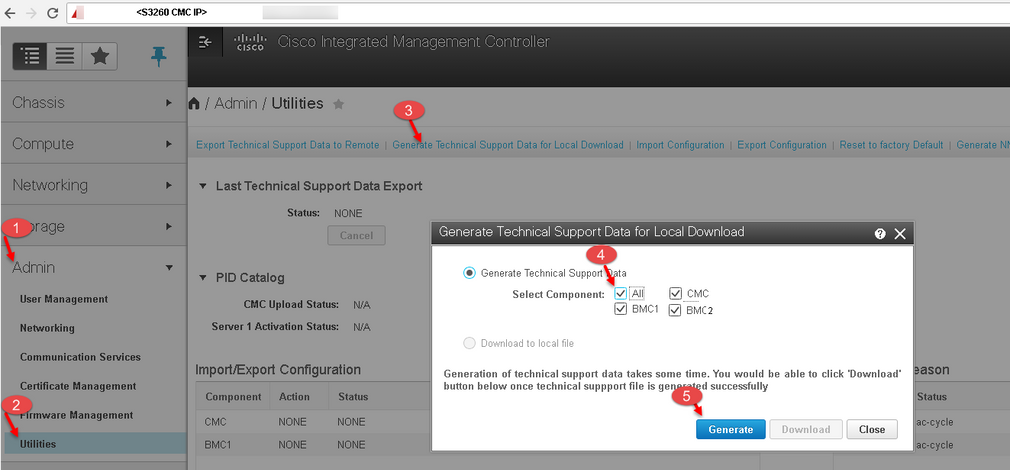
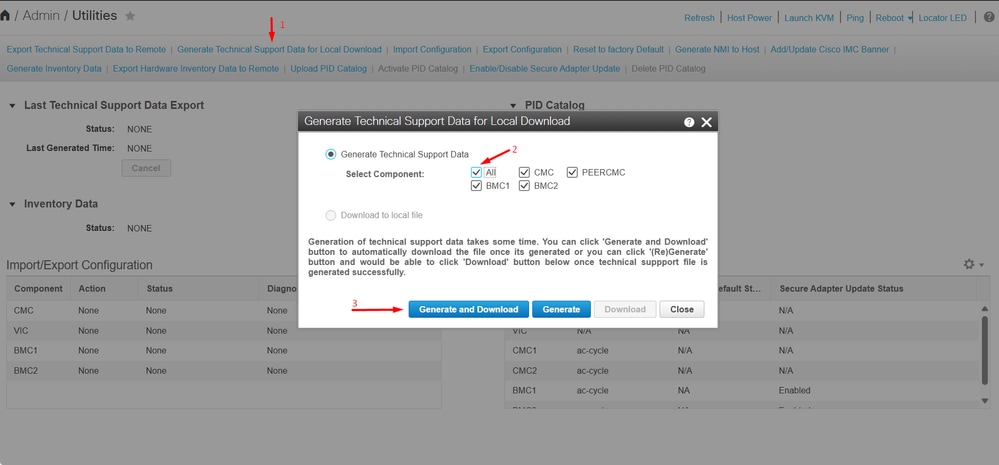
1. Navigate to Admin > Utilities.
2. Click Download Technical Support Data for Local Download, select All in the Generate and Download Technical Support Data section. Click Generate and Download.
UCS Central
1. Navigate to System Tools >Tech Support.
2.Under UCS Central and Domains, select UCS Central. Then navigate to the right and click Generate Tech Support.
3. A pop-up window appears; select Yes.
4. Download your bundle once available and select it. Then click the Download button.
Intersight
The process to generate the tech support bundle for Fabric Interconnect, Chassis, or Server is similar. This section is focused on the Server bundle collection. For more details on each component, refer to Collect Intersight Managed UCS Tech Support Bundles Manually - Cisco
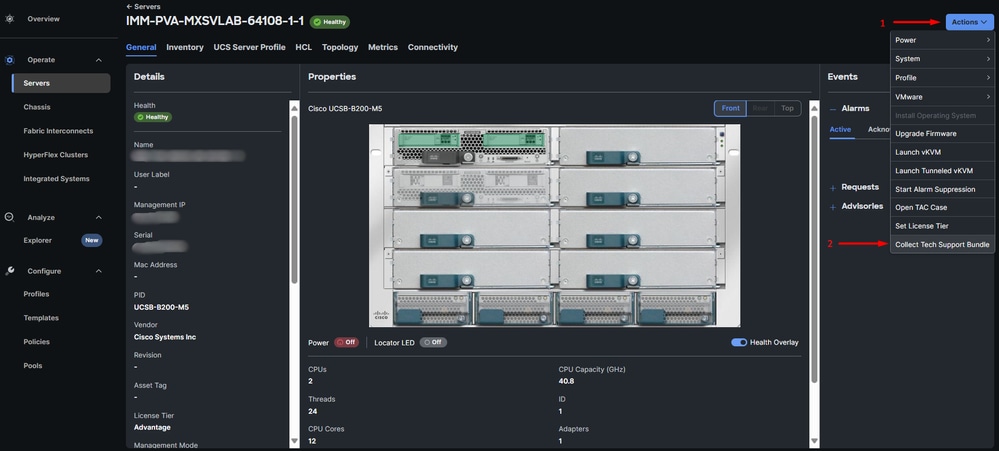
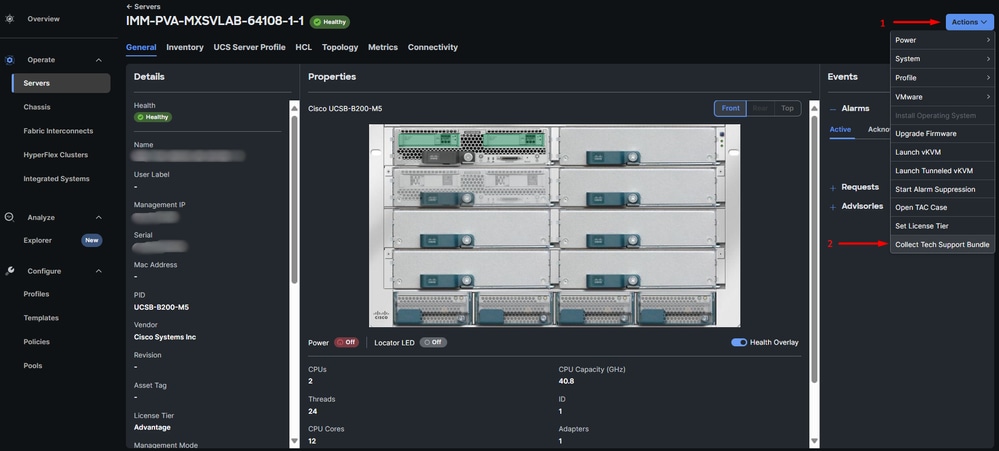
1. Navigate to Operate > Servers. Click the server where you want to collect logs.
2. Select Actions and select Collect Tech Support Bundle.
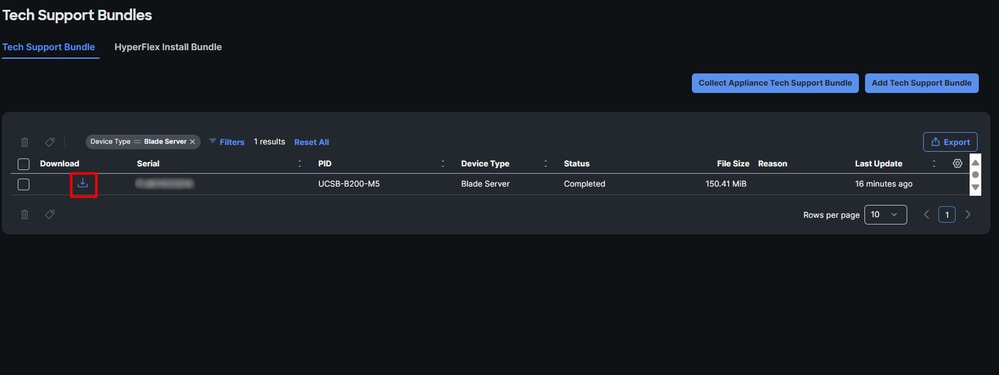
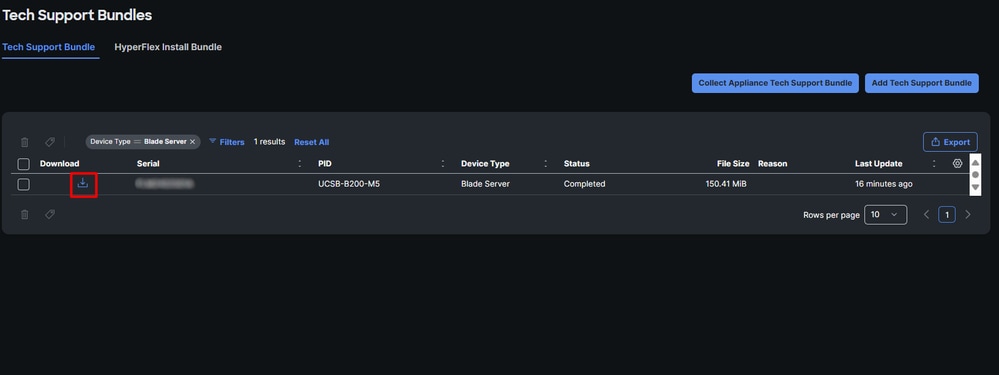
3. Navigate to System > Diagnostic Data. This displays a list with of the tech support bundles generated and those in progress. Once your bundle is complete, click the download symbol.
Intersight Appliance (Connected or Private Virtual Appliance)
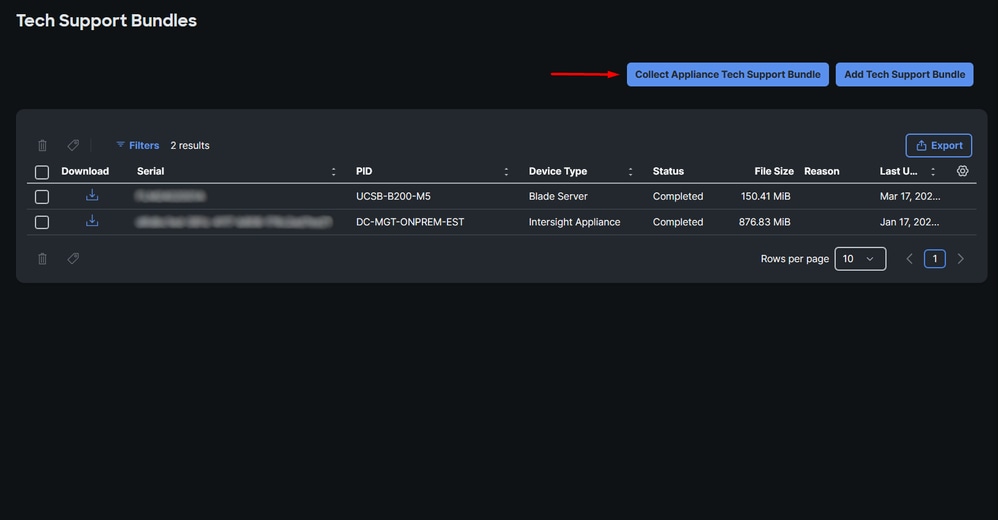
1. Navigate to System > Diagnostic Data > Collect Appliance Tech Support Bundle. Select it and wait for the collection of logs.
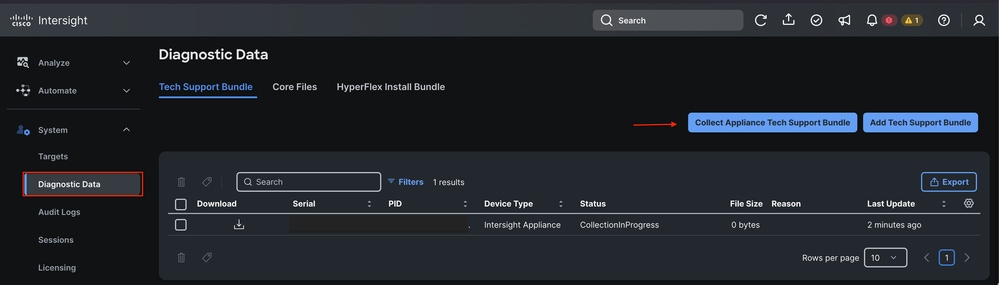
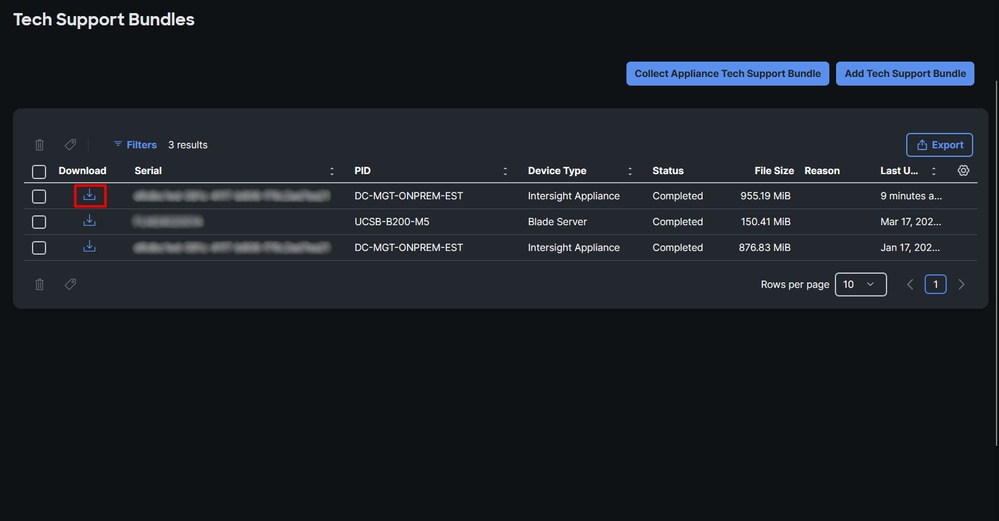
2. Click on the download symbol once your bundle is complete.
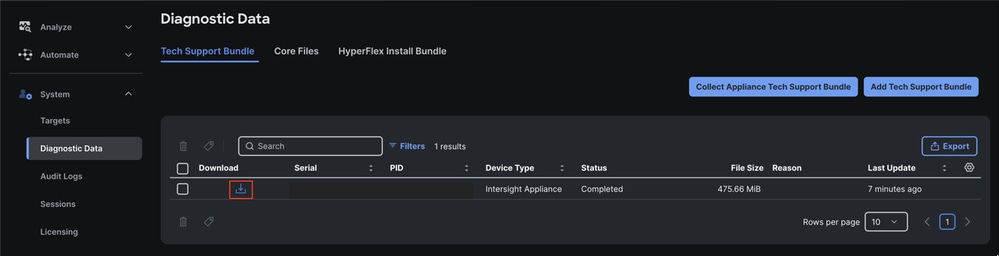
Related Information
- Visual Guide to Collect Tech Support Files (B and C Series) - Use with older UCSM and CIMC versions
- Collect Intersight Managed UCS Tech Support Bundles Manually - Cisco
- Collect Intersight Managed Mode Device Log Bundle in Device Console - Cisco
- Visual Guide to Collect Tech-Support Files for UCS Central HTML5 UI & CLI
Revision History
| Revision | Publish Date | Comments |
|---|---|---|
8.0 |
28-Jul-2026
|
Updated title, introduction, spelling, grammar, inserted horizontal lines to separate sections/readability, fixed CCW errors. |
7.0 |
20-Mar-2025
|
Updated Alt Text, Images, Article Description, and Formatting. |
6.0 |
26-Jun-2024
|
Updated Alt Text, Article Description, and Formatting. |
5.0 |
09-Jun-2023
|
Updated to match style guide.
Made minor edits for clarity. |
4.0 |
20-Jul-2022
|
Edited the title. Reformatted the Related Information section. Restructured step 2 of the UCSM Managed Server procedure. Made minor edits for clarity. |
1.0 |
15-Aug-2017
|
Initial Release |

 Feedback
Contact Cisco
- Open a Support Case

- (Requires a Cisco Service Contract)