Export Reporting Data in Secure Web Appliance
Available Languages
Introduction
This document describes the process of backing up the reporting data in the Secure Web Appliance (SWA).
Prerequisites
Requirements
Cisco recommends knowledge of these topics:
- Access to the Graphic User Interface (GUI) of SWA
Components Used
This document is not restricted to specific software and hardware versions.
The information in this document was created from the devices in a specific lab environment. All of the devices used in this document started with a cleared (default) configuration. If your network is live, ensure that you understand the potential impact of any command.
Export Web Tracking
1. From the GUI, navigate to Reporting and choose Web Tracking.
2. From the Time Range section, choose Custom Range and select the desired start and end date.
3. (Optional) Define the report criteria.
4. Click Search.
5. When the report is ready, click Printable Download and select CSV as the file type, to export all available time slots.
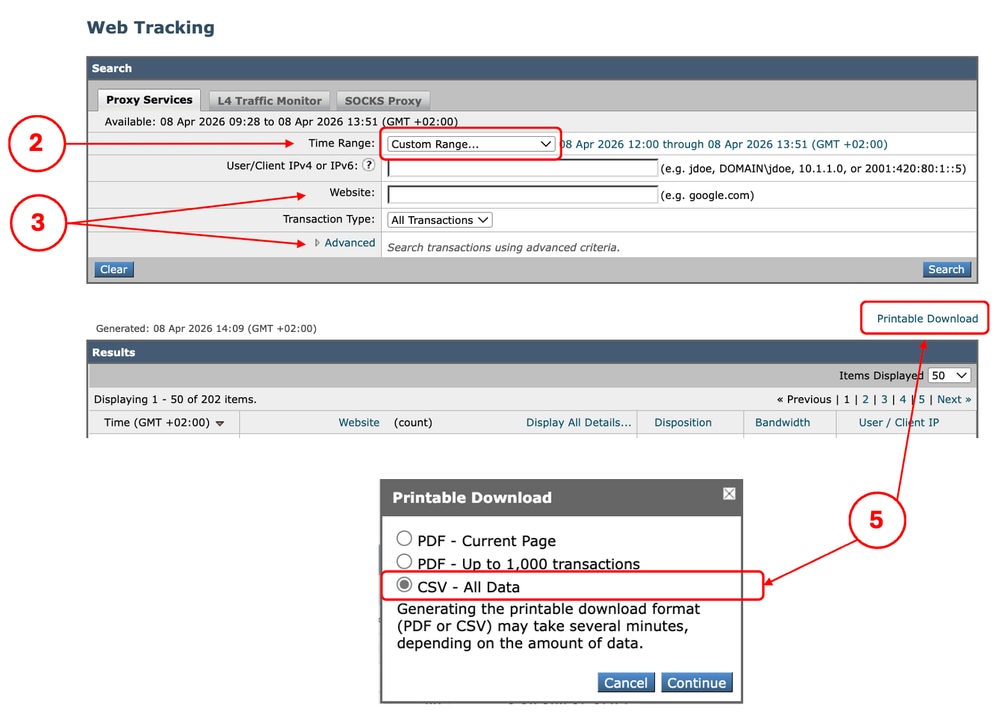 Image - Export Web Tracking
Export Reporting
1. From the GUI, navigate to Reporting and select the type of report to export.
2. From the Time Range section, choose Custom Range and select the desired start and end date.
3. When the report is ready, click Export on the desired section to download the CSV file.
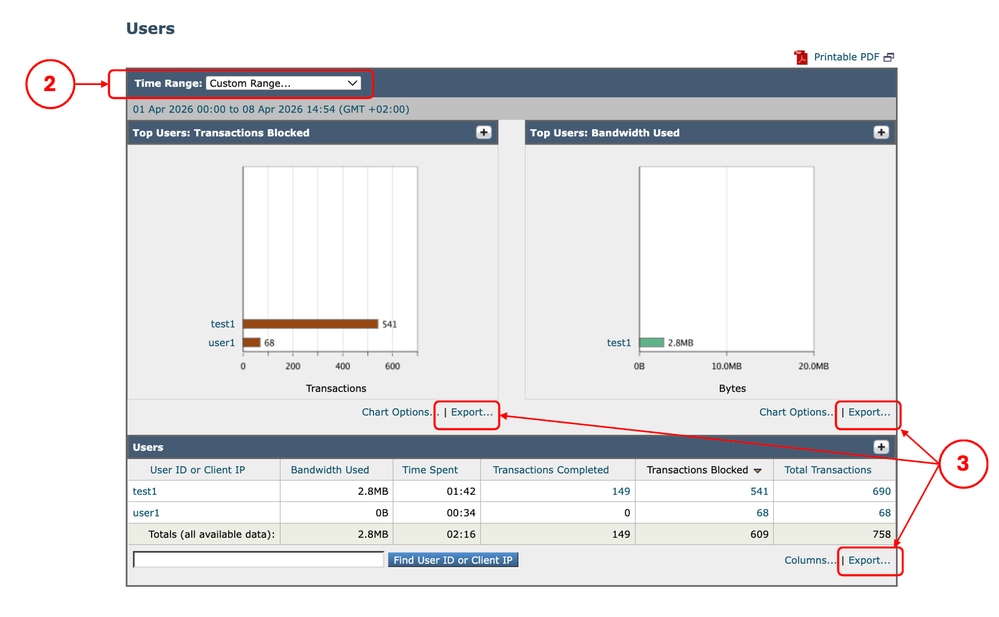 Image - Export Reporting
Export Automatic Reports
1. From the GUI, navigate to Reporting and select Archived Reports.
2. Click the name of each report to download the related reporting data.
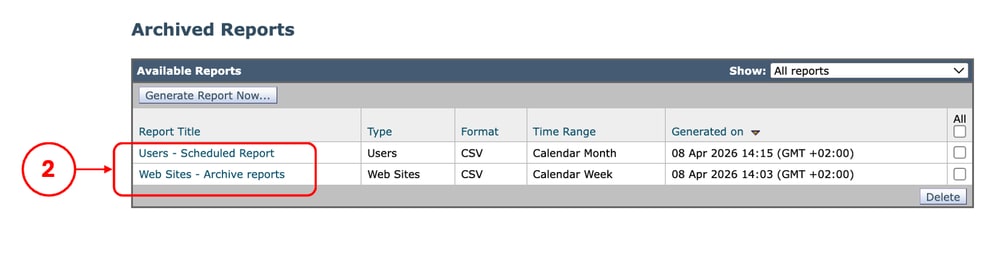 Image - Archive Reports
Related Content
- User Guide for AsyncOS 15.2 for Cisco Secure Web Appliance
- Use Secure Web Appliance Best Practices
- Configure Backup in Secure Web Appliance
Revision History
| Revision | Publish Date | Comments |
|---|---|---|
4.0 |
20-Oct-2026
|
Updated spelling, grammar, spacing, inserted horizontal lines to separate sections for readability. |
3.0 |
30-Jul-2026
|
Recertification |
2.0 |
24-Apr-2026
|
Spelling error in the title. |
1.0 |
24-Apr-2026
|
Initial Release |

 Feedback
Contact Cisco
- Open a Support Case

- (Requires a Cisco Service Contract)