Configure Backup in Secure Web Appliance

Available Languages
Introduction
This document describes the process of backing up and restoring the configuration in Secure Web Appliance (SWA).
Prerequisites
Requirements
Cisco recommends knowledge of these topics:
- Access to Graphic User Interface (GUI) of SWA
- Access to Command Line Interface (CLI) of SWA
Components Used
This document is not restricted to specific software and hardware versions.
The information in this document was created from the devices in a specific lab environment. All of the devices used in this document started with a cleared (default) configuration. If your network is live, ensure that you understand the potential impact of any command.
Generate Backup From GUI
1. From the GUI, navigate to System Administration and choose Configuration File.
2. Select Download file to local computer to view or save.
3. Choose Encrypt passwords in the Configuration Files.
4. (Optional) Enter a name for the configuration file.
5. Choose Submit.
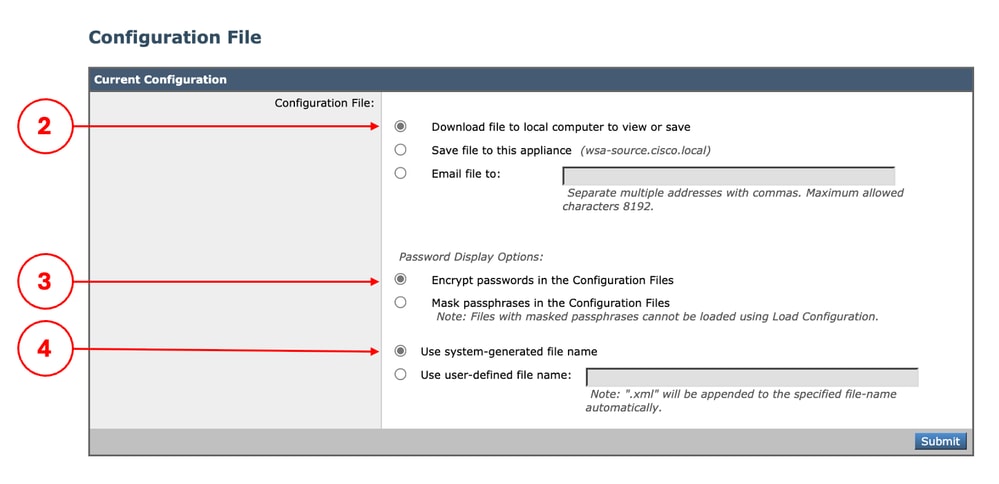 Image - Export the Configuration
Automatic Backup in a Remote Location
You can configure SWA to save a copy of the current configuration in another location, after committing any new changes.
1. From the GUI, navigate to System Administration and choose Configuration File.
2. In the Configuration Backup section, select the check box to Enable Config Backup.
3. To import the configuration file into SWA, select Yes for Include Passphrase in Configuration File.
4. Based on your design, you can select File Transfer Protocol (FTP) or Secure Copy (SCP) as the desired protocol to save the configuration file.
5. Choose Submit and commit the changes.
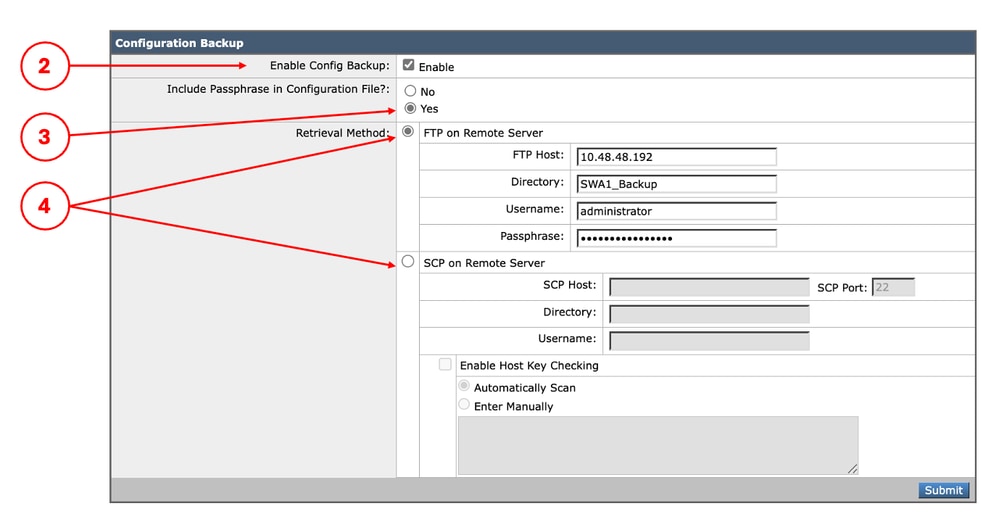 Image - Automatic Configuration Backup
Generate Backup from CLI
You can generate a configuration backup from the CLI, which stores the exported file locally on the SWA.
1. Log in to the CLI.
2. Run saveconfig.
3. Type 2 to select the Encrypt passwords.
4. (Optional) Type N if you want a use user-defined file name for the exported file, else type Y for Do you want the system to generate a name for the configuration file? [Y]>.
SWA_CLI> saveconfig

Choose the password option:
1. Mask passwords (Files with masked passwords cannot be loaded using loadconfig command)
2. Encrypt passwords
[1]> 2

Do you want the system to generate a name for the configuration file? [Y]>

The file S1000V-4444444444444444-AAAAAAAAAAAAAA-BBBBBBBBBBBB.xml has been saved in the configuration directory on machine "SWA-source.cisco.local".
Importing the Configuration File to SWA
1. From the GUI, navigate to System Administration and choose Configuration File.
2. In the Load Configuration section, select Load a configuration file from local computer.
3. Click Choose File and select the XML configuration file.
4. (Optional) If you would like to import the Network Configuration, select the check box Load Network Settings.
5. Click Load.
6. Choose Continue in the Confirm Load Configuration pop-up.
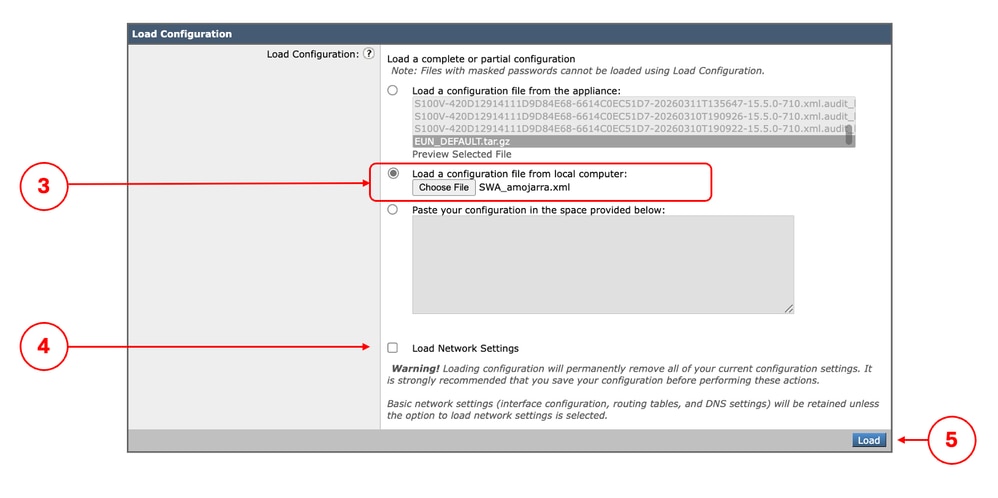 Image - Import Configuration
Related Content
- User Guide for AsyncOS 15.2 for Cisco Secure Web Appliance
- Secure Web Appliance Initial Setup
- Cisco Secure Email and Web Virtual Appliance Installation Guide
- Configure Custom URL Categories in Secure Web Appliance - Cisco
- Use Secure Web Appliance Best Practices
Revision History
| Revision | Publish Date | Comments |
|---|---|---|
2.0 |
20-Oct-2026
|
Updated spelling, grammar, spacing, inserted horizontal lines to separate sections for readability. |
1.0 |
24-Mar-2026
|
Initial Release |
 Feedback