Integrate SWA with SMA
Available Languages
Contents
Introduction
This document describes the process of integrating the Secure Web Appliance (SWA) to Security Management Appliance (SMA).
Prerequisites
Requirements
Cisco recommends knowledge of these topics:
- Access To Graphic User Interface (GUI) of SWA.
- Administrative Access to the SWA.
- Administrative Access to the SMA.
Components Used
This document is not restricted to specific software and hardware versions.
The information in this document was created from the devices in a specific lab environment. All of the devices used in this document started with a cleared (default) configuration. If your network is live, ensure that you understand the potential impact of any command.
Before You Begin
1. Ensure the SMA and SWA are both licensed.
2. Check the compatibility matrix of the SWA and SMA, use this link: SWA-SMA-ESA Compatibility Matrix.
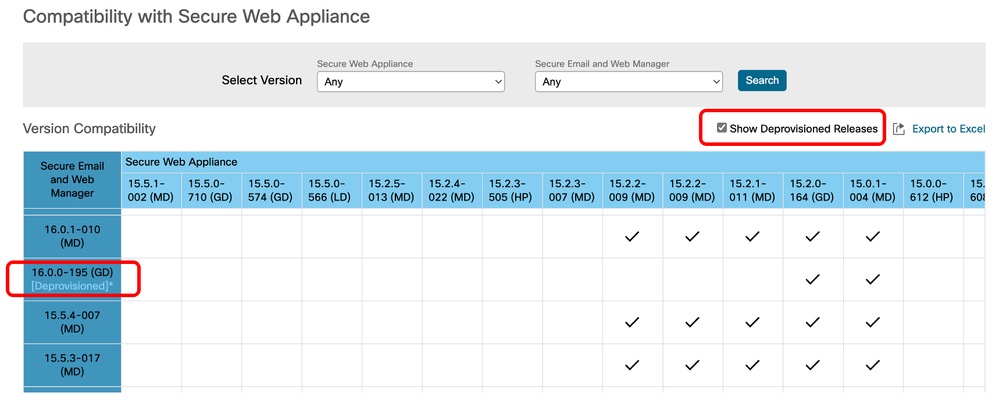 Image - Deprovisioned Releases
Steps to Integrate SWA to SMA
Step 1. Export the Configuration File from SWA |
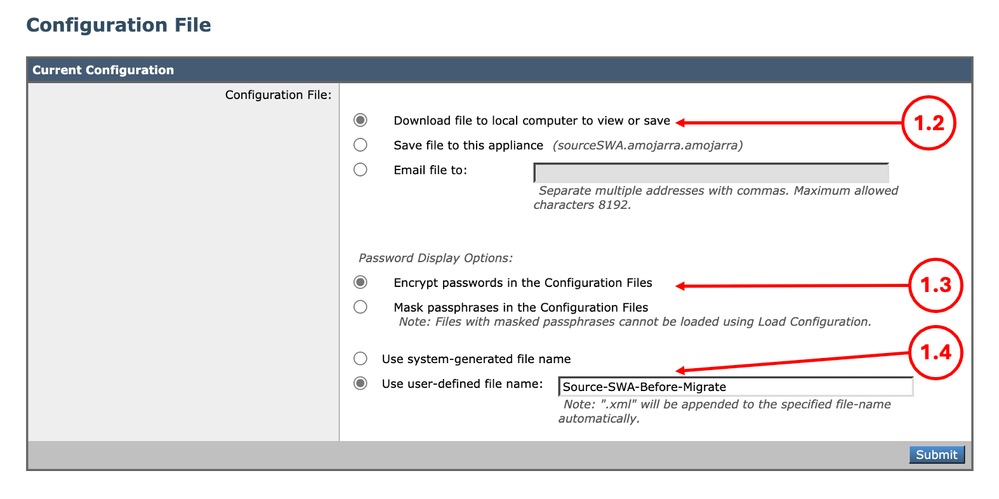
1.1. From the GUI, navigate to System Administration and choose Configuration File. 1.2. Ensure Download file to local computer to view or save is selected. 1.3. Choose Encrypt passwords in the Configuration Files. 1.4. (Optional) Choose a name for the configuration file. 1.5. Click Submit.
|
Step 2. Create the Configuration Manager |
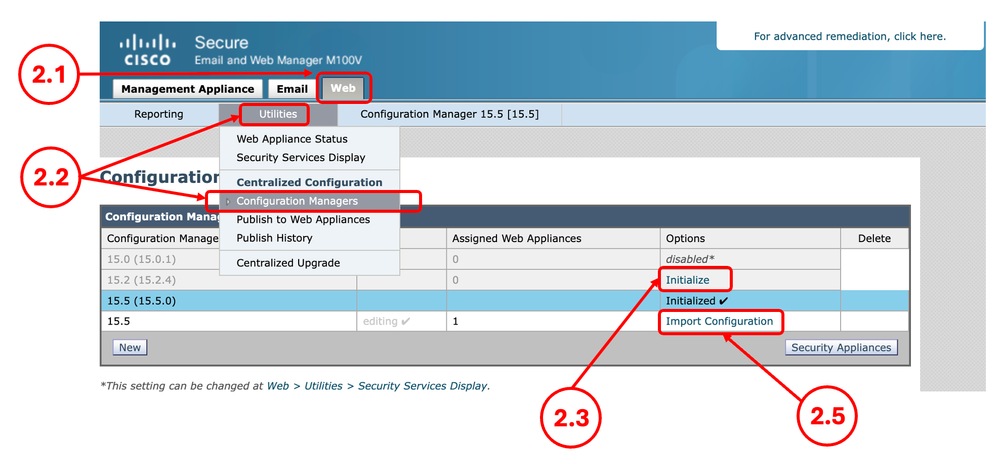
2.1.From the SMA GUI, click the Web tab. 2.2. From Utilities, select Configuration Manager. 2.3. If the Configuration manager is not Initialized yet, click the Initialize link for the desired Configuration Manager, else skip to Step 2.5. 2.4. Select Use default settings and select Initialize. 2.5. Select Import Configuration for the desired Configuration Manager.
2.6. From the Select Configuration Source, choose Web Configuration File. 2.7. Select the configuration file you exported on Step 1.
2.8. Select Import. 2.9. Commit the changes. |
Step 3. Configure Manager Settings |
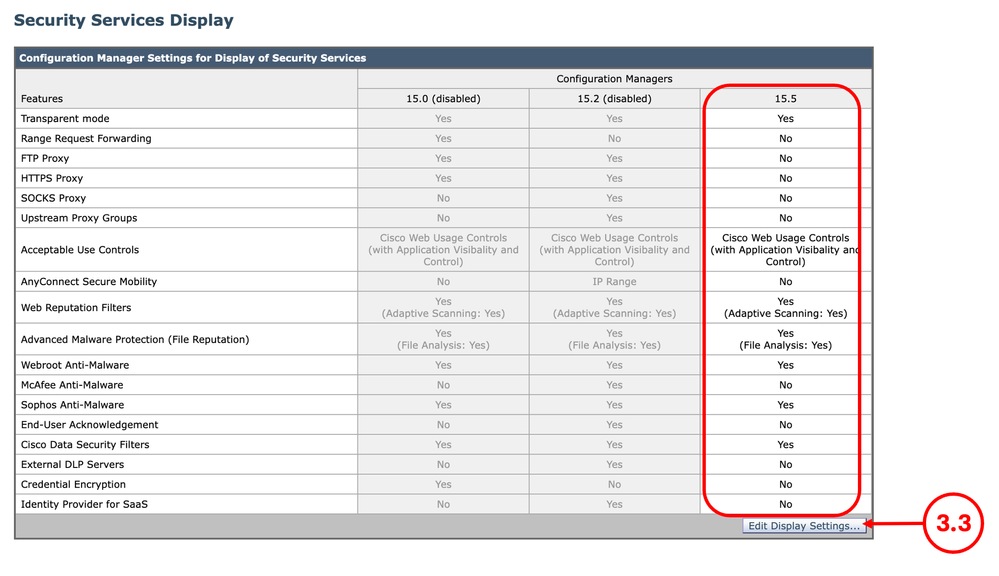
3.1. From the SMA GUI, click the Web tab. 3.2. From Utilities, select Security Services Display. 3.3. Ensure the desired features are configured correctly, you can enable or disable the features from Edit Display Settings. 3.4. If you made any changes, Submit and Commit.
|
Step 4. Add Web Appliance |
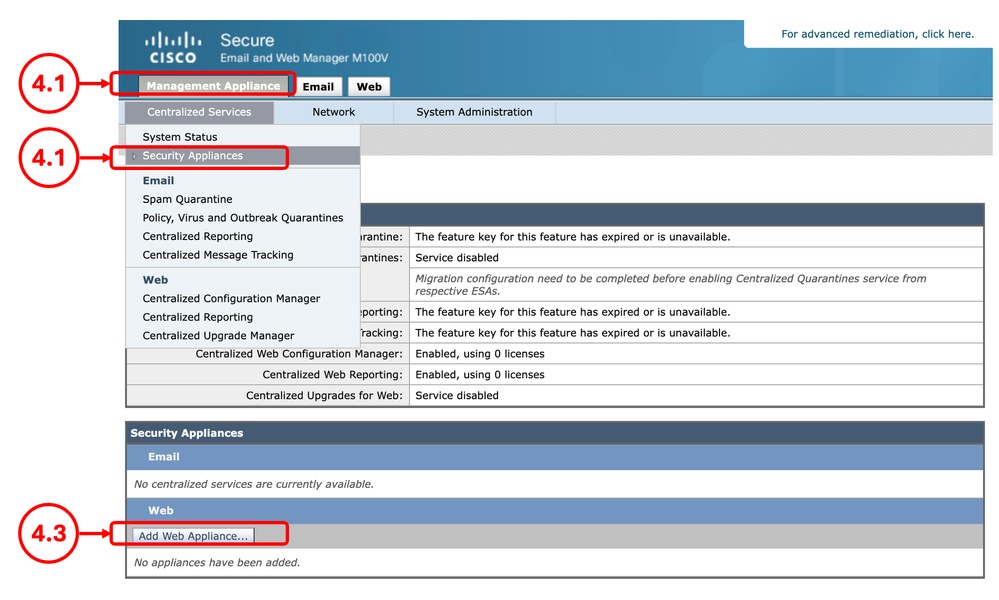
4.1.From the SMA GUI, click the Management Appliance tab. 4.2. From Centralized Services, select Security Appliances. 4.3. Select Add Web Appliance.
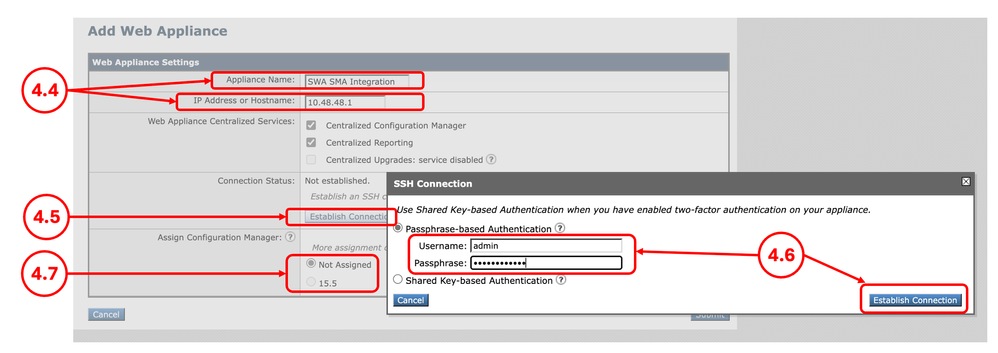
4.4. Enter the Appliance Name and the IP address or Hostname. 4.5. Select Establish Connection. 4.6. Enter the Username and Passphrase and select Establish Connection. 4.7. Assign the Configuration Manager.
4.8. Submit and Commit the changes. |
Step 5. Validate the Integration |
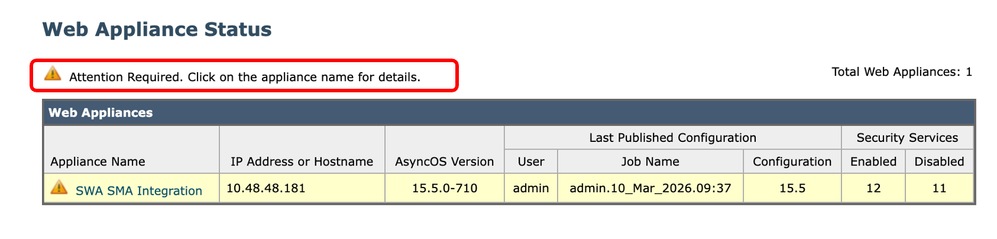
5.1.From the SMA GUI, click the Web tab. 5.2. From Utilities, select Web Appliance Status. 5.3. If you are seeing a Warning message Attention Required, click the appliance name for details. Click the name of the SWA and view the details.
|

Fixing Errors
The Centralized Services is Disabled
While you try to select a Centralized services, if the check box is inactive, click the question mark (?) and the guide navigates you through the path to enable that service.
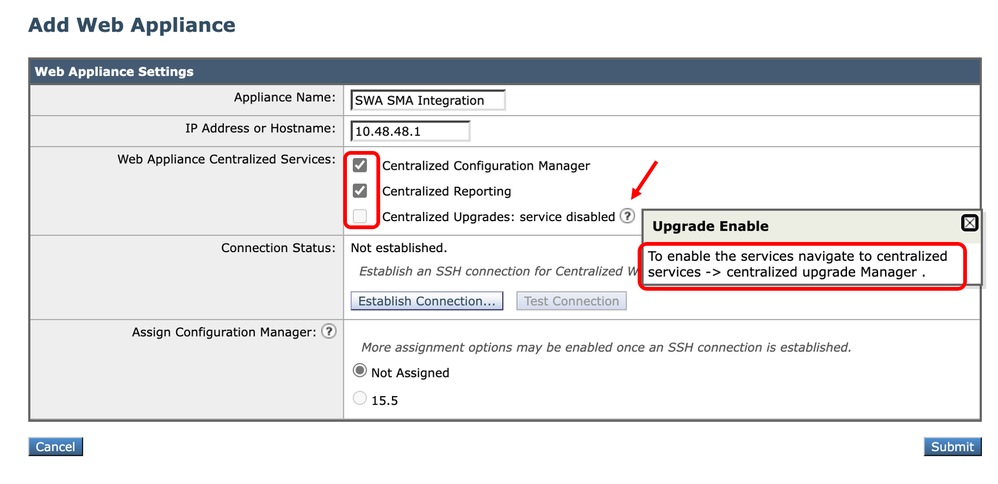 Image - The Centralized Services is Disabled
Authentication Failed for IP
While you are integrating the SWA to SMA, if you receive this error, ensure the IP address or hostname and the credentials are correct.
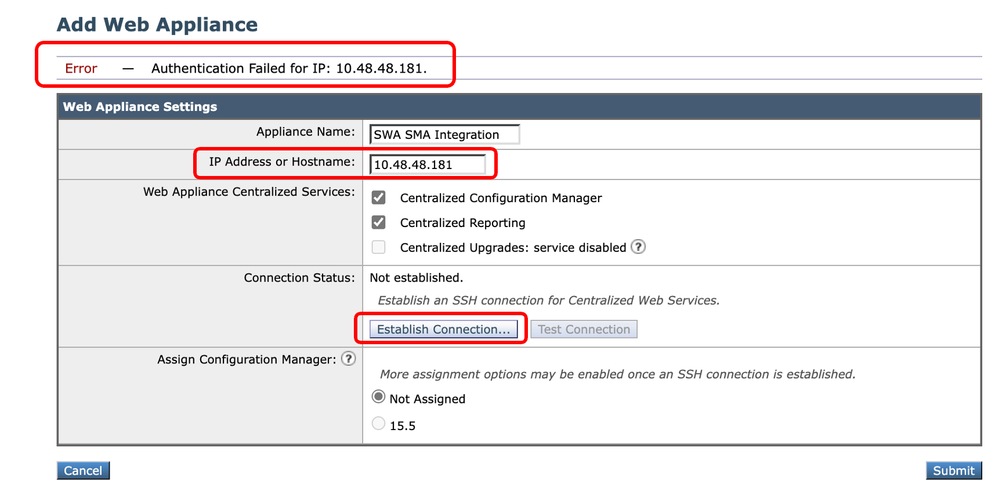 Image - Authentication Failed
Centralized Web Reporting is Disabled in the SWA
If the SMA is configured with the Centralized Web Reporting and you assign that feature to the SWA while integrating the SWA to SMA in Step 4, you need to enable Cisco Centralized Web Reporting:
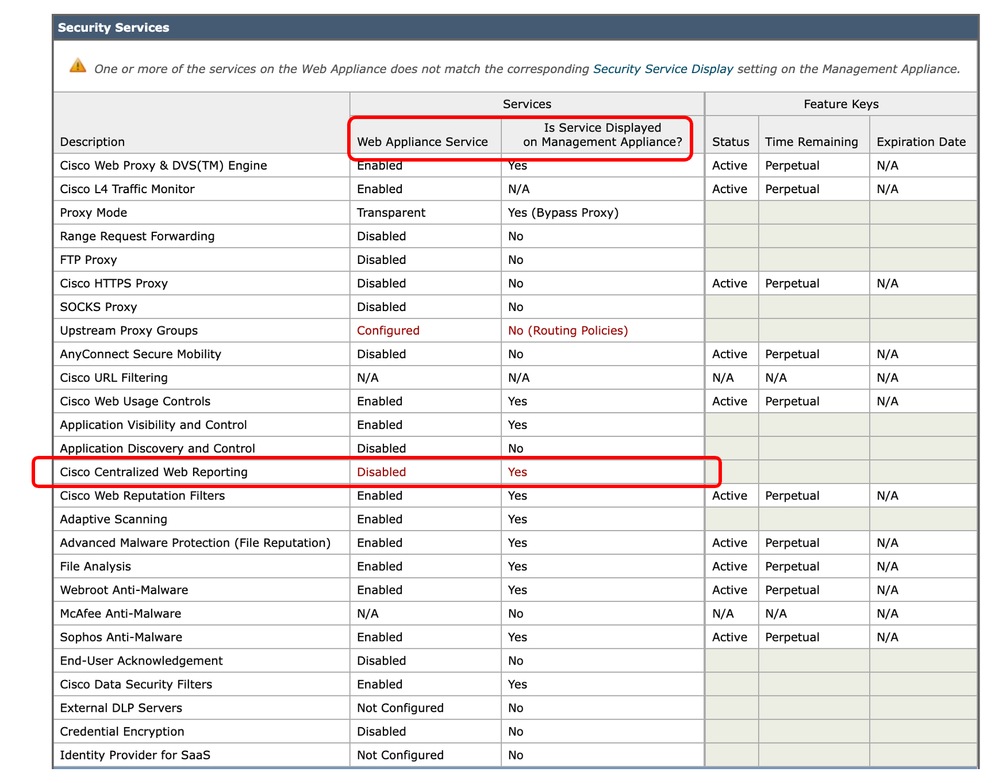 Image - Centeralized Web Reporting is Disabled in the SWA
To fix the issue, connect to the SWA from CLI and type reportingconfig and select CENTRALIZED, complete the wizard to enable the Centralized Reporting and commit the changes.
SWA_CLI> reportingconfig

Choose the operation you want to perform:
- COUNTERS - Limit counters recorded by the reporting system.
- WEBTRACKINGQUERYTIMEOUT - Timeout value for Webtracking Queries.
- AVERAGEOBJECTSIZE - Average HTTP Object Size used for Bandwidth Savings Calculation.
- WEBEVENTBUCKETING - Enable or Disable web transaction event bucketing.
- CTROBSERVABLE - Enable or Disable CTR observable based indexing.
- CENTRALIZED - Enable/Disable Centralized Reporting for this Secure Web Appliance.
[]> CENTRALIZED

Reporting service status: Local Reporting enabled.  (Show usernames in reports.)

Do you want to enable Centralized Reporting for this appliance? [N]> Y

Do you want to anonymize usernames in reports? [N]> N

Reporting service status: Centralized Reporting enabled.  (Show usernames in reports.)


Choose the operation you want to perform:
- COUNTERS - Limit counters recorded by the reporting system.
- WEBTRACKINGQUERYTIMEOUT - Timeout value for Webtracking Queries.
- AVERAGEOBJECTSIZE - Average HTTP Object Size used for Bandwidth Savings Calculation.
- WEBEVENTBUCKETING - Enable or Disable web transaction event bucketing.
- CTROBSERVABLE - Enable or Disable CTR observable based indexing.
- CENTRALIZED - Enable/Disable Centralized Reporting for this Secure Web Appliance.
[]>

SWA_CLI> commit
URL Categories List on this SWA was Older than the SMA-published List
If while you are publishing the configuration to SWA and receive the error that indicates that the URL category list in SWA and SMA are not the same, ensure both devices are able to connect to Cisco Update Server and there are no Errors in the updater_logs:
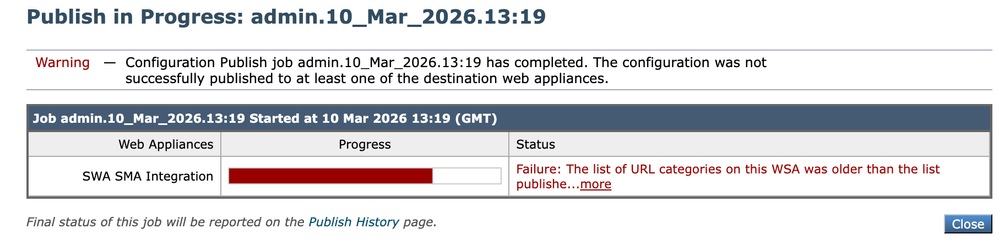 Image - The list of URL categories are not matching
To force the SWA or SMA to download the update, from the CLI, type updatenow.
To view the SMA or SMA, Logs related to update, from the CLI type grep and choose the number associated with updater_logs and complete the wizard.
Host Key Appears to have Changed
If while you are integrating the SWA to the SMA and receiving the Error that the host key has been changed, this is due to the reason that SMA has stored a different host Key for the same IP address in its key store.
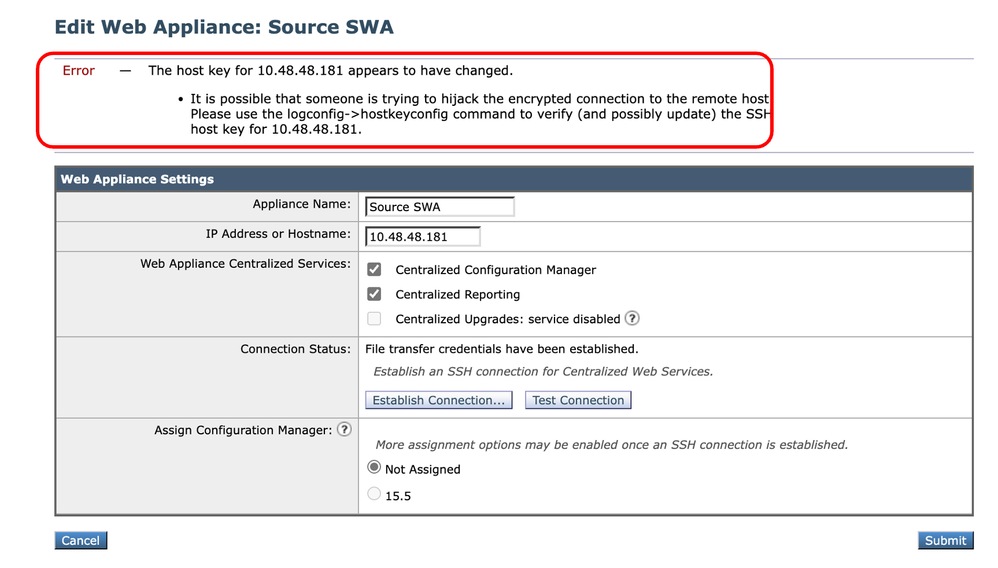 Image -The host key appears to have changed
To fix this error, log in to CLI of SMA, run logconfig and enter HOSTKEYCONFIG. Type DELETE and press Enter. Then, select the number associated to the SWA and press enter until the wizard is finished.
Commit the changes:
SMA_CLI> logconfig

Currently configured logs:
    Log Name            Log Type                      Retrieval           Interval
 ---------------------------------------------------------------------------------
 1. aggregatord_logs    Aggregatord Logs              Manual Download     None
 2. authentication      Authentication Logs           Manual Download     None
...

Choose the operation you want to perform:
- NEW - Create a new log.
- EDIT - Modify a log subscription.
- DELETE - Remove a log subscription.
- DELETELOGFILE - Delete log files
- SETUP - General settings.
- LOGHEADERS - Configure headers to log.
- HOSTKEYCONFIG - Configure SSH host keys.
[]> HOSTKEYCONFIG

Currently installed host keys:
1. 10.48.48.182 ssh-rsa AAAAAAAAAAAAAAAAAAAAAAAAAAAAAAAA...ZhW4gEXWE=
2. 10.48.48.181 ssh-rsa BBBBBBBBBBBBBBBBBBBBBBBBBBBBBBBb...4p74b9Q9k=

Choose the operation you want to perform:
- NEW - Add a new key.
- EDIT - Modify a key.
- DELETE - Remove a key.
- SCAN - Automatically download a host key.
- PRINT - Display a key.
- HOST - Display system host keys.
- FINGERPRINT - Display system host key fingerprints.
- USER - Display system user keys.
- REGENERATESCPKEYS - Regenerate SSH Keys for SCP Log Subscription Retrieval.
[]> DELETE

Enter the number of the key you wish to delete.
[]> 2

Currently installed host keys:
1. 10.62.131.143 ssh-rsa AAAAAAAAAAAAAAAAAAAAAAAAAAAAAAAA...ZhW4gEXWE=

...
SMA_CLI> commit
Related Information
- User Guide for AsyncOS 15.2 for Cisco Secure Web Appliance
- Install Secure Web Appliance on Vmware ESXi
- Install Secure Web Appliance on Microsoft Hyper-V
- Cisco Secure Email and Web Virtual Appliance Installation Guide
- Configure Custom URL Categories in Secure Web Appliance - Cisco
- Troubleshoot Secure Web Appliance DNS Service
Revision History
| Revision | Publish Date | Comments |
|---|---|---|
3.0 |
22-Oct-2026
|
Recertification - Updated Formatting |
2.0 |
29-Jul-2026
|
Initial Release |
1.0 |
24-Mar-2026
|
Initial Release |

 Feedback
Contact Cisco
- Open a Support Case

- (Requires a Cisco Service Contract)