Block Google Consumer Accounts Access in the SWA
Available Languages
Introduction
This document describes the process of blocking Google Workspace or Google Consumer Accounts access in Secure Web Appliance (SWA).
Prerequisites
Requirements
Cisco recommends knowledge of these topics:
- Access to the Graphic User Interface (GUI) of SWA
- Administrative Access to the SWA.
Components Used
This document is not restricted to specific software and hardware versions.
The information in this document was created from the devices in a specific lab environment. All of the devices used in this document started with a cleared (default) configuration. If your network is live, ensure that you understand the potential impact of any command.
Configure
| Step 1.Create a Custom URL Category for the Google sites. |
Step 1.1. From the GUI, navigate to Web Security Manager and choose Custom and External URL Categories. Step 1.2. Click Add Category to create a new Custom URL Category. Step 1.3. Enter Name for the new category. Step 1.4. Define these URLs in the Sites section: Step 1.5. Submitthe changes. 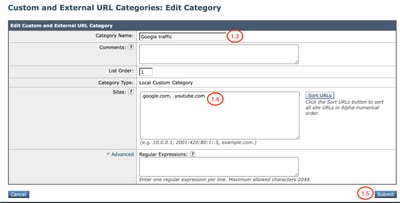 Image - Custom URL Category 
Tip: For more information about how to configure Custom URL Categories, kindly visit: Configure Custom URL Categories in Secure Web Appliance. |
| Step 2.Decrypt the traffic. |
Step 2.1. From the GUI, navigate toWeb Security Manager and chooseDecryption Policies. Step 2.2. Click Add Policy. Step 2.3. EnterName for the new policy. 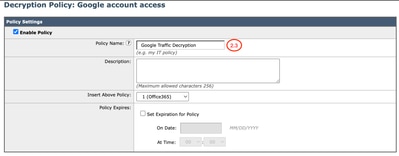 Step 2.4. Select theIdentification Profile that you need this policy to apply to.
Tip: If you bypassed the Authentications for Microsoft URLs and you are configuring this policy for All users, choose: All Identification Profiles > All Users. Step 2.5. FromPolicy Member Definition section, click URL Categorieslinks to add the Custom URL Category. Step 2.6.Select the URL Category that was created inStep 1. Step 2.7.ClickSubmit. 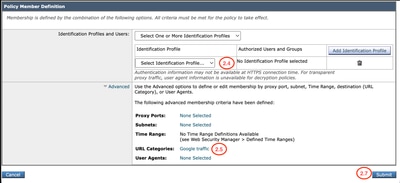 Image - Configure Decryption Policy Step 2.8. InDecryption Policies page, click the link fromURL Filtering for the new policy.  Image - Edit URL Filtering Action Step 2.9. ChooseDecrypt as the action for Custom URL Category. Step 2.10.ClickSubmit. 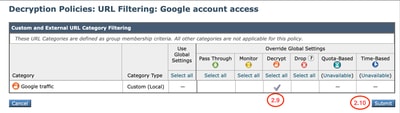 Image - Decrypt the Custom URL Category |
| Step 3.Create HTTP Rewrite Profile. |
Step 3.1.From the GUI, navigate toWeb Security Manager and chooseHTTP ReWrite Profiles. Step 3.2. ClickAdd Profile. Step 3.3. EnterName for the new profile. Step 3.4. Use X-GoogApps-Allowed-Domainsfor the firstHeader Name. Step 3.5. For theRestrict-Access-To-Tenantssetting, use a domain value of permitted tenant list, which must be a comma-separated list of the tenants that users are allowed to access. Step 3.9.ClickSubmit. 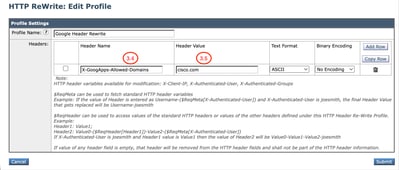 Image - Add HTTP ReWrite Profile |
| Step 4.Create Access Policy. |
Step 4.1. From the GUI, navigate toWeb Security Manager and chooseAccess Policies. Step 4.2. Click Add Policy. Step 4.3. EnterName for the new policy. Step 4.4. (Optional) Select theIdentification Profile that you need this policy to apply to. Step 4.5.FromPolicy Member Definition section, click URL Categorieslinks to add the Custom URL Category. Step 4.6.Select the URL Category that was created in Step 1. Step 4.7. ClickSubmit. 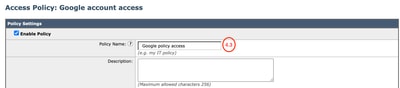 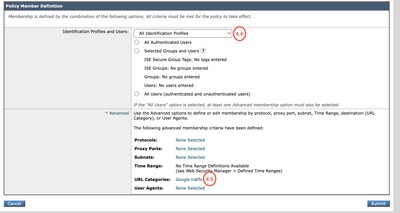 Image - Create Access Policy Step 4.8.InAccess Policies page, make sure the action of the URL Filtering is set to Monitor. Step 4.9.Click the link in HTTP ReWrite Profile to add the HTTP Header Profile to this policy.  Image - Access Policy Properties Step 4.10. Choose the HTTP ReWrite Profiles, created in Step [3].  Image - Add HTTP ReWrite Profile Step 4.11. ClickSubmit. Step 4.12. CommitChanges. |
Reporting and Logs
Logs
You can add custom fields to the access logs or the W3C logs to view the HTTP header rewrite profile name.
| Format Specifier in Access Logs | Log Field in W3C Logs | Description |
| %] | x-http-rewrite-profile-name | HTTP header rewrite profile name. |
You can generate Web Tracking report to view the reports of the traffic by the Access Policy name.
Use these steps to generate the reports:
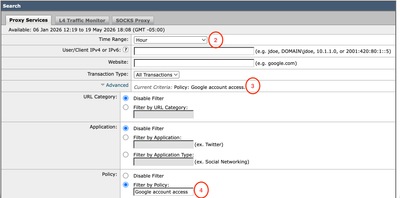
Step 1. From the GUI, selectReporting and chooseWeb Tracking.
Step 2. Choose your desired Time Range.
Step 3. Click the Advanced link to search transactions using advanced criteria.
Step 4. In the Policy section, select Filter by Policy and type the name of the Access Policy that was created previously.
Step 5. Click Search to review the report.
Verify
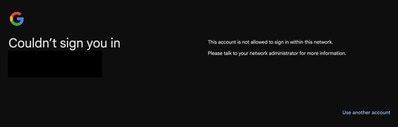
When the Google domain restriction configuration is completed, the user is only able to access the accounts which are under the domain configured on the Header Rewrite profile on Step 3. If the use try accessing an account on a different domain, or, a different, personal, Google account, the access is restricted with this notice:
Related Information
Define Custom URL Categories in WSA
User Guide for AsyncOS 15.2 for Cisco Secure Web Appliance
Configure Decryption Certificate in Secure Web Appliance
Block Access to Consumer Accounts (Google Documentation)
Revision History
| Revision | Publish Date | Comments |
|---|---|---|
1.0 |
23-Jun-2026
|
Initial Release |

 Feedback
Contact Cisco
- Open a Support Case

- (Requires a Cisco Service Contract)