Analyze a Secure Firewall Deployment on MCD
Available Languages
Introduction
This document describes how to monitor a Multicloud Defense deployment using the available system logs to validate that the deployment is progressing.
Prerequisites
This is for cloud environments such as AWS, Azure, GCP, or Oracle to allow seamless integration into the Secure Cloud Connector and Cloud Deployed Firepower Management Center (cdFMC)
Requirements
Cisco recommends that you have knowledge of these topics:
- Multicloud Defense (MCD) deployment workflows
- Cloud network and Secure Cloud Connector (SCC) connectivity concepts
- FMC monitoring and health validation for cloud deployments
Components Used
The information in this document is based on these software versions:
- Multicloud Defense
- AWS Environment
- Cloud Deployed Firepower Management Center (cdFMC)
- Secure Cloud Connector (SCC)
The information in this document was created from the devices in a specific lab environment. All of the devices used in this document started with a cleared (default) configuration. If your network is live, ensure that you understand the potential impact of any command.
Related Products
This document can also be used with these hardware and software versions:
- Multicloud Defense
- Secure Cloud Connector (SCC)
- Cloud Deployed Firepower Management Center (cdFMC)
Background Information
When deploying a device in a cloud platform using MCD, there are multiple places to review to ensure the deployment is progressing correctly. These tools help monitor the deployment and provide additional context when an error occurs. The same monitoring principles apply to AWS, Azure, and GCP deployments.
System Logs are the primary source of deployment visibility in MCD. This is the best place to review cluster creation events, gateway creation activity, instance launches, and any exceptions encountered during the deployment workflow. The FMC also raises alerts when a registration or deployment step fails, which helps narrow the area to investigate.

Tip: If a registration timeout occurs, check the MCD System Logs before troubleshooting the environment itself. The logs often identify the failed step.
Monitoring the Deployment
Review the System Logs in MCD to confirm the deployment is progressing through the expected stages. This is the first and most useful place to check for deployment status, gateway creation, instance launch activity, and any recorded errors.
Navigate to:
Multicloud Defense > Investigate > System Logs
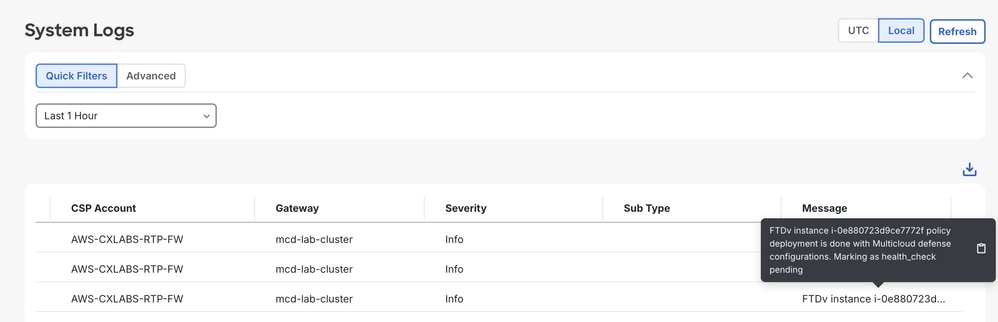
The example shows successful gateway creation and where the cluster instances are being launched. In this case, the gateway instances are hosted in the US-east-2 region and the us-east-2b availability zone.

Use the System Logs page to verify the deployment is moving through the expected cycle and to gather detailed error messages when a step fails.
Check the FMC for deployment errors when a registration timeout or failed deployment event is reported. The FMC can provide a high-level alert that indicates the deployment did not complete successfully.
Recommended checks include:
- Verify connectivity between the cloud network and the Secure Cloud Connector (SCC).
- Confirm that each deployment step in the deployment guide has been completed.
- Validate that the correct IAM role is configured and in use.
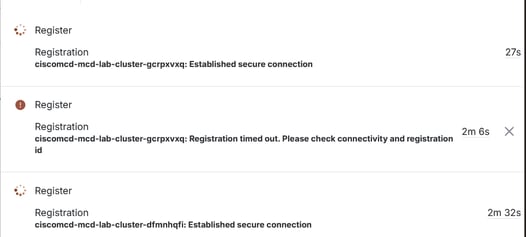

Caution: A registration failure can occur one or more times before a successful registration completes. This behavior can be caused by cloud timer behavior and is not necessarily a permanent issue.
If the FMC in the SCC reports a registration timeout, the System Logs usually include more detail about the specific failure. In most cases, the issue is a combination of connectivity, IAM, or configuration problems, and the logs are the best source for narrowing down the failed step.
Confirm that the deployment completed successfully by reviewing the final success event in the MCD System Logs. When the deployment succeeds, the logs can show a successful completion event.
A successful deployment can also be visible in the FMC, where the deployed devices show a connected status and the health indicators appear green.
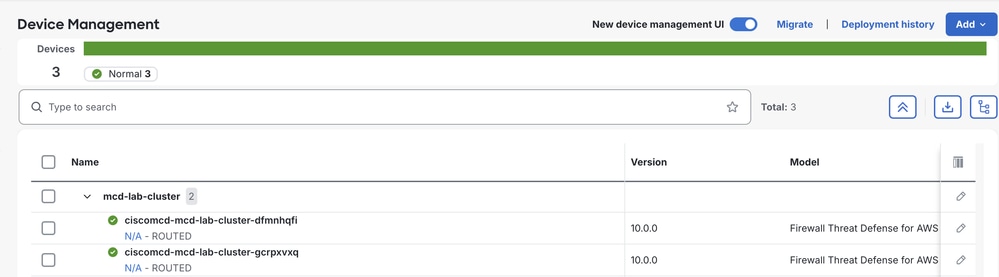
This confirms that the cluster has been created successfully and the device is operating in the expected environment.
Verify
There are some places to check to verify that the AWS deployment is healthy:
- The System Logs show normal deployment activity and no blocking errors.
- The device or gateway is created in the expected region and availability zone.
- The FMC reports the device as connected and healthy.
- No registration timeout or failed deployment warnings remain in the logs.
When all of these conditions are true, the MCD deployment can be considered successful.
Troubleshoot
If the deployment does not reach a healthy state:
- Review the MCD System Logs for the exact step that failed.
- Check the FMC for registration or connectivity alerts.
- Confirm the cloud network and Secure Cloud Connector connectivity.
- Validate the IAM role and all prerequisites from the deployment guide.
- Confirm the cluster is deploying into the expected region and availability zone.
Related Information
- Cisco Multicloud Defense Architecture Guide
- Cisco Multicloud Defense White Paper
- Cisco Multicloud Defense User Guide: System Logs
Revision History
| Revision | Publish Date | Comments |
|---|---|---|
1.0 |
23-Sep-2026
|
Initial Release |

 Feedback
Contact Cisco
- Open a Support Case

- (Requires a Cisco Service Contract)