FMC 1000/2500/4500 Temp Upgrade Image for cdFMC Migration
Available Languages
Contents
Issue
The latest Firepower software releases for the FMC 1000, 2500, and 4500 platforms are supported up to version 7.0. According to the Cisco Secure Firewall Management Center Compatibility Guide, the FMC 1000, 2500, and 4500 platforms reached end of sale on July 12, 2019, and the last date of support is July 31, 2024. To migrate from these On-Prem FMC platforms to CDO FMC, a temporary 7.4.0-118 migration upgrade image installation is required. The special image is only available at this link: Release 7.4.0.118
However, these issues can occur:
FMC upgrade package upload fails with error "Upload Failed: Update is not a signed package" due to incorrect package decompression and upload of incorrect files.

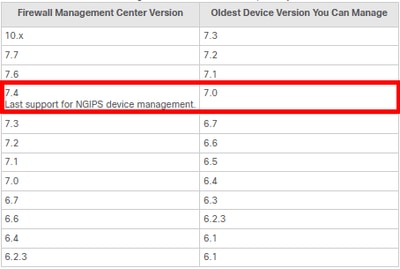
FMC upgrade page shows "Unable to upgrade DC while some Sensor versions are too old (< MIN_VERSION)" indicating that upgrading the FMC to 7.4.0 would cause FTD versions older than 7.0 to fall out of management range.
FMC UI displays "Someone else is already upgrading the devices: USERNAME. That user must either cancel or finish the upgrade process before you can begin a new upgrade." blocking the intended FMC user from starting an upgrade process.
Environment
Cisco Firepower Management Center (FMC) Hardware 1000, 2500, and 4500 version 7.0
FMC Administration with multiple FMC web users.
FMC managing FTD devices with ranging versions, but with some earlier than 7.0
Migration target Cisco Secure Cloud-delivered Firewall Management Center (cdFMC)
Temporary migration image: version 7.4.0.118 "Cisco_Secure_FW_Mgmt_Center_Upgrade-7.4.0-118.sh.REL.tar.zip"
Resolution
Migration Image Handling
1. Download the 7.4.0 temporary migration image from the Cisco software portal.
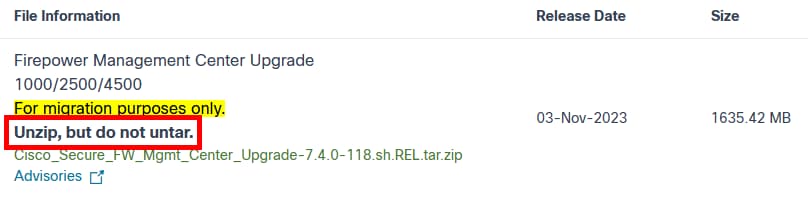
2. Extract the original image properly by right-clicking the package and only unzipping it.
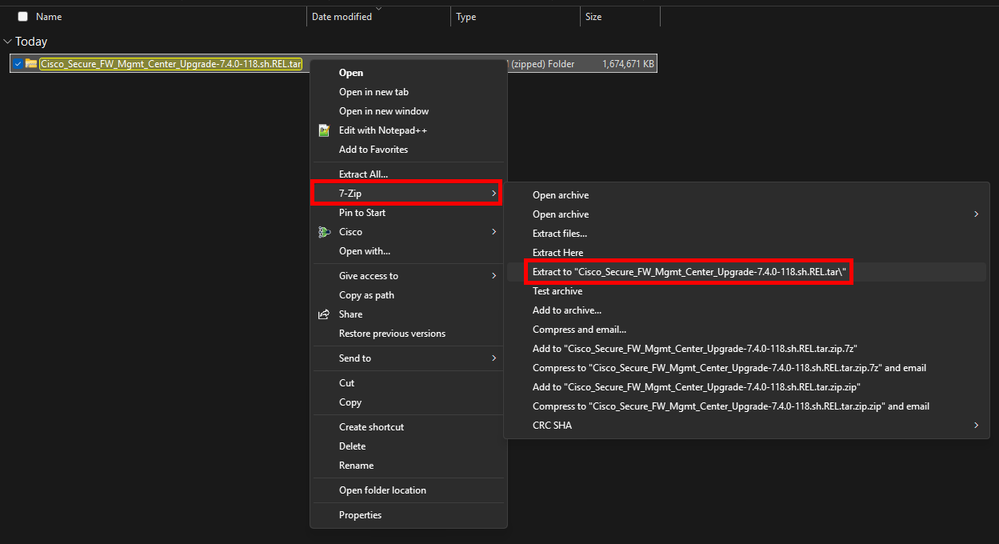
3. Unzipping the package generates a file folder that has the proper .sh.REL file required for the FMC upgrade.


4. Upload and install the Cisco_Secure_FW_Mgmt_Center_Upgrade-7.4.0-118.sh.REL file to the hardware FMC under System / Updates / Install.

Managed Device Compatibility
1. Navigate to Devices > Device Management in the FMC interface.
2. Select the FTD devices running earlier than version 7.0.
3. Upload and install FTD version 7.0.x upgrade package to maintain management combability with future 7.4.0 FMC.
4. Verify that the FMC Updates page permits you to continue with the FMC 7.4.0 upgrade.
Multi-Administrator FMC
1. Identify the username associated with the FMC alert for the stuck upgrade process.
2. Log into the FMC using the referenced user account and reset the pending upgrade process from the System / Updates page.
3. Log out and return to the intended user account in the FMC.
4. Verify that the upgrade restriction message no longer appears in the FMC Updates page.
Cause
Multiple factors contribute to the FMC migration image upgrade issues:
Incorrect upgrade file: The temporary migration image was extracted multiple times, resulting in an incorrect file being uploaded to the FMC
Version compatibility: Managed FTD devices running version earlier than 7.0 which is less than the minimum version requirement for FMC 7.4.0 management compatibility
Stuck upgrade process: A previous upgrade attempt by another FMC user is not completed, leaving the FMC in a state that prevents intended FMC users from initiating new upgrade operations
Related Content
Revision History
| Revision | Publish Date | Comments |
|---|---|---|
1.0 |
04-Nov-2026
|
Initial Release |

 Feedback
Contact Cisco
- Open a Support Case

- (Requires a Cisco Service Contract)