Troubleshoot Talos Connectivity Status
Available Languages
Contents
Introduction
This document describes how to troubleshoot TALOS connectivity issues on Secure Firewall FMC and FDM.
Prerequisites
Requirements
Cisco recommends that you have knowledge of these topics:
- Cisco Secure Firewall Management Center (FMC)
- Cisco Secure Firewall Device Manager (FDM)
- Cisco Secure Firewall Threat Defense (FTD)
Components Used
The information in this document is based on these software and hardware versions:
FMC version 7.6.0 or 7.7.0
FDM version 7.6.0 or 7.7.0
FTD version 7.6.0 or 7.7.0
The information in this document was created from the devices in a specific lab environment. All of the devices used in this document started with a cleared (default) configuration. If your network is live, ensure that you understand the potential impact of any command.
Background Information
The Cisco Secure Firewall Management Center (FMC) relies on a client-side certificate to establish a secure connection with Cisco Talos threat intelligence services. This authentication is essential for the FMC to successfully download critical updates, including URL Reputation Databases (URLDBs), Lightweight Security Packages (LSPs), and other enrichment data.
Under normal operating conditions, this certificate is pre-provisioned during software installation and is designed to renew automatically as it nears its expiration date. However, a known issue in certain versions of the Cisco secure firewall FMC software prevents the auto-renewal process from completing successfully after March 30, 2025. When this happens, the FMC cannot authenticate with Talos, leading to connectivity failures and the inability to retrieve updated threat intelligence.
Verifying Certificate Status
FMC GUI
When the client-side certificate fails to renew, the Cisco FMC triggers health alerts to notify administrators of the disruption in communication with Cisco Talos. You can monitor these alerts by navigating to System > Health and reviewing the Talos Connectivity Status section.
If your system is impacted by the certificate expiration issue, you typically see one of these error messages:
- "LSP - Failed to retrieve beaker inventory":

- "URLDB - Failed to retrieve beaker inventory":
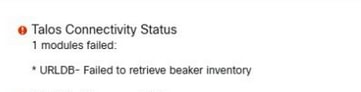
- "Enrichment - Failed to perform batch query":

FMC CLI
To determine whether your FMC appliance is affected by this issue, access expert mode and run the command to verify the current expiration date of the client-side certificate:
expert
sudo su
//type the 'FMC CLI admin password'
sudo openssl x509 --in /var/sf/beaker3/securefirewall-dev-prod-01_prod.pem --text
In the command output, find the Validity section. The Not After field indicates the certificate's current expiration date. If this date has already passed or is approaching, the renewal process has failed and a manual service restart is needed to initiate certificate renewal.
Example:
> expert
>sudo su
//type the 'FMC CLI admin password'
openssl x509 --in /var/sf/beaker3/securefirewall-dev-prod-01_prod.pem --text
Certificate:
    Data:
        Version: 3 (0x2)
        Serial Number: 46240369 (0x2c19271)
        Signature Algorithm: sha256WithRSAEncryption
        Issuer: C = US, ST = California, L = San Jose, O = Cisco Systems Inc., OU = Security, CN = Keymaster CA 2
        Validity
Not Before: Jan 30 22:32:39 2024 GMT
            Not After : Mar 30 22:32:39 2025 GMT
        Subject: CN = SFW76EVAL-prod-01, C = US, ST = California, L = San Jose, O = Cisco, OU = Security
        Subject Public Key Info:
            Public Key Algorithm: rsaEncryption
Troubleshoot
1. Identify Your Scenario
| Software Version | Associated Bug ID | Primary Cause |
| 7.6.0 or 7.7.0 | Cisco bug ID CSCwo63951 | Certificate expiration / Connectivity failure |
| 7.6.1+ or 7.7.10+ | Cisco bug ID CSCwr23982 | Registration / Licensing configuration (for example, air-gapped). |
2. Troubleshooting for Versions 7.6.0 and 7.7.0
Symptoms
Beyond the health alerts mentioned previously, you observe these behaviors:
- FDM Task Manager Errors: "Snort 3 cloud update failed: No response from the update server or connection timeout."
- Log Entries: Errors in /ngfw/var/log/messages indicating: Failed to connect to tunnel (UUID), error: Not connected.
- Status: Stagnant updates in the UI: URL Filtering Preferences screen displays "Not updated yet".
Temporary Workaround
To restore services immediately, restart the required processes via Expert Mode:
Step 1. Access the CLI and enter expert mode.
Step 2. Run the commands:
expert
sudo su
//type the 'FMC CLI admin password'
pmtool restartbyid talosAgent
pmtool restartbyid beaker3

Note: This workaround triggers a certificate valid for only five days. You must repeat this process every five days until a permanent fix is applied.
Permanent Resolution
To resolve this issue permanently, ensure these conditions are met:
Step 1. Verify Connectivity: Ensure the appliance has outbound access to https://api-sse.cisco.com. To do this, access the FMC CLI, enter expert mode, and run the commands:
Step 1.1. Test DNS Resolution:
expert
sudo su
//type the 'FMC CLI admin password'
nslookup api-sse.cisco.com
Step 1.2. Test TCP Port Access:
 expert
sudo su
//type the 'FMC CLI admin password'
telnet api-sse.cisco.com 443
Note: Verify that outbound HTTPS (TCP 443) access to https://api-sse.cisco.com is allowed through all upstream firewalls, proxies, or security devices.
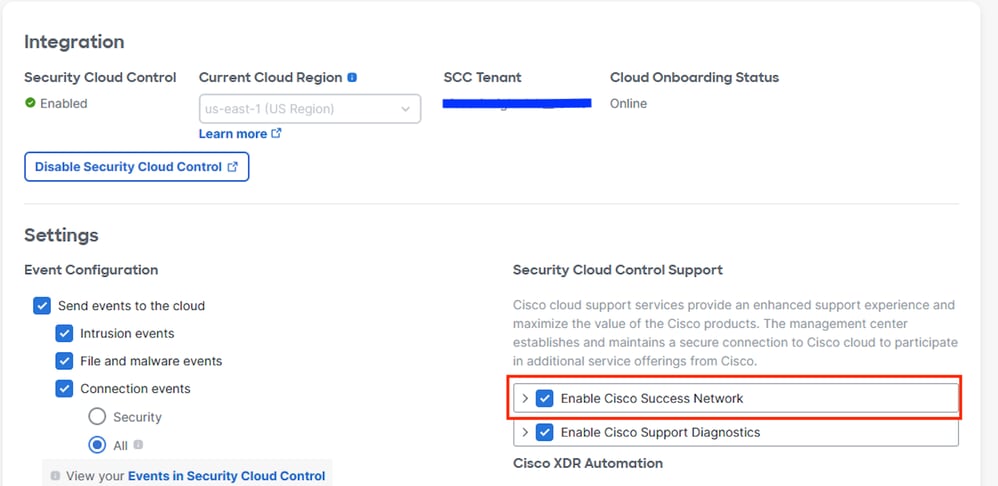
Step 2. Enable Telemetry: Make sure that Customer Success Network (CSN) telemetry is enabled so the SSEConnector can get a new certificate. To enable CSN on the FMC, these are the steps:
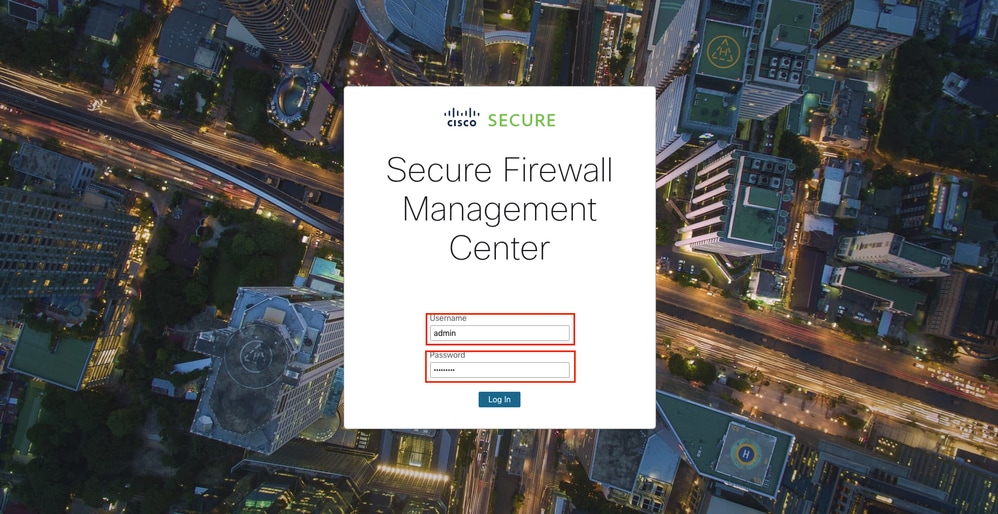
Step 2.1. Log in to the FMC GUI by opening a web browser and navigating to the FMC URL (for example: https://<FMC_IP_or_Hostname>). Enter your username and password to access the
FMC GUI interface.
Step 2.2. Navigate to Cisco Success Network Settings: From the main menu, select Integration > Cisco Security Cloud.

Step 2.3. Find and enable the option labeled Cisco Success Network: For this, check the box for Enable Cisco Success Network to activate the telemetry.
Step 3. Install Updates: Install GeoDB 2025-04-03-094 or VDB 406 (or later). This triggers the installation of a new 365-day certificate.
Note: High Availability (HA). In an HA pair, the SSEConnector process does not run on the standby unit. To update the standby FMC, perform a role switch so the standby becomes active, then install the required VDB or GeoDB update.
3. Troubleshooting for Versions 7.6.1+ and 7.7.10+
This issue typically occurs in environments without standard Cisco Security Cloud (CSC) registration, such as those using Evaluation Licenses, SSM On-Prem, PLR or SLR.
Impacted Features
- Automatic/manual Lightweight Security Package (LSP) updates.
- URL filtering database content updates and cloud lookups.
- Talos enrichment of connection events.
Recommended Actions
1. Standard Environment: Register the FMC via Integration > Cisco Security Cloud. Registration automatically triggers a new certificate download within 30 minutes.
2. Manual Updates: If automatic updates fail, download the latest LSP manually from software.cisco.com and install it directly on the FMC.
3. Air-Gapped Environments: If your network has no Internet access, the Talos Connectivity Status health module becomes irrelevant. In this scenario, disable this specific module within your applied health policy.
Related Information
- For additional assistance, please contact the Cisco Technical Assistance Center (TAC). A valid support contract is required: Cisco Worldwide Support Contacts.
-
Cisco Support & Downloads: Cisco Technical Support & Downloads
Revision History
| Revision | Publish Date | Comments |
|---|---|---|
1.0 |
07-Jul-2026
|
Initial Release |

 Feedback
Contact Cisco
- Open a Support Case

- (Requires a Cisco Service Contract)