Configure FMC to Send Audit Logs to a Syslog Server
Available Languages
Introduction
This document describes how to configure Secure Firewall Management Center Audit Logs to be sent to a Syslog server.
Prerequisites
Requirements
Cisco recommends that you have knowledge of these topics:
- Basic Usability of the Cisco Firewall Management Center (FMC)
- Understanding of Syslog protocol
Components Used
The information in this document is based on these software and hardware versions:
- Cisco Firewall Management Center Virtual v7.4.0
- Third Party Syslog Server
The information in this document was created from the devices in a specific lab environment. All of the devices used in this document started with a cleared (default) configuration. If your network is live, ensure that you understand the potential impact of any command.
Background Information
The Secure Firewall Management Center records user activity in read-only audit logs. Starting Firepower version 7.4.0, you can stream configuration changes as part of audit log data to syslog by specifying the configuration data format and the hosts. Streaming audit logs to an external server allows you to conserve space on the management center, as well, it is useful when you need to provide audit trail of configuration changes.
In case of high availability, only the active management center sends the configuration changes syslog to the external syslog servers. The log file is synchronized between the HA pairs so that during a failover or switchover, the new active management center would resume sending the change logs. In case the HA pair is working in split-brain mode, both management centers in the pair sends the config change syslog to the external servers.
Configure
Step 1. Enabled Audit Logs to Syslog
To enable so FMC sends audit logs to a syslog server, navigate to System > Configuration > Audit Log > Send Audit Log to Syslog > Enabled.
This image shows how to enable the Send Audit Log to Syslog feature:
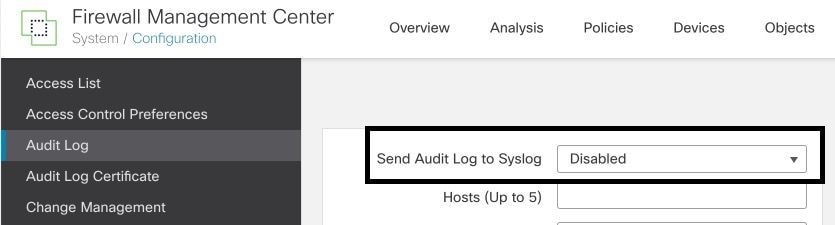
The FMC can stream audit log data to a maximum of five syslog servers.
Step 2. Configure Syslog Information
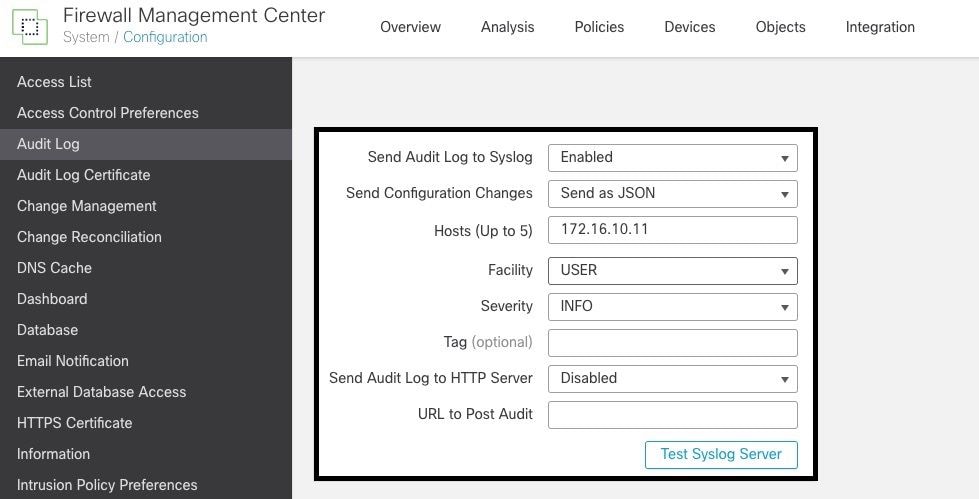
After the service have been enabled, you can configure the syslog information. To configure the syslog information, navigate to System > Configuration > Audit Log.
Depending on your requirements, select Send Configuration Changes, Hosts, Facility, Severity.
This image shows the parameters to configure Syslog Server for Audit Logs:
Verify
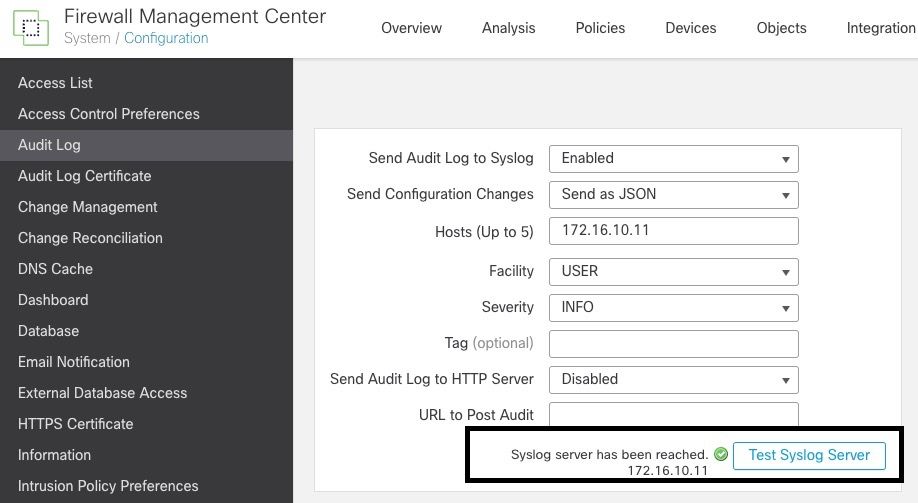
To verify if the parameters are correctly configured, select System > Configuration > Audit Log > Test Syslog Server.
This image shows a successful Syslog Server test:
Another way to verify that syslog is working, check the syslog interface to confirm the audit logs are being received.
This image shows some examples of the audit logs received by Syslog Server:
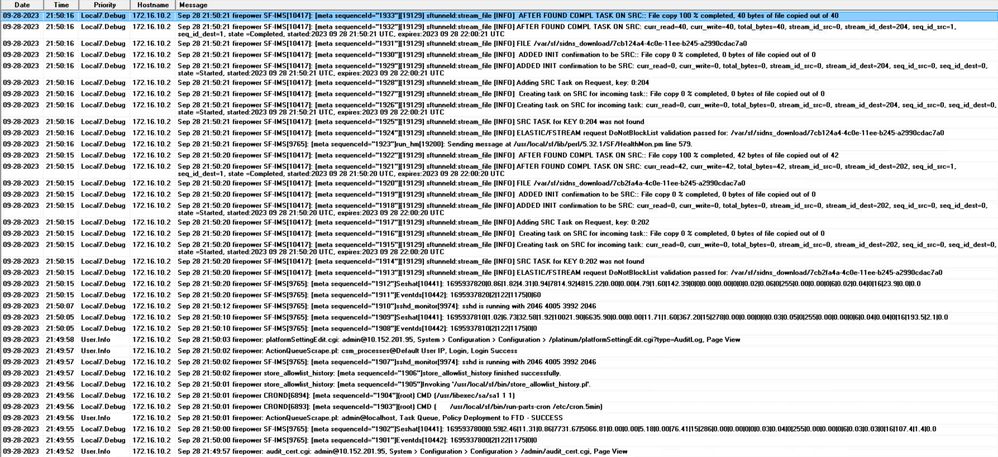

Here are some examples of the configuration changes you can received in your syslog server:
2023-09-29 16:12:18 localhost 172.16.10.2 Sep 29 16:12:23 firepower: [FMC-AUDIT] mojo_server.pl: admin@10.26.166.110, /ui/ddd/, Page View
2023-09-29 16:12:20 localhost 172.16.10.2 Sep 29 16:12:25 firepower: [FMC-AUDIT] sfdccsm: admin@10.1.1.10, Devices > NAT, Page View
2023-09-29 16:12:23 localhost 172.16.10.2 Sep 29 16:12:28 firepower: [FMC-AUDIT] sfdccsm: admin@10.1.1.10, Devices > NAT > NGFW NAT Policy Editor, Page View
2023-09-29 16:13:39 localhost 172.16.10.2 Sep 29 16:13:44 firepower: [FMC-AUDIT] sfdccsm: admin@10.1.1.10, Objects > Object Management > NetworkObject, create csm-lab
2023-09-29 16:14:32 localhost 172.16.10.2 Sep 29 16:14:37 firepower: [FMC-AUDIT] sfdccsm: admin@10.1.1.10, Devices > NAT > NAT Policy Editor, Save Policy NATPolicy
2023-09-29 16:14:32 localhost 172.16.10.2 Sep 29 16:14:37 firepower: [FMC-AUDIT] sfdccsm: admin@10.1.1.10, Devices > NAT > NGFW NAT Policy Editor, Page View
2023-09-29 16:14:54 localhost 172.16.10.2 Sep 29 16:14:59 firepower: [FMC-AUDIT] ActionQueueScrape.pl: csm_processes@Default User IP, Login, Login Success
2023-09-29 16:14:55 localhost 172.16.10.2 Sep 29 16:15:00 firepower: [FMC-AUDIT] ActionQueueScrape.pl: admin@localhost, Task Queue, Successful task completion : Pre-deploy Global Configuration Generation
Troubleshoot
After the configuration has been applied, make sure the FMC can communicate with syslog server.
The system uses ICMP/ARP and TCP SYN packets to verify that the syslog server is reachable. Then, the system by default uses port 514/UDP to stream audit logs and TCP port 1470 if you secure the channel.
To configure a packet capture on FMC, apply these commands:
- tcpdump. This command captures the traffic on the network.
> expert
admin@firepower:~$ sudo su
Password:

root@firepower:/Volume/home/admin# tcpdump -i eth0 host 172.16.10.11 and port 514
Additionally, to test ICMP reachability, apply this command:
- ping. This command helps to confirm if a device is reachable or not and to know the latency of the connection.
> expert
admin@firepower:~$ sudo su
Password:
root@firepower:/Volume/home/admin#ping 172.16.10.11
PING 172.16.10.11 (172.16.10.11) 56(84) bytes of data.
64 bytes from 172.16.10.11: icmp_seq=1 ttl=128 time=3.07 ms
64 bytes from 172.16.10.11: icmp_seq=2 ttl=128 time=2.06 ms
64 bytes from 172.16.10.11: icmp_seq=3 ttl=128 time=2.04 ms
64 bytes from 172.16.10.11: icmp_seq=4 ttl=128 time=0.632 ms
Related Information
- Technical Support & Documentation - Cisco Systems
- Cisco Secure Firewall Management Center Administration Guide
Revision History
| Revision | Publish Date | Comments |
|---|---|---|
2.0 |
05-Jun-2026
|
Initial Release, reformatting. |
1.0 |
03-Oct-2023
|
Initial Release |

 Feedback
Contact Cisco
- Open a Support Case

- (Requires a Cisco Service Contract)