Troubleshoot SAML Azure Group Matching Failure for External Authentication
Available Languages
Introduction
This document describes how to troubleshoot Azure Active Directory SAML group claim failures for external authentication.
Prerequisites
External authentication is on Cisco Secure Email Gateway, Cisco Secure Email, and Web Manager appliances.
Requirements
Cisco recommends that you have knowledge of these topics:
-
SAML 2.0 SSO is already configured and functional for at least one test account.
-
Group mapping is enabled on the appliance and configured to use the groups claim: Microsoft Schemas - Identity Claims Group.
-
Access to Entra ID to modify the application’s group claims configuration.
Components Used
-
Products: Cisco Secure Email Gateway (ESA) and Cisco Secure Email and Web Manager (SMA), when configured for SAML 2.0 Single Sign-On (SSO).
-
Identity provider (IdP): Microsoft Entra ID (Azure AD).
-
Authorization method: Appliance role/privilege assignment based on SAML group claims (group mapping).
The information in this document was created from the devices in a specific lab environment. All of the devices used in this document started with a cleared (default) configuration. If your network is live, ensure that you understand the potential impact of any command.
Symptoms
-
SSO succeeds when a user is explicitly mapped (for example, by user ID), but fails when authorization relies on group mapping.
-
SSO logs show group attribute or group mapping mismatch errors.
Cause
When a user is a member of more than 150 groups, Microsoft Entra ID does not emit the expected groups claim (Microsoft Schemas - Identity Claims Group) in the SAML assertion. Instead, it emits Microsoft Schemas - Claims Group, which the appliance cannot use for role mapping.
Troubleshooting
Applies to: SAML 2.0 SSO configured with Microsoft Entra ID (Azure AD) where the appliance uses SAML group claims for authorization (group mapping).
Verify SSO Logs
On the Cisco Secure Email appliance, collect Single Sign-On (SSO) authentication attempt logs from the gui logs. For example, run the command:
grep -i sso gui_logsIf the issue is related to group mapping in the Identity Provider (IdP) assertion, the SSO logs can show these error messages:
grep -i sso gui_logs
"An error occurred during SSO authentication. Details: Please check the configured Group Attributes, it does not match the Attributes from IDP assertion response"
"An error occurred during SSO authentication. Details: User: XXXXX Authorization failed on appliance, while fetching user privileges from group mapping."
"An error occurred during SSO authentication. Details: Please check the configured Group Mapping values, it does not match the Attributes values from IDP response."
Capture SAML Response
To confirm whether the issue is caused by a high number of group memberships, collect a Hypertext Transfer Protocol (HTTP) Archive (HAR) file during a failed SAML authentication attempt. Use browser developer tools or an approved browser extension. Do not use public online decoders or third-party upload tools to inspect the SAML response.
Procedure:
-
Open the browser developer tools and start a network capture.
-
Navigate to the Cisco Secure Email Gateway or Cisco Secure Email and Web Manager web interface.
-
Initiate the SAML Single Sign-On (SSO) flow and reproduce the authorization failure.
-
Export the captured session as a HAR file.

Note: The exact steps vary by browser. Use a supported browser method that keeps the SAML response local to the workstation.
Analyze HAR File
Use the HAR file to verify which group attribute Microsoft Entra ID returns in the SAML assertion.
-
Open the HAR file in browser developer tools.
-
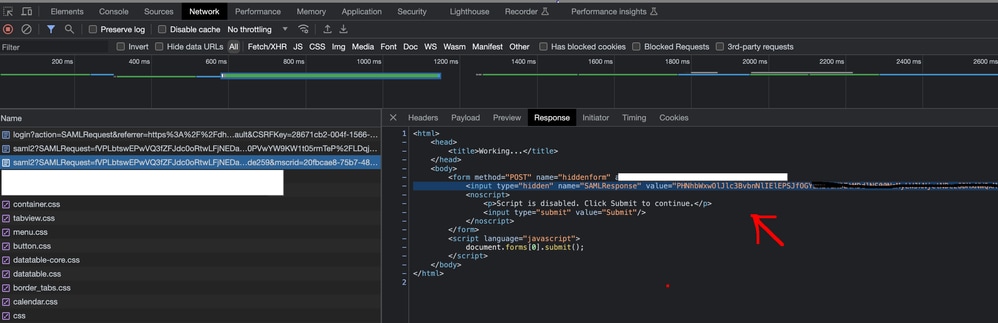
Locate the SAML response request, as shown in Image 1.
-
Copy the value of the SAMLResponse field. In Image 1, identify the encoded value between the quotation marks after value=.
-
Decode the Base64-encoded SAMLResponse value by using an approved offline method. For example, use a local command-line utility:
# macOS/Linux printf '%s' "<PASTE_SAMLRESPONSE_VALUE_HERE>" | base64 --decode > saml_response.xml # Windows PowerShell [System.Text.Encoding]::UTF8.GetString([System.Convert]::FromBase64String('<PASTE_SAMLRESPONSE_VALUE_HERE>')) | Out-File -Encoding utf8 saml_response.xml -
Review the decoded XML and verify whether Microsoft Entra ID returns the expected groups attribute or the alternate link attribute.
Identify Azure Group Claim Behavior
In a working scenario, the decoded SAML response contains the expected groups attribute: Microsoft Schemas - Identity Claims Groups . When this issue occurs, Microsoft Entra ID returns Microsoft Schemas - Claims Groups instead of the expected groups attribute.
<Attribute Name=http://schemas.microsoft.com/claims/groups.link>This behavior occurs because Microsoft Entra ID limits the number of groups emitted in the SAML groups claim. If the SAML assertion contains more than 150 group memberships, Azure AD returns the groups.link attribute instead of the groups attribute. The Cisco Secure Email appliance cannot use groups.link for role mapping, so authorization fails.
Resolution
Modify the Microsoft Entra ID application so that the SAML assertion returns a usable groups claim for the appliance. The objective is to prevent Azure AD from returning Microsoft Schemas - Claims Groups instead of the expected groups attribute.
-
In Azure AD, open the enterprise application used for Cisco Secure Email Gateway or Cisco Secure Email and Web Manager SAML authentication.
-
Navigate to the SAML token attributes or group claims configuration.
-
Change the group claims setting to Groups assigned to the application, if that setting meets the deployment requirements.
-
Ensure the affected administrator account is assigned only to the required groups for appliance authorization.
-
Save the Azure AD configuration and start a new SAML log in attempt.
-
On the appliance, run the command grep -i sso gui.current from /data/pub/gui_logs and confirm that the previous authorization errors no longer occur.
-
Validate the decoded SAML response and confirm that Azure AD returns Microsoft Schemas - Identity Claims Groups instead of Microsoft Schemas - Claims Groups.
Note: If the required Azure AD group claims configuration is not available or does not meet the deployment requirements, contact the Microsoft Entra ID administrator or Microsoft support team.
Related Information
Revision History
| Revision | Publish Date | Comments |
|---|---|---|
1.0 |
13-Jul-2026
|
Initial Release |

 Feedback
Contact Cisco
- Open a Support Case

- (Requires a Cisco Service Contract)