Introduction
This document describes how to configure Universal ZTNA with Secure Access and virtual FTD managed by an On-Prem virtual FMC.
Prerequisites
- Firewall Management Center (FMC) and Firewall Threat Defense (FTD) needs to be deployed using 7.7.10 or higher software version.
- Firewall Threat Defense (FTD) must be managed by Firewall Management Center (FMC)
- Firewall Threat Defense (FTD) must be licensed with crypto (strong encryption has to be enabled with export-feature enabled), IPS and Threat licenses required for security contorls
- Basic configuration on Firewall Threat Defense (FTD) has to be performed from Firewall Management Center (FMC) such as interface, routing and so on.
- DNS configuration needs to be applied on device from FMC’s to resolve app’s FQDN
- Cisco Secure Client version needs to be 5.1.10 or higher
- Security cloud control is provisioned to customers with Firewall and Secure Access Micro Apps and UZTNA feature flags enabled
Requirements
- All Secure Firewall Management Center (FMC) including cdFMC and Firewall Threat Defense (FTD) devices must run software version 7.7.10 or later.
- Firewall Threat Defense (FTD) must be managed by Firewall Management Center; local manager Firewall Defense Manager (FDM) is not supported
- All Firewall Threat Defense (FTD) devices must be configured for routed mode; transparent mode is not supported.
- Clustered devices are not supported.
- High Availability (HA) devices are supported; they are displayed as one entity.
- Secure Client version 5.1.10 or later
Components Used
The information in this document is based on
- Security Cloud Control (SCC)
- Secure Firewall Management Center (FMC) version 7.7.10
- Secure Firewall Threat Defense (FTD) virtual -100 version 7.7.10
- Secure Client for Windows version 5.1.10
- Secure Access
The information in this document was created from the devices in a specific lab environment. All of the devices used in this document started with a cleared (default) configuration. If your network is live, ensure that you understand the potential impact of any command.
Network Diagram
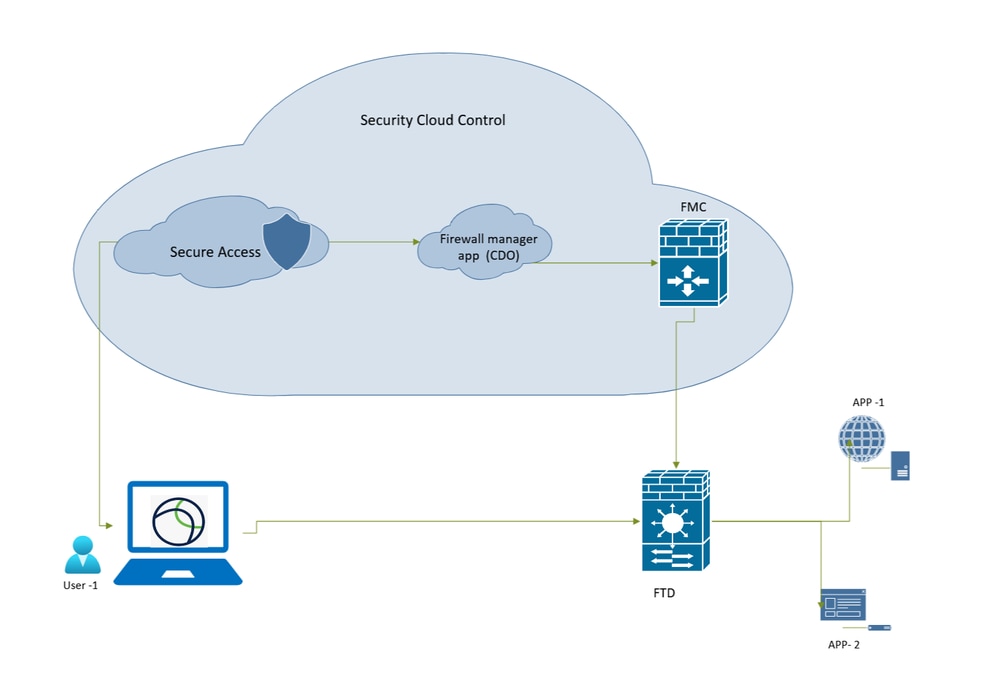
Secure Access - Network Topology
Brackground Information
Supported Devices
Supported Secure Firewall Threat Defense models:
- FPR 1150
- FPR 3105, 3110,3120,3130,3140
- FPR 4115,4125,4145,4112
- FPR 4215,4225,4245
- Firewall Threat Defense (FTD) virtual with minimum 16 CPU cores
Limitations
- Object sharing
- IPv6 is not supported.
- Only global VRF is supported.
- Universal ZTNA policies are not enforced on the site-to-site tunnel traffic to a device .
- Clustered devices are not supported.
- FTDs deployed as containers on 4K and 9K firepower series are not supported
- Universal ZTNA sessions do not support jumbo frames
Configure
Check FMC Version
Verify the Firewall Management Center and Firewall FTD running on supported software version for universal ZTNA (can be 7.7.10 or higher):
- Click on
?( right top corner) and click on About
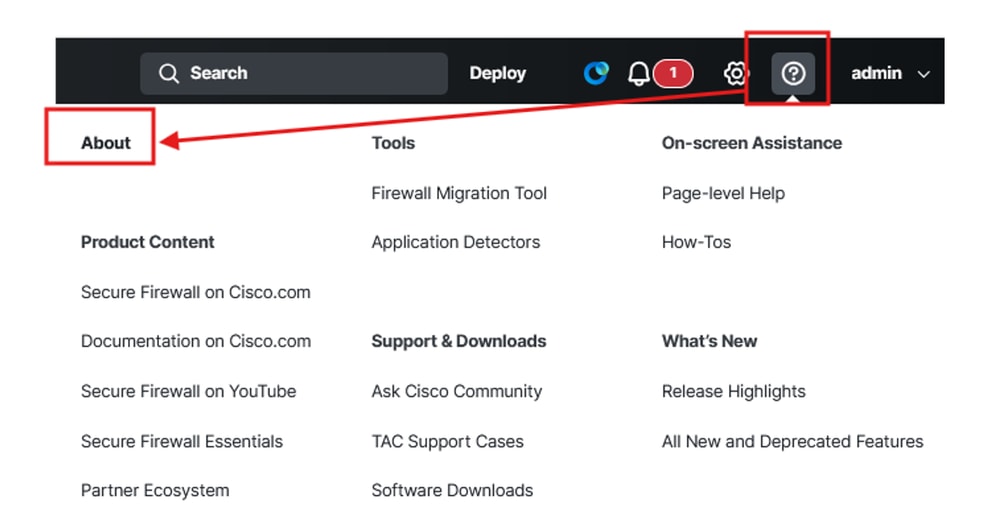
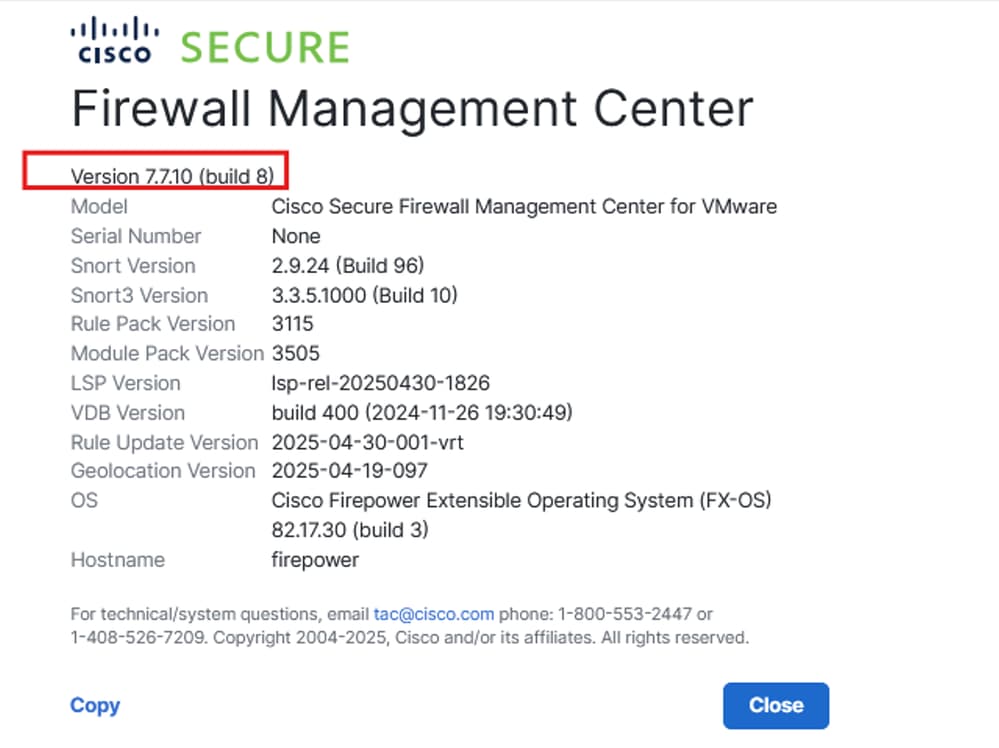
Secure Firewall Management Center - Software Version
Check FTD Version
Navigate to FMC UI:
- Click on
Devices > Device Management
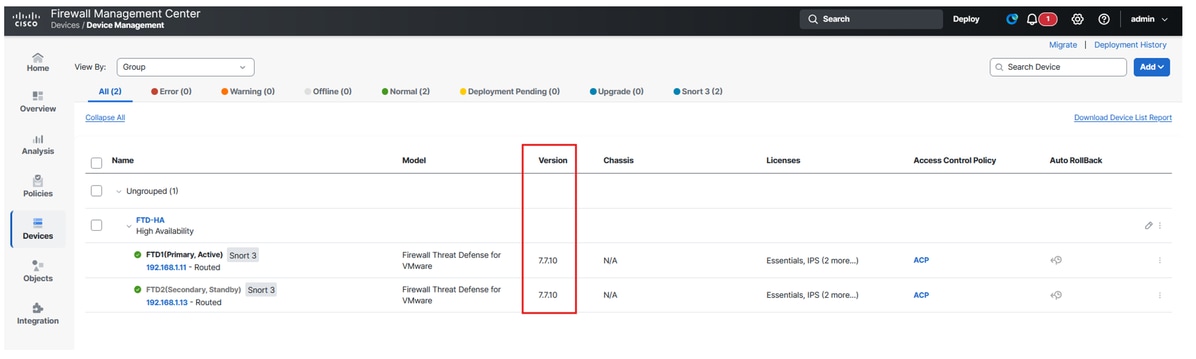
Secure Firewall Threat Defense - Software Version
Verify FTD Licenses
- Click on
Setting Icon > Licenses > Smart Licenses
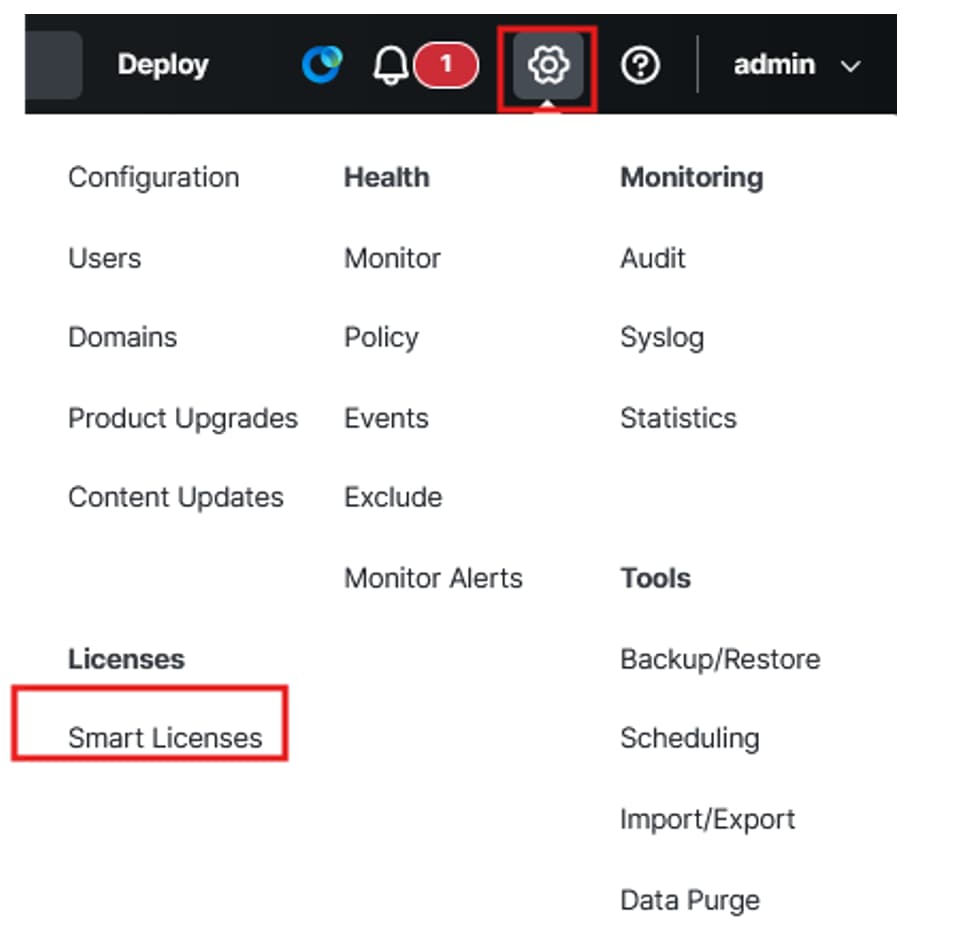
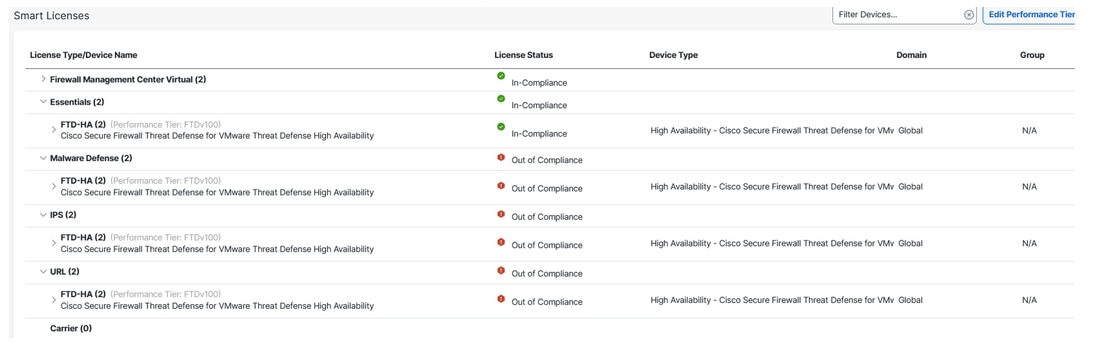
Secure Firewall Threat Defense - Smart Licesnes
Check Platform Settings an DNS Properly Configured
Logging to the FTD via CLI:
- Run the command to verify if DNS is configured:
show run dns
In the FMC:
- Click on
Devices > Platform Settings , edit or create a new policy
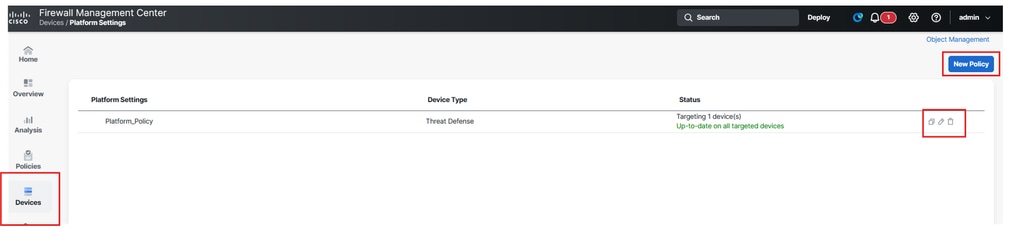
Secure Firewall Threat Defense - Platform Policy
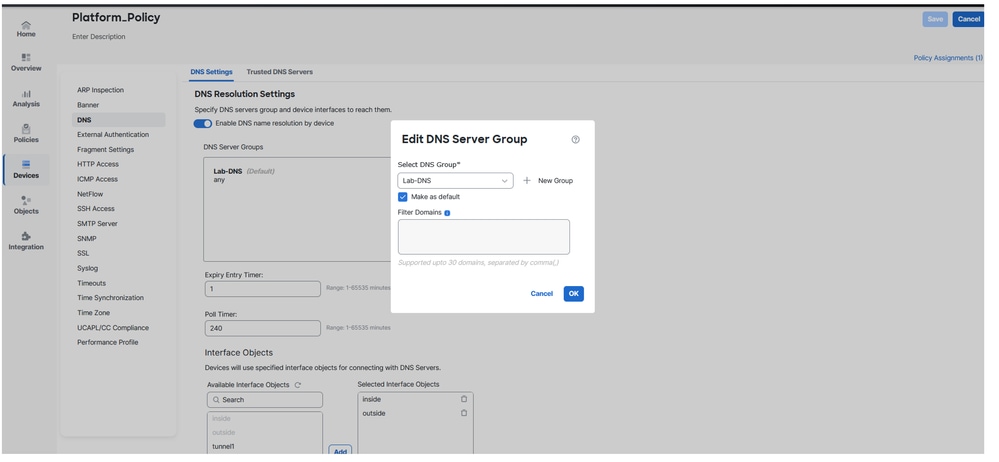
Secure Firewall Threat Defense - DNS Configuration
Verify via FTD cli that you can ping the private resources IP address and FQDN (if you want to access PR using its FQDN).

Create a Security Cloud Control Tenant on CDO

Note: If you already have a SCC tenant configured then you do not have to create a new tenant.
Navigate to Security Cloud Control:
- Click on
Organization > Create new organization

Secure Cloud Conrol - Organization
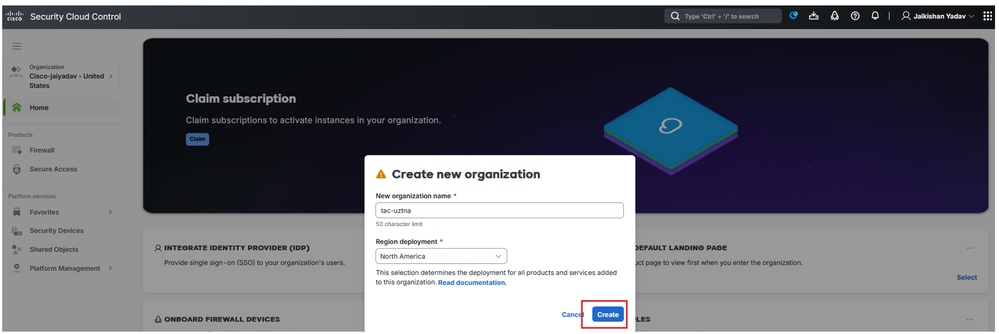
Secure Cloud Conrol - Organization Creation
Once the SCC tenant is created , gather the tenant information to enable Firewall and Secure Access microapp and to enable uZTNA.
Ensure SCC Firewall General Settings are Configured
Navigate to CDO/SCC:
- Click on
Administration > General Settings
- Make sure
Auto onboard On-Prem FMCs from Cisco Security Cloud option is enabled.
Note: The user trying to access the Secure Access MicroApp must have Secure AccessSecurity Cloud Control
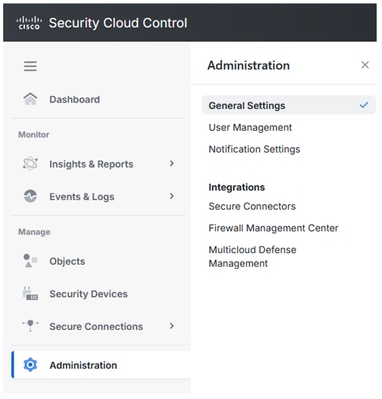
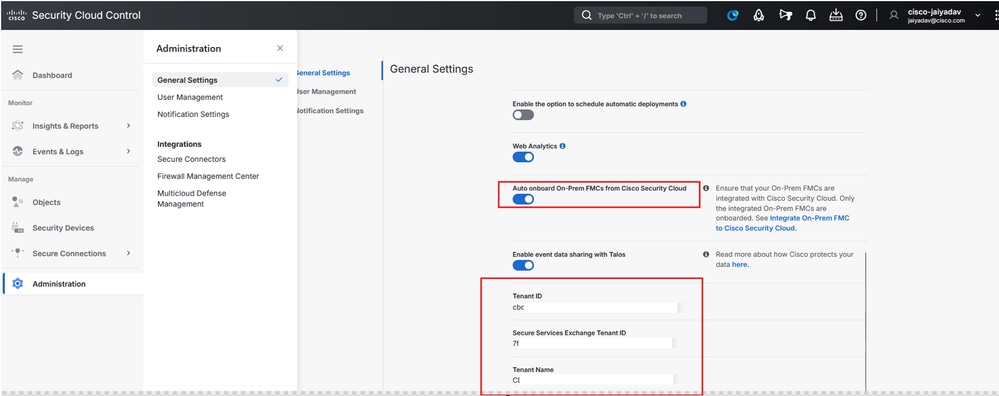
Secure Cloud Conrol - Organization Details
Verify your Secure Access Tenant and Security Control Firewall Management Base Integration
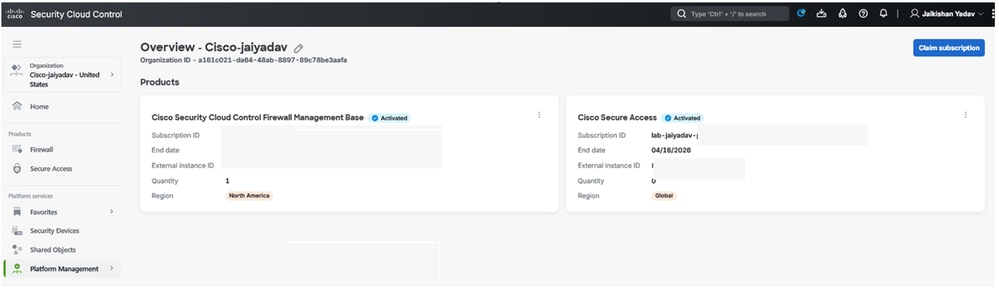
Secure Cloud Conrol - Secure Access Activation
Once you complete step Create a Security Cloud Control Tenant on CDO and Create a Security Cloud Control Tenant on CDO then you can be able to see Firewall and Secure Access micro apps on SCC dashboard:
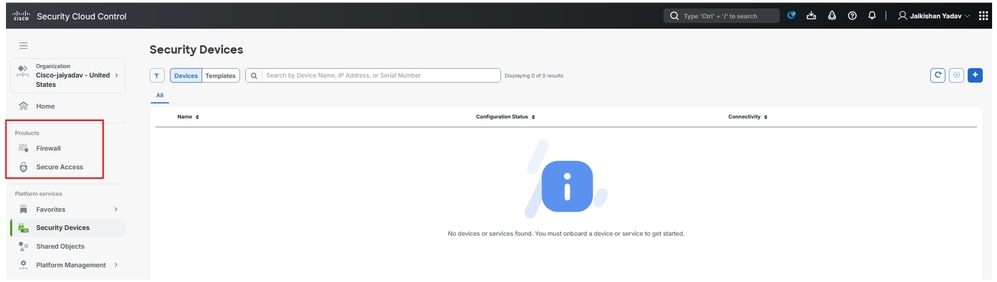
Secure Cloud Conrol - Micro Apps
Generate Firewall Threat Defense (FTD) CA signed certificate
Note: You can also user FTD self-signed certificate FTD Certificates ( refer Generating Self-Signed Internal and Internal CA Certificates section). Cerficiate must in PKCS12 format and must be present in user machine store under trusted root CA.
In order to generate a CA signed certificate using FTD in build openssl feature:
- Navigate to FTD
- Run
expert command
- Generate CSR and key using openssl
openssl req -newkey rsa:2048 -nodes -keyout cert.key -out cert.csr
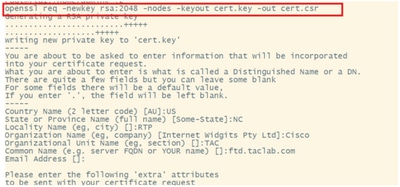
Certificate Signing Request
openssl pkcs12 -export -out ftdcert.p12 -in cert.crt -inkey cert.key
- Export the certificate using SCP or other tool.
Onboard On-prem Firewall Management Center to Security Cloud Control
Navigate to the FMC:
- Click on
Integration > Cisco Security Cloud
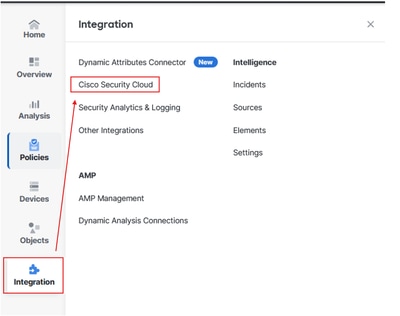
Firewall Mangement Center and SCC Integration
- Choose the Cloud Region and then click on
Enable Cisco Security Cloud
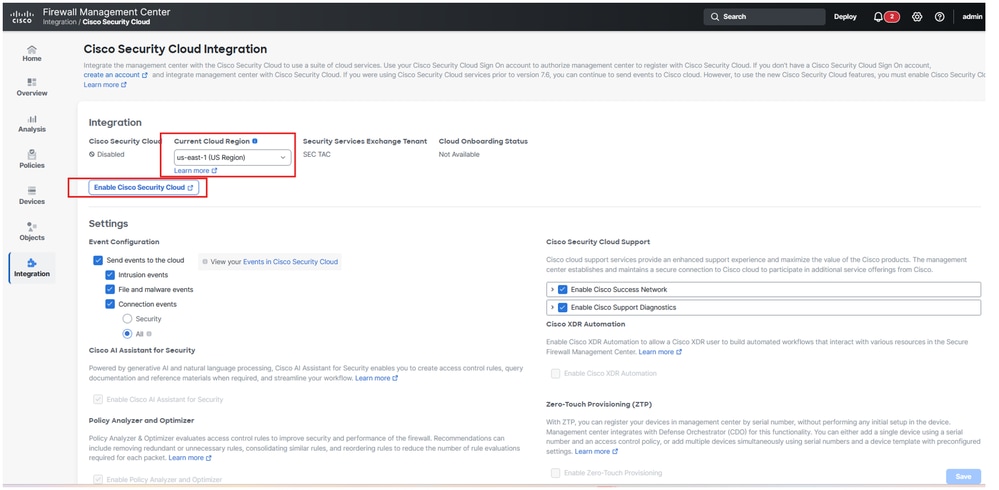
Firewall Mangement Center Onboarding to SCC
It will open a new browser tab, on the new tab:
- Click on
Continue to Cisco SSO
Note: Make sure, you are logout from SCC and do not have any other tabs open.
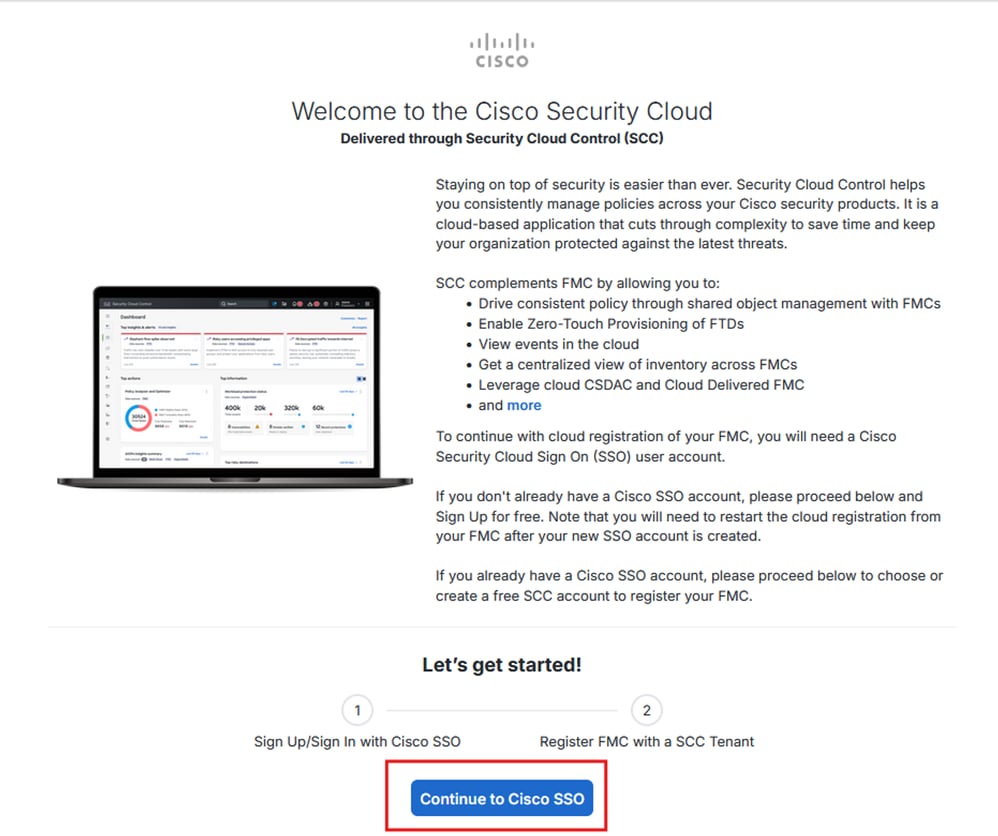
Firewall Mangement Center Onboarding to SCC
- Choose your SCC tenant and click on
Authorize FMC
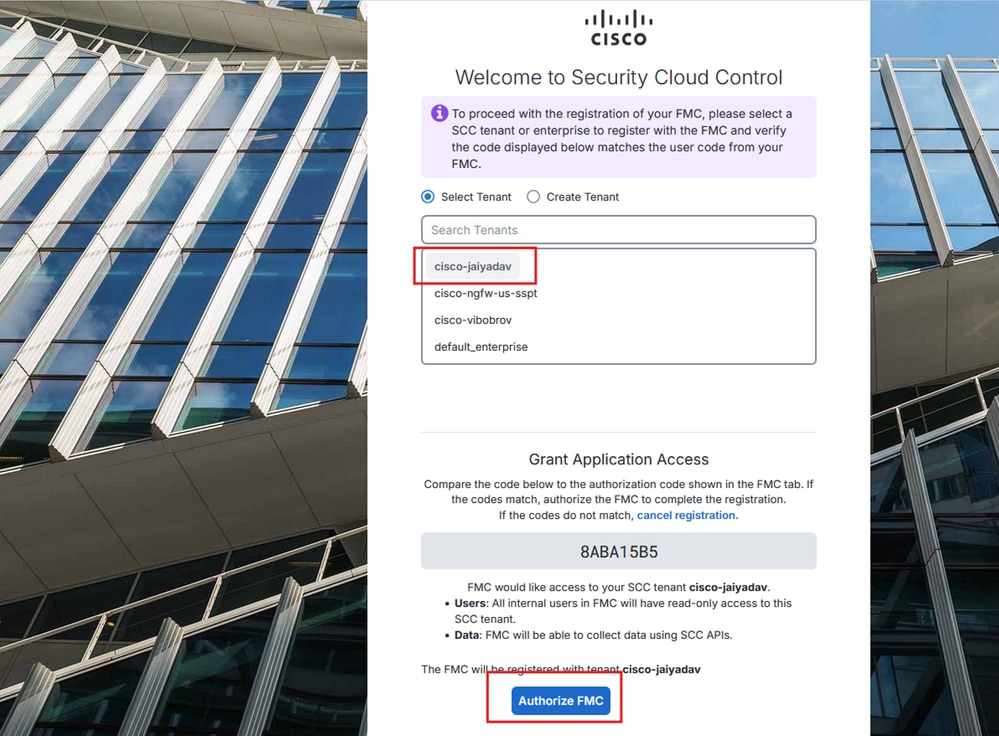
Firewall Mangement Center Onboarding to SCC
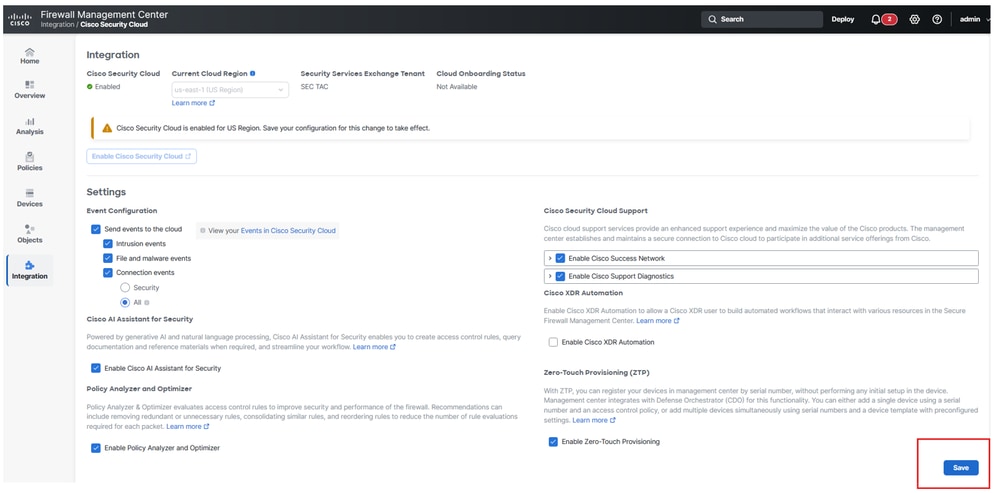
Firewall Mangement Center Onboarding to SCC
The status of Cloud Onboarding Status must change from Not Available to Onboarding then Online.
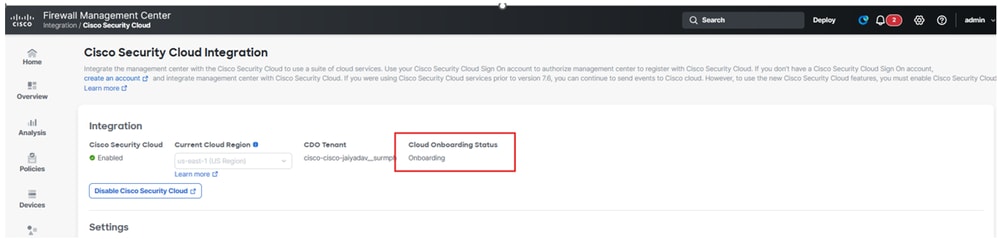
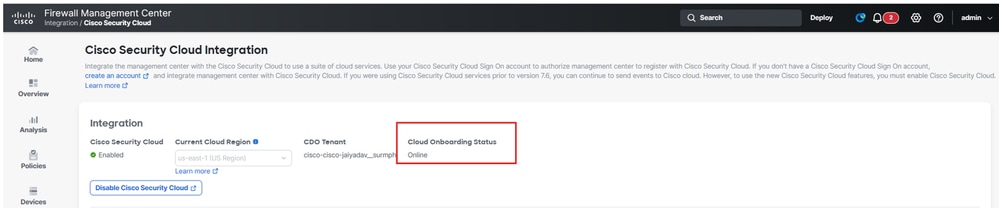
Firewall Mangement Center Onboarding Status
- Navigate to SCC and check the FTD status under
Platform Services > Security Devices
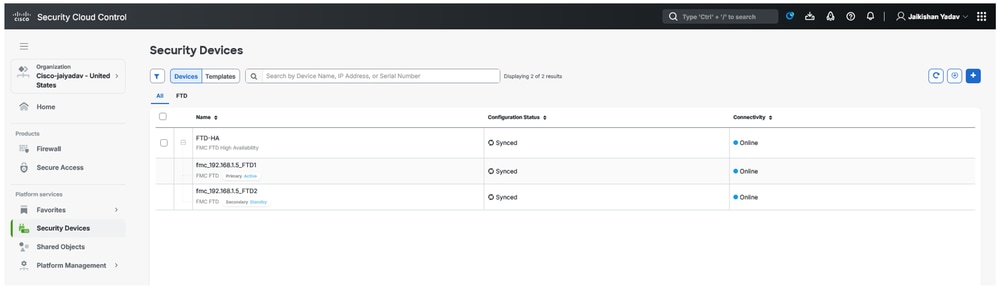
Secure Firewall Threat Defense Staus on SCC
Enroll Universal Zero Trust Network Access (uZTNA) settings on FTD
Navigate to SCC:
- Click on
Platform Services > Security Devices > FTD > Device Management > Universal Zero Trust Network Access
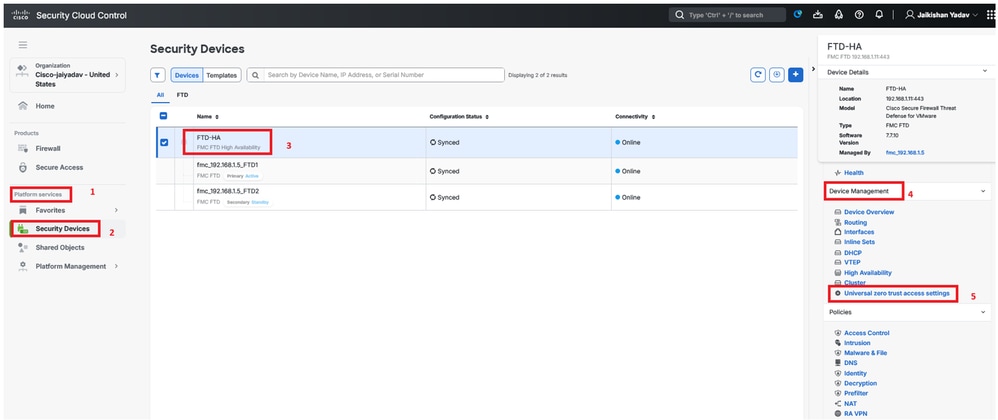
Secure Firewall Threat Defense - Universal ZTNA Configuration
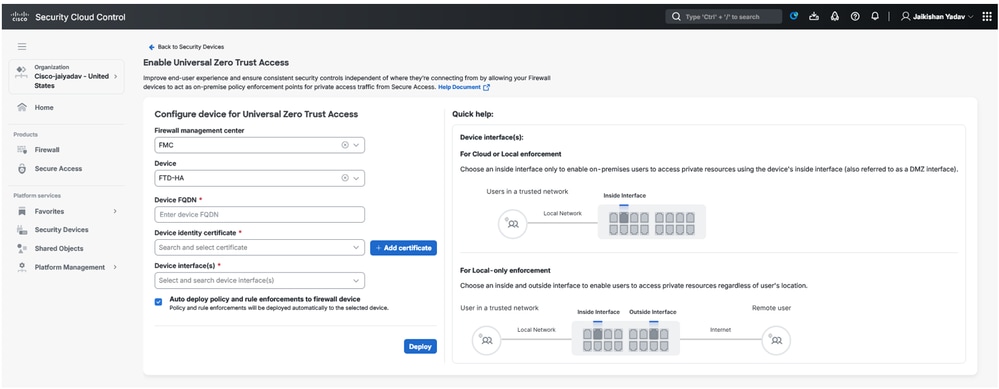
Secure Firewall Threat Defense - Universal ZTNA Configuration
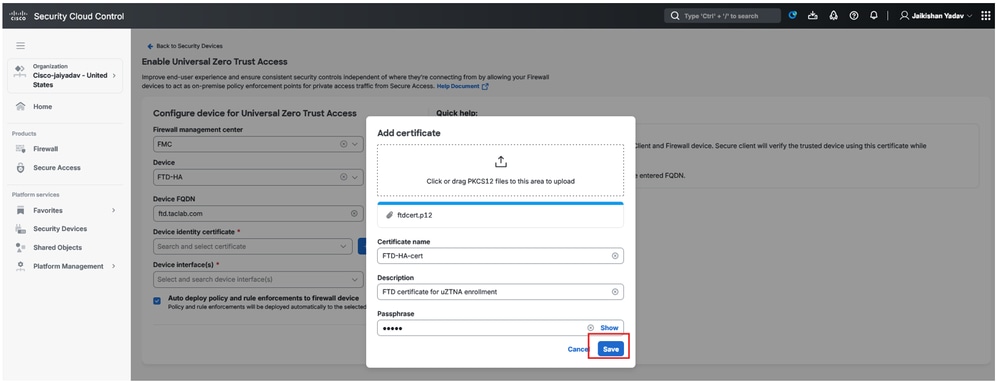
Secure Firewall Threat Defense - Universal ZTNA Configuration
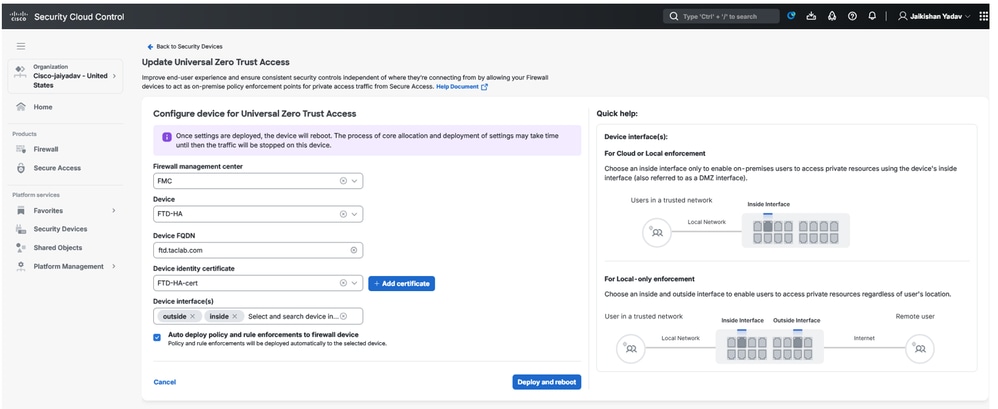
Secure Firewall Threat Defense - Universal ZTNA Configuration
Note: When you enable uZTNA on FTD HA , it will deploy the changes and reboot both Firewall Threat Defense (FTD) units at the same time. Make sure to schedule a proper maintenance window.
- Click on
Workflow to check the logs
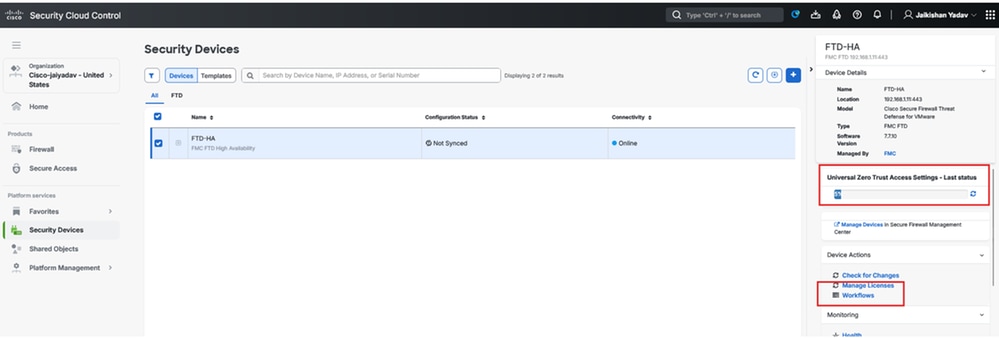
Secure Firewall Threat Defense - Universal ZTNA Configuration Status
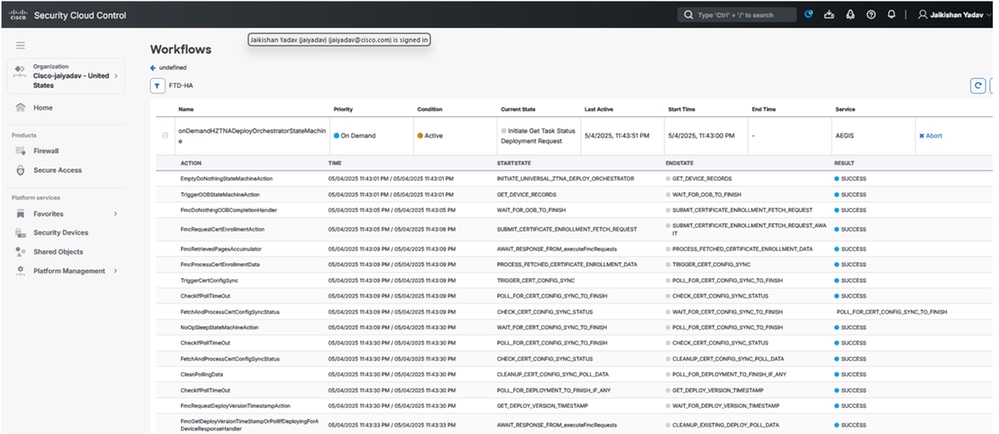
Security Cloud Control Workflow
Under Transcript Details you are able to see Policy Deployment Status and changes on FMC.
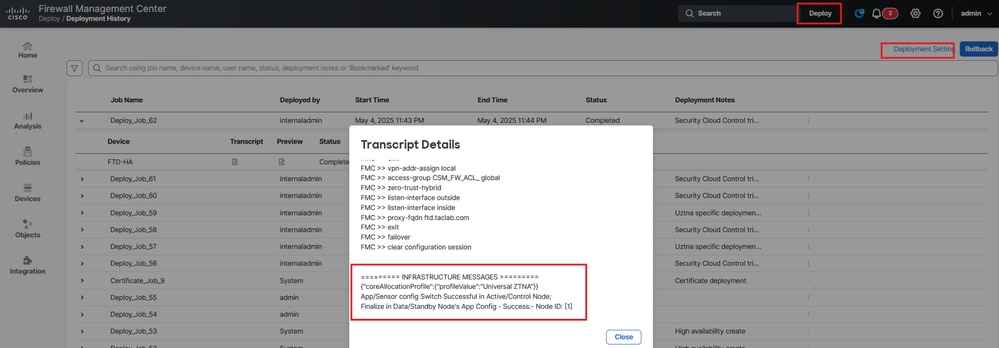
Secure Firewall Management Center - Policy Deployment Status
Enroll the client with uZTNA
Secure Access Configuration
Note: You can use SSO or a Certificate based ZTA enrollment. The nexts, are the steps for Certificate based ZTA enrollment
Navigate to Secure Access Dashboard:
- Click on
Connect > End User Connectivity > Zero Trust Access
- Click on
Manage
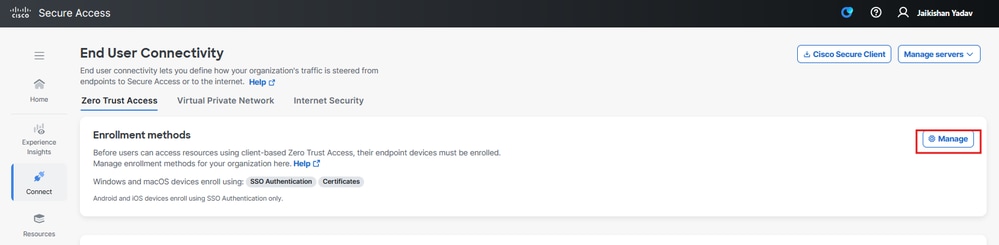
Secure Access - ZTA Certificate Enrollement
- Upload the Root CA certificate and download enrollment configuration file
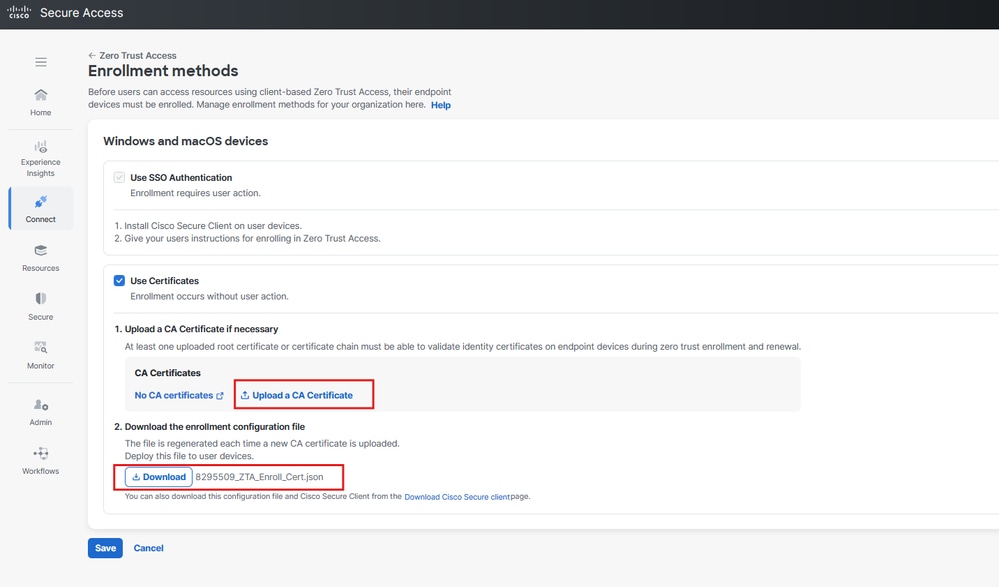
Secure Access - ZTA Certificate Enrollement
Client Configuration
Copy the enrollment configuration file to C:\ProgramData\Cisco\Cisco Secure Client\ZTA\enrollment_choices
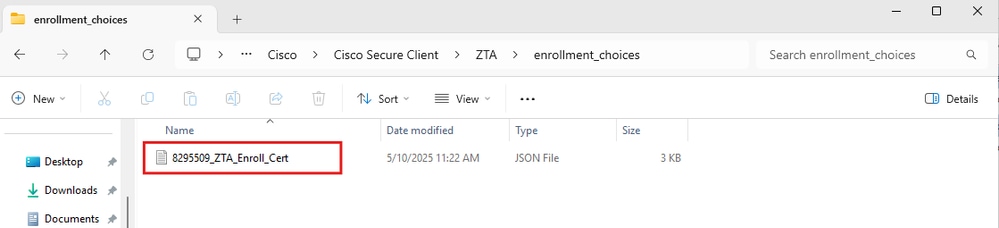
- Create a Client certficiate, which must have UPN in SAN filed
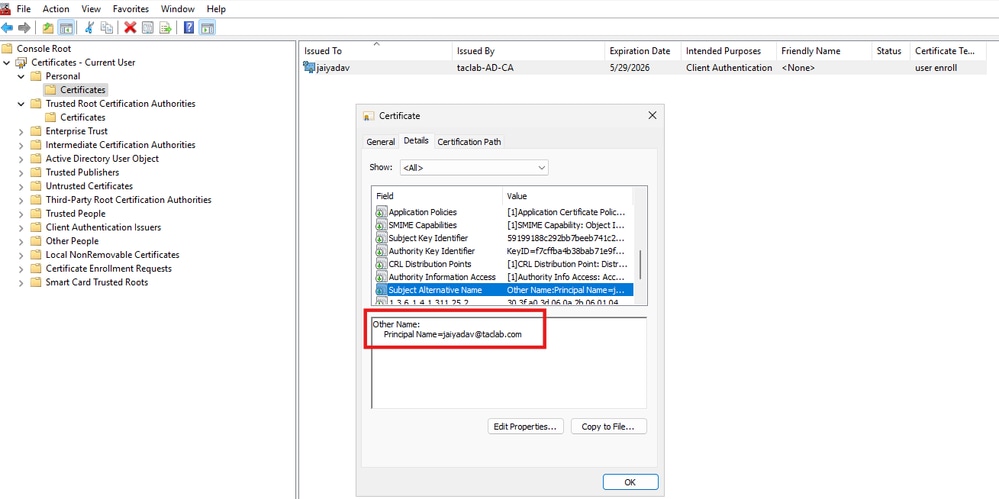
Certificate Installation
- Start/ Restart
Cisco Secure Client - Zero Trust Access Agent
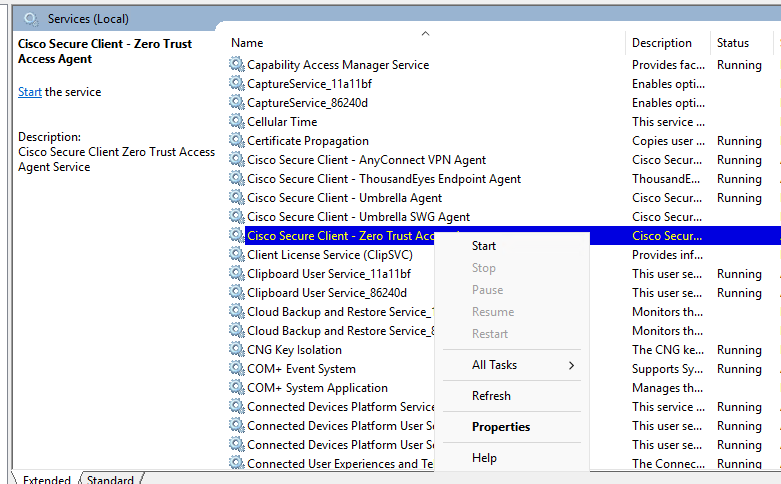
Windows Services
- Verfiy the ZTA module status
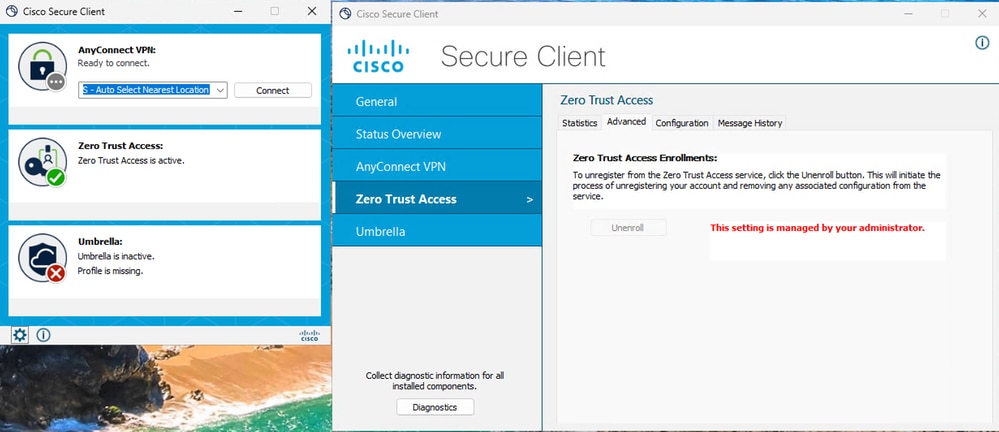
Secure Access - ZTA Certificate Enrollement Status
Verify
Use the next command to verify the uZTNA configuration on Firewall Threat Defense (FTD):
show allocate-core profile
show running-config universal-zero-trust
Related Information

 Feedback