Configure ISE Workload Connector Integration with VMware vCenter
Available Languages
Contents
Introduction
This document describes how to configure Cisco ISE Workload Connector for VMware vCenter to import workload context/enforce group-based segmentation.
Prerequisites
Requirements
Cisco recommends that you have knowledge of these topics:
- Cisco ISE administration
- VMware vCenter administration
- Cisco TrustSec concepts, including Security Group Tags (SGTs), SGT Exchange Protocol (SXP), and pxGrid
Before you add a vCenter workload connection, confirm that these conditions are met.
Cisco ISE
- pxGrid is enabled on at least one node in the deployment.
- SXP is enabled on at least one node in the deployment.
VMware vCenter
- A vCenter account with Read Only permission is available. The connector performs read operations only.
- The vCenter attributes or tags to be imported have been identified. This document uses the os attribute as the example.
Connectivity
- A stable internet connection is available to Cisco ISE, as Cisco ISE can reach public.ecr.aws, which is required by the Workload Connector feature. If a proxy server or firewall is in the path, permit HTTPS (TCP port 443) traffic between Cisco ISE and this URL. If this URL is unreachable, the Workload Connector does not function as intended.
- If a proxy is used for internet access and vCenter is deployed on-premises, configure a proxy bypass for the vCenter IP address.
Certificates
- If certificate validation is used, the FQDN or IP address entered for vCenter must match the Subject Alternative Name (SAN) of the vCenter endpoint certificate.
- The vCenter root certificate must be available for import into the Cisco ISE Trusted Certificates store.
Components Used
The information in this document is based on these software and hardware versions:
- Cisco Identity Services Engine (ISE), Release 3.4, used for the connector configuration and verification procedures
- Cisco Identity Services Engine (ISE), Release 3.5 Patch 3, used for the Context Visibility procedure only
- VMware vCenter Server 8.0 Update 3

Note: The Workload Connector Endpoints dashboard in Context Visibility requires Cisco ISE 3.5 Patch 3 or later, so the two images in that section were captured on that release. Every other procedure and image in this document comes from Cisco ISE 3.4.
The information in this document was created from the devices in a specific lab environment. All of the devices used in this document started with a cleared (default) configuration. If your network is live, ensure that you understand the potential impact of any command.
Background Information
Modern data centers are dynamic. Virtual machines (VMs) are created, moved, and retired continuously, and their IP addresses change with them. Security policies that rely on static IP addresses or subnets cannot keep pace with this rate of change, which leaves gaps in both enforcement and visibility.
Cisco ISE addresses this problem through the Common Policy framework and its Workload Connectors. A Workload Connector establishes a secure connection to a data center or cloud platform, imports the context of the application workloads that run there, normalizes that context into SGTs, and shares the result with the rest of the network so that policy can be written against it.
vCenter already describes every virtual machine through a set of attributes, such as the guest operating system, the port group it attaches to, and its power state. VMware administrators extend that description with custom tags that carry metadata such as environment, application tier, owner, or business unit. The vCenter Workload Connector imports both, and converts them into SGTs. This delivers three outcomes:
- Policy is workload-based. When a VM moves or is re-addressed, the attribute-derived SGT stays with it, so segmentation continues to work without manual updates.
- Existing context is reused. Cisco ISE consumes the attributes and tags that vCenter already maintains, so no new classification scheme is required.
- Segmentation is consistent. SGTs are distributed across the TrustSec-enabled network, so the same policy applies at every enforcement point.
This document uses a single running example throughout. The os attribute that vCenter reports for each virtual machine, which in this lab reads CentOS 4/5 (64 bit), is imported into Cisco ISE and combined with an IP address condition, so that the matching workloads are placed automatically into a Production_Servers security group. Those workloads are then segmented by group membership rather than by manually tracked IP addresses. The same procedure applies to any other attribute or custom tag that vCenter exposes.
Key Terms
Note: VMware ESXi does not support tags. For this reason, only vCenter can be configured as a workload connector. Standalone ESXi hosts cannot.
| Term | Definition |
|---|---|
| TrustSec | Cisco technology for group-based segmentation, in which policy is written against groups instead of IP addresses. |
| SGT (Security Group Tag) | A tag that represents a group, such as Production Workloads, and serves as the basis for policy enforcement. |
| SXP (SGT Exchange Protocol) | The protocol used to distribute IP-to-SGT bindings to enforcement devices. |
| pxGrid | The Cisco platform used to share context, such as sessions and SGTs, between Cisco ISE and other systems. |
| Common Policy | The Cisco ISE framework that connects to data centers and clouds, normalizes their context into SGTs, and shares it across domains. |
| Workload Connector | The Cisco ISE component that connects to vCenter, AWS, Azure, GCP, or ACI and imports workload context. |
Placeholders Used
Values in square brackets are placeholders. Replace them with the values that apply to your environment.
| Placeholder | Description |
|---|---|
| [VCENTER_FQDN] | Fully qualified domain name of the vCenter server. |
| [VCENTER_IP_ADDRESS] | IP address of the vCenter server. |
| [USERNAME] | vCenter read-only account username. |
| [PASSWORD] | vCenter read-only account password. |
| [SGT_NAME] | Name of the Security Group Tag assigned by a classification rule. |
| [VM_NAME] | Name of a virtual machine in vCenter. |
| [VM_UUID] | UUID of a virtual machine in vCenter. |
| [VM_ID] | vCenter managed object reference of a virtual machine. |
| [HOST_ID] | vCenter managed object reference of an ESXi host. |
| [NETWORK_NAME] | Name of the vCenter port group or network. |
The images in this document come from a lab that uses the workload connection name LAB_VCenter, the vCenter address 192.168.1.50, and the workload subnet 192.168.10.0/24. Substitute the naming and addressing that apply to your environment.
Configure
Network Diagram
The integration transforms vCenter metadata into enforceable policy in five stages:
- The Cisco ISE vCenter Workload Connector reads the workload attributes and tags from vCenter.
- The selected attributes are added to the Cisco ISE Attributes Dictionary so that they can be referenced in rules.
- Workload Classification Rules evaluate those attributes and assign a primary SGT, and optionally one or more secondary SGTs, to each workload.
- Cisco ISE derives IP-to-SGT bindings and publishes them through SXP and pxGrid. Inbound and Outbound SGT Domain Rules control which SGT domains receive the bindings and where they are shared.
- Enforcement points apply the SGTs to permit or deny traffic.
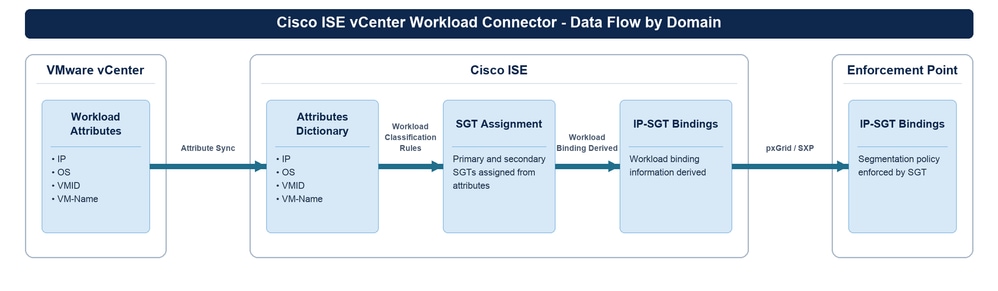 Cisco ISE vCenter Workload Connector data flow across three domains. vCenter provides workload attributes (IP, OS, VMID, VM-Name); Cisco ISE stores them in the Attributes Dictionary, applies Workload Classification Rules to assign primary and secondary SGTs, and derives IP-SGT bindings; the bindings are shared through pxGrid and SXP to the Enforcement Point
Configurations
Step 1. Add the vCenter Workload Connection
- In the Cisco ISE GUI, click the Menu icon and choose Work Centers > TrustSec > Integrations > Workload Connectors > Workload Connections.
- Click Add Connection.
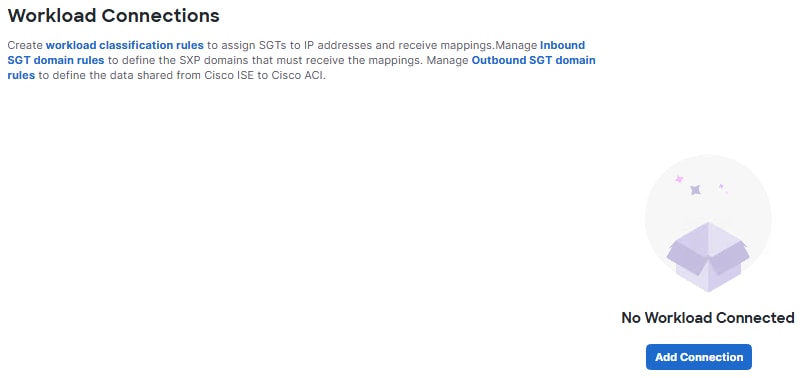 Workload Connections page with no connections configured, showing the Add Connection button
- Click Let's do it.
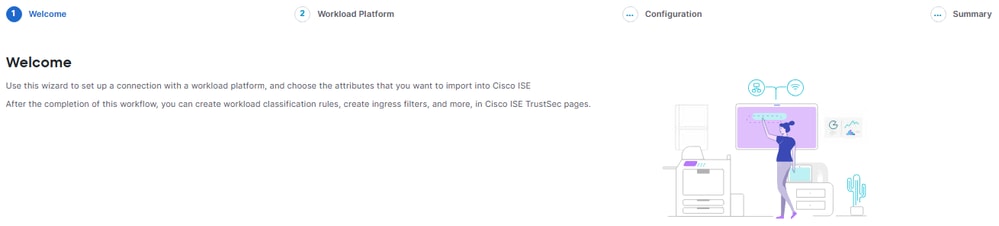 Workload connection wizard Welcome page, showing the Welcome, Workload Platform, Configuration, and Summary stages of the wizard
- On the Select Workload Platform page, choose vCenter, and then click Next.
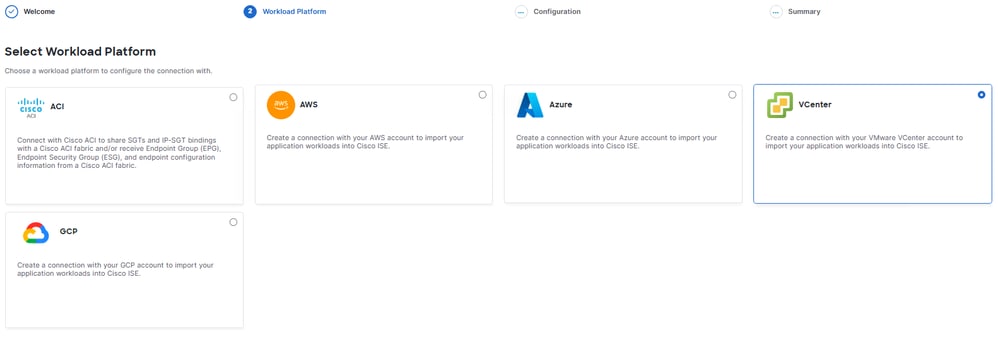 Select Workload Platform page with the vCenter option selected among the ACI, AWS, Azure, and GCP platforms
- On the Create Workload Connection page, Cisco ISE checks whether the Workload Connector services are running before it accepts any connection details.
If the services are not yet running, the page reports Workload Connector Services are not running.
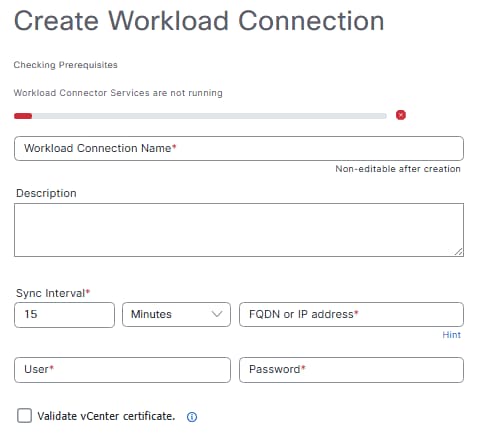 Create Workload Connection page reporting that the Workload Connector services are not running
Cisco ISE then starts the services automatically and displays the progress.
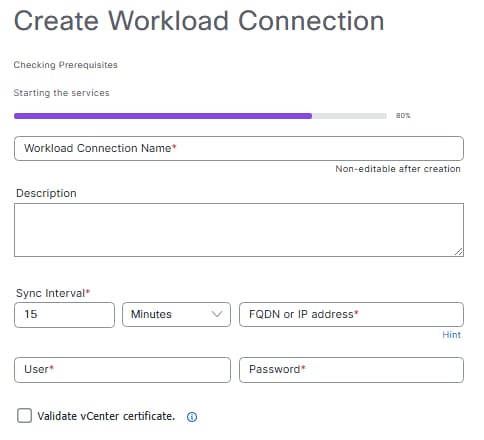 Create Workload Connection page showing the Workload Connector services starting
Wait until the page reports Workload Connector Services are running. The connection detail fields can be completed only after this check succeeds.
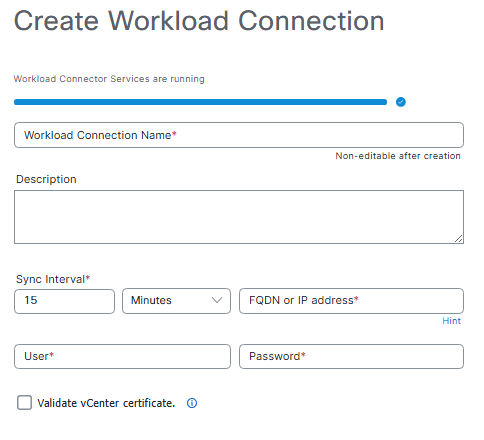 Create Workload Connection page confirming that the Workload Connector services are running
- Enter the connection details:
| Field | Description |
|---|---|
| Workload Connection Name | A unique name that uses letters, numbers, and underscores. Maximum 32 characters, no spaces. This example uses LAB_VCenter. |
| Description | A description of the connection. |
| Sync Interval | How often Cisco ISE refreshes data from vCenter. Valid range is 60 seconds to 7 days. The default is 15 minutes. Shorter intervals refresh data more frequently but can affect performance. |
| FQDN or IP Address | The hostname or IP address of vCenter, such as [VCENTER_FQDN] or [VCENTER_IP_ADDRESS]. This value must match the Subject Alternative Name of the vCenter endpoint certificate. |
| User | The vCenter account username, [USERNAME]. |
| Password | The vCenter account password, [PASSWORD]. |
| Validate vCenter certificate | Optional. Validates the certificate and imports the vCenter root certificate into the Cisco ISE Trusted Certificates store. During import, also check Trust for authentication of Cisco Services. Certificate validation is recommended for production environments. |
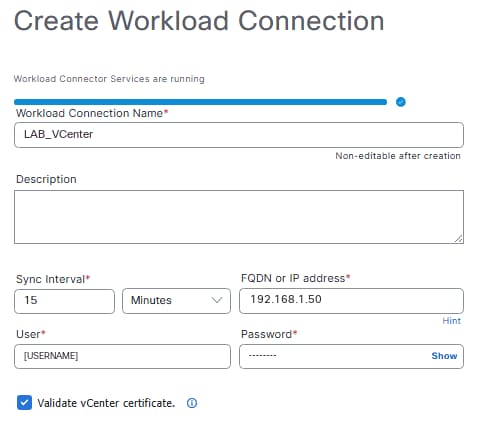 Create Workload Connection page with the completed vCenter connection detail fields and the Validate vCenter certificate check box selected
In this image, the User field displays a placeholder. Enter the credentials that apply to your environment.
Note: Cisco ISE validates the information that you enter. If any detail is incorrect, Cisco ISE returns the error "Test connection failed".
- Click Next. Cisco ISE tests the connection and confirms the result with the message Test connection is successful.
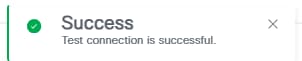 Success notification confirming that the test connection to vCenter is successful
Success notification confirming that the test connection to vCenter is successful
- On the Manage Attributes page, choose the vCenter attributes to add to the Cisco ISE dictionary. For this example, ensure that the os attribute is included. Then click Next.
- To include every learned attribute at once, enable the Include All in Dictionary toggle.
- To rename an attribute, edit the Attribute Name in Dictionary field.
- At least one attribute must be added before you can proceed.
- Attribute names that contain special characters such as ^, =, ", \, |, :, [, or ] are invalid and cannot be added.
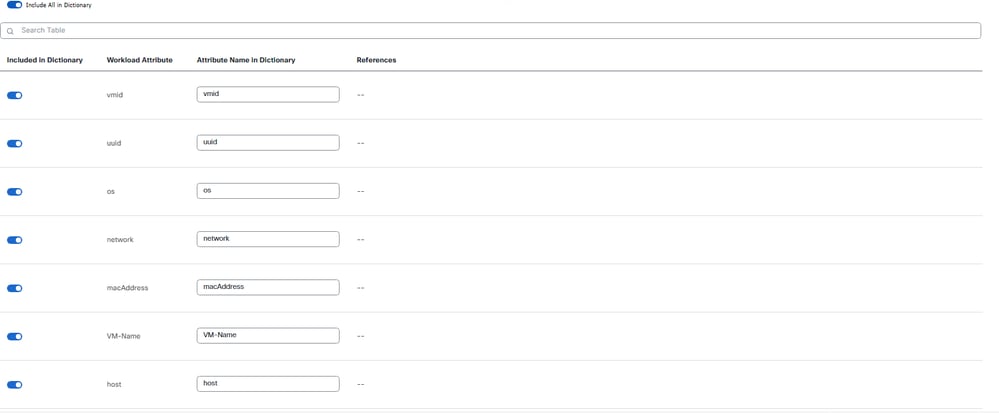 Manage Attributes page with the Include All in Dictionary toggle enabled and the learned vCenter attributes listed
Scroll the list to review every attribute that the connection learned from vCenter, such as vmid, uuid, os, network, macAddress, VM-Name, host, Power, and guest.guestFullName.
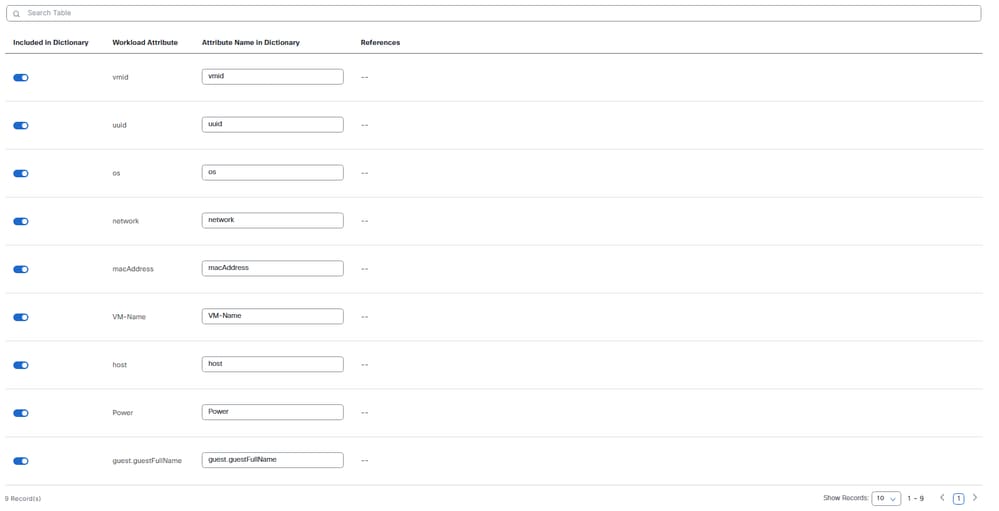 Manage Attributes page scrolled to show the complete list of learned vCenter attributes and the record count
- On the Summary page, review the configuration. Click Edit beside any section to change its values.
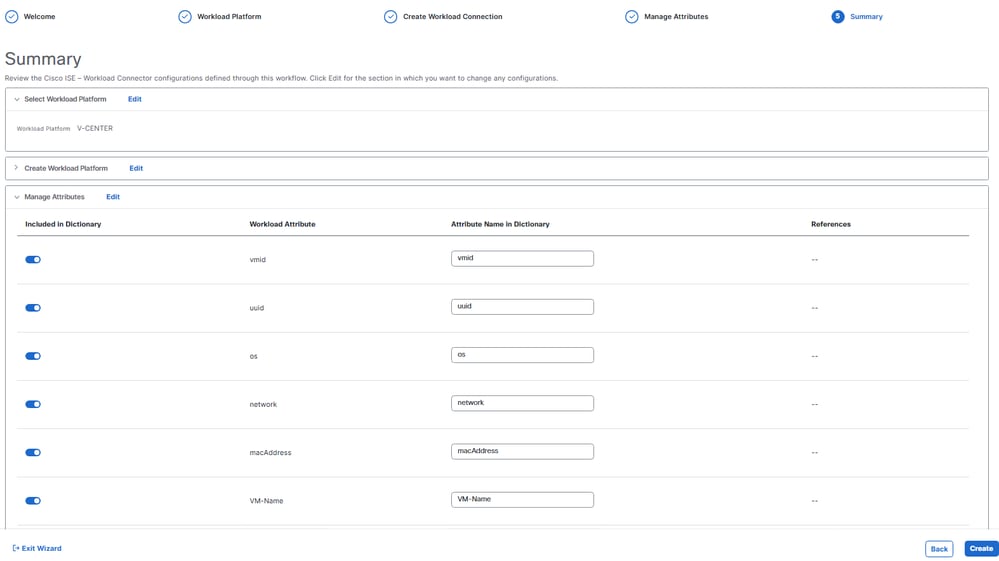 Summary page showing the selected V-CENTER workload platform and the attributes that are included in the dictionary
- Click Create. Cisco ISE confirms the result with the message Connection successfully created.
 Success notification confirming that the workload connection was created
The new vCenter connector appears on the Workload Connections page. The status is Connecting while Cisco ISE establishes the session with vCenter.
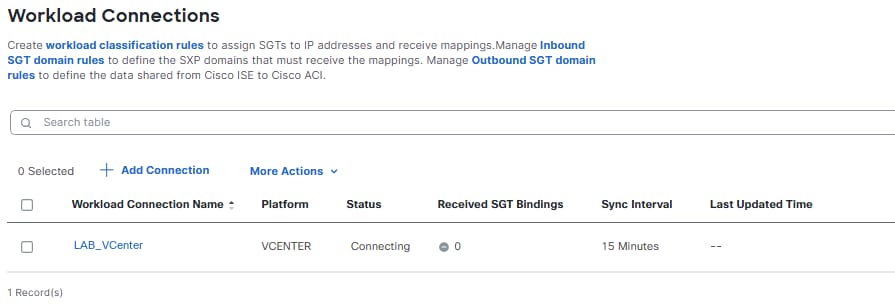 Workload Connections page listing the new vCenter connector in the Connecting state
Step 2. Add vCenter Attributes to the Dictionary (Optional)
Complete this step only if you want to add a custom attribute. The attributes that you choose during the Manage Attributes step are added to the vCenter dictionary automatically, so the integration functions without any action here. Dictionary attributes can also be managed at any time after the connection is created:
- Choose Work Centers > TrustSec > Integrations > Workload Connectors.
- Click Attributes Dictionary.
- Click Add Attribute.
- Enable the Include in Dictionary toggle.
- In the Workload Attribute field, enter the attribute name, such as os.
- In the Attribute Name in Dictionary field, enter the name to be displayed.
- Click Save.
Note: Be aware of this dictionary behavior: One dictionary is created per connection type. All vCenter connectors share a single vCenter dictionary. Attributes are not removed automatically when a connection is deleted. Any attribute that is not in use can be deleted manually. Attributes can be imported from the provider, and attributes that are not present in the provider can be added manually.
Step 3. Classify Workloads into SGTs
Workload Classification Rules evaluate workload attributes, including the vCenter tags that were imported, and assign SGTs. This step delivers the segmentation value of the integration.
SGT assignment behaves as described in these items:
- The primary SGT is marked as Security Group in the pxGrid session topic and is used to publish IP-to-SGT mappings through SXP.
- Secondary SGTs are included in the pxGrid session topic as an ordered array named Secondary Security Groups.
- If several rules match and assign multiple primary SGTs, only the first assigned SGT is treated as primary. The remaining SGTs become secondary.
To create a classification rule for this example:
- Choose Work Centers > TrustSec > Integrations > Workload Classification.
- Click Add Classification Rule.
- In the RULE SETTINGS area, enter a Rule Name and set Status to Enabled.
- In the AUTHORIZATION CONFIGURATION area, from the Primary SGT drop-down list, choose the SGT that the rule assigns, such as [SGT_NAME]. This example assigns the Production_Servers SGT.
- Optionally, from the Secondary SGTs (Optional) drop-down list, choose one or more secondary SGTs.
- In the RULE CONFIGURATION area, build the match condition. From the attribute drop-down list, choose an imported vCenter attribute, such as Vcenter - os, choose the Equals operator, and enter the value to match. This example matches CentOS 4/5 (64-bit).
- To narrow the rule further, click Add Condition and combine the conditions with AND or OR. This example adds an IP Address condition that uses the IP Equals operator to restrict the rule to the single host address 192.168.10.33/32.
- Optionally, click Preview to review the SGT details and the workloads that the rule matches.
- Click Add.

Caution: The Equals operator requires the complete attribute value. vCenter reports the guest operating system as a full descriptive string, such as CentOS 4/5 (64-bit), not as a short name such as CentOS. A rule that tests Equals CentOS against that value never matches, and it fails silently: the connector keeps importing workloads, but no SGT is assigned. Confirm the exact value in Context Visibility before you build the rule, as described in the Verify section, or use an operator such as Contains if you want to match a family of guest operating systems.
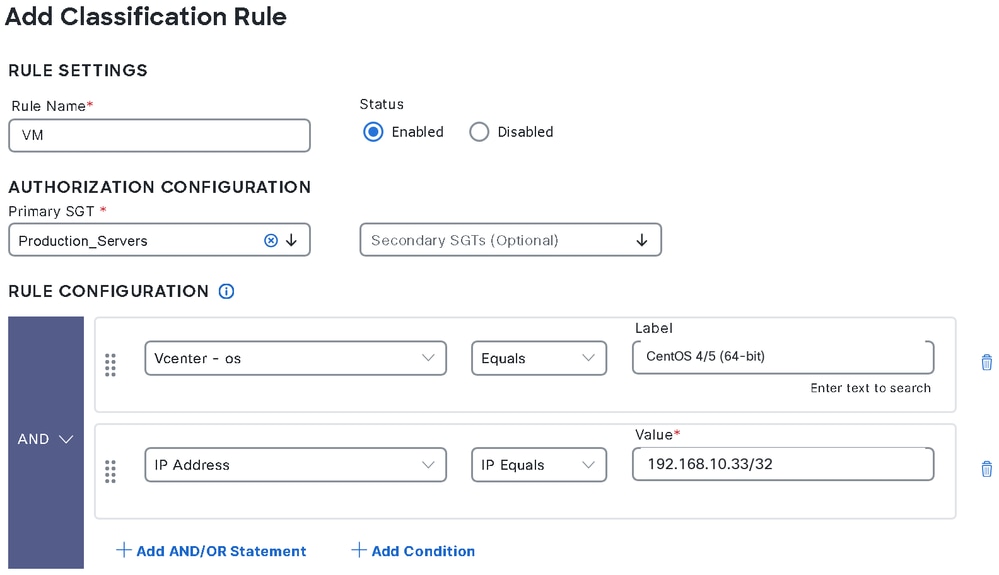 Add Classification Rule page assigning the Production_Servers primary SGT when the vCenter os attribute equals CentOS 4/5 (64-bit) and the IP address equals 192.168.10.33/32
Repeat these steps for each additional group of workloads that you want to classify, and assign a different primary SGT to each rule.
Note: Be aware of rule behavior: Rules can be reordered by drag and drop. Order determines priority. A new rule or a duplicate rule can be inserted before or after an existing rule. The default classification rule is always at the bottom of the list, is disabled by default, and maps to the Unknown primary SGT. Use the Preview option to review SGT details and matching rules before you save.
Step 4. Route Bindings with Inbound and Outbound SGT Domain Rules
SGT domains control which parts of the network receive specific SGT bindings. If no inbound rules are defined, bindings received from workload connectors are sent to the default SGT domain.
Add an inbound SGT domain rule:
- Choose Work Centers > TrustSec > SXP > Inbound & Outbound SGT Domain Rules.
- On the Inbound SGT Domain Rules tab, click Add Inbound Rule.
- In the Rule Settings area, enter a rule name.
- Click Enabled.
- From the Destination drop-down list, choose the SGT domains that must receive the bindings. To add a domain, use Create SGT Domain.
- In the Rule Configuration area, build the condition from attributes such as SGT Name, Source, IP Address, or any vCenter attribute that was added to the dictionary, such as os. Combine conditions with AND and OR as needed.
- Click Add, and then click Save.
Add an outbound SGT domain rule:
- On the same page, open the Outbound SGT Domain Rules tab and click Add Outbound Rule.
- Enter a rule name and click Enabled.
- From the Destination drop-down list, choose the destinations to which the SGTs must be sent.
- In the Rule Configuration area, build the condition from SGT Domains, SGT Name, or IP Address.
- Optionally, in the Contract Configuration area, assign Consumed and Provided contracts for the shared security groups.
- Click Add, and then click Save.
Use the Preview option to review the matching IP-SGT bindings while you add or edit inbound and outbound rules.
Verify
Use this section to confirm that your configuration works properly.
Verify the Connection Status
Choose Work Centers > TrustSec > Integrations > Workload Connectors > Workload Connections and confirm that the vCenter connection is listed with a Connected status. From this page you can also reconnect, suspend, or delete a connection.
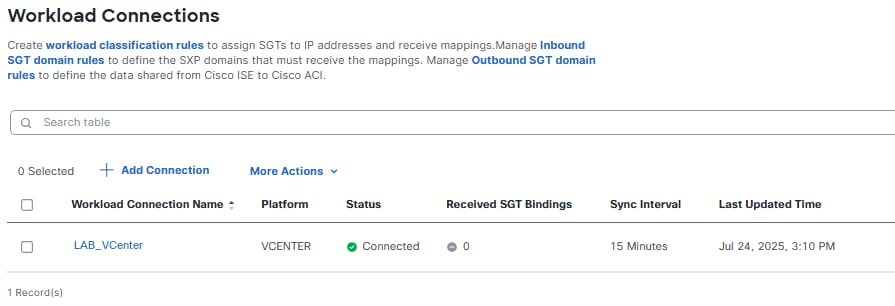 Workload Connections page showing the vCenter connector with a Connected status, the received SGT bindings count, the sync interval, and the last updated time
The Received SGT Bindings column reads 0 in this image because the capture was taken before any classification rule matched a workload. A Connected status together with a zero binding count means that Cisco ISE reached vCenter successfully but has not yet assigned an SGT to anything. After a rule matches, this column reports the number of bindings that Cisco ISE derived.
Verify the Security Groups
Choose Work Centers > TrustSec > Components > Security Groups and confirm that the expected SGTs exist. For this example, confirm that the Production_Servers SGT exists.
Verify the IP-SGT Bindings
Choose Work Centers > TrustSec > SXP > SGT Bindings and confirm that the workload IP addresses are bound to the correct SGTs, with the correct source and applied classification rule.
Verify the Workload Live Sessions
Choose Operations > Workloads > Live Session, which opens the Workload Live Sessions page. Live sessions can be viewed only on the primary Policy Administration Node (PAN). On this page, sessions can be filtered by connector type, columns can be shown, hidden, and rearranged, results can be sorted, filters can be saved, and data can be exported in CSV or PDF format.
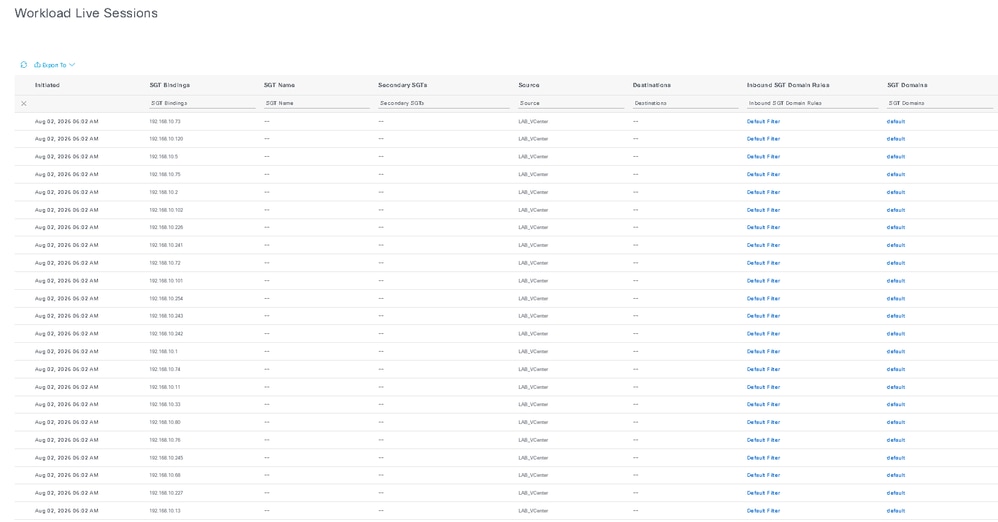 Workload Live Sessions table listing one row per learned workload, with the Initiated timestamp, the SGT Bindings IP address, the empty SGT Name, Secondary SGTs, and Destinations columns, the Source connection name LAB_VCenter, and the Inbound SGT Domain Rules and SGT Domains links reading Default Filter and default
Note: This capture is cropped to the columns that carry data in this example. The Outbound SGT Domain Rules and Workload Classification Rules columns continue to the right of the visible area and are empty on every row, as do the ACI-specific columns beyond them. This page was captured in a later lab session than the connector configuration pages, so its Initiated timestamps do not match the Last Updated Time shown earlier on the Workload Connections page.
Each row represents one workload that Cisco ISE learned from a connector. Use these columns to confirm the integration:
| Column | What it confirms |
|---|---|
| Initiated | The time at which Cisco ISE learned the session. Recent timestamps confirm that the connector is polling. |
| SGT Bindings | The workload IP address that Cisco ISE received from vCenter. |
| Source | The workload connection that reported the session. Confirms which connector the data came from. |
| Inbound SGT Domain Rules and SGT Domains | The domain rule and SGT domain that were applied to the session. Select a link to view the matched rule. |
| SGT Name, Secondary SGTs, and Workload Classification Rules | The SGTs assigned to the workload and the rule that assigned them. These columns remain empty for workloads that no classification rule matches. |
Use the Refresh, Show, and Within controls in the upper-right corner of the page, to the right of the cropped area, to set the refresh interval, the record count, and the time window.
In this image the SGT Bindings column is fully populated while SGT Name and Secondary SGTs are empty on every row, because the capture was taken before a classification rule matched. The Workload Classification Rules column, which lies outside the cropped area, is empty for the same reason. This combination is a useful diagnostic in its own right: it confirms that the connector is retrieving workloads from vCenter correctly and that the problem lies in the rule conditions rather than in the connection. When you see it, return to Step 3 and check the match values against the attribute values that Context Visibility reports, as described in the Caution in that step.
Verify Workload Visibility in Context Visibility
Cisco ISE provides a dedicated Workload Connector Endpoints dashboard within Context Visibility. It collects, analyzes, and reports the endpoint attribute data gathered from workload connectors in a single, filterable view.
To open the view:
- In the Cisco ISE GUI, choose Context Visibility > Endpoints.
- Open the Workload Connector Endpoints tab. If the tab is not visible in the tab strip, click More.
- From the Connector drop-down list, choose the workload connection whose endpoints you want to review.
The window lists the endpoint attribute data that is fetched from the workload connectors. Each row identifies an endpoint by IP Address, sourceType, and Connector Name.
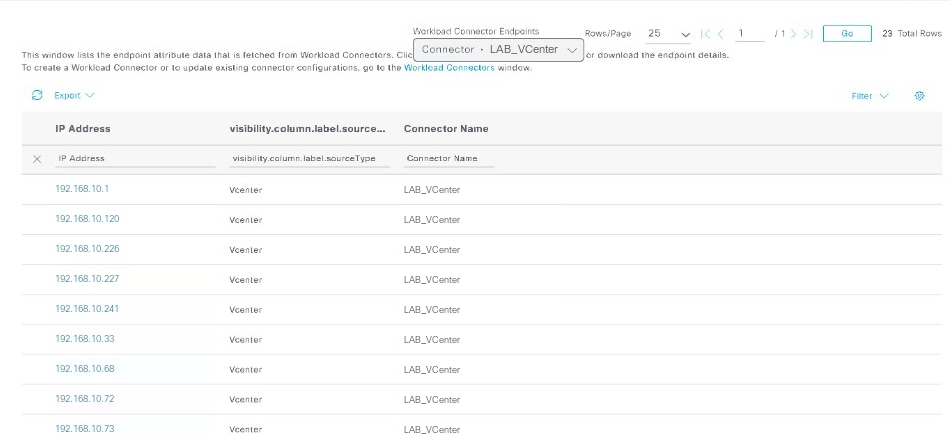 Workload Connector Endpoints view under Context Visibility, listing vCenter workload endpoints by IP address, source type, and connector name, with the Connector drop-down list set to LAB_VCenter, the Export option, the Rows/Page and pagination controls, and a count of 23 total rows
From this view, you can:
- Filter the list. Use the filter row beneath the column headers to narrow the results by IP address, source type, or connector name. Filters are additive, so each value that you apply refines the result set further.
- Page through the results. Use the Rows/Page control and the pagination arrows to change the page size and move between pages. The total number of endpoints appears to the right of the arrows, shown here as 23 Total Rows.
- Export the data. Click Export to download the listed endpoint data.
- Inspect an endpoint. Click the IP address of an endpoint to open the Details slide-in pane.
The Details pane lists every attribute that Cisco ISE holds for the selected endpoint. Click Download to save the attribute details, or click Cancel to close the pane.
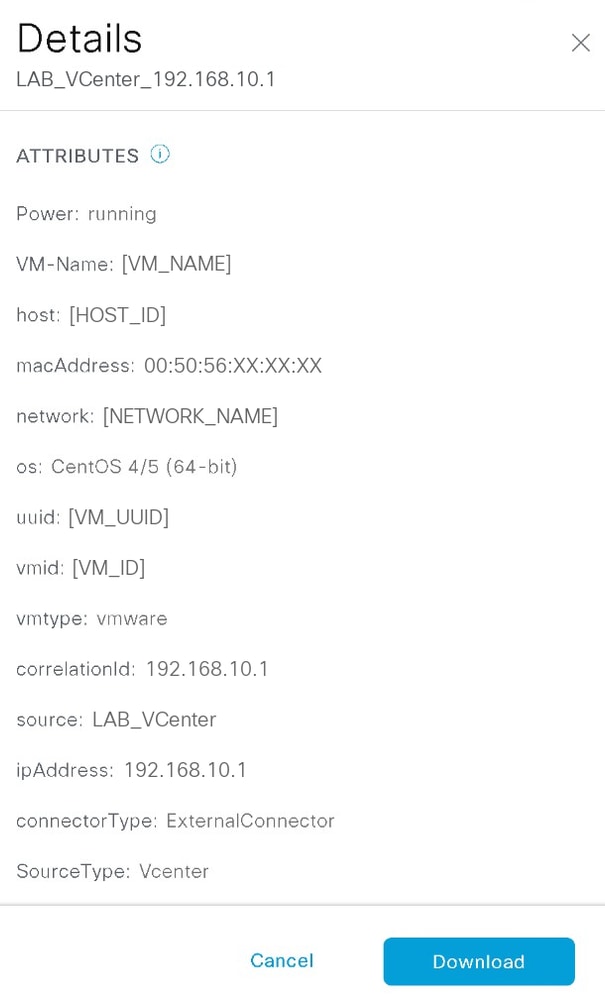 Details slide-in pane for a selected workload endpoint, titled Details above the connector name and endpoint address, with the ATTRIBUTES list of vCenter properties that Cisco ISE collected for that virtual machine and the Cancel and Download controls
The pane is identified by the workload connection name and the endpoint address, shown here as LAB_VCenter_192.168.10.1. For a vCenter workload endpoint, the attributes include the virtual machine properties learned from vCenter, such as Power, VM-Name, host, macAddress, network, os, uuid, vmid, and vmtype, together with the connector metadata correlationId, source, ipAddress, connectorType, and SourceType. Any custom vCenter tag that you added to the dictionary appears here as well.
This pane is the authoritative source for the values that your classification rules must match, and checking it first prevents the most common failure in this workflow. In this image, os reads CentOS 4/5 (64-bit), which is the complete string that an Equals condition has to reproduce. Read the value here before you write the rule in Step 3, rather than assuming a short form such as CentOS.
Note: A maximum of 50 attributes is displayed for each endpoint.
Troubleshoot
This section provides information you can use to troubleshoot your configuration.
Common Issues
| Symptom | Probable cause | Action |
|---|---|---|
| "Test connection failed" during connector setup. | One or more connection details are incorrect, or a prerequisite is not met. | Verify the FQDN or IP address and confirm that it matches the certificate SAN. Verify the username and password, review the certificate validation setting, and confirm that the proxy bypass and time synchronization prerequisites are met. |
| Connector is created but no data is imported. | Cisco ISE cannot reach public.ecr.aws. | Confirm that the proxy or firewall permits HTTPS traffic on TCP port 443 to this URL. |
| Workloads are imported but no SGT is assigned, and Received SGT Bindings stays at 0. | A classification rule condition does not match the actual attribute value. An Equals condition tested against a partial value, such as CentOS instead of CentOS 4/5 (64-bit), is the most common cause. | Open the Details pane in Context Visibility, read the exact attribute value, and correct the rule condition or change the operator to Contains. This failure is silent: no alarm is raised, because the connector itself is healthy. |
| Connection moves to a Suspended state. | All SGTs associated with the connection were deleted. | Re-create the required SGTs and re-establish the connection. The related SXP bindings and MnT session data are removed while the connection is suspended. |
| Connection details are missing after a PSN restart. | Session data was not repopulated. | Suspend the connection, and then reconnect it. |
Enable Debug Logs
Set the debug log severity for the Workload Connector component to DEBUG on the PAN, SXP, and pxGrid nodes from Operations > Troubleshoot > Debug Wizard > Debug Profile Configuration.
These log files are available in /opt/CSCOcpm/logs:
| Log file | Content |
|---|---|
| workloads.log | Workload connector operations |
| workload-conn/*.log | Per-connection logs |
| api-service.log | API service activity |
| ise-psc.log | Cisco ISE policy service activity |
| pxgriddirect-service.log | pxGrid Direct service activity |
| sxp_appserver/sxp.log | SXP binding distribution |
Alarms
Cisco ISE generates these alarms for vCenter and other cloud connectors:
| Alarm | Raised when |
|---|---|
| Workload Connection Create/Connect Unsuccessful | Connector creation fails after an event such as a restore, a promotion or HA event, or an upgrade. |
| Workload Connection Delete Unsuccessful | Connector deletion fails. |
| Workload Connection Service Error | Another related service failure occurs. |
Related Information
- Cisco ISE Common Policy and Workload Connectors
- Cisco ISE Required Internet URLs
- Cisco ISE 3.5 Administrator Guide
- Cisco Technical Support and Downloads
Revision History
| Revision | Publish Date | Comments |
|---|---|---|
2.0 |
01-Sep-2026
|
Updated Title, Alt Text, and Formatting. |
1.0 |
26-Aug-2026
|
Initial Release |

 Feedback
Contact Cisco
- Open a Support Case

- (Requires a Cisco Service Contract)