Troubleshoot Misclassification and Scan Failures for DLP
Available Languages
Contents
Introduction
This document describes common methods to troubleshoot misclassification and scan failures (or misses) related to DLP on the ESA.
Important Information
It is critical to note that Data Loss Prevention (DLP) on the Cisco Email Security Appliance (ESA). is plug-and-play in the sense that you can enable it, create a policy, and start to scan for sensitive data; however, you ought to also be aware that the best results only are achieved after you tune DLP to fit your company-specific requirements. This would include things such as types of DLP policies, policy match details, how to adjust the severity scale, filters, and additional customizations.
Violation Vs. No Violation Log Examples
Here are some examples of DLP violations that you can see within the mail logs and/or Message Tracking. The logline includes a timestamp, log level, MID #, violation or no violation, severity and risk factor, and the policy that was matched.
Thu Jul 11 16:05:28 2019 Info: MID 40 DLP violation. Severity: CRITICAL (Risk Factor: 96). DLP policy match: 'US HIPAA and HITECH'.
Thu Jul 11 16:41:50 2019 Info: MID 46 DLP violation. Severity: LOW (Risk Factor: 24). DLP policy match: 'US State Regulations (Indiana HB 1101)'.
When there is no violation found, then the mail logs and/or Message Tracking simply logs DLP no violation.
Mon Jan 20 12:59:01 2020 Info: MID 26245883 DLP no violation
Troubleshoot Checklist
Provided here are common items that can be reviewed when you deal with DLP misclassifications or scan failures/misses.
Confirm DLP Engine Version
DLP engine updates are not automatic by default, so it is crucial to make sure you run the newest version that includes any recent enhancements or bug fixes.
You can navigate to Data Loss Prevention under Security Services in the GUI to confirm the current engine version and to see if any updates are available. If an update is available then you can click Update Now to perform the update.

Enable Matched Content Logging
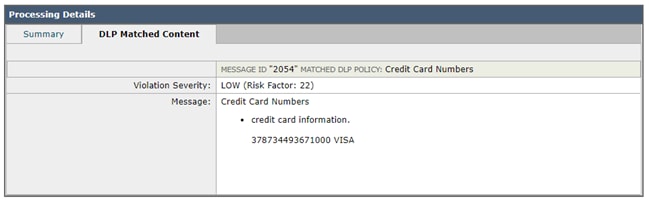
DLP offers the option to log the content that violates your DLP policies. This data can then be viewed in Message Tracking to help track down what content within an email would cause a particular violation.
You can navigate to Data Loss Prevention under Security Services in the GUI to see if Matched Content Logging is enabled.

Example Of Matched Content Logging Seen In Message Tracking
Review The Scan Behavior Configuration
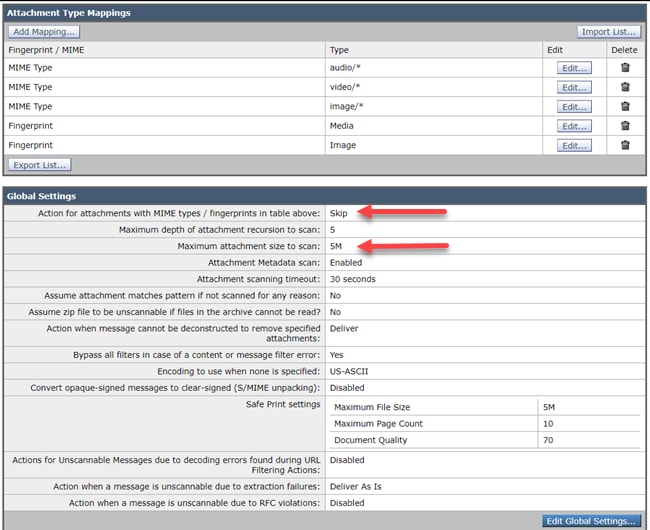
The Scan Behavior configuration on the ESA also impacts the functionality behind DLP. If you refer to the image here as an example, which has a configured maximum attachment scanning size of 5M, anything larger can cause DLP scans to be missed. Also, the action for attachments with MIME types setting is another common item you want to review. This ought to be set to the default of Skip so that the MIME types listed are skipped and all others are scanned. If instead it is set to Scan, then the ESA only scans those MIME types listed in the table.
Similarly, other settings listed here can mpact the DLP scans and ought to be taken into account respective to the attachment/email content.
You can navigate to Scan Behavior under Security Services in the GUI, or from the scanconfig command within the CLI.
Review The Severity Scale Configuration
The default severity scale thresholds are sufficient for most environments; however, if you need to modify them to assist with False Negative (FN) or False Positive (FP) matches then you can do so. You can also create a new dummy policy and compare them to confirm if your DLP policy uses the recommended default thresholds.

Review The Email Addresses Added To The Filter Senders And Recipients Fields
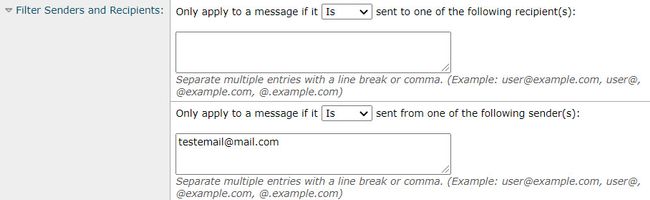
Check that any entries entered into either of these fields match the correct case of the sender and/or recipient email addresses. The Filter Senders and Recipients field is case sensitive. The DLP policy does not trigger if the email address looks like "TestEmail@mail.com" in the mail client and is entered as "testemail@mail.com" into these fields.
Related Information
- Cisco Email Security Appliance - End-User Guides
- What is Data Loss Prevention?
- Trigger a DLP Violation to Test a HIPAA Policy on the ESA
Revision History
| Revision | Publish Date | Comments |
|---|---|---|
2.0 |
01-Jul-2026
|
Recert |
1.0 |
26-Apr-2020
|
Initial Release |

 Feedback
Contact Cisco
- Open a Support Case

- (Requires a Cisco Service Contract)