Configure and Verify SD-WAN IPsec SIG Tunnel with Zscaler
Available Languages
Introduction
This document describes the configuration steps and verification of SD-WAN IPsec SIG tunnels with Zscaler.
Prerequisites
Requirements
Cisco recommends that you have knowledge of these topics:
- Security Internet Gateway (SIG).
- How IPsec tunnels works, Phase1, and Phase2 on Cisco IOS®.
Additional Requirements
-
NAT must be enabled on the transport interface that is facing the internet.
-
A DNS server must be created on VPN 0, and the Zscaler base URL must be resolved with this DNS server. This is important because if this is not resolved, API calls and Layer 7 health checks can fail. And by default, use this DNS Server
-
NTP (Network Time Protocol) must ensure the Cisco Edge Router time is accurate, and API calls cannot fail.
-
A service route pointing to SIG must be configured in the Service-VPN Feature Template or CLI: ip sdwan route vrf 1 0.0.0.0/0 service sig
Components Used
This document is based on these software and hardware versions:
- Cisco Edge Router Version 17.6.6a
- vManage Version 20.9.4
The information in this document was created from the devices in a specific lab environment. All of the devices used in this document started with a cleared (default) configuration. If your network is live, ensure that you understand the potential impact of any command.
Configure
Network Design Options
The various types of deployments in this list are an active/standby combination setup. Tunnel encapsulation can be deployed either with GRE or IPsec.
- One Active/Standby Tunnel Pair
- One Active/Active Tunnel Pair
- Multiple Active/Standby Tunnel Pair
- Multiple Active/Active Tunnel Pair

Note: On SD-WAN Cisco Edge Routers, you can utilize one or more transport interfaces connected to the Internet for the setups to function effectively.
Configurations
Proceed with configuring these templates:
- Security Internet Gateway (SIG) Credential feature template:
- You require one for all Cisco Edge Routers. Information to populate the necessary fields of the template must be created on the Zscaler portal.
- Security Internet Gateway (SIG) feature template:
- Under this feature template, you configure IPsec tunnels, ensure deployment high availability (HA) in either active/active or active/standby mode, and select Zscaler Data-Center enter either automatically or manually.
1. To create a Zscaler credentials template, navigate to Configuration > Template > Feature Template > Add Template.
2. Select the device model you are going to use for this purpose and search for SIG. When you create it for the first time, the system shows the Zscaler credentials must be created first, like this example:
3. You must select Zscaler as a SIG Provider and click on the Click here to create - Cisco SIG Credentials template.
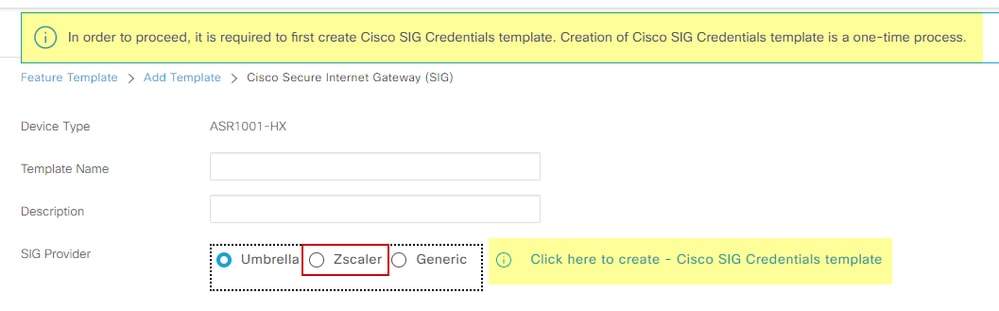 Sig Credentila Template
4. You are redirected to the credentials template. And you must enter the values for all fields:
- Template Name
- Description
- SIG Provider (automatically selected from the previous step)
- Organization
- Partner Base URL
- Username
- Password
- Partner API Key
5. Click Save.
6. You are redirected to the Secure Internet Gateway (SIG) template. This template allows you to configure items necessary for SD-WAN IPsec SIG with Zscaler.
In the first section of the template, provide a name and description. The default tracker is automatically enabled and use the API URL for the Zscaler Layer 7 Health Check.
7. In Cisco IOS XE, you must set an IP address for the tracker. Any private IP within the /32 range is acceptable. The IP address you set can be utilized by the Loopback 65530 interface, which is automatically created for performing Zscaler health inspections.
8. Under the Configuration section, you can create the IPsec tunnels by clicking Add Tunnel. On the new pop up window, make selections based on your requirements.
9. In this example, the interface IPsec1 has been created using WAN interface GigabitEthernet1 as a Tunnel Source. It forms connectivity with the Primary Zcaler Data-Center. It is recommended to keep the Advanced Options values as default.
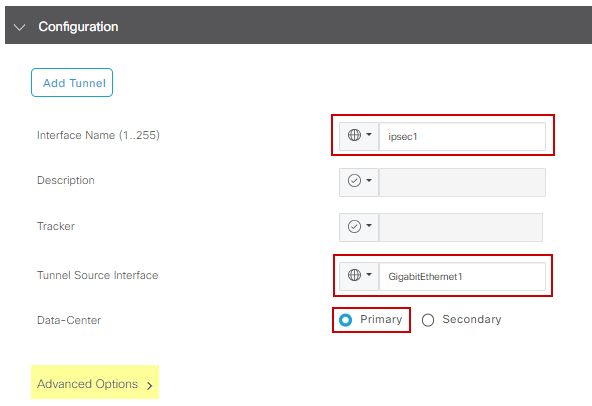 IPsec Interface Config
High Availability
In this section, choose whether the design is Active/Active or Active/Standby, and determine which IPsec interface is active.
This is an example of an Active/Active design and all interfaces are selected under Active, leaving Backup with none.
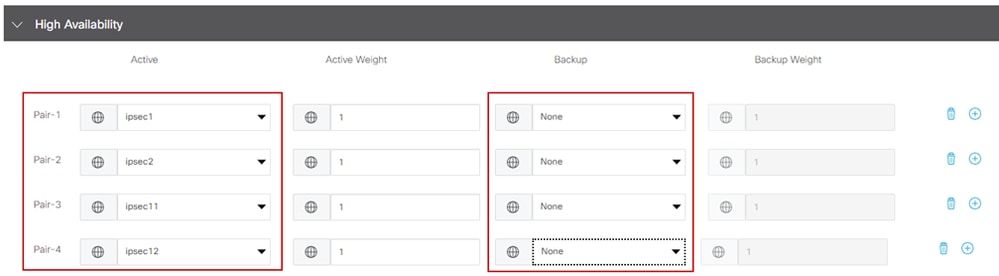 Active/Active Design
This example showcases an Active/Standby design and IPsec1 and IPsec11 are selected as active interfaces, while IPsec2 and IPsec12 are designated as standby interfaces.
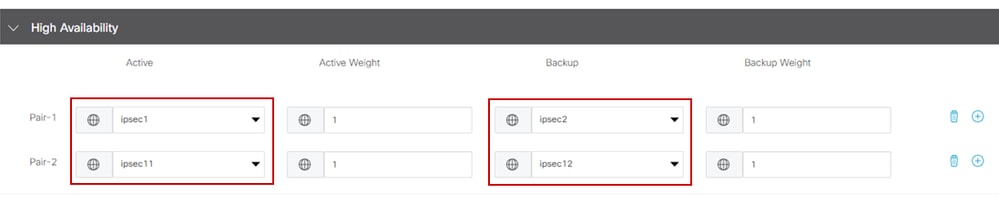 Active/Standby Design
Advance Settings
1. In this section, the most important configurations are the Primary Data-Center and Secondary Data-Center. It is recommended to configure both as either automatic or manual, however, it is not recommended to configure them as mixed. If you choose to configure them manually, select the correct URL from the Zscaler portal based on your Partner Base URL.
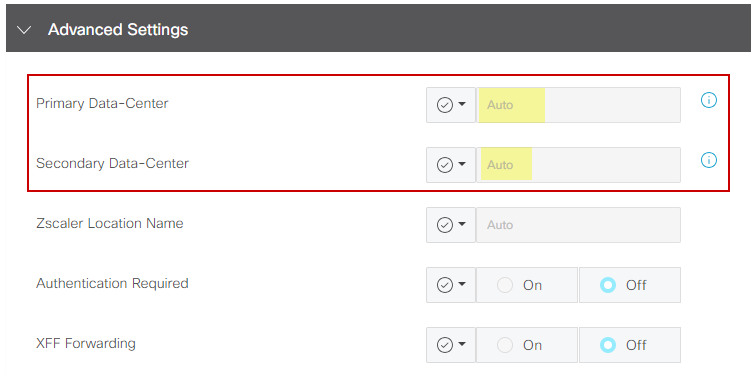 Auto or Manually Data Centers
2. Click Save when you have finished.
3. Once you are done with the SIG templates configuration, you must apply them under the device template. This way, the configuration is pushed onto the Cisco Edge Routers.
4. Next steps, navigate to Configuaration > Templates > Device Template, on the three dots click Edit.
5. Under Transport & Management VPN, add the Secure Internet Gateway template.
6. On the Cisco Secure Internet Gateway, select the correct SIG feature template from the drop-down menu.
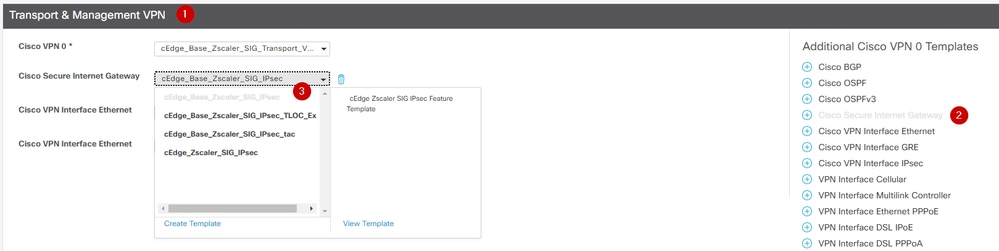 Add SIG Template on Device Template
7. Under Additional Templates in Cisco SIG Credentials, select the correct Cisco SIG Credentials template from the drop-down menu:
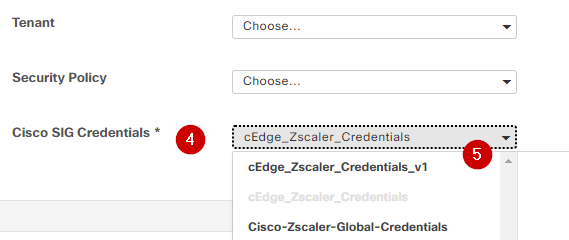 Credential SIG template
8. Click Update (if your device template is an active template, use the standard steps to push configurations on an active template).
Verify
1. Verification can be completed during the config preview while you are pushing the changes, what you must notice are:
secure-internet-gateway
     zscaler organization <removed>
     zscaler partner-base-uri <removed>
     zscaler partner-key <removed>
     zscaler username <removed>
     zscaler password <removed>
    !
2. From this example you can see the design is active/standby:
ha-pairs
  interface-pair Tunnel100001 active-interface-weight 1 Tunnel100002 backup-interface-weight 1
  interface-pair Tunnel100011 active-interface-weight 1 Tunnel100012 backup-interface-weight 1
3. Additional configurations are added such as crypto ikev2 pofiles and policies, multiple interfaces start with Tunnel1xxxxx, vrf defination 65530, and ip sdwan route vrf 1 0.0.0.0/0 service sig. All of these changes are part of the IPsec SIG tunnels with Zscaler.
This example shows how the configuration for the Tunnel interface looks:
interface Tunnel100001
     no shutdown
     ip unnumbered       GigabitEthernet1
     no ip clear-dont-fragment
     ip mtu              1400
     tunnel source GigabitEthernet1
     tunnel destination dynamic
     tunnel mode ipsec ipv4
     tunnel protection ipsec profile if-ipsec1-ipsec-profile
     tunnel vrf multiplexing
4. After configurations are pushed successfully onto the Cisco Edge Routers, you can run commands to verify whether the tunnels are available:
Router#show sdwan secure-internet-gateway zscaler tunnels
                                                                                                                                                         HTTP
TUNNEL IF                                             TUNNEL                                            LOCATION                                         RESP
NAME          TUNNEL NAME                             ID        FQDN           TUNNEL FSM STATE         ID        LOCATION FSM STATE   LAST HTTP REQ     CODE
--------------------------------------------------------------------------------------------------------------------------------------------------------------
Tunnel100001  site<removed>Tunnel100001             <removed>   <removed>     add-vpn-credential-info  <removed>  location-init-state  get-data-centers  200
Tunnel100002  site<removed>Tunnel100002              <removed>  <removed>     add-vpn-credential-info  <removed>  location-init-state  get-data-centers  200
5. If you do not see the http resp code 200, it means you are facing an issue with the password or the partner key.
6. To verify the interface status use this command:
Router#show ip interface brief
Interface              IP-Address      OK? Method Status    Protocol
GigabitEthernet1       10.2.234.146    YES DHCP   up            up
GigabitEthernet2       10.2.58.221     YES other  up            up
GigabitEthernet3       10.2.20.77      YES other  up            up
GigabitEthernet4       10.2.248.43     YES other  up            up
Sdwan-system-intf      10.10.10.221    YES unset  up            up
Loopback65528          192.168.1.1     YES other  up            up
Loopback65530          192.168.0.2     YES other  up            up   <<< This is the IP that you used on Tracker SIG Feature template
NVI0                   unassigned      YES unset  up            up
Tunnel2                10.2.58.221     YES TFTP   up            up
Tunnel3                10.2.20.77      YES TFTP   up            up
Tunnel100001           10.2.58.221     YES TFTP   up            up
Tunnel100002           10.2.58.221     YES TFTP   up            up
7. To verify the status of the tracker, run the commands show endpoint-tracker and show endpoint-tracker records. This helps you confirm which URL the tracker is using:
Router#show endpoint-tracker
Interface              Record Name            Status          RTT in msecs    Probe ID        Next Hop
Tunnel100001           #SIGL7#AUTO#TRACKER    Up              194             44              None
Tunnel100002           #SIGL7#AUTO#TRACKER    Up              80              48              None
Router#show endpoint-tracker records
Record Name            Endpoint                            EndPoint Type   Threshold(ms)    Multiplier   Interval(s)     Tracker-Type
#SIGL7#AUTO#TRACKER    http://gateway.<removed>.net/vpnt API_URL         1000             2            30              interface
8. Other validations you can utilize are:
- Ensure routes on VRF are pointing to IPsec tunnels and run this command:
show ip route vrf 1
Gateway of last resort is 0.0.0.0 to network 0.0.0.0
S* 0.0.0.0/0 [2/65535], Tunnel100002
[2/65535], Tunnel100001
10.0.0.0/8 is variably subnetted, 4 subnets, 2 masks
9. To validate further, you can ping towards the internet and complete a trace route to validate the hops the traffic:
Router#ping vrf 1 cisco.com
Type escape sequence to abort.
Sending 5, 100-byte ICMP Echos to <removed>, timeout is 2 seconds:
!!!!!
Success rate is 100 percent (5/5), round-trip min/avg/max = 406/411/417 ms
Router1#traceroute vrf 1 cisco.com
Type escape sequence to abort.
Tracing the route to redirect-ns.cisco.com (<removed>)
VRF info: (vrf in name/id, vrf out name/id)
1 * * *
2 <The IP here need to be Zcaler IP> 195 msec 193 msec 199 msec
3 <The IP here need to be Zcaler IP> 200 msec
  <The IP here need to be Zcaler IP> 199 msec *
.....
10. You can validate the IPsec interfaces from the vManage GUI by navigating to Monitor > Device or Monitor > Network (for codes 20.6 and early).
- Select your router and navigate to Applications > Interfaces.
- Select Tunnel100001 and Tunnel100002 to view real time traffic or customize it per required time frame:
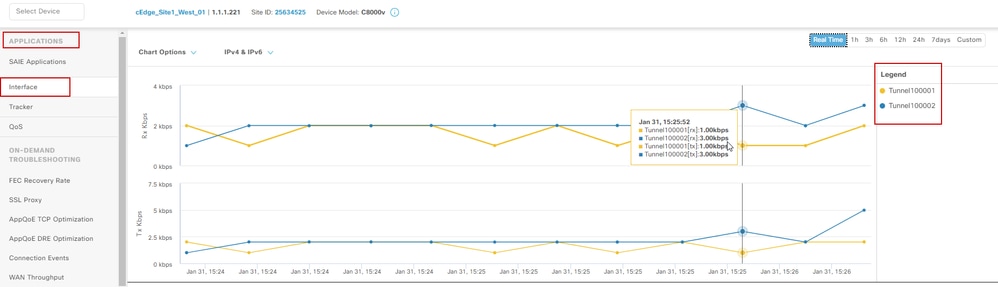 Monitoring IPsec Tunnels
Troubleshoot
If the SIG tunnel is not running, review these steps to troubleshoot:
Step 1: Check the errors by running the command show sdwan secure-internet-gateway zscaler tunnels. From the output, if you notice HTTP RESP Code 401, it indicates there is an issue with authentication. You can verify the values in the SIG Credentials Template to view if the password or Partner Key, is correct.
Router#show sdwan secure-internet-gateway zscaler tunnels
                                                                                                                                    HTTP
TUNNEL IF                                   TUNNEL                                 LOCATION                                         RESP
NAME TUNNEL             NAME                ID        FQDN   TUNNEL FSM STATE      ID        LOCATION FSM STATE   LAST HTTP REQ     CODE
----------------------------------------------------------------------------------------------------------------------------------------------
Tunnel100001   site<removed>Tunnel100001   0                 tunnel-st-invalid  <removed>  location-init-state   req-auth-session      401
Tunnel100002   site<removed>Tunnel100002   0                 tunnel-st-invalid  <removed>  location-init-state   req-auth-session      401
Tunnel100011   site<removed>Tunnel100011   0                 tunnel-st-invalid  <removed>  location-init-state   req-auth-session      401
Tunnel100012   site<removed>Tunnel100012   0                 tunnel-st-invalid  <removed>  location-init-state   req-auth-session      401
Step 2. For further debugging, enable these commands and search for log messages related to SIG, HTTP, or tracker:
- debug platform software sdwan ftm sig
- debug platform software sdwan sig
- debug platform software sdwan tracker
- debug platform software sdwan ftm rtm-events
From Cisco IOS® Version IOS-XE 17.11+, <debug platform> has been migrated to <set platform trace>
set platform software trace ftmd R0 ftmd-sig [debug | verbose]
set platform software trace ios R0 sdwanrp-sig debug
set platform software trace ios R0 sdwanrp-tracker debug
set platform software trace ftmd R0 ftmd-rtm [debug | verbose]
1. This is an example of the output from the debug commands:
Router#show logging | inc SIG
Jan 31 19:39:38.666: ENDPOINT TRACKER: endpoint tracker SLA already unconfigured: #SIGL7#AUTO#TRACKER
Jan 31 19:39:38.669: ENDPOINT TRACKER: endpoint tracker SLA already unconfigured: #SIGL7#AUTO#TRACKER
Jan 31 19:59:18.240: SDWAN INFO: Tracker entry Tunnel100001/#SIGL7#AUTO#TRACKER state => DOWN
Jan 31 19:59:18.263: SDWAN INFO: Tracker entry Tunnel100002/#SIGL7#AUTO#TRACKER state => DOWN
Jan 31 19:59:18.274: SDWAN INFO: Tracker entry Tunnel100011/#SIGL7#AUTO#TRACKER state => DOWN
Jan 31 19:59:18.291: SDWAN INFO: Tracker entry Tunnel100012/#SIGL7#AUTO#TRACKER state => DOWN
2. Run the command show ip interface brief and check the tunnels interface Protocol and check if these are showing up or down.
Router#show ip interface brief
Interface              IP-Address      OK? Method Status    Protocol
GigabitEthernet1       10.2.234.146    YES DHCP   up            up
GigabitEthernet2       10.2.58.221     YES other  up            up
Tunnel100001           10.2.58.221     YES TFTP   up            down
Tunnel100002           10.2.58.221     YES TFTP   up            down
3. After confirming there are no issues with the Zscaler credentials, remove the SIG interface from the device template and push it to the router. Once the push is completed, apply the SIG template and push it back to the router. This method forces the tunnels to be recreated from scratch.
Related Information
Revision History
| Revision | Publish Date | Comments |
|---|---|---|
2.0 |
11-Jun-2026
|
Updated spelling, grammar, sentence structure, spacing, alt text, heading, and URLs. |
1.0 |
08-Feb-2024
|
Initial Release |

 Feedback
Contact Cisco
- Open a Support Case

- (Requires a Cisco Service Contract)