Integrate SD-WAN ISR1100 Routers from Viptela OS to Cisco IOS XE
Available Languages
Introduction
This document describes the process to migrate SD-WAN ISR1100 router from Viptela OS to Cisco IOS® XE.
Prerequisites
Requirements
Cisco recommends that you have knowledge of Cisco Software-Defined Wide Area Network (SD-WAN).
Components Used
The information in this document is based on these software and hardware versions:
- vManage Version 20.6.3
- vBond Version 20.6.3
- vSmart Version 20.6.3
- ISR1100-4GLTE Version 20.4.1.2
The software image to use for migration is available from the Software Download page.
Cisco IOS XE: isr1100be.universalk9.<release>.SPA.bin
The information in this document was created from the devices in a specific lab environment. All of the devices used in this document started with a cleared (default) configuration. If your network is live, ensure that you understand the potential impact of any command.
Background
Specific requirements for this document include:
- Cisco vManage Release 20.4.1 or later
- Cisco Integrated Services Routers (ISR)1100 and ISR1100X Release 20.4.1 or later
Migration between Viptela OS and Cisco IOS XE are supported in the listed platforms:
- Cisco ISR1100X-6G
- Cisco ISR1100X-4G
- Cisco ISR1100-6G
- Cisco ISR1100-4G
- Cisco ISR1100-4GLTE (Cisco ISR1100-4GLTENA and Cisco ISR1100-4GLTEGB )
Upgrade
Upgrade to Cisco ISR1100 Software from vManage
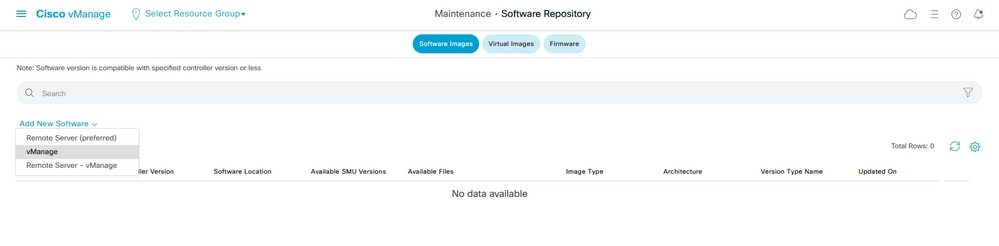
1. In the Cisco vManage GUI, choose Maintenance > Software Repository > Add New Software > vManage as shown in the image:
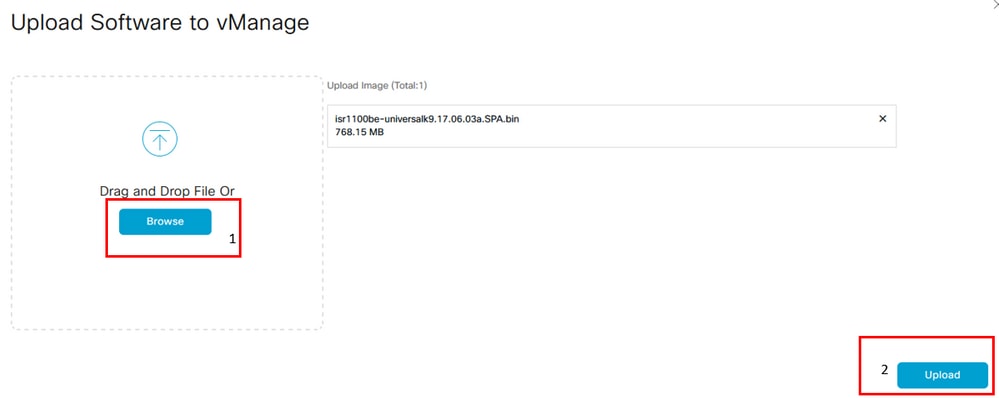
2. In the pop-up window, click Browse, then click Upload.
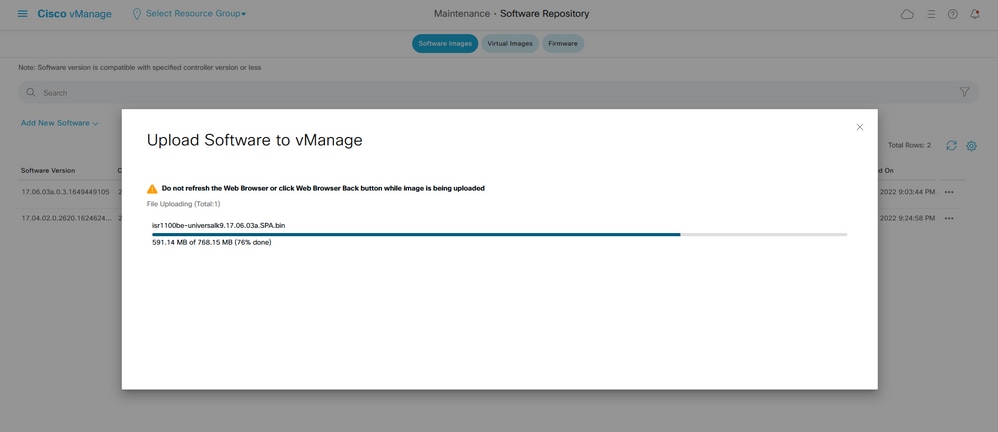
3. Once the upload starts do not refresh the web browser, as shown in the next image:
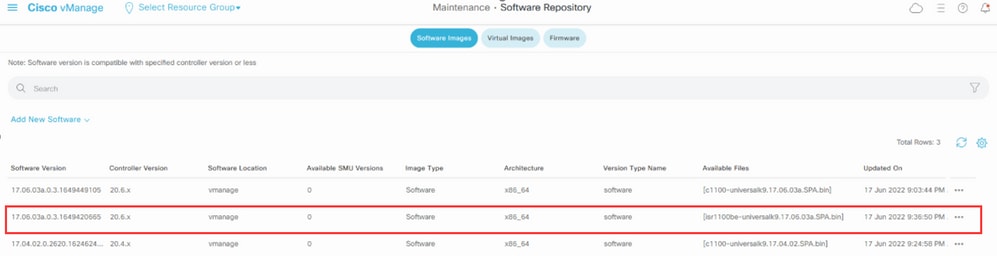
4. In the Software Repository section, verify the image has uploaded:
5. Navigate to the Maintenance > Software Upgrade > WAN Edge section. Check the Hostname checkbox to choose the device(s) and click Upgrade.

6. Click the vManage radio button.
7. In the Version drop-down list, choose the Cisco IOS XE image.
8. Check the Activate and Reboot checkbox and the Confirm checkbox.
9. Click Upgrade.
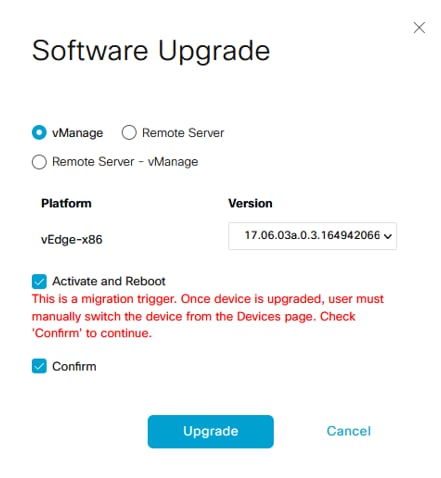
10. The device begins the upgrade process and takes several minutes. You can validate the successful completion in the Task view.
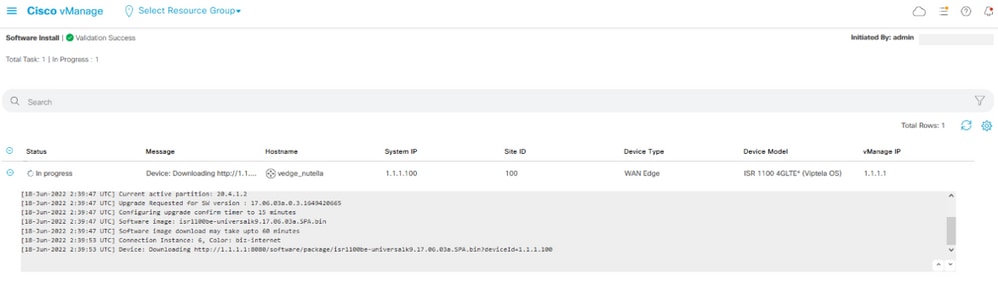
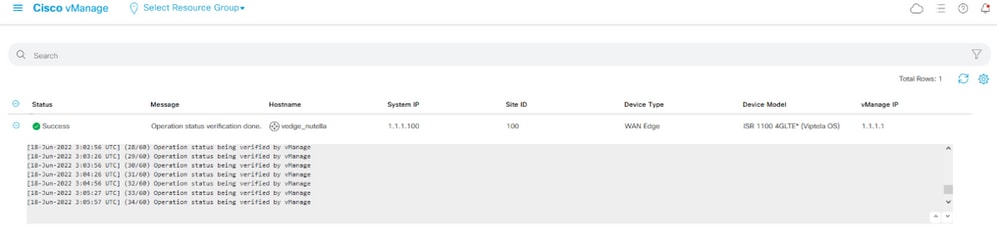
11. Navigate to Configuration > Devices and click the WAN Edge List tab.
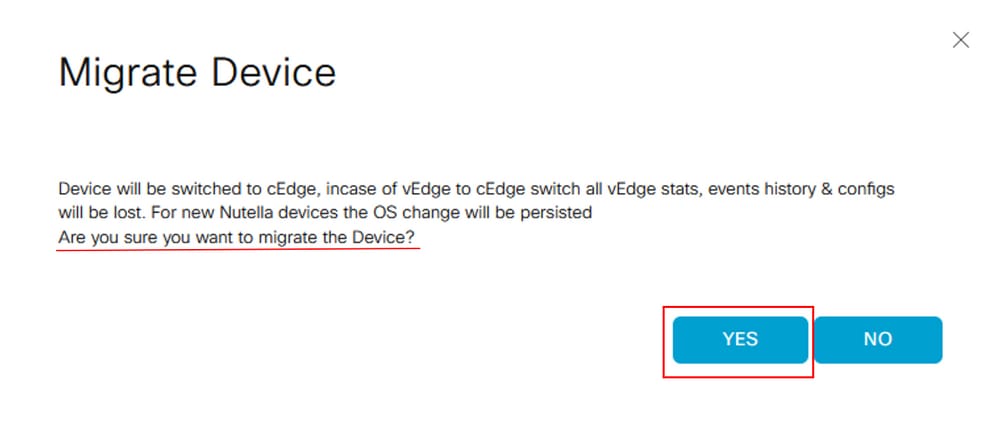
12. In the right side of the display, click (...) More Actions and choose Migrate Device.
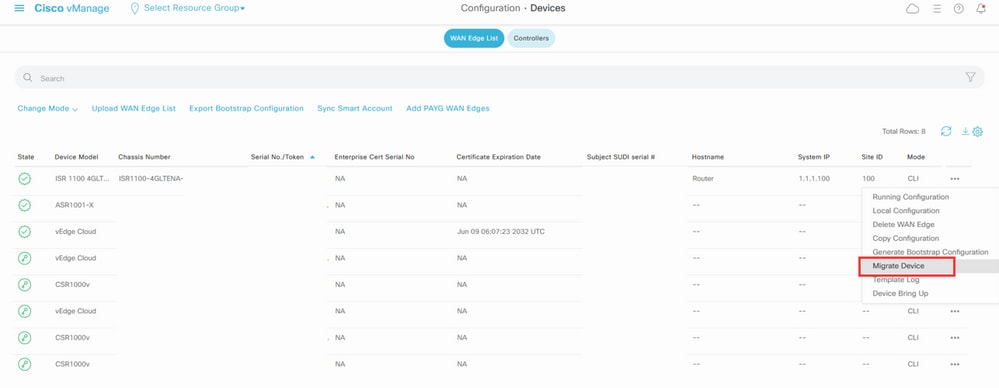
13. In the Migrate Device dialog box, click Yes to confirm the migration.
Upgrade to Cisco ISR1100 Software Cisco IOS XE from the CLI
This section applies to Cisco ISR1100 and ISR1100X Release 20.4.1 or later.
1.Transfer image isr1100be.universalk9.<release>.SPA.bin on vEdge router.
Router# request software install http/ftp/directory path (http://,ftp://,scp://,/)> reboot
2. After reboot, verify the control connections are established.

3. Ensure the upgrade was confirmed.
Router#request platform software sdwan software upgrade-confirm
Verify
Use this section to confirm your configuration works properly.
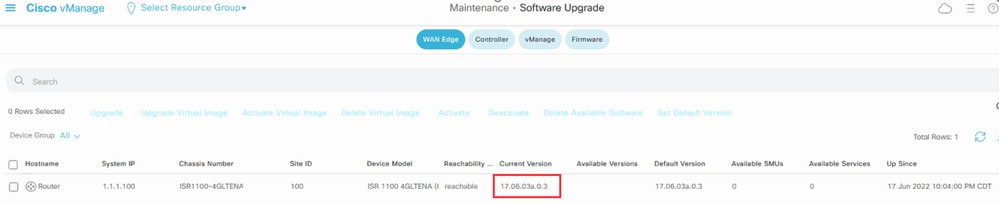
vManage GUI
Navigate to Administration > Maintenance > Software Upgrade. Verify the version in the Current Version column, the device shows Cisco IOS XE OS.
vManage CLI
Run the command show romvar to verify the migration is successful on MIGRATION_STATUS:
Router#show romvar
ROMMON variables:
 PS1 = rommon ! >
 CRYPTO_BI_THPUT = 10000
 RET_2_RTS =
 BOOT = bootflash:packages.conf,1;
 DEVICE_MANAGED_MODE = controller
 RANDOM_NUM = 342435660
 BSI = 0
 RET_2_RCALTS =
 MIGRATION_STATUS = SUCCESS<<<<<<<<<<<
 BIS_MODE = 2
Troubleshoot
This section provides information to troubleshoot your configuration.
Verify the logs in Cisco IOS XE:
bootflash:migrationlogs
Verify the logs in vEdge:
etc/Viptela/vedgemigration.cfg
Revision History
| Revision | Publish Date | Comments |
|---|---|---|
3.0 |
22-Jul-2026
|
Updated introduction, fixed title, spelling, grammar, inserted horizontal lines to separate sections and readability, fixed CCW alerts. |
2.0 |
02-Oct-2023
|
Included field product name |
1.0 |
19-Aug-2022
|
Initial Release |

 Feedback
Contact Cisco
- Open a Support Case

- (Requires a Cisco Service Contract)