Real-time correlation searches cannot use maintenance window features.
Available Languages
Applicability
Splunk IT Service IntelligenceDescription
Generally, when the service linked to a correlation search is under maintenance, the correlation search's alerts should be suppressed.
Verify if they are suppressed by checking the correlation search's scheduler logs, the events during maintenance will contain alert_actions="".
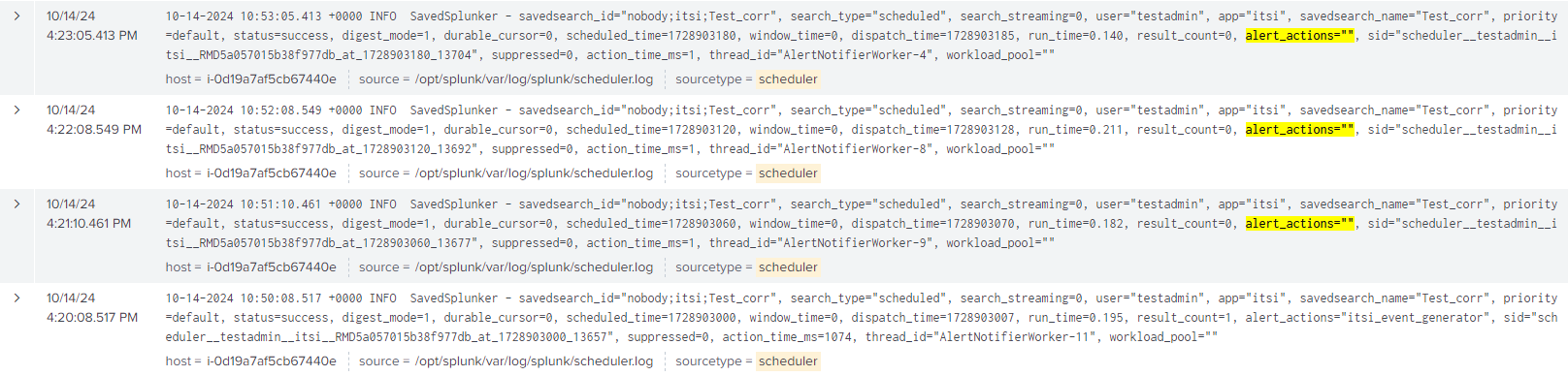
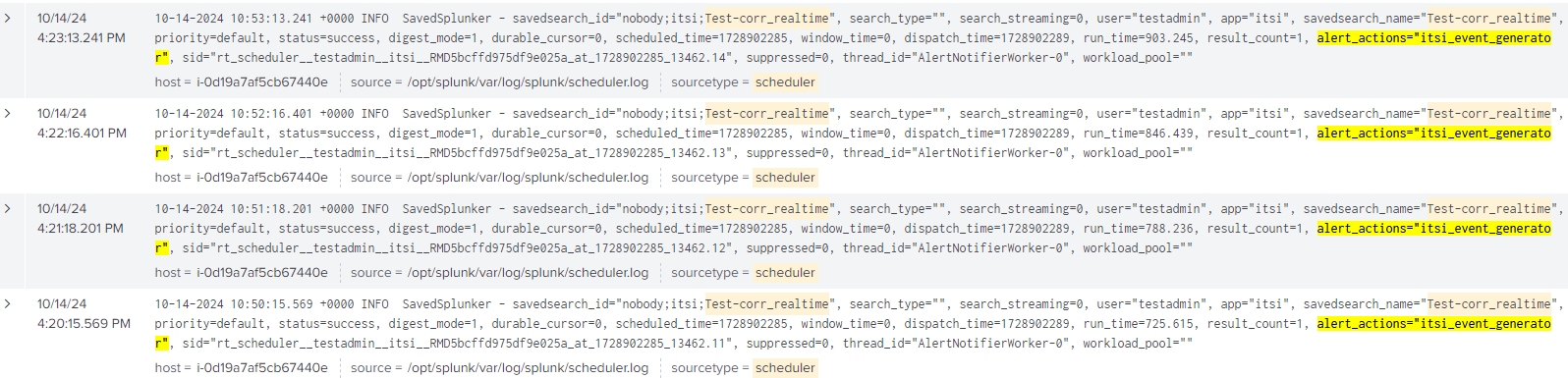
However, if the correlation search's time range is set as real-time, it triggers alerts even during its associated service's maintenance. In the scheduler logs the alert action is still called during maintenance as shown below.
Investigation
Whenever a maintenance window is created, the itsi_maintenance_calendar lookup is updated with the details such as start and end times, title, description and impacted objects.
Later when this maintenance window gets active, the operative_maintenance_log lookup is updated with its details, and this reflects all active maintenance windows.
When a service is associated with a correlation search, ITSI automatically adds a check to the SPL query to verify if the service/entity is present in the operative_maintenance_log lookup.
Search process:
Below is the search behavior between a scheduled search and a real-time search to fetch a lookup table contents.
Scheduled search:
Step 1: Search is dispatched to check the current contents of the lookup table.
Step 2: The dispatched search will return the existing results from the lookup table in this iteration.
Step 3: Any changes in the content of the lookup table, will be captured in the search's next iteration
Real-time search:
Step 1: Search is dispatched to check the current contents of the lookup table.
Step 2: The dispatched search will return the existing results from the lookup table in this iteration.
Step 3: Any further changes in the content of the lookup table, will not be captured in the same iteration of the real-time search.
Due to this behavior, when a service or entity associated with the real-time correlation search goes into maintenance, and the operative_maintenance_log lookup is updated, the search will not know that its associated object was included in the lookup and will continue triggering alerts as usual.
Resolution
As a workaround, instead of running the search in real-time, the search can be modified to run every minute with a time window of one minute or similar.
However, make sure that the search is optimized enough to finish executing within a minute.
Edit a correlation search's schedule by navigating to Configuration > Event Management > Correlation Searches
Click on a correlation search and update the Time Range to "Last 1 minute" and Run every to "minute".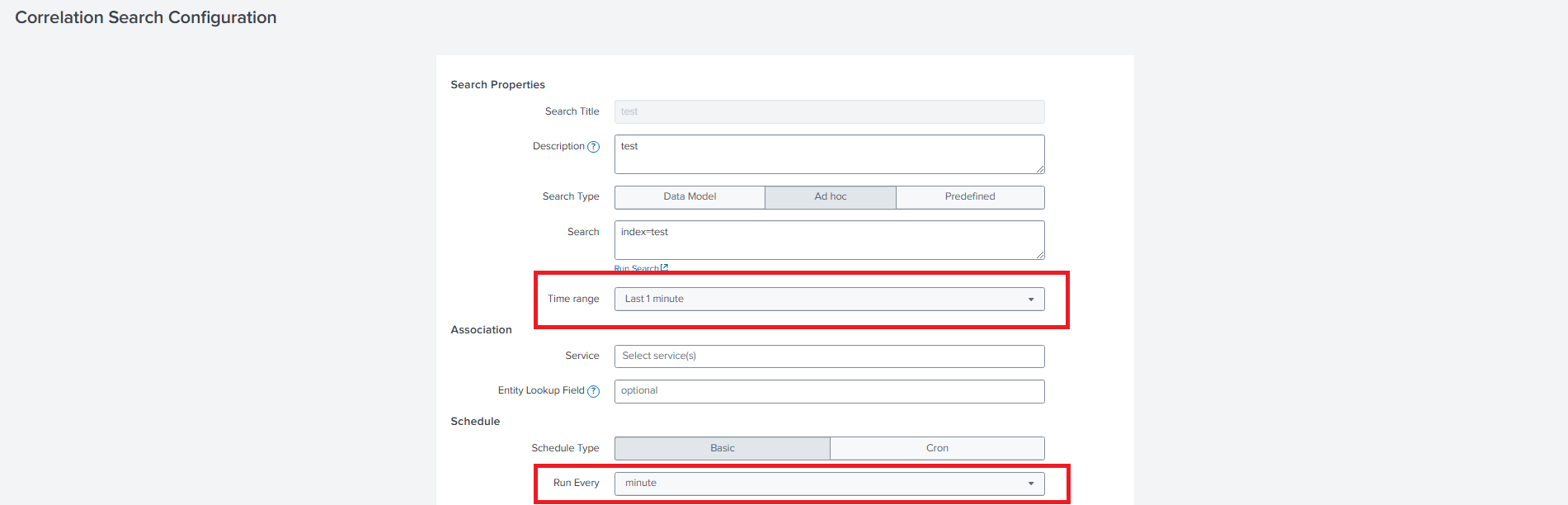
This way the search gets dispatched every minute with new lookup contents, thus maintenance window feature can be utilized.
Related Links
Revision History
| Revision | Publish Date | Comments |
|---|---|---|
1.0 |
29-Sep-2026
|
Initial Release |
 Feedback