Not able to log in via SAML using Azure AD SSO
Available Languages
Applicability
Splunk Cloud , Splunk EnterpriseDescription
Out the sudden the "Azure AD SSO" does not allow to sign in and get the error message:"Verification of SAML assertion using the IDP's certificate provided failed. Error: failed to verify signature with cert":
Investigation
It is needed to review that the configuration as per:Azure AD SSO integration with Azure AD SSO for Splunk Enterprise and Splunk Cloud
Due access to Splunk cloud is needed to review the settings,
Users can access with a local account by bypassing the authentication with this URL:
https://<your_stack>.splunkcloud.com/en-US/account/login?loginType=splunk
To review the certificates expiration:
Splunk Enterprise Users, can used the following search via CLI:
openssl x509 -subject -issuer -noout -startdate -enddate -in /opt/splunk/etc/auth/idpCerts/idpCert.pemSplunk Cloud users, will need to create a ticket for the internal team to review, due lack of access to the Splunk Cloud back end.
Output example:
openssl x509 -subject -issuer -noout -startdate -enddate -in /opt/splunk/etc/auth/idpCerts/idpCert.pem
subject=CN = Microsoft Azure Federated SSO Certificate
issuer=CN = Microsoft Azure Federated SSO Certificate
notBefore=Mar 13 13:28:37 2020 GMT
notAfter=Mar 13 13:28:37 2023 GMT
Resolution
As the Certificates are already expired the Azure AD admin will need to create new valid certificates, once done, download the Federation Metadata XML
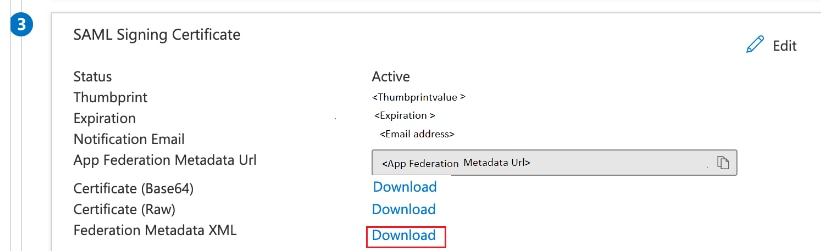
Upload the new file to Splunk Settings > Authentication Methods > SAML settings > Configure SAML
The option to upload will be “Metadata XML File”, click apply and then save the changes.

Finally click on “Reload authentication configuration” within Settings > Authentication Methods.
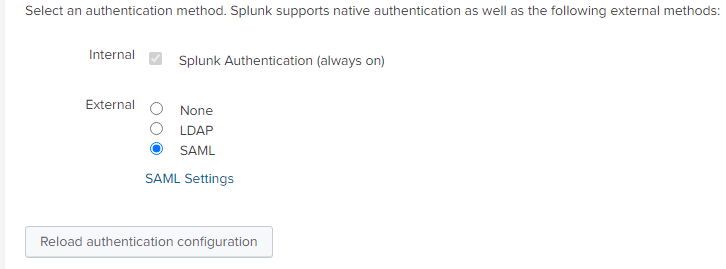
By now all the users should be able to log in as intended
Revision History
| Revision | Publish Date | Comments |
|---|---|---|
1.0 |
30-Sep-2026
|
Initial Release |
 Feedback
Contact Cisco
- Open a Support Case

- (Requires a Cisco Service Contract)