Snowflake driver not showing in driver section in Splunk DB Connect UI.
Available Languages
Applicability
Splunk Cloud Splunk Enterprise Splunk DB Connect version 3.9Description
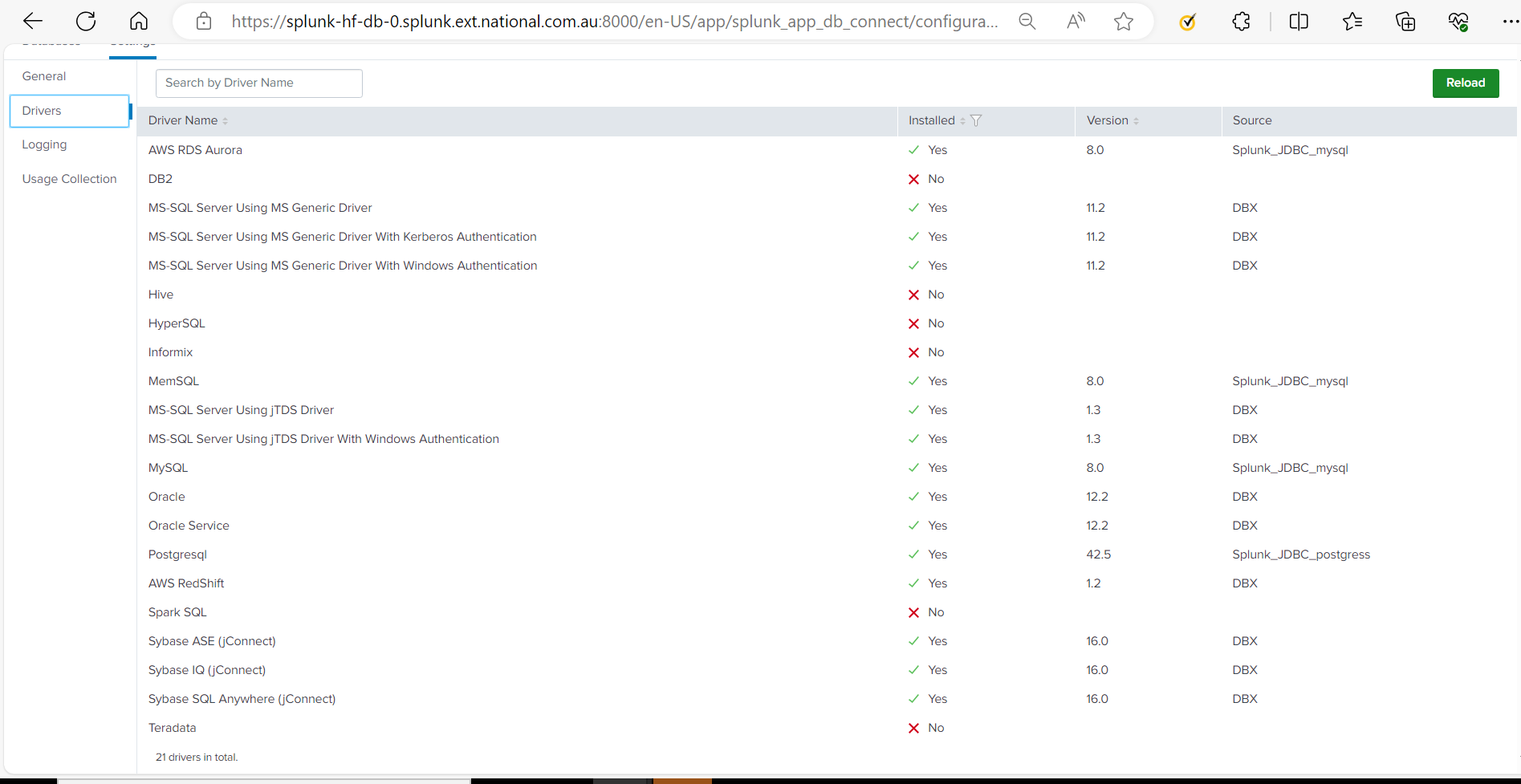
With Splunk DB Connect version 3.9.0, when user tries to install snowflake driver (Splunk DBX Add-on for Snowflake JDBC version 1.2.1) from Splunkbase, the driver does not show up on the UI. The driver doesn't show up even after adding required JAR file (snowflake-jdbc-3.13.7.jar) in the Splunk DB connect driver directory.
Reference screenshot has been attached below that shows JAR file (snowflake-jdbc-3.13.7.jar) has been added in the Splunk DB connect driver directory.

Below screenshot from UI shows that the driver is still not populating on the UI.
Investigation
In investigation, it was found that the default stanza for the Snowflake driver was missing in the db_connection_types.conf file. The db_connection_types.conf file lists the supported database types, driver parameters, and test queries. The file contains the specification for database connection types.
Default driver file path:
splunk_app_db_connect/default/db_connection_types.confResolution
This issue can be resolved by adding the following stanza to db_connection_types.conf in the Splunk DB Connect default directory, followed by a Splunk restart.
Path where the changes need to be performed mentioned below:
$SPLUNK_HOME/etc/apps/splunk_app_db_connect/default/db_connection_types.confStanza that needs to be added in db_connection_types.conf as below:
[snowflake]
displayName = Snowflake
serviceClass = com.splunk.dbx2.SnowflakeJDBC
jdbcDriverClass = net.snowflake.client.jdbc.SnowflakeDriver
supportedVersions = 3.0
jdbcUrlFormat = jdbc:snowflake://<host>.snowflakecomputing.com/
testQuery = SELECT current_date()
useConnectionPool = true
Please refer to the documentation for more information.
Revision History
| Revision | Publish Date | Comments |
|---|---|---|
1.0 |
30-Sep-2026
|
Initial Release |
 Feedback
Contact Cisco
- Open a Support Case

- (Requires a Cisco Service Contract)
This Document Applies to These Products
Related Articles
- Integrating Snowflake Data Warehouse with Splunk DB Connect
- [Splunk DB Connect] PostgreSQL Inputs Not Working in Splunk DB Connect v3.9 [Invalid Connection Error]
- Splunk App for DB Connect - Unable to fetch results using Snowflake JDBC driver from Snowflake Database
- Unable to save the connection for the Snowflake Database for the Splunk DB Connect.