Splunk shows red Health status with searches delayed
Available Languages
Applicability
Splunk Cloud Splunk Enterprise SecurityDescription
The Health Status of Splunkd is red as shown below.
Searches are getting delayed or skipped intermittently in the Search Head.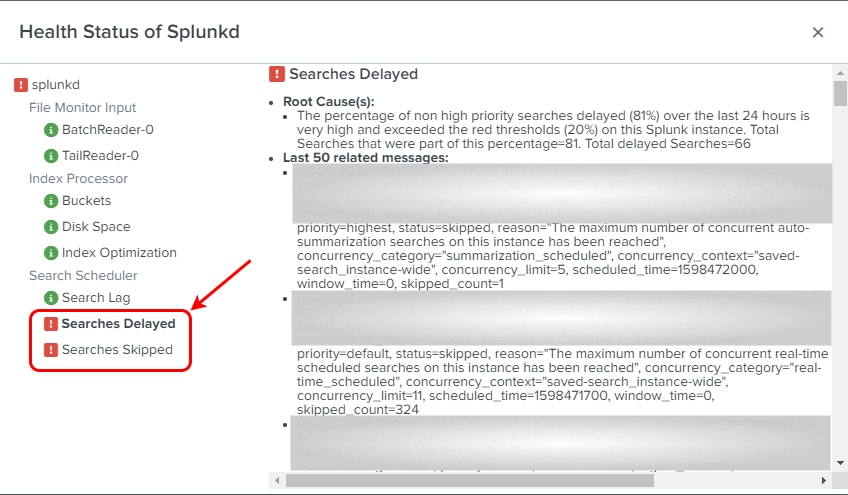
Investigation
Searches in Splunk can be delayed due to limited system resources, exceeding concurrency limits, or heavy workloads.
One of the major reasons for the searches getting delayed is due to an active search that is being executed, which does not allow the other search resulting in the search getting delayed or skipped.
Identify the Search causing the issue:
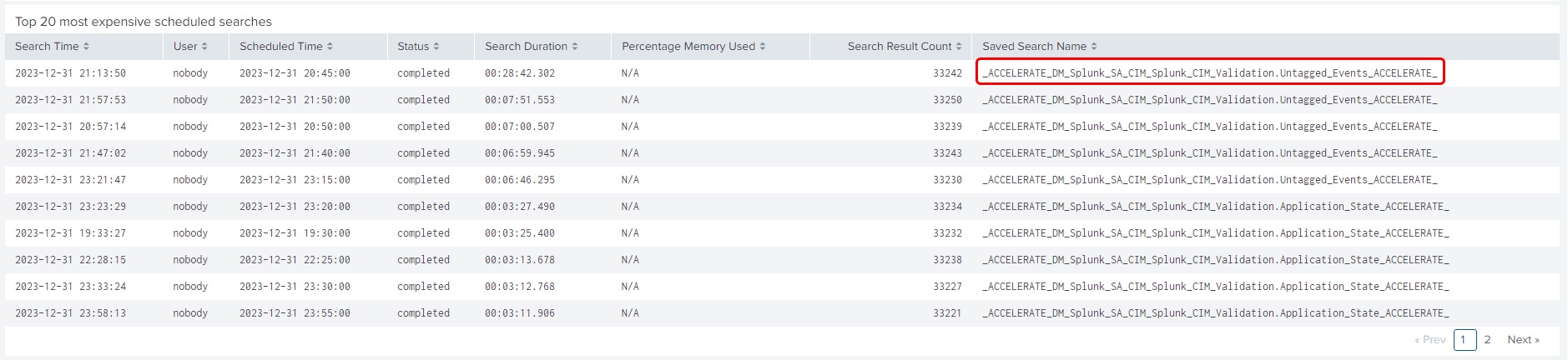
To check for the most expensive scheduled search that is being executed on the environment that utilizes the available memory could be found in the "Expensive Searches" dashboard on the Cloud Monitoring Console.
Navigate to Apps > Cloud Monitoring Console > Search > Expensive Searches.
It is observed that the High Memory Utilization is caused by the Data Model Acceleration Search and the Saved Search Name is "_ACCELERATE_DM_Splunk_SA_CIM_Splunk_CIM_Validation.Untagged_Events_ACCELERATE_" which is being accelerated by the "CIM Validation(S.o.S.)" Data Model.
Inspecting the Data Model:
With the following Splunk Documentation, it is possible to understand how the Acceleration Metrics help analyze the Data Model.
Navigate to Settings > Data Models and select the expand symbol to the left side of the title for the required Data Model.
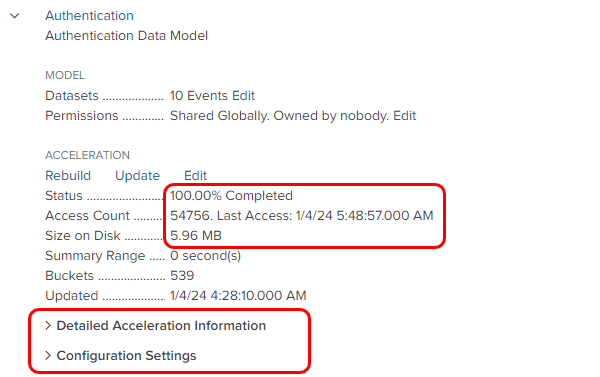
Looking into the "Access Count" will help to identify if this data model is being used by any of the searches & with "Size on Disk" if this is consuming high storage in the instance.
Look for the "Detailed Acceleration Information" & "Configuration Settings" to inspect the data model in detail.
The below reference image shows the metrics for the "Authentication" data model.
Identifying the required Data Model:
Navigate to Apps > Enterprise Security > Audit > Data Model Audit to investigate the Data Models that are accelerated in the Instance.
However, the Data Model that has utilized the memory in the below scenario is "CIM Validation (S.o.S.)".
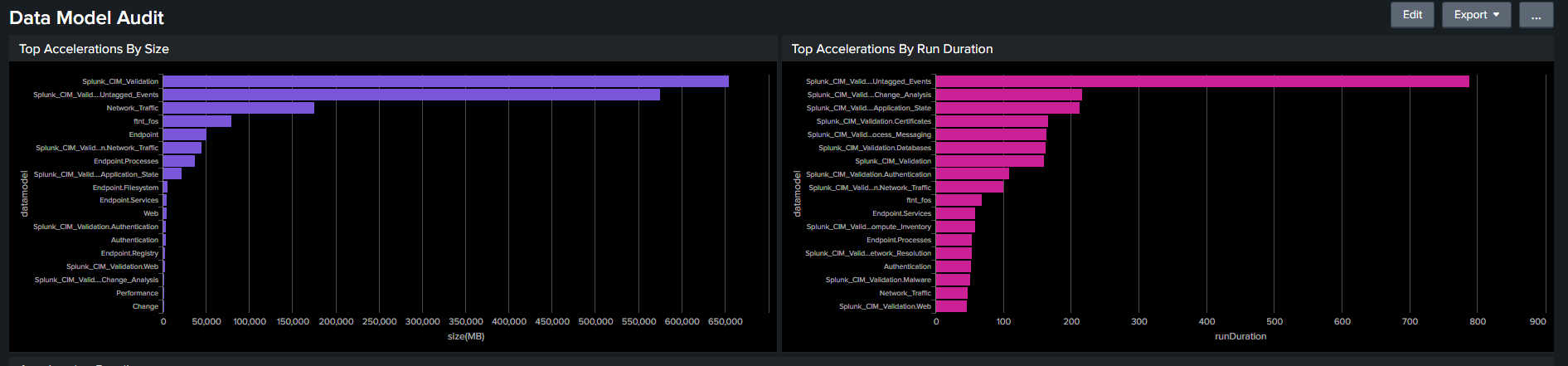
As the "Splunk_CIM_Validation.Untagged_Events" (Child Dataset) comes under the above-mentioned "CIM Validation (S.o.S.)" Data Model.
This Data Model is not configured to be used on any Searches or Reports by default in Splunk and is used to validate the available data using Pivot.
Refer to the following Splunk Documentation to learn about the uses of the "CIM Validation (S.o.S.)" Data Model.
If there are no searches/reports configured to run on this data model, it is suggested to disable the acceleration for data model "CIM Validation (S.o.S.)". This reduces the unwanted usage of memory & storage in the Splunk Instance.
Note: The "Data Model Audit" Dashboard is available only in "Splunk Enterprise Security", use the below provided SPL to manually run the Search in Splunk.
Top Acceleration by Size:
| `datamodel("Splunk_Audit", "Datamodel_Acceleration")`
| `drop_dm_object_name("Datamodel_Acceleration")`
| join type=outer last_sid
[| rest splunk_server=local count=0 /services/search/jobs reportSearch=summarize*
| rename sid as last_sid
| fields last_sid,runDuration]
| eval "size(MB)"=round(size/1048576,1), "retention(days)"=if(retention==0,"unlimited",round(retention/86400,1)), "complete(%)"=round(complete*100,1), "runDuration(s)"=round(runDuration,1)
| sort 18 - size
| table datamodel,size(MB)
Top Acceleration by Run Duration:
| `datamodel("Splunk_Audit", "Datamodel_Acceleration")`
| `drop_dm_object_name("Datamodel_Acceleration")`
| join type=outer last_sid
[| rest splunk_server=local count=0 /services/search/jobs reportSearch=summarize*
| rename sid as last_sid
| fields last_sid,runDuration]
| eval "size(MB)"=round(size/1048576,1), "retention(days)"=if(retention==0,"unlimited",round(retention/86400,1)), "complete(%)"=round(complete*100,1), "runDuration(s)"=round(runDuration,1)
| sort 18 - runDuration
| table datamodel,runDuration
Resolution
To Disable the Acceleration of the "CIM Validation (S.o.S.)" Data Model.
Steps to Disable the Accelerated Data Model:
Navigate to Settings > Data Models click Edit and choose Edit Acceleration from the dropdown for "CIM Validation (S.o.S.)" Data Model.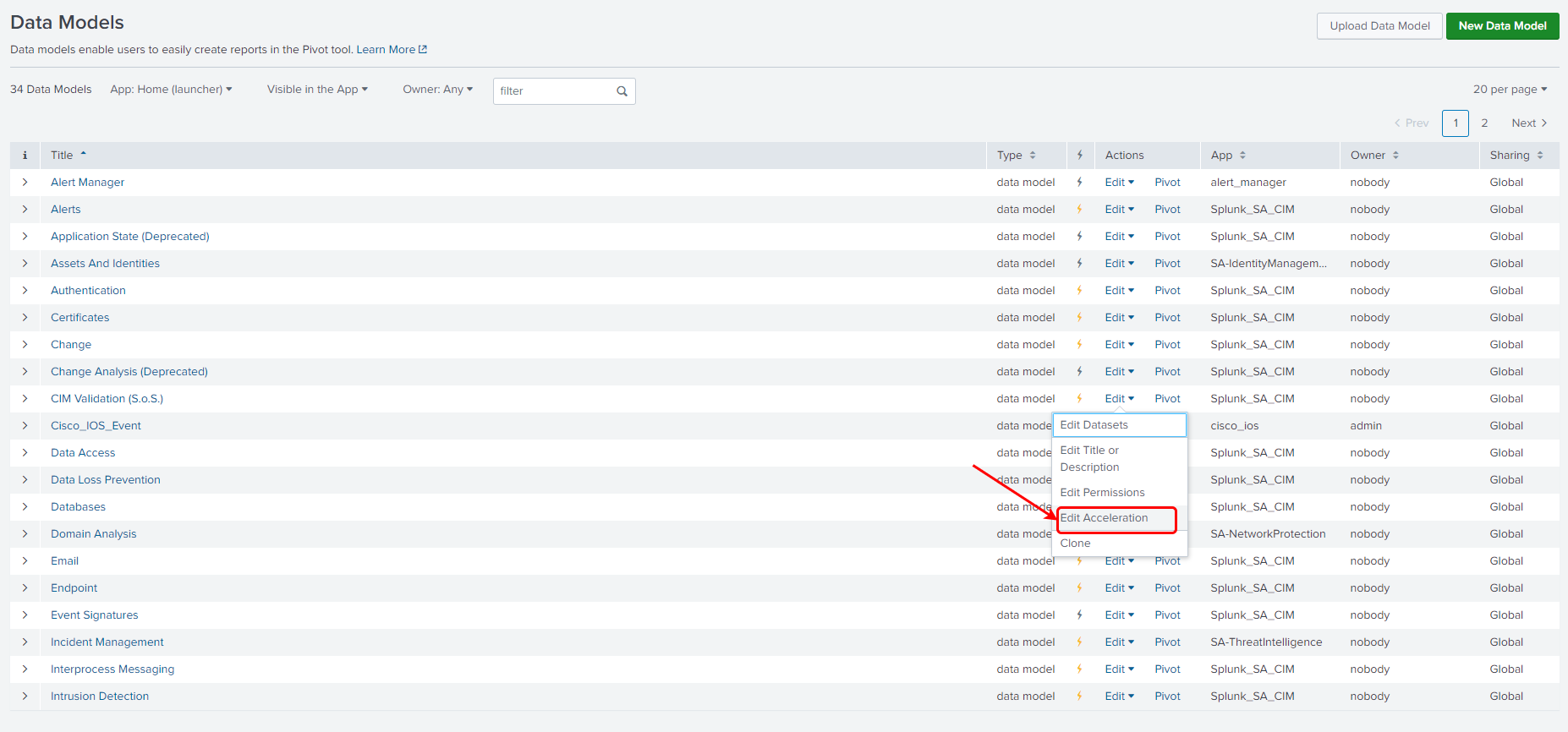
In the Edit Acceleration Popup, uncheck the Acceleration and click Save.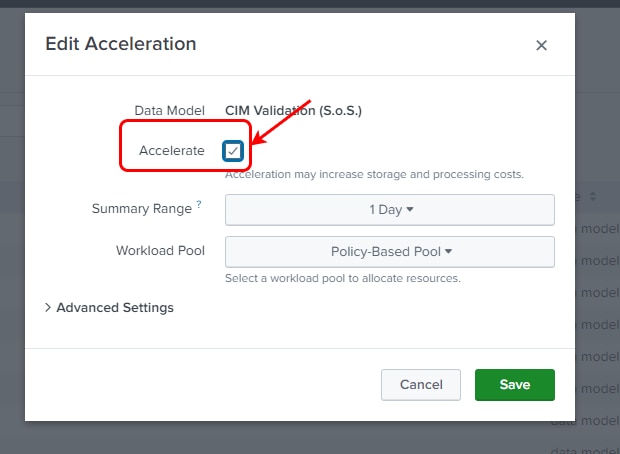
Related Links
Splunk Documentations:
Use CIM to validate your data
Inspect Data Model metrics
Datamodel.conf
Revision History
| Revision | Publish Date | Comments |
|---|---|---|
1.0 |
30-Sep-2026
|
Initial Release |
 Feedback
Contact Cisco
- Open a Support Case

- (Requires a Cisco Service Contract)
This Document Applies to These Products
Related Articles
- Red Health Status: The percentage of non high priority searches delayed
- Stale Warning of Searches Delayed and/or Searches Skipped in the Splunkd Health Report
- Red health status due to small bucket creation
- Health Report shows stale warning for "Searches Delayed": The percentage of non high priority searches delayed (A%) over the last 24 hours is very high