SAML login fails with error: Saml response does not contain group information
Available Languages
Applicability
Splunk CloudDescription
After configuring SAML authentication on the Search Head, specific users are unable to log in and receive the following error message:

This error indicates that Splunk, acting as a passive recipient, did not receive the expected Group identifiers from the Identity Provider (IDP) in the SAML assertion.
For SAML logins to work, Splunk relies on a two-step configuration:
- Groups are defined on the Identity Provider, and users are assigned to these groups.
- These IDP Groups must be mapped to specific Splunk Roles in the SAML settings.
Because Splunk does not inherently know what permissions a user has, it relies entirely on the IDP to send this Group information during the login handshake. If the IDP response fails to include these Groups (or sends a link instead of the actual Group IDs), Splunk cannot assign a role to the user, and the session fails to establish.

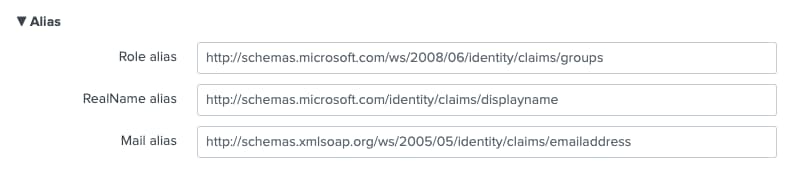
The following illustrates a properly configured SAML setup on the Splunk platform.
Investigation
To identify the root cause, you must analyze the SAML response sent by the IDP.
Step #1: Verify Existing Mappings
- Navigate to Settings > Authentication Methods > SAML settings.
- Review if SAML Groups are mapped to Splunk Roles. If this page is empty, the mapping configuration is missing and must be completed first.
Step #2: Enable DEBUG Logging.
For effective troubleshooting, you must capture the full SAML response.
- Navigate to Settings > Server settings > Server logging.
- Locate the following components. Note their current logging level (e.g., WARN or INFO) so you can revert them after troubleshooting.
SamlUiSAMLUserManagerUserManagerPro
- Change the current LOGIN level, and set them to DEBUG.
- Ask the affected user to attempt to login to generate the SAML response.
Step#3: Review the SAML response.
- Run the following search query, replacing <username> with the affected user's ID.
index=_internal sourcetype=splunkd SAMLp <username>Note: If the search yields no results, try replacing SAMLp with SAML2 or SAML:response, as logging formats may vary by IDP.
Step#4: Review the XML Content.
- Copy the XML response from the search results. It is recommended to copy the XML into a text editor which can format the XML to ready easily. Example: Atom, Visual Studio Code, Note++, Sublime, Brackets.

Please note the following scenarios.
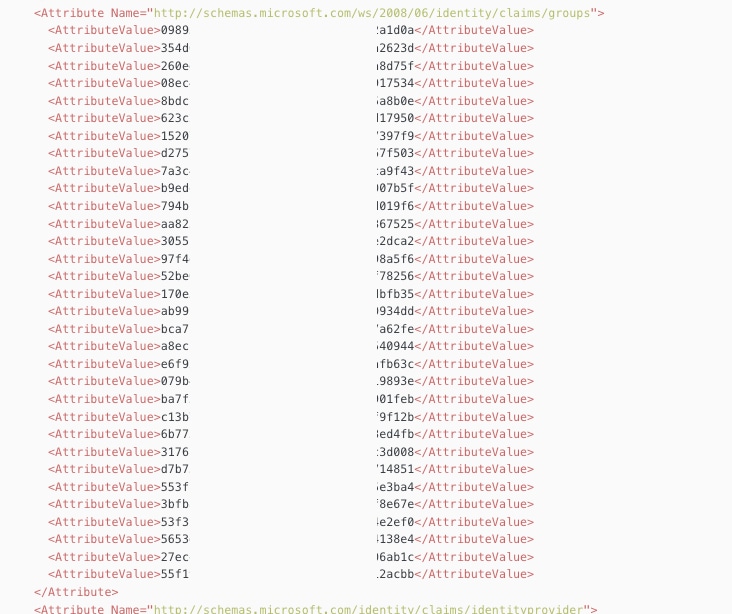
- Scenario A: Group Limit Overage (Azure/Entra ID). If the IDP response does not include actual Group names but instead contains a groups.link URL, the user likely belongs to too many groups (Azure has a limit of 150 groups per user).
- Scenario B: Missing Configuration. If the groups attribute is entirely missing, the IDP is not configured to send the group claims. Splunk operates solely as a passive recipient; if it anticipates receiving Group information and finds it missing, the IDP must be reconfigured to include it. Splunk does not alter the received XML response in any manner. Therefore, if Splunk anticipates receiving Groups information and finds it missing, it is imperative for the IDP to include this information in the XML SAML response.
A correct response should list the Group IDs explicitly:
Example:
Resolution
Depending on the results of the investigation, apply the appropriate fix below.
Scenario A: Group Limit Overage (Azure/Entra ID)
If the user exceeds the IDP's group limit (typically 150 for Azure). Choose one of the following methods to resolve this:
- Filter Roles: Reduce the number of groups the user belongs to on the IDP side so the total count falls below the limit.
- Configure Group Claims: Modify the IDP application configuration to emit only the groups assigned to the application, rather than all groups the user belongs to.
- Authentication Extension: Setup an Authentication Extension to help overcome the Azure limitation.
Scenario B: Missing Configuration.
If the groups were entirely missing from the XML, perform the following steps:
- Contact the IDP Administrator.
- Ensure the IDP is configured to include the "Groups" claim in the SAML assertion.
- Verify that the attribute name for groups in the IDP matches the attribute name Splunk expects in the SAML configuration.
Related Links
Configure group claims for applications by using Microsoft Entra ID
Revision History
| Revision | Publish Date | Comments |
|---|---|---|
1.0 |
29-Sep-2026
|
Initial Release |
 Feedback
Contact Cisco
- Open a Support Case

- (Requires a Cisco Service Contract)
This Document Applies to These Products
Related Articles
- SAML user unable to login due to 'SAML response does not contain group information' error
- SAML U-M Shibboleth SSO - Error: "Saml response does not contain group information".
- Troubleshooting Splunk Login Failures: "SAML response does not contain group information"
- Azure-Specific Fix: ERROR: "SAML response does not contain group information." Using Microsoft Azure AD as the Identity Provider