Working with Splunk Support
Available Languages
Applicability
Splunk Cloud
Splunk Enterprise
Splunk Enterprise Security
Splunk Incident Intelligence
Splunk IT Service Intelligence
Description
Global Splunk Support
Splunk Support
Splunk provides 24/7 global support. During weekends and local holidays, support is focused on urgent P1 and Premium P2 cases; all other cases are handled during business hours. Contact Splunk Support.
Support Team Functions
Customer Service Agents
- 24x7 Global Coverage
- Provide live customer support to assist in opening cases
- Direct access to Technical Support Engineers based on case priority
- Requests additional information (diags, issue clarification, impact, and more)
- Handle license reset keys and other license questions
- Customer communications as needed
- Works on primarily non-technical issues and requests
Technical Support Engineers
- 24x7 Global Coverage
- Weekend & local holiday coverage for Standard P1 and Premium P1-P2 coverage
- Assist in resolving post sales, non configuration technical issues via:
- Email Case Updates
- Phone
- Web Conferencing
- Engage with internal resources as needed to reach case resolution (see Resources beyond Support
- Bugs
- Workarounds
Resources Beyond Support
Other Roles
Outside of support who can you ask for assistance?
Sales Engineer (SE)
Can answer questions like:
-
How-to questions, questions about feature compatibilities
-
Implementation Demo / Proof of concept (POC)
-
Product Feature feasibility
-
Enablement sessions
Professional Services (PS)
Any changes within the Customer’s environment that require a statement of work (SOW) such as:
-
Implementation
-
App Customization
-
Data Onboarding
-
On-Prem & Cloud Health checks
-
Time with PS Consultant available thru On Demand Service*
*Contact your account team for more information on these services.
Onboarding Process
Customer Registration Process
- Sign up here
- Validate primary business email. Cases submitted using group alias are not accepted.
- It is critical to on-board your staff correctly so that they can reach Splunk Support for technical issues in a timely manner. The process of onboarding includes:
- Registering here
- Next, they should check their email inbox for a Splunk validation message. They must acknowledge the link within 7 days otherwise their access will expire. Double check that the validation email did not get sent to the junk/spam folder.
- Once they have validated the Splunk link, this will create an account.
- It can take up to 24 hours to process.
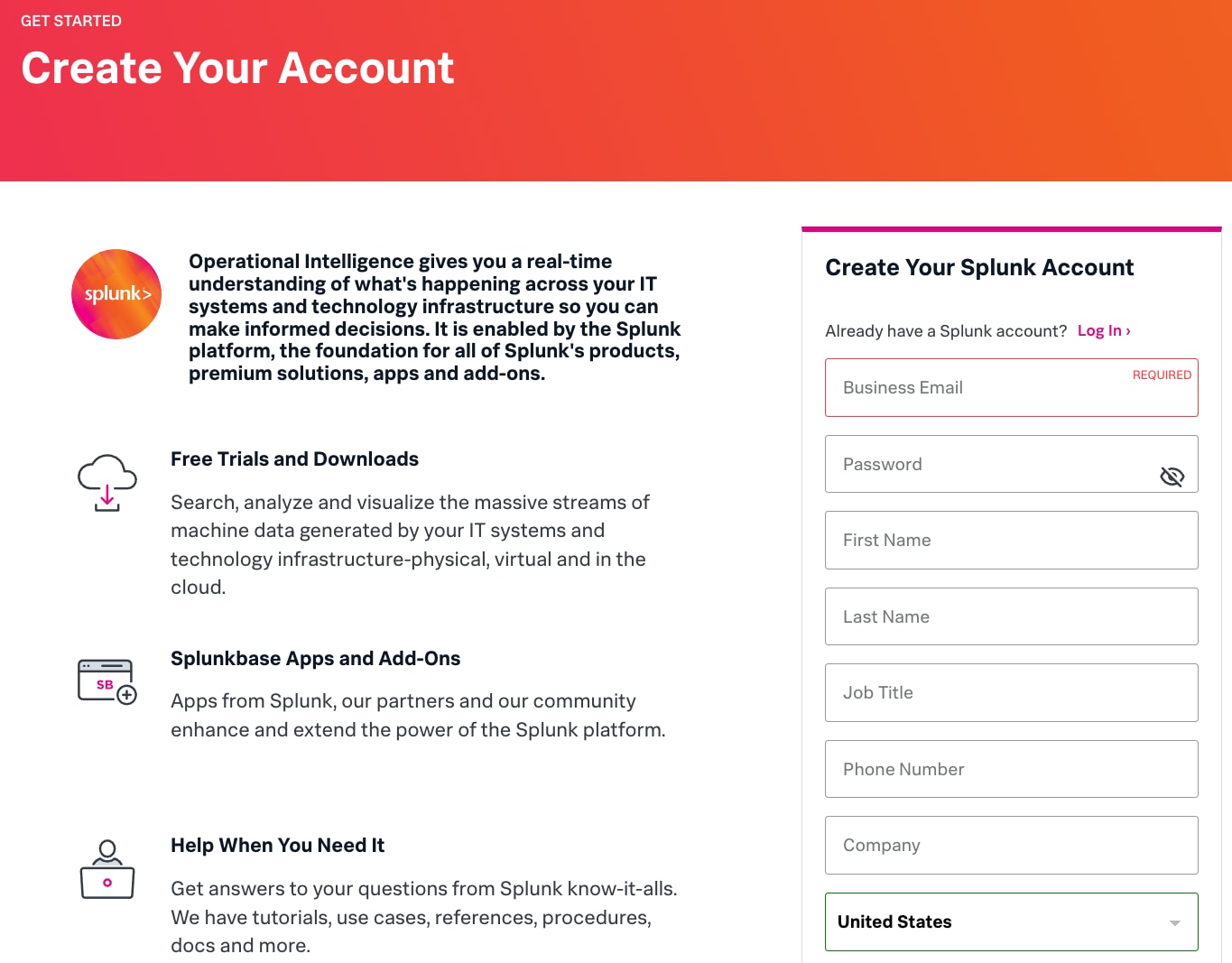
The ship-to contact on the account entitlement will by default be created as the Portal Admin, and can assist with creating additional users up to the entitlement limits, or removing users who no longer need access. You can also contact your account team for questions.
It is critical to register your team correctly so that they can reach Support Engineers for technical issues in a timely manner. New users should follow the same process as above to create a new account and contact the portal admin for the entitlement to be added as an authorized contact.
Entitlement & Contacts/Users
Viewing Your Entitlements
Once logged into the Support Portal, in the Get started menu at the top, click Entitlements.
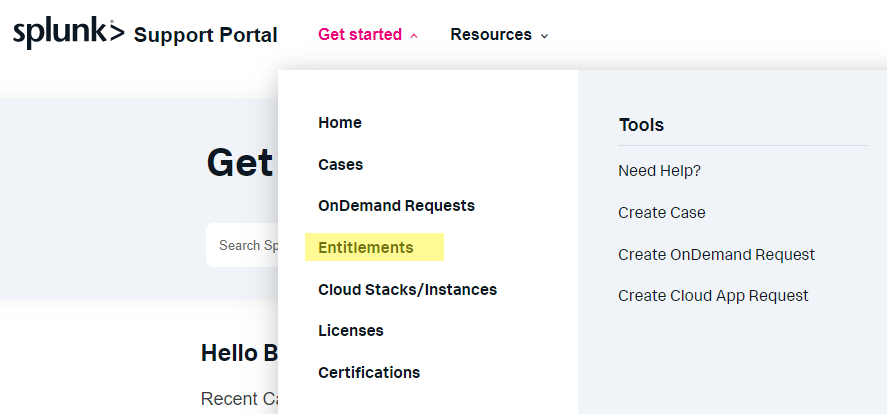
The view defaults to active entitlements. Entitlement ID numbers start with “E-” (or the legacy
three-letter product code) followed by 8 digits.
Valid entitlement types:
- E - All products
- Legacy types
- SPL – On-Prem Enterprise
- SLT – Splunk Light
- SLC – Splunk Light Cloud
- SCL – Cloud Enterprise
- PII – Phantom
- CSA - User Behavior Analytics
Note: Entitlements govern access to support while licenses govern access to the product. Users shall be added to each separately, depending on needs.
Contacts/Users
Who is entitled to Splunk Support? What can they do?
Authorized Contact
- Individual with primary business email
- Submit and update cases
- Must have valid and active entitlement
- Also known as Support or Entitlement contact
Portal Admin
- Add/delete contacts from entitlement, non-partner contact
- Authoritative voice on entitlement and license modifications
Community User
- Cannot be added to an entitlement.
- No case submission via support portal, case visibility or case SLA
Operational Contact
- Individual who is notified when the Splunk Cloud environment undergoes maintenance or experiences a performance-imp acting event
Security Contact
- Individual or email alias within your organization who is responsible for managing cybersecurity-based “data breach” incidents
- Can respond as well as escalate to appropriate personnel within the company, including leadership
Operational VS Entitlement Contacts
| Entitlement Contacts | Operational Contacts |
| Entitlement Contacts can raise Support Cases in the Support Portal using their entitlement to request support for their products or help in managing their splunk.com account. Being an entitlement contact does not automatically assign someone as a license contact, unless specifically requested. Entitlement contacts can be added as a case collaborator per case so they can view case details and upload attachments. |
Operational Contacts are a subset of Account Contacts who are notified when a Splunk Cloud environment undergoes maintenance or experiences a performance-impacting event. These contacts will receive notifications of planned and unplanned downtime, including scheduled maintenance window alerts and email updates related to incident-triggered cases. |
| Managing Entitlement Contacts | Managing Operational Contacts |
| In the Support Portal, Entitlement Contacts designated as a Portal Admin can add anyone from their same Account to the entitlement. This can be done under either the “My Entitlements” or “Portal Admin” section. To add or remove Portal Admin status from any entitlement contact, reach out to your account team or Splunk support. |
In the Support Portal, any Splunk Cloud entitlement contact can manage Operational Contacts by navigating to the “My Operational Contacts” section and following the instructions there. There is no limit to the number of Operational Contacts. |
Splunk Case Priorities
Case Priorities
- P1: A production installation of purchased Splunk software is completely inaccessible or the majority of its functionality is unusable.
- P2: One or more important features of purchased Splunksoftware has become unusable.
- P3: Any other case where a feature of purchased Splunk software is not operating as documented.
- P4: All general questions & enhancement requests are considered ‘P4’ & should be logged via the Splunk Ideas Portal.
- Cloud P4: For Splunk Cloud cases only, P4 is utilized for app installs and proactive communication.
Support is offered to users with paid for support active Splunk entitlements. The entitlement ID will be asked for when calling support and is required for submitting a case via the portal.
When submitting a case, Customer will select the priority for initial response by logging the case online, in accordance with the priority guidelines.
When the case is received, Splunk Support may change the priority if the issue does not conform to the criteria for the selected priority and will provide Customer with notice (electronic or otherwise) of such change.
Submitting a case via the Portal
How to Log Into the Support Portal
Go to Splunk.com > Support > Support Portal
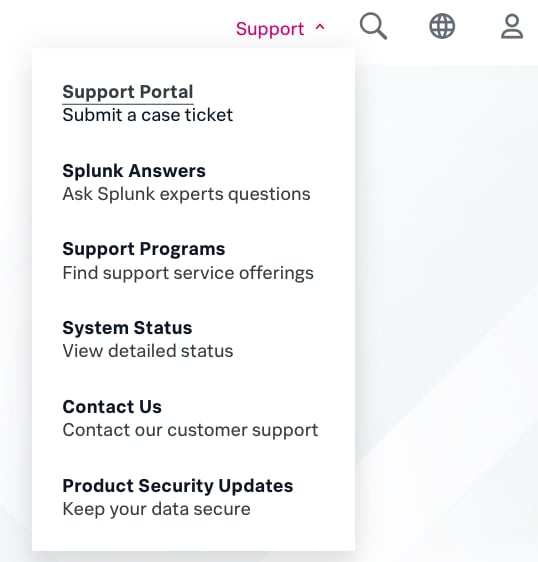
To access the Support Portal, you must be registered with Splunk.com
- If you are registered with more than one login, be sure to use the relevant username when creating a Support Case
- You can call in to Support with your case, but you must have your username & Entitlement number ready
Case Creation
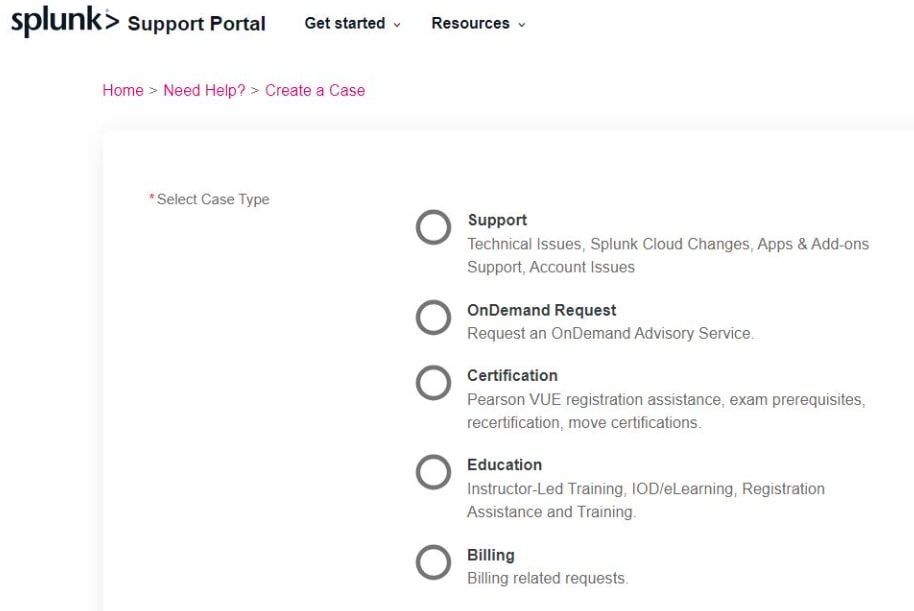
The case creation form is broken down into areas to narrow the focus on certain questions.
- Support
- OnDemand Request
- Certification
- Education
- Billing
How To Create a Case
- Log into the support portal then select Get Started > Create case
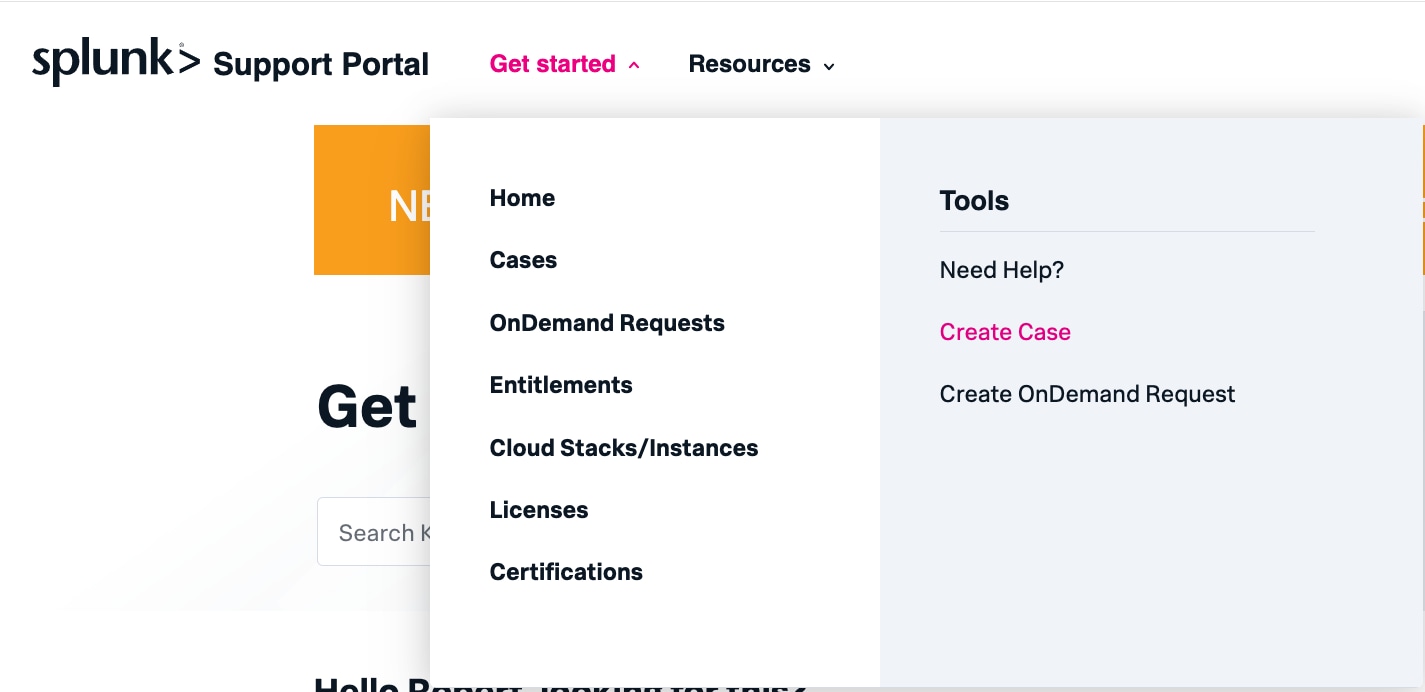
- Select Support for technical issues, Splunk Cloud changes, Apps and Add-on support, or account issues
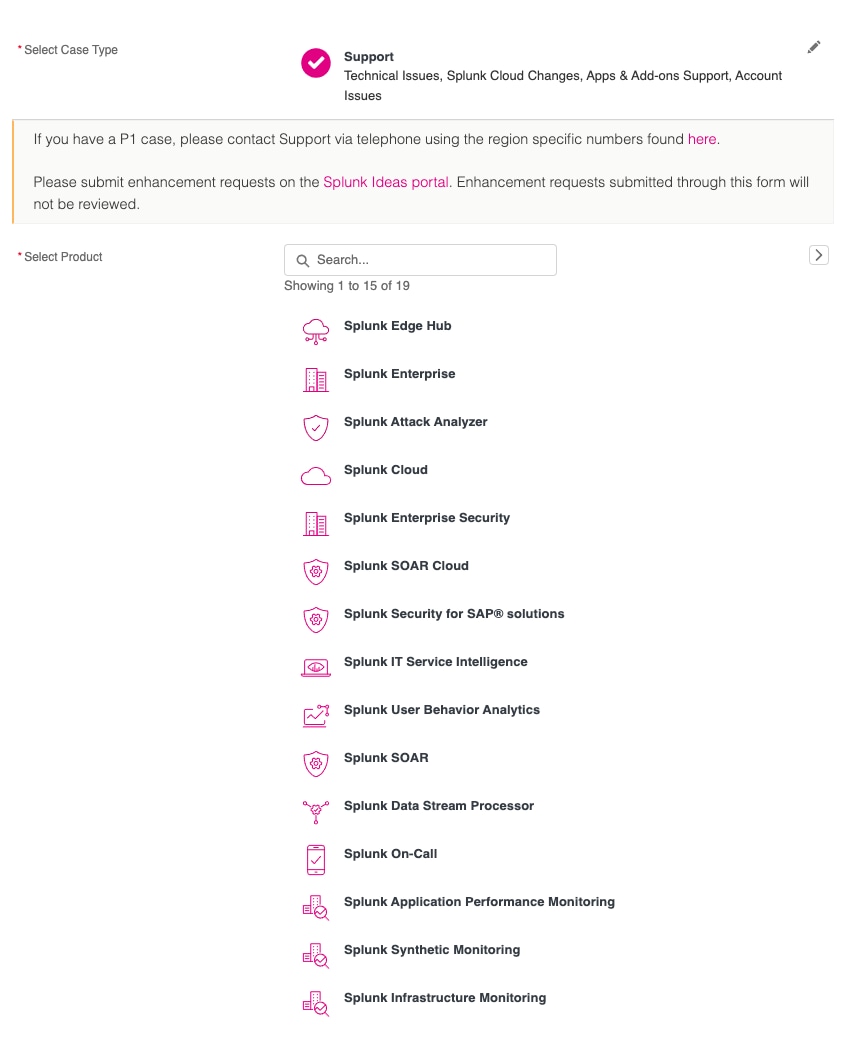
- Select the product that is experiencing issues. Ensure the appropriate Cloud Stack name is selected if applicable.
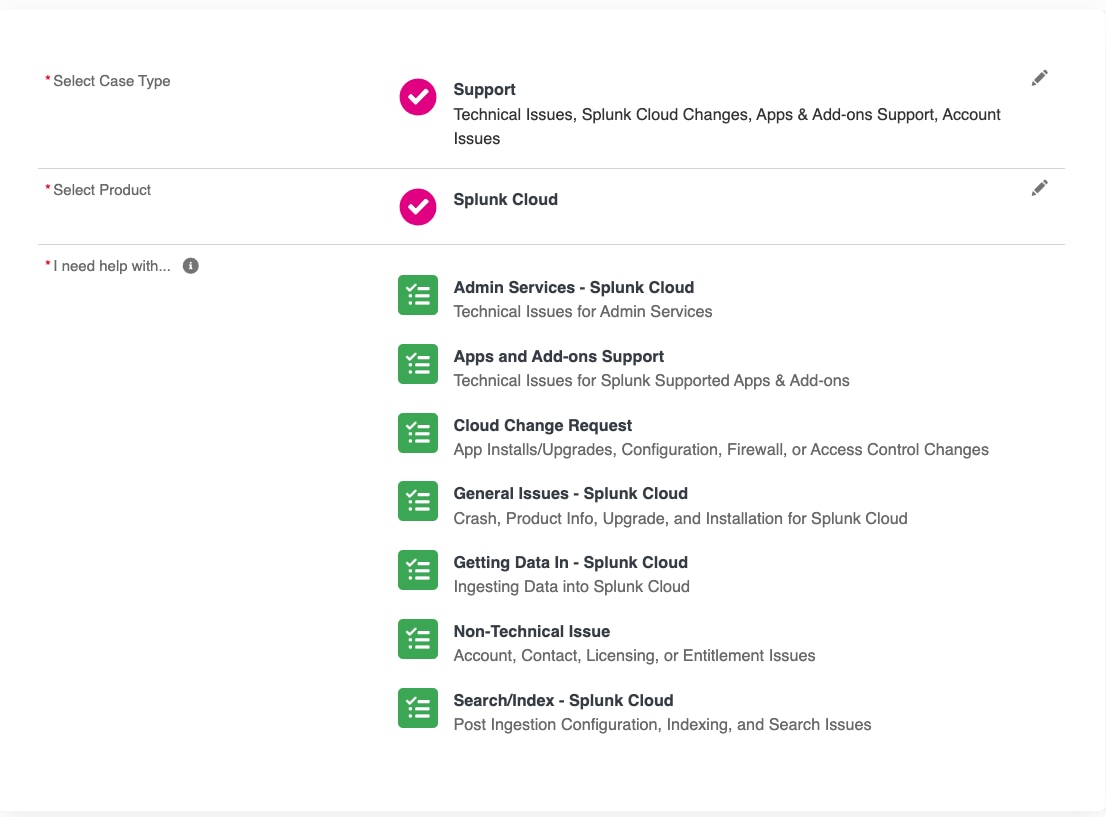
- Once the product has been chosen, choose the category that best fits what you need help with.
- The Subject field should be a one sentence summary of the issue. Based on the information provided in the Subject line, knowledge articles will be recommended in the right side panel.
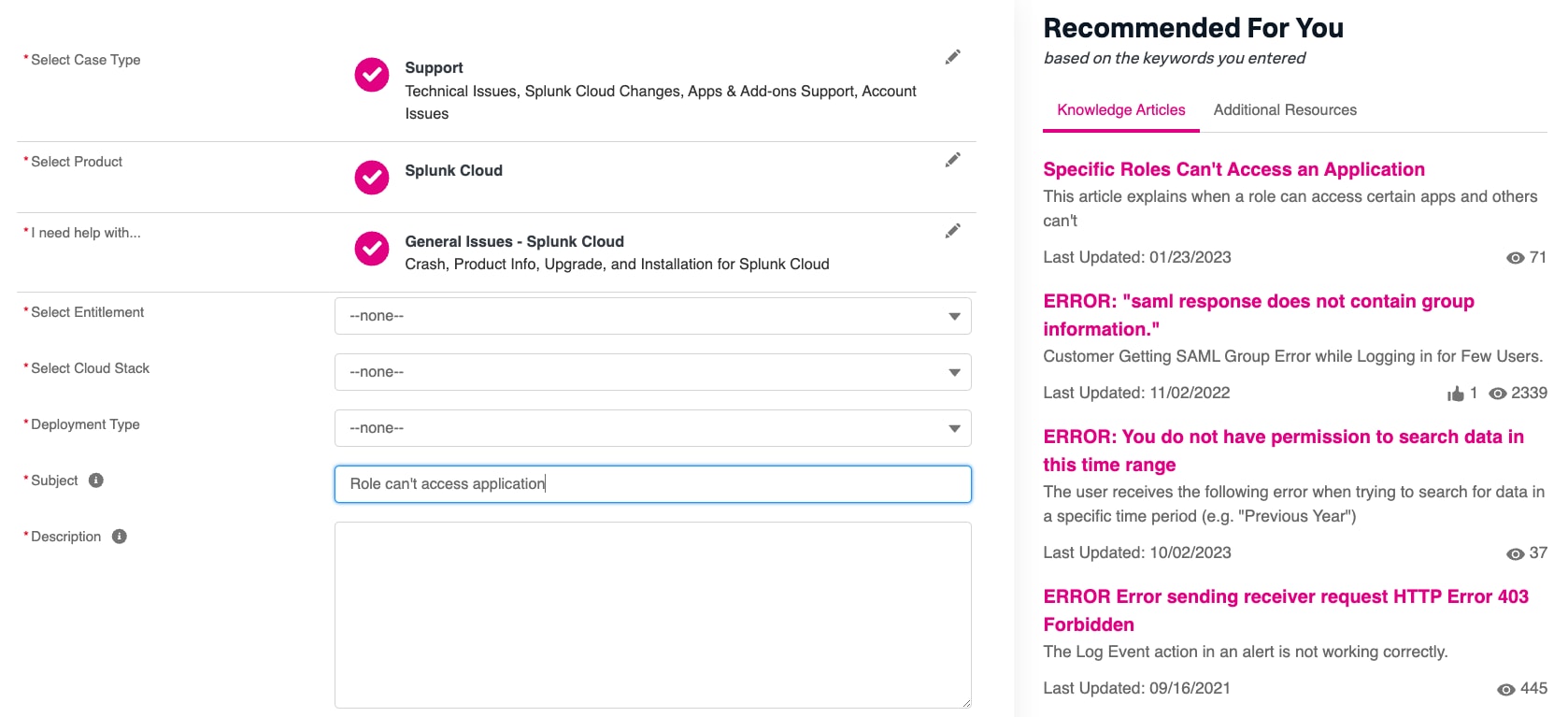
- The Description should include as much relevant information as possible.
- The more details provided at the start, the less back and forth communication will need to occur between you and support.
- In Steps to Reproduce, include details like commands and other actions plus a description of the configuration
- The Business Impact should detail the impact the issue is having on your business operations.
- If applicable, set Data Access Request to indicate whether Splunk is allowed or denied to accessing the Cloud Stack selected for this case.
- Case Collaborators can be added. They will be explained in detail later.
- Any important notices and banners appear such as the PubSec banner or the attachments reminder.
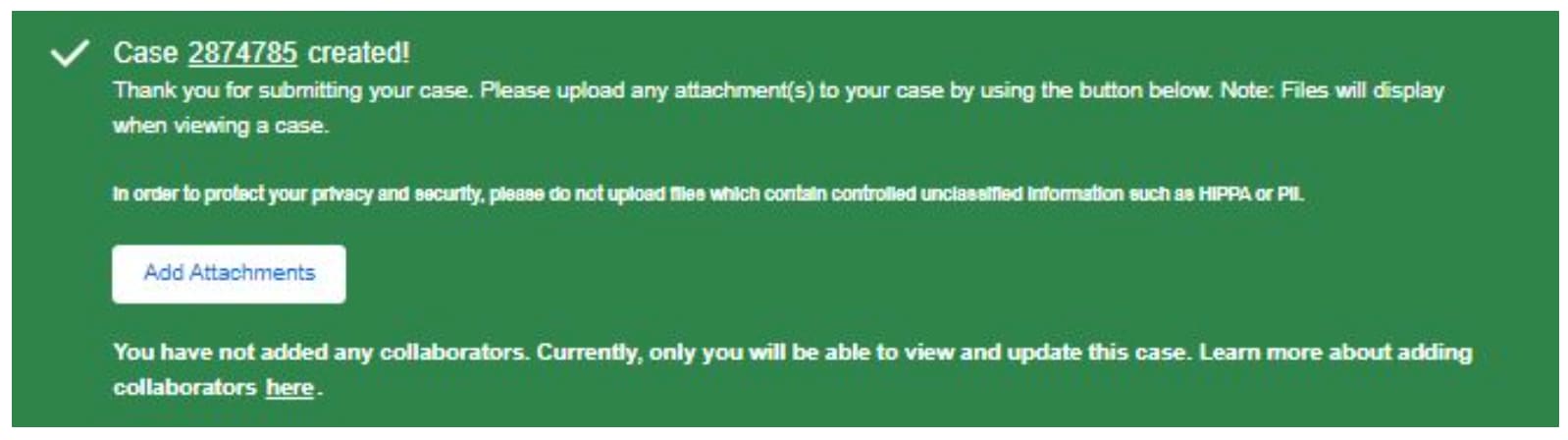
- You will be able to add attachments after the case is created.
What Information Should Be In the Case?
Key details a case should include to help Support narrow down the issue/behavior.
- Steps on how to reproduce, if applicable
- The symptoms of the issue
- If an upgrade has occurred
- When the problem started
- What you have already investigated
- What were the findings and observations
- Screenshots
- Sample events
- Relevant logs or error messages
- Any environment information such as recent OS updates, hardware, or configuration changes
- Splunk diag file
Note: You will be able to add attachments after the case is created.
Customer-managed Case Visibility - Splunk Collaborators
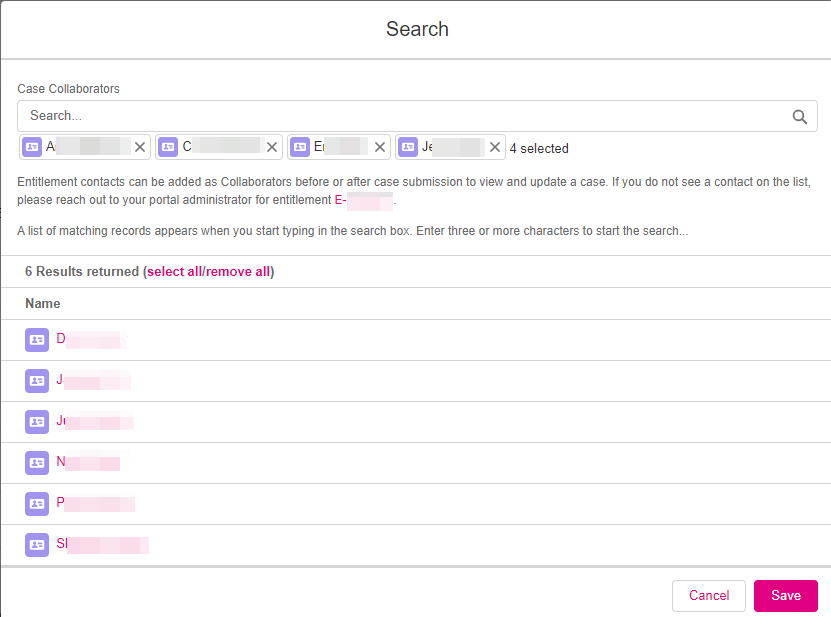
- Clicking the search option in the Collaborators field brings up a dialog box that lists all of the Entitlement Contacts on the Entitlement for the Product chosen.
- Opening the search dialog presents the option to Select All or Remove All contacts as collaborators.
- Any collaborator can add or remove other case collaborators.
- If a Contact is not listed, the Portal Admin can confirm and add an authorized user as necessary for the listed Entitlement.
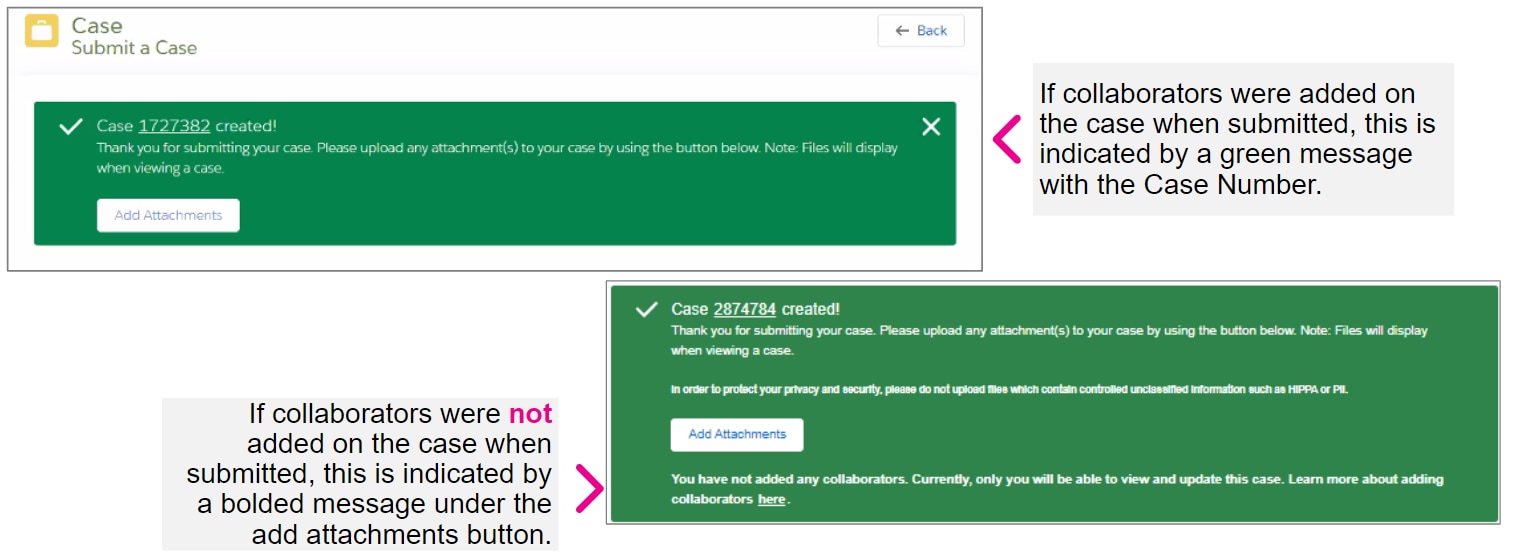
- By default, only the case creator can view a case unless case collaborators are added. The list of case collaborators is managed upon case creation and on existing cases in the Support Portal. Case Collaborators can edit the case details
and upload file attachments but are not copied on case communications.
- By default, only the case creator can view a case unless case collaborators are added. The list of case collaborators is managed upon case creation and on existing cases in the Support Portal. Case Collaborators can edit the case details
What is a Splunk Diagnostic File (Diag)
Generating a diag file is necessary in understanding and getting a snapshot of your configuration in your Splunk environment.
Uploading a diag with your case submission will reduce the amount of time required to identify the root cause of your issue.
Please be aware that a diag does not collect your indexed data.
Use Cases where a diag is critical:
- Forwarder is not working or reaching the indexer
- Data is missing
- Splunk crash
How to generate a diag
splunk diagAttach to a case through the support portal
- For existing cases, log into the Splunk Support Portal and select the case you would like to upload diags to.
- In new cases, the diag can be uploaded when the case is created. This is the preferred method as it is a secure server.
Apps and Add-Ons
How To Raise a Apps and Add-one Case
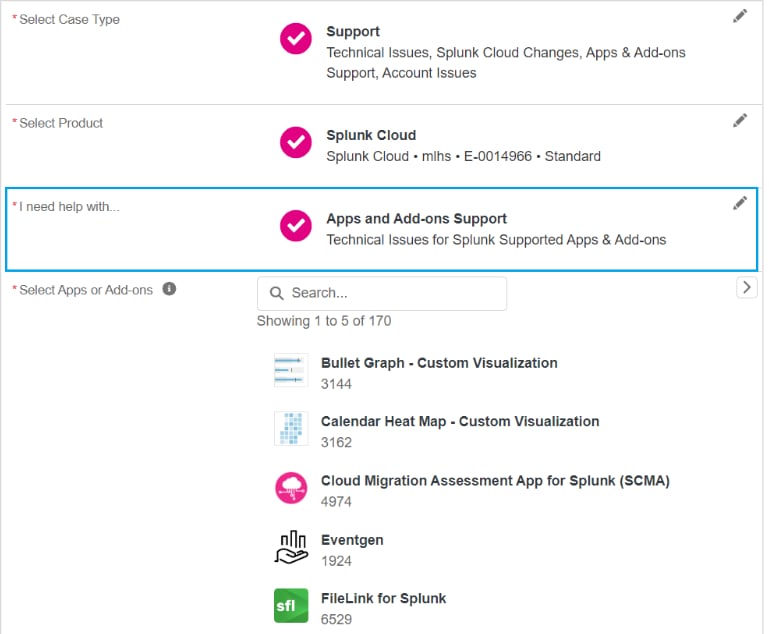
For technical support on a Splunk supported Apps or Add-ons, select the appropriate app or add-on from the lookup field.
Click here to learn more about Apps and Add-Ons.
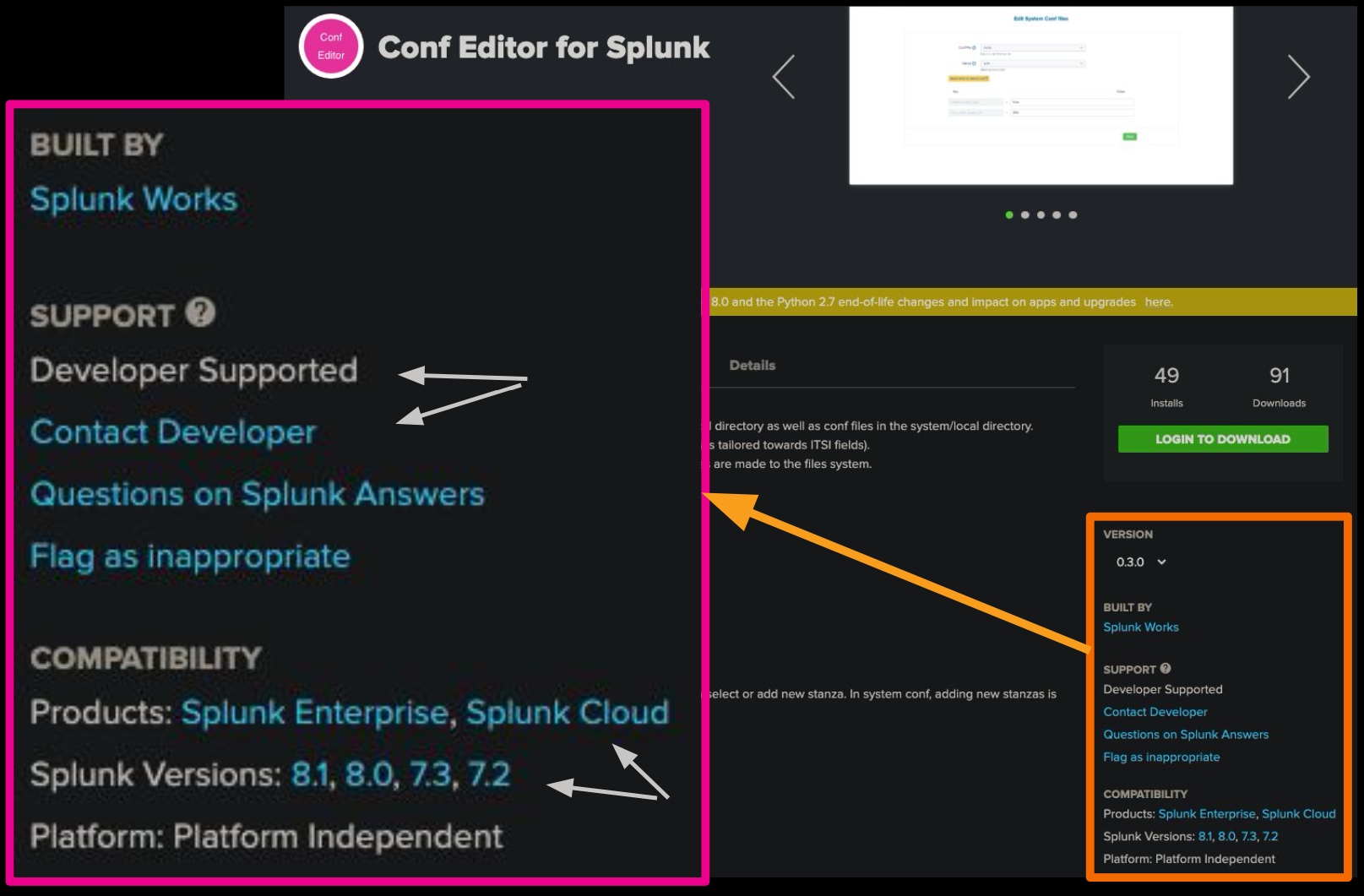
 | Apps and add-ons published by Splunk Inc. that are supported and maintained by Splunk. Splunk will provide customers with active support subscriptions an initial response and acknowledgement to any support request for these apps or add-ons in accordance with Splunk Support terms. All app/add-on support is P3 only. |
 | Apps and add-ons published by parties other than Splunk Inc. Any support or maintenance for these apps and add-ons is provided by the developer, whose contact information can be found on the download page. |
 | Apps and add-ons published either by Splunk or third-party developers. Indicates that no support or maintenance are provided by the publisher. Information from the user community might be available from sources such as Splunk Answers. |
Splunk Cloud Change Requests
How to Request a Splunk Cloud Change Request
Using the details described earlier in Case Creation from the Support Portal select Get started > Create Case
- Choose Splunk Cloud from your product list
- Choose Cloud Change Request under I need help
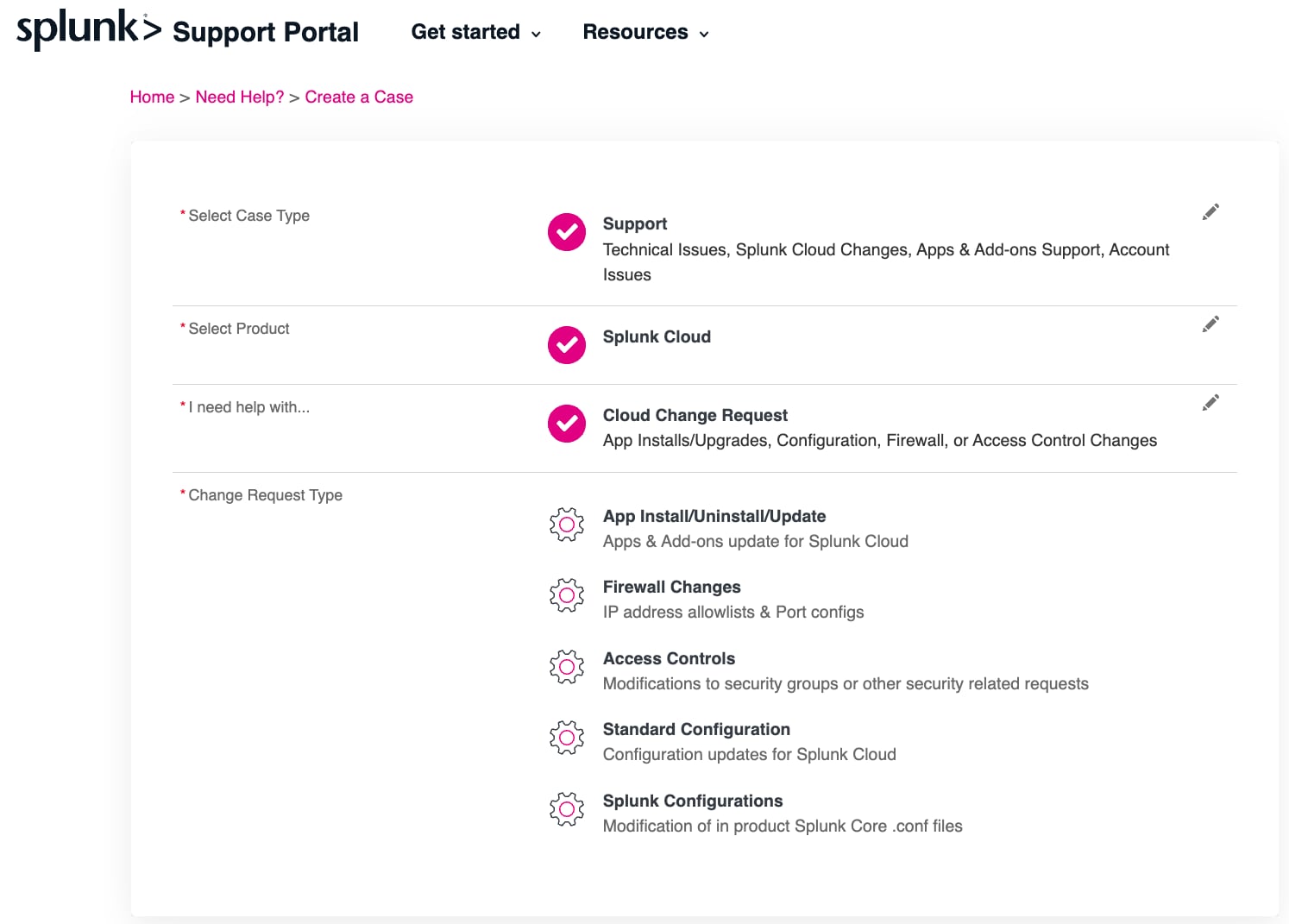
- Select the Change Request Type, complete the required fields and click submit
How to Request an App Install With Splunk Cloud
- Be sure to check Splunkbase for compatibility and support eligibility before requesting the app. Some apps are not eligible for support or only supported by 3rd parties.
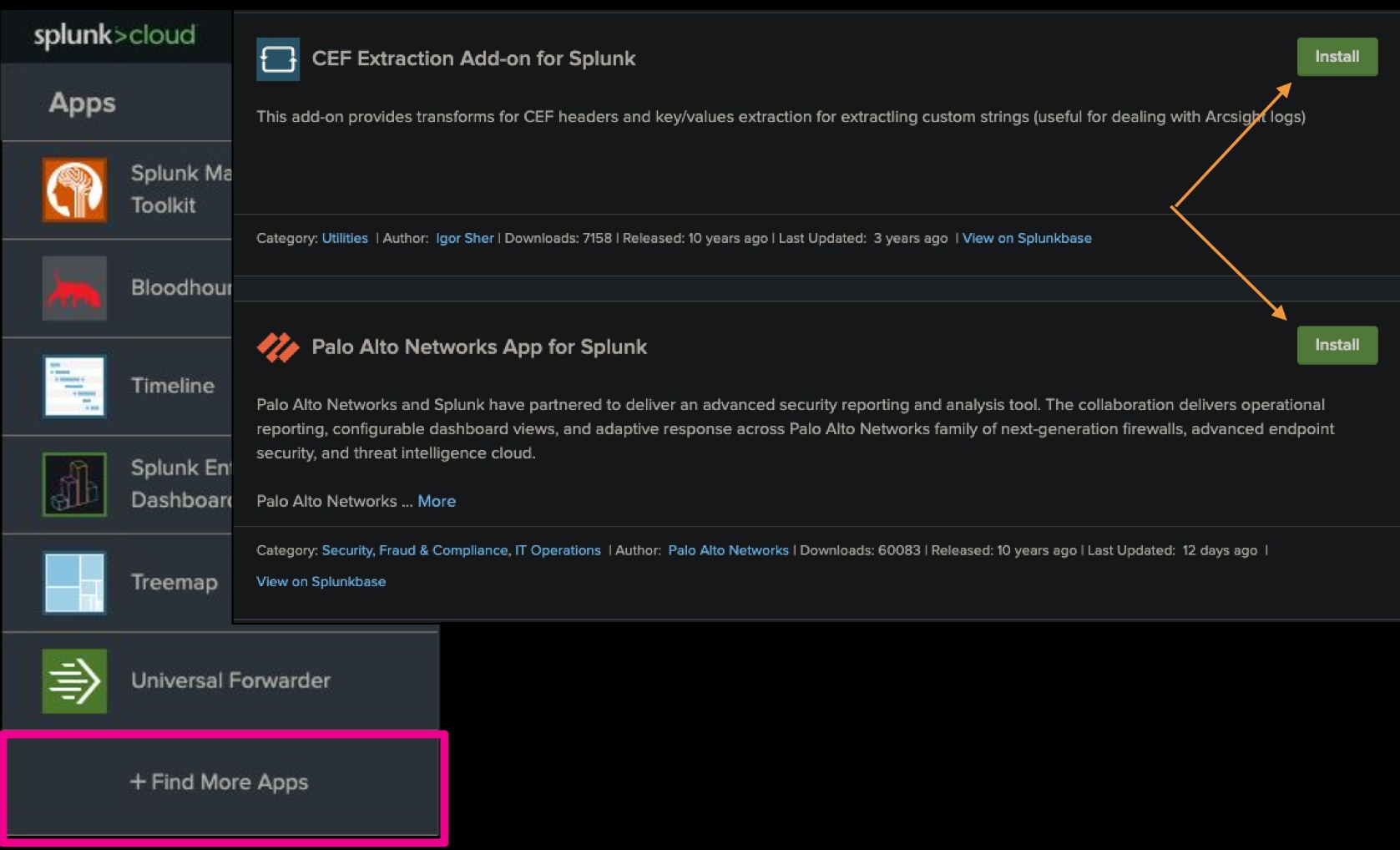
- Splunk has been working hard to make more apps and add-ons self serviceable in Splunk Cloud. Before submitting a request through our support portal, be sure to log in to your Splunk Cloud instance and click on Find More Apps. Check
to see if your app or add-on is available for self install.
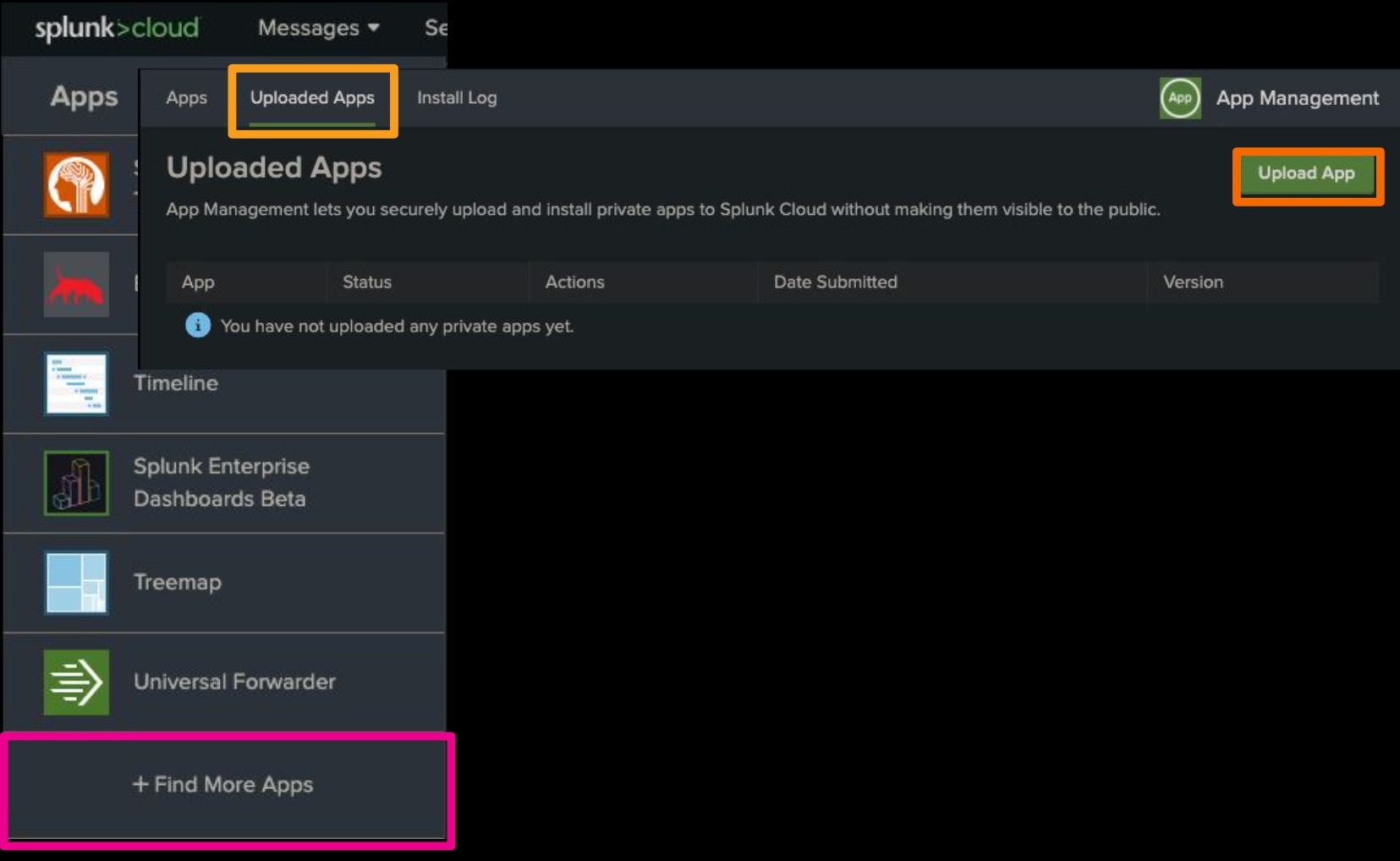
- Splunk Cloud now supports private/custom app vetting in the cloud! Log into your Splunk Cloud instance go to Find More Apps, select Uploaded Apps, and upload your private/custom app. If the app passes vetting, it will allow you to install it on the spot, saving you
time in waiting for support to do it.
Other Cloud and Self-Service Features
Splunk is constantly evolving and adding new services and features for our customers. Check out these great resources to learn more about Self Service options:
Splunk Cloud Platform Services
Splunk Customer Validation Policies
Splunk takes customer data security very seriously. Splunk Support will require all customers to validate that they are authorized to both submit a case and request information on a case when calling in through the support line.
Calling in to Support
If your company has multiple entitlements, it is the responsibility of the Portal Admin to decide for each entitlement who is authorized to be on other entitlements. Splunk will not grant you access to any other entitlements if you are not already a part of them.
For customers looking to submit or retrieve information via phone, please be prepared to provide the following information:
- Your Name
- Your Email
- Your Company Name
- Your Splunk Entitlement Number
- Support Call Center can help walk you through how to find your entitlement number.
Submitting a Support Case via the Portal
Submitting support cases and requesting updates through the portal do not require that you authenticate through any other method than logging into the support portal.
Only P2-P4 cases should be submitted via the portal.
For P1 Support, please contact: Splunk Support via telephone.
Manage Your Case
How to View all of your Cases
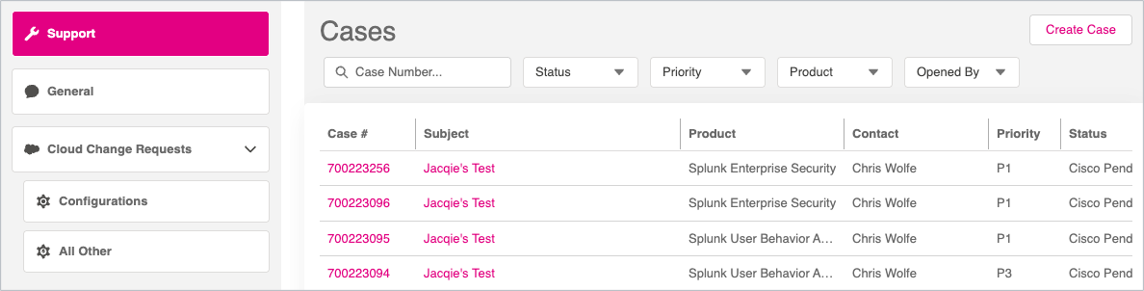
You can view all of your cases when you click on “Cases” from the Get Started top navigation.
Case List Views
Cases are organized into separate list views based on the system where they are managed. Select the appropriate case type from the left navigation:
- Support — Splunk Technical Support cases
- General — Splunk Education, Certification, and Billing cases
- Cloud Change Requests > Configurations — Splunk Cloud configuration change requests
- Cloud Change Requests > All Other — All other Splunk Cloud change requests
View a Case
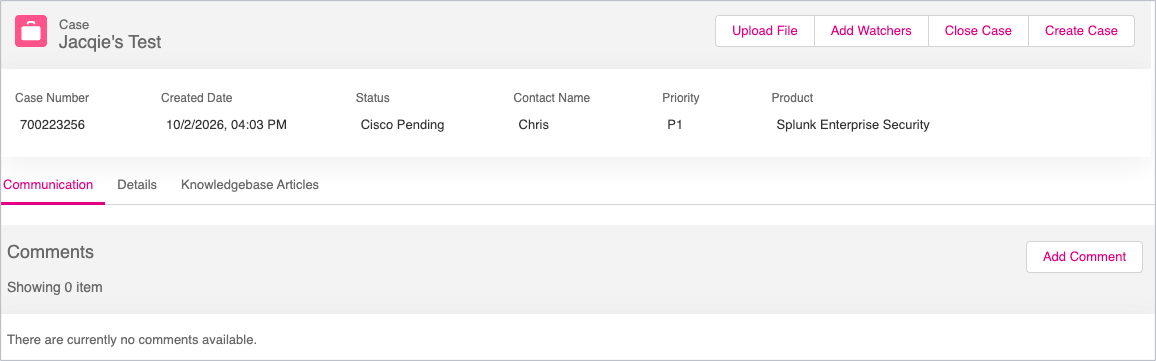
To view a case, select the case number from the case list.
From the case record, you can:
- Upload File — Add files or diagnostic information to the case.
- Add Watchers — Add contacts who should receive case updates.
- Close Case — Request to close the case.
- Create Case — Create a new case.
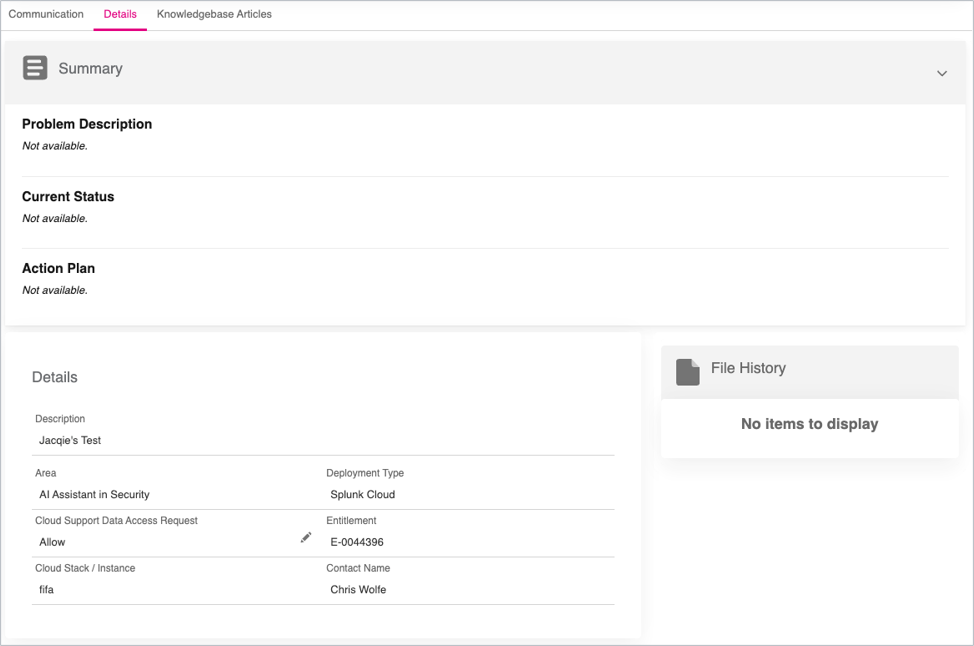
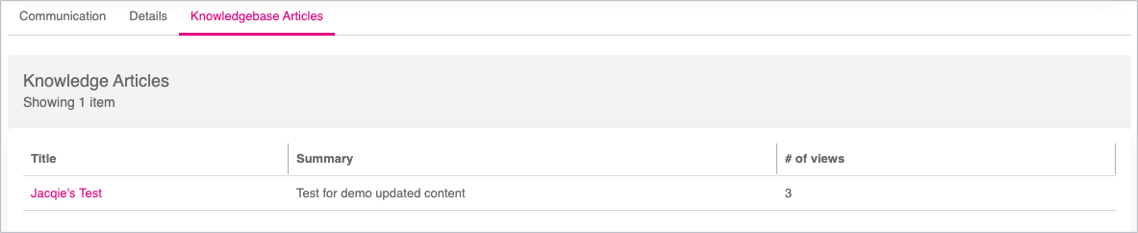
Use the tabs within the case to view and manage additional information:
- Communication — View existing comments and add new comments to communicate with Support.
- Details — View case information, including the problem description, current status, action plan, case details, and file history.
- Knowledgebase Articles — View Knowledge Base articles associated with the case.
Escalating a Case
How to Escalate
If your case needs to be escalated for any reason, please call the support line so we can have it addressed immediately.
Splunk Customer Support (1 855) 2-SPLUNK or (1 855) 277 5865
Provide the customer service representative with the below information:
- Current state of your instance
- Components in need of immediate attention
- Current business impact
- Entitlement information
The Support Manager on duty will identify, escalate, and drive resolution with customers experiencing persistent issues resulting in lower customer success and product adoption.
Support Managers will also intervene to ensure customers receive focus and attention, creating a single nexus of ownership and accountability for major issues.
Resources
Helpful Resources
- Splunk Documentation
- Splunk Answers
- Splunk Community
- Knowledgebase - located within the support portal
Contact Information
Sales Contact Information: Contact Sales
Customer Support Toll Free Number: (1 855) 2-SPLUNK or (1 855) 277 5865
- Additional Numbers: Additional Support Contact Phone Numbers
Support Portal: Splunk Support Portal
Education
- North America: Education_AMER@splunk.com
- Europe: Education_EMEA@splunk.com
- Asia-Pacific: Education_APAC@splunk.com
- Splunk Training
Related Links
Contact us
Splunk Support Portal for Customers
Revision History
| Revision | Publish Date | Comments |
|---|---|---|
1.0 |
29-Sep-2026
|
Initial Release |
 Feedback
Contact Cisco
- Open a Support Case

- (Requires a Cisco Service Contract)