Invalid proxy settings. Please check your Proxy configurations & Firewall and try again error in Splunk AI Assistant
Available Languages
Applicability
Splunk Enterprise Splunk Cloud Splunk AI AssistantDescription
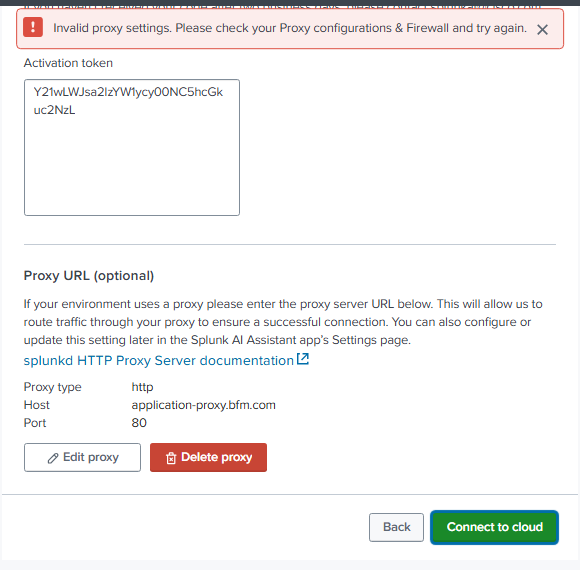
- When activating the Splunk AI Assistant app, the setup page displays the error “Invalid proxy settings. Please check your Proxy configurations & Firewall and try again” after submitting the activation token.
- The error occurs during Splunk AI Assistant activation when the app cannot connect to Splunk Cloud Services (SCS) through the configured proxy. It is observed in environments that require a proxy for outbound internet access.
- The issue is commonly caused by incorrect proxy settings, firewall restrictions, or an unavailable proxy server. Updating the proxy configuration and allowing outbound access to SCS through the firewall resolves the issue and allows activation to complete successfully.
Investigation
- Verify the proxy configuration defined in Splunk (hostname, port, protocol, and authentication) to confirm whether the values were correct and aligned with the end user's network standards.
- Test outbound connectivity from the Search Head Cluster through the proxy to Splunk Cloud Services (SCS) endpoints to determine if firewall rules were blocking traffic.
- Check the availability and status of the proxy server to ensure it was running and reachable from the Splunk environment.
- Review Splunk logs for network, timeout, or connection‑failure errors to validate that the activation failure was caused by proxy or firewall connectivity issues rather than an application defect.
Resolution
- Review the proxy settings configured in Splunk and ensure the proxy hostname, port, and protocol are correct. Confirm authentication details (if required) are valid.
- Ensure the proxy server is running and accessible from the Splunk Enterprise instance. Validate connectivity from the Splunk host to the proxy server.
- Ensure outbound firewall rules allow HTTPS traffic to *.scs.splunk.com on port 443. Confirm that traffic is permitted from the proxy server to Splunk Cloud Services endpoints.
- After validating proxy and firewall settings, retry submitting the activation token in the Splunk AI Assistant setup page.
Revision History
| Revision | Publish Date | Comments |
|---|---|---|
1.0 |
01-Oct-2026
|
Initial Release |
 Feedback
Contact Cisco
- Open a Support Case

- (Requires a Cisco Service Contract)