Configure Secure Client (AnyConnect) Remote Access VPN on FTD
Available Languages
Contents
Introduction
This document describes the configuration for Secure Client (AnyConnect) Remote Access VPN on Secure Firewall Threat Defense.
Prerequisites
Requirements
Cisco recommends that you have knowledge of these topics:
- Basic VPN, TLS, and IKEv2 knowledge
- Basic Authentication, Authorization, and Accounting (AAA), and RADIUS knowledge
- Experience with Secure Firewall Management Center
Components Used
The information in this document is based on these software and hardware versions:
- Secure Firewall Threat Defense (SFTD) 7.2.5
- Secure Firewall Management Center (SFMC) 7.2.9
- Secure Client (AnyConnect) 5.1.6
The information in this document was created from the devices in a specific lab environment. All of the devices used in this document started with a cleared (default) configuration. If your network is live, ensure that you understand the potential impact of any command.
Background Information
This document provides a configuration example for Secure Firewall Threat Defense (FTD) version 7.2.5 and later, that allows remote access VPN to use Transport Layer Security (TLS) and Internet Key Exchange version 2 (IKEv2). As a client, Secure Client (AnyConnect) can be used, which is supported on multiple platforms.
Configuration
1. Prerequisites
In order to go through Remote Access wizard in Secure Firewall Management Center:
- Create a certificate used for server authentication.
- Configure RADIUS or LDAP server for user authentication.
- Create a pool of addresses for VPN users.
- Upload AnyConnect images for different platforms.
a) Import the SSL Certificate
Certificates are essential when configuring Secure Client. The certificate must have a Subject Alternative Name extension with DNS name and/or IP address to avoid errors in web browsers.
There are limitations for manual certificate enrollment:
- On SFTD, you need the CA certificate before you generate the CSR.
- If the CSR is generated externally, the manual method fails, therefore, a different method must be used (PKCS12).
There are several methods to obtain a certificate on SFTD appliance, however, the safe and easy one is to create a Certificate Signing Request (CSR), sign it with a Certificate Authority (CA), and then import certificate issued for public key, which was in the CSR.
Steps to complete:
- Navigate to Objects > Object Management > PKI > Cert Enrollment, click Add Cert Enrollment.
- Select Enrollment Type and paste Certificate Authority (CA) certificate (the certificate which is used to sign the CSR).
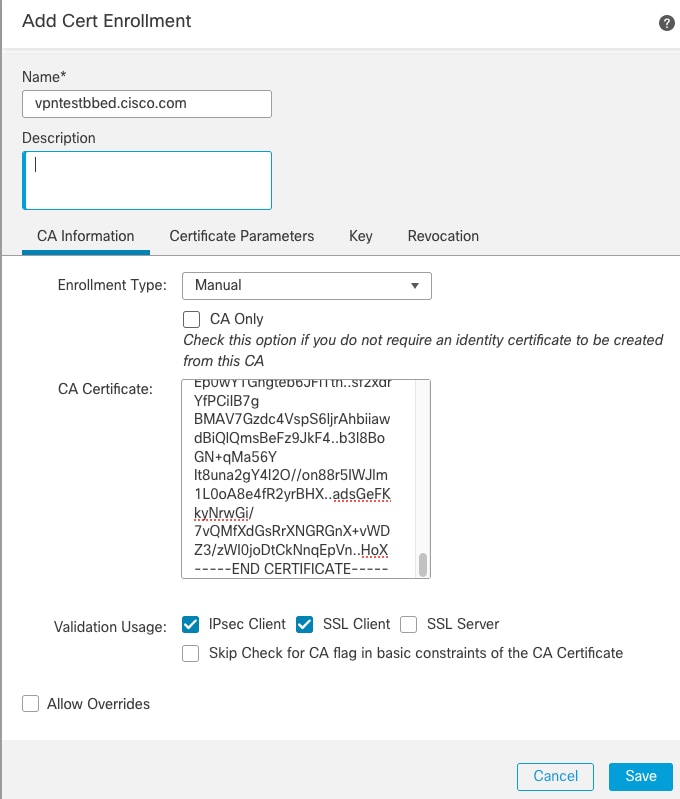
- Then, go to second tab and select Custom FQDN and fill all necessary fields, for example:
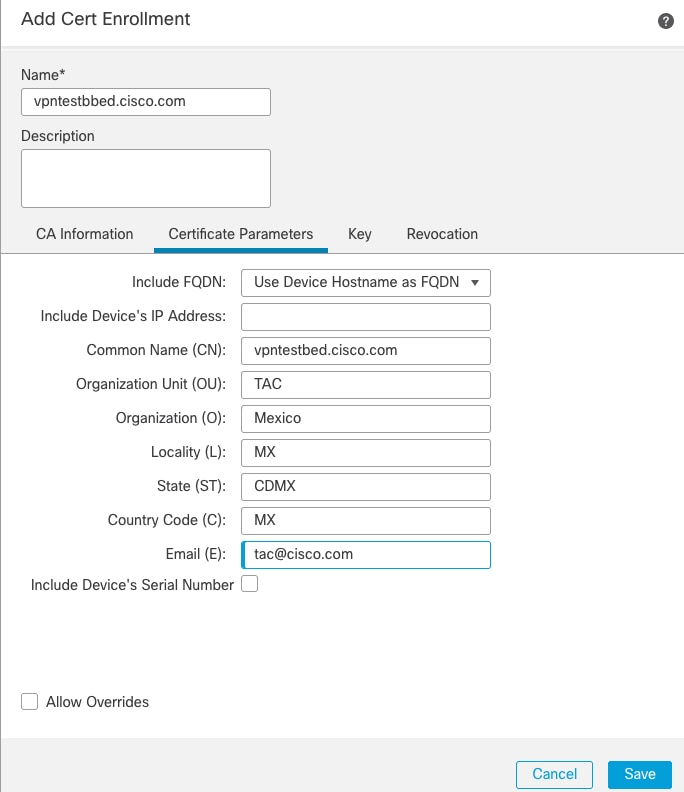
- On the third tab, select Key Type, choose name and size. For RSA, 2048 bits is minimum.
- Click Save and navigate to Devices > Certificates > Add.
- Then select Device, and under Cert Enrollment, select the trustpoint which you just created, and click Add:
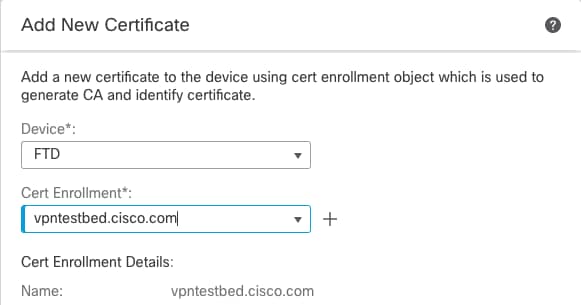
- Later, next to the trustpoint name, click the
 icon, then Yes, and after that, copy CSR to CA and sign. The Certificate must have attributes the same as a normal HTTPS server.
 - After you receive the certificate from the CA in base64 format, select Browse Identity Certificate, select from the disk and click Import. When this succeeds, you see:

b) Configure RADIUS Server
- Navigate to Objects > Object Management > RADIUS Server Group > Add RADIUS Server Group > +.
- Fill out the name and add the IP address along with the shared secret and click Save:
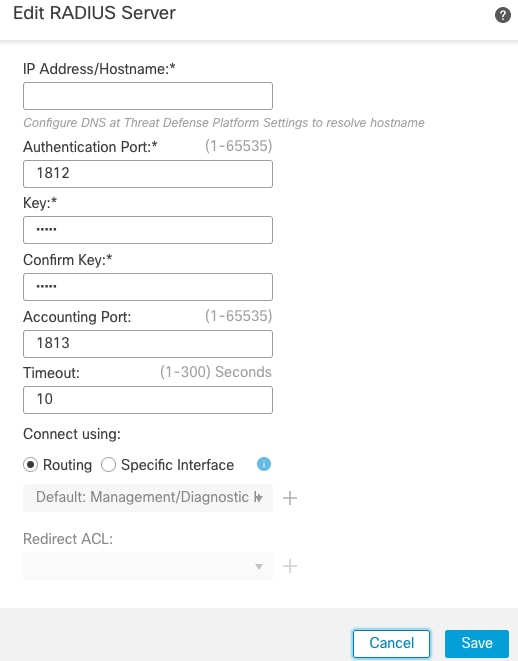
- After, you can see the server on the list:

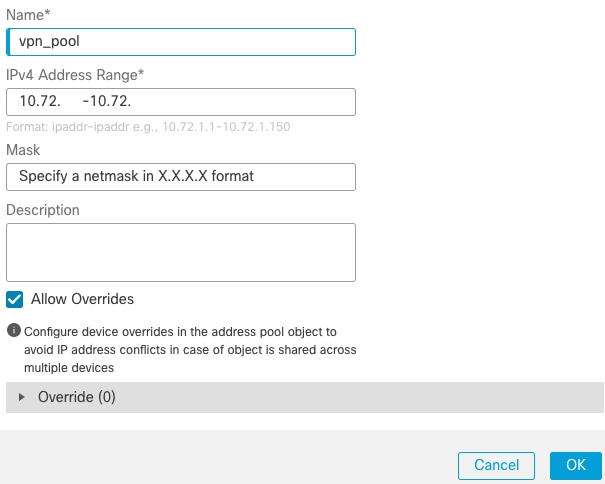
c) Create a Pool of Addresses for VPN Users
- Navigate to Objects > Object Management > Address Pools > IPv4 Pools > Add IPv4 Pools.
- Enter the name and range, the mask is not needed:
d) Create XML Profile
- Download the Profile Editor from Cisco site and open it.
- Navigate to Server List > Add...
- Enter the Display Name and FQDN. You can see the entries in Server List:
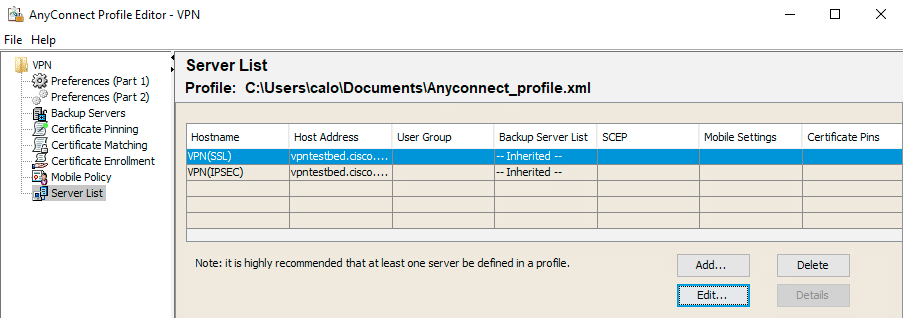
- Click OK and File > Save as...
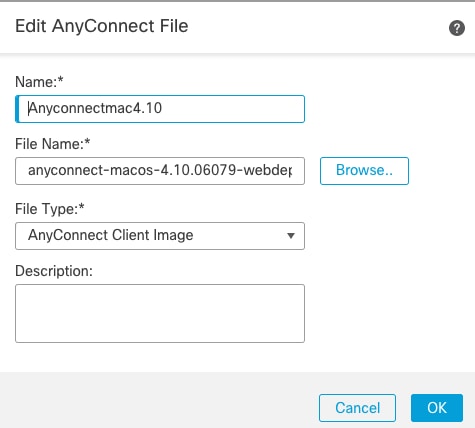
e) Upload AnyConnect Images
- Download pkg images from the Cisco site.
- Navigate to Objects > Object Management > VPN > AnyConnect File > Add AnyConnect File.
- Type the name and select the PKG file from disk, click Save:
- Add more packages based on your own requirements.
2. Remote Access Wizard
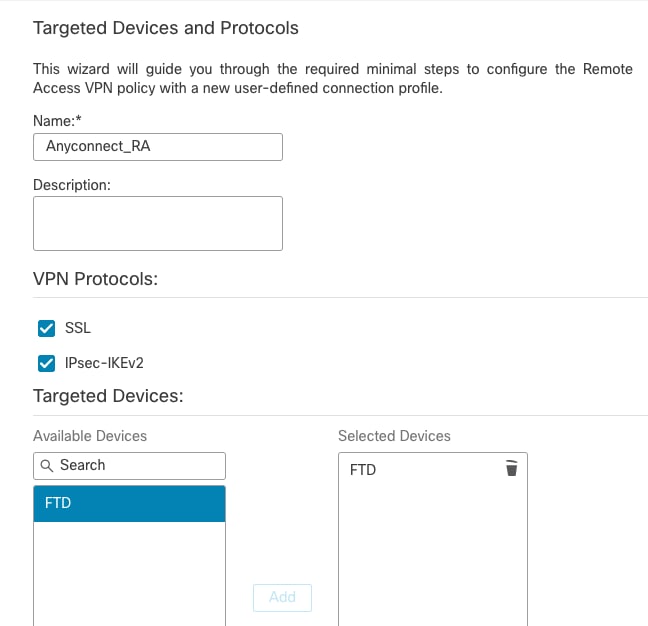
- Navigate to Devices > VPN > Remote Access > Add a new configuration.
- Name the profile and select FTD device:
- In the Connection Profile step, type Connection Profile Name, select the Authentication Server and Address Pools you created earlier:
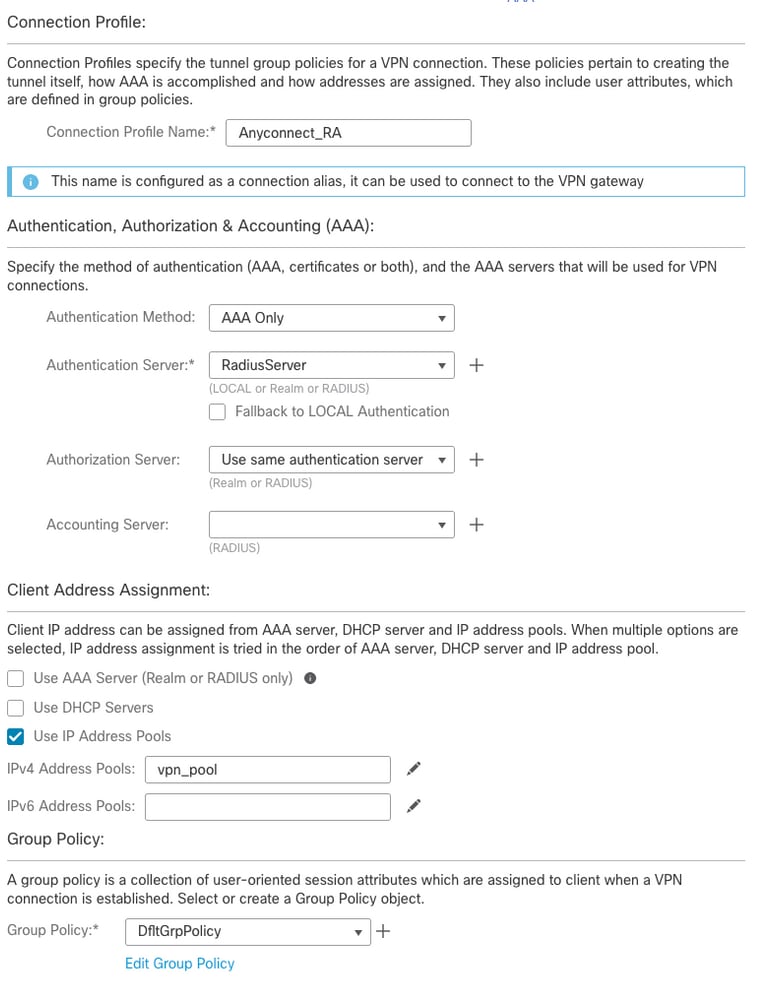
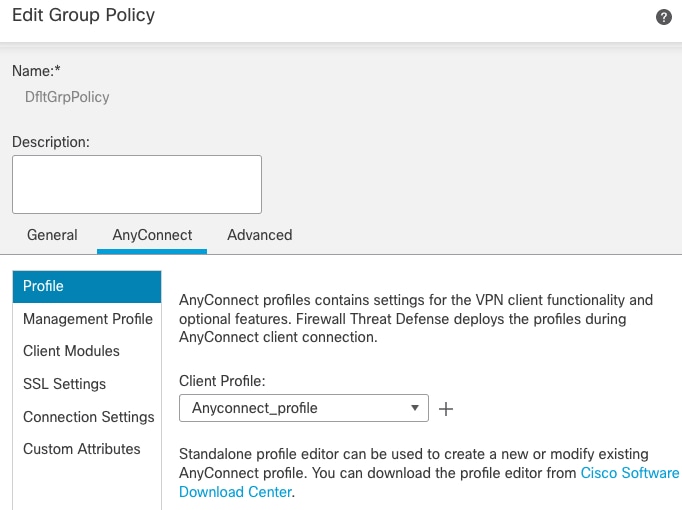
- Click Edit Group Policy and on the AnyConnect tab, select Client Profile, then click Save:
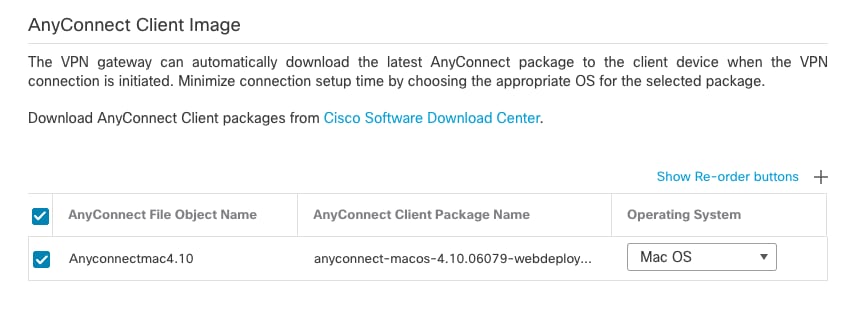
- On the next page, select AnyConnect Images and click Next.
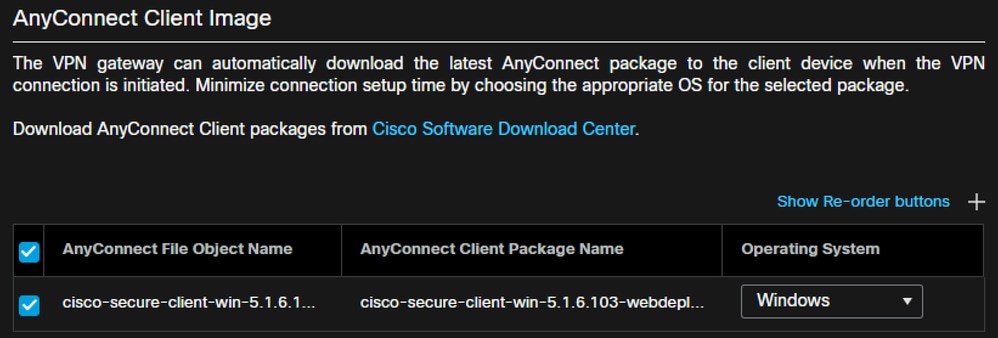
- On the next screen, select Network Interface and Device Certificates:
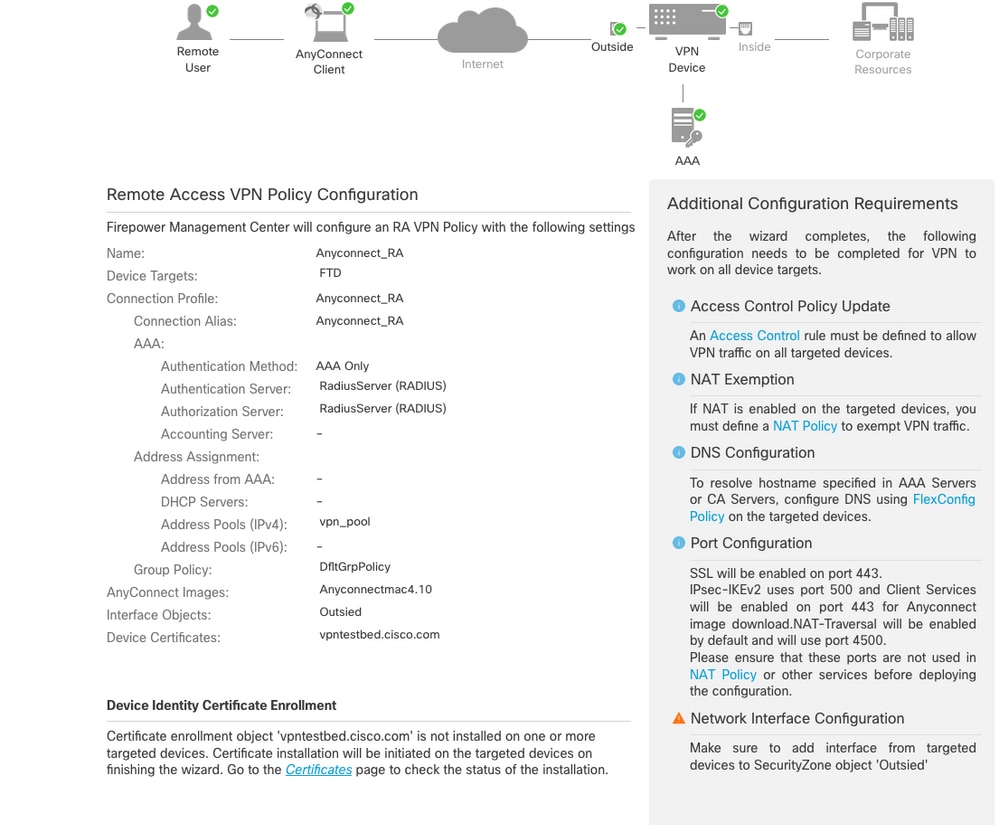
- When everything is configured correctly, you can click Finish and then Deploy:
- This copies the entire configuration along with certificates and AnyConnect packages to the FTD appliance.
Connection
To connect to FTD, you must open a browser, type the DNS name or IP address that points to the outside interface. Then, log in with the credentials stored in the RADIUS server and perform the steps on-screen. Once AnyConnect installs, you must input the same address in the AnyConnect window, and click Connect.
Limitations
Currently, unsupported on FTD, but available on ASA:
-
FTDposture VPN does not support group policy change through dynamic authorization or RADIUS change of authorization (CoA)
- AnyConnect customization (Enhancement: Cisco bug ID CSCvq87631)
- AnyConnect scripts (Enhancement: Cisco bug ID CSCvt58044)
- AnyConnect localization
- WSA integration
- Simultaneous IKEv2 dynamic crypto map for RA and L2L VPN (Enhancement: Cisco bug ID CSCvr52047)
- TACACS, Kerberos - KCD Authentication and RSA SDI (Enhancement: Cisco bug ID CSCvx55859)
- Browser Proxy
Security Considerations
By default, the sysopt connection permit-vpnoption is disabled. This means you must allow the traffic that comes from the pool of addresses on an outside interface via the Access Control Policy. Although the pre-filter or access-control rule is added to allow VPN traffic only, if clear-text traffic happens to match the rule criteria, it is erroneously permitted.
There are two approaches to this problem. First, TACs recommended option is to enable Anti-Spoofing (on ASA it was known as Unicast Reverse Path Forwarding - uRPF) for the outside interface, and secondly, is to enable sysopt connection permit-vpn to bypass Snort inspection completely. The first option allows a normal inspection of the traffic that goes to and from VPN users.
a) Enable uRPF
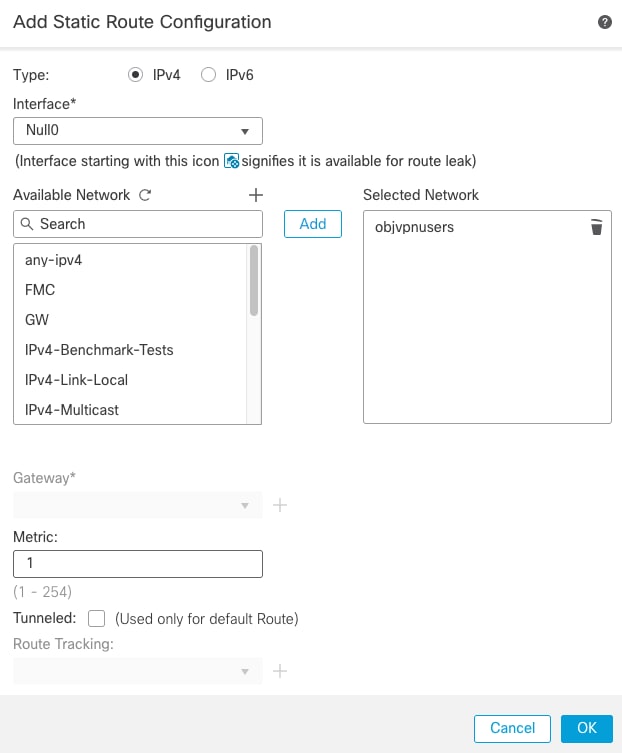
- Create a null route for the network used for remote access users, defined in section C. Navigate to Devices > Device Management > Edit > Routing > Static Route and select Add route.
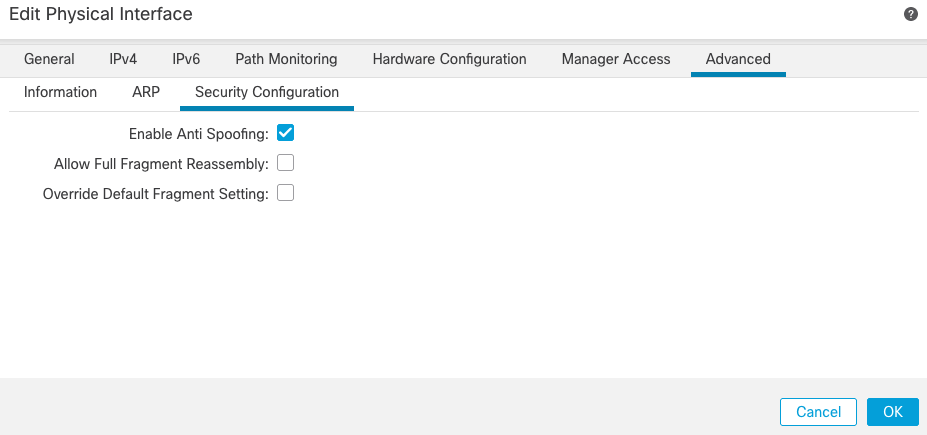
- Next, enable uRPF on the interface where the VPN connections terminate. To find this, navigate to Devices > Device Management > Edit > Interfaces > Edit > Advanced > Security Configuration > Enable Anti Spoofing.
When a user is connected, the 32-bit route is installed for that user in the routing table. Clear-text traffic sourced from the other, unused IP addresses from the pool that is dropped by uRFP. To view a description of Anti-Spoofing, refer to Set Security Configuration Parameters on Firewall Threat Defense.
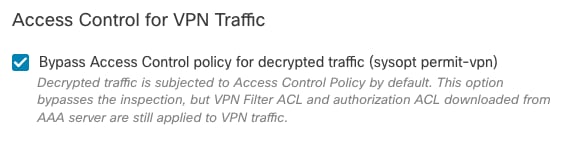
b) Enable sysopt connection permit-vpn Option
- There is an option to complete with the wizard or under Devices > VPN > Remote Access > VPN Profile > Access Interfaces.

Related Information
Revision History
| Revision | Publish Date | Comments |
|---|---|---|
7.0 |
16-Jun-2026
|
Updated spelling, spacing, some grammar, and slight change to Introduction. |
6.0 |
05-Dec-2024
|
Updated Alt Text, Link Targets, Grammar, and Formatting. |
5.0 |
25-Nov-2024
|
Changed naming convention and reflected changes in GUI |
4.0 |
05-Dec-2023
|
Recertification |
3.0 |
16-Dec-2022
|
Rewrite. Update Formatting. Recertification. |
2.0 |
08-Nov-2022
|
Updated Formatting and Corrected Spelling
Recertification |
1.0 |
07-Nov-2017
|
Initial Release |

 Feedback
Contact Cisco
- Open a Support Case

- (Requires a Cisco Service Contract)