Introduction
This document describes configuration of Enterprise Content Management from Webex Control Hub with Google Drive.
Prerequisites
Requirements
- An active Google Workspace Business subscription.
- An active Cisco Webex subscription.
Background Information
Enterprise Content Management (ECM) is a systematic approach to content management throughout its lifecycle. It enables unstructured information such as Word documents, PDFs, emails, and scanned images to be securely stored and made accessible to authorized users.
Top 5 Elements of ECM
- Capture documents digitally
- Store documents in a digital repository
- Retrieve documents, regardless of device or location
- Automate document-driven processes
- Secure documents and reduce organizational risk
Configure Enterprise Content Management Settings in Cisco Webex Control Hub
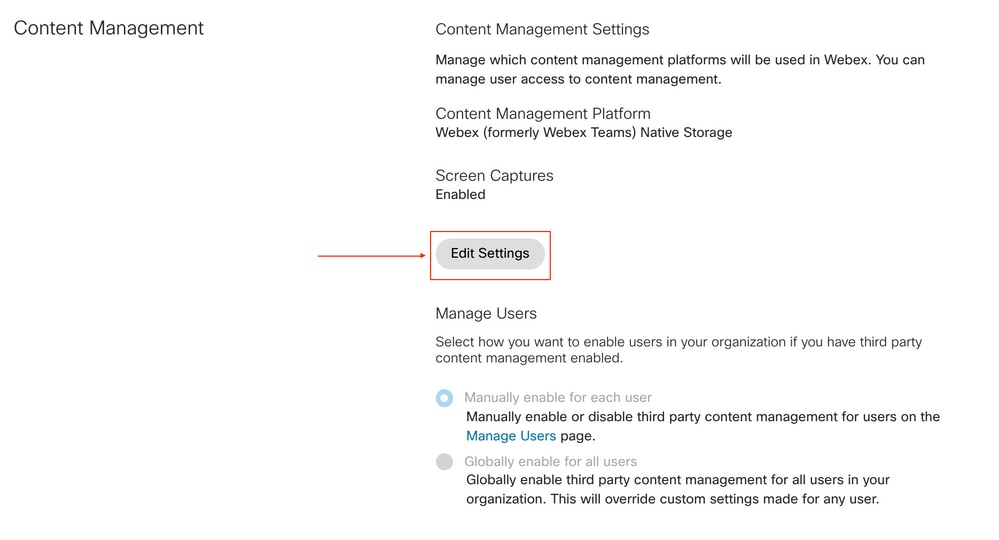
Navigate to admin.webex.com > Services > Messaging > Content Management > Edit Settings with a local Admin account.
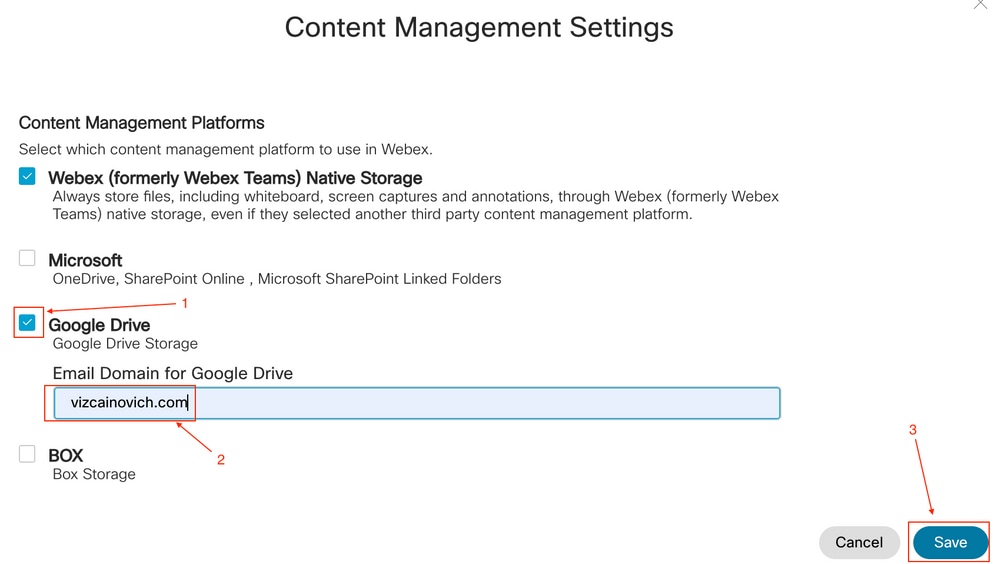
Select Google Drive, add the primary domain from the Google Admin portal, and click Save.
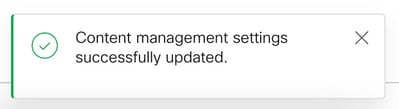
A message confirms the changes.
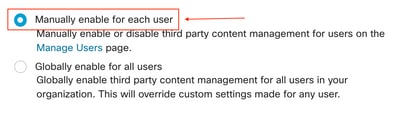
Choose to enable third party content management either globally for all users or per each user.
For test purposes, it is recommended to enable third party content management per each user.
Enable Users for Third-Party Enterprise Content Management in Cisco Webex Control Hub
Manually for each user
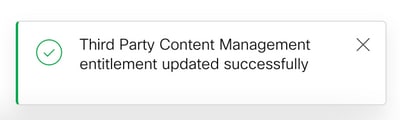
Navigate to admin.webex.com > Management > Users > Select User > Services > Messaging > Edit Settings > Third Party Content Management and click Third Party On from the drop-down menu.

A message confirms the change.
In bulk with CSV file
A CSV file with the cell "Enterprise Content Management" set to TRUE is required for the appointed users to be activated, set the CSV file cell, "Enterprise Content Management" to TRUE.

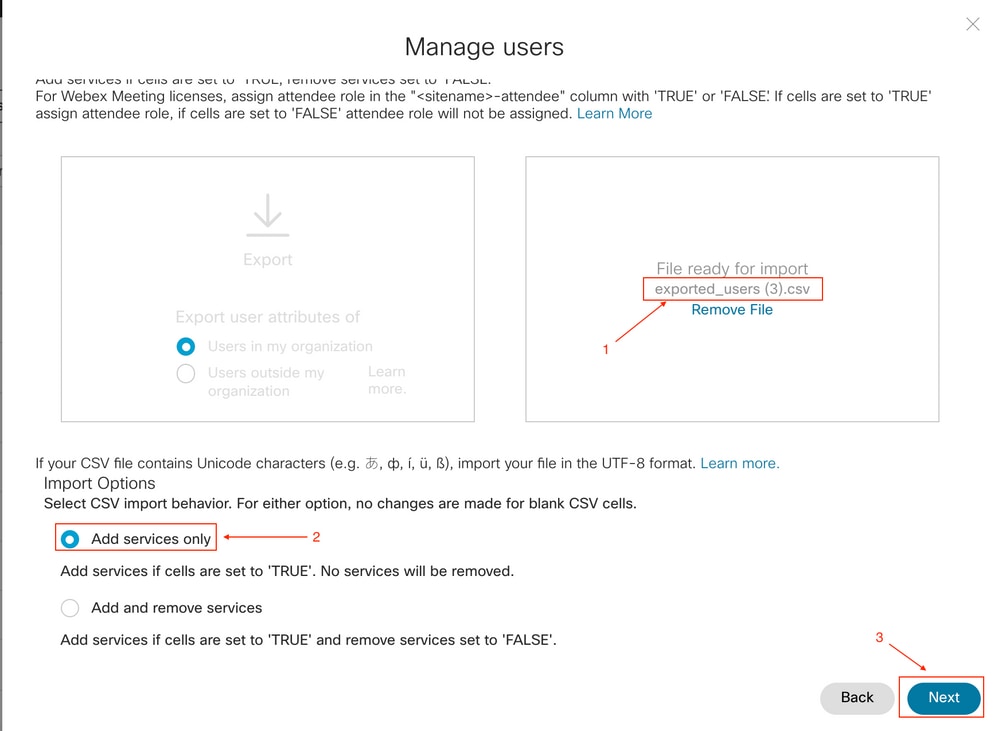
In the Control Hub, navigate to Management > Users > Manage Users > CSV Add or Modify Users > Import.
Select the CSV file, click Add services only and click Next.
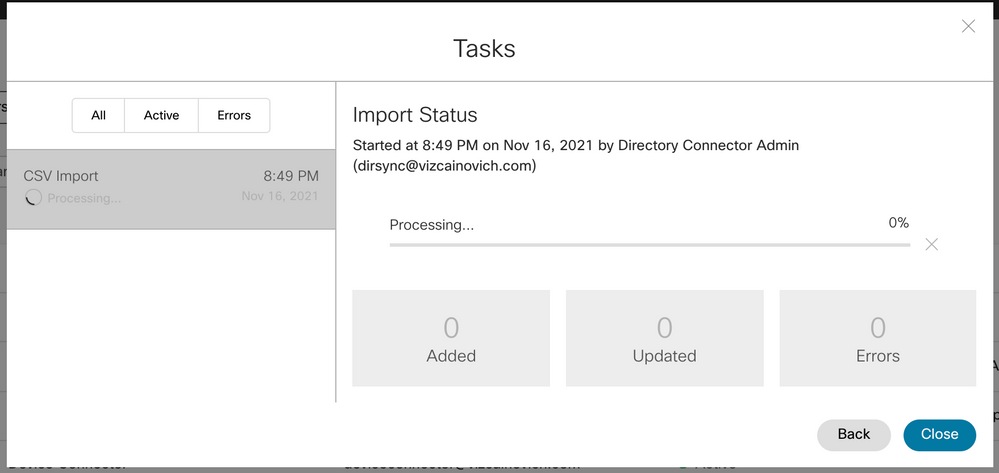
The Import task begins.

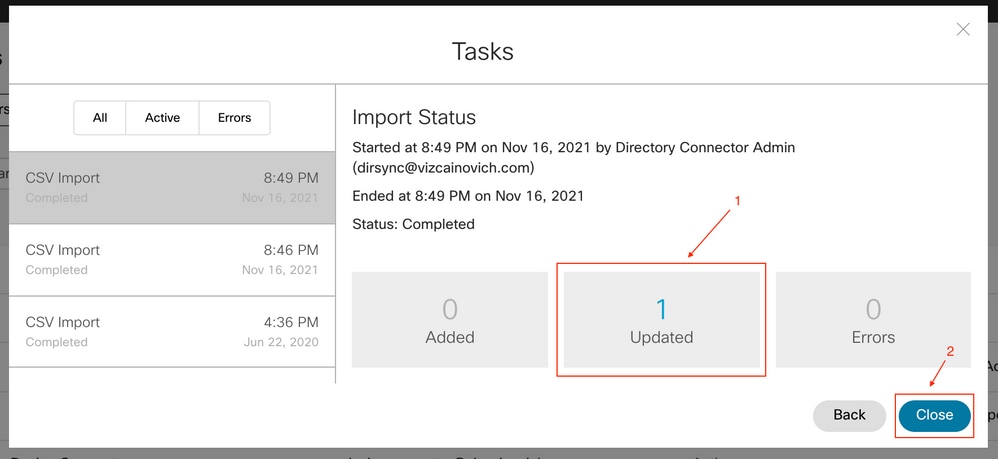
After the Import task is completed, verify any errors, and click Close.
Integrate Google Drive account into Webex app
Before the Third-Party Enterprise Content Management is enabled, Webex users do not see the Integration tab from Webex app > Settings.
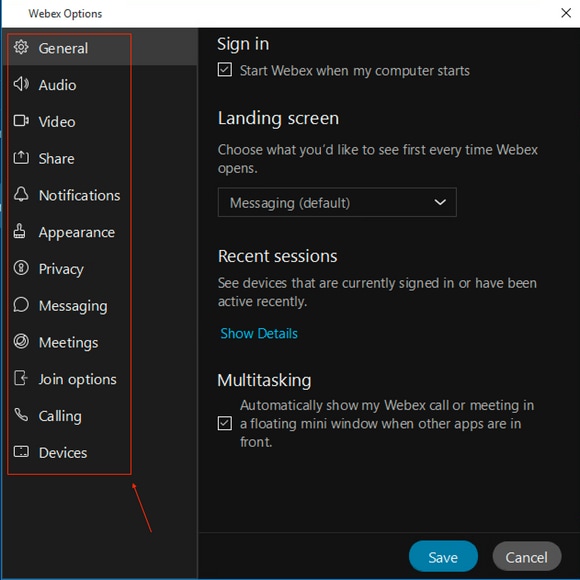
After the Third-Party Enterprise Content Management is enabled, Webex app users are required to log out and log in to see the Integration tab.

To enable the Integration, navigate to Webex app > Settings > Integrations > Add Account.
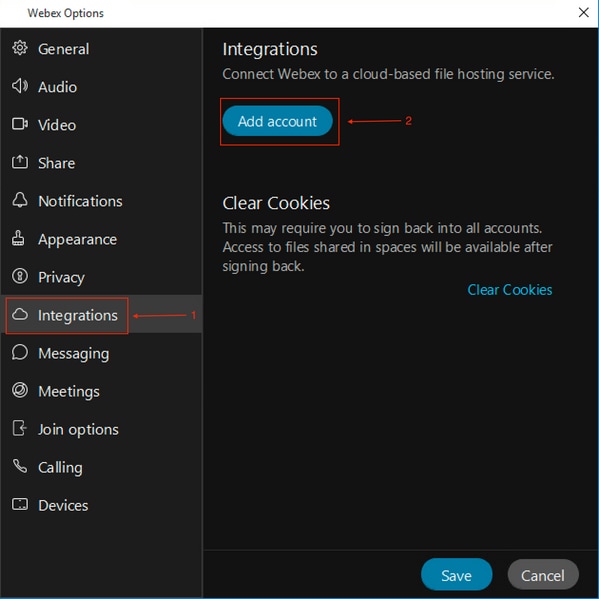
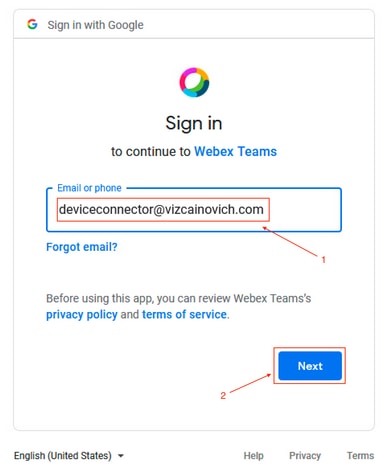
A prompt to authenticate the Google account is displayed.
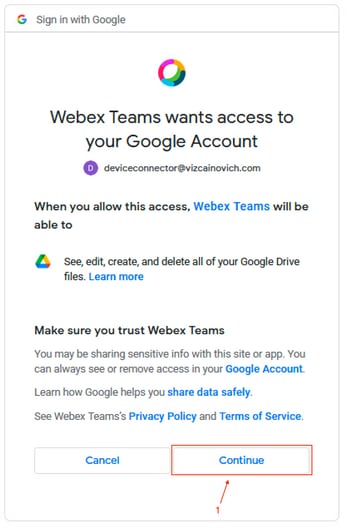
Click Continue to Allow the access to Google Drive.
WIth the access granted, the Integration is successfully enabled. Click Open Webex to return to Webex app.
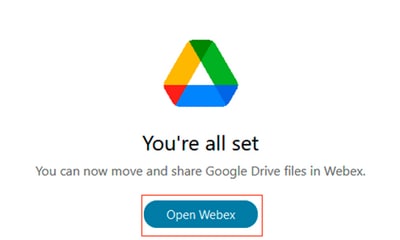
Close the Browser tab.
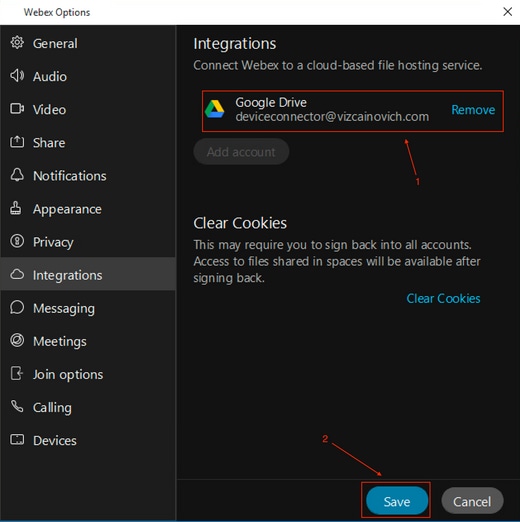
The Webex application confirms that the Google Drive account has been added successfully. Click Save to finish the process.
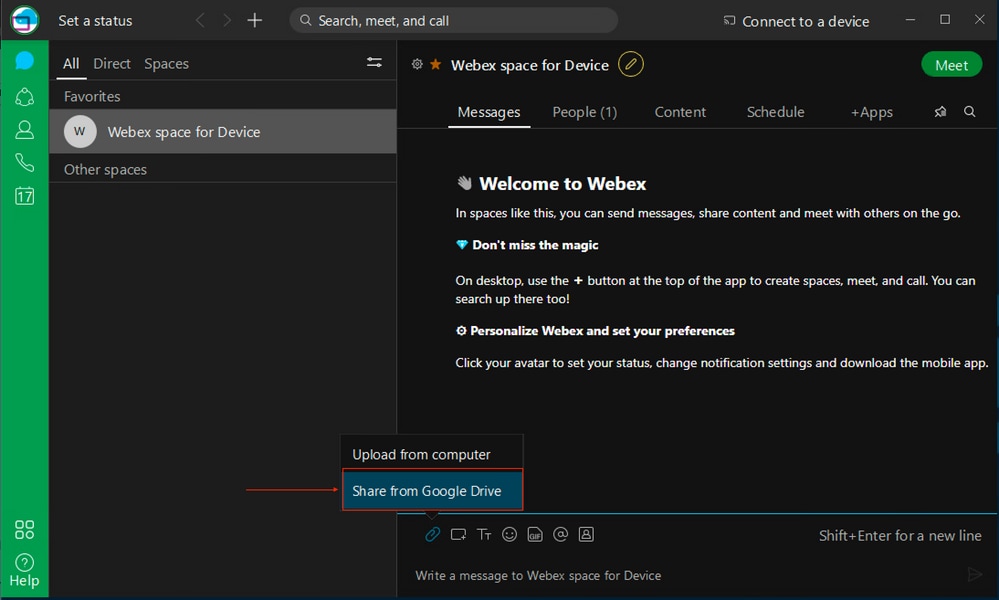
Google Drive storage is ready to be used within Webex app.
Known Issues
After access is granted, the Drive Account does not show in the Webex app.
a) Google Drive is not enabled for the Google account.

b) Google Drive is enabled for the affected Google account, but Drive SDK is disabled at a domain level.
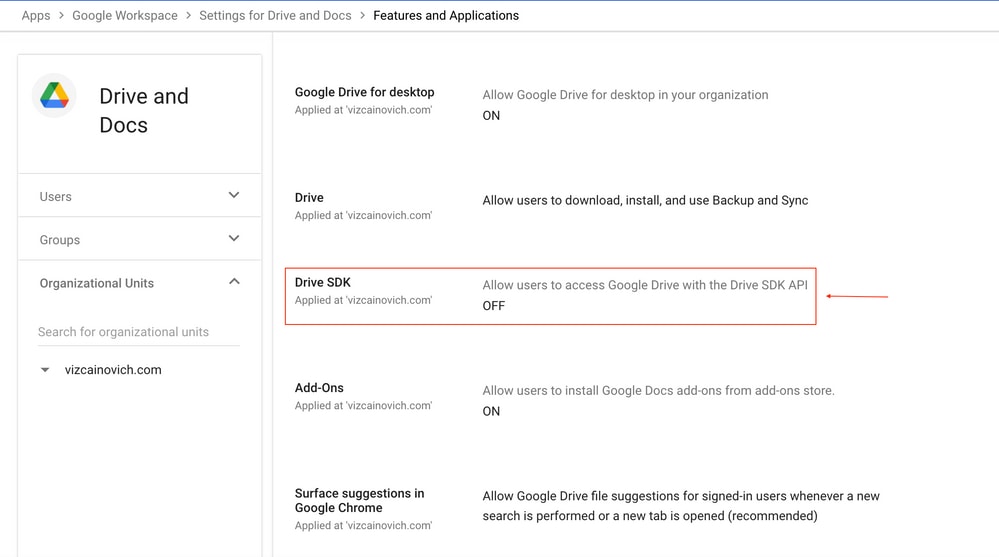
Troubleshooting
Run the API https://developers.google.com/drive/api/v3/reference/about/get,
Enter kind,user,storageQuota,canCreateTeamDrives,canCreateDrives in the fields section and click Execute.
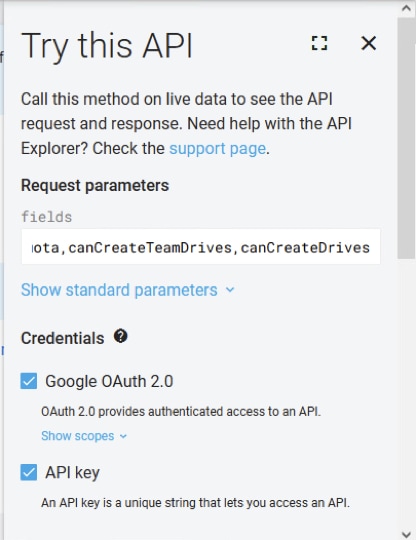
An OK message confirms the proper rights for the Google account.
{
"kind": "drive#about",
"user": {
  "kind": "drive#user",
  "displayName": "Device Connector",
  "photoLink": "https://lh3.googleusercontent.com/a/default-user=s64",
  "me": true,
  "permissionId": "04461708039191046460",
  "emailAddress": "deviceconnector@vizcainovich.com"
},
"storageQuota": {
  "limit": "32212254720",
  "usage": "0",
  "usageInDrive": "0",
  "usageInDriveTrash": "0"
},
"canCreateTeamDrives": false,
"canCreateDrives": false
}
References
Configure Enterprise Content Management Settings in Cisco Webex Control Hub
https://help.webex.com/en-US/article/nfia8at/Configure-Enterprise-Content-Management-Settings-in-Cisco-Webex-Control-Hub
Enterprise Content Management in Cisco Webex Control Hub
https://help.webex.com/en-US/article/nuvy9lb/Enterprise-Content-Management-in-Cisco-Webex-Control-Hub
Limitations for Enterprise Content Management in Webex
https://help.webex.com/en-US/article/7501oi/Limitations-for-Enterprise-Content-Management-in-Webex-
Webex | Integrate Your Google Drive Account
https://help.webex.com/en-US/article/nqlpcy7/Webex-|-Integrate-Your-Google-Drive-Account#Webex-|-Add-Your-Google-Drive-Account

 Feedback