Step-by-Step Guide to Upgrade CCP to Version 15
Available Languages
Contents
Introduction
This document describes the upgrade steps for Customer Collaboration Platform (CCP) from versions 12.5, 12.5 SU1, 12.5 SU2, and 12.5 SU3 to 15.0 and the correct procedure to avoid upgrade failure.
Prerequisites
Requirements
Cisco recommends that you have knowledge of these topics:
-
Customer Collaboration Platform (CCP)
-
VMware ESXi
Components Used
The information in this document is based on these software and hardware versions:
-
CCP version 12.5 SU3
-
VMware ESXi 7.0
The information in this document was created from the devices in a specific lab environment. All of the devices used in this document started with a cleared (default) configuration. If your network is live, ensure that you understand the potential impact of any command.
Background Informartion
We can upgrade to CCP 15.0 only from versions CCP version 12.5(1), 12.5(1) SU1, 12.5(1) SU2, and 12.5(1) SU3
-
Perform the pre-upgrade task of installing the COP file as mentioned in the CCP Install and Upgrade Guide, Release 15.0.:
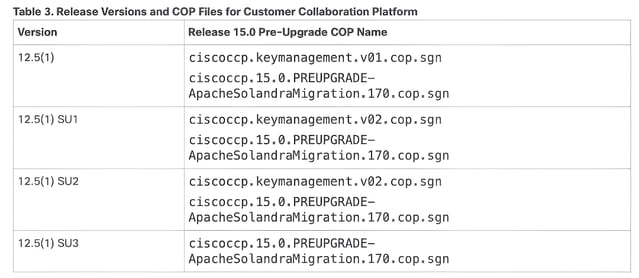
- Make sure you perform the installation of the cop file and upgrade only from CLI.
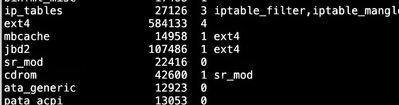
- Make sure the CCP is running with Linux Filesystem ext4. If it is running with ext3, rebuild the server before upgrading to version 15.
- Take a Healthy DRS backup before performing the upgrade
- Make sure you are running the UCCX VM on Esxi version 7.0 or higher, else the upgrade to 15 fails.
Configure
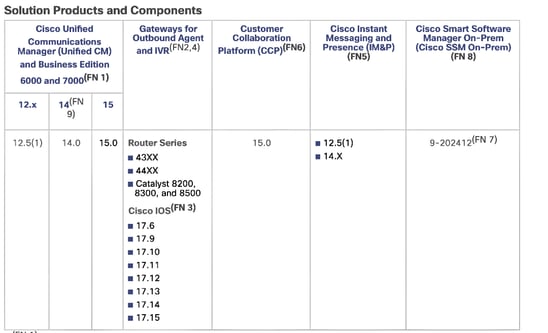
Step 1: Compatibility with UCCX
Verify the CCP compatibility with UCCX and other related servers before proceeding with the upgrade as mentioned in the UCCX 15 Compatibility matrix documentation.
Step 2: Pre-upgrade task
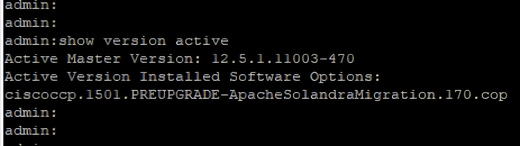
1. Make sure your current version is CCP 12.5 SU3, then install the cop file "ciscoccp.1501.PREUPGRADE-ApacheSolandraMigration.170.cop.sgn" before upgrading to CCP 15
2. After downloading the Cop file “ciscoccp.1501.PREUPGRADE-ApacheSolandraMigration.170.cop.sgn", you can put it on your SFTP server and when you start your CCP upgrade, you can give the IP address, the username of your SFTP server, user and password, and directory of SFTP so that CCP can pick the cop from the SFTP server.
3. First, install the COP file “ciscoccp.1501.PREUPGRADE-ApacheSolandraMigration.170.cop.sgn” on server via CLI using the command: utils system upgrade initiate
4. Verify that if it is installed sucessfully by running the CLI command: show version active
Step 3: Modify Guest OS, vRAM and Video Memory as per OVA requirement
1. Shutdown the CCP Server
2. Change Guest OS to either Alma Linux 8(64 bit) or Other Linux(64 bit)
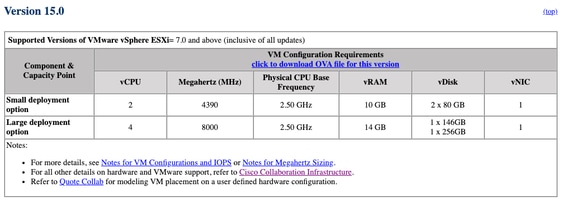
3. Modify vRAM from 8GB to 10GB for Small Deployment. For a Large Deployment, you must configure 14GB of vRAM. Check the CCP Virtualization guide
4. Increase total video memory to 8MB by navigating to (Edit Settings -> Virtual Machine Properties -> Virtual Hardware -> select Video card -> Specify custom settings -> set Total video memory to 8 MB)
5. Power on the virtual machine
Step 4: Update vmtools to Open
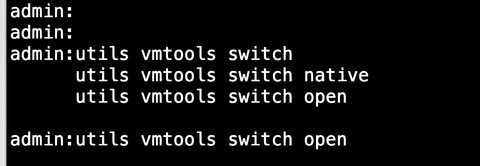
1. Ensure that the VM type is open-vm-tools. Use the utils vmtools status command to know the type of vm-tools. Run the utils vmtools switch open command to change the VM type
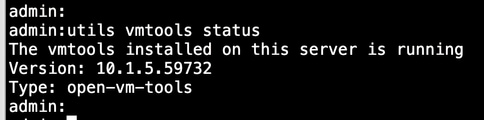
2. The command updates the vm-tools and restarts the VM. After the restart, run utils vmtools status and verify the VM type.
Step 5: Upgrade to CCP 15
1. Download the ISO for CCP 15 : (UCSInstall_CCP_15_0_1_UCOS_15.0.1.10000-24.sgn)
2. After downloading the CCP ISO file for 15, you can put it on your SFTP server.
3. We always recommend upgrading CCP via CLI and here are the commands to upgrade CCP via CLI:
utils system upgrade initiate
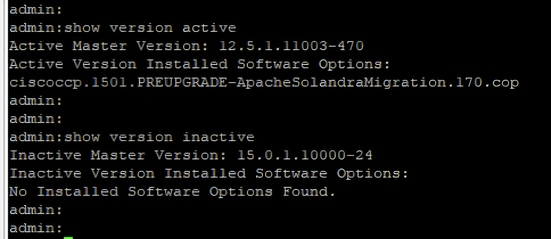
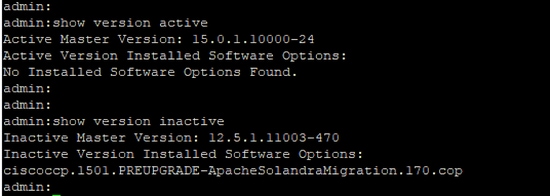
4. Run the given commands to verify the active and inactive partitions after the upgrade.
show version active - To see the present version
show version inactive -To see the new version
Step 6: Perform Switch version
utils system switch-version
Make sure all the services are up.
Step 7: Verify GUI access
- Check if the IP of the accessing machine is under permit-list or not.
utils permitlist admin_ui list
- Add / Delete the IP addresses from the permit list if needed
utils permitlist admin_ui add
utils permitlist admin_ui delete
Step 8: Verify CCP status from UCCX Server
1. Check the integration with UCCX server from Cisco Unified CCX Administration -> Subsystems -> Chat and Email -> CCP Configuration and verify that the CCP Status displays green for all the components
2. Verify if the Tomcat certificate is exchanged properly between UCCX and CCP post upgrade
3. Check integration with Email and Chat servers
Supported Upgrade path from 12.5(1), 12.5(1) SU1 and 12.5(1) SU2
Here are the upgrade path information from other Supported versions
ciscoccp.keymanagement.v01.cop.sgn
ciscoccp.keymanagement.v02.cop.sgn
Before upgrading to version 15, install the appropriate pre-upgrade COP file on the current version and then the same steps outlined in this document earlier.
References
Cisco Customer Collaboration Platform Installation and Upgrade Guide, Release 15.0
Virtualization for Cisco Customer Collaboration Platform (formally known as SocialMiner)
Unified CCX Software Compatibility Matrix for 15
Release Notes for Cisco Unified Contact Center Express Solution, Release 15.0
Port Utilization in SocialMiner
Revision History
| Revision | Publish Date | Comments |
|---|---|---|
1.0 |
06-May-2026
|
Initial Release |

 Feedback
Contact Cisco
- Open a Support Case

- (Requires a Cisco Service Contract)