Configure and Troubleshoot CVP Smart License on PCCE 12.5
Available Languages
Introduction
This document describes how to configure and upload Smart License with PCCE 12.5 and CVP 12.5.
Prerequisites
- Packaged Contact Center Enterprise (PCCE) 12.5
- Customer Voice Portal (CVP) 12.5
Requirements
Cisco recommends that you have knowledge of these topics:
- PCCE 12.5
- CVP 12.5
- PCCE Single Pane of Glass (SPOG)
Components Used
The information in this document is based on these software and hardware versions:
- PCCE 12.5
- CVP 12.5
The information in this document was created from the devices in a specific lab environment. All of the devices used in this document started with a cleared (default) configuration. If your network is live, ensure that you understand the potential impact of any command.
Background Information
Cisco Smart Software Licensing is a flexible software licensing model that streamlines the way you activate and manage Cisco software licenses across your organization.PCCE 12.5 requires Smart Licenses. Additionally CVP 12.5 when integrated with PCCE 12.5 also needs smart licenses uploaded via PCCE SPOG.
Smart License for PCCE 12.5
Steps to register Smart License in PCCE 12.5:
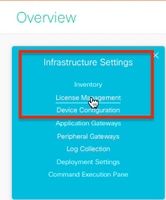
1. Log in to SPOG. In Overview, Select Infrastructure Settings, then select License Management as shown in the image;
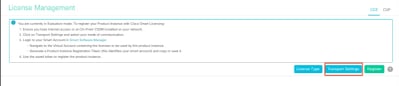
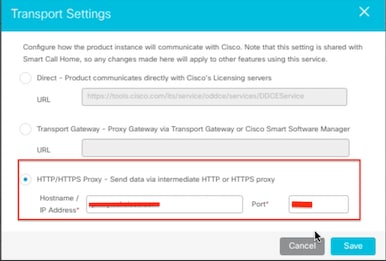
2. Check the Transport Settings to ensure this product instance can communicate with Cisco. For this document HTTP/HTTPS Proxy is used. Ensure appropriate values are added, then select Save.
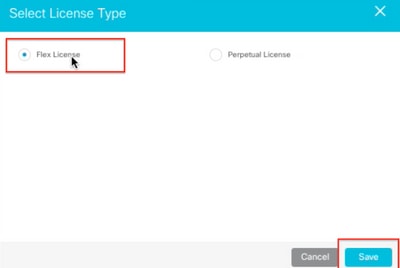
3. Based on the subscription of the smart account please select the appropriate option under License Type. For document Flex license is selected. Ensure appropriate selection and select Save.
4. For Registration, a token is needed. At this stage there must be a smart account ready for log in to Cisco Software Central .
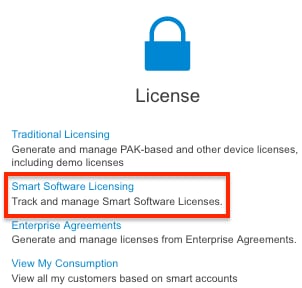
5. Select Smart Software Licensing.
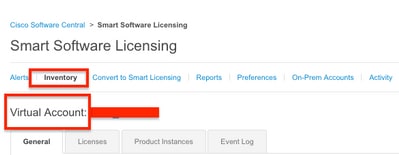
6. Select Inventory, next select your appropriate Virtual Account.
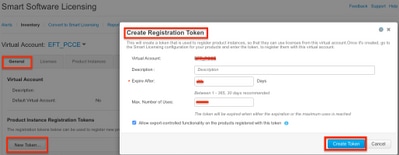
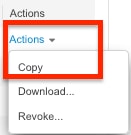
7. In order to generate a token, select General. Then select New Token, enter the details , select Create Token. select Action and then select Copy, to copy the token.
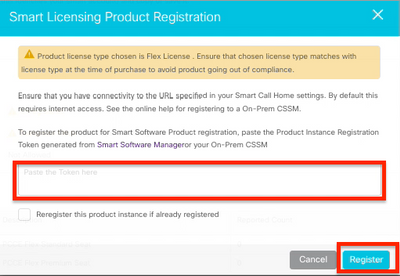
8. On SPOG \ License Management, select Register and enter the token to Smart Licensing Product Registration and select Register.
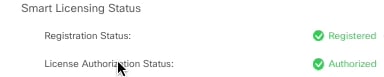
9. Notice the Registration Status as "Registered" and License Authorization Status as "Authorized".
Smart Licenses for CVP 12.5 When Integrated With PCCE 12.5
CVP 12.5 with PCCE 12.5 does not have Operation, Administration, Maintenance and Provisioning page (OAMP); so in version 12.5 the smart licenses for CVP are also registered in PCCE SPOG.Steps to register CVP 12.5 smart license:
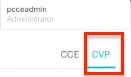
1. In SPOG \ License Management, select CVP, as shown in the image.
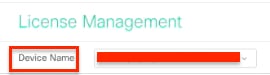
2. Under Device Name select the CVP node.
3. Check the Transport Settings to ensure this product instance can communicate with Cisco. For this document HTTP/HTTPS Proxy is used. Ensure appropriate values are added and then select Save.
4. Ensure License Type is set to appropriate selection based on your smart account registration . For this document, the Comprehensive Flex option is used.
5. Copy the token that was generated from Cisco Software Center.
6. On SPOG \ License Management\"CVP", select Register and enter the token to Smart Licensing Product Registration and select Register.
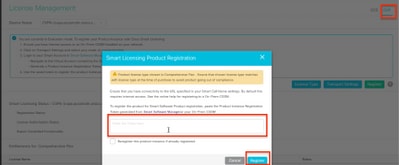
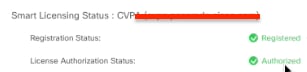
7. Notice the Registration Status as "Registered" and License Authorization Status as "Authorized".
Verify
There is currently no verification procedure available for this configuration.
Troubleshoot
There are several scenarios where Smart License registration fails. Here are some of the most commons scenarios and how to troubleshoot them.
Certificates
As previously specified, when you log in to SPOG, and in SPOG \ License Management , select CVP, then select the CVP node and you see this error, as shown in the image.
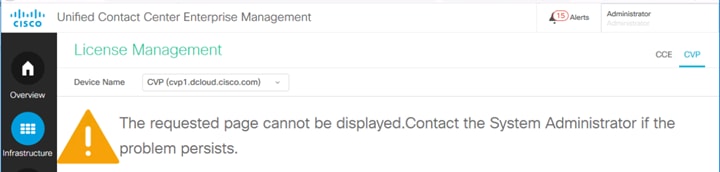
This is an indication that the self-signed certificates have not been exchanged between the AW server and the CVP server or the CA signed certificates have not been implemented. Consult this document to implement CA signed certificates PCCE CA Signed or If you use self-signed certificates refer to Exchange Self-Signed Certificates in a PCCE Solution.
Token Failure
When in SPOG \ License Management , you select Register and enter the token to Smart Licensing Product Registration and then click on Register, and you see this error:
Error occurred
Error executing LcsClient#identityCert(Map)
This is an indication that multiple license registration attempts were made which causes some license entries to be blocked. Before you attempt to clear the license entries, confirm the problem.
Step 1. Navigate to C:\cisco\cvp\logs\wsm\
Step 2. Open the latest Smart License logs: smartAgent.XXXX. Where XXXX is the date
Step 3. Search for "authorizationFailedReason=Data and signature do not match".
Step 4. If you find that signature error in the file, this indicates that the license entries are blocked and needs to be cleared.
Here is a snippet of a log file with the issue.
cvpSmartLicenseInfo:XXXXXXXXX.rest.bean.CvpSmartLicenseInfo@53413eed[smartLicenseInfoId=<null>,smartLicenseServerId=<null>,smartAccountName=<null>,virtualAccountName=<null>,productInstanceName=<null>,authorizationExpires=2021-01-19T16:43:29,
authorizationFailedReason=Data and signature do not match ,daysLeftInEvaluationMode=84,daysLeftInOutOfCompliance=<null>,outOfComplianceCount=<null>,outOfComplianceTime=,evaluationExpiredTime=<null>,exportControlledAllow=true,isAuthorizationFailed=false,isRegistrationFailed=false,lastAuthorizationAttempt=2020-10-23T16:05:46,lastRenewalAttempt=2020-10-23T16:20:02,nextAuthorizationAttempt=2020-11-20T16:48:29,nextRenewalAttempt=2021-01-09T16:27:16,registrationExpires=2021-07-13T16:22:04,
registrationFailedReason=Error executing LcsClient#identityCert(Map),cssmAuthorizationStatus=4,cssmRegistrationStatus=2,overageDays=<null>,overageDaysUpdatedTime=,inEnforcement=false] [id:7500]
To clear the license entries, follow these steps.
Step 1. Navigate to C:\Cisco\CVP\conf\ and take a back up of .sltruststore folder.
Step 2. Delete the files in that folder.
Step 3. Start Call Server and WSM services.
Step 4. Try to register the Smart License one more time.
Revision History
| Revision | Publish Date | Comments |
|---|---|---|
2.0 |
27-May-2026
|
Recertification |
1.0 |
22-Apr-2020
|
Initial Release |

 Feedback
Contact Cisco
- Open a Support Case

- (Requires a Cisco Service Contract)