Troubleshoot Maglev User Password Reset
Available Languages
Contents
Introduction
This document describes how to unlock or reset the password for the Maglev user.
Environment
This operation applies to on-premises physical appliance and virtual appliance VMware ESXi deployments.
On-Prem Physical Appliance Details
- Download an Ubuntu 18.04 or later ISO image from the Ubuntu Desktop download page. Ubuntu 18.04 is recommended a sit is the same version as the Cisco Catalyst Center.
- After you download the ISO to the local system, mount it to the Cisco Integrated Management Controller (CIMC) KVM.
- After you mount the ISO to the KVM, boot from the ISO.
- After Ubuntu is accessible, mount the root and var directories to the system.
- After the root and var directories are mounted, unlock or change the Maglev user account.
- Finally, reboot the appliance, confirm you can log in with Maglev, and reset the password with the configuration wizard.
Virtual Appliance ESXi Details
- Download the Ubuntu ISO image.
- Upload the ISO to the Datastore ISO File location or the Content Library in vSphere vCenter.
- Add a CD/DVD-ROM drive to the virtual machine.
- Change the boot delay to a larger value.
Components Used
This operation was run on an Ubuntu 18.04 image; a different image produces different times and results. In some environments, it takes up to 2 hours to reach the Ubuntu desktop, but for most users the process completes within 30 minutes.
This operation is not restricted to the Ubuntu desktop version. You only need access to the shell. Any Ubuntu image that provides shell access works for this operation.
The information in this document was created from the devices in a specific lab environment. All of the devices used in this document started with a cleared (default) configuration. If your network is live, ensure that you understand the potential impact of any command.
Resolution
Step 1: Confirm Access and Select the Correct Workflow
1. Confirm whether the affected node is an on-prem physical appliance or a virtual appliance on VMware ESXi.
2. Confirm you have administrative access to the management interface for your deployment: Cisco Integrated Management Controller (CIMC) for physical appliances, or VMware vCenter for virtual appliances.
3. Confirm an Ubuntu ISO image (Ubuntu 18.04 or later) is available and can be mounted to the server or VM.
4. If Disaster Recovery (DR) is deployed, confirm DR is in a PAUSED state before you proceed.
Step 1a: Boot from a Live CD On-Prem
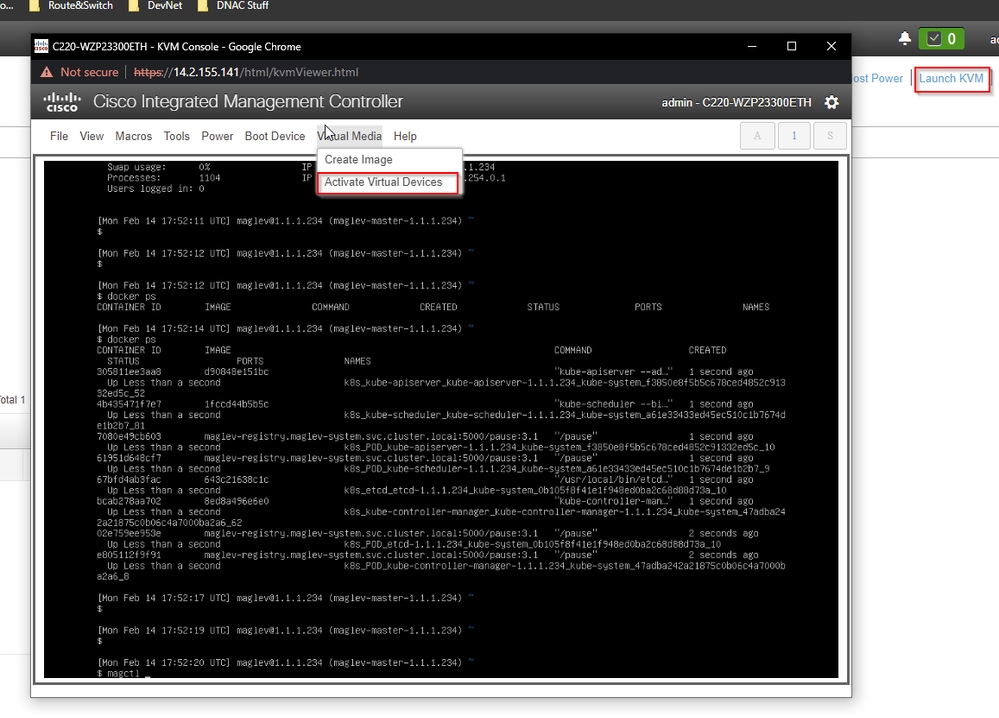
1. Log in to the Cisco IMC GUI, choose Launch KVM and then select Virtual Media > Activate Devices.
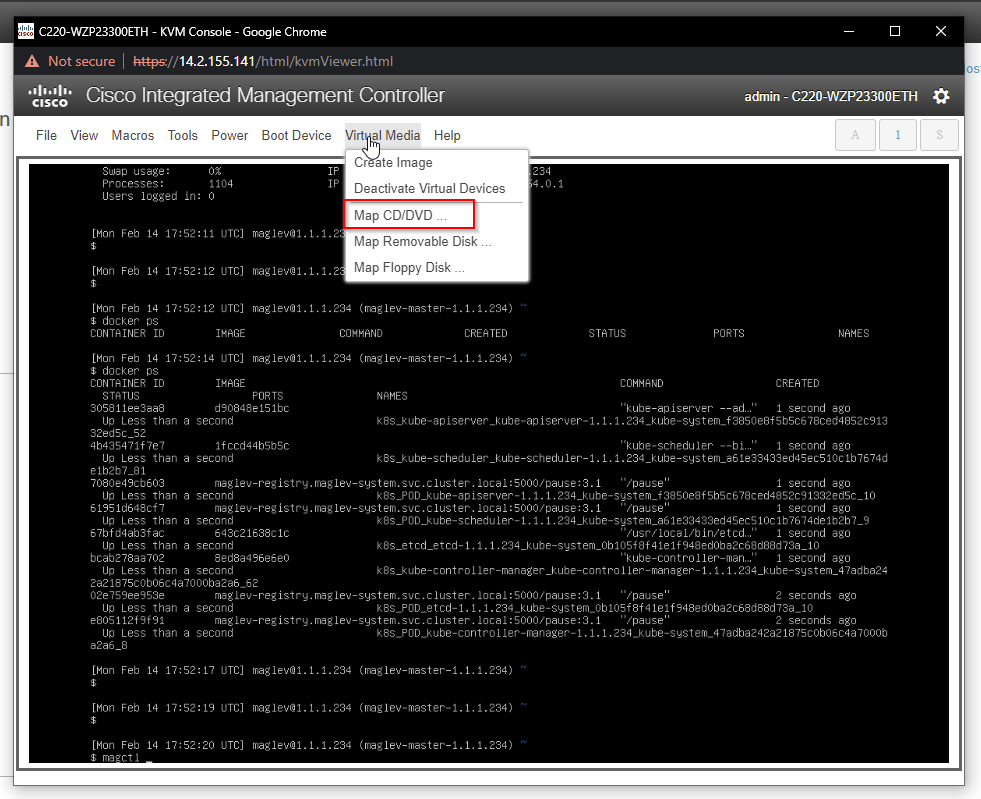
2. Next, choose Map CD/DVD.
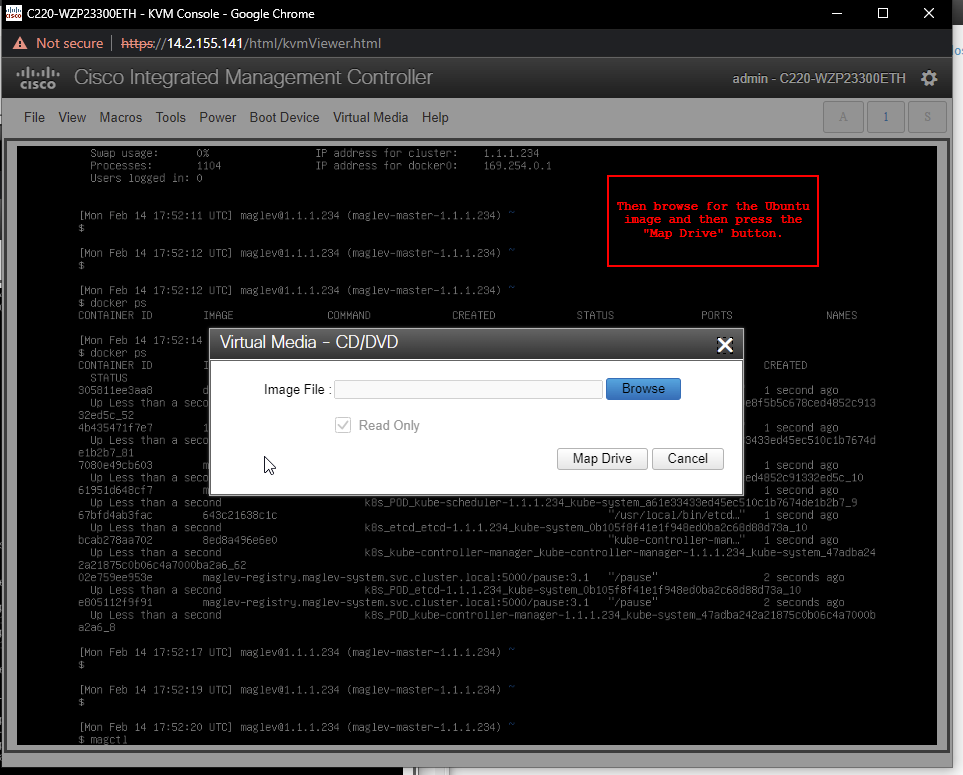
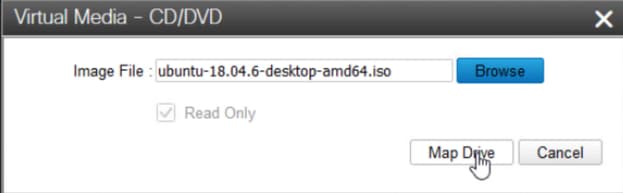
3. Click Browse, then select the Ubuntu ISO image downloaded to the local system. After you select the Ubuntu image, click Map Drive.
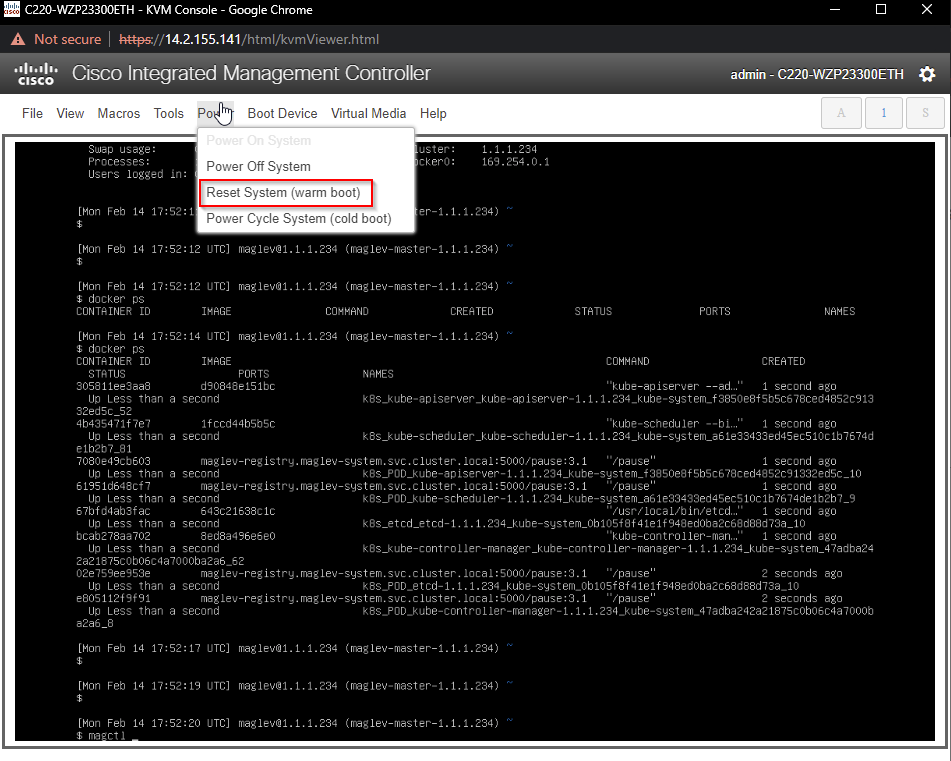
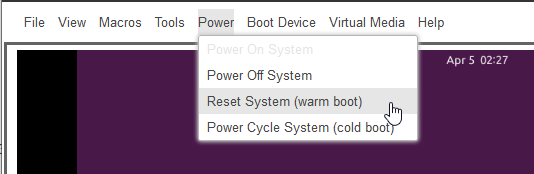
4. Next power cycle the appliance with Power > Reset System (warm boot).
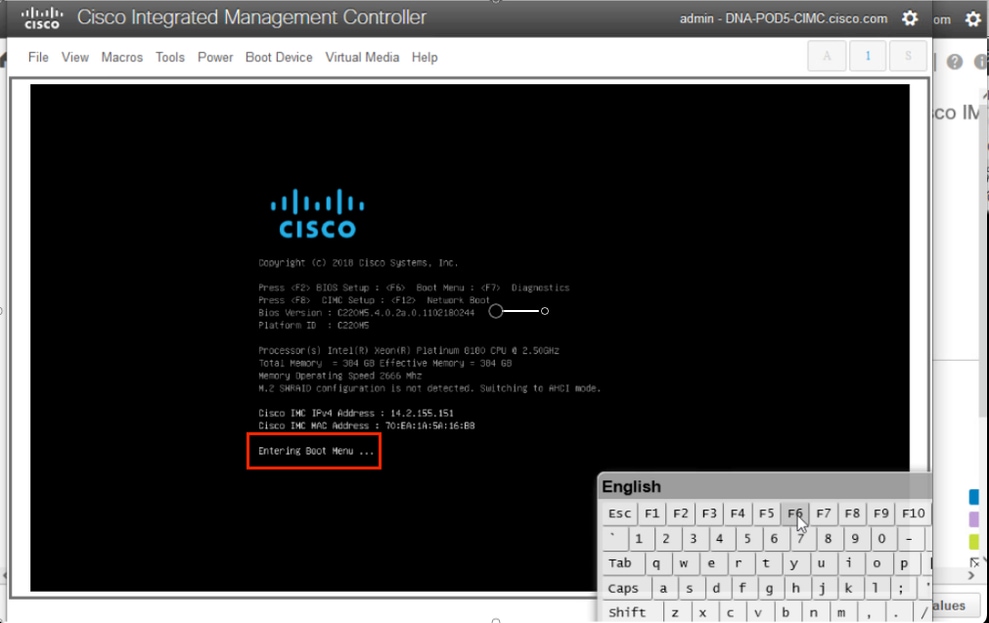
5. After the system has rebooted, press F6 when the Cisco logo appears.
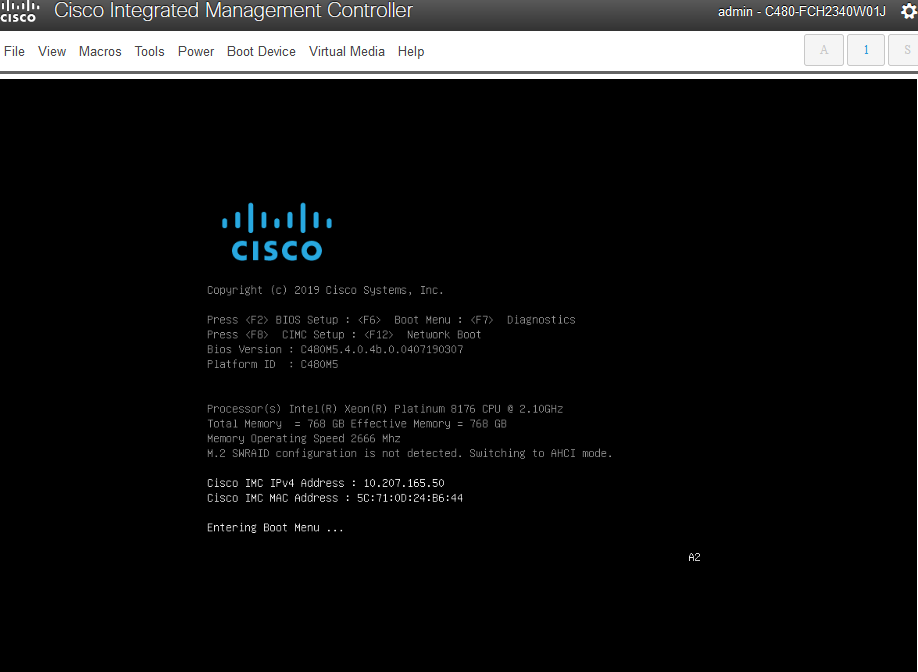
6. A second screen appears and the system enters the boot menu. If you did not press F6 on the first Cisco screen, press it here.
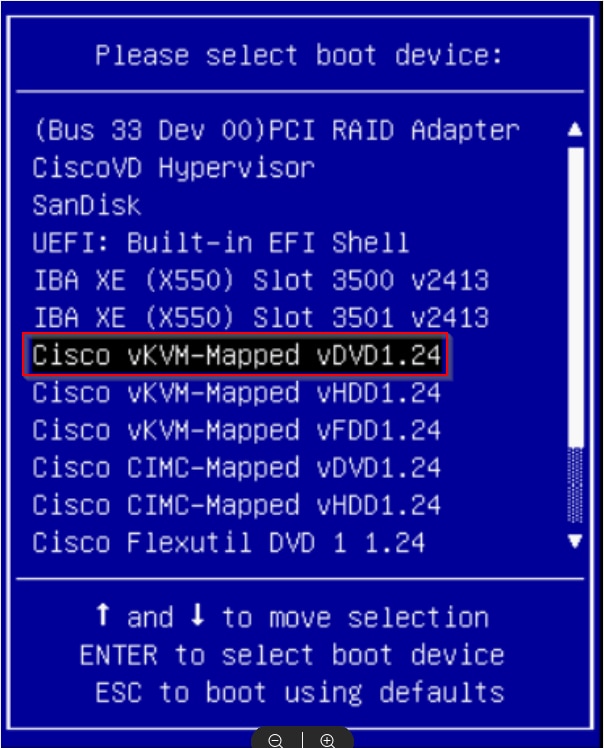
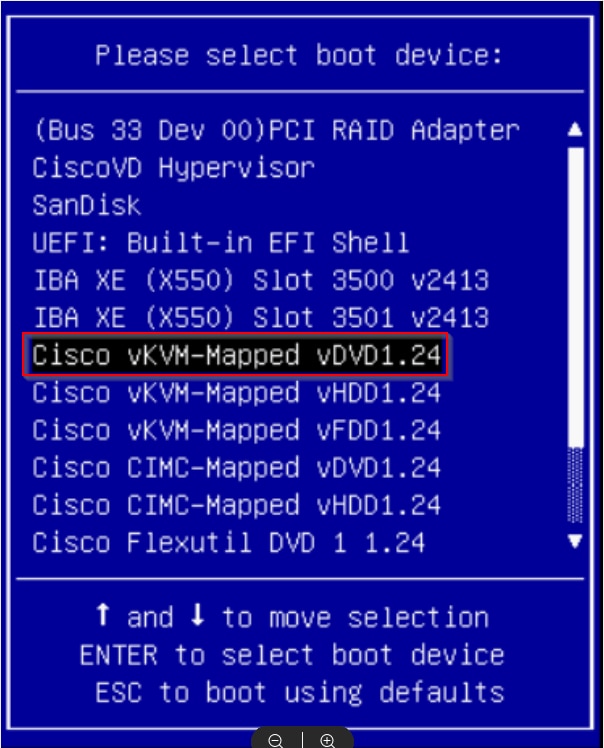
7. When the boot menu appears, select Cisco vKVM-Mapped vDVD1.24. The appliance boots from the mapped Ubuntu ISO image.
Step 1b: Boot from a Live CD VA - ESXi
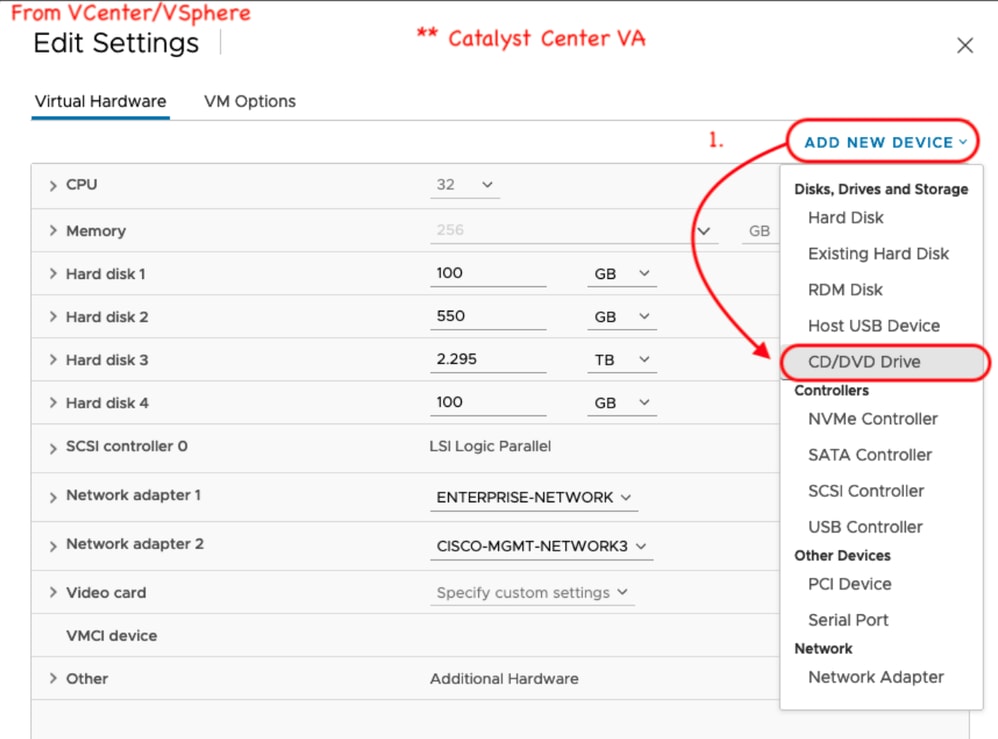
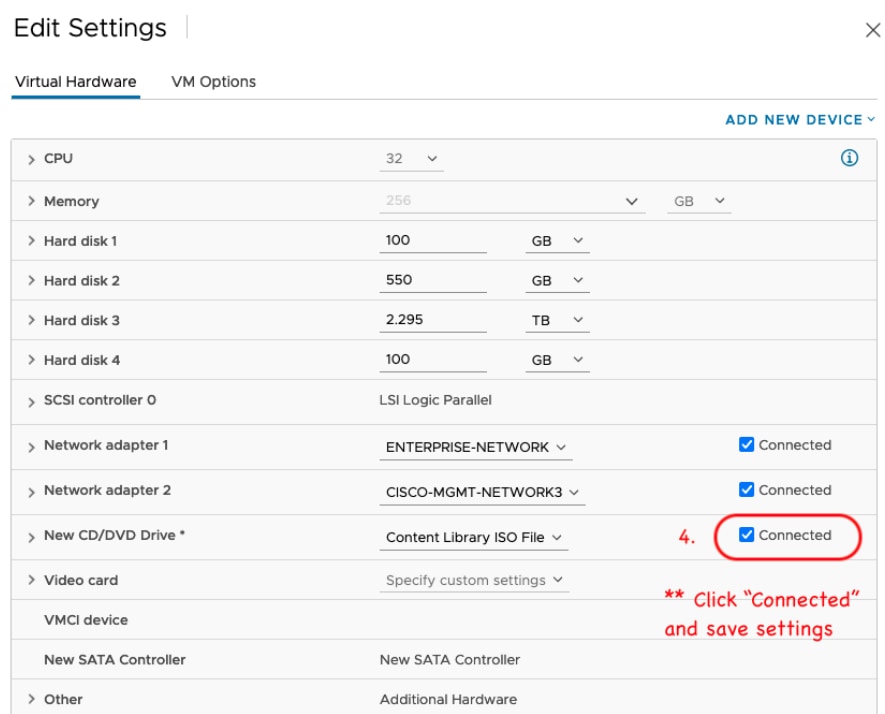
1. In VMware vCenter, navigate to the VM, right-click the VM, then choose Edit Settings. Click ADD NEW DEVICE, then choose CD/DVD Drive.
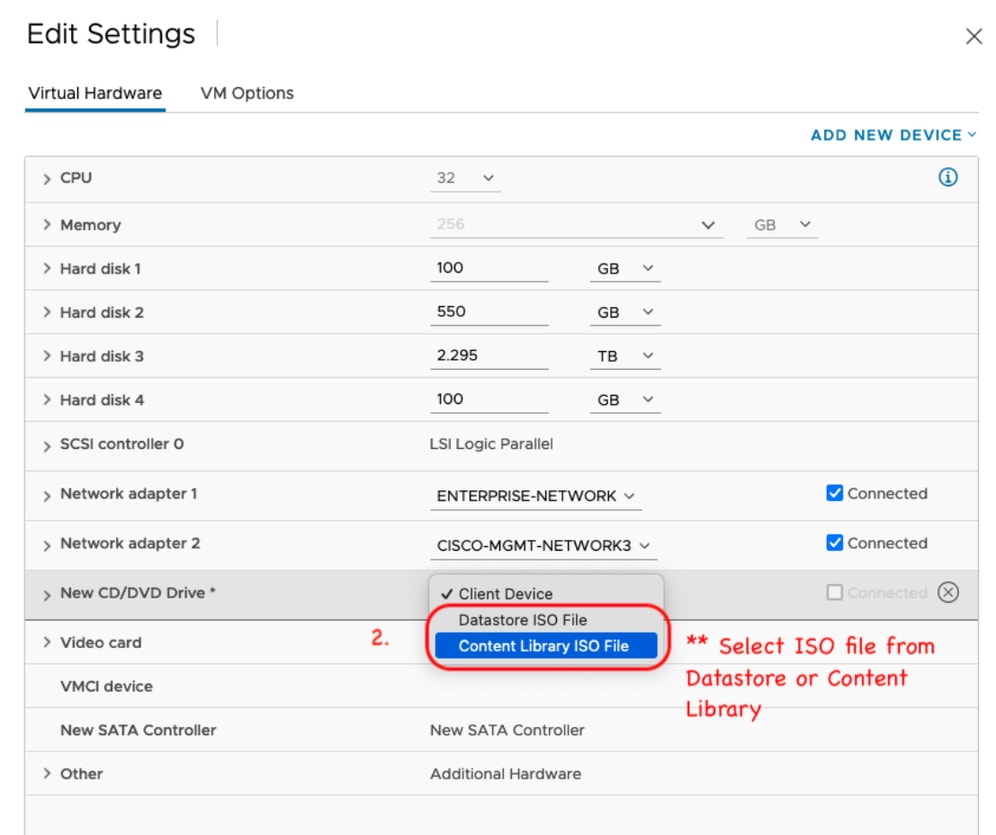
2. The CD/DVD drive now shows in the settings page as New CD/DVD Drive. If the ISO has been uploaded to the Datastore ISO File then choose that option for the CD/DVD. Otherwise, choose Content Library ISO File.
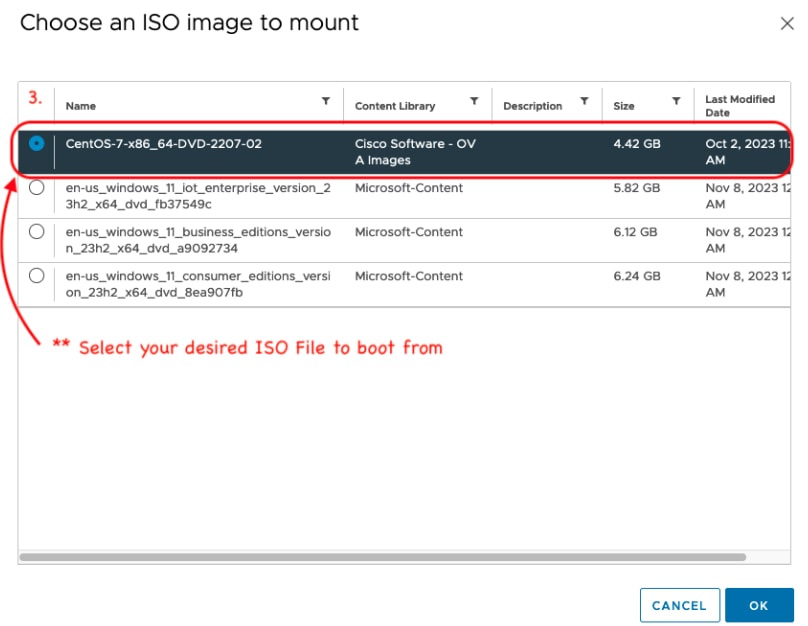
3. Select the ISO file to boot from. For this procedure, use the Ubuntu 18.04 ISO.
4. Next, ensure that Connected is enabled to the right of New CD/DVD Drive.
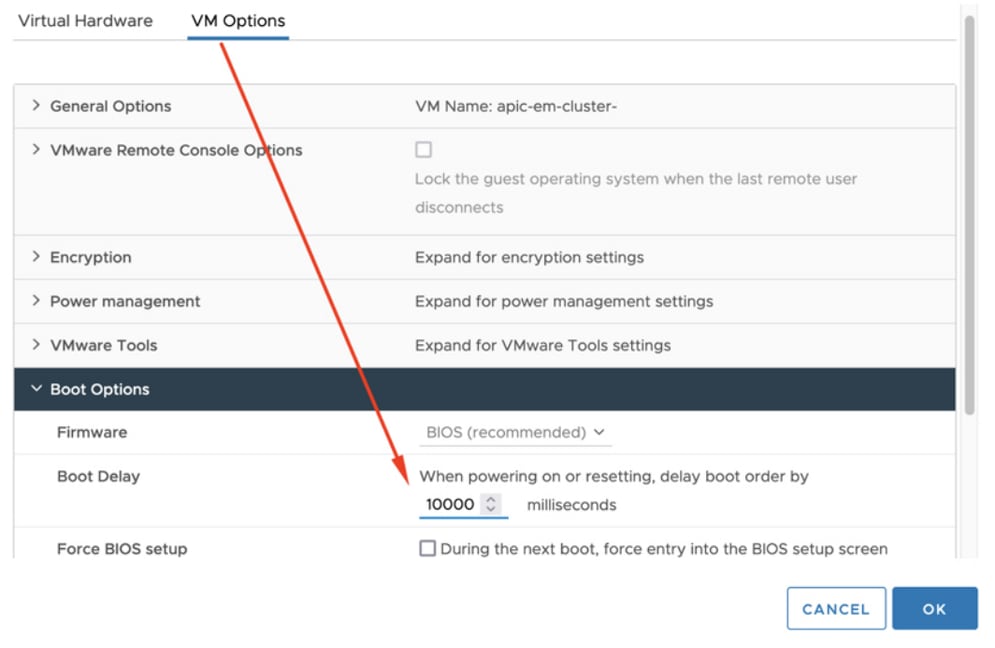
5. Click VM Options at the top of the settings screen. Click the down arrow for Boot Options, then change Boot Delay to a larger value (for example, 10000). The increased delay displays the boot menu option long enough to select the ISO after the VM restarts.
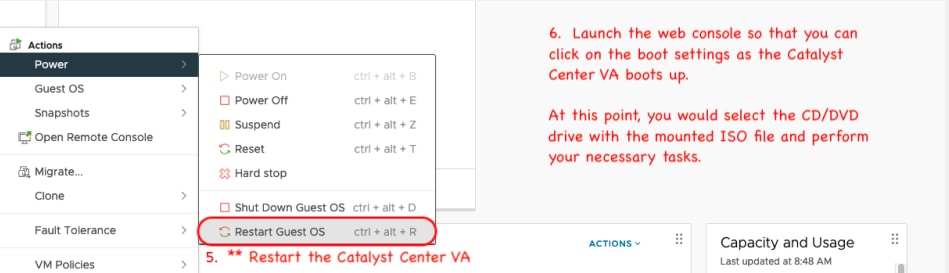
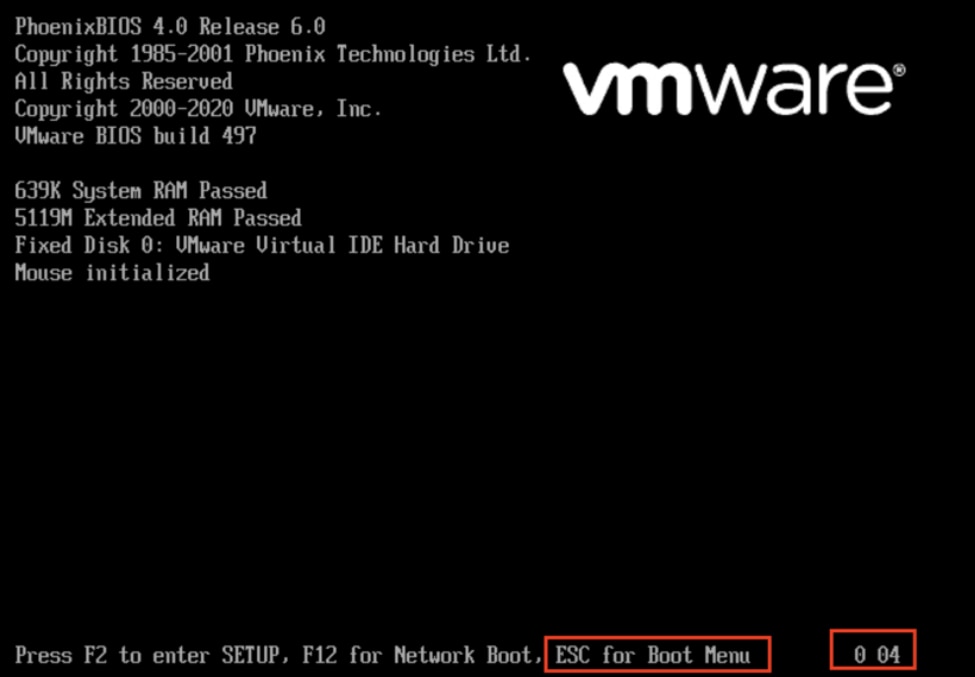
6. Next, restart the VM so you can access the boot menu and boot from the ISO.
Step 2a: Load into the Ubuntu ISO
1. This is the first screen displayed, it can appear idle (wait for the next screen). In the lab, this screen remained for 40 seconds.

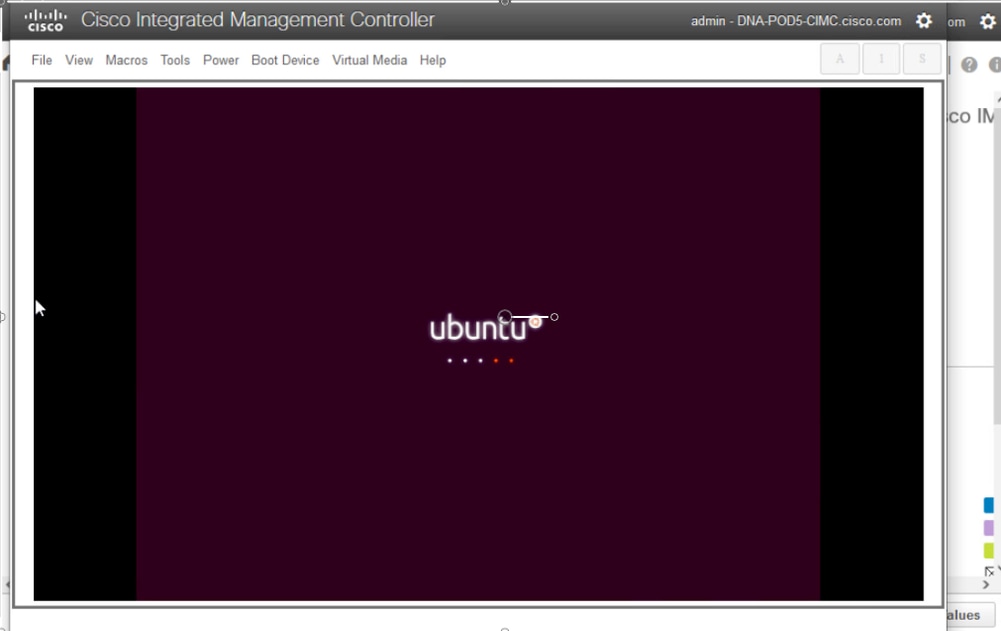
2. After that, the screen turned completely black for about 30 seconds before an Ubuntu loading screen appeared. In the lab, this screen remained for a little over 5 minutes before it moved on, however, times can vary from deployment to deployment.
3. Next, a screen appears that can suggest something went wrong, but this is expected. In the lab, this screen stayed up for 2 minutes before proceeding.
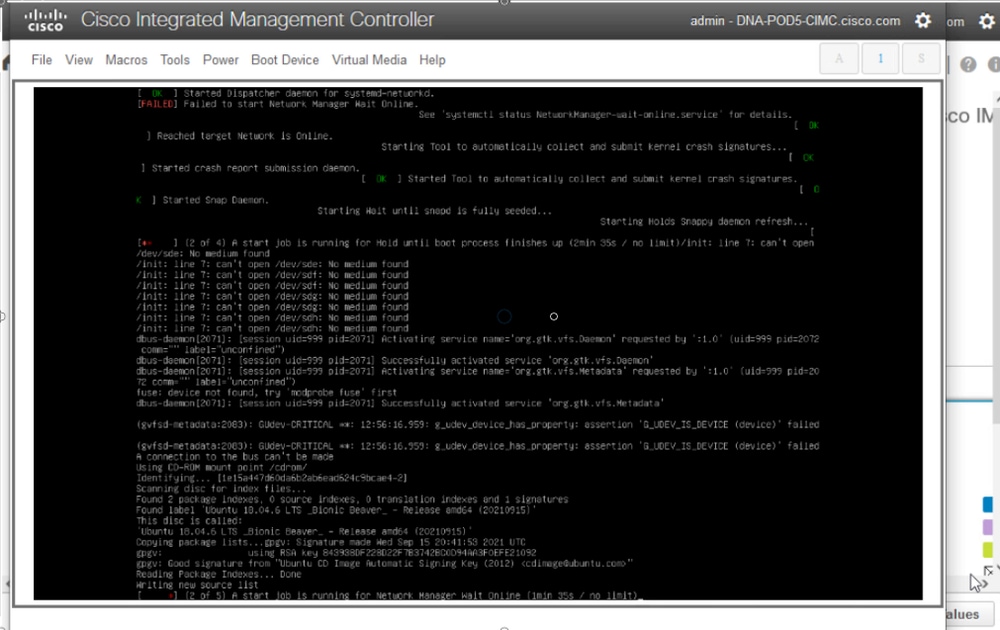
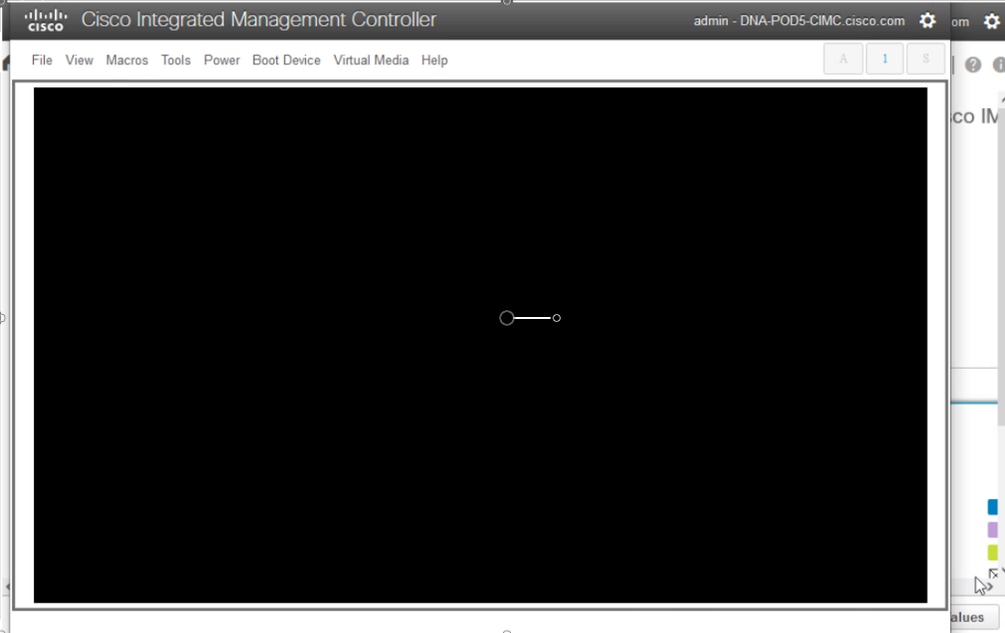
4. The screen returned to a black screen for about 3 minutes, the previous screen flashed again for a few minutes and then returned to the black screen for another 2 minutes.
5. Next, the option to select a Live session user appears. If the option to try Ubuntu desktop appears, choose that option. Select this user to continue.
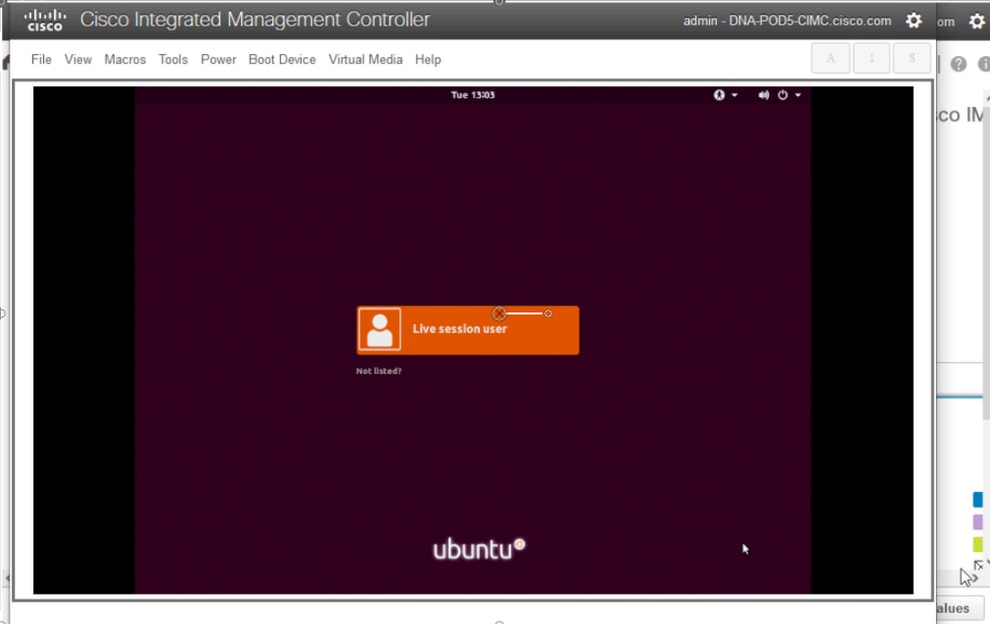
6. Once the user is selected, the screen goes black again before the Ubuntu desktop is presented.
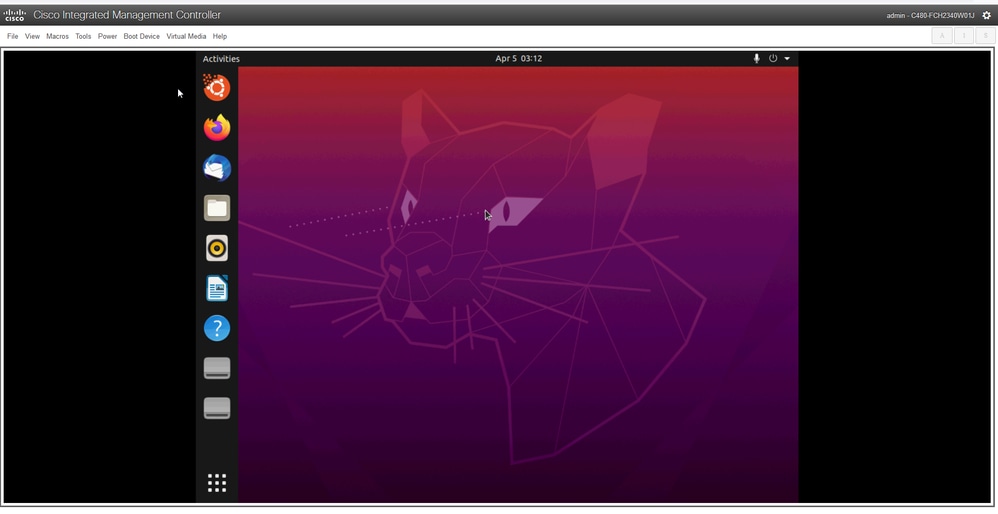
In some environments, it can take up to two hours to reach this point.
Step 2b: Mount Required Partitions
Once access to the Ubuntu desktop GUI environment is available, open the terminal application and perform these steps.
After you enter the chroot environment later in this procedure, you can determine which recovery action is required:
- If /etc/shadow shows an exclamation mark (!) before the password hash for maglev, the account is locked and must be unlocked.
- If the account is not locked but login is still denied, reset the failed login counter for maglev.
- If you must set a new password, reset the maglev password and then run sudo maglev-config update after reboot.
- Create a temporary mount point.
- Mount the root and var partitions to the system.
- Mount the pseudo file systems to the temporary mount point.
First create the temporary mount point by running this command:
sudo mkdir /altsys
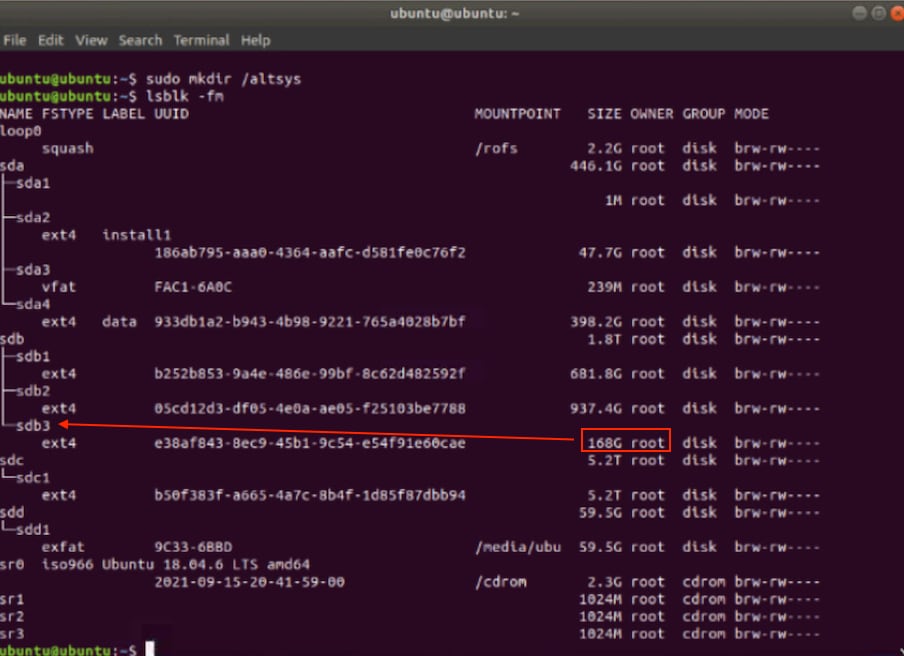
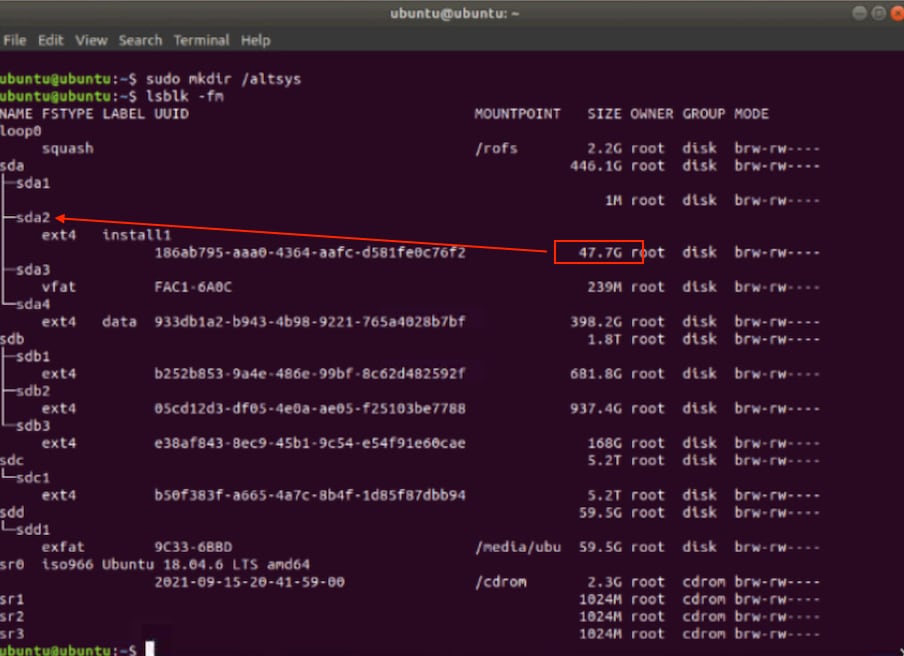
Next, find the root and var partitions to mount. Run the lsblk -fm command to identify the partitions for (root) and /var. Make note of the partitions identified for the mount commands in the next step.
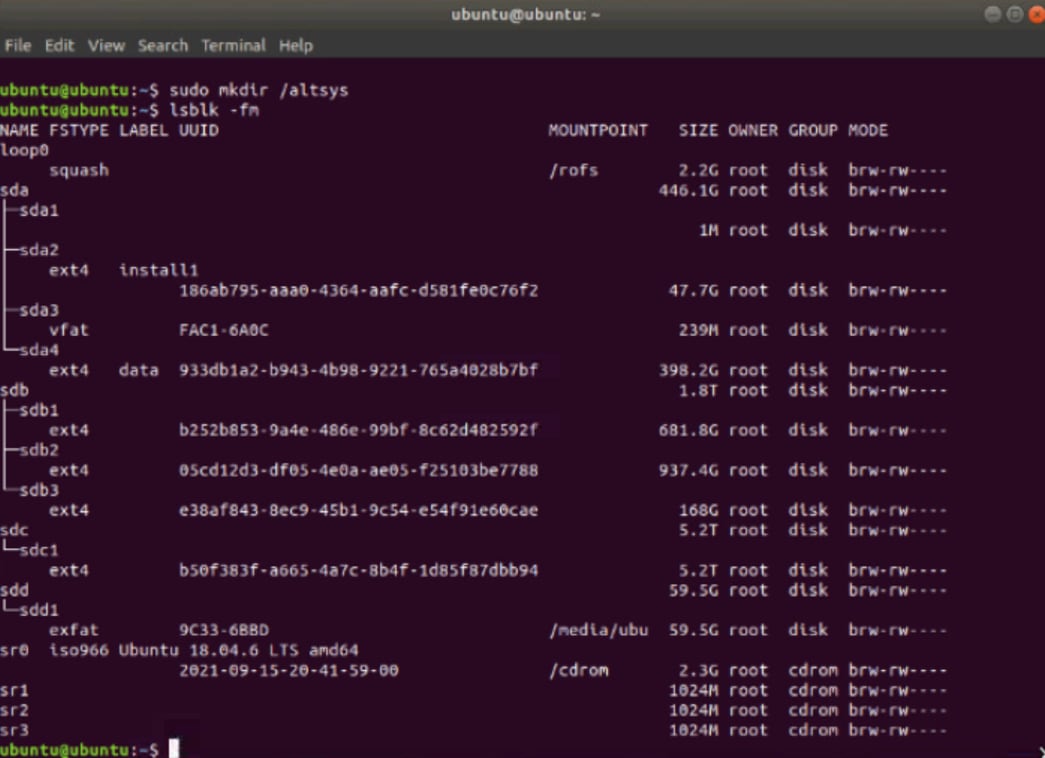
For /var, look for a 9.5G or 168G partition; in this case it is sdb3.
For the / root partition, look for the 28.66G or 47.7G partition. In this example, it is sda2.
After you identify the var and root partitions, mount them:
sudo mount /dev/sda2 /altsys   # use the disk with up to 5 or 6 partitions
sudo mount /dev/sdb3 /altsys/var       # use the disk with up to 5 or 6 partitions
After root and var are mounted, mount the pseudo file systems:
sudo mount --bind /proc /altsys/proc
sudo mount --bind /dev  /altsys/dev
sudo mount --bind /sys  /altsys/sys
The last step before the password is changed or the Maglev account is unlocked is to change to the temporary mount environment:
sudo chroot /altsys
Step 3: Choose the Recovery Action (Unlock Account or Reset Password)
After you run sudo chroot /altsys, use one of these workflows:
- Unlock Account: Use Step 3a and Step 3b.
- Reset Password: Use Step 3c through Step 3e.
Step 3a: Check Whether the Maglev Account is Locked
grep maglev /etc/shadow
maglev:!<redacted_hash>:18176:0:99999:7:::
Check if there is an exclamation mark in front of the password hash. If there is, the account is locked. Run this command to unlock the user:
usermod -U maglev
Step 3b: Reset Failed Count
If the user does not have an exclamation mark (!) in front of the password hash in the /etc/shadow file, the login failure limit has been exceeded. Use these steps to reset failed login attempts.
1. Find the failed login attempts for the maglev user:
$ sudo pam_tally2 -u maglev
Login           Failures Latest failure     From
maglev              454    11/25/20 20:24:05  x.x.x.x
2. In this example, the failed login attempts exceed the default limit of 6. This prevents the user from logging in until the failure count is reset or drops under 6. The login failure count can be reset by running this command:
sudo pam_tally2 -r -u maglev
3. The counter can be confirmed as reset:
sudo pam_tally2 -u maglev
Login           Failures Latest failure     From
maglev                0
Step 3c: Reset the Maglev User Password
# passwd maglev

Enter new UNIX password: #Enter in the desired password

Retype new UNIX password:  #Re-enter the same password previously applied

Password has been already used.

passwd: password updated successfully  #Indicates that the password was successfully changed
Step 3d: Reboot Normally to Cisco Catalyst Center Environment
1. Click Power in the KVM window, then click Reset System (warm boot). The system reboots and starts the Cisco Catalyst Center software from the RAID controller.
Step 3e: Update Maglev User Password from Cisco Catalyst Center CLI
1. Once the Cisco Catalyst Center software boots and access to the CLI is available, change the Maglev password by running the sudo maglev-config update command. This step is required to ensure the change takes effect across the whole system.
2. After the configuration wizard launches, navigate through the wizard to the screen that allows the Maglev password to be set in Step 6.
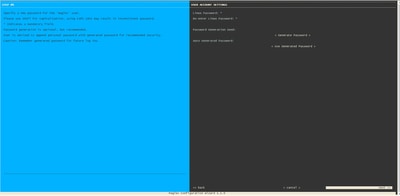
3. After you enter the password in both the Linux Password and Re-enter Linux Password fields, choose Next and complete the wizard. When the wizard finishes the configuration push, the password is successfully changed. Create a new SSH session or run the sudo -i command in the CLI to ensure the password has been changed.
Cause
When the Maglev account is locked out, the user cannot log in to unlock it. To unlock and/or reset the password for the Maglev user, it is necessary to mount an image to the Cisco IMC vKVM. This provides access to the shell and allows the user account and/or password to be reset.
Related Content
Step-by-Step Video Guide
Images provided by Cisco.
Revision History
| Revision | Publish Date | Comments |
|---|---|---|
7.0 |
01-Oct-2026
|
Added ToC, added Introduction section that was missing, updated spelling, grammar, inserted horizontal lines to separate sections, CCW alerts |
6.0 |
04-Mar-2025
|
Updated the document to include the steps for ESXi |
4.0 |
27-Aug-2024
|
Added the video to the document. |
3.0 |
15-Nov-2023
|
Recertification |
2.0 |
19-Sep-2023
|
Initial Release |
1.0 |
16-Aug-2022
|
Initial Release |

 Feedback
Contact Cisco
- Open a Support Case

- (Requires a Cisco Service Contract)