Troubleshoot Catalyst Center SWIM Feature
Available Languages
Contents
Introduction
This document describes troubleshooting SWIM, with practical checks, clear recovery steps, and information required to check prior to escalation.
2. Purpose
- Help you find where the SWIM workflow failed
- Help you verify both GUI state and device state
- Guide you through safe recovery steps
- Help you collect the right information before escalation
3. Scope
- Image import problems
- Golden image and compliance issues
- Image distribution failures
- Activation and boot issues
- Stack and HA upgrade problems
- Post-upgrade validation
- Database checks for stuck SWIM tasks
4. Audience
- TAC engineers
- Escalation engineers
5. Assumptions and Notes
In this document, CatC means Cisco Catalyst Center (CatC) and SWIM means Software Image Management (SWIM).
Before making any change, make sure console or management access is available, the target image is correct, a backout path exists, the device is not already running another install operation, and the change is approved.
6. How to Use This Guide
- Start with the GUI sections to understand the task flow and impact.
- Move to the CLI sections to confirm the real device state.
- Use the failure-domain sections to narrow the issue.
- Apply the lowest-risk recovery action first.
- Proceed to TAC workflow before you retry.
7. GUI Workflow and Repository Functions
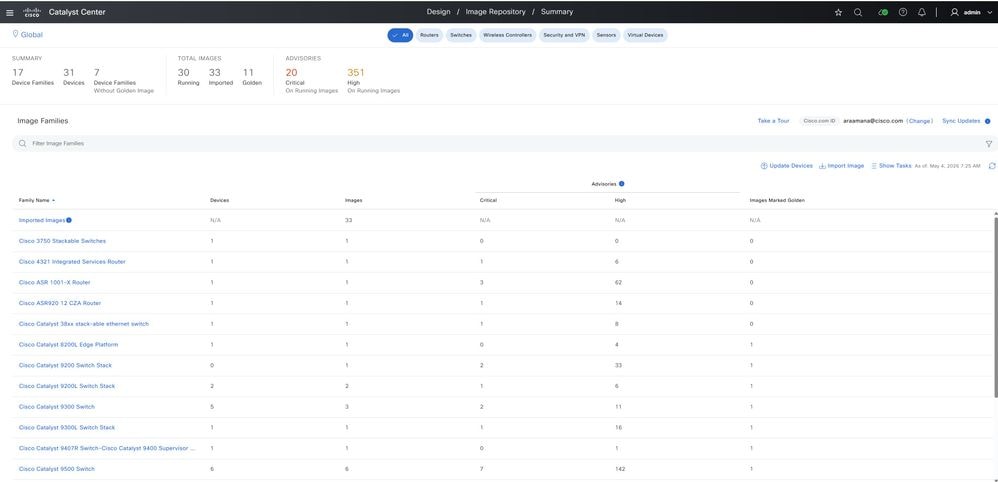
The GUI gives useful context before you move to CLI or database checks.
7.1 Image Recommendation and Security Advisory Review
This review must be one of the first checks before image distribution or activation troubleshooting.
- See Cisco-recommended images for the device family (Design > Image Repository)
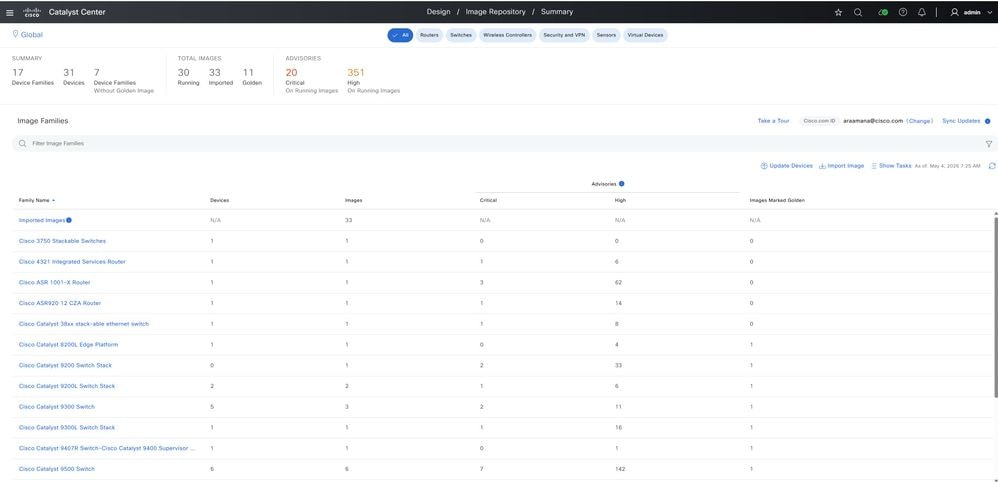
- Check whether the selected image matches the platform family.
- Confirm that the selected image matches the platform family, compare the device family and PID shown under Provision > Inventory with the image family listed under Design > Image Repository
- Review security advisories for the current image and the target image
- Navigate to Design > Image Repository and select the required device family. Review the Cisco-recommended software version and compare it with the current running image. Validate platform compatibility by comparing the device family and PID in Provision > Inventory with the image family shown in Image Repository. Review the security advisories for both the current and target images to determine upgrade relevance, security exposure, and software currency.
- Confirm whether the running image is outdated, unsupported, or exposed to known security issues
- Review the current image in Design > Image Repository and compare it with the recommended image and associated security advisories to determine whether the running software is outdated, unsupported, or affected by known security issues.
Recommended TAC review flow:
- Open Design > Image Repository.
- Select the correct device family.
- Review the recommended image shown for that platform.
- Compare the currently running image with the recommended image.
- Review any listed advisories for severity, impact, and relevance to the case.
- Confirm whether the target image is already imported and available for assignment.
- Check whether the target image has been marked as golden for the required scope.
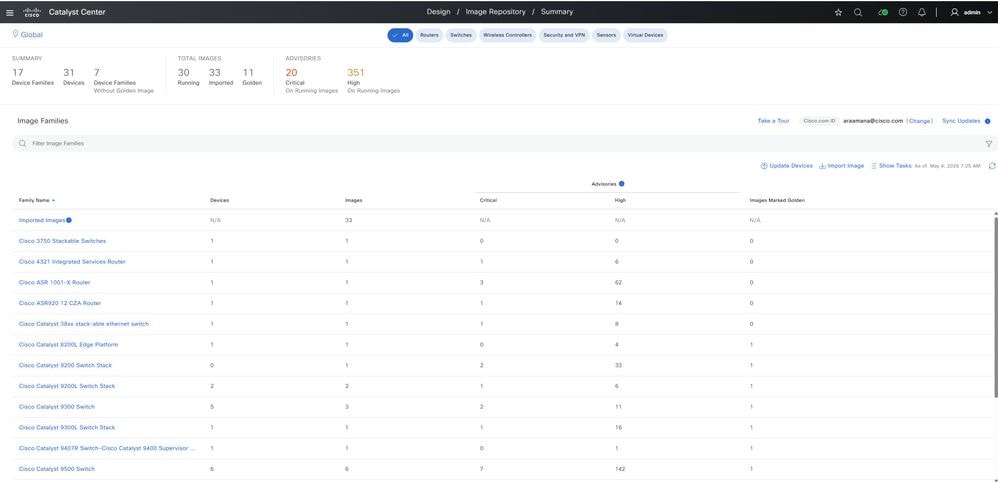
What TAC verifies:
- The recommendation applies to the exact platform family
- The selected image is not meant for a different hardware family
- The image choice is consistent with the site approved software baseline
- The security advisory data supports the upgrade decision
Why this step matters: This step helps you catch image-selection mistakes early. It also helps you explain whether the upgrade was driven by compliance, lifecycle alignment, or a security advisory.
7.2 Import Image Workflow
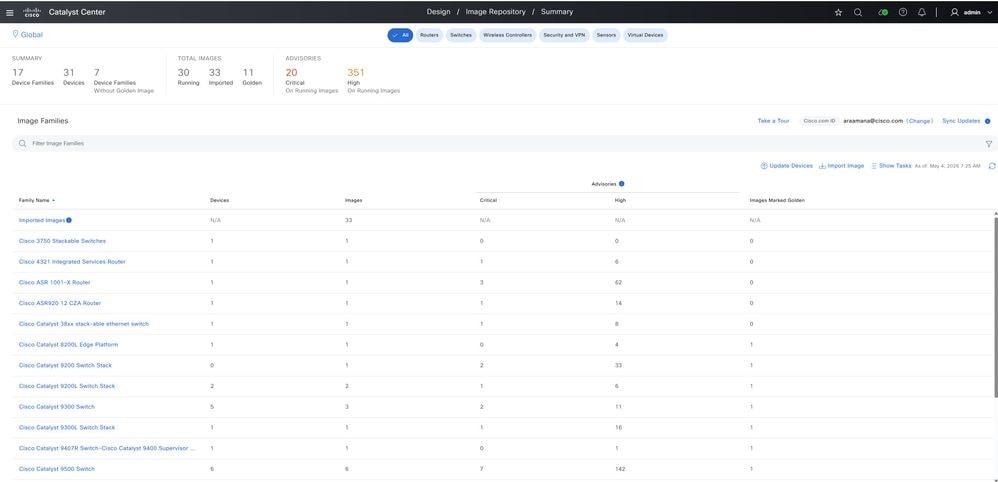
- Go to Design > Image Repository
- Click Import Image
- Choose the source such as Cisco, local file, or URL
- Complete the import and confirm the metadata looks correct
If FIPS mode is enabled, URL-based image import must be restricted by platform security controls. In such cases, use a supported import method such as Cisco.com or a local file upload, then confirm that the image metadata and checksum are populated correctly after import.
 |
 |
7.3 Golden Image and Upgrade Preparation
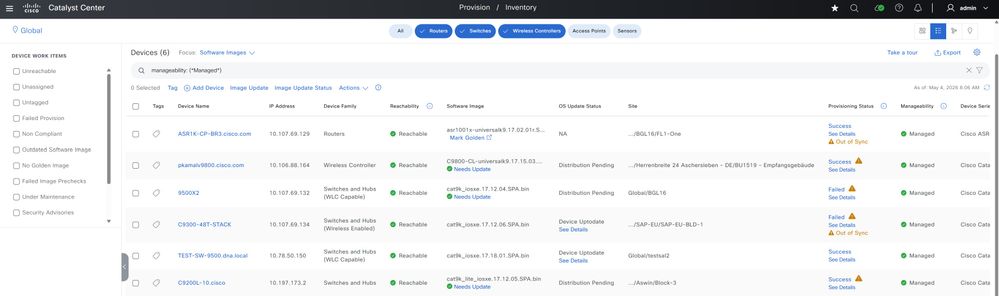
- Confirm the image imported successfully
- Confirm the image is tagged as golden if required
- Confirm the site and device family assignment are correct
- Confirm the device is in managed state in Provision > Inventory
7.4 Remote Distribution Server Awareness
If a remote distribution server is configured under System > Settings > Device Settings > Image Distribution Servers, include it in your analysis from the beginning of the case. It can affect transfer method, transfer timing, staging behavior, and the actual point of failure during image distribution.
What TAC checks:
- Whether a remote distribution server is configured for the affected site
- Which transfer protocol is being used, such as SCP, HTTPS, or SFTP
- Whether the target device can reach that server
- Whether the correct image has been staged on the remote server
- Whether the issue affects one remote site or multiple sites using the same server
Why this matters:
When a remote distribution server is in use, the image path is no longer a simple controller-to-device transfer. A failure is caused by the external server, protocol preference, reachability, image staging, or server-side availability rather than by the device itself.
Recommended TAC validation flow:
- Check whether the affected site is configured to use a remote distribution server.
- Confirm the selected transfer protocol.
- Verify that the target image is available and staged correctly.
- Confirm network reachability between the device, Catalyst Center, and the remote distribution server.
- Review transfer-related task failures and logs before retrying the distribution.
Common TAC issues to watch for:
- Image staged on the wrong server or not staged at all
- Protocol mismatch between server configuration and device capability
- Remote site reachability issues
- Transfer timeout caused by server response delay or WAN instability
8. Minimum Data to Capture
Before deep troubleshooting, collect:
- Catalyst Center task ID: Capture the task ID for the main SWIM job and any child task if shown. This is the primary reference for correlating GUI activity, logs, and database state.
- Exact error message: Record the full error message exactly as shown in the GUI. Do not shorten it, because even small wording differences can help identify the true failure path.
- Hostname and management IP: Record the device hostname and management IP so that task data, inventory state, and device logs can be matched correctly.
- Platform model and PID: Confirm the exact hardware model and PID. This is important for image compatibility, golden image mapping, and upgrade-path validation.
- Current version and target version: Note the software version currently running on the device and the version planned for upgrade. This helps confirm whether the task failed before or after the image actually changed.
- Software mode if known: Record whether the device is using install mode or bundle mode if that information is available. This directly affects activation behavior and recovery steps.
- Whether the device is standalone, stack, or HA: Capture the deployment type because stack and HA devices often fail differently from standalone devices and requires additional checks.
- Business impact and maintenance window details: Record whether the issue is service-affecting, how many users or sites are impacted, and whether the work is happening inside an approved maintenance window.
Recommended TAC collection order:
- Capture the task ID and exact error.
- Capture device identity and platform details.
- Record current version, target version, and software mode.
- Record whether the device is standalone, stack, or HA.
- Record business impact and maintenance window status.
Why this matters: Collecting this information early reduces back-and-forth during escalation and helps TAC determine whether the issue is related to image selection, task orchestration, platform compatibility, or device state.
9. Catalyst Center Validation
Check these items in the GUI:
- Task details and child task results: Review the parent task and any child task entries to understand exactly where the workflow stopped. This helps separate import, distribution, activation, and post-upgrade issues.
- Failure message and failure time: Capture the exact failure message and timestamp. This helps you match the GUI event with device logs, SWIM logs, and database task records.
- Image repository entry and metadata: Confirm the target image exists in the repository and that the version, family, and metadata are complete. A partial or incorrect repository entry can cause assignment and distribution problems.
- Golden image assignment: Verify that the golden image assignment matches the intended site, role, and device family. Incorrect assignment can lead to compliance mismatch or the wrong image being selected during the update workflow.
- Inventory reachability: Confirm the device is currently reachable and still shown in managed state. If inventory state is degraded, fix that first before retrying the task.
- Compliance status before and after the task: Compare the compliance state before the upgrade attempt and after the failure. This can show whether the image actually changed, whether sync is stale, or whether the failure occurred before activation.
- Platform health if tasks are stuck or delayed: Check system and application health in Catalyst Center when tasks remain pending, delayed, or inconsistent. This helps identify whether the issue is controller-side rather than device-side.
- Inventory resync options when software data looks stale: If the device returned successfully but the software version shown in the GUI is old, use inventory resynchronization before treating the case as a failed upgrade.
- Task history to see whether retries changed the behavior: Review previous task attempts for the same device or site. This helps you see whether the failure is consistent, intermittent, or influenced by changes made between retries.
Recommended TAC validation order:
- Open the failed task and review the parent task and child task details.
- Capture the exact failure text and time of failure.
- Validate the target image entry in the repository.
- Confirm the golden image assignment and scope.
- Check current inventory reachability and manageability state.
- Compare compliance status before and after the failed attempt.
- Review platform health, inventory sync state, and task history before retrying.
Why this matters: These checks help TAC decide whether the issue is caused by image selection, assignment, controller task handling, inventory synchronization, or the device itself.
10. Device-Side CLI Checks
Run only the commands that fit the platform and software mode.
These install-related commands are especially useful during SWIM upgrade analysis. Theshow tech installcommand provides a broad technical snapshot of the install process and is commonly used to capture overall install-related evidence for review or escalation. Theshow platform software install-manager switch X R0 operation history detailcommand shows the detailed history of install-manager operations for a specific stack member and helps confirm which steps completed and where the process failed. Theshow platform software install-manager switch X R0 operation current detailcommand shows the live install status for that switch and is useful when the upgrade appears stuck or is still running. Therequest platform software trace archivecommand collects platform software trace data for deeper analysis, while therequest platform software trace slot switch X archivecommand collects the same trace data for a specific stack member. Together, these commands help teams understand what happened during the install, what is happening now, and what evidence must be collected for further analysis.
show tech install
show platform software install-manager switch X R0 operation history detail(stack)
show platform software install-manager switch X R0 operation current detail(stack)
request platform software trace archive
request platform software trace slot switch X archive(stack)
10.1 Core Identification Commands
show version
show inventory
show platform
show boot
show running-config | include boot system
show startup-config | include boot system
show file systems
dir flash:
dir bootflash:
Use these commands to confirm the current version, boot settings, and available storage.
10.2 Install and Package State Commands
show install summary
show install active
show install committed
show install log detail
show install request
These commands help you check whether a previous install is still running, incomplete, or not committed.
10.3 Logging and Failure Evidence
show logging
show logging | include INSTALL|install|BOOT|boot|ERROR|FAIL|ROMMON
show archive log config all
show reload
show tech-support
10.4 Stack and HA Commands
show switch
show switch detail
show redundancy
show platform software status control-processor brief
show platform software package status
10.5 Reachability and Resource Checks
ping <gateway-or-management-peer>
show ip interface brief
show interfaces status
show processes cpu sorted | exclude 0.00
show processes memory sorted
11. Troubleshooting by Failure Domain
11.1 Image Distribution Failure
show file systems
dir flash:
dir bootflash:
show logging | include SCP|SFTP|HTTP|TFTP|copy|transfer|flash
show processes cpu sorted | exclude 0.00
Confirm there is enough free space, check whether the management path is stable, and remove old files only after you confirm they are not in use.
GUI actions: Open the failed task, confirm the device is still managed, confirm the image is still present in the repository, check whether a remote distribution server is in use, and retry only after storage, credentials, and transfer path look good.
11.2 Activation Fails and the Device Boots the Old Image
show version
show boot
show running-config | include boot system
show startup-config | include boot system
show install summary
Check whether boot variables still point to the old image. Correct the boot path if needed, then save the configuration before reload.
configure terminalno boot systemboot system flash:<target-image.bin>endwrite memoryshow boot
GUI actions: Review the task timeline, check whether the device came back after reload, run inventory sync if the GUI version is stale, and verify activation checks and cleanup settings before retrying.
11.3 Install Mode Incomplete or Stuck
show install summary
show install active
show install committed
show install log detail
show logging | include install|INSTALL
Check whether the package is already active but not committed. Do not start another install until you understand the current state.
install commit
11.4 Device Enters Boot Loop
First check whether a known-good image is still available locally and use the approved ROMMON recovery method for that platform.
dir flash:
boot flash:<known-good-image.bin>
show version
show boot
configure terminal
no boot system
boot system flash:<known-good-image.bin>
end
write memory
11.5 Stack Member Version Mismatch
show switch
show switch detail
show version
dir flash:
show install summary
show logging | include switch|version|install
Confirm all members are present, verify image availability on all members, and retry only when the full stack is healthy.
11.6 Post-Upgrade Reachable but Non-Compliant
show version
show inventory
show running-config | include boot system
If the device version is correct, suspect stale inventory or compliance data before treating it as a failed upgrade.
GUI actions: Refresh the device record, rerun compliance, confirm the golden image mapping is still correct, and review task history to confirm the expected target version.
12. Recovery Procedures
12.1 Safe Storage Cleanup
dir flash:
dir bootflash:
delete /force flash:<unused-image.bin>
delete /force /recursive flash:<unused-package-directory>
12.2 Boot Variable Correction
show boot
configure terminal
no boot system
boot system flash:<target-image.bin>
end
write memory
show boot
12.3 Manual Reload After Controlled Preparation
reload
12.4 Install Commit When Active Packages Are Correct
show install summary
install commit
show install committed
12.5 Validation After Manual Recovery
show version
show boot
show install summary
show logging | tail
show ip interface brief
12.6 GUI Recovery Validation
- Confirm the device is managed and reachable in inventory
- Run inventory sync if the version looks stale
- Rerun compliance
- Confirm image repository and golden mapping still match policy
- Check that no incomplete upgrade task remains open
13. TAC Workflow
Use this workflow after the main GUI and CLI checks. Treat it as the working sequence for a live TAC case.
13.1 Identify Where the Failure Started
Objective: Decide whether the problem started in Catalyst Center, in the transfer path, or on the device.
Working checks: Review the task details, timestamps, inventory state, and device reachability. Separate controller-side failures from transfer failures and device-side failures as early as possible.
Decision: If the task failed before the image reached the device, stay focused on inventory, credentials, repository state, and transfer path. If the image copied successfully but activation failed, move to boot variables, install state, and device logs.
13.2 Capture the Exact Error and Time
Objective: Build a clean failure timeline.
Capture: Record the exact GUI error text, task ID, failure timestamp, and child task details if available.
Why this matters: Data needs to match the GUI event with device logs, SWIM logs, and database records.
13.3 Measure the Scope of Impact
Objective: Decide whether this is a single-device issue or a wider platform issue.
Check: Determine whether the issue affects one device, one stack, one site, one platform family, or many devices across the environment.
Decision: If the same failure appears on multiple devices, suspect image quality, platform compatibility, repository state, credentials, or controller-side task handling before blaming one device.
13.4 Confirm How Far the SWIM Workflow Reached
Objective: Find the last stage that completed successfully.
Track: Walk the workflow through image import, assignment, distribution, activation, reload, and post-upgrade sync.
Why this matters: This keeps you from repeating steps that already worked and helps you stay focused on the real failure point.
13.5 Check Whether the Image Reached the Device
Objective: Confirm whether the transfer stage really completed.
Checks: Verify whether the image is present on flash: or bootflash:, confirm there is enough free space, confirm the file is complete, and confirm the image matches the intended platform.
Decision: If the image is missing, continue with transfer troubleshooting. If the image is present, shift to activation, boot selection, package state, or post-upgrade validation.
13.6 Decide When the Failure Happened
Objective: Place the failure at the correct point in the timeline.
Classify: Break the issue into one of these timing points: before reload, during reload, or after reload.
Decision: If the failure happened before reload, focus on install logic, boot settings, and task orchestration. If it happened during reload, check console output, reload reason, and boot behavior. If it happened after reload, focus on rediscovery, compliance sync, stack health, and service recovery.
13.7 Verify Device State Before Any Retry
Objective: Make sure the device is stable before you run anything again.
Confirm: Verify that software mode is understood, boot variables are correct, storage is healthy, install state is not incomplete, stack or HA state is normal, and no previous install operation is still active.
Exit criteria: Do not retry until all of these checks are clear or you have a documented reason to proceed.
13.8 Use the Lowest-Risk Recovery Step First
Objective: Reduce risk while still moving the case forward.
Start with: Refreshing inventory, rerunning compliance, reviewing logs, correcting boot variables, or committing a package if activation already succeeded.
Guidance: Do not jump to database updates or forced cleanup unless the normal checks already show the task is stale and the device is no longer active in the workflow.
13.9 Retry Only After the State Is Clear
Objective: Set a clear decision point before the next attempt.
Retry only when: The current issue is understood, the device is healthy, no conflicting task is still open, the image and assignment are correct, and recovery changes have been saved and validated.
Decision: If these conditions are not met, stop the retry path and move to escalation with the evidence you already collected.
14. Escalation Package Checklist
- Catalyst Center task details
- Timestamps for import, distribution, activation, and reload
- show version
- show boot
- show install summary
- show install log detail
- show logging
- dir flash: or dir bootflash:
- show switch or show redundancy when relevant
- Console output if the device entered ROMMON or a boot loop
- All recovery actions already attempted
15. Device Useful Command Reference
show version
show boot
show install summary
show install log detail
show logging
show switch
show redundancy
dir flash:
dir bootflash:
Revision History
| Revision | Publish Date | Comments |
|---|---|---|
1.0 |
17-Jun-2026
|
Initial Release |

 Feedback
Contact Cisco
- Open a Support Case

- (Requires a Cisco Service Contract)