Use Access Point Refresh Feature on Catalyst Center
Available Languages
Contents
Introduction
This document describes the 'Access Point Refresh' workflow in Cisco Catalyst Center to replace older APs with latest-generation Access Points.
Description
This workflow assists network administrators by automatically copying configuration and information from the old Access Point being replaced to the new Access Point. These details are transferred to the new AP after the refresh, so network administrators do not have to configure them manually, reducing downtime:
- AP Name
- AP Location
- AP Mode (Local and Flex only)
- Access Point WLC High Availability Configuration - Primary, Secondary, and Tertiary Wireless Controller Name and IP configuration, AP Failover Priority
- AP Tag configurations (Policy Tag, Site Tag and RF Tag). AP Groups in case of AireOS
- AP LED state, AP LED Brightness Level
- Access Point Map Position
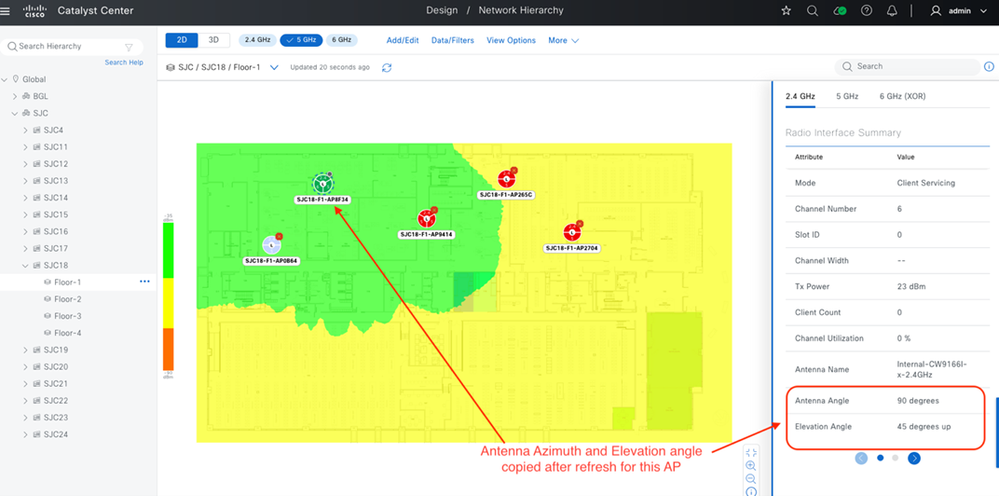
- AP antenna’s Azimuth and Elevation
This workflow supports various deployment types, including Wireless Automation with Intent Provisioning, Assurance Only, Wireless Per-Device Configuration or Campus Automation, and SD-Access Wireless. A maximum of 250 APs can be refreshed per workflow. There is no limit on the number of workflows that can be created
Requirements
Cisco recommends that you have knowledge of these topics
- Catalyst 9800 Wireless Controller and Access Points
- Catalyst Center Wireless Automation & Provisioning
- Cisco AP Plug and Play (PnP)
- Catalyst Center Assurance Deployments
- Catalyst Center Per-Device-Configuration
Components used
- Catalyst Center Version 2.3.7.10
- Catalyst 9800 Wireless Controller running Cisco IOS® XE release 17.15.3
- Cisco Wireless Access Points
When to use Each use case in the Access Points Refresh workflow
At a high level, the Access Point Refresh workflow has two main use cases: Automation and Assurance.
- Automation Use Case: Applies to APs provisioned or intended for provisioning using Catalyst Center’s Intent-Based Automation with network profiles in both SD-Access (SDA) and non-SDA environments.
- Assurance Use Case: For deployments where Catalyst Center is used exclusively for Assurance and/or Per-Device Configuration, without provisioning APs via Catalyst Center.
This table summarizes the functionality supported across the use cases
| Current scenario |
Migrating to |
Support |
| AireOS (Assurance) |
C9800 (Automation) |
Supported |
| AireOS (Assurance) |
C9800 (Assurance) |
Future Support |
| AireOS (Automation) |
C9800 (Automation) |
Supported |
| AireOS (Automation) |
C9800 (Assurance) |
Future Support |
| C9800 (Assurance) |
C9800 (Assurance) |
Supported * |
| C9800 (Automation) |
C9800 (Automation) |
Supported |
* Within same Wireless controller

Note: "Automation" in this context includes Intent-Based Networking (IBN) & Software-Defined Access (SDA).
High-Level Steps for AP Refresh: Successfully completing an AP refresh involves these 4 steps:
- Creating an AP Refresh workflow task on Cisco Catalyst Center
- Physically disconnecting the old APs from the network.
- Physically connecting the new APs in the network.
- Onboarding the new APs either through WLC inventory synchronization or AP Plug and Play in Cisco Catalyst Center
Note: The order of workflow creation and physical AP connection/disconnection is flexible. However, for successful completion, the old AP must be marked as unreachable in Catalyst Center Inventory, and the new AP must be reachable (either in inventory after joining a WLC or on the Plug and Play page, ready to be claimed). For Plug and Play, the new AP is already available and ready to be claimed, or it must arrive later, after the AP refresh workflow task has been created and submitted.
Automation Use Case
This option is suitable when the wireless network has been designed and configured from Catalyst Center using Intent Based Automation constructs such as network settings, wireless settings, network profiles, and managed AP locations. It can be used in these scenarios:
- When both the old and new APs are expected to connect to the same wireless controller.
- When the old AP is associated with one Catalyst 9800 wireless controller (regardless of whether it was provisioned by Catalyst Center), and the new AP is expected to join a different Catalyst 9800 wireless controller.
- When the old AP is associated with an AireOS controller (regardless of whether it was provisioned by Catalyst Center), and the new AP is expected to join a different Catalyst 9800 wireless controller.
- When the new AP is onboarded using the Plug and Play (PnP) workflow.
Assurance Use Case
This option is suitable when the wireless network has been designed and configured either directly via the Wireless Controller WEBUI/CLI or using 'Per-Device Configuration' in Catalyst Center.
On a Catalyst 9800 Wireless Controller, APs can be configured with tags using sources such as Static, Location, Filter, or AP. When performing an AP refresh with the Assurance use case, tag settings are copied to the new APs. If the tag source is 'Location' or 'AP' Catalyst Center creates static tag mappings for the new APs on the wireless controller after the refresh.
AP Refresh with the Assurance Use Case does not support these:
- When the new AP is not associated with the Wireless Controller where the old AP is/was present.
- When the new AP is onboarded using the Plug and Play (PnP) workflow.
Steps to use AP Refresh Workflow
Launch the workflow: From the Workflow Library (accessed via the Hamburger menu on the top left corner).
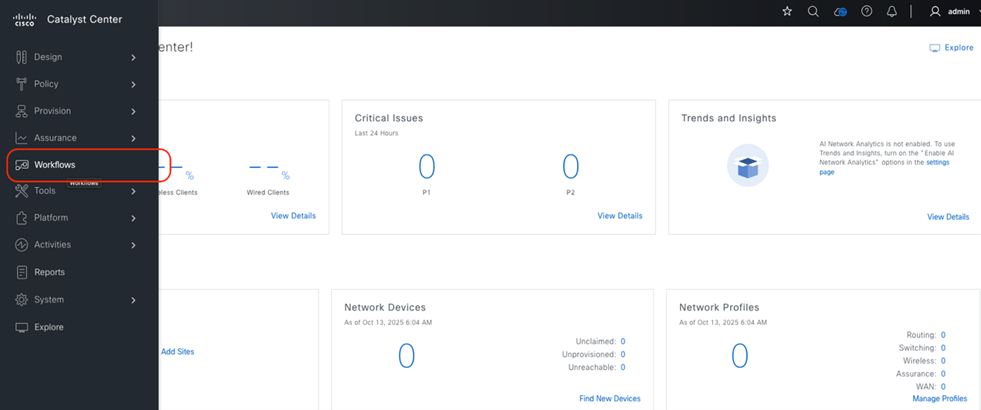
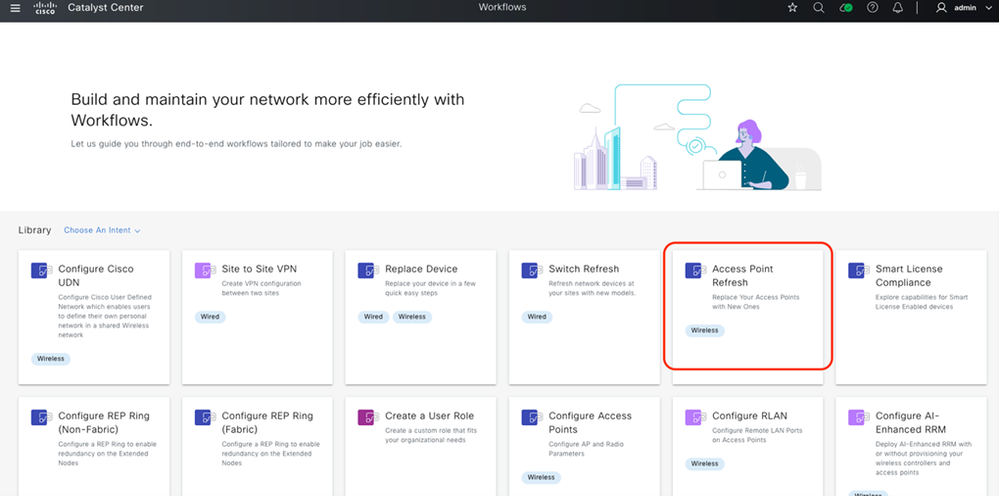

Caution: Do not use the 'Replace Device' workflow for AP refresh. This workflow is only for replacing devices through RMA, where the new AP must have the exact same Product ID (PID) as the old AP.
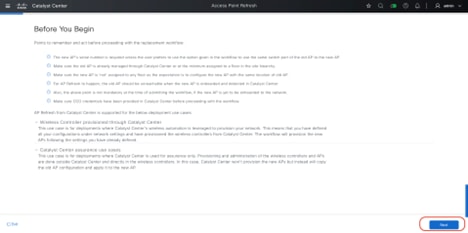
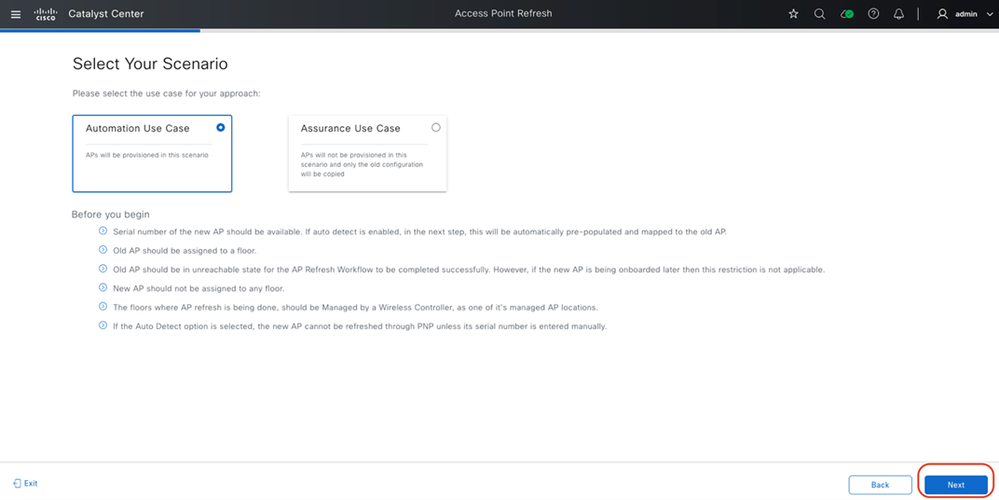
Review Prerequisites: Carefully read the 'Before You Begin' section to understand the prerequisites, deployment types, and how to select the correct option. Once reviewed, click 'Next'.
-
Serial Number: Mandatory unless using the 'same switch port' option.
-
Old AP Status: Must be managed by Catalyst Center or assigned to a floor.
-
New AP Status: Must be unassigned to any floor; it inherits the old AP location.
-
Connectivity: The old AP must be unreachable during the new AP onboarding and detection, unless the new AP is currently being added to the network.
-
Credentials: Verify CCO credentials are configured in Catalyst Center.
The details are sumarized in the workflow step in Cisco Catalyst Center
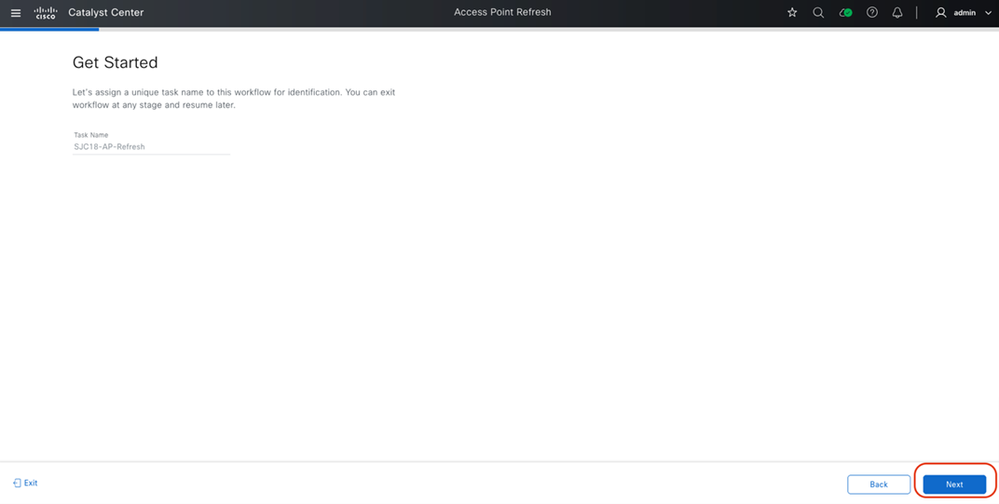
- Provide Task Name: Enter a task name for future reference and click 'Next'.
- Choose Deployment Type: Select “Automation Use Case” or “Assurance Use Case” as needed and click 'Next'.
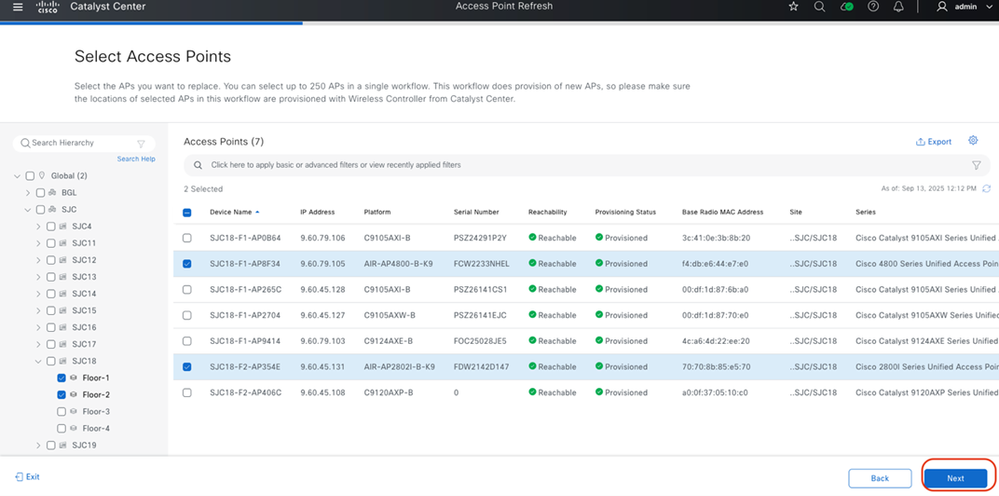
- Select APs: On the left pane, select the floors where APs are being replaced. From the table, select the specific APs and click 'Next'.
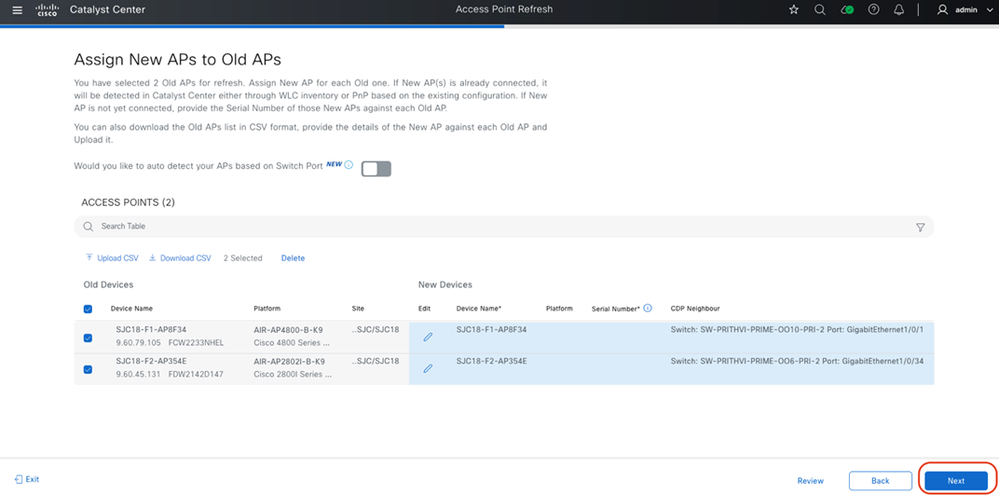
Assign AP Mappings: Map old APs to new APs and click 'Next'. New APs can be mapped to old APs in multiple ways:
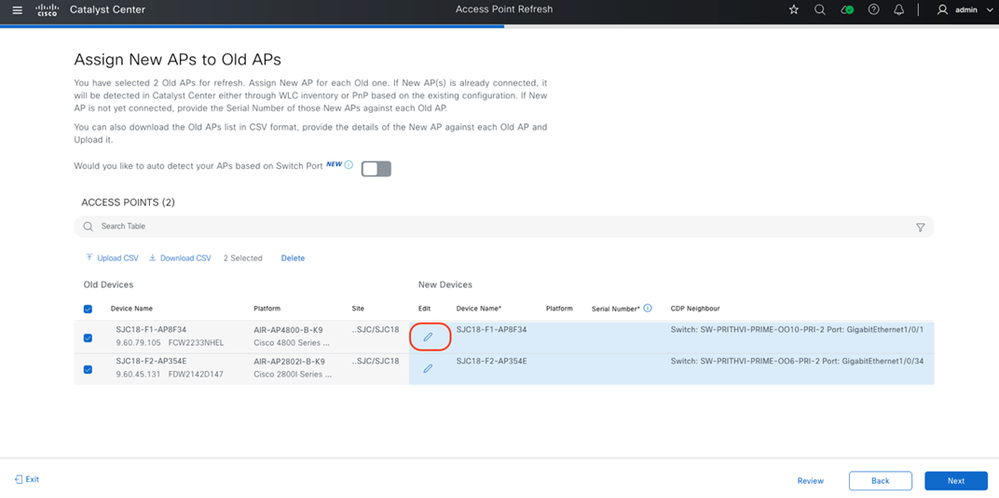
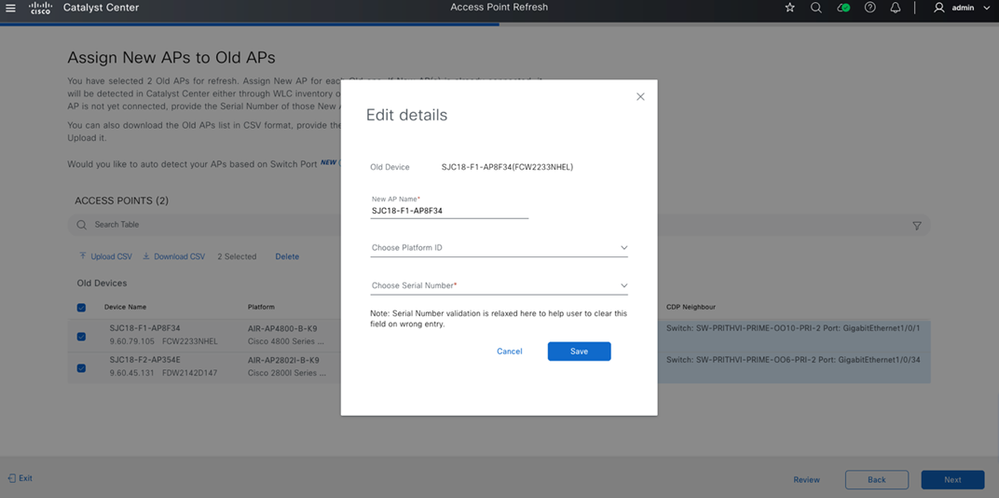
- Manually: Click the 'Edit' button and enter the serial number.
- Enter the serial number manually or select it from the drop-down if the new AP is already in Catalyst Center Inventory or Plug and Play.
- The 'New AP Name' field is optional and can be used to update the AP name for the new device.
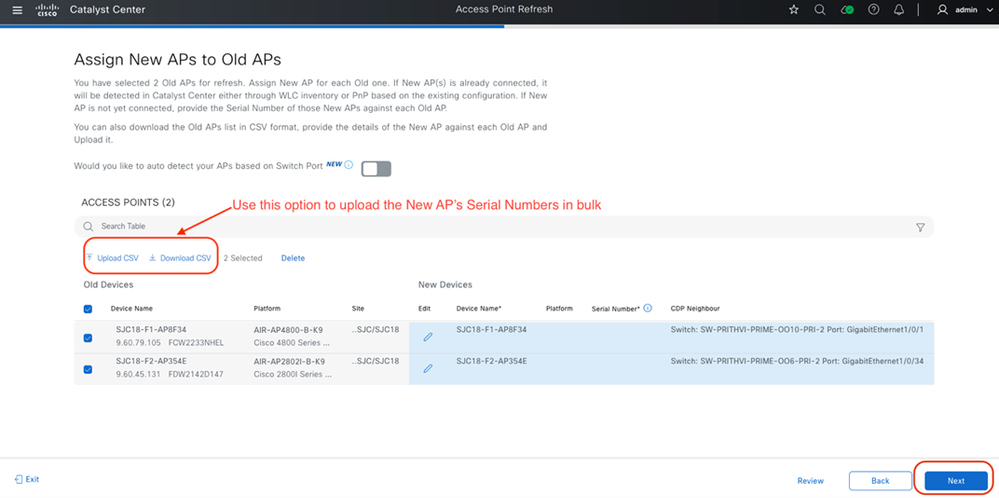
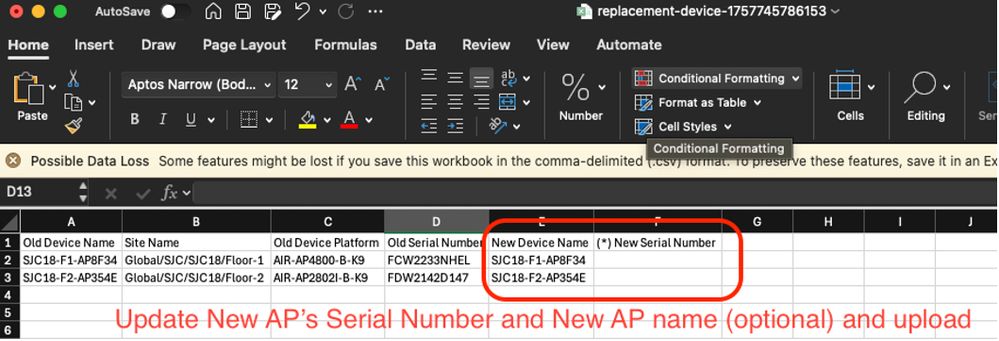
- Using CSV: Download CSV, update it, and upload the CSV.
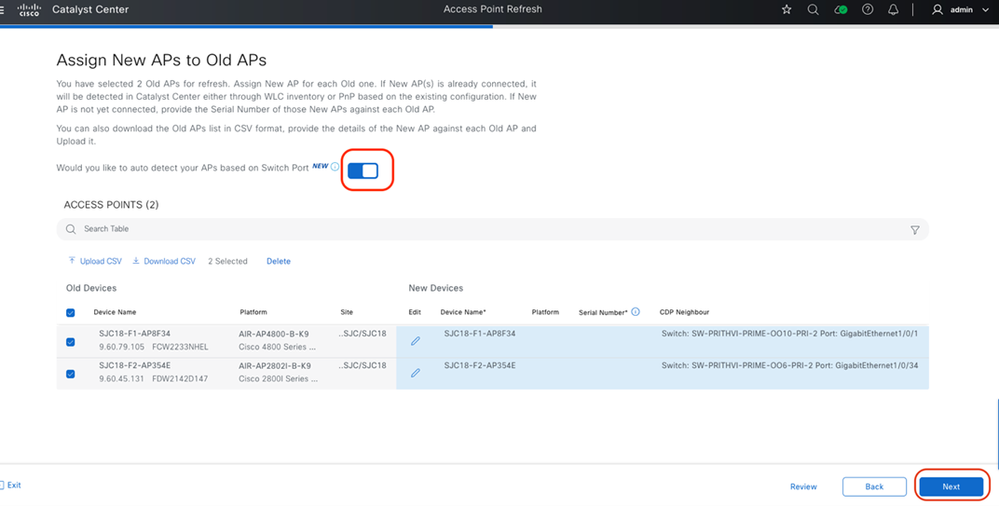
- Auto Detect: Enable 'Auto Detect'. Catalyst Center identifies the new Access Point serial number by comparing the CDP neighbor information of the new AP with that of the old AP, provided the new AP is connected to the same switch port as the old one.

Warning: Auto-detect does not work for APs onboarded via PnP.
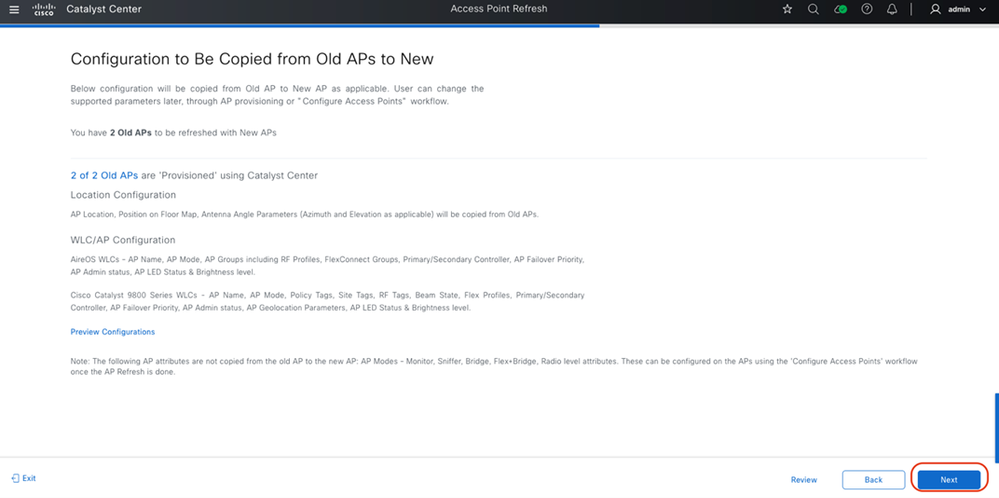
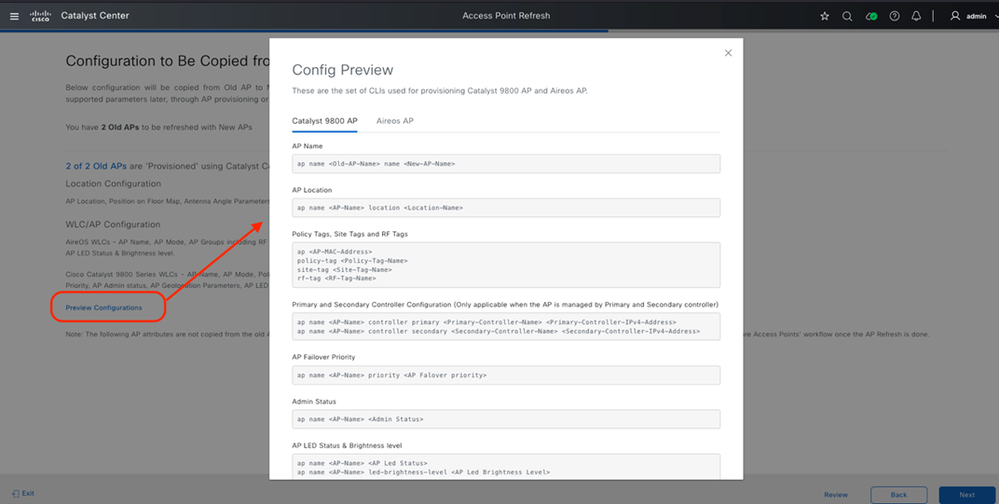
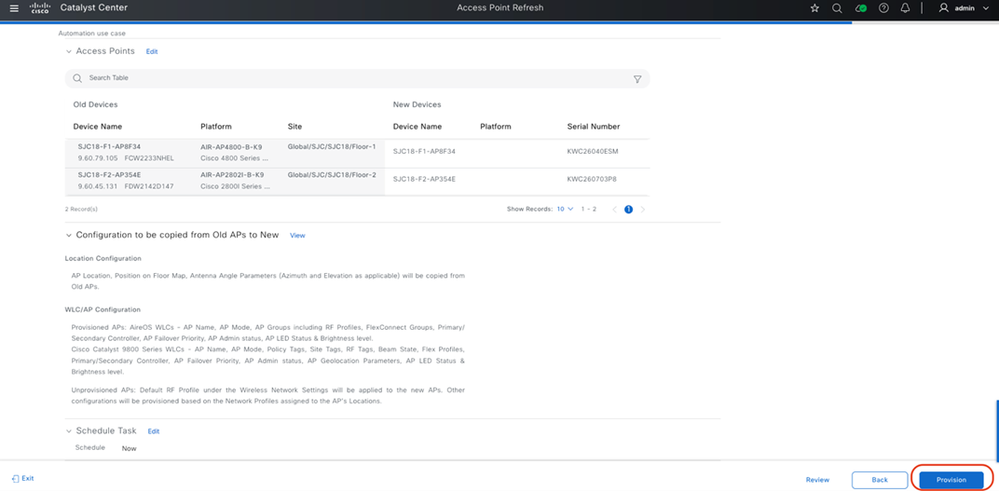
- Review Configuration: Review the configurations being copied and click 'Next'.
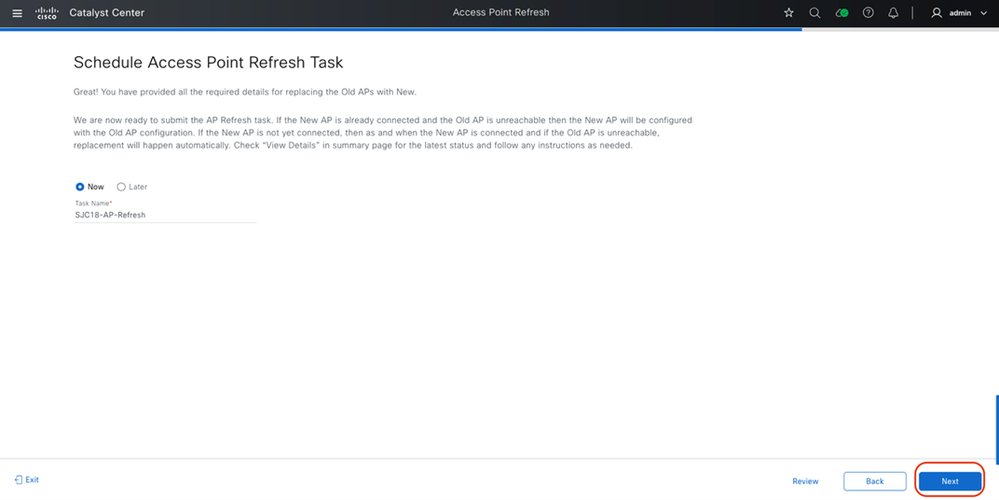
- Schedule Task: Select whether to run the task immediately or schedule it for a later time.
- Now: Creates the task immediately after reviewing the summary. The refresh proceeds only after the old AP is disconnected and unreachable, and the new AP is connected and reachable in Catalyst Center Inventory or on the Plug and Play page.
- Later: Allows you to schedule the task for a future time. Even if the old AP is disconnected and the new AP is connected, the refresh only runs at the scheduled time, providing greater control.
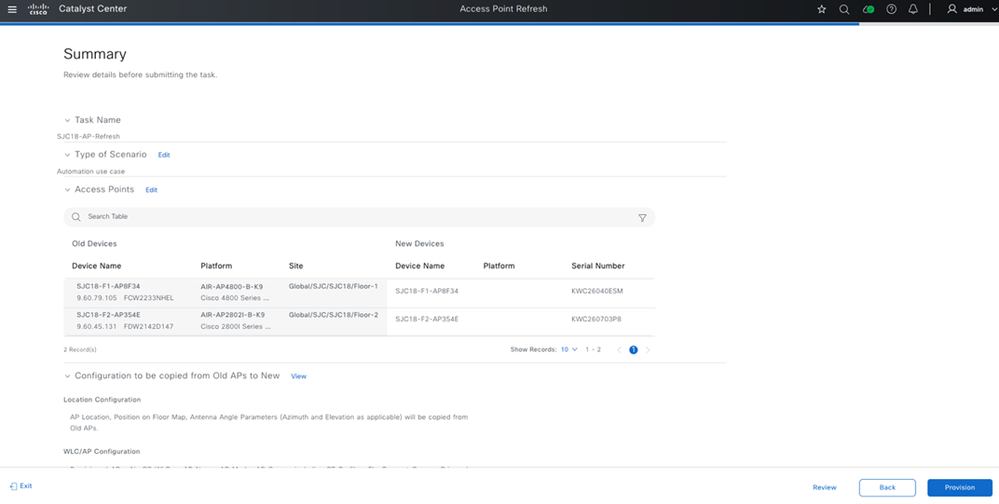
- Submit Workflow: Review the summary. When ready, click 'Provision' to submit the AP Refresh workflow task.
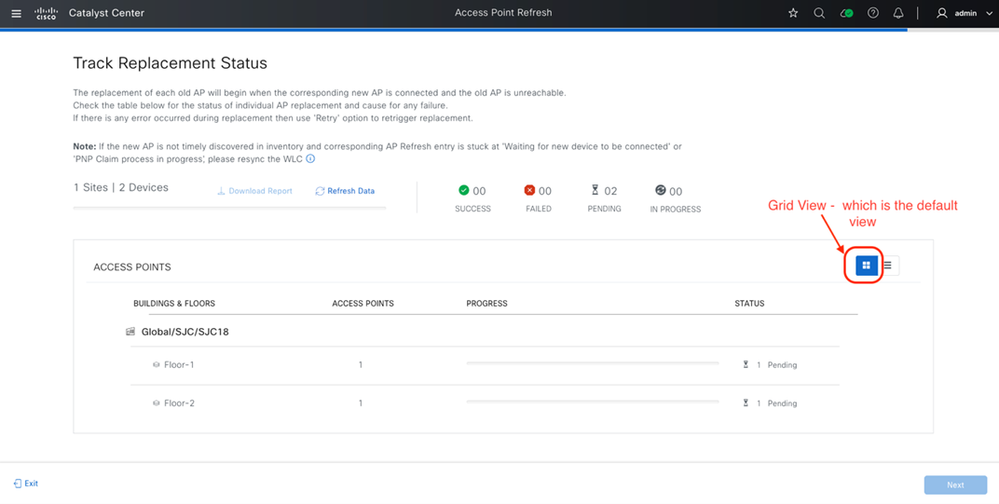
- Track Status: Track the replacement status on this page. Access Point remains in a pending state until the new AP is discovered in Catalyst Center (via WLC Inventory sync or AP PnP).
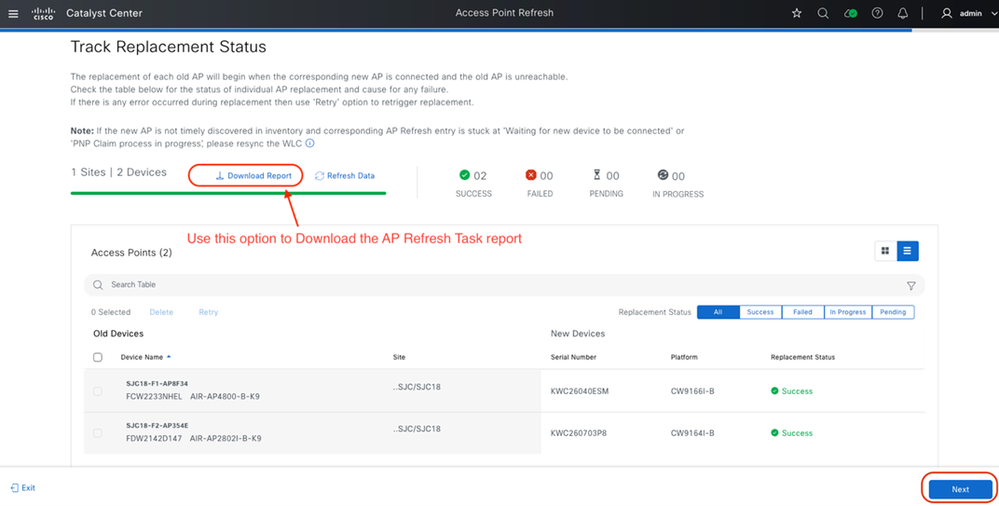
- Close Task: Click 'Next' to close the refresh task. Download the report for future reference.
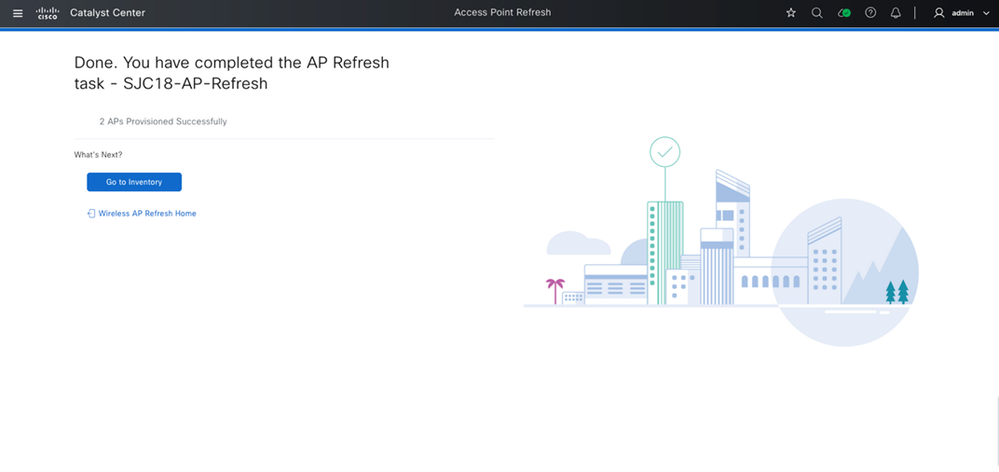
Note: The time to complete the Access Point Refresh task depends on factors such as how quickly old APs are marked unreachable, how promptly new APs are discovered in Catalyst Center, the number of APs on a floor, and the total APs selected for the task. Once all conditions are met, the AP refresh completes within a few minutes.
Verifications
After the AP Refresh task is completed, verify the following:
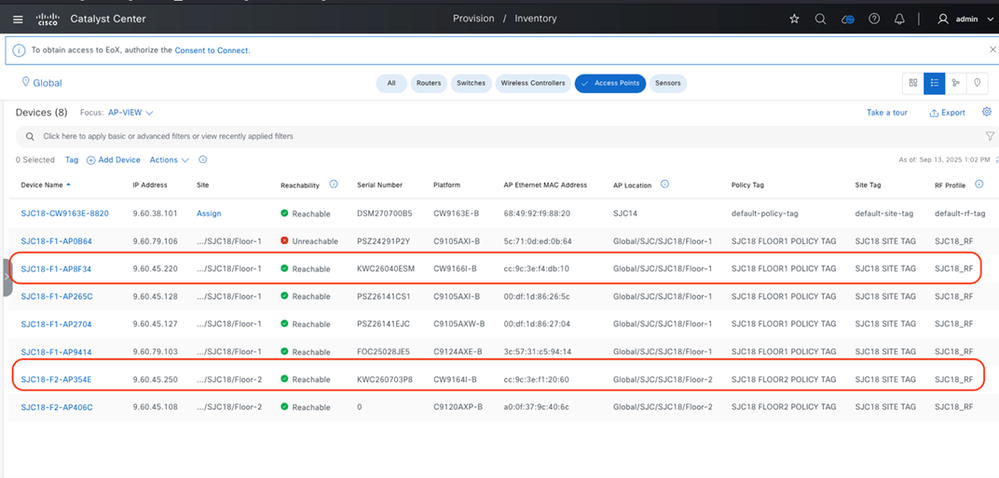
- AP Details: Verify the AP Name, Location, Policy Tag, Site Tag, and RF Tag for the new AP. Navigate to Provision > Inventory and filter for Access Points:
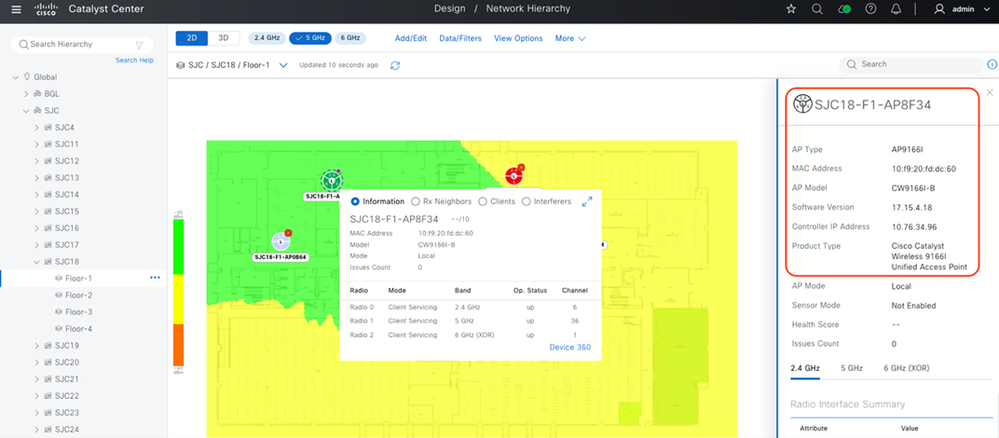
- Map Position: Verify the new Acces Point position on the Floor Map, including its model and MAC address. Navigate to Design > Network Hierarchy and select the desired site.
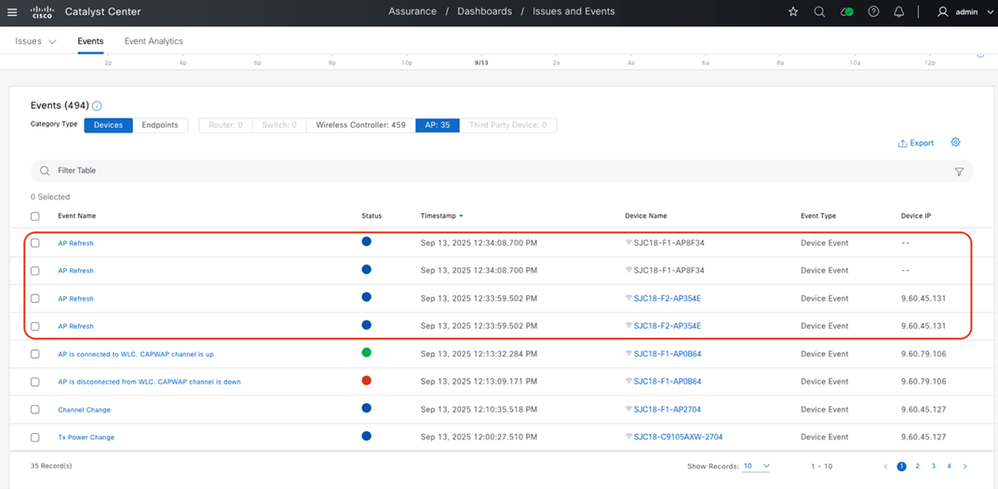
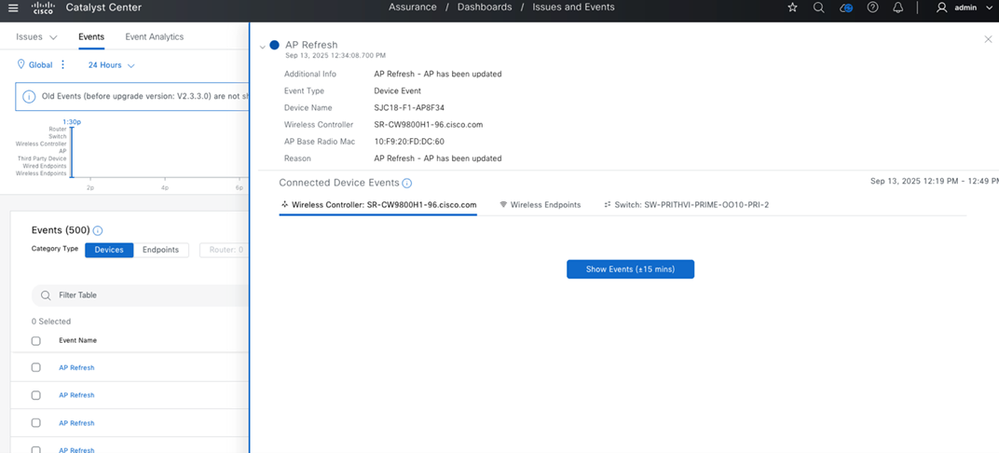
- Event Notification: Verify the AP Refresh Event notification under Assurance > Dashboard > Issues and Events. This event confirms successful refresh and that Assurance data, including historical data from the old AP, is displayed for the refreshed AP
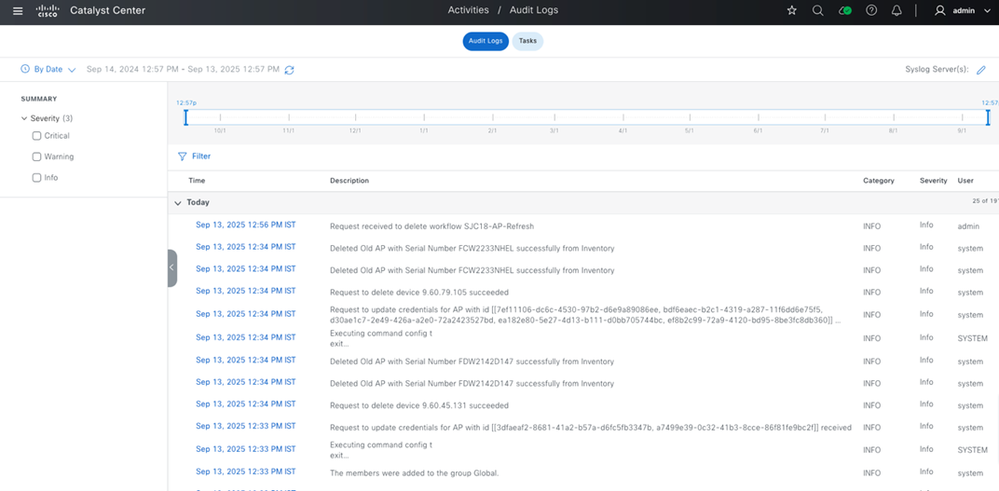
- Audit Log: Verify the Audit Log for AP Refresh-related entries. Navigate to Activities > Audit Logs.
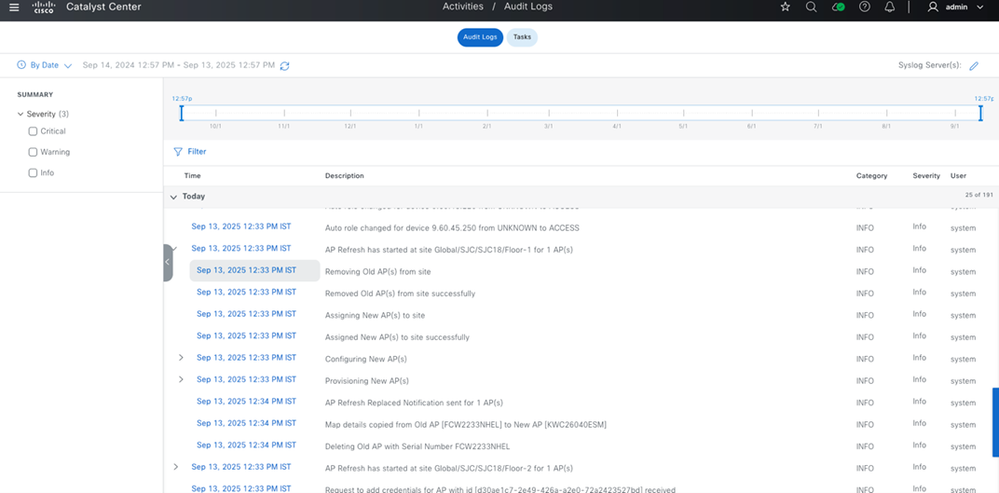
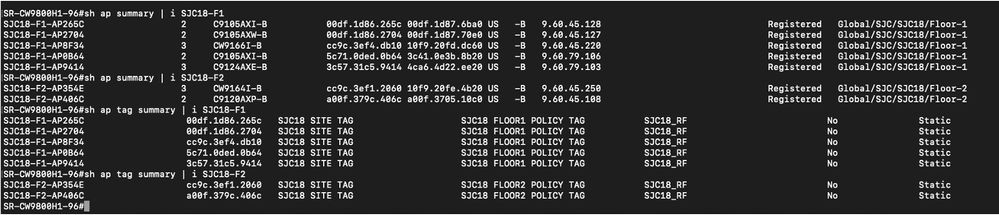
- AP Tag Mappings on Wireless Controller CLI: (Example CLI output sections would be provided here for "Before Refresh" and "After Refresh" to show changes.)
Before Refresh:
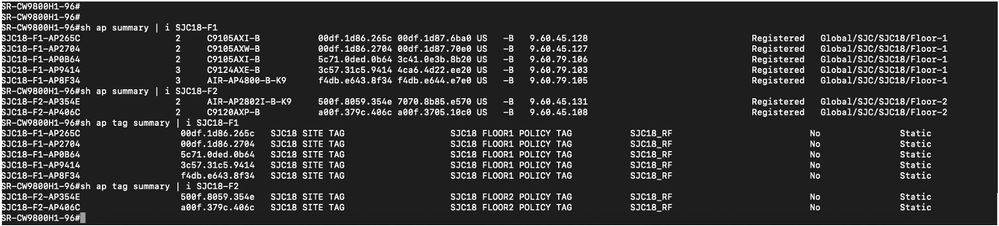
After Refresh:
Common Errors and Troubleshooting
1. Error while creating the AP Refresh workflow - Old AP must be unreachable
Scenario: This error occurs if both the old and new APs are online and marked as 'Reachable' in Catalyst Center during workflow creation.
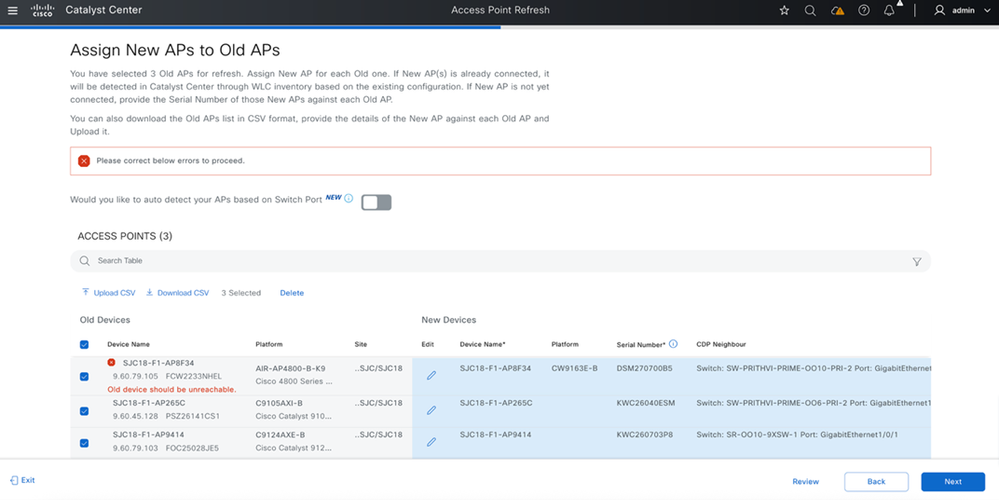
- Mitigation:
- If the old AP is unreachable on the network but shows as 'Reachable' in Catalyst Center, perform a Wireless Controller re-sync to update the Access Point status to 'Unreachable' in Catalyst Center, then proceed with the workflow.
- If the old AP is online, dissociate it and power off the AP.
2. Failure while running the AP Refresh workflow with error – Old AP must be unreachable
Scenario: This error occurs if both the old and new APs are online and marked as 'Reachable' in Catalyst Center when the workflow runs. The refresh cannot proceed.
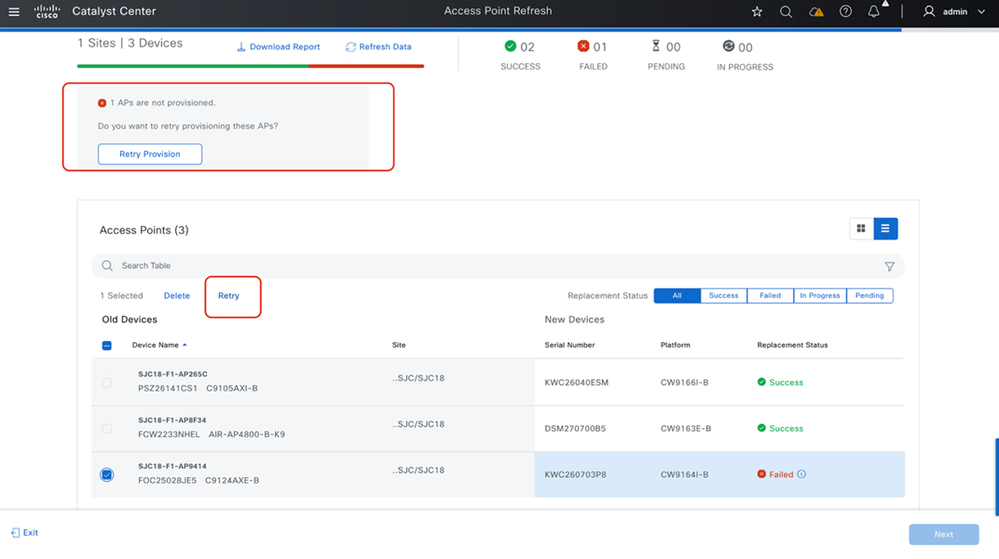
Mitigation:
- If the old AP is unreachable on the network but shows as 'Reachable' in Catalyst Center, perform a Wireless Controller re-sync to update its status to 'Unreachable' in Catalyst Center, then click 'Retry' on the Task Replacement status page.
- If the old AP is online, dissociate it and power off the AP. Verify the old AP shows as 'Unreachable', then proceed with the 'Retry' option on the Task Replacement status page.
3. Failure while running the AP Refresh workflow with error – NCRM30055: New AP with Serial Number <> is already assigned to site
Scenario: This occurs if the new AP is already assigned to a floor before performing the refresh.
Mitigation: If the new AP is already assigned to a floor, navigate to the Floor map under Site hierarchy and remove the AP from that floor
4. Failure error message it shows on hover over "Replacement status": "NCRM30054: Configuration of AP failed."
Scenario: If the old AP is offline and the new AP shows as reachable in Catalyst Center, but the new AP is actually down
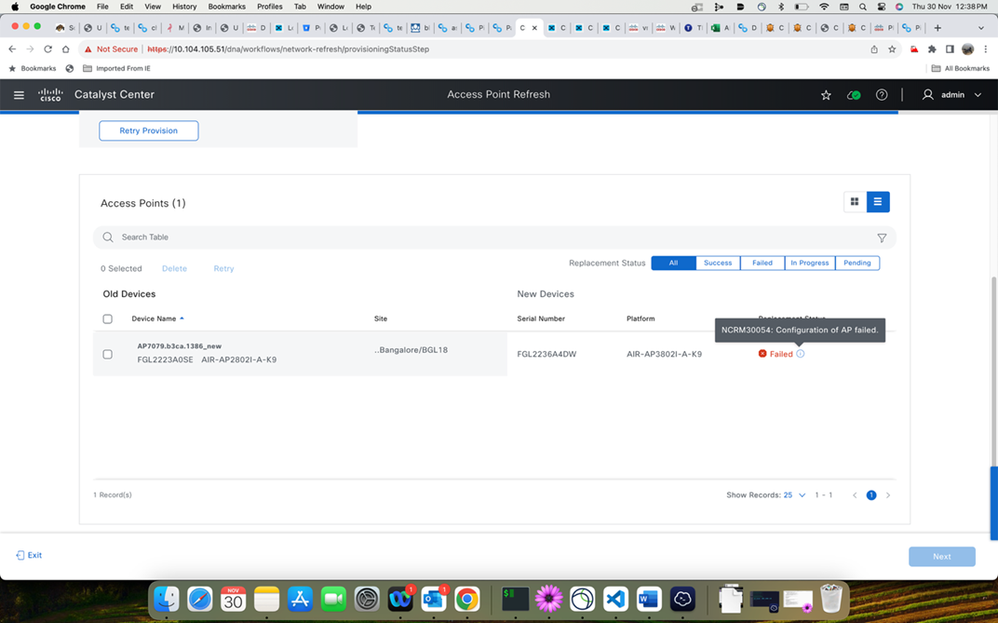
Mitigation: Verify the new Access Point status. If it is down, ensure it is up and reachable, then retry the AP refresh
Revision History
| Revision | Publish Date | Comments |
|---|---|---|
1.0 |
10-Apr-2026
|
Initial Release |

 Feedback
Contact Cisco
- Open a Support Case

- (Requires a Cisco Service Contract)