Managing Meraki Firmware Upgrades for Managed Services
Available Languages
Bias-Free Language
The documentation set for this product strives to use bias-free language. For the purposes of this documentation set, bias-free is defined as language that does not imply discrimination based on age, disability, gender, racial identity, ethnic identity, sexual orientation, socioeconomic status, and intersectionality. Exceptions may be present in the documentation due to language that is hardcoded in the user interfaces of the product software, language used based on RFP documentation, or language that is used by a referenced third-party product. Learn more about how Cisco is using Inclusive Language.
General approach for managed services
The Meraki dashboard lets customers and partners easily upgrade their devices to the latest firmware. Automatic firmware upgrades keep networks current.
The relevant Cloud product teams schedule automatic firmware upgrades at their discretion. As a result, organizations within managed services that span multiple organizations can run different firmware versions. As the relevant knowledge base article notes, networks might not receive a scheduled automatic firmware upgrade in some rare instances, for various reasons.
Service providers can take greater control over the firmware upgrade process. By doing so, service providers can maintain a consistent firmware version within a service and automate upgrades based on the unique characteristics of the managed service.
Service providers can achieve this control in two main ways, depending on how they operate:
● DevOps-focused teams can build automation using APIs.
● NetOps-focused teams can build automation using the dashboard-hosted Workflows framework.
To automate firmware upgrades, service providers follow these phases:
| Phase |
Exit criteria |
| Intake |
Release notes reviewed; affected products and customer risk are clear. |
| Validate |
Lab tests pass, no blocking known issue remains |
| Pilot |
Pilot networks stay stable through the agreed observation window. |
| Schedule |
Approved networks are scheduled in the right customer windows. |
| Close |
Evidence of completion, exceptions, and lessons learned are recorded. |
Note: This guide covers device firmware upgrades only.
Cisco applies all dashboard, backend, and infrastructure security and platform integrity upgrades in-flight, without interruption. These upgrades do not affect device firmware, and they require no special consideration from the service provider or the customer.
Firmware upgrade campaign cadence
Schedule firmware upgrades to align with the Meraki dashboard firmware release process. Cisco recommends this cadence:
● Recommended: Schedule two firmware upgrades each year (for example, MX26.1 and MX26.2).
● Minimum: Schedule at least one firmware upgrade each year (MX26.x) for services that are more restrictive.
● Critical security updates: Perform an expedited firmware upgrade when a critical security update is available.
Upgrade campaigns can segment customers into groups. To avoid additional administrative effort, limit the number of groups. Cisco recommends these four main segments:
| Segment |
Treatment |
| Pilot / low risk |
First production wave after lab validation. |
| Standard |
Main wave, grouped by region, time zone, and customer window |
| High impact |
Dedicated change approval, rollback bridge, and longer monitoring. (when needed and for bespoke or global services) |
| Exception |
Documentation with reasoning for the exemption and what is the follow-up plan |
Additional upgrade campaign best practices
Apply these best practices to your upgrade campaigns:
● Build the campaign calendar early. Then align dashboard schedules or automation with the supported scheduling window and the service maintenance plans.
● Remove blackout dates, exceptions, and high-impact networks from scope before you schedule an upgrade across all customers. Apply this practice only to bespoke services.
● Maintain discipline for emergency firmware upgrades. Review the release notes, run a lab smoke test, pilot the upgrade where possible, and then upgrade in controlled waves.
Firmware release choice
Validate and implement the latest recommended stable firmware from Cisco. If the service provider wants to adopt new firmware and features faster, validate and implement the latest stable firmware instead.
Firmware release validation
Cisco's engineering teams perform comprehensive firmware testing before they promote firmware to a Stable release and then to a Recommended Stable release. Cisco also encourages service providers to validate and test new firmware based on the specific characteristics of their managed service.
A new firmware validation framework generally includes these components:
| Include |
Minimum coverage |
| Lab devices |
Representative cloud managed product line, that is part of the service. |
| Service patterns |
AutoVPN/SD-WAN, VLANs, firewall/NAT, switch stacks, PoE, SSIDs, 802.1X/RADIUS, guest access, cameras, sensors, and alerts. |
| Dependencies |
RADIUS/IdP, DNS/DHCP, syslog/SIEM and other device dependencies |
| Pilot ring |
Start with internal MSP networks, then move to friendly, low-risk customer sites. |
Validation success criteria
The firmware upgrade meets the validation success criteria when it satisfies these conditions:
● You review the release notes against the features within the service.
● No known issue blocks a standard service feature or a customer SLA.
● The upgraded devices come back online and remain manageable in the dashboard.
● The core services pass validation: WAN, AutoVPN, switching, wireless authentication, guest access, policy enforcement, cameras, sensors, and other managed services.
● Performance stays close to the baseline, with no meaningful increase in loss, latency, authentication failures, RF or client issues, or tickets.
● The pilot completes its observation window with no P1 or P2 incidents.
Per product upgrade strategy considerations
The multi-tier switching upgrade strategy differs from the access point or security appliance upgrade strategy. Each product line has firmware upgrade enhancements and best approaches.
The Managing Firmware Upgrades KB includes the available tools and terminology for managing firmware upgrades across all product lines. The Best Practices KB includes general and per-product firmware upgrade recommendations and best practices.
Some products also have features that improve the firmware upgrade experience, such as:
● Access point firmware strategy
● Pre-download with local firmware fetch - wireless
Automation execution
Managed services that manage customers across multiple organizations have two main paths for automating firmware upgrades across the managed estate:
DevOps focus: API approach
Use this approach for managed services that already have mature automation processes in place, or when you want to implement firmware automation with existing home-grown tooling. You can adopt and repurpose some community-driven projects that facilitate firmware automation. The Automated Firmware Upgrade Rescheduler for Meraki Networks is a very good example.
You can break the automation into these steps or phases, each with the relevant API calls. This list is not exhaustive, and you might use additional API calls, depending on the service. Refer to Appendix A for a more comprehensive list of API endpoints, and to Appendix B for a sample API payload.
Note: Cisco Systems does not build or maintain third-party projects. Use them with caution and proper validation.
| Step |
Core API action |
| Discover |
GET /organizations; GET /organizations/{organizationId}/networks; GET /organizations/{organizationId}/devices |
| Assess |
GET /networks/{networkId}/firmwareUpgrades to read currentVersion, availableVersions, nextUpgrade, releaseType, and timezone. |
| Pre-check |
GET device status, availability, and uplink status where they matter. |
| Schedule |
PUT /networks/{networkId}/firmwareUpgrades with the approved time and product version IDs. |
| Monitor |
GET /organizations/{organizationId}/firmware/upgrades and /firmware/upgrades/byDevice. |
API automation considerations
Apply these considerations:
● Use a dedicated service account or API key that has access to all organizations within the service.
● Restrict access to the API key and store it properly.
● Keep Participate in next beta release set to false, unless a named pilot requires beta.
● Review the conflict before you overwrite an existing scheduled upgrade.
● Consider the API rate limits with Retry-After or backoff mechanisms, and queue work by organization and wave.
● Provide the firmware version ID when you schedule a firmware upgrade through the API.
● Document scheduled changes, completion, failure, and deferral in the campaign documentation.
NetOps focus: Meraki Dashboard Workflows
This approach uses the Meraki Dashboard Workflows framework. Service providers can keep the automation inside the dashboard by building a workflow with inputs, activities, logic, and API requests that schedule approved firmware upgrades for selected organizations, selected networks, or all eligible managed organizations. You can create and use separate workflows to cover all parts of a comprehensive firmware upgrade automation strategy.
For managed services that span multiple organizations, Cisco recommends that you use a non-customer organization to host and stage the workflows. This organization can be a dedicated organization for the workflows or part of an existing staging or golden config organization. Design carefully to schedule the number of devices per workflow. However, it is very important that you use the correct API keys that have access to all scoped organizations.
Use this recommended workflow logic sample:
1. Define the required inputs: scope mode, organizations, network tags or network IDs, product families, target version IDs, maintenance window, time zone, and exclusions.
2. Use secure account keys or approved targets for Dashboard API access. Do not hardcode production credentials or organization IDs in reusable workflows.
3. Discover the organizations and networks, then filter to selected or all eligible managed organizations, based on service policy and campaign scope.
4. Run pre-checks for current firmware, available versions, pending upgrades, device availability, and customer blackout or exception status.
5. Use logic blocks to skip exceptions and to require an approval task for high-impact, bespoke, or all-organization campaigns.
6. Schedule firmware with the Dashboard API from the workflow, then record scheduled, skipped, and failed networks as workflow outputs.
7. Review the workflow run in Runs and System Monitor, then use the result summary as the campaign evidence.
Workflow controls
| Item |
Required control |
| Workflow state |
Validate the workflow before production use. A start confirmation only means the workflow began; use Runs and System Monitor to confirm the result. |
| Inputs and variables |
Make scope, target release, product family, schedule time, timezone, and exclusions explicit required inputs. Use SecureString for secrets. |
| Scope safety |
Support selected network tags, organizations, selected networks, or all eligible organizations, but require clear confirmation before broad scheduling. |
| Predictability |
Check for existing scheduled upgrades, blackout windows, and exceptions before making changes. |
| Error handling |
Set Result, Status Code, Status Message, and Error Message outputs. Aggregate API errors so operators can see what is scheduled, skipped, or failed. |
Note: Additional workflow best practices can be found at the relevant KB
Schedule Firmware Upgrade for Networks by tag workflows
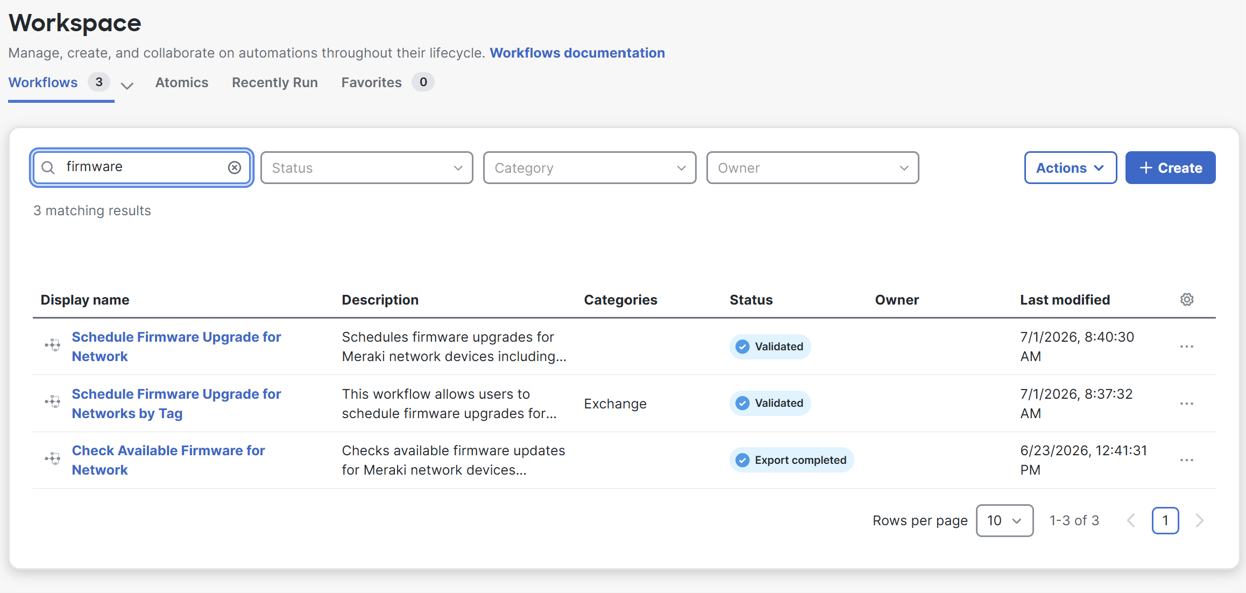
The Cisco-provided and Cisco-managed Schedule Firmware Upgrade for Networks by Tag workflows are a very good starting point to adopt and adjust, based on the managed service's characteristics. As the workflow's description states, this comprehensive three-workflow solution enables Cisco Meraki administrators to efficiently discover, plan, and schedule firmware upgrades across multiple networks using tag-based filtering.
The three workflows are as follows. Each workflow includes scope, considerations, and limitations that you can review on the Meraki dashboard.
Schedule Firmware Upgrade for Networks by tag
This workflow lets you schedule firmware upgrades for one or more networks, based on input tags. The workflow first identifies networks that have the input tags, then queries networks across organizations that you have access to.
Schedule Firmware Upgrade for Networks
This workflow schedules firmware upgrades for Meraki network devices, including security appliances (MX), switches (MS), and wireless access points (MR). It accepts an organization name or ID, locates the specified network, and schedules firmware upgrades with the specified version IDs and timing. It supports flexible scheduling, from immediate (5 minutes) to 30 days in advance, using a network time zone.
Check available firmware for network
This workflow checks available firmware updates for Meraki network devices, including security appliances (MX), switches (MS), and wireless access points (MR). It accepts an organization name or ID, locates the specified network, and returns current firmware versions along with available upgrades for each device type, in both individual outputs and a consolidated summary format.
Install and use the Schedule Firmware Upgrade for Networks by Tag workflow
Procedure 1. To install the workflow:
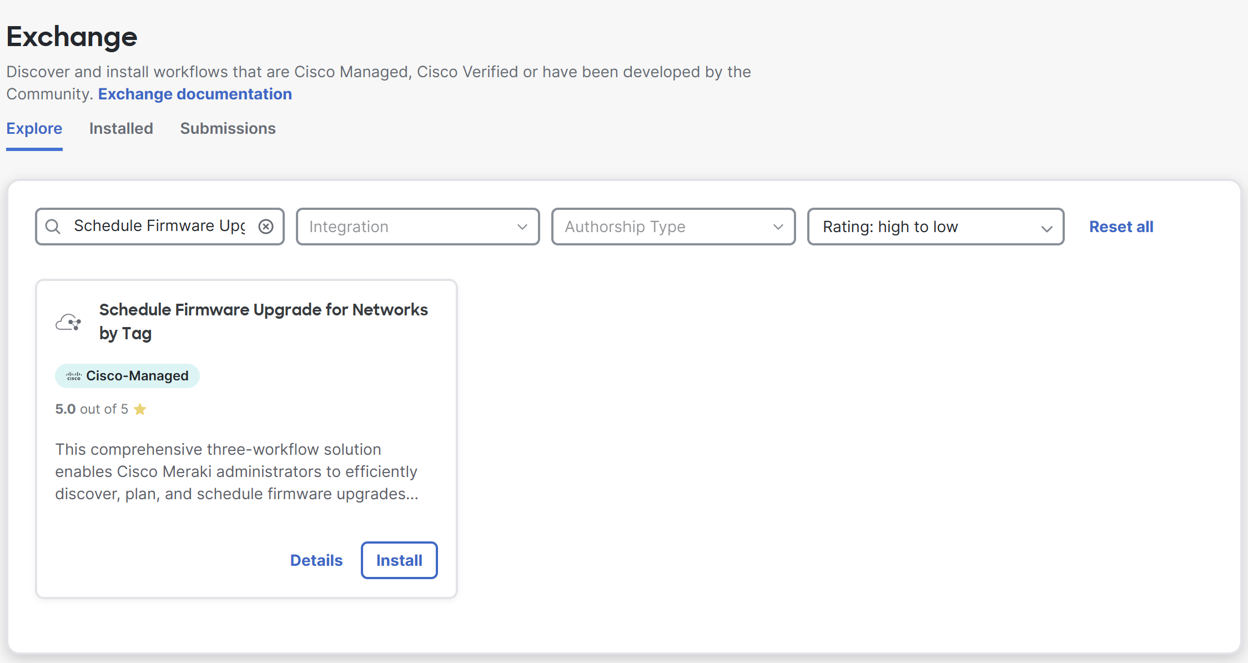
Step 1. Choose Automation > Workflows > Exchange.
Step 2. Search for Schedule Firmware Upgrade for Networks by Tag, then click Install. This installs all three workflows.
After installing them the workflows should be visible in the Workspace list under Automation > Workflows > Workspace.
Use the Schedule Firmware Upgrade workflows
You can use the Schedule Firmware Upgrade for Network workflow independently for multi-organization services. However, for multi-organization services, use the Schedule Firmware Upgrade for Networks by Tag workflow instead, because it lets you schedule upgrades across all your managed organizations.
As the name suggests, ensure that you assign network tags correctly across all organizations and networks under management. You can use network tags for different configuration and reporting operations, so they are very useful tools, especially for multi-organization managed services. Refer to the relevant KB to learn more about configuring and maintaining network tags. You can also manage network tags at scale using APIs. Refer to Appendix B for an API payload example that attaches a network tag across all managed organizations.
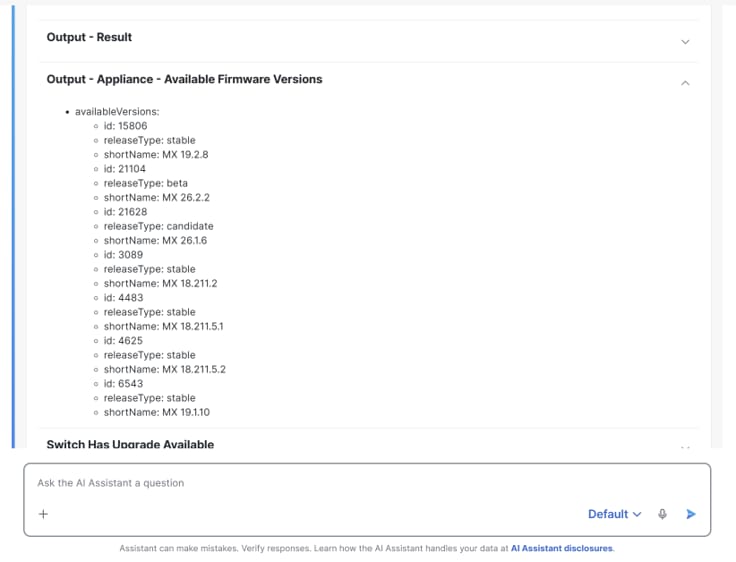
In addition to the network tag, provide the firmware ID to use the Schedule Firmware Upgrade for Networks by Tag workflow. You can retrieve the firmware ID either through the firmware upgrade APIs or by running the Check Available Firmware for Network workflow.
Run the Check Available Firmware for Network workflow
You can run the Check Available Firmware for Network workflow in one of two ways:
● Select the workflow from the Workflows list, then choose View Workflow > Run.
● Use the AI assistant and prompt it to use the workflow.
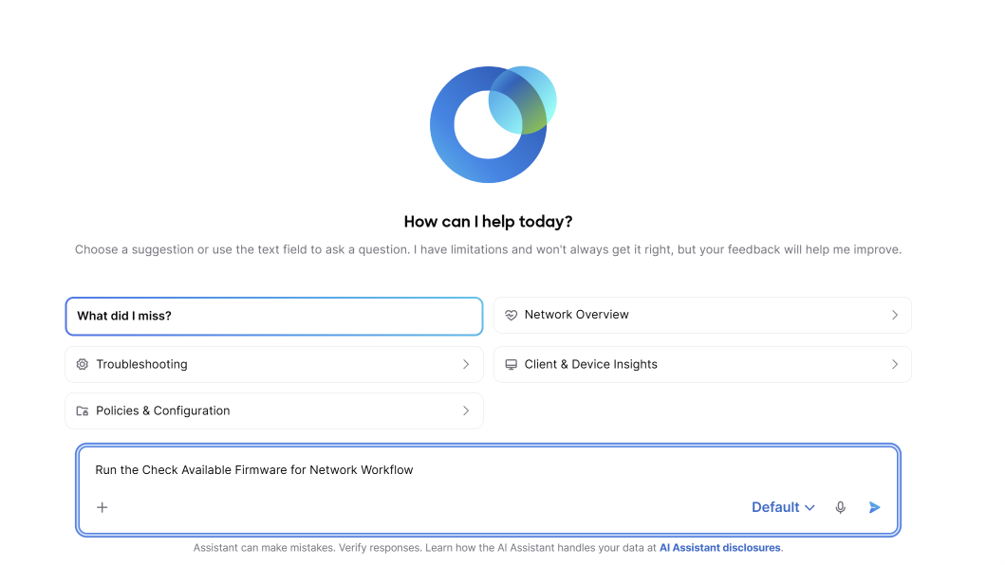
The workflow requires you to enter a specific organization and network name. Here, you can use the organization and network that you used during the firmware testing and validation. The screenshot shows a sample of the output that contains the available firmware for the security appliance. You need the ID shown to use the Schedule Firmware Upgrade for Networks by Tag workflow.
The anatomy of the Schedule Firmware Upgrade for Networks by Tag workflow
With the network tags and the desired organization ID, you can start to use the Schedule Firmware Upgrade for Networks by Tag workflow. Understanding the workflow is important to using it correctly. To view the workflow details, select the workflow from the Workspace page, then click View Workflow from the sidebar.
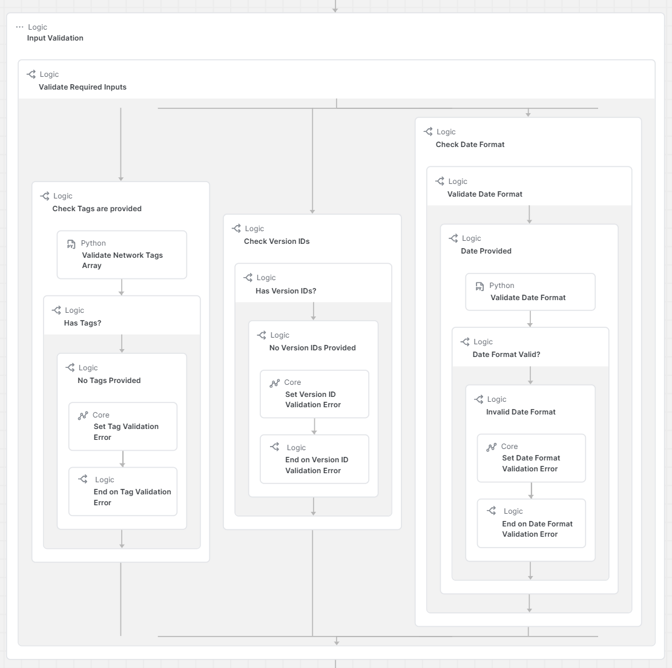
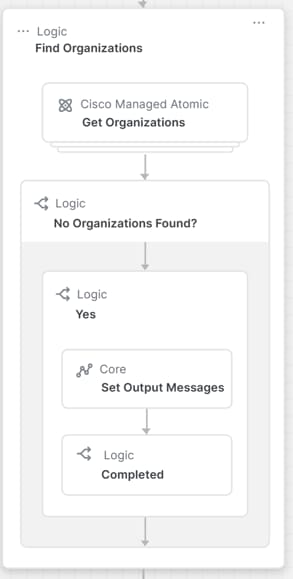
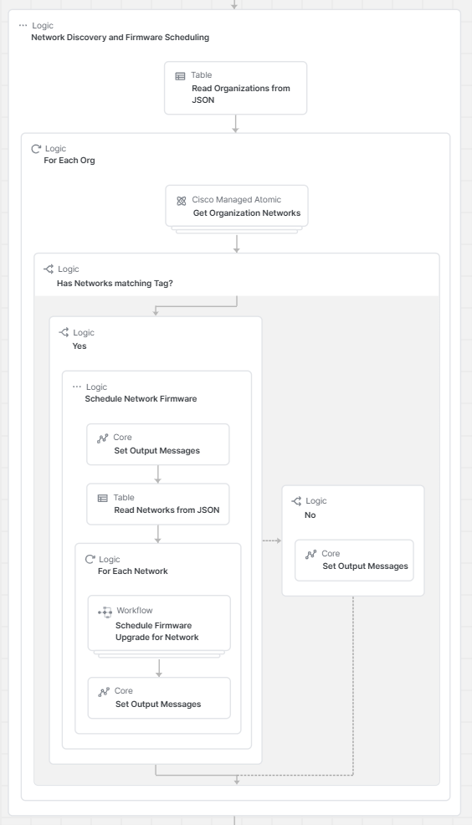
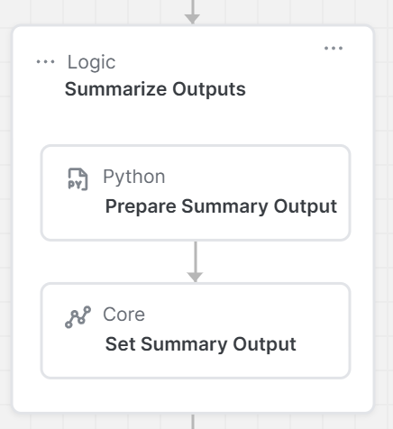
The workflow is segmented into four logic blocks:
1. User input validation: This logic block validates the three required user inputs: the network tag, the firmware version ID, and the time.
2. Find organization: This logic block fetches the organization IDs that are accessible on the target API key and searches for the network tag that you provide. It then stores the organizations that contain one or more networks with the network tag.
3. Network discovery and firmware scheduling: This logic block is the main operation logic of the workflow. It reads the organization list from the previous step, then loops over each organization while scheduling the desired firmware version to the targeted networks. Inside the loop, the workflow runs the Schedule Firmware Upgrade for Network workflow.
4. Summarize outputs: This final logic block summarizes and formats the output that the workflow provides to you.
Run the Schedule Firmware Upgrade for Networks by Tag workflow
You can run the workflow in one of two ways:
● Click Run on the workflow workspace page.
● Prompt the AI assistant.
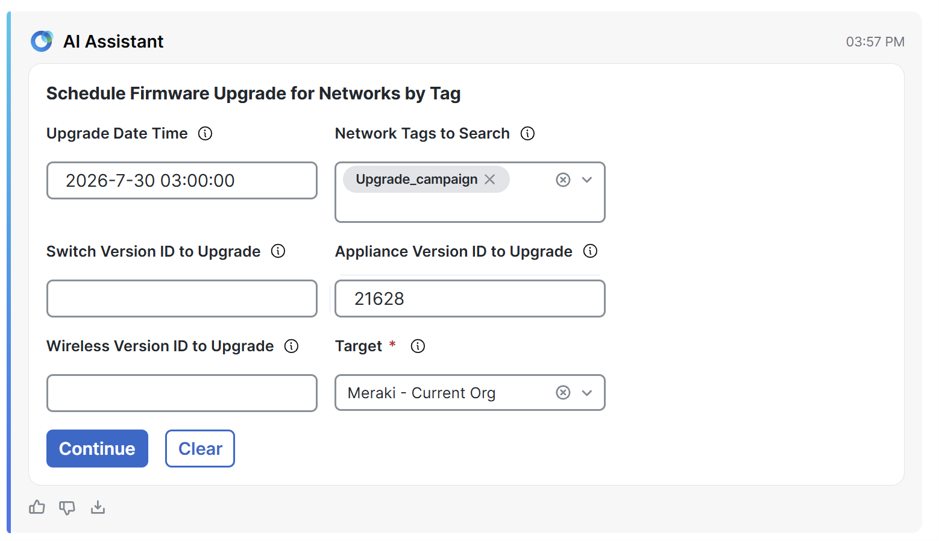
To run the workflow, provide these inputs:
● Network tag: The desired network tag.
● Firmware version ID: The firmware version ID per product line.
● Time: The time, in YYYY-MM-DD HH:MM:SS format.
● Target: The target API key.
This example shows the workflow run using the AI assistant.
Appendix A: API call reference
| Purpose |
Endpoint |
| Organizations |
GET /organizations |
| Networks |
GET /organizations/{organizationId}/networks |
| Devices |
GET /organizations/{organizationId}/devices |
| Device health |
GET /organizations/{organizationId}/devices/statuses |
| Device availability |
GET /organizations/{organizationId}/devices/availabilities |
| Uplink health |
GET /organizations/{organizationId}/uplinks/statuses |
| Network firmware |
GET /networks/{networkId}/firmwareUpgrades |
| Schedule firmware |
PUT /networks/{networkId}/firmwareUpgrades |
| Org upgrade status |
GET /organizations/{organizationId}/firmware/upgrades |
| By-device status |
GET /organizations/{organizationId}/firmware/upgrades/byDevice |
| Network rollback |
POST /networks/{networkId}/firmwareUpgrades/rollbacks |
| Staged groups |
GET/POST /networks/{networkId}/firmwareUpgrades/staged/groups |
| Staged group update |
GET/PUT/DELETE /networks/{networkId}/firmwareUpgrades/staged/groups/{groupId} |
| Staged order |
GET/PUT /networks/{networkId}/firmwareUpgrades/staged/stages |
| Staged event |
GET/POST/PUT /networks/{networkId}/firmwareUpgrades/staged/events |
| Staged defer |
POST /networks/{networkId}/firmwareUpgrades/staged/events/defer |
| Staged rollback |
POST /networks/{networkId}/firmwareUpgrades/staged/events/rollbacks |
| Audit trail |
GET /organizations/{organizationId}/configurationChanges |
Appendix B: Example API payloads
GET /api/v1/networks/{networkId}/firmwareUpgrades
X-Cisco-Meraki-API-Key: <api-key>
Use this before scheduling to read currentVersion, availableVersions,
isUpgradeAvailable, nextUpgrade, upgradeWindow, timezone, and releaseType.
PUT /api/v1/networks/{networkId}/firmwareUpgrades
X-Cisco-Meraki-API-Key: <api-key>
Content-Type: application/json
{
"upgradeWindow": { "dayOfWeek": "sun", "hourOfDay": "4:00" },
"timezone": "Europe/Bucharest",
"products": {
"wireless": {
"nextUpgrade": {
"predownload": { "enabled": true },
"time": "2026-11-15T02:00:00Z",
"toVersion": { "id": "TARGET_WIRELESS_VERSION_ID" }
},
"participateInNextBetaRelease": false
},
"switch": {
"nextUpgrade": {
"time": "2026-11-15T02:30:00Z",
"toVersion": { "id": "TARGET_SWITCH_VERSION_ID" }
},
"participateInNextBetaRelease": false
}
}
}
POST /api/v1/networks/{networkId}/firmwareUpgrades/rollbacks
{
"product": "switch",
"time": "2026-11-15T04:00:00Z",
"reasons": [
{ "category": "performance", "comment": "Customer traffic degraded after upgrade." }
],
"toVersion": { "id": "PREVIOUS_VERSION_ID" },
"predownload": { "enabled": false }
}
import meraki
TAG = "Upgrade Campaign"
DRY_RUN = True
dashboard = meraki.DashboardAPI()
for org in dashboard.organizations.getOrganizations(total_pages="all"):
networks = dashboard.organizations.getOrganizationNetworks(
org["id"], total_pages="all"
)
for network in networks:
tags = network.get("tags") or []
if TAG in tags:
continue
print(f'{org["name"]} / {network["name"]}')
if not DRY_RUN:
dashboard.networks.updateNetwork(
network["id"], tags=tags + [TAG]
)
Additional References
● Cisco Meraki Documentation: Managing Firmware Upgrades
● Cisco Meraki Dashboard API v1
● API: Get Network Firmware Upgrades
● API: Update Network Firmware Upgrades
● API: Organization Firmware Upgrades
● Meraki OpenAPI Specification
● Cisco Meraki Documentation: Workflows
● Cisco Meraki Documentation: Workflow Best Practices