AP Mode Configuration

Indoor deployment for -E domain

Indoor Deployment is a configurable operating mode supported on the IW9167EH for the -E regulatory domain. When Indoor Deployment is disabled (the default setting), the 5-GHz radio operates on channels 100, 104, 108, 112, 116, 120, 124, 128, 132, 136, and 140. After a factory reset, the Indoor Deployment setting returns to the disabled state.

The Indoor Deployment status can be verified using the show ap name ap-name config general | section indoor command. In the command output, "Enabled" indicates that the access point is operating in indoor mode, and "Disabled" indicates that it is operating in outdoor mode.
Configure indoor deployment for -E domain using CLI

This procedure describes how to configure the access point for indoor deployment mode using the wireless LAN controller.

Procedure


Step 1

Use the ap nameap-nameindoor command from the wireless controller to configure the access point for indoor mode.

Example:

Device# ap name APFC58.9A15.C9A4 indoor

This command triggers an access point reboot.

After the access point reboots and re-registers with the wireless LAN controller, assign the appropriate country code to the access point. The 5-GHz radio supports these channels: 36, 40, 44, 48, 52, 56, 60, 64, 100, 104, 108, 112, 116, 120, 124, 128, 132, 136, and 140.

Note


The channel list includes U-NII-2c, U-NII-1, and U-NII-2a frequency bands (except channel 144).

Step 2

Use the ap nameap-nameno indoor command from the wireless controller to disable indoor deployment.

Example:

Device# ap name APFC58.9A15.C9A4 no indoor

Configure indoor deployment for -E domain using GUI

This procedure describes how to configure the antenna type for the 5-GHz radio on an access point using the controller GUI.

Procedure


Step 1

Go to Configuration > Wireless > Access Points.

Step 2

Select 5 GHz Radios.

Step 3

Click the AP Name to open the edit page.

Step 4

Use the Antenna Type drop-down to change the type to Internal.

Step 5

Click Update & Apply to Device.


802.11ax 1600ns and 3200ns guard interval support

802.11ac has two Guard Interval (GI) options: long GI (800ns) and short GI (400ns). 802.11ax introduces new guard interval options, specifically 800ns, 1600ns, and 3200ns. Longer guard intervals provide improved performance in environments with multi-path and delay spread. These intervals improve link reliability for longer-range outdoor deployments and help prevent inter-symbol interference, which improves coverage and performance in outdoor environments.

Table 1. 802.11ax guard interval comparing with previous standards

Capabilities

802.11n

802.11ac

802.11ax

Physical Layer (PHY)

High Throughput (HT)

Very High Throughput (VHT)

High-Efficiency (HE)

Guard Interval

800/400 ns

800/400 ns

800/1600/3200 ns

Configure 802.11ax long guard interval

This procedure describes how to configure the guard interval (GI) for an RF profile.

Procedure


Step 1

Use the configure terminal command to enter global configuration mode.

Device# configure terminal

Step 2

Use the ap dot11 { 24ghz | 5ghz command to configure an RF profile and enter RF profile configuration mode.

Example:

Device(config)# ap dot11 24ghz rf-profile 24G-RF-profile

Step 3

Use the guard-interval guard-interval command to set the guard interval for the RF profile.

Example:

Device(config-rf-profile)# guard-interval GUARD_INTERVAL_1600NS
                    
  • GUARD_INTERVAL_1600NS: set 1600 ns guard interval (only in HE mode)

  • GUARD_INTERVAL_3200NS: set 3200 ns guard interval (only in HE mode)

  • GUARD_INTERVAL_400NS: set 400 ns guard interval (HT VHT mode)

  • GUARD_INTERVAL_800NS: set 800 ns guard interval

Note


Valid guard interval values are 800, 1600, and 3200 ns for HE mode. By default, GI is 800 ns.

Step 4

Use the end command to return to privileged EXEC mode.

Example:

Device(config-rf-profile)# end
                    

Step 5

(Optional) Use the show ap rf-profile name Demo-24G-RF-profile detail | inc Guard command to verify the configuration on the wireless controller.

Example:

Device# show ap rf-profile name Demo-24G-RF-profile detail | inc Guard
Guard Interval        : 1600ns
                        
Device# show ap rf-profile name Demo-5G-RF-profile detail | inc Guard
Guard Interval        : 3200ns
                    

Example: Configure and apply custom Guard Interval settings to an AP using RF profiles and RF tags

This example shows how to configure and apply custom Guard Interval (GI) settings to an access point using RF profiles and RF tags.

  1. Define GI in RF profile

    ap dot11 24ghz rf-profile Demo-24G-RF-profile
                    shutdown
                    guard-interval GUARD_INTERVAL_1600NS
                    no shutdown
                    ap dot11 5ghz rf-profile Demo-5G-RF-profile
                    shutdown
                    guard-interval GUARD_INTERVAL_3200NS
                    no shutdown
  2. Associate RF profile to RF tag

    wireless tag rf Demo-Guard-Interval-RF-tag
                    24ghz-rf-policy Demo-24G-RF-profile
                    5ghz-rf-policy Demo-5G-RF-profile
  3. Associate RF tag to AP

    ap fc58.9a15.c83c
                    rf-tag Demo-Guard-Interval-RF-tag

RAP Ethernet Daisy Chain

This feature enhances the existing Ethernet bridging functionality by forcing the bridge access point to use the Ethernet link for uplink backhaul instead of using a wireless link. If the Ethernet link fails, the access point continues to avoid selecting a parent over wireless backhaul.

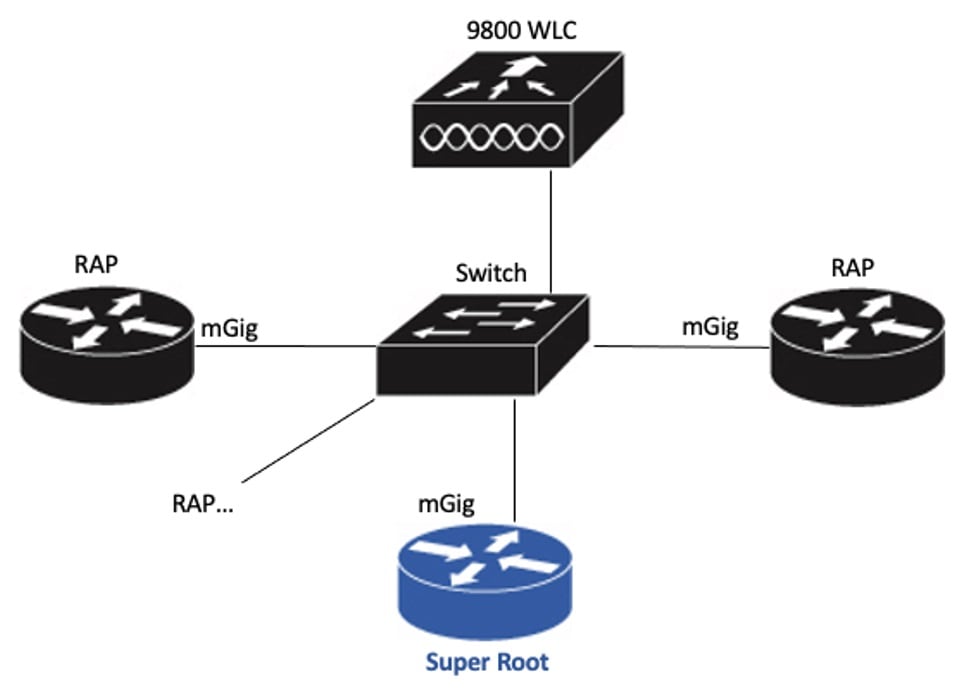
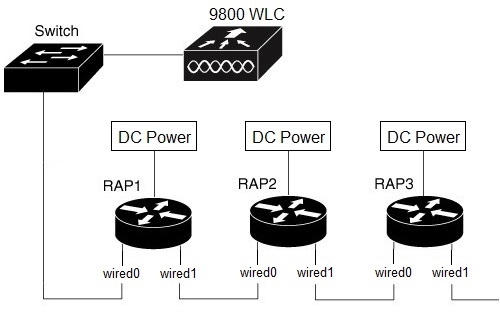
This figure shows an example of RAP Ethernet Daisy Chain topology. Each RAP receives a standalone DC power source

Figure 1. RAP Ethernet Daisy Chain topology
Table 2. Port mapping

Panel Label

SW Interface

mGig POE-IN port

wired 0

SFP

wired 1

  • All APs in the daisy chain operate in mesh bridge mode or Flex+Bridge mode with the Root AP role. The PoE-IN (wired0) and SFP (wired1) ports can serve as uplink ports, and the PoE-IN (wired0) port has higher priority than the SFP (wired1) port.

  • Disable VLAN transparency on all daisy-chained RAPs.

  • To enable VLAN support on each root AP:

    • For bridge mode APs, use the ap name name-of-rap mesh vlan-trunking [native] vlan-id command to configure a trunk VLAN on the corresponding RAP.

    • For Flex+Bridge APs, you must configure the native VLAN ID under the corresponding flex profile.

Limitations in Cisco IOS XE Cupertino 17.9.3

The feature has these limitations in Cisco IOS XE Cupertino 17.9.3:

  • You must use the primary Ethernet port (mGig port) as the uplink. SFP port-to-SFP port connections are not supported. This limitation impacts network throughput, since 2.5Gbps or 5Gbps copper SFP modules are unavailable for SFP port to mGig port connections.

  • Do not use the existing persistant-ssid command to enable the RAP Ethernet Daisy Chain feature.

Updates in Cisco IOS XE Dublin 17.11.1

This feature is enhanced to support the following functions in Cisco IOS XE Dublin 17.11.1:

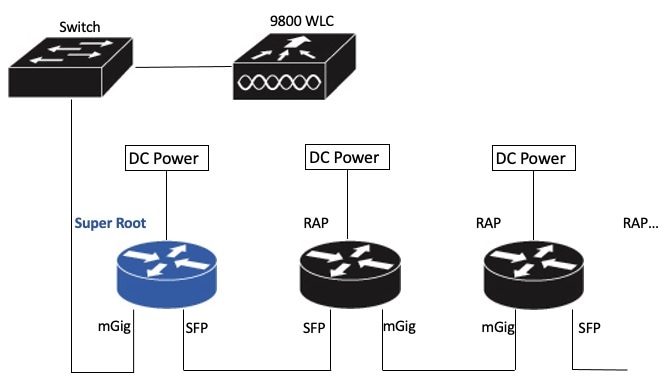
  • When Wireless Spanning Tree Protocol (WSTP) hello is enabled, the system supports automatic root port detection. This feature allows the RAP to use any port as its uplink. The subsequent topology diagram illustrates this feature.

    Figure 2. RAP Ethernet Daisy Chain With WSTP Topology
  • A new command neamed rap-eth-daisychain is introduced to enable the feature.

Wireless LAN Spanning Tree Protocol

Wireless LAN spanning tree protocol (WSTP) organizes a Cisco mesh network into a loop-free spanning tree topology. It quickly configures a mesh network into a stable, loop-free, optimal spanning tree topology. An optimal topology provides least-cost paths to the primary Ethernet LAN. WSTP Hello messages are used to build the WSTP topology.

The WSTP super root is a single RAP that is elected as the highest level “super” root for the entire WSTP spanning tree. The super root is directly attached to the primary LAN and transmits zero-cost WSTP SR Hello messages on its Ethernet root port to advertise the primary LAN to RAPs.

Comparison with previous releases

The following table compares the daisy chain features in current release and prior to 17.11:

Prior to Release 17.11.1

Release 17.11.1

Topology

Fixed topology

RAP must use its mGig port as uplink in daisy chain topology

Flexible topology

RAP can use either the mGig port or the SFP port as an uplink in the daisy chain topology. To enable this, use WSTP on the AP.

Feature enablement

Persistant-ssid in AP profile

1

rap-eth-daisychain in Mesh profile

Ring Topology

Not supported 2

Not supported

1 Persistant-ssid is still supported in 17.11. This ensures the daisy chain function is not impacted after upgrading from a previous release to 17.11 with the old configuration. However, persistant-ssid is not recommended in 17.11. The new rap-eth-daisychain command is recommended.
2 Supported only on IW6300 access point, by enabling daisychain-stp-redundancy. For more information, see the RAP Ethernet Daisy Chain Redundancy for STP Ring Topology section in Cisco Catalyst IW6300 Heavy Duty Series and 6300 Series Embedded Services Access Point Software Configuration Guide.

RAP Ethernet Daisy Chain configuration

This section provides procedures for the RAP Ethernet daisy chain configuration.

Preconfigure RAP Ethernet Daisy Chain before field deployment

This procedure describes how to complete the preconfiguration steps in the lab before setting up for field deployment.

Procedure

Step 1

Unpack, connect, and power on the AP.

Step 2

Join each AP to controller with mGig port. Refer to the figure for details.

Step 3

Configure the AP to bridge mode. Then, set the AP role to Root AP.

For detailed configuration procedures, see https://www.cisco.com/c/en/us/td/docs/wireless/controller/9800/17-11/config-guide/b_wl_17_eleven_cg/m_mesh_ewlc.html#task_pnb_bwy_mlb .

Step 4

Configure the RAP Ethernet Daisy Chain.

  1. Create a mesh profile and enable the RAP Ethernet Daisy Chain feature.

    See Enabling RAP Ethernet Daisy Chain .

  2. Attach the profile to all RAPs.

  3. Configure one AP as the Super Root. This AP should be the first hop to the wireless controller.

    See Configure Super Root .

  4. Configure the primary Ethernet port on the Super Root AP if you use the SFP port as the uplink.

    See Configure primary Ethernet port .

Step 5

Enable Ethernet Bridging and Configure Ethernet port.

See Configuring Ethernet Bridging and Ethernet Port .

  1. Enable Ethernet Bridging.

  2. Configure the Ethernet port on both Port 0 and Port 1, including port mode and VLAN. Configuring the port as trunk mode is recommended.

Step 6

Verify the behavior in daisy chain topology.

  1. Connect the RAPs using the wired port, one at a time.

    Note


    The RAP which is the first hop from wireless controller should be configured as Super Root, as shown in the figure.

  2. Ensure that each RAP at every hop can join the controller.

Note


In field deployment, just repeat Step 6 of this procedure. Make sure you configure the first hop as Super Root.


Enable RAP Ethernet Daisy Chain from CLI

This procedure describes how to enable RAP Ethernet Daisy Chain feature.

Procedure

Step 1

Use the configure terminal command to enter into configuration mode.

Example:
Device# configure terminal

Step 2

Use the wireless profile mesh profile command to configure a mesh profile and enter mesh profile configuration mode.

Example:
Device(config)# wireless profile mesh default-mesh-profile

Step 3

Use the ethernet-bridging command to connect remote wired networks to each other.

Example:
Device(config-wireless-mesh-profile)# ethernet-bridging

Step 4

Use the rap-ethernet-daisychain command to enable the RAP Ethernet Daisy Chain feature on a Remote Access Point (RAP).

Example:
Device(config-wireless-mesh-profile)# rap-ethernet-daisychain

Step 5

(Optional) Use the show wireless profile mesh detailed command or show wireless mesh ethernet daisy-chain summary command to verify the configuration on the wireless controller.

Example:
Device# show wireless profile mesh detailed <profile name>

…
RAP ethernet daisychain       : ENABLED
Device# show wireless mesh ethernet daisy-chain summary

AP Name      BVI MAC        BGN        Backhaul          Ethernet      STP Red        Super Root
----------------------------------------------------------------------------------------------------
APxxxxxx     xxxxxxx       xxxxx       Ethernet0          Up Up          NA            Enabled

Or use the show mesh config command on AP, as shown in the following example:

Device#show mesh config
…
RAP Ethernet Daisy Chain: Enabled
  Daisy Chain Root: Disabled

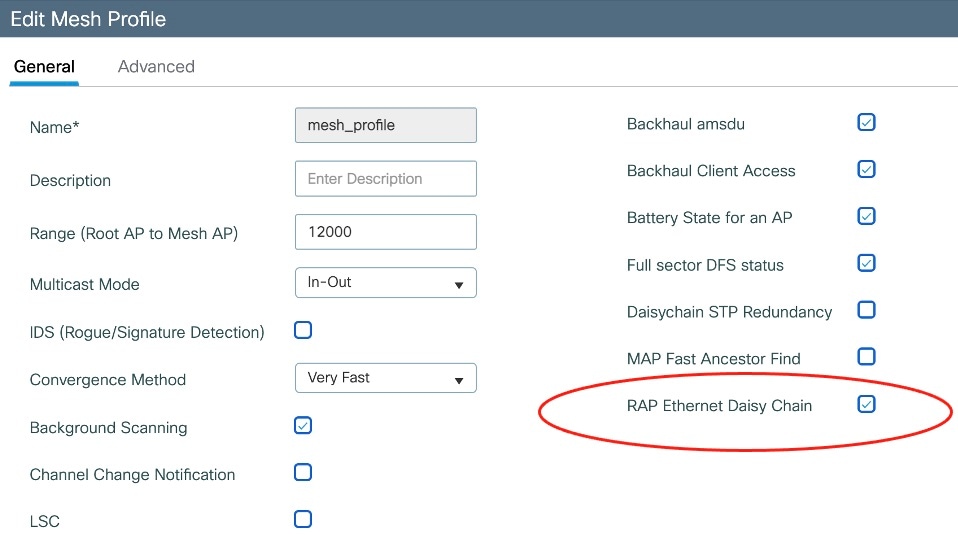
Enable RAP Ethernet Daisy Chain from GUI

This procedure describes how to Enable RAP Ethernet Daisy Chain from GUI.

Before you begin
Procedure

Step 1

Choose Configuration > Wireless > Mesh > Profiles.

Step 2

Click the mesh profile.

The Edit Mesh Profile page is displayed.

Step 3

Check the RAP Ethernet Daisy Chain check box.

Step 4

Click Update & Apply to Device.


Configure Super Root

This procedure ensures that the first RAP connected to the upstream switch is configured as the super root.

The super root device acts as the originator of all WSTP hello messages. Other RAPs initiate hello messages only after they receive messages from the super root. This approach establishes proper topology formation and prevents loops.

You can configure the super root from either the wireless controller or the AP.

Procedure

Step 1

Use the ap nameap-name mesh rap-eth-daisychain super-root command to configure a super root from the controller.

Example:
Device# ap name ap-1 mesh rap-eth-daisychain super-root

Step 2

Use the capwap ap mesh wstp super-root command to configure a super root from the AP.

Example:
Device# capwap ap mesh wstp super-root

Step 3

(Optional) Use the show ap name mesh config general command from the controller to display the general mesh configuration parameters for a specific access point (AP).

Example:
Device# show ap name ap-1 mesh config general
…
RAP ethernet daisychain                 : Enabled
Super Root                              : Enabled

Step 4

(Optional) Use the show mesh config command from the AP to display the general mesh configuration parameters.

Example:
Device# show mesh config
…
RAP Ethernet Daisy Chain: Enabled
Daisy Chain Root: Enabled

Configure primary Ethernet port

This procedure ensures that the super root access point establishes its uplink to the upstream switch through the designated primary Ethernet port.

For the IW9167EH, Ethernet port 0 is the default primary port and must be used to maintain proper topology formation and WSTP operation.

Procedure

Step 1

Use the ap nameap-name mesh backhaul ethernetethernet-num command to configure the primary Ethernet port from the controller.

Example:
Device# ap name ap-1 mesh backhaul ethernet 1

Step 2

(Optional) Use the show ap name mesh config general command from the controller to display the general mesh configuration parameters for a specific access point (AP).

Example:
Device# show ap name ap-1 config general
…
AP Primary Ethernet port                        : 1
RAP ethernet daisychain                         : Enabled
Super Root                                      : Disabled

Step 3

(Optional) Use the show mesh config command from the AP to display the general mesh configuration parameters.

Example:
Device# show mesh config
…
RAP Ethernet Daisy Chain: Enabled
  Daisy Chain Root: Enabled
AP Primary ethernet backhaul interface: 1

Step 4

(Optional) Use the show mesh adjacency parent command from the AP to verify the parent-child relationship in a mesh topology.

Example:

Device# show mesh adjacency parent

AdjInfo: Wired Backhaul: 1 [xx:xx:xx:xx:xx:xx]

Configuring Ethernet Bridging and Ethernet Port

Configure Ethernet bridging from CLI

This procedure ensures that Ethernet connectivity is enabled on Mesh Access Points (MAPs) by configuring Ethernet bridging on the Root AP and the corresponding MAPs. Enabling Ethernet bridging activates the MAP Ethernet ports, allowing wired devices to connect and communicate through the mesh network.

To enable Ethernet bridging on the AP, complete these steps:

Procedure

Step 1

Use the configure terminal command to enter global configuration mode.

Example:
Device# configure terminal

Step 2

Use the wireless profile meshprofile-name command to create a mesh profile and enter the mesh configuration mode.

Example:
Device(config)# wireless profile mesh rap-eth-daisy

Step 3

Use the ethernet-bridging command to connect remote wired networks to each other.

Example:
Device(config-wireless-mesh-profile)# wireless profile mesh rap-eth-daisy

Step 4

Use the no ethernet-vlan-transparent command to disable VLAN transparency to ensure that the bridge is VLAN aware.

Example:
Device(config-wireless-mesh-profile)# no ethernet-vlan-transparent

Step 5

Use the end command to return to privileged EXEC mode.

Example:
Device(config-wireless-mesh-profile)# end

Step 6

(Optional) Use the show wireless profile mesh detailed rap-eth-daisy command to verify the configuration.

Example:
Device# show wireless profile mesh detailed rap-eth-daisy

Mesh Profile Name           : rap-eth-daisy
--------------------------------------
Description                 :
Bridge Group Name           : unconfigured
Strict match BGN            : DISABLED
Amsdu                       : ENABLED
Background Scan             : DISABLED
Channel Change Notification : DISABLED
Backhaul client access      : DISABLED
Ethernet Bridging           : ENABLED
Ethernet Vlan Transparent   : DISABLED
Daisy Chain SP Redundancy   : DISABLED
Full Sector DFS             : ENABLED


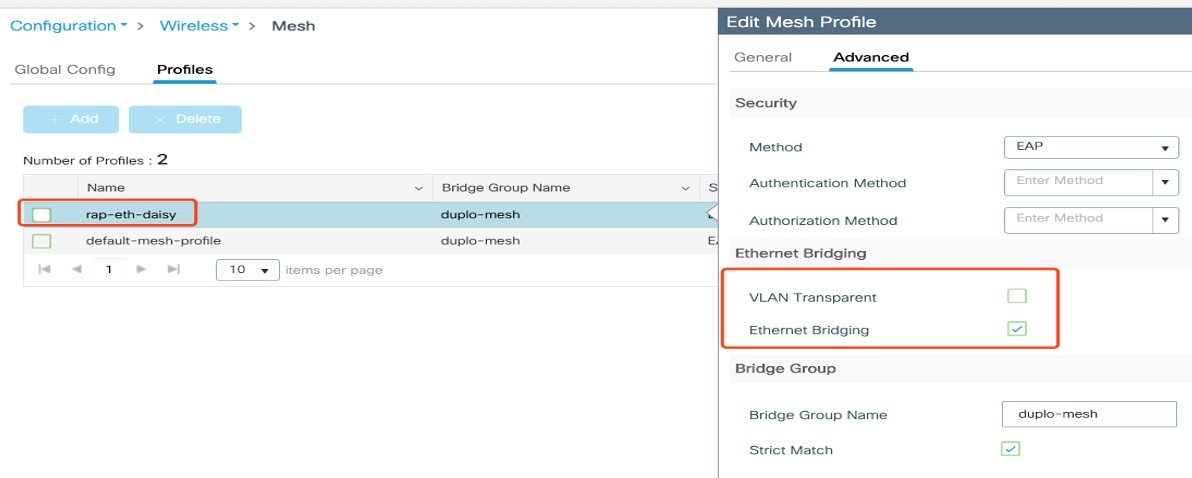
Configure Ethernet bridging from GUI

This procedure enables Ethernet bridging on the Root AP and associated MAPs, allowing Ethernet traffic to be forwarded across the mesh network.

Follow these steps to configure Ethernet Bridging from wireless controller GUI:

Procedure

Step 1

Choose Configuration > Wireless > Mesh > Profiles .

Step 2

Click Add .

Step 3

In General tab, enter the Name of the mesh profile.

Step 4

In Advanced tab, uncheck the VLAN Transparent check box to disable VLAN transparency.

Step 5

In Advanced tab, check the Ethernet Bridging check box.

Step 6

Click Apply to Device .


Configure the Ethernet port from the CLI

This procedure describes how to configure the Ethernet port on a RAP.

The secondary Ethernet port on the RAP supports Access mode and Trunk mode..

Procedure

Step 1

Use the ap nameap-name mesh ethernet ethernet mode access vlan-ID command to configure the Ethernet port in Access mode.

Example:
Device# ap name ap-1 mesh ethernet 1 mode access 4

Step 2

Configure the Ethernet port in Trunk mode.

VLAN support must be enabled, and VLAN transparency must be disabled in your mesh profile.

  1. Use the ap nameap-name mesh vlan-trunking native vlan-ID command to configure the Ethernet port in Trunk mode.

    Example:
    Device# ap name ap-1 mesh vlan-trunking native 4
  2. Use the ap nameap-name mesh ethernet ethernet mode trunk vlan native vlan-ID command to configure the Ethernet port in Trunk mode.

    Example:
    Device# ap name ap-1 mesh ethernet 1 mode trunk vlan native 4
  3. Use the ap nameap-name mesh ethernet ethernet mode trunk allowed vlan-ID command to configure the allowed VLANs for the trunk port.

    Example:
    Device# ap name ap-1 mesh ethernet 1 mode trunk allowed 4

    VLAN filtering is permitted on an Ethernet port of any Mesh or Root Access Point. This setting is active only when VLAN transparency is disabled in the mesh profile.


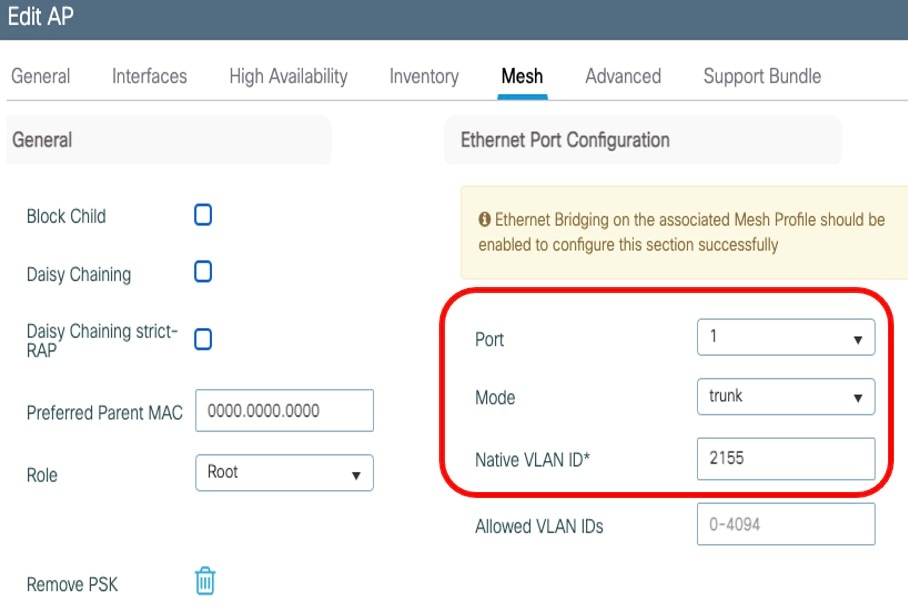
Configure Ethernet port from GUI

This procedure describes how to configure Ethernet port from wireless controller GUI:

Procedure

Step 1

Choose Configuration > Wireless > Access Points.

The All Access Points section, which lists all the configured APs in the network, is displayed with their corresponding details.

Step 2

Click the configured mesh AP.

The Edit AP window is displayed.

Step 3

Choose the Mesh tab.

Step 4

In the Ethernet Port Configuration section, from the Port drop-down list, choose the port to configure.

Step 5

From the Mode drop-down list, choose access mode or trunk mode.

Step 6

In the Native VLAN ID field, enter the native VLAN for the trunk port.

Step 7

Click Update and Apply to Device.


Debug and verify WSTP

This procedure describes how to use CLI commands to debug the Wireless Termination Point (WTP) and to display Wireless Spanning Tree Protocol (WSTP) statistics.

Procedure

Step 1

Use the debug mesh wstp command to debug WTP.

Example:
AP# debug mesh wstp

error    Mesh wstp error debugs
events   Mesh wstp events debugs
packets  Mesh wstp packet debugs

Step 2

Use the show mesh stats command to display the WSTP statistics.

Example:
AP# show mesh stats

WSTP stats:
Attach-Cnt Hello-TX Hello-Rx TCN-TX TCN-RX SR-Chg-Cnt ST-Roam-Cnt
	0       58       58      0      0          0           0

GNSS

With Release 26.1.1, two GNSS enhancements are available: an option to enable or disable GNSS from the controller, and improved output for the show gnss info command, offering more detailed runtime status and diagnostics.

Disable GNSS

From release 26.1.1, you can dynamically disable the GNSS service on a specific access point. This capability is especially useful when weak satellite signals could cause an AP to report inaccurate coordinates. By disabling GNSS in such cases, you can prevent incorrect location data from affecting the system and ensure the AP uses an alternative location source.

Use this procedure on the controller to disable the GNSS service.

Procedure


Use the ap name ap-name geolocation gnss shutdown command to specify the AP and disable the GNSS service on that AP.

Example:

Device# ap name AP-BLR-01 geolocation gnss shutdown

The configuration persists across AP reboots.


Enable GNSS

Use this procedure on the controller to enable the GNSS service.

Procedure


Use the ap name ap-name no geolocation gnss shutdown command to specify the AP and enable the GNSS service on that AP.

Example:

Device# ap name AP-BLR-01 no geolocation gnss shutdown

Check the status of the GNSS module

Starting with release 26.1.1, you can set the state of the GNSS module to administratively down. Use this procedure on the AP to check the status of the GNSS module.

Procedure


Use the show gnss info command to view the status of the GNSS module.

Example:

Device# show gnss info

GNSS State Down

GNSS status and diagnostics

The updated show gnss info command now includes more detailed runtime GNSS status and diagnostics including satellite distribution, signal quality, number of satellites, location, uncertainty ellipse and more.

A sample output is provided.

AP# show gnss info

GnssState: Started
ExternalAntenna: true
Fix: 3D-Fix ValidFix: true Time: 2022-01-01 00:01:01
Latitude: 37.4080 Longitude: -121.9530
HorAcc: 0 hDOP: 0.84
Uncertainty Ellipse:
 Major axis: 0 Minor axis: 0 Orientation: 0
Altitude MSL: 176.4 HAE: 0 VertAcc: 0
NumSat: 10
pDOP: 1.75 hDOP: 0.84 vDOP: 1.54 nDOP: 99.99 eDOP: 99.99 gDOP: 99.99 tDOP: 99.99
LastFixTime: 2022-01-01 00:01:00
SatelliteCount: 4

Const.    SatId CNO   Elev. Azim.
GPS       1     47    28    110
GPS       7     44    55    127
GPS       8     45    19    44
GPS       9     42    3     175

GNSS_PostProcessor:
Latitude: 37.4080 Longitude: -121.9530
HorAcc: 32.413618 hDOP: 18.628516
Uncertainty Ellipse:
 Major axis: 44.269861 Minor axis: 10.924539 Orientation: 141.70748
Altitude MSL: 360.78333 HAE: 0 VertAcc: 0

CiscoGNSS: N/A

Last Location Acquired:
Latitude: 37.4080 Longitude: -121.9530
HorAcc: 3.6618832 hDOP: 2.1045306
Uncertainty Ellipse:
 Major axis: 5.151356 Minor axis: 0.00035979961 Orientation: 146.63993
Altitude MSL: 310.9 HAE: 0 VertAcc: 0
Derivation Type: GNSS_PostProcessor
Time: 2025-10-05 01:28:46