Cisco Embedded Wireless Controller on Catalyst Access Points

Cisco Embedded Wireless Controller on Catalyst Access Points are the next generation wireless controllers that

  • are IOS XE based and integrate the Radio Frequency (RF) performance excellence from Aironet systems,

  • supports intent-based networking that are easy to adapt and scale, and

  • are available in multiple physical and virtual form factors for flexible management options.

Available form factors and deployment options

You can deploy the controllers as physical appliances .

Management options

You can managed them the Cisco Embedded Wireless Controller on Catalyst Access Points with:

  • Cisco Catalyst Center

  • NETCONF or YANG, or

  • GUI or CLI.

New configuration model, tags, and profile

The new configuration model is a wireless network configuration approach that

  • uses profiles to define feature-specific parameters

  • uses tags to bundle and apply profiles to APs, and

  • separates policy, site, RF, and WLAN definitions for modular deployment.

Profiles define attributes such as WLAN policy, RF behavior, and AP join characteristics. Tags are logical containers that map these profiles to APs, ensuring flexible and scalable configurations.

A tag is a logical container that

  • is defined by the property of policies you associate with it

  • maps multiple profiles—policy, site, and RF—to an AP or client, and determines that device's configuration and behavior, and

  • enables modular and flexible deployment across sites.

Every tag has a default that is created when the system boots up.

A profile is a logical container that

  • include feature-specific attributes and parameters applied to tags

  • represent multiple attributes related to policy, site, and RF

  • determine the configuration and behavior of applied APs and associated clients, and

  • is a reusable entities that can be used across tags.
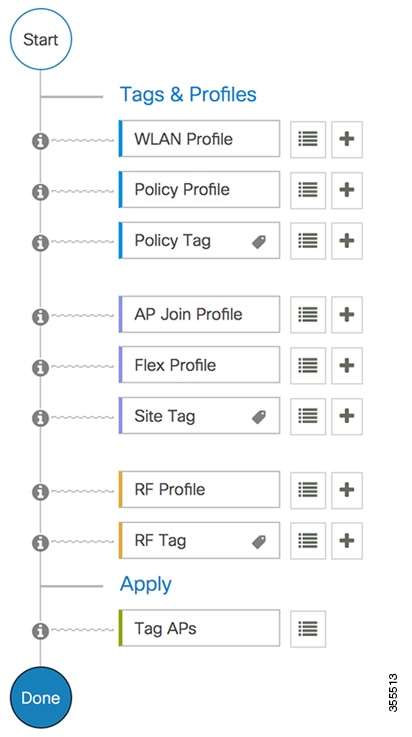
Configuration workflow

Configuring wireless networks involves establishing profiles and tags that link configurations to APs for effective wireless management.

Summary

The key components involved in the process are:

  • Profiles: Logical groupings of settings (such as WLAN, Policy, AP Join, Flex, and RF) used to configure APs.

  • Tags: Logical containers or labels (such as Policy, Site, Tag) that help link profiles with APs.

  • APs: Devices that implement the configurations provided by profiles and tags to deliver wireless connectivity.

Workflow

Figure 1. Configuration workflow

These are the stages of configuration:

  1. Profile creation creates specific profiles:
    • WLAN profile for managing wireless network settings.
    • Policy profile for enforcing network rules.
    • AP Join profile for controlling AP associations.
    • Flex profile for handling local switching.
    • RF profile for optimizing radio frequency settings.
  2. Tag creation: generates tags to complement profiles:
    • Policy tag to align with the Policy profile.
    • Site tag for specific location identification.
    • RF tag corresponding to the RF profile.
  3. Tag association: associates the created tags with an AP to apply the configured settings and policies.

Result

The configuration workflow enables APs to be set up correctly with designated profiles and tags, resulting in efficient network operation and management.

Initial Setup

Setting Up the Controller

The initial configuration wizard in Cisco Embedded Wireless Controller on Catalyst Access Points is a simplified, out-of-the-box installation and configuration interface for the controller. This section provides instructions to set up a controller to operate in a small, medium, or large network wireless environment, where access points can join and together as a simple solution provide various services, such as corporate employee or guest wireless access on the network.


Note


  • From Cisco IOS XE Amsterdam 17.1.x onwards, date and time will not reflect in the web UI unless it synchs with Network Time Protocol (NTP).

  • When the AP has rebooted in the EWC mode, it broadcasts a provisioning SSID ending with the last digits of the MAC address. You can connect to the provisioning SSID using the PSK password.

  • You can then open a browser and you are redirected to mywifi.cisco.com which takes you to the AP web UI. Enter the username as webui and password as cisco.

  • We recommend that you use the wireless ewc-ap factory-reset command to reset the EWC device to Day0 state (with the configuration wizard). This command also resets all the APs and EWC-APs in the network to Day0 state. You can use the erase startup-config command to remove the configuration from the device. However, this is not synced to other devices in the network.

  • After completing the Day0 wizard, the internal AP disjoins, and rejoins after one minute.

  • The wireless management must be the AP Gigabit port and you cannot have several SVIs configured in IOS-XE.


Interactive help

Interactive help is a user interface feature that

  • provides step-by-step guidance within the application

  • adapts instructions and walk-throughs to the user's context, and

  • assists users in completing complex configurations or navigating the system.

Modes of starting the interactive Help

You can start the interactive help in the these ways.

  • Hover over the blue flap at the right-hand corner of a window in the GUI and clicking Interactive Help.

  • Click Walk-me Thru in the left pane of a window in the GUI.

  • Click Show me How whenever displayed in the GUI. Clicking Show me How triggers a specific interactive help that is relevant to the context you are in.

    For example, Show me How in Configure > AAA walks you through the various steps for configuring a RADIUS server. Choose Configuration> Wireless Setup > Advanced and click Show me How to trigger the interactive help that walks you through the steps relating to various kinds of authentication.

Additional troubleshooting information

If the WalkMe launcher is unavailable on Safari, modify the browser settings.

  1. Choose Preferences > Privacy.

  2. In the Website tracking section, uncheck the Prevent cross-site tracking check box to disable this action.

  3. In the Cookies and website data section, uncheck the Block all cookies check box to disable this action.